> ## Documentation Index
> Fetch the complete documentation index at: https://dragonwingdocs.qualcomm.com/llms.txt
> Use this file to discover all available pages before exploring further.
# Use AI Hub to optimize a model
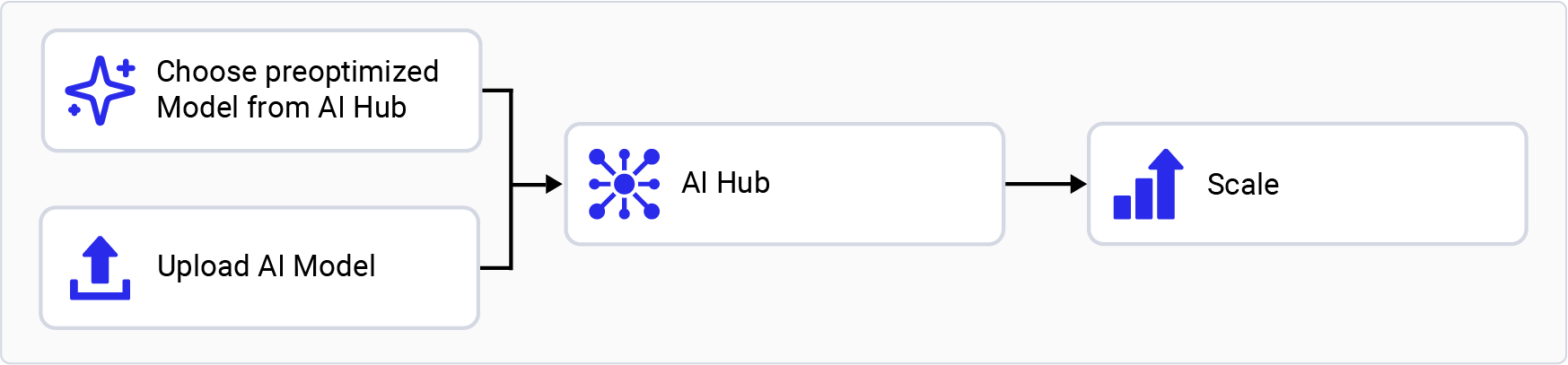
> Use Qualcomm AI Hub to download preoptimized models or compile and optimize your own models for deployment on Qualcomm Dragonwing IoT platforms.
For quick prototyping of models on Qualcomm AI hardware, AI Hub
provides a way to optimize, validate, and deploy machine learning
models on-device for vision, audio, and speech use cases.
## Set up your environment
Install
[miniconda](https://docs.conda.io/projects/miniconda/en/latest/miniconda-install.html)
on your host machine.
Set up a Python virtual environment for AI Hub:
```shell theme={null}
conda activate
```
```shell theme={null}
conda create python=3.10 -n qai_hub
```
```shell theme={null}
conda activate qai_hub
```
```shell theme={null}
sudo apt-get install git
```
```shell theme={null}
pip3 install qai-hub
```
```shell theme={null}
pip3 install "qai-hub[torch]"
```
Go to [AI Hub](https://aihub.qualcomm.com/) and sign in with your
Qualcomm ID to view information about jobs you create.
Once signed in, go to **Account > Settings > API Token** to obtain the API token used to configure your client.
```shell theme={null}
qai-hub configure --api_token
```
## Choose an AI Hub workflow
### Try a preoptimized model
Go to [AI Hub Model Zoo](https://aihub.qualcomm.com/iot/models) to access preoptimized models available for Qualcomm evaluation kits.
Select the matching chipset in the left pane. For example,
select **Qualcomm QCS6490** for the Qualcomm Dragonwing™ RB3 Gen 2.
Select a model from the filtered view to go to the model page.
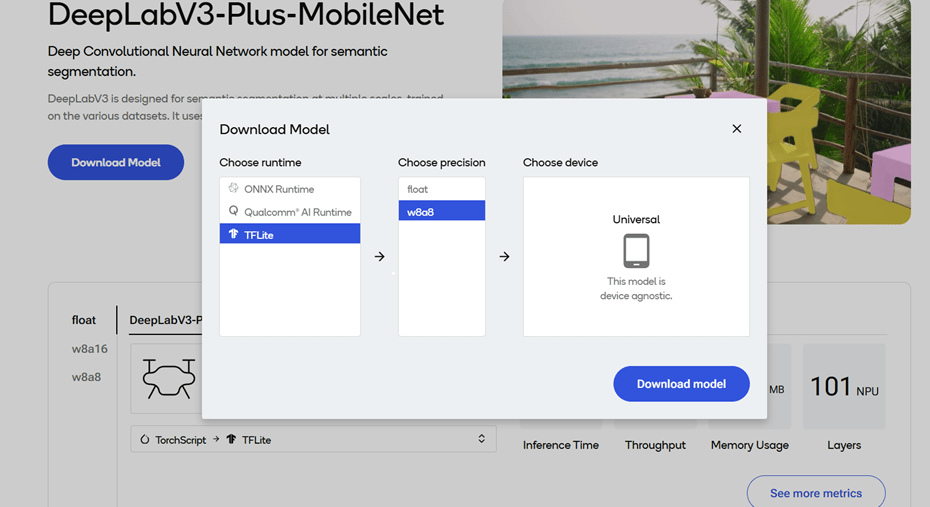
On the model page, select the runtime and precision.
Select **Download** to download the model. The downloaded model is preoptimized and ready for deployment. See [Run inference](../map/use-available-frameworks-and-runtimes) for more information.
### Bring your own model
Select a pretrained model in PyTorch or ONNX format.
Submit a model for compilation or optimization to AI Hub using Python APIs.
When submitting a compilation job, select a device or chipset for your EVK and the target runtime. For Qualcomm Dragonwing™ RB3 Gen 2, the LiteRT runtime is supported.
| **Chipset** | **Runtime** | **CPU** | **GPU** | **HTP** |
| ------------------------------ | ----------- | --------------- | --------- | ---------- |
| Qualcomm Dragonwing™ RB3 Gen 2 | LiteRT | INT8,FP16, FP32 | FP16,FP32 | INT8,INT16 |
On submission, AI Hub generates a unique ID for the job. You can use
this job ID to view job details.
AI Hub optimizes the model based on your device and runtime selections.
* Optionally, you can submit a job to profile or run inference on the
optimized model (using Python APIs) on a real device provisioned
from a device farm.
* **Profiling**: Benchmarks the model on a provisioned device and
provides statistics, including average inference times at the
layer level, runtime configuration, etc.
* **Inference**: Performs inference using an optimized model on data
submitted as part of the inference job by running the model on
a provisioned device.
Each submitted job is available for review in the AI Hub portal. A completed compilation job provides a downloadable link to the optimized model, which can then be deployed on a local development device such as Qualcomm Dragonwing™ RB3 Gen 2.
The following example, taken from the [AI Hub documentation](https://workbench.aihub.qualcomm.com/docs/), uploads a pretrained MobileNet V2 model from PyTorch to AI Hub and compiles it to an optimized LiteRT model for Qualcomm Dragonwing™ RB3 Gen 2.
```python theme={null}
import torch
import torchvision
import qai_hub as hub
client = hub.Client()
# Using pre-trained MobileNet
torch_model = torchvision.models.mobilenet_v2(pretrained=True)
torch_model.eval()
# Trace model
input_shape: tuple[int, ...] = (1, 3, 224, 224)
example_input = torch.rand(input_shape)
with torch.no_grad():
pt2_model = torch.export.export(torch_model, (example_input,))
# Compile model on a specific device
compile_job = client.submit_compile_job(
pt2_model,
name="MobileNet_V2",
device=hub.Device("Dragonwing RB3 Gen 2 Vision Kit"),
input_specs=dict(image=input_shape),
)
# Download the optimized compiled model
compile_job.download_target_model("MobileNet_V2.tflite")
```
To deactivate a previously activated `qai_hub` environment, use the following command.
```shell theme={null}
conda deactivate
```
Once the model is downloaded, it is ready for deployment. See [Run inference](../map/use-available-frameworks-and-runtimes) for next steps.
For more details about the AI Hub workflow and APIs, see the [AI Hub documentation](https://workbench.aihub.qualcomm.com/docs/hub/index.html#examples),
explore the [AI Hub tutorial videos](https://www.youtube.com/watch?v=V1CDWYZ7Shw\&list=PLxeazpXYyqtOowtUdvigvAgMV5_K1KIrh),
or watch the following video about how to profile models in AI Hub.
 ## Set up your environment
 ### Bring your own model