> ## Documentation Index
> Fetch the complete documentation index at: https://dragonwingdocs.qualcomm.com/llms.txt
> Use this file to discover all available pages before exploring further.
# Add postprocessing support for a custom model
> Add custom model postprocessing support to a Qualcomm IM SDK pipeline using the qtimlpostprocess plugin.
This guide describes how to add model postprocessing support in a Qualcomm IM SDK pipeline.
This is necessary in cases where the Qualcomm IM SDK plugin doesn't support postprocessing
for the model.
For background on how post-processing fits the pipeline, see the [IM SDK overview](../topic/develop-your-own-application-im-sdk). For the full `qtimlpostprocess` reference and custom-plugin build details, see [Discover SDKs → IM SDKs](https://imsdkdocs.qualcomm.com/plugin-reference/introduction).
This section covers the following topics.
1. [An overview of the AI IM SDK pipeline](#ai-im-sdk-pipeline).
2. [An introduction to the qtimlpostprocess plugin](#postprocessing-plugin-introduction).
3. [How to write a postprocessing module](#write-postprocessing-module).
4. [How to compile your postprocessing module](#compile-postprocessing-module).
5. [How to deploy and test your postprocessing module](#deploy-test-postprocessing-module).
This example explains the steps to add custom YOLOv8 model postprocessing to the `qtimlpostprocess` plugin.
The following diagram shows the process to add your own postprocessing model, from
developing and integrating the model to running the reference app.
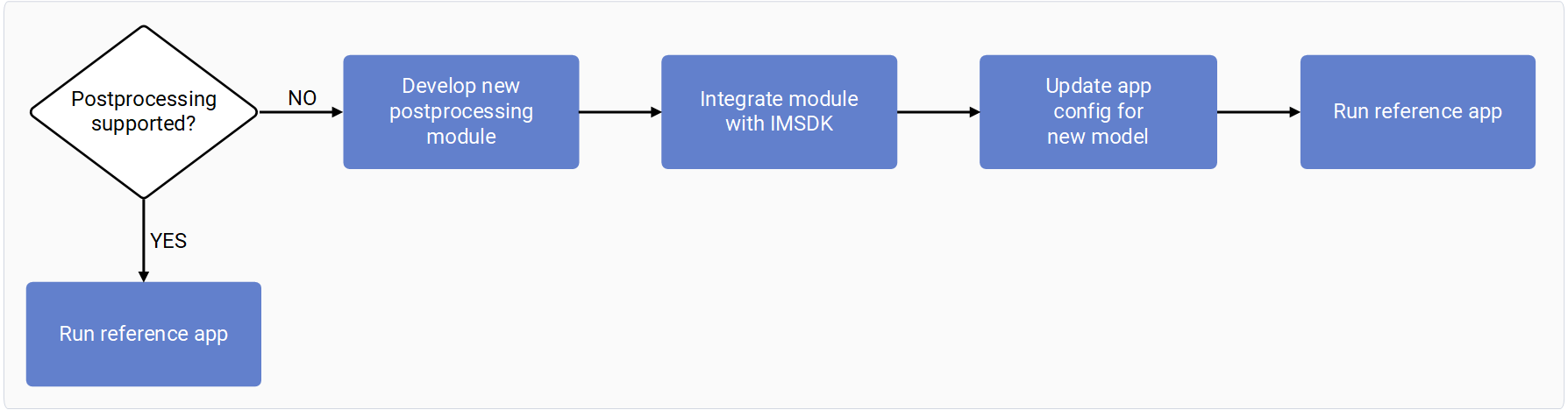
Overview of AI IM SDK pipeline
Qualcomm Intelligent Multimedia SDK (IM SDK) contains necessary
building blocks to construct AI, multimedia, and computer vision pipelines
to build applications.
Building an AI workflow with IM SDK involves three key GStreamer plugins.
1. Preprocessing element: Converts the incoming data stream to a tensor
format suitable for AI inferencing.
2. Inferencing element: Executes inferencing using an AI model and applies
dequantization to the output tensor. This element performs no
preprocessing or postprocessing beyond dequantization.
3. Postprocessing element: Parses the output tensors and generates a buffer
containing machine learning metadata. This element outputs metadata in
one of the following ways.
* By attaching it to the source stream using `qtimetamuxer`
* By streaming it directly to endpoints like RTSP, RTMP, or Redis.
* As an image mask to be overlaid on the source video frame using `qtivcomposer`.
 ### Example: Use ML metadata directly
In the following example the source stream isn't propagated after the inference plugin.
### Example: Use ML metadata directly
In the following example the source stream isn't propagated after the inference plugin.
 ### Example: Attach ML metadata in the source video
In the following example the ML metadata is attached to the source video.
The overlay uses the attached ML metadata to draw bounding boxes, text,
and other visual elements. The result is either displayed on screen or
streamed over a network.
### Example: Attach ML metadata in the source video
In the following example the ML metadata is attached to the source video.
The overlay uses the attached ML metadata to draw bounding boxes, text,
and other visual elements. The result is either displayed on screen or
streamed over a network.
 ### Example: Convert ML metadata to an image mask
In the following example, the ML metadata is converted into an image mask and then
blitted on top of the source stream.
### Example: Convert ML metadata to an image mask
In the following example, the ML metadata is converted into an image mask and then
blitted on top of the source stream.

Introduction to AI Post Processing plugin in IM SDK
`qtimlpostprocess` is a customizable plugin that provides a library interface for
postprocessing the tensor output of inference plugins. The postprocessing library
is responsible for tensor parsing and outputs a list of predictions.
The postprocessing (PP) module handles one type of machine learning (ML) model.
Each PP module handles a specific type of model and its variants, such as
all YOLOv8 detection model variants. The plugin manages the execution of the module,
output generation (ML metadata or image masks), batching, ML staging, and other related tasks.
The following image shows the relationship between the inputs, outputs, postprocessing
module, and the postprocessing plugin.
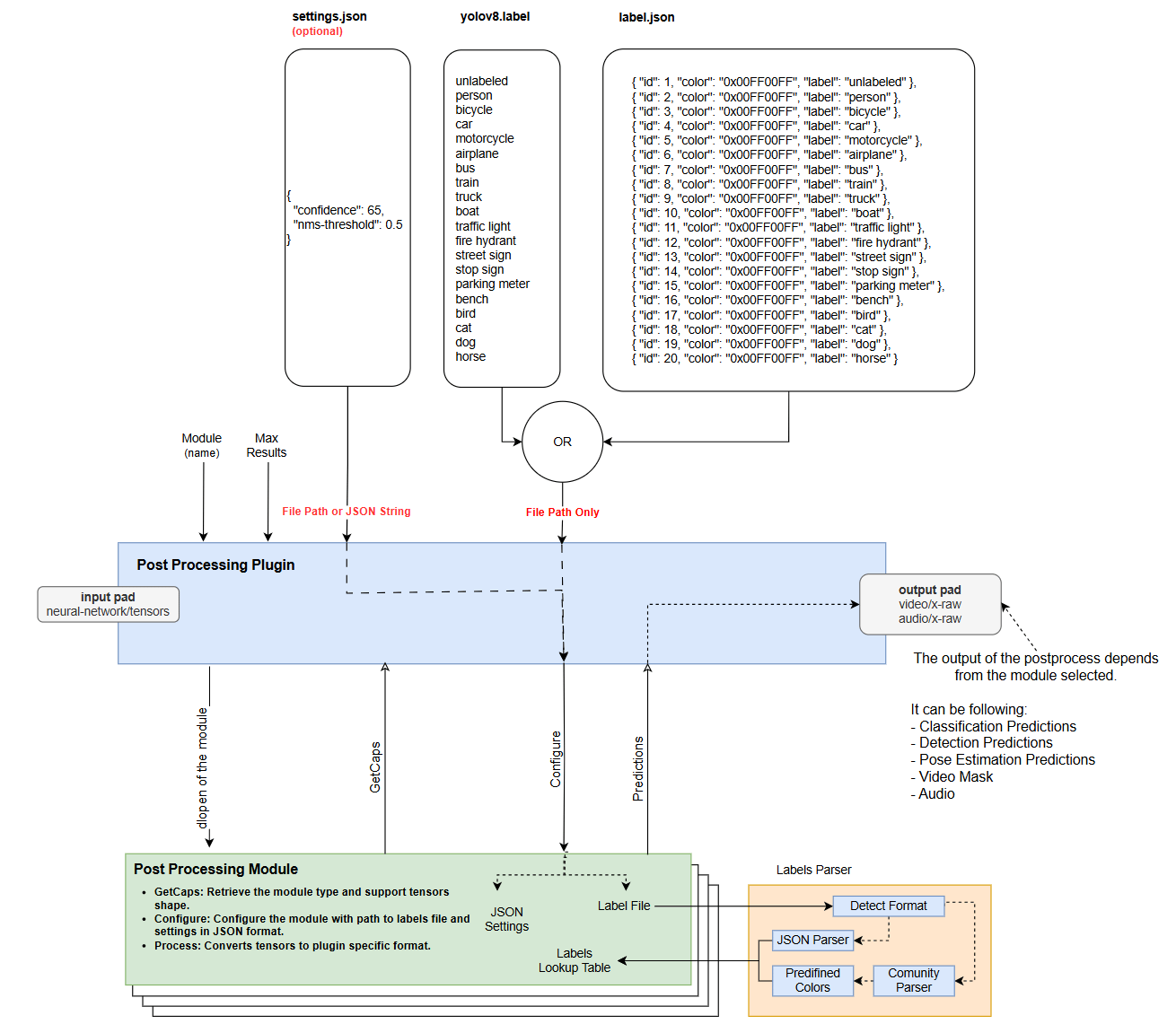 The postprocessing plugin supports the following model types:
* Object detection
* Image classification
* Image segmentation
* Super resolution
* Pose estimation
* Audio classification
The postprocessing plugin receives a list of tensors as input.
These tensors are encapsulated in GST Buffers. Machine learning metadata is attached to
each buffer, specifying details like the number of tensors, tensor shapes, model input
tensor shapes, how much of each input tensor is filled with data from the stream,
timestamps, and batching indexes.
The postprocessing plugin can generate one of the following formats:
* Text: The postprocessing plugin serializes machine learning metadata to text. This
metadata can be used as-is by other plugins or attached to the source stream using
`qtimetamuxer`.
* Image mask: The postprocessing plugin can generate an image mask with overlaid text,
bounding boxes, dots, lines, and other visual elements. This is a transparent frame
that contains only machine learning results.
For example, if the postprocessing type is object detection, the plugin draws bounding
boxes with labels. The `qtivcomposer` plugin can then blit the image mask onto the
source video stream.
* Tensor: The postprocessing plugin can generate tensors. Use this when the next inference
stage requires the output tensor from the current inference stage, but the tensor shapes
don't match exactly.
For example, the first stage produces four output tensors and the next stage
requires three of them.
While the GStreamer pipeline caps negotiation determines the output format. The most
suitable format is negotiated automatically, but you can specify it manually with a GStreamer caps filter.
The plugin supports only one source pad. If the pipeline requires two or more of the
supported formats simultaneously, add and run the postprocessing plugin twice within
the pipeline.
The postprocessing plugin configuration consists of the following (GStreamer properties):
* Module: (mandatory) Postprocessing module name. This GStreamer property specifies how to
parse the tensor. It doesn't define the plugin output type. The output type is determined
during pipeline caps negotiation.
* Settings: (optional) JSON string or path to the JSON file. This configuration only applies
to the module and not to the plugin. It passes arbitrary configuration to the postprocessing
module because each module has specific needs.
For example, use it to pass confidence-threshold, key points, NMS thresholds, and tokens.
* Labels: (optional) Path to file with the labels. You can directly pass the path to the label
file to the module, using a newline-separated list of labels, JSON-formatted labels,
or a custom format. Parsers for the first two formats are available in the header files and
you can implement your own parser within the postprocessing module for custom formats.
* Results: (optional) For example, if the model detects 7 results but allows a maximum of 4, it
drops the 3 results with the lowest confidence scores. The plugin implements this feature, so
module developers don't need to handle it themselves.
The postprocessing plugin supports the following model types:
* Object detection
* Image classification
* Image segmentation
* Super resolution
* Pose estimation
* Audio classification
The postprocessing plugin receives a list of tensors as input.
These tensors are encapsulated in GST Buffers. Machine learning metadata is attached to
each buffer, specifying details like the number of tensors, tensor shapes, model input
tensor shapes, how much of each input tensor is filled with data from the stream,
timestamps, and batching indexes.
The postprocessing plugin can generate one of the following formats:
* Text: The postprocessing plugin serializes machine learning metadata to text. This
metadata can be used as-is by other plugins or attached to the source stream using
`qtimetamuxer`.
* Image mask: The postprocessing plugin can generate an image mask with overlaid text,
bounding boxes, dots, lines, and other visual elements. This is a transparent frame
that contains only machine learning results.
For example, if the postprocessing type is object detection, the plugin draws bounding
boxes with labels. The `qtivcomposer` plugin can then blit the image mask onto the
source video stream.
* Tensor: The postprocessing plugin can generate tensors. Use this when the next inference
stage requires the output tensor from the current inference stage, but the tensor shapes
don't match exactly.
For example, the first stage produces four output tensors and the next stage
requires three of them.
While the GStreamer pipeline caps negotiation determines the output format. The most
suitable format is negotiated automatically, but you can specify it manually with a GStreamer caps filter.
The plugin supports only one source pad. If the pipeline requires two or more of the
supported formats simultaneously, add and run the postprocessing plugin twice within
the pipeline.
The postprocessing plugin configuration consists of the following (GStreamer properties):
* Module: (mandatory) Postprocessing module name. This GStreamer property specifies how to
parse the tensor. It doesn't define the plugin output type. The output type is determined
during pipeline caps negotiation.
* Settings: (optional) JSON string or path to the JSON file. This configuration only applies
to the module and not to the plugin. It passes arbitrary configuration to the postprocessing
module because each module has specific needs.
For example, use it to pass confidence-threshold, key points, NMS thresholds, and tokens.
* Labels: (optional) Path to file with the labels. You can directly pass the path to the label
file to the module, using a newline-separated list of labels, JSON-formatted labels,
or a custom format. Parsers for the first two formats are available in the header files and
you can implement your own parser within the postprocessing module for custom formats.
* Results: (optional) For example, if the model detects 7 results but allows a maximum of 4, it
drops the 3 results with the lowest confidence scores. The plugin implements this feature, so
module developers don't need to handle it themselves.
Write a postprocessing module for a custom model
The postprocessing module is a shared library that parses tensor output from inference plugins.
The post-postprocessing GST plugin (`qtimlpostprocess`) loads and runs the module. IM SDK
provides a wide variety of out-of-the-box postprocessing modules:
* image-detection (yolov5, yolov8, yolonas, ssd-mobilnet, qfd, qpd, east-textdt)
* classification (mobilnet, resnet, ocr, qfr)
* pose-estimation (hrnet, lite-3dmm, posenet)
* segmentation (deeplab, midas-v2, yolov8)
* super-resolution (snet)
Use the `gst-inspect-1.0 qtimlpostprocess` to see the full list of supported modules on your device.
The following log shows an example output.
```
module : Module name that is going to be used for processing the tensors
flags: readable, writable
Enum "GstMLPostProcessModules" Default: 0, "none"
(0): none - No module, default invalid mode
(1): ssd-mobilenet -
Supported tensors:
Type: FLOAT32
Tensor 0: 1, 10, 4
Tensor 1: 1, 10
Tensor 2: 1, 10
Tensor 3: 1
(2): hrnet -
Supported tensors:
Type: FLOAT32
Tensor 0: 1, 1-256, 1-256, 1-17
(3): srnet -
Supported tensors:
Type: FLOAT32
Tensor 0: 1, 32-4096, 32-4096
Type: FLOAT32
Tensor 0: 1, 32-4096, 32-4096, 1-3
(4): yolov8-seg -
Supported tensors:
Type: FLOAT32
Tensor 0: 1, 21-42840, 4
Tensor 1: 1, 21-42840
Tensor 2: 1, 21-42840, 1-32
Tensor 3: 1, 21-42840
Tensor 4: 1, 1-32, 32-2048, 32-2048
(5): posenet -
Supported tensors:
Type: FLOAT32
Tensor 0: 1, 5-251, 5-251, 1-17
Tensor 1: 1, 5-251, 5-251, 2-34
Tensor 2: 1, 5-251, 5-251, 4-64
(6): east-textdt -
Supported tensors:
Type: FLOAT32
Tensor 0: 1, 8-480, 8-480, 1-5
Tensor 1: 1, 8-480, 8-480, 1-5
(7): qfr -
Supported tensors:
Type: FLOAT32
Tensor 0: 1, 512
Tensor 1: 1, 32
Tensor 2: 1, 2
Tensor 3: 1, 2
Tensor 4: 1, 2
Tensor 5: 1, 2
(8): deeplab-argmax -
Supported tensors:
Type: FLOAT32
Tensor 0: 1, 32-2048, 32-2048
Type: FLOAT32
Tensor 0: 1, 32-2048, 32-2048, 1-21
(9): yolov8 -
Supported tensors:
Type: FLOAT32
Tensor 0: 1, 21-42840, 4
Tensor 1: 1, 21-42840
Tensor 2: 1, 21-42840
Type: FLOAT32
Tensor 0: 1, 4, 21-42840
Tensor 1: 1, 1-1001, 21-42840
Type: FLOAT32
Tensor 0: 1, 5-1005, 21-42840
(10): mobilenet -
Supported tensors:
Type: FLOAT32
Tensor 0: 1, 1000-1001
(11): lite-3dmm -
Supported tensors:
Type: FLOAT32
Tensor 0: 1, 512
Tensor 1: 1, 265
Type: FLOAT32
Tensor 0: 1, 265
(12): ocr -
Supported tensors:
Type: FLOAT32
Tensor 0: 26, 1, 37
Type: FLOAT32
Tensor 0: 1, 26-48, 37
(13): yolov5 -
Supported tensors:
Type: FLOAT32
Tensor 0: 1, 1-136, 1-136, 18-3018
Tensor 1: 1, 1-136, 1-136, 18-3018
Tensor 2: 1, 1-136, 1-136, 18-3018
Type: FLOAT32
Tensor 0: 1, 3, 1-136, 1-136, 6-85
Tensor 1: 1, 3, 1-136, 1-136, 6-85
Tensor 2: 1, 3, 1-136, 1-136, 6-85
Type: FLOAT32
Tensor 0: 1, 21-72828, 6-85
(14): mobilenet-softmax -
Supported tensors:
Type: FLOAT32
Tensor 0: 1, 1000-1001
(15): yolo-nas -
Supported tensors:
Type: FLOAT32
Tensor 0: 1, 21-42840, 4
Tensor 1: 1, 21-42840
Tensor 2: 1, 21-42840
Type: FLOAT32
Tensor 0: 1, 21-42840, 2
Tensor 1: 1, 21-42840, 2
Tensor 2: 1, 21-42840, 81
Type: FLOAT32
Tensor 0: 1, 5-1005, 21-42840
Type: FLOAT32
Tensor 0: 1, 21-42840, 1-1001
Tensor 1: 1, 21-42840, 4
Type: FLOAT32
Tensor 0: 1, 21-42840, 4
Tensor 1: 1, 21-42840, 1-1001
(16): qfd -
Supported tensors:
Type: UINT8, FLOAT32
Tensor 0: 1, 60, 80, 1
Tensor 1: 1, 60, 80, 1
Tensor 2: 1, 60, 80, 10
Tensor 3: 1, 60, 80, 4
Type: UINT8, FLOAT32
Tensor 0: 1, 120, 160, 1
Tensor 1: 1, 120, 160, 10
Tensor 2: 1, 120, 160, 4
Type: UINT8, FLOAT32
Tensor 0: 1, 60, 80, 4
Tensor 1: 1, 60, 80, 10
Tensor 2: 1, 60, 80, 1
Type: UINT8, FLOAT32
Tensor 0: 1, 60, 80, 1
Tensor 1: 1, 60, 80, 4
Tensor 2: 1, 60, 80, 10
(17): yamnet -
Supported tensors:
Type: FLOAT32
Tensor 0: 1, 521
(18): midas-v2 -
Supported tensors:
Type: FLOAT32
Tensor 0: 1, 256, 256, 1
Type: FLOAT32
Tensor 0: 1, 256, 256
(19): qfr-softmax -
Supported tensors:
Type: FLOAT32
Tensor 0: 1, 512
Tensor 1: 1, 32
Tensor 2: 1, 2
Tensor 3: 1, 2
Tensor 4: 1, 2
Tensor 5: 1, 2
(20): qpd -
Supported tensors:
Type: FLOAT32
Tensor 0: 1, 120, 160, 3
Tensor 1: 1, 120, 160, 12
Tensor 2: 1, 120, 160, 34
Tensor 3: 1, 120, 160, 17
```
If you can't find a suitable postprocessing module for your model, you can implement your own.
You can build a postprocessing module independent of the IM SDK.
To build a postprocessing module without IM SDK, you need the interface
header files and a toolchain. Once you build the module, deploy it to
`/usr/lib/imsdk/qtimlpostprocess/modules/` on the device.
The postprocessing plugin automatically detects it and users can select it in the GStreamer
pipeline.
### Module and library naming
To avoid duplication of postprocessing module names, postprocessing module shared libraries
must follow the `libml-postprocess-.so` naming convention.
For example, the shared library for the YoloV8 module must be named `libml-postprocess-yolov8.so`.
Use the same `` when configuring the postprocessing plugin. For example, `module=yolov8`.
```shell theme={null}
gst-launch-1.0 -e \
filesrc location=/etc/media/video1.mp4 ! qtdemux ! queue ! h264parse ! v4l2h264dec capture-io-mode=4 output-io-mode=4 ! queue ! tee name=split split. ! \
queue ! qtivcomposer name=mixer sink_1::dimensions="<1920,1080>" ! queue ! waylandsink fullscreen=true split. ! queue ! qtimlvconverter ! queue ! \
qtimltflite delegate=external external-delegate-path=libQnnTFLiteDelegate.so external-delegate-options="QNNExternalDelegate,backend_type=htp;" \
model=/etc/models/yolox_quantized.tflite ! queue ! qtimlpostprocess settings="{\"confidence\": 75.0}" results=10 module=yolov8 labels=/etc/labels/yolox.json \
! video/x-raw,format=BGRA,width=640,height=360 ! queue ! mixer.
```
### AI postprocessing module inference
AI postprocessing modules expose a C++ API. Since C++ APIs can't be directly loaded from shared libraries,
class instantiation is encapsulated in a C function. This mechanism is already implemented in the header file,
so you don't need to manually handle the instantiation of the C++ class. You only need to implement the
following APIs in the module class, which derives from the IModule interface.
* Constructor/Destructor: The constructor doesn't take any parameters and serves as a general entry point
for developers.
* `Caps()`: Returns the module type and the supported tensor dimensions in JSON format.
* `Configure()`: Accepts a path to a label file and a JSON string containing module-specific settings.
Users provide these settings through the settings property of the postprocessing GStreamer plugin.
* `Process()`: Parses input tensors and generates predictions based on the model output.
#### std::string Caps()
Returns the module type and the supported tensor shapes as a JSON string. The tensor shape isn't fixed,
but defined within a range, represented using square brackets.
For example, `[1, [21, 42840], 4]` indicates that the second dimension can vary between `21` and `42840`.
The following snippet is an example definition of postprocessing module capabilities. The example implements
object detection postprocessing, FLOAT32 as the tensor format, and supports one, two, or three tensor outputs.
```
static const char* kModuleCaps = R"(
{
"type": "object-detection",
"tensors": [
{
"format": ["FLOAT32"],
"dimensions": [
[1, [21, 42840], 4],
[1, [21, 42840]],
[1, [21, 42840]]
]
},
{
"format": ["FLOAT32"],
"dimensions": [
[1, 4, [21, 42840]],
[1, [1, 1001], [21, 42840]]
]
},
{
"format": ["FLOAT32"],
"dimensions": [
[1, [5, 1005], [21, 42840]]
]
}
]
}
)";
```
##### Supported postprocessed module types
* object-detection
* image-classification
* image-segmentation
* super-resolution
* pose-estimation
* audio-classification
* tensor
##### Supported tensor types
* FLOAT32
* FLOAT16
* INT8
* UINT8
* INT16
* UINT16
* INT32
* UINT32
* INT64
* UINT64
You can specify more than one format at the same time. For example:
```
{
"format": ["FLOAT32", "INT8"],
"dimensions": [
[1, 4, [21, 42840]],
[1, [1, 1001], [21, 42840]]
]
},
```
#### bool Configure(const std::string& labels\_file, const std::string& json\_settings)
**Parameter**
| labels\_file | (optional) String path to a file containing labels. If not provided, the string remains empty. |
| -------------- | --------------------------------------------------------------------------------------------------------------------------------------------------------------------------------------------- |
| json\_settings | (optional) JSON string containing module-specific settings. Users provide these settings through the settings property of the postprocessing GStreamer plugin. Remains empty if not provided. |
#### bool Process(const Tensors& tensors, Dictionary& mlparams, std::any& output)
**Parameters**
| tensors | Tensor shape and how the input tensor is filled. | | | | | | | |
| -------- | ----------------------------------------------------------------------------------------- | ---------------- | -------------------- | ------------------ | ---------------- | --------------- | -------------------- | ------- |
| mlparams | Additional parameters for tensor processing that may not be applicable to all submodules. | | | | | | | |
| output | List of predictions in one of the supported formats. | object-detection | image-classification | image-segmentation | super-resolution | pose-estimation | audio-classification | tensors |
Tensor output is a special case where the postprocessing plugin and module generate
tensors instead of predictions. Use this when two machine learning models are chained
together and the output tensor from the first model needs to be modified before it's
passed to the next model.
If the output tensor doesn't require modification, both inference plugins can be linked
directly, one after the other, and the postprocessing plugin isn't needed.
### Understanding postprocessing module input
Postprocessing module input is split into two fields:
* tensor: This field holds the inference output tensors and describes their structure. Vectors
represent each output tensor as an entry. For example, in the case of YOLOv8, which produces
three output tensors (boxes, scores, class indices), the vector contains four entries.
* Type: float, uint8, etc.
* Name: Tensor name, used for identification when two or more output tensors have the same shape.
Tensor names are unique and guarantee that exact tensor is selected.
* Dimensions: Describes the tensor shape.
For example, YoloV8 with three output tensors:
`[1,8400,4], [1,8400], [1,8400]`
* Data: Pointer to the tensor.
* mlparams: Additional parameters for tensor processing that may not be applicable to all submodules.
This field provides information about how the pipeline processes the input stream, to help in cases where
the resolution and aspect ratio of the stream don't match the shape of the input tensor.
This field is a dictionary implemented using `std::any`. You must know the expected key and its
corresponding return type. Using `std::any` ensures that the returned value matches the type
associated with the given key. Example usage:
```
video::Region& region =
std::any_cast(mlparams["input-tensor-region"]);
```
**Supported keys**
* Key: "input-tensor-region"
Type: video::Region
Description: This parameter indicates which portion of the input tensor is filled with actual data
from the stream. The remaining area is considered padding.
* Key: "input-tensor-dimensions"
Type: video::Resolution
Description: Specifies the size of the input tensor. Required to convert absolute coordinates to
relative coordinates when the postprocessing algorithm produces output in absolute coordinates,
since postprocessing modules must output relative coordinates.
### Generating postprocessing module output
The output is an array of arrays of results.
Arrays are nested to support the batching use case.
Only the inner array is filled if there is no batching. The inner array size matches the number of found results.
Results are always in relative dimensions and the result type depends on the module type.
* Image/audio classification
* Name: Class label; predicted category or class the image/audio belongs to.
* Confidence: Class probability or confidence score.
* Color: RGBA8888 color for visualization in overlay plugin.
* Xtraparams: (optional) Extra parameters in dictionary (key/value pairs) used to export arbitrary extra results from the module to pass downstream.
* Object detection
* Left, top, right, bottom: Bounding box coordinates.
* Name: Class label; predicted category or class the image/audio belongs to.
* Landmarks: (optional) List of key points; for example, face detection models can output face points with bounding boxes.
* Confidence: Class probability or confidence score.
* Color: RGBA8888 color for visualization in overlay plugin.
* Xtraparams: (optional) Extra parameters in dictionary (key/value pairs) used to export arbitrary extra results from the module to pass downstream.
* Pose estimation
* Name: Class label; predicted category or class the image/audio belongs to.
* Confidence: Class probability or confidence score.
* Keypoints: Vector of key points.
* Links: (optional) Vector of links between key points.
* Color: RGBA8888 color for visualization in overlay plugin.
* Xtraparams: (optional) Extra parameters in dictionary (key/value pairs) used to export arbitrary extra results from the module to pass downstream.
* Image segmentation and super resolution
* Output is image frame/mask.
* Tensor
* List of tensors.
### Batching
The postprocessing plugin automatically splits tensor batches into single tensors.
The plugin layer handles batching and you don't need to handle batching use cases.
For example, a module is automatically called 4 times for every batch if the batch size is four.
### Module helper tools
Label and JSON parsers are included in the interface header files.
You don't have to use them, but they're provided for convenience.
You can use any label or JSON parser, but the module must be statically linked with them.
* Label parser: This parser supports two formats, takes the path to a file with labels, and automatically detects formatting.
* New line separated format: The line number is the class ID.
* JSON format: You should set the class index, label, and visualization color in this format.
This format is more flexible, because you can pass some classes and the rest of the classes are automatically filtered out.
* JSON parser: Settings are passed in a JSON string. This utility is used to parse settings and, in cases of JSON format, this implementation
is used in the Qualcomm-provided label parser.
### Logging
The postprocessing module can output logs to the GStreamer log system without having a direct dependency on GStreamer.
The constructor passes a logging object to the module.
This object, along with a LOG macros, can be used to output logs directly to the GStreamer log.
Supported log levels include: Error, Warning, Info, Debug, Trace, and Log.
LOG macro:
```
#define LOG(logger, level, fmt, ...)
```
Example logging usage:
```
LOG(logger_, kError, "ML frame with unsupported postprocessing procedure!");
LOG(logger_, kLog, "Threshold: %f", threshold_);
```
Compile the postprocessing module on a host computer
**Prerequisites**
* Ubuntu 22.04 or Ubuntu 24.04 host computer.
1. Install the required tools.
```
sudo apt-get install g++-aarch64-linux-gnu
```
```
sudo apt-get install cmake
```
2. Download the necessary `.h` and `.cc` files from CodeLinaro.
* [qti-json-parser.h](https://github.com/qualcomm/gst-plugins-imsdk/blob/main/gst-plugin-mlpostprocess/modules/qti-json-parser.h)
* [qti-labels-parser.h](https://github.com/qualcomm/gst-plugins-imsdk/blob/main/gst-plugin-mlpostprocess/modules/qti-labels-parser.h)
* [qti-ml-post-process.h](https://github.com/qualcomm/gst-plugins-imsdk/blob/main/gst-plugin-mlpostprocess/modules/qti-ml-post-process.h)
* [ml-postprocess-yolov8.h](https://github.com/qualcomm/gst-plugins-imsdk/blob/main/gst-plugin-mlpostprocess/modules/object-detection/ml-postprocess-yolov8.h)
* [ml-postprocess-yolov8.cc](https://github.com/qualcomm/gst-plugins-imsdk/blob/main/gst-plugin-mlpostprocess/modules/object-detection/ml-postprocess-yolov8.cc)
3. Put the IM SDK headers and module source files in one folder.
```
/
ml-postprocess-yolov8.cc
ml-postprocess-yolov8.h
qti-json-parser.h
qti-labels-parser.h
qti-ml-post-process.h
```
4. Create a `CMakeLists.txt` file. For example:
```
cmake_minimum_required(VERSION 3.8.2)
project(QTI_OSS_ML_MODULES LANGUAGES C CXX)
set(CMAKE_INCLUDE_CURRENT_DIR ON)
# Common compiler flags.
set(CMAKE_CXX_STANDARD 17)
set(CMAKE_CXX_FLAGS "${CMAKE_C_FLAGS} -Wall -Wextra -Werror")
set(CMAKE_CXX_FLAGS "${CMAKE_C_FLAGS} -Wno-unused-parameter")
include_directories(
$
)
set(CMAKE_INCLUDE_CURRENT_DIR ON)
set(TARGET_NAME ml-postprocess-yolov8)
add_library(${TARGET_NAME} SHARED
ml-postprocess-yolov8.cc
)
```
Postprocessing module shared libraries must follow the `libml-postprocess-.so` naming convention.
For example, the shared library for the YoloV8 module should be named `libml-postprocess-yolov8.so`.
5. Create a toolchain file, such as `aarch64-toolchain.cmake`. For example:
```
set(CMAKE_SYSTEM_NAME Linux)
set(CMAKE_SYSTEM_PROCESSOR aarch64)
set(CMAKE_CXX_COMPILER aarch64-linux-gnu-g++)
set(CMAKE_CXX_FLAGS "-march=armv8-a")
```
6. Configure and build the module.
```shell theme={null}
mkdir build
```
```shell theme={null}
cd build
```
```
cmake -DCMAKE_TOOLCHAIN_FILE=../aarch64-toolchain.cmake ..
```
```
cmake --build .
```
Deploy and test the postprocessing module
1. On the host computer, set the user environment variable:
```shell theme={null}
export USER=root
```
2. [Download the necessary scripts and artifacts](../topic/classify-objects-with-default-model#download-model-and-label-files).
3. Deploy the module to the target device.
1. Transfer the module to the target device by running the following command
from a terminal on the host computer.
```shell theme={null}
scp libml-postprocess-yolov8.so $USER@:/tmp
```
2. SSH into the target device by running the following command
from a terminal on the host computer.
```shell theme={null}
ssh $USER@
```
3. When prompted, enter the password:
`oelinux123`.
4. Remount `/` with write permissions by running the following command on the
QLI target device (after SSH login):
```shell theme={null}
mount -o remount,rw /
```
5. Copy the module to the GStreamer plugins directory by running the following command on the
target device (after SSH login):
```shell theme={null}
cp /tmp/libml-postprocess-yolov8.so /usr/lib/imsdk/qtimlpostprocess/modules/.
```
4. Run GST inspect on the target device and confirm that your module appears in the
supported modules list.
You have to see your postprocessing module in the supported modules list with the supported tensors shape.
```shell theme={null}
gst-inspect-1.0 qtimlpostprocess
```
5. Download the models, labels, and media to run the GStreamer pipeline.
1. Download [yolox.json](https://github.com/qualcomm/sample-apps-for-qualcomm-linux/blob/main/qualcomm-linux/artifacts/json_labels/yolox.json).
2. Copy the `yolox.json` file to the target device.
```shell theme={null}
scp yolox.json $USER@:/etc/labels/
```
3. Download [video1.mp4](https://github.com/qualcomm/sample-apps-for-qualcomm-linux/tree/main/qualcomm-linux/artifacts/videos).
4. Copy the `video1.mp4` file to the target device.
```shell theme={null}
scp video1.mp4 $USER@:/etc/media/
```
5. Download [yolox\_quantized.tflite](https://huggingface.co/qualcomm/Yolo-X/resolve/v0.30.5/Yolo-X_w8a8.tflite).
6. Copy the `yolox_quantized.tflite` file to the target device.
```shell theme={null}
scp yolox_quantized.tflite $USER@:/etc/models/
```
6. Once you have the postprocessing module, build a GStreamer pipeline.
Select your postprocessing module using the module property of the `qtimlpostprocess` plugin.
If your module requires a label file or configuration, pass them using the label and settings properties.
In the following example pipeline to run a YOLO-X model:
* The pipeline uses an offline video as the source.
* The pipeline decodes the video to YUV format using the v4l2h264dec decoder.
* The `qtimlvconverter` plugin preprocesses the YUV frames.
* The `qtimltflite` plugin runs inference with the LiteRT YOLO-X model.
* The postprocessing plugin loads the YOLO-X module and passes a label file in JSON format.
* The pipeline displays the results on Wayland.
```shell theme={null}
gst-launch-1.0 -e \
filesrc location=/etc/media/video1.mp4 ! qtdemux ! queue ! h264parse ! v4l2h264dec capture-io-mode=4 output-io-mode=4 ! queue ! tee name=split split. ! \
queue ! qtivcomposer name=mixer sink_1::dimensions="<1920,1080>" ! queue ! waylandsink fullscreen=true split. ! queue ! qtimlvconverter ! queue ! \
qtimltflite delegate=external external-delegate-path=libQnnTFLiteDelegate.so external-delegate-options="QNNExternalDelegate,backend_type=htp;" \
model=/etc/models/yolox_quantized.tflite ! queue ! qtimlpostprocess settings="{\"confidence\": 75.0}" results=10 module=yolov8 labels=/etc/labels/yolox.json \
! video/x-raw,format=BGRA,width=640,height=360 ! queue ! mixer.
```