> ## Documentation Index
> Fetch the complete documentation index at: https://dragonwingdocs.qualcomm.com/llms.txt
> Use this file to discover all available pages before exploring further.
# Experience AI Applications with Qdemo UI
> Run AI use cases on Qualcomm Dragonwing IOT platform using Qdemo
The Qdemo application is currently not supported through a GUI launcher icon. Launch the Qdemo application from the device terminal using `sudo`.
Qualcomm Dragonwing™ platform come preinstalled with Qdemo, a graphical user interface (GUI) application designed to run AI use cases. Use the Qdemo application to explore the AI capabilities of the development kit.
The following table lists the AI sample applications that you can run using Qdemo.
**Sample applications supported in Qdemo**
| Application | Description |
| ------------------ | ------------------------------------------------------------------------------------------------------------------------- |
| Daisychain Pose | Performs cascaded object detection and pose detection streamed from a camera. |
| FaceDetection | Processes inputs from a camera and uses the Qualcomm® AI Hub detection model for face |
| Multistream | Shows AI inference (object detection) on input streams from a camera or a file. |
| ObjectDetection | Performs object detection on streams from a camera. |
| Parallel-AI-Fusion | Performs object detection, image classification, pose detection, and image segmentation on an input stream from a camera. |
For the complete list of available applications, see [Qualcomm IM SDK sample applications](https://imsdkdocs.qualcomm.com/sample-application/ai-sample-applications).
## Prerequisites
* **Qualcomm Linux multimedia image**: The device must be flashed with the prebuilt Qualcomm Linux multimedia proprietary image (`qcom-multimedia-proprietary-image`), which includes Qdemo and the Qualcomm IM SDK.
* **HDMI monitor**: Connect to the device to view Qdemo output.
* **Mouse and keyboard**: Required to interact with the Weston desktop and the Qdemo application.
* **Wi-Fi connection**: Required for AI sample applications to download models and labels from GitHub. Not required for multimedia applications.
* **USB camera (optional)**: Required for camera-based sample applications. If connected, select it from the `Source` list in Qdemo.
For camera applications, run the following command in the terminal of the target device to enable `qticamsrc`:
```shell theme={null}
echo -n "camx" > /var/data
efivar -n 882f8c2b-9646-435f-8de5-f208ff80c1bd-VendorDtbOverlays -w -f /var/data
efivar -n 882f8c2b-9646-435f-8de5-f208ff80c1bd-VendorDtbOverlays -p
sync
reboot
```
## Run sample applications using Qdemo
1. Connect the mouse, keyboard, and HDMI monitor to the device, then power it on.
The **Qdemo startup screen** appears on the monitor.
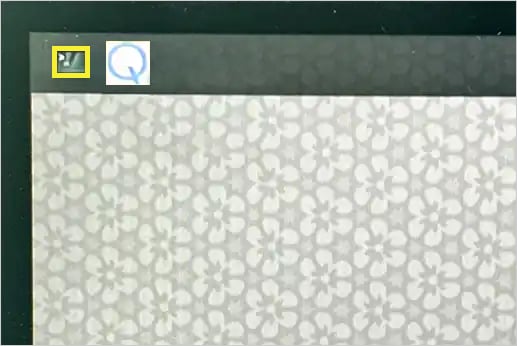
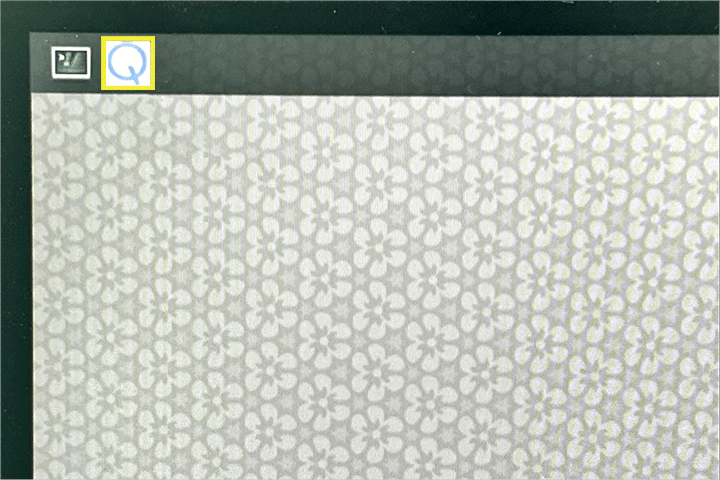 2. Open the device shell by selecting the **Weston terminal icon** on the Qdemo screen.
 3. Sign in as a root user:
```shell theme={null}
su -p
```
When prompted for the password, enter `oelinux123`.
4. Launch the Qdemo application from the Weston terminal:
```shell theme={null}
gst-gui-launcher-app.py
```
The **Experience Application Demo** window displays.
5. Select **Wi-Fi** to connect to a network.
Only AI sample applications require a Wi-Fi connection. For multimedia applications, skip this step.
3. Sign in as a root user:
```shell theme={null}
su -p
```
When prompted for the password, enter `oelinux123`.
4. Launch the Qdemo application from the Weston terminal:
```shell theme={null}
gst-gui-launcher-app.py
```
The **Experience Application Demo** window displays.
5. Select **Wi-Fi** to connect to a network.
Only AI sample applications require a Wi-Fi connection. For multimedia applications, skip this step.
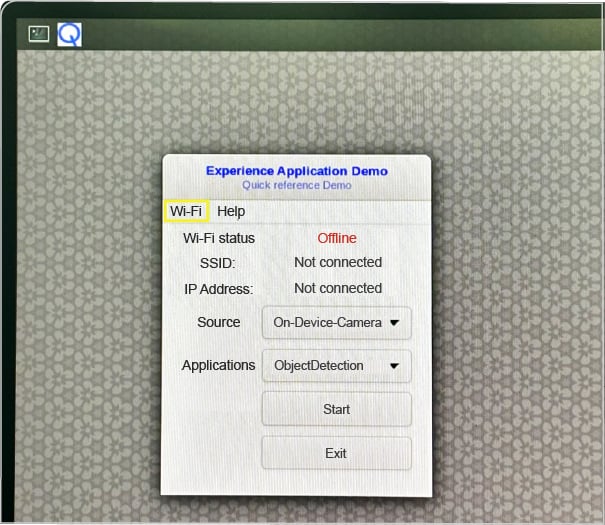 6. In the **Source** list, select the required camera.
Not all applications require a camera. If a USB camera is connected, select it from the list.
The default selection is **On-Device-Camera**.
7. In the **Applications** list, select an application and click **Start**.
The application launches and displays output on the screen.
During the first run, the application may take more than a minute to start, as it downloads AI models and labels from GitHub.
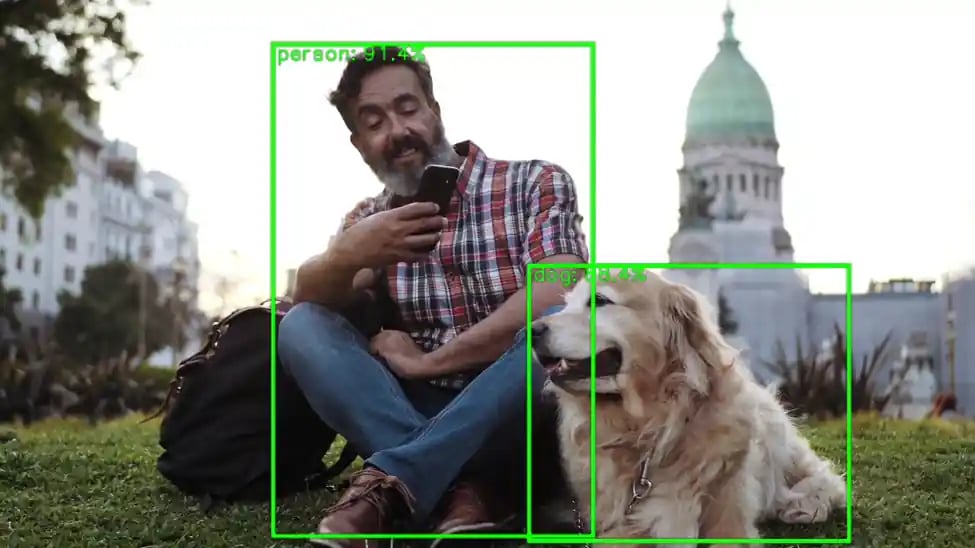
The following is the sample output of the ObjectDetection application:
6. In the **Source** list, select the required camera.
Not all applications require a camera. If a USB camera is connected, select it from the list.
The default selection is **On-Device-Camera**.
7. In the **Applications** list, select an application and click **Start**.
The application launches and displays output on the screen.
During the first run, the application may take more than a minute to start, as it downloads AI models and labels from GitHub.
The following is the sample output of the ObjectDetection application:
 8. Close the output window to stop the sample application.
9. Select **Exit** to close the Qdemo application.
8. Close the output window to stop the sample application.
9. Select **Exit** to close the Qdemo application.