> ## Documentation Index
> Fetch the complete documentation index at: https://dragonwingdocs.qualcomm.com/llms.txt
> Use this file to discover all available pages before exploring further.
# Flash with PCAT
## Introduction
Flashing using PCAT is an alternative to QDL that provides a more
integrated and user-friendly flashing experience. You can use this procedure if you are a registered
user having access to Qualcomm’s partner tools.
To flash a prebuilt image using PCAT, the following steps are required:
* Install the packages required for flashing the image – [Install Required Packages](#install-required-packages)
* Obtain a flashable image – [Obtain Flashable Image](#obtain-flashable-image)
* Identify the correct storage configuration for your device – [Identify Storage Configuration](#identify-storage-configuration)
* Select the appropriate CDT based on the reference kit – [Configure CDT](#configure-cdt)
* Switch the device into Emergency Download (EDL) mode – [Switch device to EDL Mode](#switch-device-to-edl-mode)
* Flash the software using PCAT – [Flash software image](#flash-software-image)
## Install Required Packages
`qsc-cli` is a command-line tool provided by Qualcomm that offers an end-to-end workflow
for accessing, managing, and building Qualcomm software. Follow these steps to install
`qsc-cli` on your system:
* Register your Qualcomm email ID by visiting the [Qualcomm Support Page](https://www.qualcomm.com/support/working-with-qualcomm).
* Download the Debian package for `qsc-cli`:
```bash x86 theme={null}
wget https://softwarecenter.qualcomm.com/api/download/software/tools/Qualcomm_Software_Center/Linux/Debian/latest.deb -O qsc_installer.deb
```
```bash ARM64 theme={null}
wget https://softwarecenter.qualcomm.com/api/download/software/tools/Qualcomm_Software_Center/Linux/ARM64/Debian/latest.deb -O qsc_installer.deb
```
* Install the `qsc-cli` Debian package:
```bash theme={null}
sudo apt update
sudo apt install ./qsc_installer.deb
```
* Sign in to `qsc-cli` using your registered email ID:
```bash theme={null}
qsc-cli login -u
```
`pcat` is a Qualcomm-provided flashing tool that offers a guided and integrated
interface for programming software images onto Qualcomm devices. Follow these
steps to install `pcat` on your system:
* Install the following tools on the host computer:
```bash theme={null}
qsc-cli tool install --name quts --activate-default-license
qsc-cli tool install --name qud --activate-default-license
qsc-cli tool install --name pcat --activate-default-license
```
If you encounter issues while installing QUD that require enrolling a public key on your Linux host, see the instructions in the README file located at `/opt/QTI/sign/signReadme.txt`.
* Confirm if the `QTI_HS-USB_QDLoader` driver is available in the installed directory:
```bash theme={null}
ls –la /dev/Q*
```
```text Sample output theme={null}
crw-rw-rw- 1 root 242 0 Dec 10 10:51 /dev/QTI_HS-USB_QDLoader_9008_3-8:1.0
```
## Obtain Flashable Image
Before flashing, you need a flashable image directory on your host machine.
Depending on how you obtained your image, choose one of the following paths.
Prebuilt images are distributed as compressed archives. Download the archive for your
device from the [Obtain Prebuilt Images](/Key-Documents/Flash-Guide/obtain-prebuilts)
section, extract the archive, and go to the extracted directory.
* Extract the archive:
```bash theme={null}
unzip .zip
```
* Go to the extracted directory:
```bash theme={null}
cd /images//-
```
After a successful build, the flashable image directory is already present in
your build output. Navigate directly to it.
```bash theme={null}
cd build/tmp/deploy/images//-.rootfs.qcomflash
```
All subsequent instructions are expected to be run from this directory unless
stated otherwise.
## Identify Storage Configuration
Machine configurations come with either UFS or eMMC storage enabled by default,
and these settings are reflected in the prebuilt images. If you need to modify
the storage type, you must update the configuration and rebuild the image, as
this cannot be changed in prebuilt binaries.
The default storage configurations for supported platforms are
| Machine | Storage Type |
| :----------- | :----------- |
| IQ-9075-EVK | UFS |
| IQ-8275-EVK | UFS |
| QCS6490 | UFS |
| IQ-615-EVK | EMMC |
| IQ-X7181-EVK | UFS/SPINOR |
| IQ-X5121-EVK | UFS/SPINOR |
## Configure CDT
The configuration data table (CDT) contains device-specific information required
for proper platform initialization. You need to select the correct CDT file based
on your reference kit before flashing.
* Download the CDT binary from [CodeLinaro](https://artifacts.codelinaro.org/ui/native/codelinaro-le/Qualcomm_Linux/X1E80100/cdt/):
```bash theme={null}
curl https://artifacts.codelinaro.org/artifactory/codelinaro-le/Qualcomm_Linux/X1E80100/cdt/IQ-X.1.4-EVK-CDT.tar.gz
```
* Extract the tarball archive:
```bash theme={null}
tar -xzf IQ-X.1.4-EVK-CDT.tar.gz
```
* Go to the extracted directory:
```bash theme={null}
cd IQ-X.1.4-EVK-CDT
```
* Flash the CDT:
```bash theme={null}
qdl xbl_s_devprg_ns.melf rawprogram0.xml patch0.xml
```
* Multiple CDT binaries are provided as part of the qcomflash tarball.
Choose the correct CDT binary for your kit and replace the default `cdt.bin`
with the appropriate one.
```bash Sample command theme={null}
cp cdt_vision_kit.bin cdt.bin
```
* After the entire flashing process succeeds, you can verify that the correct CDT
is loaded by reviewing the UEFI serial logs. Use the *Subtype* field to identify
the CDT loaded onto your device.
```text Sample output theme={null}
Platform Init [ 1966] BDS
Platform : IOT
Subtype : 2
Boot Device : UFS
Chip Name : QCS6490
Chip Ver : 1.0
```
| Subtype | Platform Description |
| ------- | --------------------------------- |
| 2 | Vision Kit (Moselle attach) |
| 5 | RB3Gen2 Core Kit (HSP attach) |
| 6 | RB3Gen2 Core Kit (Moselle attach) |
| 7 | Vision Kit (HSP attach) |
| 13 | Industrial Mezz Kit |
## Switch device to EDL Mode
The device must be in the EDL mode before you flash the software image.
The Qualcomm supported device by default enters EDL mode if there is no
image on the device after power up or if it’s corrupted. Follow these
steps to force the device into EDL mode.
* Press and hold the **F\_DL** button.
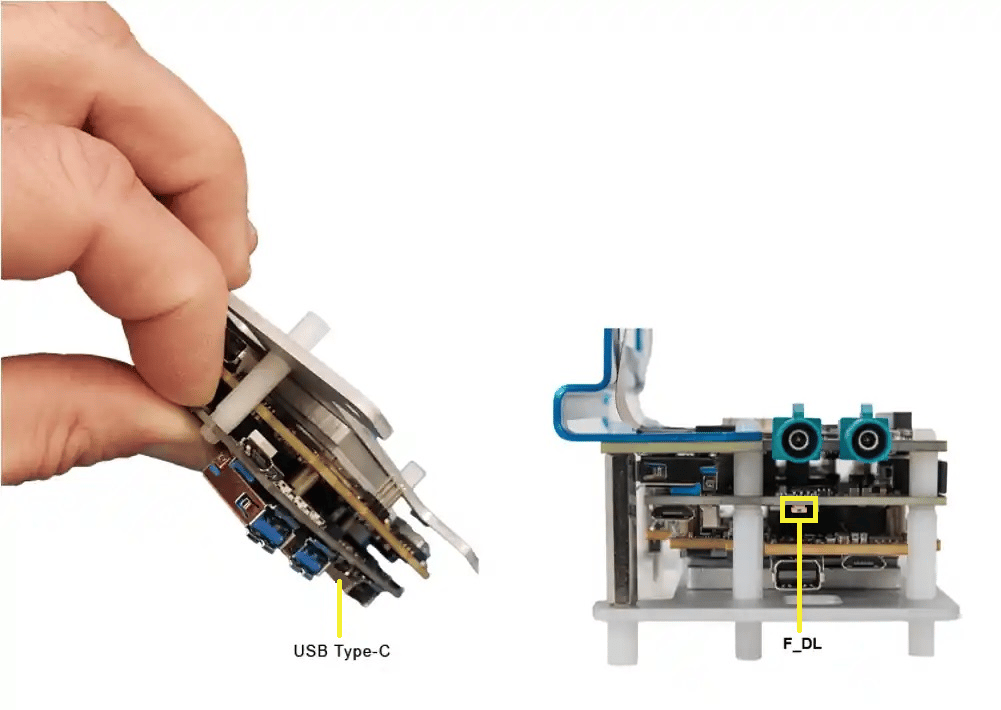 * Connect the device to a **+12 V wall power supply**.
* Connect the device to the host system using a Type-C cable through the USB Type-C connector.
* Release the **F\_DL** button. The device is now in EDL mode.
* Unplug the power cable once the entire flashing process is complete to exit EDL mode.
* Put the device in EDL mode by turning on the dip switch S5-4.
* Connect the device to a **+12 V wall power supply**.
* Connect the device to the host system using a Type-C cable through the USB Type-C connector.
* Release the **F\_DL** button. The device is now in EDL mode.
* Unplug the power cable once the entire flashing process is complete to exit EDL mode.
* Put the device in EDL mode by turning on the dip switch S5-4.
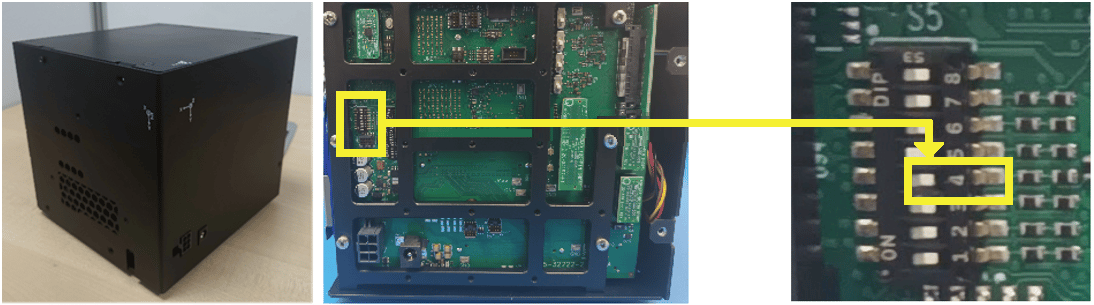 * Turn off the S5-4 dip switch after the entire flashing process is complete.
* Put the device in EDL mode by turning on the dip switch SW2-3.
* Turn off the S5-4 dip switch after the entire flashing process is complete.
* Put the device in EDL mode by turning on the dip switch SW2-3.
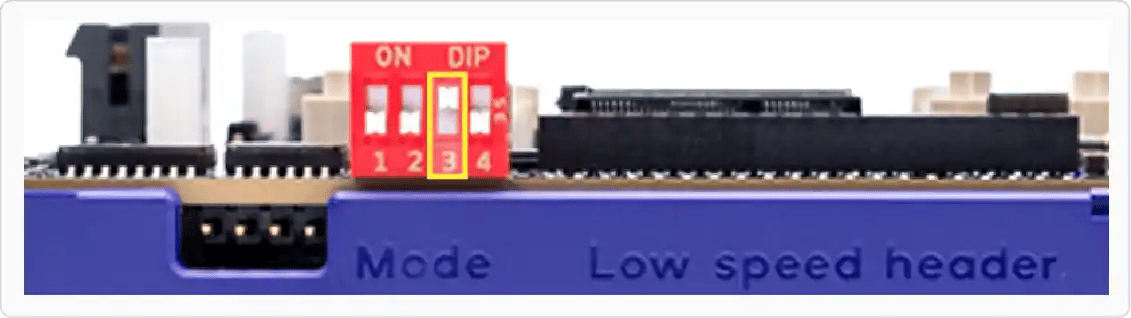 * Turn off the SW2-3 dip switch once the entire flashing process is complete.
* Put the device in EDL mode by turning on the dip switch S5-4.
* Turn off the S5-4 dip switch once the entire flashing process is complete.
* Put the device in EDL mode by turning on the dip switch S2-8.
* Turn off the S2-8 dip switch once the entire flashing process is complete.
* Put the device in EDL mode by turning off the SW switch and turning on the dip switch SW3-4.
* Turn off the SW2-3 dip switch once the entire flashing process is complete.
* Put the device in EDL mode by turning on the dip switch S5-4.
* Turn off the S5-4 dip switch once the entire flashing process is complete.
* Put the device in EDL mode by turning on the dip switch S2-8.
* Turn off the S2-8 dip switch once the entire flashing process is complete.
* Put the device in EDL mode by turning off the SW switch and turning on the dip switch SW3-4.
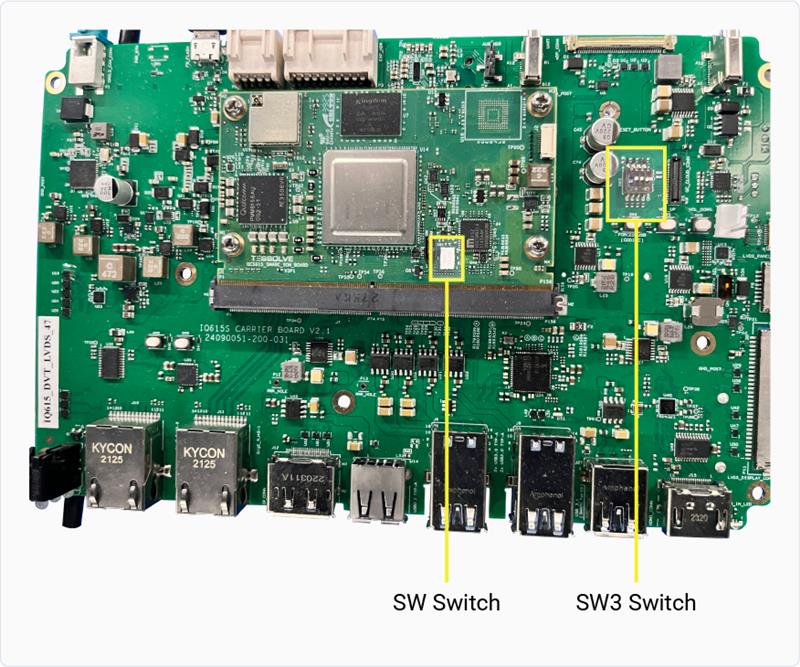 * Turn on the SW switch and turn off the SW3-4 dip switch once the entire flashing process is complete.
* Put the device in EDL mode by turning on the S2-4 switch.
* Turn on the SW switch and turn off the SW3-4 dip switch once the entire flashing process is complete.
* Put the device in EDL mode by turning on the S2-4 switch.
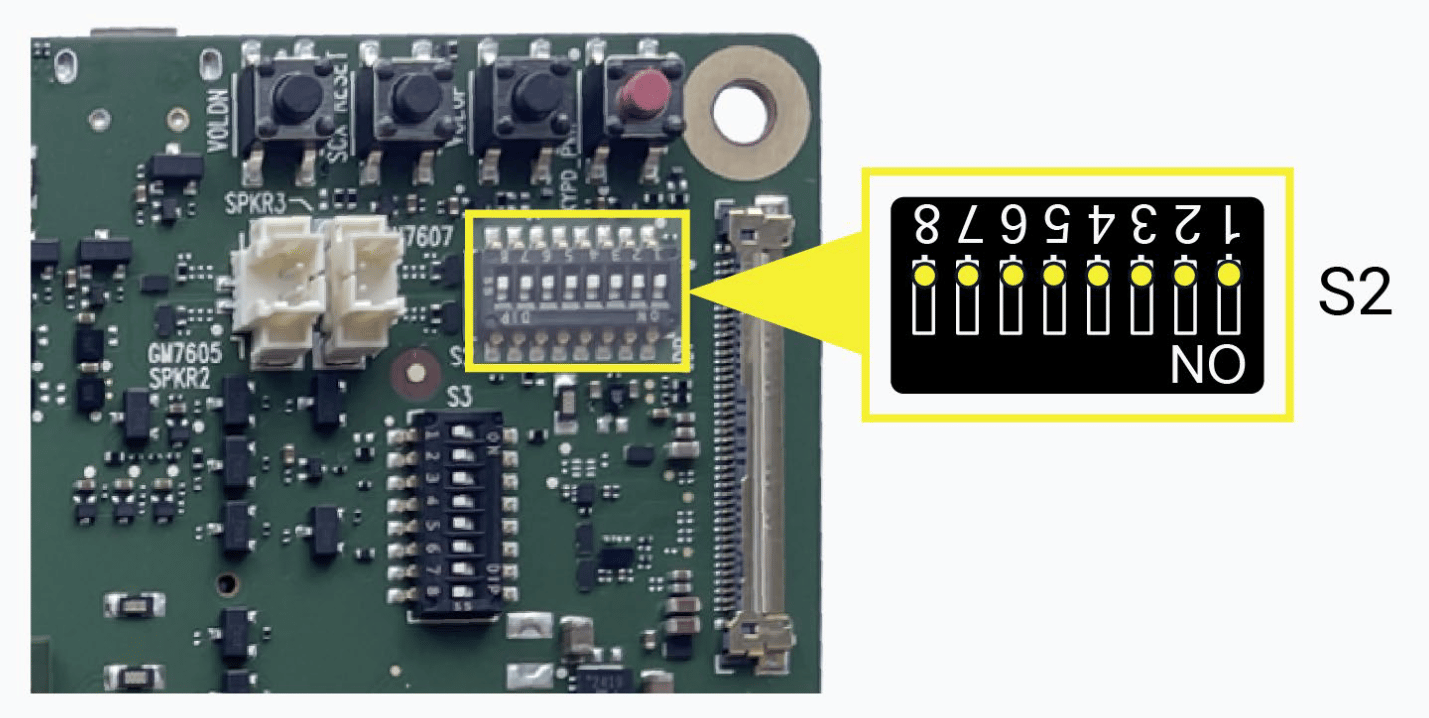 * Turn off the S2-4 dip switch once the entire flashing process is complete.
Verify if the device is in EDL mode by running the following command:
```bash theme={null}
lsusb
```
```text Expected output theme={null}
Bus 002 Device 014: ID 05c6:9008 Qualcomm, Inc. Gobi Wireless Modem (QDL mode)
```
## Flash software image
* Check if PCAT recognizes the device:
```bash theme={null}
pcat -devices
```
```text Sample output theme={null}
Searching devices in Device Manager, please wait for a moment…
ID | DEVICE TYPE | DEVICE STATE | SERIAL NUMBER | ADB SERIAL NUMBER | DESCRIPTION
NA | NA | EDL | BE116704 | be116704 | Qualcomm USB Composite Device:QUSB_BULK_CID:042F_SN:BE116704
```
* Flash the software image using PCAT by selecting the appropriate storage option:
```bash UFS theme={null}
pcat -PLUGIN SD -DEVICE -BUILD $PWD -MEMORYTYPE UFS -FLAVOR asic
```
```bash EMMC theme={null}
pcat -PLUGIN SD -DEVICE -BUILD $PWD -MEMORYTYPE EMMC -FLAVOR asic -RAWPROG rawprogram0.xml -PATCHPROG patch0.xml
```
* Flashing is successful if you see the following message in the terminal window:
```text Sample output theme={null}
xxxx INFO] [ FIRMWARE DOWNLOAD LOG ] Process Finished
xxxx INFO] Status - TRUE
xxxx INFO] Response - Downloading software images completed on the device Qualcomm USB Composite Device:QUSB_BULK_CID:042F_SN:BE116704
```
* After a successful flashing operation, run the `lsusb` command to see the device information
on the terminal window as shown in the following message:
```text Sample output for QCS6490 theme={null}
Bus 002 Device 003: ID 05c6:9135 Qualcomm, Inc. qcs6490-rb3gen2-vision-kit
Bus 002 Device 001: ID 1d6b:0003 Linux Foundation 3.0 root hub
Bus 001 Device 001: ID 1d6b:0002 Linux Foundation 2.0 root hub
```
## Related Topics
* [How to switch to EDL mode using UART?](./how-to-trigger-edl-with-uart)
* [How to switch to EDL mode using ADB?](./how-to-trigger-edl-with-adb)
* Turn off the S2-4 dip switch once the entire flashing process is complete.
Verify if the device is in EDL mode by running the following command:
```bash theme={null}
lsusb
```
```text Expected output theme={null}
Bus 002 Device 014: ID 05c6:9008 Qualcomm, Inc. Gobi Wireless Modem (QDL mode)
```
## Flash software image
* Check if PCAT recognizes the device:
```bash theme={null}
pcat -devices
```
```text Sample output theme={null}
Searching devices in Device Manager, please wait for a moment…
ID | DEVICE TYPE | DEVICE STATE | SERIAL NUMBER | ADB SERIAL NUMBER | DESCRIPTION
NA | NA | EDL | BE116704 | be116704 | Qualcomm USB Composite Device:QUSB_BULK_CID:042F_SN:BE116704
```
* Flash the software image using PCAT by selecting the appropriate storage option:
```bash UFS theme={null}
pcat -PLUGIN SD -DEVICE -BUILD $PWD -MEMORYTYPE UFS -FLAVOR asic
```
```bash EMMC theme={null}
pcat -PLUGIN SD -DEVICE -BUILD $PWD -MEMORYTYPE EMMC -FLAVOR asic -RAWPROG rawprogram0.xml -PATCHPROG patch0.xml
```
* Flashing is successful if you see the following message in the terminal window:
```text Sample output theme={null}
xxxx INFO] [ FIRMWARE DOWNLOAD LOG ] Process Finished
xxxx INFO] Status - TRUE
xxxx INFO] Response - Downloading software images completed on the device Qualcomm USB Composite Device:QUSB_BULK_CID:042F_SN:BE116704
```
* After a successful flashing operation, run the `lsusb` command to see the device information
on the terminal window as shown in the following message:
```text Sample output for QCS6490 theme={null}
Bus 002 Device 003: ID 05c6:9135 Qualcomm, Inc. qcs6490-rb3gen2-vision-kit
Bus 002 Device 001: ID 1d6b:0003 Linux Foundation 3.0 root hub
Bus 001 Device 001: ID 1d6b:0002 Linux Foundation 2.0 root hub
```
## Related Topics
* [How to switch to EDL mode using UART?](./how-to-trigger-edl-with-uart)
* [How to switch to EDL mode using ADB?](./how-to-trigger-edl-with-adb)