> ## Documentation Index
> Fetch the complete documentation index at: https://dragonwingdocs.qualcomm.com/llms.txt
> Use this file to discover all available pages before exploring further.
# Flash software images
This document covers the instructions for flashing on UNIX based systems only.
Refer to the instructions in the device specific guides for instructions to
flash on Windows host systems.
## Introduction
Flash a prebuilt image onto a device. While Qualcomm hardware typically comes with a preloaded image, you can use this procedure to update to a newer software version or deploy images built from source.
To flash a prebuilt image, the following steps are required:
* Download the packages required for flashing the image – [Download Required Packages](#download-required-packages)
* Obtain flashable image – [Obtain Flashable Image](#obtain-flashable-image)
* Identify storage configuration for your device – [Identify Storage Configuration](#identify-storage-configuration)
* Update the udev rules on the host system – [Configure udev rules](#configure-udev-rules)
* Select the appropriate CDT based on the reference kit – [Configure CDT](#configure-cdt)
* Switch device to EDL mode – [Switch device to EDL Mode](#switch-device-to-edl-mode)
* Provision UFS – [Provision UFS](#provision-ufs)
* Flash SAIL – [Flash SAIL](#flash-sail)
* Flash software image – [Flash software image](#flash-software-image)
## Download required packages
QDL is a software utility used to communicate with Qualcomm USB
devices in Emergency Download (EDL) mode, enabling you to upload
a flash loader and program software images onto the device. Follow
these steps to download and setup QDL on your system:
* Download the QDL binary from the Qualcomm Software Center using the following
command:
```bash Linux x64 theme={null}
wget https://softwarecenter.qualcomm.com/api/download/software/tools/Qualcomm_Device_Loader/Linux/Debian/latest.zip -O qdl.zip
```
```bash Linux ARM theme={null}
wget https://softwarecenter.qualcomm.com/api/download/software/tools/Qualcomm_Device_Loader/Linux/ARM64/Debian/latest.zip -O qdl.zip
```
```bash MacOS theme={null}
wget https://softwarecenter.qualcomm.com/api/download/software/tools/Qualcomm_Device_Loader/macOS/ARM64/latest.zip -O qdl.zip
```
* Unzip the downloaded archive:
```bash theme={null}
unzip qdl.zip
```
* Provide execute permission to the QDL binary:
```bash theme={null}
chmod +x "$PWD//qdl"
```
* Add the QDL executable to your system PATH:
```bash theme={null}
export PATH="$PATH:$PWD/"
```
* Verify that the QDL executable is accessible:
```bash theme={null}
qdl --version
```
## Obtain flashable image
Before flashing, you need a flashable image directory on your host machine.
Depending on how you obtained your image, choose one of the following paths.
Prebuilt images are distributed as compressed archives. Download the archive for your
device from the [Obtain Prebuilt Images](/Key-Documents/Flash-Guide/obtain-prebuilts)
section, extract the archive, and go to the extracted directory.
* Extract the archive:
```bash theme={null}
unzip .zip
```
* Go to the extracted directory:
```bash theme={null}
cd /images//-
```
After a successful build, the flashable image directory is already present in
your build output. Navigate directly to it.
```bash theme={null}
cd build/tmp/deploy/images//-.rootfs.qcomflash
```
All subsequent instructions are expected to be run from this directory unless
stated otherwise.
## Identify storage configuration
Machine configurations come with either UFS or eMMC storage enabled by default,
and these settings are reflected in the prebuilt images. If you need to modify
the storage type, you must update the configuration and rebuild the image, as
this cannot be changed in prebuilt binaries.
The default storage configurations for supported platforms are
| Machine | Storage Type |
| :----------- | :----------- |
| IQ-9075-EVK | UFS |
| IQ-8275-EVK | UFS |
| QCS6490 | UFS |
| IQ-615-EVK | EMMC |
| IQ-X7181-EVK | UFS/SPINOR |
| IQ-X5121-EVK | UFS/SPINOR |
## Configure udev rules
The host system must have the correct `udev` rules configured to allow proper USB
device access. This step is only required when setting up a new host environment or
when encountering permission issues while detecting the device over USB.
* Run the following command to configure the `udev` USB rules for the
Qualcomm manufacturing vendor ID **05c6** on the Linux host:
```bash theme={null}
echo 'SUBSYSTEMS=="usb", ATTRS{idVendor}=="05c6", ATTRS{idProduct}=="9008", MODE="0666", GROUP="plugdev"' | sudo tee /etc/udev/rules.d/51-qcom-usb.rules
```
* Restart the `udev` service for the changes to take effect:
```bash theme={null}
sudo systemctl restart udev
```
* If the USB cable is already connected to the host, unplug and reconnect it for the updated rules to take effect.
## Configure CDT
The configuration data table (CDT) contains device-specific information required
for proper platform initialization. You need to select the correct CDT file based
on your reference kit before flashing.
* Download the CDT binary from [CodeLinaro](https://artifacts.codelinaro.org/ui/native/codelinaro-le/Qualcomm_Linux/X1E80100/cdt/):
```bash theme={null}
curl https://artifacts.codelinaro.org/artifactory/codelinaro-le/Qualcomm_Linux/X1E80100/cdt/IQ-X.1.4-EVK-CDT.tar.gz
```
* Extract the tarball archive:
```bash theme={null}
tar -xzf IQ-X.1.4-EVK-CDT.tar.gz
```
* Go to the extracted directory:
```bash theme={null}
cd IQ-X.1.4-EVK-CDT
```
* Flash the CDT:
```bash theme={null}
qdl xbl_s_devprg_ns.melf rawprogram0.xml patch0.xml
```
* Multiple CDT binaries are provided as part of the qcomflash tarball.
Choose the correct CDT binary for your kit and replace the default `cdt.bin`
with the appropriate one.
```bash Sample command theme={null}
cp cdt_vision_kit.bin cdt.bin
```
* After the entire flashing process succeeds, you can verify that the correct CDT
is loaded by reviewing the UEFI serial logs. Use the *Subtype* field to identify
the CDT loaded onto your device.
```text Sample output theme={null}
Platform Init [ 1966] BDS
Platform : IOT
Subtype : 2
Boot Device : UFS
Chip Name : QCS6490
Chip Ver : 1.0
```
| Subtype | Platform Description |
| ------- | --------------------------------- |
| 2 | Vision Kit (Moselle attach) |
| 5 | RB3Gen2 Core Kit (HSP attach) |
| 6 | RB3Gen2 Core Kit (Moselle attach) |
| 7 | Vision Kit (HSP attach) |
| 13 | Industrial Mezz Kit |
## Switch device to EDL mode
The device must be in the EDL mode before you flash the software image.
The Qualcomm supported device by default enters EDL mode if there is no
image on the device after power up or if it’s corrupted. Follow these
steps to force the device into EDL mode.
* Press and hold the **F\_DL** button.
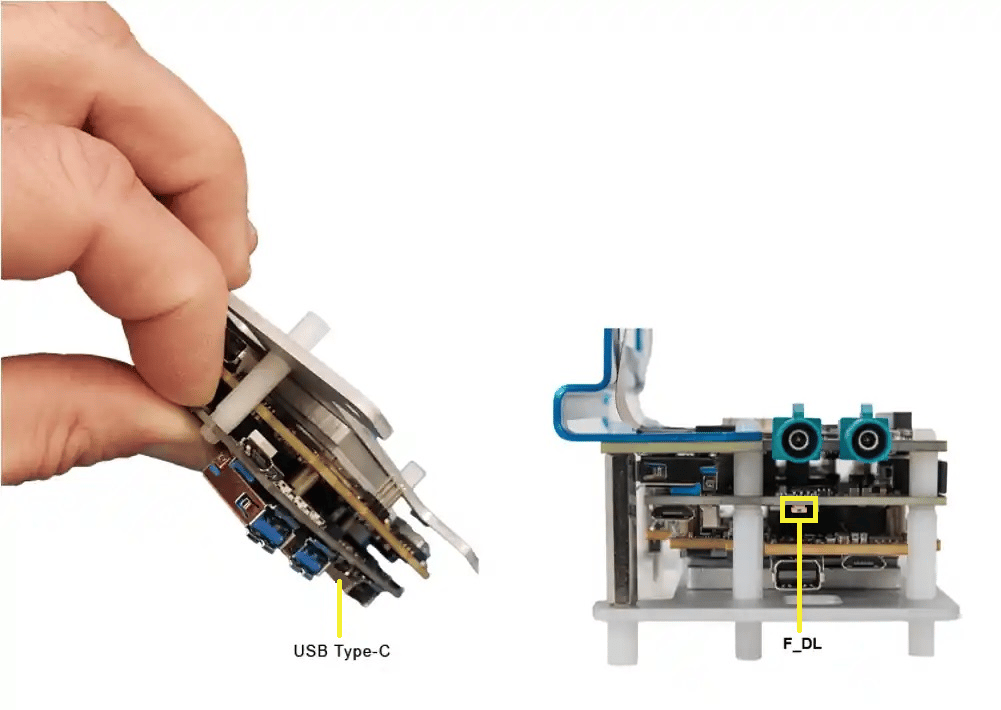 * Connect the device to a **+12 V wall power supply**.
* Connect the device to the host system using a Type-C cable through the USB Type-C connector.
* Release the **F\_DL** button. The device is now in EDL mode.
* Unplug the power cable once the entire flashing process is complete to exit EDL mode.
* Put the device in EDL mode by turning on the dip switch S5-4.
* Connect the device to a **+12 V wall power supply**.
* Connect the device to the host system using a Type-C cable through the USB Type-C connector.
* Release the **F\_DL** button. The device is now in EDL mode.
* Unplug the power cable once the entire flashing process is complete to exit EDL mode.
* Put the device in EDL mode by turning on the dip switch S5-4.
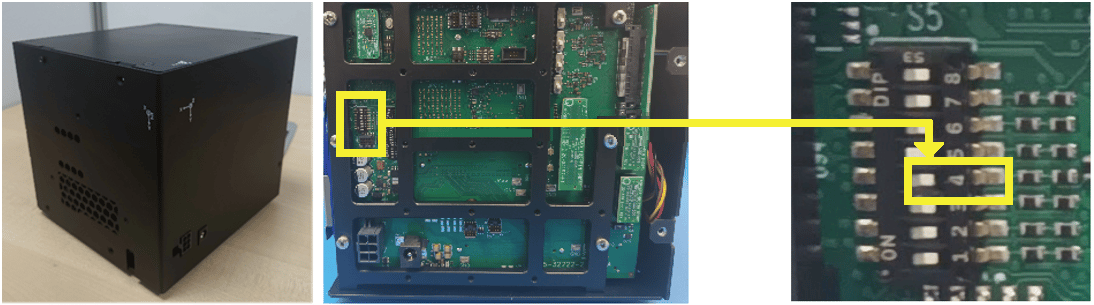 * Turn off the S5-4 dip switch after the entire flashing process is complete.
* Put the device in EDL mode by turning on the dip switch SW2-3.
* Turn off the S5-4 dip switch after the entire flashing process is complete.
* Put the device in EDL mode by turning on the dip switch SW2-3.
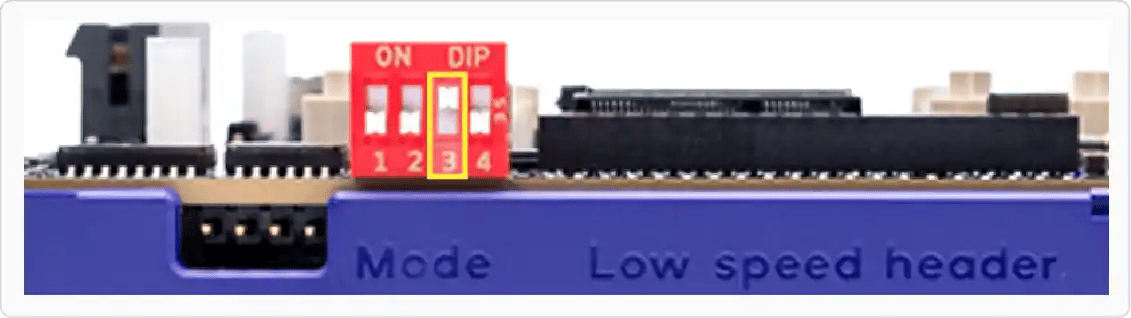 * Turn off the SW2-3 dip switch once the entire flashing process is complete.
* Put the device in EDL mode by turning on the dip switch S5-4.
* Turn off the S5-4 dip switch once the entire flashing process is complete.
* Put the device in EDL mode by turning on the dip switch S2-8.
* Turn off the S2-8 dip switch once the entire flashing process is complete.
* Put the device in EDL mode by turning off the SW switch and turning on the dip switch SW3-4.
* Turn off the SW2-3 dip switch once the entire flashing process is complete.
* Put the device in EDL mode by turning on the dip switch S5-4.
* Turn off the S5-4 dip switch once the entire flashing process is complete.
* Put the device in EDL mode by turning on the dip switch S2-8.
* Turn off the S2-8 dip switch once the entire flashing process is complete.
* Put the device in EDL mode by turning off the SW switch and turning on the dip switch SW3-4.
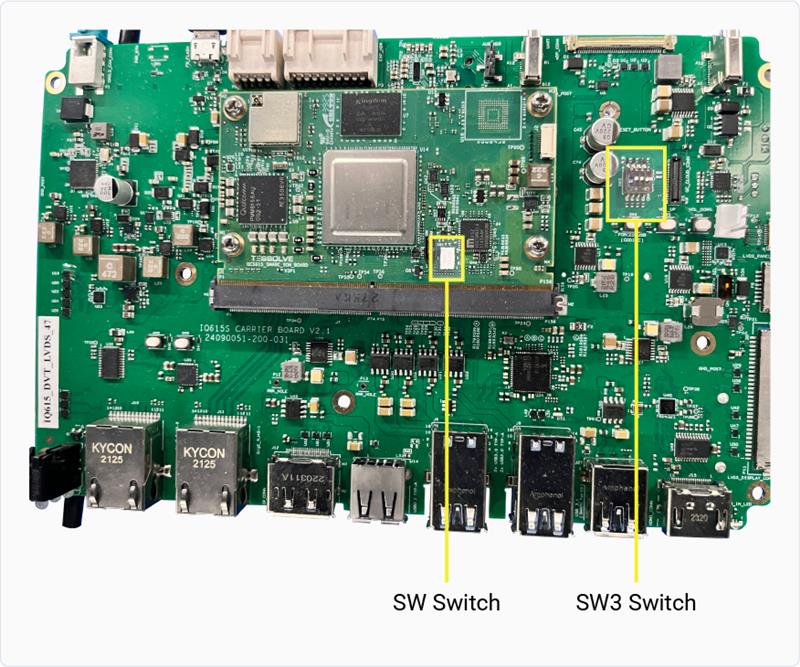 * Turn on the SW switch and turn off the SW3-4 dip switch once the entire flashing process is complete.
* Put the device in EDL mode by turning on the S2-4 switch.
* Turn on the SW switch and turn off the SW3-4 dip switch once the entire flashing process is complete.
* Put the device in EDL mode by turning on the S2-4 switch.
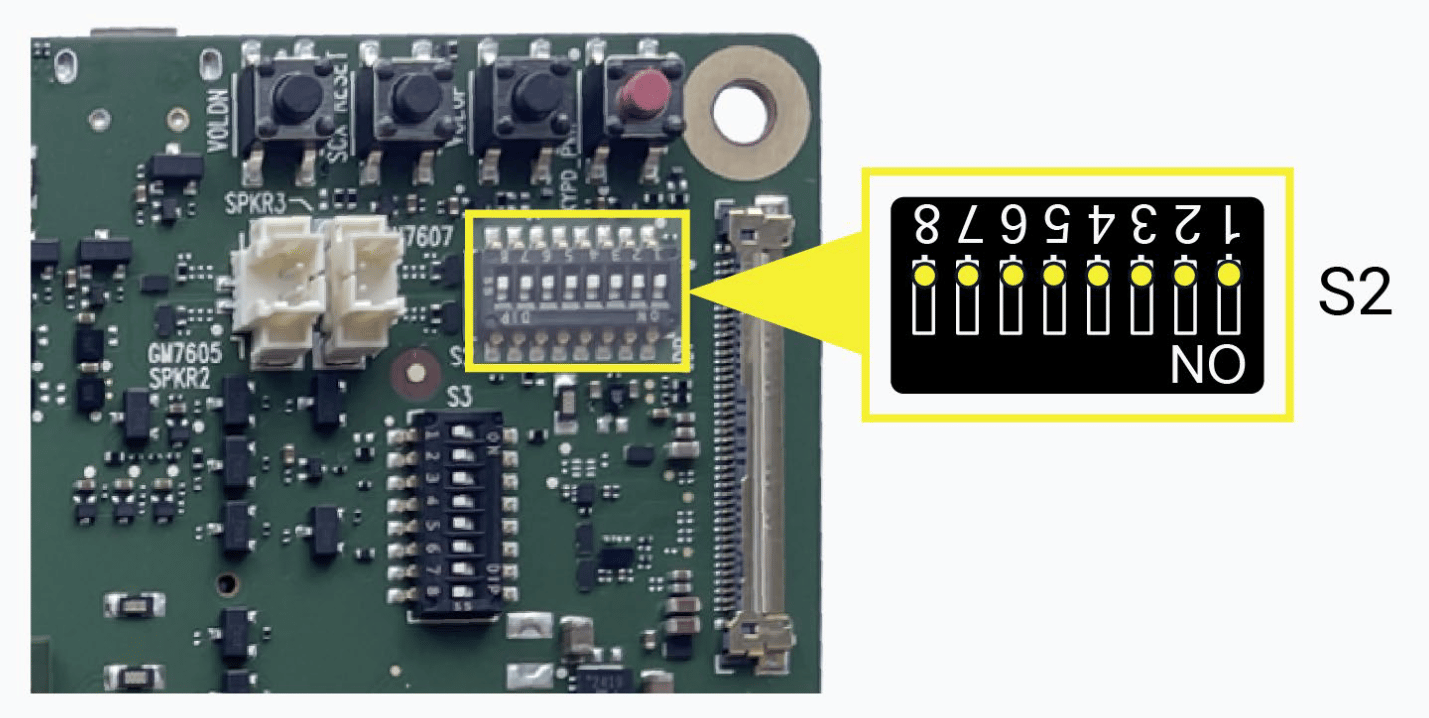 * Turn off the S2-4 dip switch once the entire flashing process is complete.
Verify if the device is in EDL mode by running the following command:
```bash theme={null}
lsusb
```
```text Expected output theme={null}
Bus 002 Device 014: ID 05c6:9008 Qualcomm, Inc. Gobi Wireless Modem (QDL mode)
```
## Provision UFS
Universal flash storage (UFS) provisioning helps to divide the storage
into many LUNs, which stores different types of data separately. This
improves access efficiency and system organization.
UFS is provisioned by default. If there are any changes in LUNs, UFS
must be re-provisioned. To check if UFS needs to be re-provisioned,
see the table *UFS Provision* in the [Release Specific Information](/Key-Documents/Software-Release-Notes/release-specific-information#ufs-provision)
document.
* Download the provision file from Qualcomm's artifacts server:
```bash IQ-9075-EVK theme={null}
wget https://artifacts.codelinaro.org/artifactory/codelinaro-le/Qualcomm_Linux/QCS9100/provision.zip
```
```bash IQ-8275-EVK theme={null}
wget https://artifacts.codelinaro.org/artifactory/codelinaro-le/Qualcomm_Linux/QCS8300/provision.zip
```
```bash QCS6490 theme={null}
wget https://artifacts.codelinaro.org/artifactory/codelinaro-le/Qualcomm_Linux/QCS6490/provision.zip
```
```bash IQ-X7181 theme={null}
wget https://artifacts.codelinaro.org/artifactory/codelinaro-le/Qualcomm_Linux/X1E80100/provision.zip
```
```bash IQ-X5121 theme={null}
wget https://artifacts.codelinaro.org/artifactory/codelinaro-le/Qualcomm_Linux/X1E80100/provision.zip
```
* Unzip the downloaded archive:
```bash theme={null}
unzip provision.zip -d provision
```
* Go to the extracted directory:
```bash theme={null}
cd provision
```
* Provision UFS:
```bash IQ-9075-EVK theme={null}
qdl --storage ufs prog_firehose_ddr.elf provision_1_2.xml
```
```bash IQ-8275-EVK theme={null}
qdl --storage ufs prog_firehose_ddr.elf provision_1_3.xml
```
```bash QCS6490 theme={null}
qdl --storage ufs prog_firehose_ddr.elf provision_1_3.xml
```
```bash IQ-X7181 theme={null}
qdl --storage ufs xbl_s_devprg_ns.melf provision.xml
```
```bash IQ-X5121 theme={null}
qdl --storage ufs xbl_s_devprg_ns.melf provision.xml
```
## Flash SAIL
Safety Island (SAIL) image contains the isolated, safety‑critical firmware that
runs on the dedicated safety island to ensure secure boot and reliable system
operation are independent of the main processor.
Safety Island (SAIL) is applicable only for the Qualcomm Dragonwing™ IQ-9075
and the Qualcomm Dragonwing™ IQ-8275 development kits. If you’re not using one
of these development kits, skip this section.
* The SAIL artifacts are present under the `sail_nor` directory within the
unpacked qcomflash directory. Go to the following directory:
```bash theme={null}
cd sail_nor
```
* Flash the SAIL:
```bash theme={null}
qdl --storage spinor prog_firehose_ddr.elf rawprogram0.xml patch0.xml
```
## Flash software image
This section describes how to flash the image using QDL
and verify a successful flashing process.
* Ensure the ModemManager service is not running, as it can interfere with QDL by
attempting to manage the device as a modem when connected over USB. Disable it
before connecting your device. On systemd-based systems, use the following command:
```bash theme={null}
sudo systemctl stop ModemManager
```
* Flash the software image using QDL by selecting the appropriate storage option:
```bash UFS theme={null}
qdl --storage ufs prog_firehose_ddr.elf rawprogram*.xml patch*.xml
```
```bash EMMC theme={null}
qdl --storage emmc prog_firehose_ddr.elf rawprogram*.xml patch*.xml
```
```bash UFS/SPINOR theme={null}
cd spinor
qdl --storage spinor xbl_s_devprg_ns.melf rawprogram0.xml patch0.xml
cd ..
qdl --storage ufs xbl_s_devprg_ns.melf rawprogram0.xml
```
* Flashing is successful if you see *partition 1 is now bootable* on the
terminal window as shown in the following message:
```text Sample output theme={null}
LOG: INFO: Calling handler for setbootablestoragedrive
LOG: INFO: Using scheme of value = 1
partition 1 is now bootable
LOG: INFO: Calling handler for power
LOG: INFO: Will issue reset/power off 100 useconds, if this hangs check if watchdog is enabled
LOG: INFO: bsp_target_reset() 1
```
* After a successful flashing operation, run the `lsusb` command to see the
device information on the terminal window as shown in the following message:
```text Sample output for QCS6490 theme={null}
Bus 002 Device 003: ID 05c6:9135 Qualcomm, Inc. qcs6490-rb3gen2-vision-kit
Bus 002 Device 001: ID 1d6b:0003 Linux Foundation 3.0 root hub
Bus 001 Device 001: ID 1d6b:0002 Linux Foundation 2.0 root hub
```
* If flashing fails, perform the following steps and retry the flashing procedure:
* Power off the device
* Disconnect from the host
* Restart the host
## Related topics
* [How to flash images using PCAT?](./flash-with-pcat)
* [How to switch to EDL mode using UART?](./how-to-trigger-edl-with-uart)
* [How to switch to EDL mode using ADB?](./how-to-trigger-edl-with-adb)
* [How to configure the storage type for a Yocto BSP build?](/Key-Documents/Yocto-Guide/how-to-configure-storage-type)
* [How to connect to WiFi?](./how-to-connect-to-wifi)
* [How to sign in with SSH?](./how-to-sign-in-with-ssh)
* [How to configure Ethernet with RJ45 port?](./how-to-configure-ethernet-rj45-port)
* [How to update USB and Ethernet Controller firmware?](./how-to-update-usb-ethernet-controller-firmware)
* [How to configure device drivers?](./how-to-configure-device-drivers)
* Turn off the S2-4 dip switch once the entire flashing process is complete.
Verify if the device is in EDL mode by running the following command:
```bash theme={null}
lsusb
```
```text Expected output theme={null}
Bus 002 Device 014: ID 05c6:9008 Qualcomm, Inc. Gobi Wireless Modem (QDL mode)
```
## Provision UFS
Universal flash storage (UFS) provisioning helps to divide the storage
into many LUNs, which stores different types of data separately. This
improves access efficiency and system organization.
UFS is provisioned by default. If there are any changes in LUNs, UFS
must be re-provisioned. To check if UFS needs to be re-provisioned,
see the table *UFS Provision* in the [Release Specific Information](/Key-Documents/Software-Release-Notes/release-specific-information#ufs-provision)
document.
* Download the provision file from Qualcomm's artifacts server:
```bash IQ-9075-EVK theme={null}
wget https://artifacts.codelinaro.org/artifactory/codelinaro-le/Qualcomm_Linux/QCS9100/provision.zip
```
```bash IQ-8275-EVK theme={null}
wget https://artifacts.codelinaro.org/artifactory/codelinaro-le/Qualcomm_Linux/QCS8300/provision.zip
```
```bash QCS6490 theme={null}
wget https://artifacts.codelinaro.org/artifactory/codelinaro-le/Qualcomm_Linux/QCS6490/provision.zip
```
```bash IQ-X7181 theme={null}
wget https://artifacts.codelinaro.org/artifactory/codelinaro-le/Qualcomm_Linux/X1E80100/provision.zip
```
```bash IQ-X5121 theme={null}
wget https://artifacts.codelinaro.org/artifactory/codelinaro-le/Qualcomm_Linux/X1E80100/provision.zip
```
* Unzip the downloaded archive:
```bash theme={null}
unzip provision.zip -d provision
```
* Go to the extracted directory:
```bash theme={null}
cd provision
```
* Provision UFS:
```bash IQ-9075-EVK theme={null}
qdl --storage ufs prog_firehose_ddr.elf provision_1_2.xml
```
```bash IQ-8275-EVK theme={null}
qdl --storage ufs prog_firehose_ddr.elf provision_1_3.xml
```
```bash QCS6490 theme={null}
qdl --storage ufs prog_firehose_ddr.elf provision_1_3.xml
```
```bash IQ-X7181 theme={null}
qdl --storage ufs xbl_s_devprg_ns.melf provision.xml
```
```bash IQ-X5121 theme={null}
qdl --storage ufs xbl_s_devprg_ns.melf provision.xml
```
## Flash SAIL
Safety Island (SAIL) image contains the isolated, safety‑critical firmware that
runs on the dedicated safety island to ensure secure boot and reliable system
operation are independent of the main processor.
Safety Island (SAIL) is applicable only for the Qualcomm Dragonwing™ IQ-9075
and the Qualcomm Dragonwing™ IQ-8275 development kits. If you’re not using one
of these development kits, skip this section.
* The SAIL artifacts are present under the `sail_nor` directory within the
unpacked qcomflash directory. Go to the following directory:
```bash theme={null}
cd sail_nor
```
* Flash the SAIL:
```bash theme={null}
qdl --storage spinor prog_firehose_ddr.elf rawprogram0.xml patch0.xml
```
## Flash software image
This section describes how to flash the image using QDL
and verify a successful flashing process.
* Ensure the ModemManager service is not running, as it can interfere with QDL by
attempting to manage the device as a modem when connected over USB. Disable it
before connecting your device. On systemd-based systems, use the following command:
```bash theme={null}
sudo systemctl stop ModemManager
```
* Flash the software image using QDL by selecting the appropriate storage option:
```bash UFS theme={null}
qdl --storage ufs prog_firehose_ddr.elf rawprogram*.xml patch*.xml
```
```bash EMMC theme={null}
qdl --storage emmc prog_firehose_ddr.elf rawprogram*.xml patch*.xml
```
```bash UFS/SPINOR theme={null}
cd spinor
qdl --storage spinor xbl_s_devprg_ns.melf rawprogram0.xml patch0.xml
cd ..
qdl --storage ufs xbl_s_devprg_ns.melf rawprogram0.xml
```
* Flashing is successful if you see *partition 1 is now bootable* on the
terminal window as shown in the following message:
```text Sample output theme={null}
LOG: INFO: Calling handler for setbootablestoragedrive
LOG: INFO: Using scheme of value = 1
partition 1 is now bootable
LOG: INFO: Calling handler for power
LOG: INFO: Will issue reset/power off 100 useconds, if this hangs check if watchdog is enabled
LOG: INFO: bsp_target_reset() 1
```
* After a successful flashing operation, run the `lsusb` command to see the
device information on the terminal window as shown in the following message:
```text Sample output for QCS6490 theme={null}
Bus 002 Device 003: ID 05c6:9135 Qualcomm, Inc. qcs6490-rb3gen2-vision-kit
Bus 002 Device 001: ID 1d6b:0003 Linux Foundation 3.0 root hub
Bus 001 Device 001: ID 1d6b:0002 Linux Foundation 2.0 root hub
```
* If flashing fails, perform the following steps and retry the flashing procedure:
* Power off the device
* Disconnect from the host
* Restart the host
## Related topics
* [How to flash images using PCAT?](./flash-with-pcat)
* [How to switch to EDL mode using UART?](./how-to-trigger-edl-with-uart)
* [How to switch to EDL mode using ADB?](./how-to-trigger-edl-with-adb)
* [How to configure the storage type for a Yocto BSP build?](/Key-Documents/Yocto-Guide/how-to-configure-storage-type)
* [How to connect to WiFi?](./how-to-connect-to-wifi)
* [How to sign in with SSH?](./how-to-sign-in-with-ssh)
* [How to configure Ethernet with RJ45 port?](./how-to-configure-ethernet-rj45-port)
* [How to update USB and Ethernet Controller firmware?](./how-to-update-usb-ethernet-controller-firmware)
* [How to configure device drivers?](./how-to-configure-device-drivers)