> ## Documentation Index
> Fetch the complete documentation index at: https://dragonwingdocs.qualcomm.com/llms.txt
> Use this file to discover all available pages before exploring further.

# Evaluate overlays using supported workflows

Use one of the following workflows to evaluate overlays:

* [Flash the image and install packages from the package server corresponding to a release snapshot](#flash-the-image-and-install-packages-corresponding-to-a-release-snapshot).
* [Build locally, flash images, and use packages from the local build](#build-locally-flash-images-and-use-packages-from-the-local-build).
* [Define the BitBake image recipe for Config #3 and Config #4, and flash the generated image with the overlays included](#define-the-image-recipe-for-config-3-and-config-4).
  > * For more information on Config #3 and Config #4, see [Overlay configurations and corresponding image recipes](./use-overlay-configurations-to-derive-image-recipes).

## **Flash the image and install packages corresponding to a release snapshot**

Use this workflow to deploy the image and packages built from the Qualcomm Linux 2.0 release. The images and packages corresponding to the Qualcomm Linux release milestone are posted on [CodeLinaro](https://artifacts.codelinaro.org/artifactory/qli-yocto-rpm-signed/).

The [package server](https://artifacts.codelinaro.org/qli-yocto-rpm-signed/qli-2.0/rpm) hosts all the packages generated from the Qualcomm Linux 2.0 Config #2 build, that is, `qcom-multimedia-proprietary-image`. These packages are generated from the `qli-2.0` release snapshot of the Qualcomm Linux 2.0 release. The scope of this package server is to provide an image snapshot corresponding to Config #1, that is `qcom-multimedia-image`, and the corresponding packages generated from Config #2 (`qcom-multimedia-proprietary-image`).

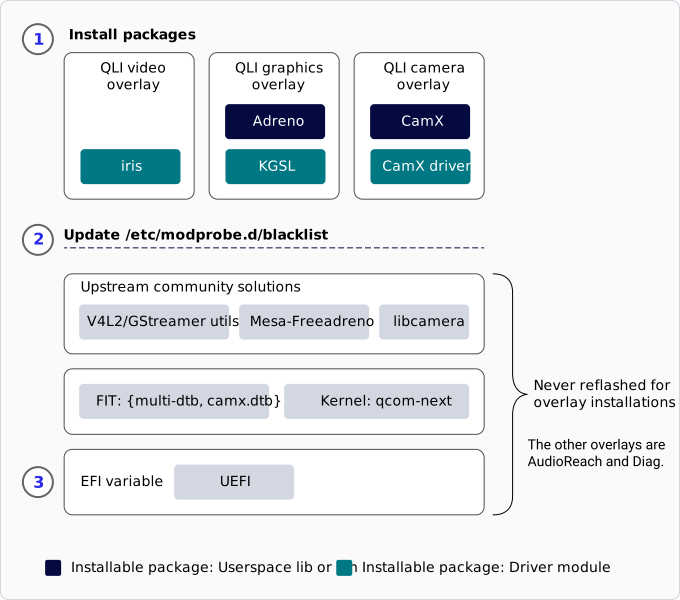
A high-level overview of the steps involved in flashing the image and installing packages from the package server of the release snapshot are as follows. For detailed instructions, see [Install packages from the Qualcomm Linux reference package server](#install-packages-from-the-qualcomm-linux-reference-package-server).

1. Download and flash the `qcom-multimedia-image` [upstream image](https://artifacts.codelinaro.org/artifactory/qli-ci/flashable-binaries/meta-qcom/).
2. Install the packages corresponding to the overlays:
   1. Add the following package feed URL available as part of Qualcomm Linux 2.0 release: [https://artifacts.codelinaro.org/qli-yocto-rpm-signed/qli-2.0/rpm](https://artifacts.codelinaro.org/qli-yocto-rpm-signed/qli-2.0/rpm)
   2. Install package on the device using package manager.
3. To manage the configurations, update `/etc/modprobe.d/blacklist.conf` for driver selection.
4. Set EFI variables to select the camera driver.
   * If required, set the EFI variable for the DTB overlay indication to UEFI.

<div className="flex flex-col items-center gap-2">
  <img src="https://mintcdn.com/qualcomm-prod/Im5W2pUR5LdqxAI6/Key-Documents/Migration-Guide/media/overlay_workflow.svg?fit=max&auto=format&n=Im5W2pUR5LdqxAI6&q=85&s=d1d0958c511a23a5f5ce57707ded2e78" alt="Figure: Qualcomm Linux overlay workflow" width="680" height="600" data-path="Key-Documents/Migration-Guide/media/overlay_workflow.svg" />

  <p className="text-sm text-gray-700">
    Figure: Qualcomm Linux overlay workflow
  </p>
</div>

### **Install packages from the Qualcomm Linux reference package server**

You can install packages using overlays without software builds. A test server is set up on [CodeLinaro](https://artifacts.codelinaro.org/artifactory/qli-yocto-rpm-signed/) with all the images and RPM packages.

To flash images and install RPMs for overlays, do the following:

1. To flash `qcom-multimedia-image` for `RB3Gen2 Core Kit`, do the following:
   1. Download `qcom-multimedia-image-rb3gen2-core-kit.rootfs.qcomflash.tar.gz` from the artifactory server.
   2. Unpack `qcom-multimedia-image-rb3gen2-core-kit.rootfs.qcomflash.tar.gz`.
   3. Flash it using the [Qualcomm Device Loader (QDL) tool](https://dragonwingdocs.qualcomm.com/Key-Documents/Flash-Guide/flash-with-qdl) or [Product Configuration Assistant Tool (PCAT)](https://dragonwingdocs.qualcomm.com/Key-Documents/Flash-Guide/flash-with-pcat).
2. Bring up and log in to your device.
3. To configure the `yum.repos.d` repository on the device, append the following lines to the configuration file:

**Note**

* `/etc/yum.repos.d/` is a directory that stores repository configuration files. Ensure this directory exists; if not, create it.
* Inside this directory, ensure the file `overlay.repo` exists. If it does not, create it at `/etc/yum.repos.d/overlay.repo`.
* To configure the `yum.repos.d` repository, append the required configuration to `/etc/yum.repos.d/overlay.repo`.
* The `yum.repos.d` repository is protected using GNU Privacy Guard (GPG)-based signing to ensure authenticity and integrity of the repository metadata. These settings in the `.repo` file enforce the following checks:
  * `gpgkey` defines the trusted public GPG key used to verify the repository metadata.
  * `repo_gpgcheck=1` enables mandatory GPG validation of the repository before any package operation.

```text theme={null}
[overlay-noarch]
name = Qualcomm Overlay Repository (noarch)
baseurl = https://artifacts.codelinaro.org/qli-yocto-rpm-signed/qli-2.0/rpm/noarch/
enabled = 1
gpgcheck = 0
gpgkey=https://artifacts.codelinaro.org/artifactory/api/security/keypair/yocto-qli-rpm-1/public
repo_gpgcheck=1

[overlay-armv8_2a]
name = Qualcomm Overlay Repository (armv8_2a)
baseurl = https://artifacts.codelinaro.org/qli-yocto-rpm-signed/qli-2.0/rpm/armv8_2a/
enabled = 1
gpgcheck = 0
gpgkey=https://artifacts.codelinaro.org/artifactory/api/security/keypair/yocto-qli-rpm-1/public
repo_gpgcheck=1

[overlay-<target_specific>]
name = Qualcomm Overlay Repository (<target_specific>)
baseurl = https://artifacts.codelinaro.org/qli-yocto-rpm-signed/qli-2.0/rpm/<target_specific>/
enabled = 1
gpgcheck = 0
gpgkey=https://artifacts.codelinaro.org/artifactory/api/security/keypair/yocto-qli-rpm-1/public
repo_gpgcheck=1
```

The third block, `[overlay-<target_specific>]`, determines which feed the DNF uses for your hardware or build target. For example:

<Tabs>
  <Tab title="QCS6490">
    ```text theme={null}
    [overlay-rb3gen2]
    name = Qualcomm Overlay Repository rb3gen2
    baseurl = https://artifacts.codelinaro.org/qli-yocto-rpm-signed/qli-2.0/rpm/rb3gen2_core_kit/
    enabled = 1
    gpgcheck = 0
    gpgkey=https://artifacts.codelinaro.org/artifactory/api/security/keypair/yocto-qli-rpm-1/public
    repo_gpgcheck=1
    ```
  </Tab>

  <Tab title="IQ-9075">
    ```text theme={null}
    [overlay-iq_9075_evk]
    name = Qualcomm Overlay Repository IQ-9075 EVK
    baseurl = https://artifacts.codelinaro.org/qli-yocto-rpm-signed/qli-2.0/rpm/iq_9075_evk/
    enabled = 1
    gpgcheck = 0
    gpgkey=https://artifacts.codelinaro.org/artifactory/api/security/keypair/yocto-qli-rpm-1/public
    repo_gpgcheck=1
    ```
  </Tab>

  <Tab title="IQ-8275">
    ```text theme={null}
    [overlay-iq_8275_evk]
    name = Qualcomm Overlay Repository IQ-8275 EVK
    baseurl = https://artifacts.codelinaro.org/qli-yocto-rpm-signed/qli-2.0/rpm/iq_8275_evk/
    enabled = 1
    gpgcheck = 0
    gpgkey=https://artifacts.codelinaro.org/artifactory/api/security/keypair/yocto-qli-rpm-1/public
    repo_gpgcheck=1
    ```
  </Tab>
</Tabs>

Ensure that you append the appropriate target-specific line so that DNF fetches packages from the right directory.

4. To refresh the package index using your custom configuration file, run the following command:

   ```text theme={null}
   dnf update
   ```

   **Note**

   If you experience an SSL certificate validation error during DNF update, ensure that your system time is accurate.

   In this step, DNF does the following:

   1. Downloads the repository metadata (for example, `repomd.xml` and related files)
   2. Retrieves the associated metadata signatures
   3. Accepts and uses the repository metadata only if the verification is successful

### **Run DNF installation commands to derive Config #2, Config #3 and Config #4**

**Note**

As Config #1 and Config #2 are images, commands are required to install overlays only for Config #3 and Config #4. You should flash the device with Config #1, that is `qcom-multimedia-image`.

The following table lists the `dnf install` commands to install overlay packages and configuration file changes you must make on the device to derive Config #2:

**Table: DNF commands and configuration file changes for Config #2**

|   **Config**  |  **Overlay** |                                                                                                                                                                                                                                                                                                                                                                                     **Instructions**                                                                                                                                                                                                                                                                                                                                                                                     |   |                                   |
| :-----------: | :----------: | :--------------------------------------------------------------------------------------------------------------------------------------------------------------------------------------------------------------------------------------------------------------------------------------------------------------------------------------------------------------------------------------------------------------------------------------------------------------------------------------------------------------------------------------------------------------------------------------------------------------------------------------------------------------------------------------------------------------------------------------------------------------------------------------: | - | --------------------------------- |
| **Config #2** | **Graphics** |                                                                                                                                                                                                                                                    To install RPM packages for the graphics overlay, run: `dnf install kgsl-dlkm -y`, `dnf install qcom-adreno -y`. The `/etc/modprobe.d/qcom-adreno.conf` file is automatically populated with: \`install msm /bin/sh -c "( modprobe --ignore msm skip\_gpu=1 && modprobe msm\_kgsl )                                                                                                                                                                                                                                                   |   | modprobe --ignore-install msm"\`. |
|               |   **Audio**  | To install packages for the audio overlay, do the following: 1. To install RPM packages, run the following DNF commands: `dnf install tinycompress -y`, `dnf install audioreach-audio-utils -y`, `dnf install audioreach-conf -y`, `dnf install audioreach-graphservices -y`, `dnf install audioreach-graphmgr -y`, `dnf install audioreach-pal -y`, `dnf install audioreach-pipewire-plugin -y`, `dnf install audioreach-kernel -y`, `dnf install kernel-module-audioreach-driver -y`. 2. Create a file named `asoc-blacklist.conf` in `/etc/modprobe.d/`. 3. Add the following blacklist entries: `blacklist q6apm_dai`, `blacklist q6apm_lpass_dais`, `blacklist q6prm`, `blacklist q6prm_clocks`, `blacklist snd-soc-sc8280xp`, `blacklist snd_q6apm`, `blacklist snd_q6dsp_common`. |   |                                   |
|               |  **Camera**  |                                                                                                   To install packages for the camera overlay, do the following: 1. Run common DNF commands: `dnf install camx-dlkm -y`, `dnf install camx-nhx -y`. Run device-specific command: QCS6490: `dnf install camx-kodiak -y`; IQ-9075/IQ-8275: `dnf install camx-lemans -y`; IQ-615: `dnf install camx-talos -y`. 2. To select the DTB overlay: `echo -n "camx" > /tmp/overlay`, `efivar -n 882f8c2b-9646-435f-8de5-f208ff80c1bd-VendorDtbOverlays -w -f /tmp/overlay`. 3. To verify: `efivar -n 882f8c2b-9646-435f-8de5-f208ff80c1bd-VendorDtbOverlays -p`. 4. To save before reboot: `sync`.                                                                                                  |   |                                   |
|               |   **Video**  |                                                                                                                                                                                                                            To install packages for the video overlay (applicable to QCS6490, IQ-9075, and IQ-8275 only): 1. `dnf install kernel-module-iris-vpu -y`. 2. Create `/etc/modprobe.d/video-blacklist.conf`. 3. Add entries: QCS6490: `blacklist venus_dec`, `blacklist venus_enc`, `blacklist venus_core`; IQ-9075/IQ-8275: `blacklist qcom_iris`.                                                                                                                                                                                                                            |   |                                   |
|               |  **Sensors** |                                                                                                                                                                                                                                                                                                                              To install packages for the sensors overlay: 1. `dnf install qcom-sensors-binaries -y`. 2. Restart the device to apply changes.                                                                                                                                                                                                                                                                                                                             |   |                                   |
|               |  **Vision**  |                                                                                                                                                                                                                        To install packages for the FastCV overlay: 1. `dnf install libfastcvopt1 -y`. 2. Device-specific: QCS6490: `dnf install libfastcvopt-thundercomm-rb3gen2-dsp -y`; IQ-9075: `dnf install libfastcvopt-sa8775p-ride-dsp -y`; IQ-8275: `dnf install libfastcvopt-qcs8300-ride-dsp -y`; IQ-615: `dnf install libfastcvopt-qcs615-ride-dsp -y`.                                                                                                                                                                                                                       |   |                                   |

The following table lists the `dnf install` commands to install overlay packages and configuration file changes you must make on the device to derive Config #3:

**Table: DNF commands and configuration file changes for Config #3**

|   **Config**  | **Overlay** |                                                                                                                                                                                                                                                                                                                                                                                     **Instructions**                                                                                                                                                                                                                                                                                                                                                                                     |
| :-----------: | :---------: | :--------------------------------------------------------------------------------------------------------------------------------------------------------------------------------------------------------------------------------------------------------------------------------------------------------------------------------------------------------------------------------------------------------------------------------------------------------------------------------------------------------------------------------------------------------------------------------------------------------------------------------------------------------------------------------------------------------------------------------------------------------------------------------------: |
| **Config #3** |  **Audio**  | To install packages for the audio overlay, do the following: 1. To install RPM packages, run the following DNF commands: `dnf install tinycompress -y`, `dnf install audioreach-audio-utils -y`, `dnf install audioreach-conf -y`, `dnf install audioreach-graphservices -y`, `dnf install audioreach-graphmgr -y`, `dnf install audioreach-pal -y`, `dnf install audioreach-pipewire-plugin -y`, `dnf install audioreach-kernel -y`, `dnf install kernel-module-audioreach-driver -y`. 2. Create a file named `asoc-blacklist.conf` in `/etc/modprobe.d/`. 3. Add the following blacklist entries: `blacklist q6apm_dai`, `blacklist q6apm_lpass_dais`, `blacklist q6prm`, `blacklist q6prm_clocks`, `blacklist snd-soc-sc8280xp`, `blacklist snd_q6apm`, `blacklist snd_q6dsp_common`. |
|               |  **Camera** |                                                                                                  To install packages for the camera overlay, do the following: 1. Run common DNF commands: `dnf install camx-dlkm -y`, `dnf install camx-nhx -y`. Run device-specific command: QCS6490: `dnf install camx-kodiak -y`; IQ-9075/IQ-8275: `dnf install camx-lemans -y`; IQ-615: `dnf install camx-talos -y`. 2. To select the DTB overlay: `echo -n "camx" > /tmp/overlay`, `efivar -n 882f8c2b-9646-435f-8de5-f208ff80c1bd-VendorDtbOverlays -w -f /tmp/overlay`. 3. To verify: `efivar -n 882f8c2b-9646-435f-8de5-f208ff80c1bd-VendorDtbOverlays -p`. 4. To save before restart: `sync`.                                                                                                  |
|               |  **Video**  |                                                                                                                                                                                                                            To install packages for the video overlay (applicable to QCS6490, IQ-9075, and IQ-8275 only): 1. `dnf install kernel-module-iris-vpu -y`. 2. Create `/etc/modprobe.d/video-blacklist.conf`. 3. Add entries: QCS6490: `blacklist venus_dec`, `blacklist venus_enc`, `blacklist venus_core`; IQ-9075/IQ-8275: `blacklist qcom_iris`.                                                                                                                                                                                                                            |
|               | **Sensors** |                                                                                                                                                                                                                                                                                                                              To install packages for the sensors overlay: 1. `dnf install qcom-sensors-binaries -y`. 2. Restart the device to apply changes.                                                                                                                                                                                                                                                                                                                             |
|               |  **Vision** |                                                                                                                                                                                                                        To install packages for the FastCV overlay: 1. `dnf install libfastcvopt1 -y`. 2. Device-specific: QCS6490: `dnf install libfastcvopt-thundercomm-rb3gen2-dsp -y`; IQ-9075: `dnf install libfastcvopt-sa8775p-ride-dsp -y`; IQ-8275: `dnf install libfastcvopt-qcs8300-ride-dsp -y`; IQ-615: `dnf install libfastcvopt-qcs615-ride-dsp -y`.                                                                                                                                                                                                                       |

The following table lists the `dnf install` commands to install overlay packages and the configuration file changes you must make on the device to derive Config #4:

**Table: DNF commands and configuration file changes for Config #4**

|   **Config**  |  **Overlay** |                                                                                                                                                                                                                                                                         **Instructions**                                                                                                                                                                                                                                                                        |   |                                   |
| :-----------: | :----------: | :-------------------------------------------------------------------------------------------------------------------------------------------------------------------------------------------------------------------------------------------------------------------------------------------------------------------------------------------------------------------------------------------------------------------------------------------------------------------------------------------------------------------------------------------------------------: | - | --------------------------------- |
| **Config #4** | **Graphics** |                                                                                                                                       To install RPM packages for the graphics overlay, run: `dnf install kgsl-dlkm -y`, `dnf install qcom-adreno -y`. The `/etc/modprobe.d/qcom-adreno.conf` file is automatically populated with: \`install msm /bin/sh -c "( modprobe --ignore msm skip\_gpu=1 && modprobe msm\_kgsl )                                                                                                                                       |   | modprobe --ignore-install msm"\`. |
|               |  **Camera**  | To install packages for the camera overlay: 1. Run common DNF commands: `dnf install camx-dlkm -y`, `dnf install camx-nhx -y`. Run device-specific command: QCS6490: `dnf install camx-kodiak -y`; IQ-9075/IQ-8275: `dnf install camx-lemans -y`; IQ-615: `dnf install camx-talos -y`. 2. To select DTB overlay: `echo -n "camx" > /tmp/overlay`, `efivar -n 882f8c2b-9646-435f-8de5-f208ff80c1bd-VendorDtbOverlays -w -f /tmp/overlay`. 3. To verify: `efivar -n 882f8c2b-9646-435f-8de5-f208ff80c1bd-VendorDtbOverlays -p`. 4. To save before reboot: `sync`. |   |                                   |
|               |  **Sensors** |                                                                                                                                                                                                                 To install packages for the sensors overlay: 1. `dnf install qcom-sensors-binaries -y`. 2. Restart the device to apply changes.                                                                                                                                                                                                                 |   |                                   |
|               |  **Vision**  |                                                                                                           To install packages for the FastCV overlay: 1. `dnf install libfastcvopt1 -y`. 2. Device-specific: QCS6490: `dnf install libfastcvopt-thundercomm-rb3gen2-dsp -y`; IQ-9075: `dnf install libfastcvopt-sa8775p-ride-dsp -y`; IQ-8275: `dnf install libfastcvopt-qcs8300-ride-dsp -y`; IQ-615: `dnf install libfastcvopt-qcs615-ride-dsp -y`.                                                                                                           |   |                                   |

To verify that the RPM and driver packages were installed successfully for each overlay, see [Verify the installation of RPM and driver packages](#verify-the-installation-of-rpm-and-driver-packages).

**Note**

The package server is based on the Qualcomm Linux 2.0 release snapshot to demonstrate overlays. It’s not intended to meet the needs of a production-class packaging server. When next version of Qualcomm Linux is released, a new feed (package server URL) will provide packages generated from that release. However, package-based upgrades from one version to another are not guaranteed to work.

### **Verify the installation of RPM and driver packages**

The following table lists the `dnf` and `lsmod` commands to verify that the RPM and driver packages for overlays were installed successfully:

**Table: RPM and driver packages verification commands**

| **Overlay** | **Verification commands**                                                                                                                                                                                                  |
| :---------: | :------------------------------------------------------------------------------------------------------------------------------------------------------------------------------------------------------------------------- |
|    Audio    | To verify RPM packages: `dnf list installed \| grep <rpm_name>`. To verify driver packages: `lsmod \| grep audioreach`.                                                                                                    |
|    Camera   | To verify RPM packages: `dnf list installed \| grep <rpm_name>`. To verify driver packages: run `lsmod \| grep cam*` and check for: QCS6490: `camera_qcm6490`; IQ-9075/IQ-8275: `camera_qcs9100`; IQ-615: `camera_qcs615`. |
|    Video    | To verify RPM packages: `dnf list installed \| grep <rpm_name>`. To verify driver packages: `lsmod \| grep iris_vpu`.                                                                                                      |
|   Graphics  | To verify RPM packages: `dnf list installed \| grep <rpm_name>`. To verify driver packages: `lsmod \| grep msm_kgsl`.                                                                                                      |
|   Sensors   | To verify RPM packages: `dnf list installed \| grep qcom-sensors-binaries`.                                                                                                                                                |
|    Vision   | To verify RPM packages: `dnf list installed \| grep libfastcv`.                                                                                                                                                            |

To uninstall overlays, see [Uninstall overlay configurations and switch to upstream drivers](./uninstall-overlays).

## **Build locally, flash images, and use packages from the local build**

**Note**

For instructions on how to build from source, see [Qualcomm Linux Build Guide](https://dragonwingdocs.qualcomm.com/Key-Documents/Firmware-Guide/build-firmware#build-bsp-image).

Use this workflow to build images and packages by cloning `meta-qcom`. You can also use this workflow if you want to integrate your changes. The images and packages corresponding to a Qualcomm Linux release are built locally. You can flash images and install packages from the local workspace.

### **Set up a local workspace**

1. To clone `meta-qcom`, run the following command:

   ```text theme={null}
   git clone https://github.com/qualcomm-linux/meta-qcom.git
   ```

2. To build the image for Config #1 `qcom-multimedia-image`, run the following command:

   <Tabs>
     <Tab title="QCS6490">
       ```bash theme={null}
       kas shell meta-qcom/ci/qcs6490-rb3gen2-core-kit.yml:meta-qcom/ci/qcom-distro-multimedia-image.yml:meta-qcom/ci/linux-qcom-6.18.yml

       bitbake qcom-multimedia-image
       ```
     </Tab>

     <Tab title="IQ-9075">
       ```bash theme={null}
       kas shell meta-qcom/ci/iq-9075-evk.yml:meta-qcom/ci/qcom-distro-multimedia-image.yml:meta-qcom/ci/linux-qcom-6.18.yml

       bitbake qcom-multimedia-image
       ```
     </Tab>

     <Tab title="IQ-8275">
       ```bash theme={null}
       kas shell meta-qcom/ci/iq-8275-evk.yml:meta-qcom/ci/qcom-distro-multimedia-image.yml:meta-qcom/ci/linux-qcom-6.18.yml

       bitbake qcom-multimedia-image
       ```
     </Tab>

     <Tab title="IQ-615">
       ```bash theme={null}
       kas shell meta-qcom/ci/iq-615-evk.yml:meta-qcom/ci/qcom-distro-multimedia-image.yml:meta-qcom/ci/linux-qcom-6.18.yml

       bitbake qcom-multimedia-image
       ```
     </Tab>
   </Tabs>

3. To build the image for Config #2 `qcom-multimedia-proprietary-image` and all packages, run the following command:

   <Tabs>
     <Tab title="QCS6490">
       ```bash theme={null}
       kas shell meta-qcom/ci/qcs6490-rb3gen2-core-kit.yml:meta-qcom/ci/qcom-distro.yml:meta-qcom/ci/linux-qcom-6.18.yml

       bitbake qcom-multimedia-proprietary-image
       ```
     </Tab>

     <Tab title="IQ-9075">
       ```bash theme={null}
       kas shell meta-qcom/ci/iq-9075-evk.yml:meta-qcom/ci/qcom-distro.yml:meta-qcom/ci/linux-qcom-6.18.yml

       bitbake qcom-multimedia-proprietary-image
       ```
     </Tab>

     <Tab title="IQ-8275">
       ```bash theme={null}
       kas shell meta-qcom/ci/iq-8275-evk.yml:meta-qcom/ci/qcom-distro.yml:meta-qcom/ci/linux-qcom-6.18.yml

       bitbake qcom-multimedia-proprietary-image
       ```
     </Tab>

     <Tab title="IQ-615">
       ```bash theme={null}
       kas shell meta-qcom/ci/iq-615-evk.yml:meta-qcom/ci/qcom-distro.yml:meta-qcom/ci/linux-qcom-6.18.yml

       bitbake qcom-multimedia-proprietary-image
       ```
     </Tab>
   </Tabs>

   **Note**

   `qcom-distro.yml` sets DISTRO to `qcom-distro`. `qcom-distro` enables package management using DNF and allows RPMs to be installed. Other DISTRO configurations available in `meta-qcom-distro` enable `SOTA` using OSTree, and disable package management.

### **Install packages and configure the RPM repository**

1. Flash `qcom-multimedia-image` using QDL.
2. Host all the packages from the `rpm` directory of `qcom-multimedia-proprietary-image`. The `rpm` directory is located at `build/tmp/deploy/rpm`.
3. To configure the RPM repository on the device, append the following lines to the configuration file:

**Note**

* `/etc/yum.repos.d/` is a directory that stores repository configuration files. Ensure this directory exists; if not, create it.
* Inside this directory, ensure the file `overlay.repo` exists. If it does not, create it at `/etc/yum.repos.d/overlay.repo`.
* To configure the RPM repository feeds, append the required configuration to `/etc/yum.repos.d/overlay.repo`.
* The `yum.repos.d` repository is protected using GNU Privacy Guard (GPG)-based signing to ensure authenticity and integrity of the repository metadata. These settings in the `.repo` file enforce the following checks:
  * `gpgkey` defines the trusted public GPG key used to verify the repository metadata.
  * `repo_gpgcheck=1` enables mandatory GPG validation of the repository before any package operation.

```text theme={null}
[overlay-noarch]
name = Qualcomm Overlay Repository (noarch)
baseurl = https://<your-local-package-server-IP>/rpm/noarch/
enabled = 1
gpgcheck = 0
gpgkey=https://artifacts.codelinaro.org/artifactory/api/security/keypair/yocto-qli-rpm-1/public
repo_gpgcheck=1

[overlay-armv8_2a]
name = Qualcomm Overlay Repository (armv8_2a)
baseurl = https://<your-local-package-server-IP>/rpm/armv8_2a/
enabled = 1
gpgcheck = 0
gpgkey=https://artifacts.codelinaro.org/artifactory/api/security/keypair/yocto-qli-rpm-1/public
repo_gpgcheck=1

[overlay-<target_specific>]
name = Qualcomm Overlay Repository (<target_specific>)
baseurl = https://<your-local-package-server-IP>/rpm/<target_specific>/
enabled = 1
gpgcheck = 0
gpgkey=https://artifacts.codelinaro.org/artifactory/api/security/keypair/yocto-qli-rpm-1/public
repo_gpgcheck=1
```

**Note**

The `baseurl` must point to the `armv8_2a/` directory when building for QCS6490, IQ-9075, IQ-8275, and IQ-615. If you are using `qcom-armv8a.yml` to build with KAS or setting `qcom-armv8a` as the `MACHINE` value, change the directory name to `armv8a/`.

The third block, `[overlay-<target_specific>]`, determines which feed the DNF uses for your hardware or build target. For example:

<Tabs>
  <Tab title="QCS6490">
    ```text theme={null}
    [overlay-rb3gen2]
    name = Qualcomm Overlay Repository rb3gen2
    baseurl = https://<your-local-package-server-IP>/rpm/rb3gen2_core_kit/
    enabled = 1
    gpgcheck = 0
    gpgkey=https://artifacts.codelinaro.org/artifactory/api/security/keypair/yocto-qli-rpm-1/public
    repo_gpgcheck=1
    ```
  </Tab>

  <Tab title="IQ-9075">
    ```text theme={null}
    [overlay-iq_9075_evk]
    name = Qualcomm Overlay Repository iq_9075_evk
    baseurl = https://<your-local-package-server-IP>/rpm/iq_9075_evk/
    enabled = 1
    gpgcheck = 0
    gpgkey=https://artifacts.codelinaro.org/artifactory/api/security/keypair/yocto-qli-rpm-1/public
    repo_gpgcheck=1
    ```
  </Tab>

  <Tab title="IQ-8275">
    ```text theme={null}
    [overlay-iq_8275_evk]
    name = Qualcomm Overlay Repository iq_8275_evk
    baseurl = https://<your-local-package-server-IP>/rpm/iq_8275_evk/
    enabled = 1
    gpgcheck = 0
    gpgkey=https://artifacts.codelinaro.org/artifactory/api/security/keypair/yocto-qli-rpm-1/public
    repo_gpgcheck=1
    ```
  </Tab>
</Tabs>

Ensure that you append the appropriate target-specific line so that DNF fetches packages from the right directory.

4. To refresh the package index using your custom configuration file, run the following command:

   ```bash theme={null}
   dnf update
   ```

   In this step, DNF does the following:

   1. Downloads the repository metadata (for example, `repomd.xml` and related files)
   2. Retrieves the associated metadata signatures
   3. Accepts and uses the repository metadata only if the verification is successful

To uninstall overlays, see [Uninstall overlay configurations and switch to upstream drivers](./uninstall-overlays).

## **Define the image recipe for Config #3 and Config #4**

**Note**

For instructions on how to build from source, see [Qualcomm Linux Build Guide](https://dragonwingdocs.qualcomm.com/Key-Documents/Firmware-Guide/build-firmware#build-bsp-image).

Use this workflow to define the BitBake image recipe for Config #3 and Config #4, and flash the generated image with the overlays included.

To define and build images, do the following:

1. To clone `meta-qcom`, run the following command:

   ```bash theme={null}
   git clone https://github.com/qualcomm-linux/meta-qcom.git
   cd meta-qcom
   ```

2. To clone all layers including `meta-qcom-distro` locally, run the following command:

   ```bash theme={null}
   kas shell meta-qcom/ci/qcs6490-rb3gen2-core-kit.yml:meta-qcom/ci/qcom-distro.yml:meta-qcom/ci/linux-qcom-6.18.yml
   ```

### **Define the image for Config #3**

1. To define the image in `meta-qcom-distro` for Config #3, run the following command:

   ```bash theme={null}
   vim meta-qcom-distro/recipes-products/images/qcom-config3-image.bb
   ```

2. To add contents to the new image recipe, run the following command:

   ```bash theme={null}
   require qcom-multimedia-image.bb

   SUMMARY = "An image built on top of multimedia image for proprietary features"

   # This image is compatible only with aarch64 (ARMv8)
   COMPATIBLE_MACHINE = "^$"
   COMPATIBLE_MACHINE:aarch64 = "(.*)"

   CORE_IMAGE_BASE_INSTALL += " \
      camx-dlkm \
      camx-kodiak \
      camx-lemans \
      camx-talos \
      camx-nhx \
      iris-video-dlkm \
      libdiag-bin \
      qcom-sensors-binaries \
   "
   CORE_IMAGE_BASE_INSTALL:append = " \
      ${@bb.utils.contains('BBFILE_COLLECTIONS', 'meta-audioreach', ' packagegroup-audioreach', '', d)} \
   "
   ```

   **Note**

   If your target device is a QCS615-based EVK, exclude `iris-video-dlkm` from `qcom-config3-image`. `iris-video-dlkm` doesn't support the video functionality for QCS615-based EVKs. The QCS615-based EVKs are supported by the upstream video driver.

3. To build a new image recipe, run the following command:

   ```bash theme={null}
   bitbake qcom-config3-image
   ```

4. After the build completes, use the QDL tool to flash images.

### **Define the image for Config #4**

1. To define the image in `meta-qcom-distro` for Config #4, run the following command:

   ```bash theme={null}
   vim meta-qcom-distro/recipes-products/images/qcom-config4-image.bb
   ```

2. To add contents to the new image recipe, run the following command:

   ```bash theme={null}
   require qcom-multimedia-image.bb

   SUMMARY = "An image built on top of multimedia image for proprietary features"

   # This image is compatible only with aarch64 (ARMv8)
   COMPATIBLE_MACHINE = "^$"
   COMPATIBLE_MACHINE:aarch64 = "(.*)"

   CORE_IMAGE_BASE_INSTALL += " \
      camx-dlkm \
      camx-kodiak \
      camx-lemans \
      camx-talos \
      camx-nhx \
      kgsl-dlkm \
      libdiag-bin \
      qcom-adreno \
      qcom-sensors-binaries"
   ```

3. To build a new image recipe, run the following command:

   ```bash theme={null}
   bitbake qcom-config4-image
   ```

4. After the build completes, use the QDL tool to flash images.

To uninstall overlays, see [Uninstall overlay configurations and switch to upstream drivers](./uninstall-overlays).
