> ## Documentation Index
> Fetch the complete documentation index at: https://dragonwingdocs.qualcomm.com/llms.txt
> Use this file to discover all available pages before exploring further.

# Configure and secure boot with systemd-boot and UKI

The systemd-boot unified extensible firmware interface (UEFI) boot manager provides options to control the boot flow and loads the user-selected boot loader. The configuration files, kernel images, initrd images, and other EFI images must reside on the EFI partition.

To run the Qualcomm Linux kernel directly as EFI images, build them with `CONFIG_EFI_STUB`. The systemd-boot supports two configurations:

> * Type1: The Type1 configuration uses boot loader specification (BLS) description files. You can find these files in the `/loader/entries/` directory on the EFI.
> * Type2: The Type2 configuration uses unified kernel images (UKI). These images combine the kernel, initrd, and kernel command-line into a single EFI executable. Type2 offers better security because the UKI contains all the necessary information for the device to boot. Signing a UKI image secures all included entities. If UEFI secure boot is enabled, the system only loads signed images, making signing a requirement.

For more details, see [systemd-boot](https://www.freedesktop.org/software/systemd/man/latest/systemd-boot.html).

**Note**

To use a secure boot enabled device, signing is required.

## **UKI**

UKI is a combination of a UEFI boot stub program, a Qualcomm Linux kernel image, an initrd, and other resources in a single UEFI portable executable (PE) file. The UEFI boot stub looks for various resources for the kernel invocation inside the UEFI PE binary. This allows combining various resources inside a single UKI image, which may then be signed using sbsign. Qualcomm Linux uses sbsign to sign PE files, while non-PE files such as DTB are signed using OpenSSL.

For more details about UKI, see `unified_kernel_image`. The following table shows the `uki.efi` content:

| **Components of uki.efi file** |                                                                                                    **Contents**                                                                                                    |
| :----------------------------: | :----------------------------------------------------------------------------------------------------------------------------------------------------------------------------------------------------------------: |
|      Initrd = Init ramdisk     |                                                                                  `initramfs-rootfs-image-rb3gen2-core-kit.cpio.gz`                                                                                 |
|      Linux = Kernel Image      |                                                                                `Image` (as systemd-boot expects uncompressed kernel)                                                                               |
|     Uname = Kernel Release     |                                                                                                      `6.18.12`                                                                                                     |
|     Efi-arch = Architecture    |                                                                                                       `aa64`                                                                                                       |
|   Stub = System-boot efi stub  |                                                                                                 `linuxx64.efi.stub`                                                                                                |
|     OS-release = OS-release    | <ul><li>`ID = qcom-distro`</li><li>`Name = “Qualcomm Linux reference distribution”`</li><li>`VERSION = “2.0”`</li><li>`VERSION_ID = 2.0`</li><li>`PRETTY_NAME = “Qualcomm Linux reference distribution”`</li></ul> |

### **Image recipes**

`meta-qcom/recipes-kernel/images` contains the following recipes:

* `esp-qcom-image.bb` generates a VFAT image, `efi.bin`, which contains `uki.efi` and `systemd-boot`.

The `meta-qcom/classes-recipe/image_types_qcom.bbclass` class invokes the `esp-qcom-image`.

## **EFI image**

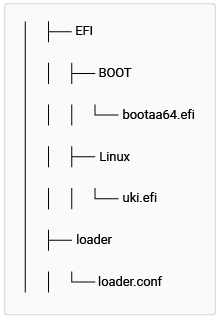
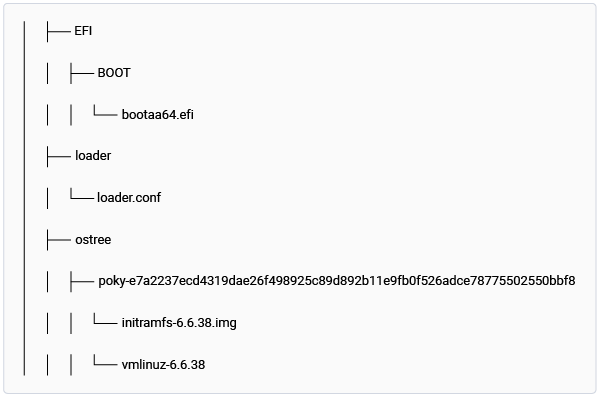
The EFI image, `efi.bin`, is a VFAT file system image stored in the EFI partition of the flash. This VFAT file system contains the images necessary for the UEFI to load and transfer execution control to systemd-boot. To transfer execution control to the systemd-boot manager, UEFI mounts `efi.bin`, loads `bootaa64.efi`, and executes it. The systemd-boot manager parses the `loader.conf`, loads the kernel image, and transfers the control to it.

For more information about the structure of EFI, see [EFI system partition](https://wiki.archlinux.org/title/EFI_system_partition).

The following is the sample structure of `efi.bin` from Qualcomm Linux. It contains systemd-boot `bootaa64.efi` and Qualcomm Linux kernel `vmlinuz-<version>` under the `/ostree/poky-<sha256-sum>`directory.

<div className="flex flex-col items-center gap-2">
  <img src="https://mintcdn.com/qualcomm-prod/Im5W2pUR5LdqxAI6/Key-Documents/Yocto-Guide/media/k2c-qli-yocto-build-ga/efi-bin-ostree.png?fit=max&auto=format&n=Im5W2pUR5LdqxAI6&q=85&s=1a1e3a52918f4ba4a2106344ead13f40" alt="Figure: ``efi.bin`` file generated with OSTree support" width="600" height="397" data-path="Key-Documents/Yocto-Guide/media/k2c-qli-yocto-build-ga/efi-bin-ostree.png" />

  <p className="text-sm text-gray-700">
    Figure: `efi.bin` file generated with OSTree support
  </p>
</div>

## **Signing**

Secure boot is a feature in the UEFI standard, but it’s not enabled by default in Qualcomm Linux. When enabled, secure boot adds a layer of protection to the preboot process by maintaining a cryptographically signed list of binaries that are run at device bootup, if successfully authenticated. This ensures that the device’s boot firmware and Linux OS boot components, such as the boot manager, kernel, and initramfs, haven’t been tampered with.

UEFI secure boot uses a digital signature to validate the authenticity and integrity of the binary code that it loads. The UEFI secure variables store all the keys. Achieving UEFI secure boot involves using the platform key (PK), key exchange key (KEK), database (DB), and forbidden signatures database (DBX).

Using secure boot requires the keys PK, KEK, and DB. While multiple KEK, DB, and DBX are allowed, only one PK is allowed.

Enabling UEFI secure boot requires registering the PK in the system. Qualcomm recommends provisioning PK at the last step of the secure boot enabling process. For more information about how Qualcomm has implemented the UEFI secure boot feature, see [Secure boot](https://dragonwingdocs.qualcomm.com/System/Security/security-features#secure-boot).

### **Host tool** `signing_tool.py `**to sign Linux OS images generated by Qualcomm Linux builds**

Enabling UEFI secure boot requires signing the EFI and DTB images. Use the `signing_tool.py` host signing tool to streamline this process. This command-line Python script runs on a Linux host computer (Ubuntu 20.04 or later versions). It automates the signing of EFI and DTB images in two separate operations.

The host signing tool is available for download on [GitHub](https://github.com/quic/host-signing-tool).

The host signing tool runs on a Linux machine with Python3 installed. It can sign either the EFI image or the DTB image in a single operation. To sign both the EFI and DTB images, you must invoke the tool twice with different inputs.

<div className="flex flex-col items-center gap-2">
  <img src="https://mintcdn.com/qualcomm-prod/Im5W2pUR5LdqxAI6/Key-Documents/Yocto-Guide/media/k2c-qli-yocto-build-ga/host_tool_design_wbg.png?fit=max&auto=format&n=Im5W2pUR5LdqxAI6&q=85&s=7a9fca25853f012007d0fe97b5c9a7b5" alt="Figure: Linux machine with OpenSSL and sbsign" width="462" height="309" data-path="Key-Documents/Yocto-Guide/media/k2c-qli-yocto-build-ga/host_tool_design_wbg.png" />

  <p className="text-sm text-gray-700">
    Figure: Linux machine with OpenSSL and sbsign
  </p>
</div>

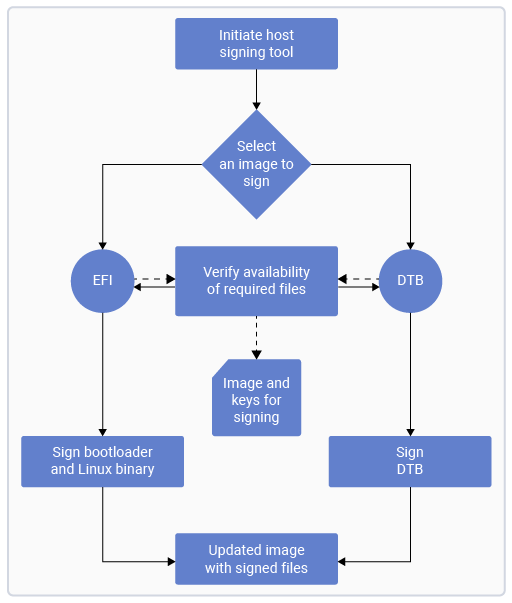
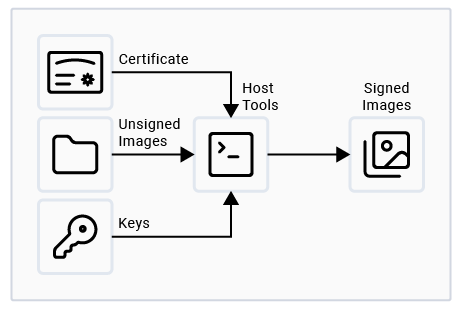
The host tool expects unsigned EFI or DTB files, along with certificates and keys, as input. After invoking, the tool unpacks the unsigned image, signs the available items using the provided key and certificate, and then repacks the images, replacing the unsigned version with the signed one.

### **Prerequisites**

To run this tool, install the following on the Linux host computer:

* OpenSSL, sbsign, and mtools utilities
* Python3
* pip, subprocess, shlex, socket, glob, and shutil Python modules

### **Configure the host signing tool**

You must configure the host signing tool before starting the operation.

The host tool requires providing the necessary information in a `config.ini` configuration file. The tool reads this file and signs the image accordingly. The following code snippet shows the variables in the configuration file:

#### `config.ini `**file**

```text theme={null}
[common]
# Section - 1: Common Selection
# Select operation: sign_image
operation = sign_image
# Possible values for file_path are 1. remote or 2. local
file_path = local
# If file_path == remote
local_machine_private_key_path = /usr2/<user_name_for_machine>/.ssh/id_rsa

# Section - 2: operation == sign_image related common selection
# Possible values for image_type are 1. efi or 2. dtb
image_type = efi
# This option is required if operation == sign_image & image_type == efi
loader_conf_timeout = 20

# Below options are required to fetch file from remote Linux machine in the same network (that is if file_path == remote)

# This option is useful if operation == sign_image & image_type == efi
[efi_config]
efi_remote_hostname = <remotemachine_ip_or_hostname_where_efi.bin_available>
efi_remote_username = <username_on_remote_machine_where_efi.bin_available>
efi_remote_filepath = <full_path_of_efi.bin_file_on_remotemachine>

# This option is useful if operation == sign_image. Both image_type requires this option
[keys_config]
keys_remote_hostname = <remotemachine_ip_or_hostname_where_keys_available>
keys_remote_username = <username_on_remote_machine_where_keys_available>
keys_remote_filepath = <full_path_of_keys_directory_on_remotemachine>

# This option is useful if operation == sign_image & image_type == dtb
[dtb_config]
dtb_remote_hostname = <remotemachine_ip_or_hostname_where_dtb_available>
dtb_remote_username = <username_on_remote_machine_where_dtb_available>
dtb_remote_filepath = <full_path_of_dtb_on_remotemachine>
```

Table : Variables in config.ini file

|    **Variable in config.ini**    |                   **Values**                  |                                                                                                   **Description**                                                                                                  |
| :------------------------------: | :-------------------------------------------: | :----------------------------------------------------------------------------------------------------------------------------------------------------------------------------------------------------------------: |
|            `operation`           |                  `sign_image`                 |                                                                               Use this configuration to select signing of the image.                                                                               |
|           `image_type`           |                   `efi/dtb`                   |                                                          If `operation == sign_image`, use this configuration to select `efi` or `dtb` to sign separately.                                                         |
|            `file_path`           |                 `local/remote`                |          <ul><li>local: Keys and efi.bin/dtb.bin are present in the same path as the script.</li><li>remote: Copy efi.bin/dtb.bin and the keys from a remote Linux machine to the current path.</li></ul>          |
| `local_machine_private_key_path` |    `<path of id_rsa file in localmachine>`    |                                                                This file establishes an SSH connection with a remote machine if `file_path =remote`.                                                               |
|       `loader_conf_timeout`      |             `<timeout in seconds>`            |                                                The systemd-boot wait time to let you choose to authenticate the binaries. This option is required to sign `efi.bin`.                                               |
|  `efi/keys/dtb_remote_hostname`  | `<ip or hostname of the remote Linuxmachine>` |                             If `file_path = remote`, then the host tool selects the host name of the remote machine to copy the `efi/keys/dtb` file from the remote machine using SCP.                             |
|  `efi/keys/dtb_remote_username`  |         `<username_on_remote_machine>`        | If `file_path = remote`, then the host tool selects the user name of the remote machine to copy the `efi/keys/dtb` file from the remote machine using SCP, provided the username is created on the remote machine. |
|  `efi/keys/dtb_remote_filepath`  |    `<full_path_of_file_on_remote_machine>`    |                           If `file_path = remote`, then the host tool selects the path of a `efi/key/dtb` file on the remote machine to copy that file from the remote machine using SCP.                          |

To configure the host signing tool using the `config.ini` file, do the following:

1. Set the `operation` variable to specify which operation must be performed. The option is `sign_image`.
2. If you select `operation == sign_image`, specify which image to sign by setting the `image_type`variable. The options are either `efi` or `dtb`.
3. Indicate the location of the unsigned EFI and DTB image, keys, and certificates using the `file_path`variable.
   * If you select `local` in the configuration file, copy the EFI and DTB image, keys, and certificate files manually to the local working directory:
     1. Create an `unsigned_binaries` directory in the same path as the script, and then copy the `efi.bin` and `dtb.bin` image into that directory.
     2. Create a `keys` directory in the same path as the script and then copy the `db.auth`, `db.crt`, `db.key`, `KEK.auth`, and `PK.auth` files into that directory.
   * If you want the script to copy the required files automatically from a remote Linux machine on the same network, select `remote` in the configuration file. In the configuration file, provide information for the following variables:
     * `local_machine_private_key_path` (mandatory)
     * `[efi_config]` section (if `operation` is `sign_image` and if `image_type` is `efi`)
     * `[keys_config]` section (if `operation` is `sign_image`)
     * `[dtb_config]` section (if `operation` is `sign_image` and if `image_type` is `dtb`) **Note** The script supports copying from another Linux machine over SCP within the same network.
4. When `image_type` is set to efi in the configuration file, update the `loader_conf_timeout` variable.
5. If you missed any configuration information, the script runs and prompts you for the missing details through the command line.

### **Run host signing tool**

1. After completing the code build process and obtaining the unsigned `efi.bin` and `dtb.bin` images, run the host signing tool.
2. Store the host signing tool files (`signing_tool.py` and `config.ini`) on a Linux machine. Ensure that both the files are in the same working directory.
3. Set up the host signing tool according to the configuration instructions.
4. Run the following command to launch the host tool from the command line: `$python3 signing_tool.py`The host signing tool displays your selections and operational commands on the screen. It also displays errors in the command line. After the tool completes its process, it creates a directory called `signed_binaries` in the same working directory. The signed `efi.bin` or `dtb.bin` image is stored in the directory. The tool deletes other user-created directories after signing.
5. Follow this process twice, once for `efi.bin` and once for `dtb.bin`. After each signing operation, delete the `signed_binaries` directory before starting a new operation.

### **Host signing tool workflow**

The following figure shows the workflow of the host signing tool:

<div className="flex flex-col items-center gap-2">
  <img src="https://mintcdn.com/qualcomm-prod/Im5W2pUR5LdqxAI6/Key-Documents/Yocto-Guide/media/k2c-qli-yocto-build-ga/host_tool_workflow.png?fit=max&auto=format&n=Im5W2pUR5LdqxAI6&q=85&s=be77a37e353f6ab2ab555f83f8e86fbb" alt="Figure: Host signing tool workflow" width="512" height="603" data-path="Key-Documents/Yocto-Guide/media/k2c-qli-yocto-build-ga/host_tool_workflow.png" />

  <p className="text-sm text-gray-700">
    Figure: Host signing tool workflow
  </p>
</div>

* The host tool requires the `efi.bin` and `dtb.bin` paths (absolute path or network path).
  * `efi.bin` with OSTree support contains `vmlinuz-x.y.z` (Qualcomm Linux kernel image) and `bootaa64.efi` (boot loader image).
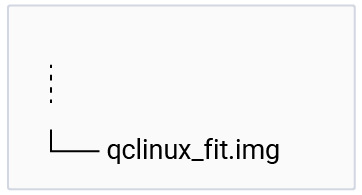
  * `dtb.bin` contains `qclinux_fit.img`.
* The host tool requires the path of `certificate` and `key` (absolute path or network path) to sign the images.
* The host tool mounts `efi.bin` and `dtb.bin` on the FAT partition, which provides the following directory structure and follows its separate signing process: The directory structure of `efi.bin`:

  <div className="flex flex-col items-center gap-2">
    <img src="https://mintcdn.com/qualcomm-prod/Im5W2pUR5LdqxAI6/Key-Documents/Yocto-Guide/media/k2c-qli-yocto-build-ga/1_efi_bin.png?fit=max&auto=format&n=Im5W2pUR5LdqxAI6&q=85&s=68418241b6ffa44c7083cc1ad92c2e65" alt="Figure: efi.bin" width="220" height="318" data-path="Key-Documents/Yocto-Guide/media/k2c-qli-yocto-build-ga/1_efi_bin.png" />

    <p className="text-sm text-gray-700">
      Figure: efi.bin
    </p>
  </div>

  **Figure: efi.bin** The directory structure of `efi.bin` with OSTree support:

  <div className="flex flex-col items-center gap-2">
    <img src="https://mintcdn.com/qualcomm-prod/Im5W2pUR5LdqxAI6/Key-Documents/Yocto-Guide/media/k2c-qli-yocto-build-ga/efi-bin-ostree.png?fit=max&auto=format&n=Im5W2pUR5LdqxAI6&q=85&s=1a1e3a52918f4ba4a2106344ead13f40" alt="Figure: efi.bin with OSTree support" width="600" height="397" data-path="Key-Documents/Yocto-Guide/media/k2c-qli-yocto-build-ga/efi-bin-ostree.png" />

    <p className="text-sm text-gray-700">
      Figure: efi.bin with OSTree support
    </p>
  </div>

  **Figure: efi.bin with OSTree support** The directory structure of `dtb.bin`:

  <div className="flex flex-col items-center gap-2">
    <img src="https://mintcdn.com/qualcomm-prod/Im5W2pUR5LdqxAI6/Key-Documents/Yocto-Guide/media/k2c-qli-yocto-build-ga/1_multi_dtb_vfat.png?fit=max&auto=format&n=Im5W2pUR5LdqxAI6&q=85&s=ccb6c9e7f278f58e5f00d172628ac549" alt="Figure: dtb.bin" width="362" height="195" data-path="Key-Documents/Yocto-Guide/media/k2c-qli-yocto-build-ga/1_multi_dtb_vfat.png" />

    <p className="text-sm text-gray-700">
      Figure: dtb.bin
    </p>
  </div>
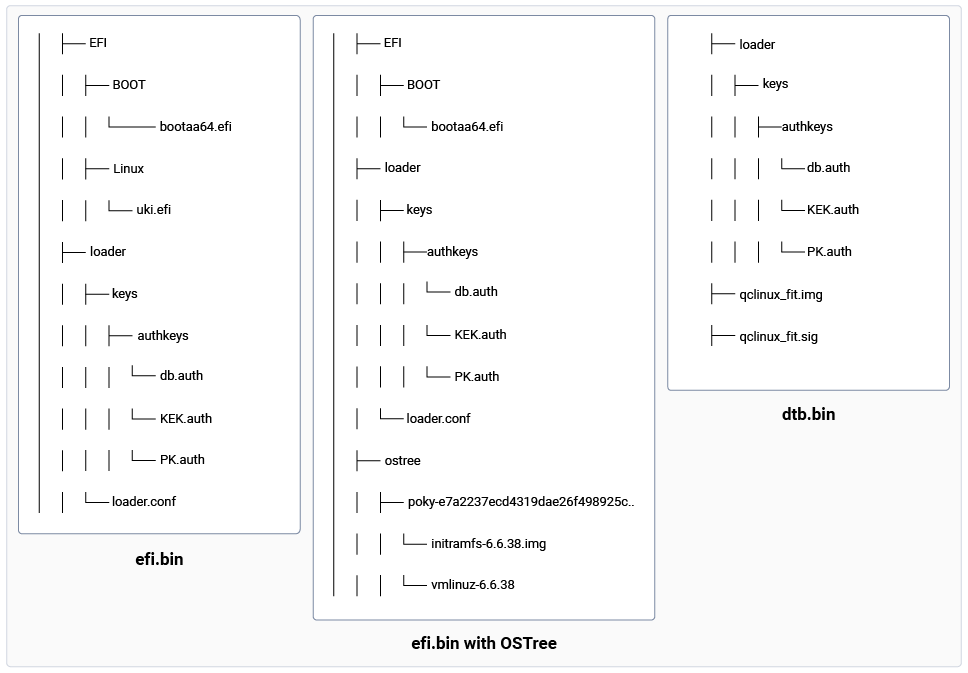
* After signing the images, the host tool copies the .auth files to the `/loader/keys/authkeys` directory for both `efi.bin` and `dtb.bin`.
* The host tool configures the wait time in the `systemd-boot` loader configuration. This wait time stops the kernel loading and allows you to review and select the `systemd-boot` menu options. The `loader.conf`file must be available in an updated `efi.bin` file. **Note**
  The signing process isn’t followed for the `dtb.bin` file.
  * The host tool configures `/loader/loader.conf`.
  * The syntax for `loader.conf` is `timeout x`, where x = timeout in seconds.
* After the image is signed, the host tool unmounts the `efi.bin/dtb.bin` from the FAT partition. Store the signed `efi.bin` and `dtb.bin` on the host computer on the similar path as the host tool in the `signed_binaries` directory.
* The following is the directory structure for signed `efi.bin` and `dtb.bin`:

  <div className="flex flex-col items-center gap-2">
    <img src="https://mintcdn.com/qualcomm-prod/T1k4QQ7G3l_dE-rX/Key-Documents/Yocto-Guide/media/k2c-qli-yocto-build-ga/signed_efi-bin_and_dtb-bin.png?fit=max&auto=format&n=T1k4QQ7G3l_dE-rX&q=85&s=32b34574314131cb3c1e6b53e8914f0a" alt="Figure: Directory structures of efi.bin and dtb.bin files" width="968" height="673" data-path="Key-Documents/Yocto-Guide/media/k2c-qli-yocto-build-ga/signed_efi-bin_and_dtb-bin.png" />

    <p className="text-sm text-gray-700">
      Figure: Directory structures of efi.bin and dtb.bin files
    </p>
  </div>

### `efi.bin `**signing process**

* The host tool uses the `sbsign` utility to sign the `uki.efi` or vmlinuz.x.y.z and `bootaa64.efi` images separately.
* `sbsign` requires `certificate` and `key` for the signing process. Verify the following syntax where `dsk1.key` is key, `dsk1.crt` is certificate, and the output filename is the same as the input file:
  ```text theme={null}
  sbsign --key <key file> --cert <cert file> <efi file> <output file name>
  ```
  **Examples:**
  ```text theme={null}
  sbsign –key dsk1.key –cert dsk1.crt bootaa64.efi bootaa64.efi
  ```
  ```text theme={null}
  sbsign --key dsk1.key --cert dsk1.crt uki.efi uki.efi
  ```
  ```text theme={null}
  sbsign --key dsk1.key --cert dsk1.crt vmlinuz.x.y.z vmlinuz.x.y.z
  ```

### `dtb.bin `**signing process**

* The host tool requires the path of the `dtb.bin` file.
* The host tool requires the path of `key` and `certificate` (absolute path or network path) to sign the images.
* UEFI secure boot requires PE format files for verification. Non-PE files, such as `dtb`, can’t be signed using `sbsign` as this signing tool requires PE format files as input.
* The host tool uses the `openssl` utility to sign the `dtb` file. Verify the following syntax, where `dsk1.key`is key and `dsk1.crt` is certificate:
  ```text theme={null}
     openssl cms -sign -inkey <.key file> -signer <.crt file> -binary -in <img file> --out <output .sig file> -outform DER
  ```
  **Example:**
  ```text theme={null}
     openssl cms -sign -inkey dsk1.key -signer dsk1.crt -binary -in <foo.img file> --out <foo.sig file > -outform DER
  ```
  This command adds the signature for the DTB file in a separate file (`foo.sig`) and doesn’t modify the original file (`foo.img`). Hence, the host tool must keep both the files where the `*.sig` file is used during the UEFI secure boot verification.

## **Multi-DTB support**

Qualcomm supports multiple Qualcomm development kits based on the same hardware SoC. For example, the QCS6490 development kit variants include the RB3 Gen 2 Core development kit and the RB3 Gen 2 Vision development kit.

Each Qualcomm development kit variant has its own DTB in the kernel. During bootup, UEFI selects the appropriate DTB based on the specific Qualcomm development kit variant. To facilitate this, use multi-DTB flattened image tree (FIT) image as follows:

### **Generate a multi-DTB FIT image**

Qualcomm Linux supports generating a FIT‑based multi‑DTB image for platforms where multiple DTBs are required for a single hardware SoC. This allows UEFI to select the appropriate DTB at boot time based on the detected hardware variant.

For platforms that support FIT images, multiple DTBs are listed using the `KERNEL_DEVICETREE` variable in the machine configuration file. For example, the following snippet from `meta-qcom/conf/machine/rb3gen2-core-kit.conf` defines two DTBs for the RB3 Gen 2 Core development kit:

```text theme={null}
KERNEL_DEVICETREE ?= " \
                      qcom/qcs6490-rb3gen2.dtb \
                      qcom/qcs6490-rb3gen2-industrial-mezzanine.dtbo \
                      qcom/qcs6490-rb3gen2-vision-mezzanine.dtbo \
                      "
```

These DTBs are combined into a single FIT image during the build process.

> 1. Add DTB compatible strings: Each DTB included in a FIT image must have an associated compatible string. These compatible strings are used by UEFI to select the correct DTB at boot time.
>    * The compatible strings are defined in `meta-qcom/conf/machine/include/fit-dtb-compatible.inc`.
>    * The values must be derived by referencing the DTB metadata available at: [https://github.com/qualcomm-linux/qcom-dtb-metadata](https://github.com/qualcomm-linux/qcom-dtb-metadata) For the RB3 Gen 2 Core Kit example, add the following entries:

```text theme={null}
FIT_DTB_COMPATIBLE[qcs6490-rb3gen2] = " \
    qcom,qcs5430-iot \
    qcom,qcs6490-iot \
    "
FIT_DTB_COMPATIBLE[qcs6490-rb3gen2+qcs6490-rb3gen2-industrial-mezzanine] = " \
    qcom,qcs5430-iot-subtype9 \
    qcom,qcs6490-iot-subtype9 \
    "
FIT_DTB_COMPATIBLE[qcs6490-rb3gen2+qcs6490-rb3gen2-vision-mezzanine] = " \
    qcom,qcs5430-iot-subtype2 \
    qcom,qcs6490-iot-subtype2 \
 "
```

2. Enable multi-DTB packaging: To package the generated FIT image as a VFAT image (`dtb.bin`), set the following variable in `meta-qcom/classes-recipe/image_types_qcom.bbclass`:
   ```text theme={null}
   QCOM_DTB_DEFAULT ?= "multi-dtb"
   ```
   When this variable is set to multi-dtb, the build system packages the combined FIT image containing all DTBs listed in `KERNEL_DEVICETREE` into `dtb.bin`.

#### **Development kits without FIT image support**

Some platforms do not support FIT‑based DTB selection. This includes certain ride development kits, such as:

* `qcs9100-ride-sx`
* `qcs8300-ride-sx`

For these kits, only a single DTB can be packaged into `dtb.bin`. For example, the following snippet from `meta-qcom/conf/machine/qcs9100-ride-sx.conf` lists multiple DTBs:

```text theme={null}
KERNEL_DEVICETREE ?= " \
                     qcom/qcs9100-ride.dtb \
                     qcom/qcs9100-ride-r3.dtb \
                     qcom/sa8775p-ride.dtb \
                     qcom/sa8775p-ride-r3.dtb \
                     "
```

Since FIT‑based DTB selection isn’t supported for this kit, a single DTB must be chosen as the default. Set the `QCOM_DTB_DEFAULT` variable in the same machine configuration file as follows:

```text theme={null}
QCOM_DTB_DEFAULT ?= "qcs9100-ride-r3"
```

With this setting, only `qcs9100-ride-r3.dtb` is packaged into the VFAT image (`dtb.bin`) and used during boot.

### **DTB partition**

* The generated VFAT image named `dtb.bin` contains the combined DTB image. A dedicated partition named `dtb` is present on the Qualcomm development kits. Flash the `dtb.bin` on this partition.
* UEFI parses the combined DTB present in the `dtb` partition and selects a matching DTB for the hardware.

## **Next steps**

* For more information about UEFI secure boot implementation, see [Secure boot](https://dragonwingdocs.qualcomm.com/System/Security/security-features#secure-boot).
* For UEFI variable management, see [Manage UEFI environment variables using the efivar tool](./manage-uefi-environment-variables-using-the-efivar-tool).
* For OTA firmware updates using capsule, see [Update firmware and OS on Qualcomm Linux using capsule and OSTree mechanisms](./update-firmware-and-os-on-qualcomm-linux-using-capsule-and-os-tree-mechanisms).