> ## Documentation Index
> Fetch the complete documentation index at: https://dragonwingdocs.qualcomm.com/llms.txt
> Use this file to discover all available pages before exploring further.
# Audio
The IQ-9075 audio subsystem is powered by Low Power AI (LPAI) and delivers advanced voice UI and audio experiences via PipeWire.
## Key Features
* **Low Power AI (LPAI)** subsystem for efficient audio processing
* **PipeWire** multimedia server for low-latency audio routing
* **Hardware-accelerated** encoding/decoding
* **Fluence ECNS** — advanced echo cancellation and noise suppression
* **Multiple audio interfaces** — I2S, TDM, SoundWire
## Hardware Configuration
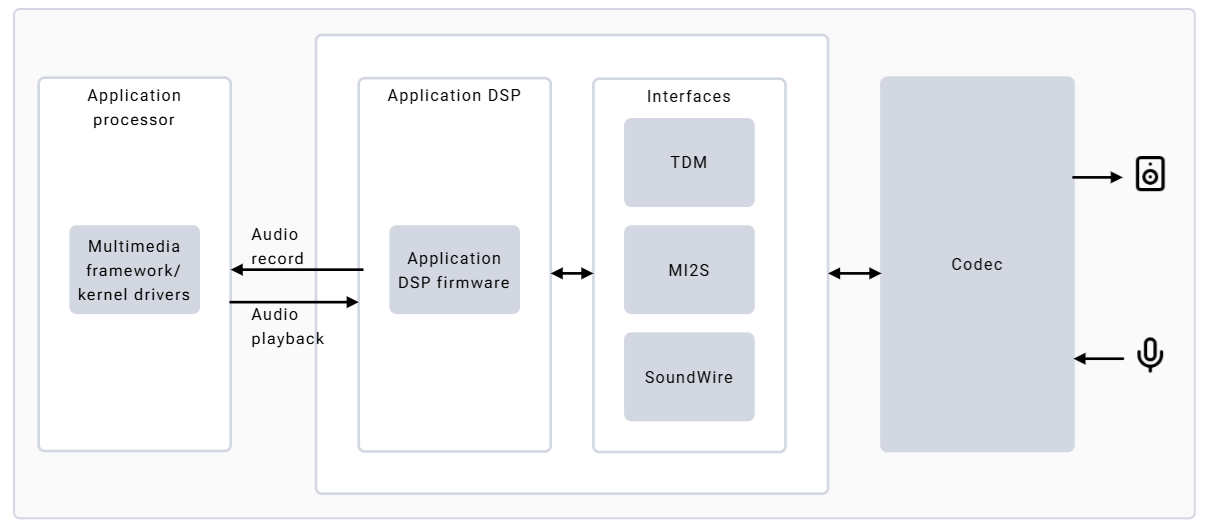 * **Speakers:** Onboard speakers with MAX98357 I2S-amps; HS0\_MI2S shared between left and right for stereo
* **Microphone:** Single onboard microphone (MMICT5848) on HS2\_MI2S, configured to left channel by default
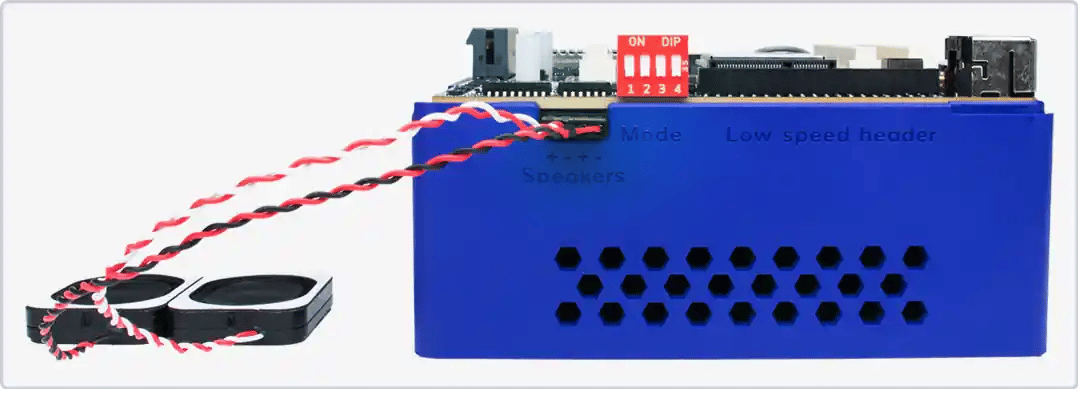
**Speaker connection:**
* **Speakers:** Onboard speakers with MAX98357 I2S-amps; HS0\_MI2S shared between left and right for stereo
* **Microphone:** Single onboard microphone (MMICT5848) on HS2\_MI2S, configured to left channel by default
**Speaker connection:**
 ## Architecture
 | Component | Description |
| --------------- | --------------------------------------------------------------------------------- |
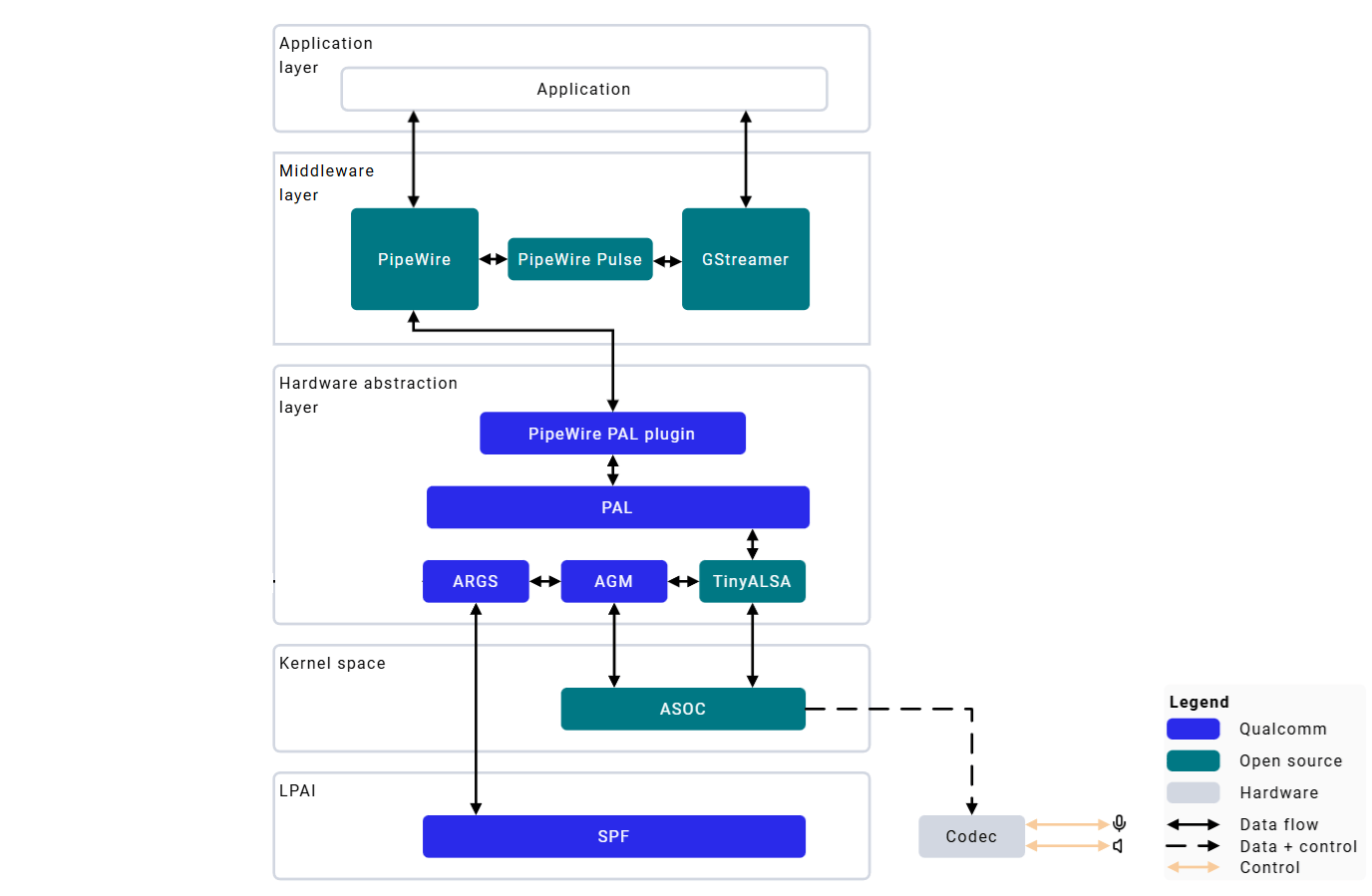
| **PipeWire** | Multimedia server; replaces PulseAudio; low-latency, flexible media handling |
| **WirePlumber** | Session/policy manager; handles default sink/source, auto-connect rules |
| **PAL** | Platform Abstraction Layer; provides audio-specific APIs and DSP graph operations |
| **AGM** | Audio Graph Manager; ALSA-based mixer controls and PCM/compressed plug-ins |
| **ARGS/GSL** | AudioReach Graph Service; handles initialization and creation of audio graphs |
| **SPF** | Signal Processing Framework; modular framework on LPAI DSP |
## Configuration Files
| Component | Location |
| -------------------------- | ------------------------- |
| ALSA card registration | `/proc/asound/cards` |
| WirePlumber rules & config | `/usr/share/wireplumber/` |
### Verify Audio Stack
```bash theme={null}
# Confirm ALSA card and devices
cat /proc/asound/cards
aplay -l
arecord -l
# Confirm PipeWire + WirePlumber services
systemctl status pipewire wireplumber --no-pager
# Validate default sink/source
wpctl status
# Monitor graph
pw-top
pw-cli ls Node
```
## Audio Playback and Capture
### PipeWire Playback
```bash theme={null}
scp test.wav root@:/opt/
```
```bash theme={null}
wpctl status # Find sink node marked with *
wpctl set-default # If not already set
wpctl set-volume @DEFAULT_AUDIO_SINK@ 1.0
```
```bash theme={null}
pw-play /opt/test.wav -v
```
The command shell should resemble the following:
| Component | Description |
| --------------- | --------------------------------------------------------------------------------- |
| **PipeWire** | Multimedia server; replaces PulseAudio; low-latency, flexible media handling |
| **WirePlumber** | Session/policy manager; handles default sink/source, auto-connect rules |
| **PAL** | Platform Abstraction Layer; provides audio-specific APIs and DSP graph operations |
| **AGM** | Audio Graph Manager; ALSA-based mixer controls and PCM/compressed plug-ins |
| **ARGS/GSL** | AudioReach Graph Service; handles initialization and creation of audio graphs |
| **SPF** | Signal Processing Framework; modular framework on LPAI DSP |
## Configuration Files
| Component | Location |
| -------------------------- | ------------------------- |
| ALSA card registration | `/proc/asound/cards` |
| WirePlumber rules & config | `/usr/share/wireplumber/` |
### Verify Audio Stack
```bash theme={null}
# Confirm ALSA card and devices
cat /proc/asound/cards
aplay -l
arecord -l
# Confirm PipeWire + WirePlumber services
systemctl status pipewire wireplumber --no-pager
# Validate default sink/source
wpctl status
# Monitor graph
pw-top
pw-cli ls Node
```
## Audio Playback and Capture
### PipeWire Playback
```bash theme={null}
scp test.wav root@:/opt/
```
```bash theme={null}
wpctl status # Find sink node marked with *
wpctl set-default # If not already set
wpctl set-volume @DEFAULT_AUDIO_SINK@ 1.0
```
```bash theme={null}
pw-play /opt/test.wav -v
```
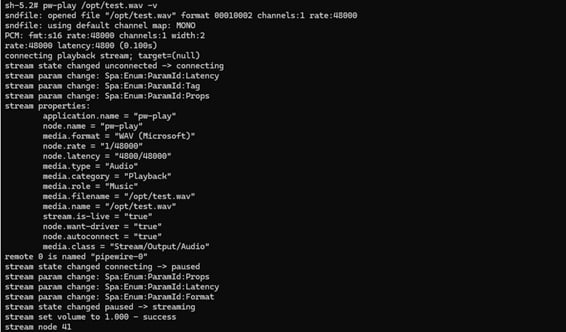
The command shell should resemble the following:
 Press `Ctrl+C` to stop.
### PipeWire Record
```bash theme={null}
wpctl status # Find mic node marked with *
wpctl set-default # If not already set
wpctl set-volume @DEFAULT_AUDIO_SOURCE@ 1.0
```
```bash theme={null}
pw-record /opt/record.wav -v
```
The command shell should resemble the following:
Press `Ctrl+C` to stop.
### PipeWire Record
```bash theme={null}
wpctl status # Find mic node marked with *
wpctl set-default # If not already set
wpctl set-volume @DEFAULT_AUDIO_SOURCE@ 1.0
```
```bash theme={null}
pw-record /opt/record.wav -v
```
The command shell should resemble the following:
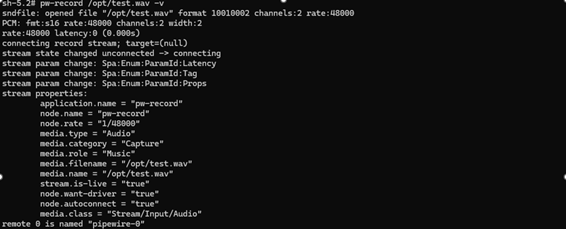 Press `Ctrl+C` to stop.
A value of `1.0` represents 100% volume.
### GStreamer Audio
```bash theme={null}
# PCM capture
gst-launch-1.0 -v pulsesrc volume=10 ! audioconvert ! wavenc ! \
filesink location=/opt/audio.wav
# FLAC capture
gst-launch-1.0 -v pulsesrc volume=10 ! audioconvert ! flacenc ! \
filesink location=/opt/audio.flac
```
```bash theme={null}
# WAV playback
gst-launch-1.0 -e filesrc location=/opt/audio.wav ! \
wavparse ! audioconvert ! pulsesink volume=10
# MP3 playback
gst-launch-1.0 -e filesrc location=/opt/audio.mp3 ! \
mpegaudioparse ! mpg123audiodec ! pulsesink volume=10
# FLAC playback
gst-launch-1.0 -e filesrc location=/opt/audio.flac ! \
flacparse ! flacdec ! pulsesink volume=10
```
## Log Capture
```bash theme={null}
# PipeWire logs
journalctl -u pipewire
journalctl -u wireplumber
# Live debugging
journalctl -u pipewire -f
# Kernel audio driver logs
sudo dmesg
```
## Troubleshooting
```bash theme={null}
wpctl status
wpctl set-volume @DEFAULT_AUDIO_SINK@ 1.0
systemctl restart pipewire pipewire-pulse wireplumber
pw-play /opt/test.wav -v
# Check services
systemctl status pipewire pipewire-pulse wireplumber
```
```bash theme={null}
# Check CPU load
top
# Check PAL media config (expect rate=48000, ch=2, fmt=2)
grep "setDeviceMediaConfig" /var/log/syslog
# Check for underruns
dmesg | grep -i -e underrun -e xrun -e lpass -e audio
# Check PipeWire quantum
pw-metadata -n settings
# Monitor real-time
pw-top
```
**Fix — increase PipeWire buffer:**
```bash theme={null}
mkdir -p ~/.config/pipewire/pipewire.conf.d
cat > ~/.config/pipewire/pipewire.conf.d/99-custom-buffer.conf << 'EOF'
context.properties = {
default.clock.quantum = 1024
default.clock.min-quantum = 1024
}
EOF
systemctl restart pipewire wireplumber
```
**Fix — convert audio to 48 kHz 16-bit stereo:**
```bash theme={null}
ffmpeg -i input.wav -ar 48000 -ac 2 -sample_fmt s16 output.wav
```
```bash theme={null}
systemctl status pipewire pipewire-pulse wireplumber
journalctl -u pipewire -u wireplumber -b
# Reset configuration
rm -rf ~/.config/pipewire ~/.config/wireplumber
systemctl daemon-reload
systemctl restart pipewire pipewire-pulse wireplumber
# Reinstall if needed
sudo apt install --reinstall pipewire wireplumber pipewire-pulse
```
## Advanced Features
### Echo Cancellation (ECNS) for VoIP
```bash theme={null}
# VoIP record
pw-record /opt//record_voip.wav -v --target=voip-tx0
# VoIP playback
pw-play /opt/record_voip.wav -v --target=voip-rx0
```
Features: adaptive echo cancellation, stationary and non-stationary noise suppression, acoustic echo path cancellation.
## Resources
* [PipeWire Documentation](https://docs.pipewire.org/)
* [AudioReach GitHub](https://github.com/audioreach)
* [AudioReach Documentation](https://audioreach.github.io/)
Press `Ctrl+C` to stop.
A value of `1.0` represents 100% volume.
### GStreamer Audio
```bash theme={null}
# PCM capture
gst-launch-1.0 -v pulsesrc volume=10 ! audioconvert ! wavenc ! \
filesink location=/opt/audio.wav
# FLAC capture
gst-launch-1.0 -v pulsesrc volume=10 ! audioconvert ! flacenc ! \
filesink location=/opt/audio.flac
```
```bash theme={null}
# WAV playback
gst-launch-1.0 -e filesrc location=/opt/audio.wav ! \
wavparse ! audioconvert ! pulsesink volume=10
# MP3 playback
gst-launch-1.0 -e filesrc location=/opt/audio.mp3 ! \
mpegaudioparse ! mpg123audiodec ! pulsesink volume=10
# FLAC playback
gst-launch-1.0 -e filesrc location=/opt/audio.flac ! \
flacparse ! flacdec ! pulsesink volume=10
```
## Log Capture
```bash theme={null}
# PipeWire logs
journalctl -u pipewire
journalctl -u wireplumber
# Live debugging
journalctl -u pipewire -f
# Kernel audio driver logs
sudo dmesg
```
## Troubleshooting
```bash theme={null}
wpctl status
wpctl set-volume @DEFAULT_AUDIO_SINK@ 1.0
systemctl restart pipewire pipewire-pulse wireplumber
pw-play /opt/test.wav -v
# Check services
systemctl status pipewire pipewire-pulse wireplumber
```
```bash theme={null}
# Check CPU load
top
# Check PAL media config (expect rate=48000, ch=2, fmt=2)
grep "setDeviceMediaConfig" /var/log/syslog
# Check for underruns
dmesg | grep -i -e underrun -e xrun -e lpass -e audio
# Check PipeWire quantum
pw-metadata -n settings
# Monitor real-time
pw-top
```
**Fix — increase PipeWire buffer:**
```bash theme={null}
mkdir -p ~/.config/pipewire/pipewire.conf.d
cat > ~/.config/pipewire/pipewire.conf.d/99-custom-buffer.conf << 'EOF'
context.properties = {
default.clock.quantum = 1024
default.clock.min-quantum = 1024
}
EOF
systemctl restart pipewire wireplumber
```
**Fix — convert audio to 48 kHz 16-bit stereo:**
```bash theme={null}
ffmpeg -i input.wav -ar 48000 -ac 2 -sample_fmt s16 output.wav
```
```bash theme={null}
systemctl status pipewire pipewire-pulse wireplumber
journalctl -u pipewire -u wireplumber -b
# Reset configuration
rm -rf ~/.config/pipewire ~/.config/wireplumber
systemctl daemon-reload
systemctl restart pipewire pipewire-pulse wireplumber
# Reinstall if needed
sudo apt install --reinstall pipewire wireplumber pipewire-pulse
```
## Advanced Features
### Echo Cancellation (ECNS) for VoIP
```bash theme={null}
# VoIP record
pw-record /opt//record_voip.wav -v --target=voip-tx0
# VoIP playback
pw-play /opt/record_voip.wav -v --target=voip-rx0
```
Features: adaptive echo cancellation, stationary and non-stationary noise suppression, acoustic echo path cancellation.
## Resources
* [PipeWire Documentation](https://docs.pipewire.org/)
* [AudioReach GitHub](https://github.com/audioreach)
* [AudioReach Documentation](https://audioreach.github.io/)