> ## Documentation Index
> Fetch the complete documentation index at: https://dragonwingdocs.qualcomm.com/llms.txt
> Use this file to discover all available pages before exploring further.
# Display
The IQ-9075 platform features a Qualcomm Adreno Display Processing Unit (DPU) providing hardware-accelerated image processing. The DPU retrieves pixel data from memory and sends it to the display peripherals through standard interfaces
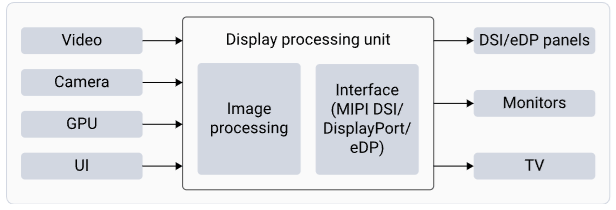 The DPU provides the following image processing and interface capabilities:
Image processing includes the following:
1. Composition: blends individual layers into a single frame and sends it to the display panel
2. Scaling: supports upscale and downscale of the source image to match the panel resolution
3. Color format conversion: converts colors from one color format to another (from YUV to RGB)
4. Color space conversion: converts colors from one color space to another (sRGB, P3, and BT2020)
5. Color processing: enhances the colors for better visual quality
6. Interfaces: Connects with various panels using the mobile industry processor interface display serial interface (MIPI DSI) and TV or monitor with the DisplayPort interface
7. MIPI DSI: defines the protocols between a host processor and peripheral devices that adhere to the MIPI Alliance specifications for mobile device interfaces
8. DisplayPort: serves as a digital display interface, primarily connecting video sources to display devices such as computer monitors, and can also transmit audio, USB, and other data forms
## Display Architecture
### DPU Hardware Architecture
The DPU provides the following image processing and interface capabilities:
Image processing includes the following:
1. Composition: blends individual layers into a single frame and sends it to the display panel
2. Scaling: supports upscale and downscale of the source image to match the panel resolution
3. Color format conversion: converts colors from one color format to another (from YUV to RGB)
4. Color space conversion: converts colors from one color space to another (sRGB, P3, and BT2020)
5. Color processing: enhances the colors for better visual quality
6. Interfaces: Connects with various panels using the mobile industry processor interface display serial interface (MIPI DSI) and TV or monitor with the DisplayPort interface
7. MIPI DSI: defines the protocols between a host processor and peripheral devices that adhere to the MIPI Alliance specifications for mobile device interfaces
8. DisplayPort: serves as a digital display interface, primarily connecting video sources to display devices such as computer monitors, and can also transmit audio, USB, and other data forms
## Display Architecture
### DPU Hardware Architecture
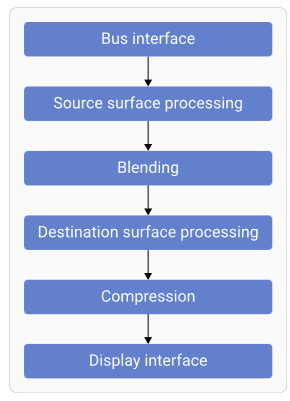 | Component | Function |
| ---------------------------------- | ------------------------------------------------------- |
| **Bus Interface** | Fetches data from memory |
| **Source Surface Processing** | Reads RGB/YUV surfaces; performs format conversion |
| **Blending** | Blends and mixes source surfaces |
| **Destination Surface Processing** | Converts and adjusts data for panel characteristics |
| **Compression** | Reduces bandwidth by sending compressed display buffers |
| **Display Interface** | Generates timings for connected display peripherals |
### Display Software Architecture
| Component | Function |
| ---------------------------------- | ------------------------------------------------------- |
| **Bus Interface** | Fetches data from memory |
| **Source Surface Processing** | Reads RGB/YUV surfaces; performs format conversion |
| **Blending** | Blends and mixes source surfaces |
| **Destination Surface Processing** | Converts and adjusts data for panel characteristics |
| **Compression** | Reduces bandwidth by sending compressed display buffers |
| **Display Interface** | Generates timings for connected display peripherals |
### Display Software Architecture
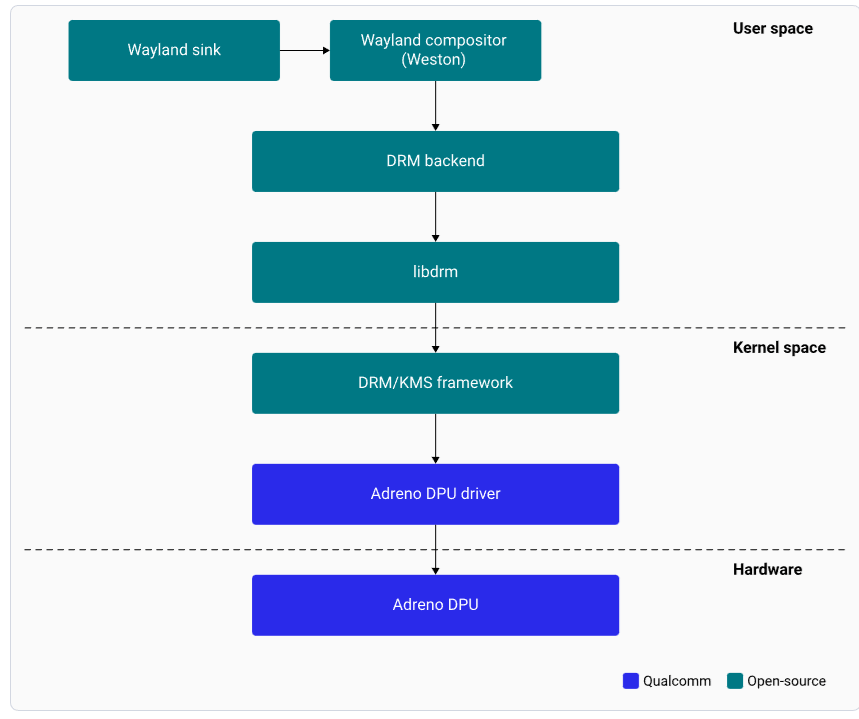 | Component | Description |
| --------------------- | -------------------------------------------------------------- |
| **Wayland Sink** | Plug-in communicating with Weston to render the display |
| **Weston** | Wayland compositor; handles composition and rendering |
| **DRM Backend** | Manages Adreno DPU hardware resources and composition strategy |
| **libdrm** | Library providing DRM IOCTL APIs |
| **DRM/KMS Framework** | Kernel and userland interface for hardware features |
| **Adreno DPU Driver** | Manages all pixel data paths to panel interfaces |
## Display specifications
### Display features
Key features
The display subsystem supports the following key features:
1. Wayland and Weston with upstream protocol
2. Weston compositor with direct rendering manager (DRM) backend module
3. DSI interface
4. 4xDisplayPort with single stream transport (SST)
Capabilities
The device supports two displays simultaneously and offers various configurations for maximum concurrency. The following table summarizes the capabilities.
| Interface | Capabilities |
| ----------------------- | ---------------------------------------------------------------------------------------------------------------------------------------------------------------------------------------------------------------------------------------------------------------------- |
| **DSI0** | Supports 1280 × 720 with reference Raspberry Pi (RPi) panel, Supports Video Electronics Standards Association (VESA) display stream compression (DSC) 1.2 |
| **eDP0** | Supports 3840 × 2160 at 60 fps 30 bpp |
| **eDP1** | Supports 3840 × 2160 at 60 fps 30 bpp |
| **eDP2** | Supports 3840 × 2160 at 60 fps 30 bpp |
| **eDP3** | Supports 3840 × 2160 at 60 fps 30 bpp |
| **Maximum concurrency** | Supports 3840 × 2160 at 60 fps, 30 bpp with DP0 as primary, and 3840 × 2160 at 60 fps 30 bpp with DP1 as secondary. Note that the software supports maximum concurrency (only 4 streams supported between DSI, eDP0, and eDP1 including multi-stream transport (MST)). |
## Setup the DisplayPort
### Connect DisplayPort
To view the output of sample applications on your DisplayPort, set up the DisplayPort.
| Component | Description |
| --------------------- | -------------------------------------------------------------- |
| **Wayland Sink** | Plug-in communicating with Weston to render the display |
| **Weston** | Wayland compositor; handles composition and rendering |
| **DRM Backend** | Manages Adreno DPU hardware resources and composition strategy |
| **libdrm** | Library providing DRM IOCTL APIs |
| **DRM/KMS Framework** | Kernel and userland interface for hardware features |
| **Adreno DPU Driver** | Manages all pixel data paths to panel interfaces |
## Display specifications
### Display features
Key features
The display subsystem supports the following key features:
1. Wayland and Weston with upstream protocol
2. Weston compositor with direct rendering manager (DRM) backend module
3. DSI interface
4. 4xDisplayPort with single stream transport (SST)
Capabilities
The device supports two displays simultaneously and offers various configurations for maximum concurrency. The following table summarizes the capabilities.
| Interface | Capabilities |
| ----------------------- | ---------------------------------------------------------------------------------------------------------------------------------------------------------------------------------------------------------------------------------------------------------------------- |
| **DSI0** | Supports 1280 × 720 with reference Raspberry Pi (RPi) panel, Supports Video Electronics Standards Association (VESA) display stream compression (DSC) 1.2 |
| **eDP0** | Supports 3840 × 2160 at 60 fps 30 bpp |
| **eDP1** | Supports 3840 × 2160 at 60 fps 30 bpp |
| **eDP2** | Supports 3840 × 2160 at 60 fps 30 bpp |
| **eDP3** | Supports 3840 × 2160 at 60 fps 30 bpp |
| **Maximum concurrency** | Supports 3840 × 2160 at 60 fps, 30 bpp with DP0 as primary, and 3840 × 2160 at 60 fps 30 bpp with DP1 as secondary. Note that the software supports maximum concurrency (only 4 streams supported between DSI, eDP0, and eDP1 including multi-stream transport (MST)). |
## Setup the DisplayPort
### Connect DisplayPort
To view the output of sample applications on your DisplayPort, set up the DisplayPort.
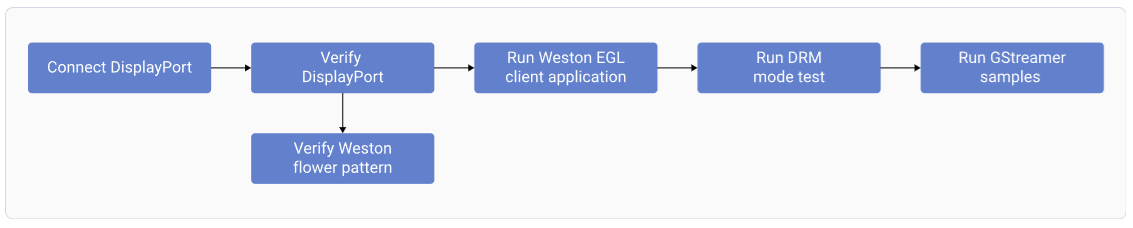 The display subsystem provides the Weston and Wayland compositors, along with libdrm, which interact with the DPU driver to render the Wayland client applications. Use the sample test applications to evaluate the basic rendering of the Wayland applications and to connect to the DisplayPort.
### Verify DisplayPort Setup
The display subsystem provides the Weston and Wayland compositors, along with libdrm, which interact with the DPU driver to render the Wayland client applications. Use the sample test applications to evaluate the basic rendering of the Wayland applications and to connect to the DisplayPort.
### Verify DisplayPort Setup
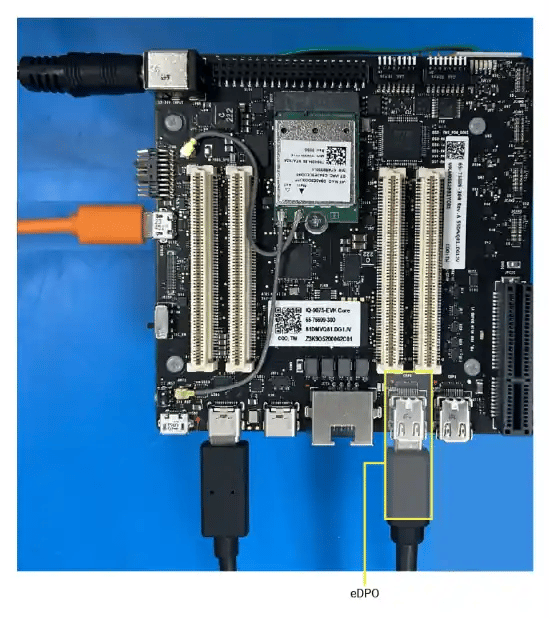 Connect a DisplayPort cable to the **eDP0** connector.
For dual display, connect a second DisplayPort cable to **eDP1**.
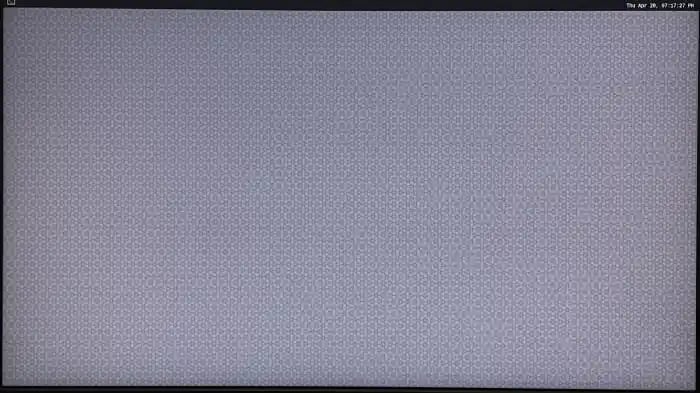
Power on the device. Weston launches automatically during boot and displays the flower pattern.
Connect a DisplayPort cable to the **eDP0** connector.
For dual display, connect a second DisplayPort cable to **eDP1**.
Power on the device. Weston launches automatically during boot and displays the flower pattern.
 ### SSH Access
You must enable SSH to access your host device.
## Testing and Verification
### Run the Weston simple EGL client application
Weston simple EGL is a sample test application used to verify the composition and rendering of frames on your DisplayPort. To run the application, run the following commands:
```bash theme={null}
mount -o remount,rw /
```
```
su
```
```
. /etc/profile
```
```
export XDG_RUNTIME_DIR=/run/user/1000 && mkdir -p $XDG_RUNTIME_DIR
```
```
cd /usr/bin
```
```
export WAYLAND_DISPLAY=wayland-1 && weston-simple-egl
```
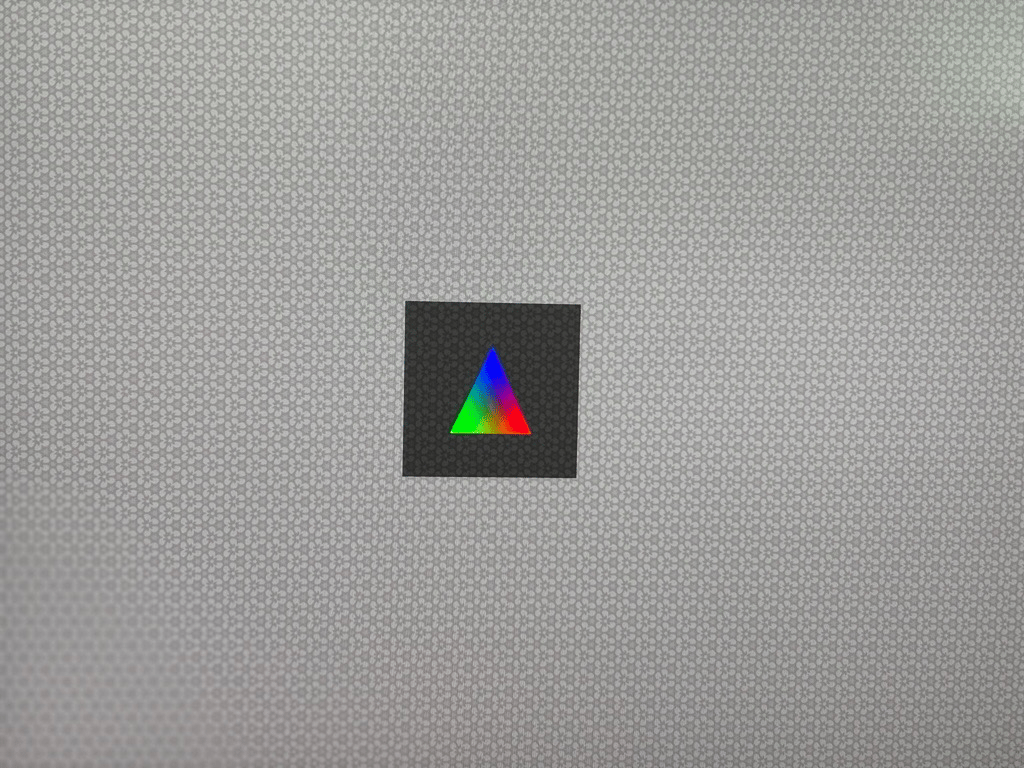
The following figure shows the Weston simple EGL client application running on the display monitor.
### SSH Access
You must enable SSH to access your host device.
## Testing and Verification
### Run the Weston simple EGL client application
Weston simple EGL is a sample test application used to verify the composition and rendering of frames on your DisplayPort. To run the application, run the following commands:
```bash theme={null}
mount -o remount,rw /
```
```
su
```
```
. /etc/profile
```
```
export XDG_RUNTIME_DIR=/run/user/1000 && mkdir -p $XDG_RUNTIME_DIR
```
```
cd /usr/bin
```
```
export WAYLAND_DISPLAY=wayland-1 && weston-simple-egl
```
The following figure shows the Weston simple EGL client application running on the display monitor.
 Press `Ctrl+C` to terminate.
### Run the DRM modetest application
DRM modetest ensures that the DSI and DPU paths are working effectively. To verify the display driver topology, run the DRM modetest.
Note
You must enable SSH to access your host device.
1. To kill the Weston client application, run the following commands in the device shell:
```
mount -o remount,rw /
```
```
ps -A | grep weston
```
Sample output:
```
824 ? 00:00:12 weston
1090 ? 00:00:00 weston-keyboard
1092 ? 00:00:01 weston-desktop-
```
Use the Weston process ID from the sample Weston process list to kill the Weston processes.
2. To kill all Weston processes, run the following command:
```
systemctl stop weston.service
```
3.To change permissions of the modetest application, run the following command:
```
chmod 0777 /usr/bin/modetest
```
4. To view the connector IDs and modes, run the following command:
```
/usr/bin/modetest -M msm > /opt/drm_mode.txt
```
5. To verify DRM modes and connector information, pull the /opt/drm\_mode.txt file locally on your host computer. Use the Secure Copy Protocol (SCP) to pull the drm\_mode.txt file from the device to your host computer. For example,
```
scp -r root@:/opt/drm_mode.txt
```
Note
When prompted for a password, enter oelinux123.
The output as shown in the following figure is from the /opt/drm\_mode.txt file.
Press `Ctrl+C` to terminate.
### Run the DRM modetest application
DRM modetest ensures that the DSI and DPU paths are working effectively. To verify the display driver topology, run the DRM modetest.
Note
You must enable SSH to access your host device.
1. To kill the Weston client application, run the following commands in the device shell:
```
mount -o remount,rw /
```
```
ps -A | grep weston
```
Sample output:
```
824 ? 00:00:12 weston
1090 ? 00:00:00 weston-keyboard
1092 ? 00:00:01 weston-desktop-
```
Use the Weston process ID from the sample Weston process list to kill the Weston processes.
2. To kill all Weston processes, run the following command:
```
systemctl stop weston.service
```
3.To change permissions of the modetest application, run the following command:
```
chmod 0777 /usr/bin/modetest
```
4. To view the connector IDs and modes, run the following command:
```
/usr/bin/modetest -M msm > /opt/drm_mode.txt
```
5. To verify DRM modes and connector information, pull the /opt/drm\_mode.txt file locally on your host computer. Use the Secure Copy Protocol (SCP) to pull the drm\_mode.txt file from the device to your host computer. For example,
```
scp -r root@:/opt/drm_mode.txt
```
Note
When prompted for a password, enter oelinux123.
The output as shown in the following figure is from the /opt/drm\_mode.txt file.
 6. To fetch the connector ID and mode name, use the relevant values from the /opt/drm\_mode.txt file:
```
modetest -M msm -s :
```
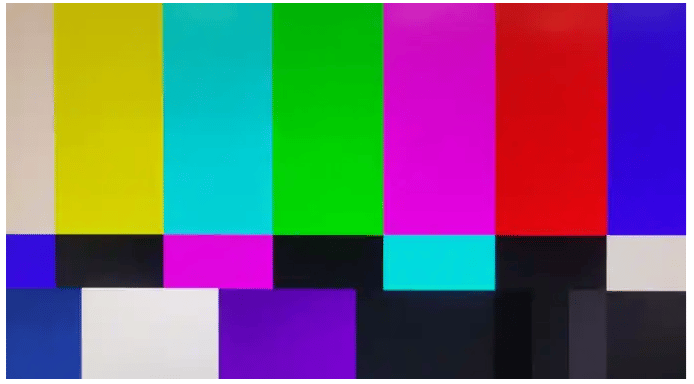
7. To start the modetest application, run the following sample command using the connector ID and the mode name retrieved from the /opt/drm\_mode.txt file. For example:
```
/usr/bin/modetest -M msm -s 32:1920x1080-60
```
Note
Start the DRM modetest application and ignore the warning log: Failed to set gamma: Function not implemented.
6. To fetch the connector ID and mode name, use the relevant values from the /opt/drm\_mode.txt file:
```
modetest -M msm -s :
```
7. To start the modetest application, run the following sample command using the connector ID and the mode name retrieved from the /opt/drm\_mode.txt file. For example:
```
/usr/bin/modetest -M msm -s 32:1920x1080-60
```
Note
Start the DRM modetest application and ignore the warning log: Failed to set gamma: Function not implemented.
 To kill the modetest application, select CTRL + C.
Ensure that you Relaunch Weston
```
systemctl start weston.service
```
## Troubleshooting
### Check DisplayPort Status
```bash theme={null}
# Cable status
sudo cat /sys/class/drm/card0-DP-1/status # eDP0
sudo cat /sys/class/drm/card0-DP-2/status # eDP1
# Available modes (EDID)
sudo cat /sys/class/drm/card0-DP-1/modes
# Detailed DP info
sudo cat /sys/kernel/debug/dri/0/DP-1/dp_debug
```
## Resources
| Resource | URL |
| ------------------------- | -------------------------------------------------------------------------------------------------------------------------- |
| DRM Internals | [https://www.kernel.org/doc/html/v5.4/gpu/drm-internals.html](https://www.kernel.org/doc/html/v5.4/gpu/drm-internals.html) |
| Kernel Mode Setting (KMS) | [https://www.kernel.org/doc/html/v5.4/gpu/drm-kms.html](https://www.kernel.org/doc/html/v5.4/gpu/drm-kms.html) |
| Wayland Protocol | [https://wayland.freedesktop.org/](https://wayland.freedesktop.org/) |
| Weston Compositor | [https://gitlab.freedesktop.org/wayland/weston](https://gitlab.freedesktop.org/wayland/weston) |
| GStreamer Documentation | [https://gstreamer.freedesktop.org/documentation/](https://gstreamer.freedesktop.org/documentation/) |
To kill the modetest application, select CTRL + C.
Ensure that you Relaunch Weston
```
systemctl start weston.service
```
## Troubleshooting
### Check DisplayPort Status
```bash theme={null}
# Cable status
sudo cat /sys/class/drm/card0-DP-1/status # eDP0
sudo cat /sys/class/drm/card0-DP-2/status # eDP1
# Available modes (EDID)
sudo cat /sys/class/drm/card0-DP-1/modes
# Detailed DP info
sudo cat /sys/kernel/debug/dri/0/DP-1/dp_debug
```
## Resources
| Resource | URL |
| ------------------------- | -------------------------------------------------------------------------------------------------------------------------- |
| DRM Internals | [https://www.kernel.org/doc/html/v5.4/gpu/drm-internals.html](https://www.kernel.org/doc/html/v5.4/gpu/drm-internals.html) |
| Kernel Mode Setting (KMS) | [https://www.kernel.org/doc/html/v5.4/gpu/drm-kms.html](https://www.kernel.org/doc/html/v5.4/gpu/drm-kms.html) |
| Wayland Protocol | [https://wayland.freedesktop.org/](https://wayland.freedesktop.org/) |
| Weston Compositor | [https://gitlab.freedesktop.org/wayland/weston](https://gitlab.freedesktop.org/wayland/weston) |
| GStreamer Documentation | [https://gstreamer.freedesktop.org/documentation/](https://gstreamer.freedesktop.org/documentation/) |