> ## Documentation Index
> Fetch the complete documentation index at: https://dragonwingdocs.qualcomm.com/llms.txt
> Use this file to discover all available pages before exploring further.
# Ethernet
This guide covers configuring, operating, and troubleshooting Ethernet connectivity on the Qualcomm Dragonwing IQ-9075 EVK. The platform supports interface enumeration, data path, link speed configuration, MAC address management, MTU configuration, and network diagnostics.
## Prerequisites
* IQ-9075 EVK hardware
* Ethernet cable (RJ45)
* Host PC on the same network as the IQ-9075 EVK
* SSH client software
* Basic Linux command-line knowledge
## Architecture
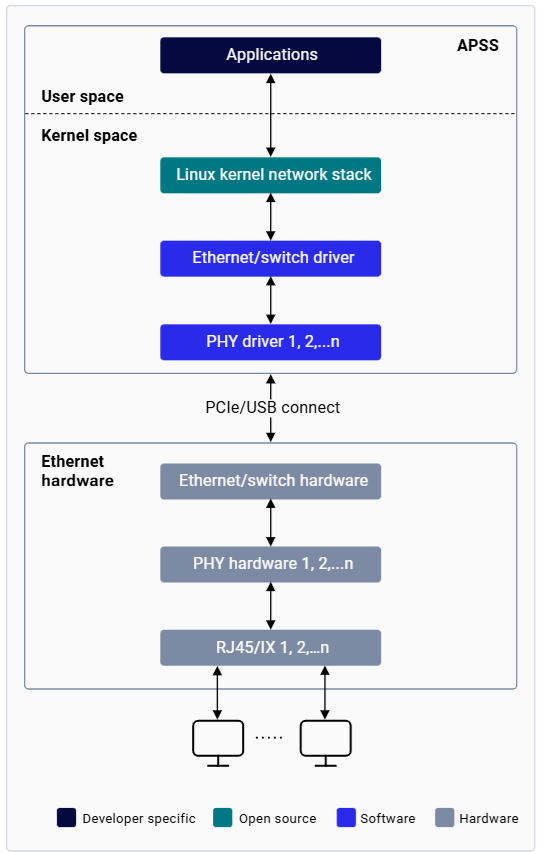 | Component | Description |
| ------------------------------------------ | ------------------------------------------------------------------------------------------------------------------------------------------------------------------------------------------ |
| **Application Processor Subsystem (APSS)** | Runs on a Linux-based operating system |
| **Ethernet driver** | Linux kernel driver providing data connectivity over a wired Ethernet interface |
| **PHY driver** | Low-level driver managing the Ethernet physical layer; implements a state machine for PHY lifecycle from initialization to link establishment; interacts with MDIO to access PHY registers |
| **Ethernet hardware** | 1× QEP8081 PHY for 10/100/1000/2500 Mbps, enabled by RJ45 connector |
## Getting Started
| Component | Description |
| ------------------------------------------ | ------------------------------------------------------------------------------------------------------------------------------------------------------------------------------------------ |
| **Application Processor Subsystem (APSS)** | Runs on a Linux-based operating system |
| **Ethernet driver** | Linux kernel driver providing data connectivity over a wired Ethernet interface |
| **PHY driver** | Low-level driver managing the Ethernet physical layer; implements a state machine for PHY lifecycle from initialization to link establishment; interacts with MDIO to access PHY registers |
| **Ethernet hardware** | 1× QEP8081 PHY for 10/100/1000/2500 Mbps, enabled by RJ45 connector |
## Getting Started
 ## Bring Up Ethernet
 Establish access to the device via SSH over Wi-Fi or the serial prompt before proceeding. See the [Set up the device](../set-up-the-device) section for instructions.
Flash the corresponding CDT on the device to ensure the correct configuration is used for Ethernet bring-up.
The IQ-9075 EVK ships with a factory MAC address. Skip this step to use it as-is.
To change the MAC address:
```shell theme={null}
ip link set dev eth0 address XX:XX:XX:YY:YY:YY
```
This MAC address is valid only for the current boot cycle. After rebooting, the device reverts to the address from persistent storage.
On a public network, the DHCP server assigns an IP address automatically. To assign a static IP address manually:
```shell theme={null}
ip addr add 192.168.1.2 dev eth0
```
```shell theme={null}
ip link set dev eth0 down
ip link set dev eth0 mtu 1500
ip link set dev eth0 up
```
Confirm the following:
* `eth0` is visible in `ip addr show` output
* Interface status shows `UP BROADCAST RUNNING MULTICAST`
* IP address is correctly assigned
* MTU is set to the desired value (typically 1500)
* No errors in RX/TX packet counters
## Ethernet Operations
### Check Connectivity
Use `ping` to verify connectivity between the device and a remote host. The client IP address must be in the same subnet as the device.
```shell theme={null}
ping 192.168.1.3
```
### Configure NIC Settings
Use `ethtool` to view and configure NIC parameters such as speed, duplex, and auto-negotiation:
```shell theme={null}
ethtool eth0
```
To view NIC packet statistics:
```shell theme={null}
ethtool -S eth0
```
### Configure Network Interface
Use `ip addr add` to assign a static IP address when DHCP based automatic IP assignamnet is unavailable:
```shell theme={null}
ip addr add 192.168.1.2 dev eth0
```
### Capture Network Traffic
Use `tcpdump` to intercept and analyze packets:
```shell theme={null}
tcpdump -i any -s 0 -w /var/log/tcpdump.pcap
```
### View Routing Table
```shell theme={null}
ip r s
```
## Configure Link Speed
Set link speed from the supported modes shown in `ethtool` output:
```shell theme={null}
ethtool -s eth0 autoneg on speed 1000 duplex full
```
## Troubleshooting
### Collect Diagnostic Logs
```bash theme={null}
dmesg > /var/log/dmesg_logs.txt
```
Look for: driver initialization messages, PHY detection, link status changes, and errors.
```bash theme={null}
tcpdump -i any -s 0 -w /var/log/tcpdump.pcap
```
Press `Ctrl+C` to stop capture.
```bash theme={null}
scp root@:/var/log/tcpdump.pcap .
scp root@:/var/log/dmesg_logs.txt .
```
### Common Issues
**Symptoms:** `ethtool end0` shows "Link detected: no"; interface shows as DOWN.
**Steps:**
```bash theme={null}
# Check PHY status
dmesg | grep -i phy
dmesg | grep -i end
# Verify interface is up
ip link show dev eth0
# Check auto-negotiation
ethtool eth0
```
**Solutions:** Replace faulty cable, ensure both ends are securely connected, verify link partner is powered on, check for PHY driver errors in `dmesg`.
**Symptoms:** Link detected but ping fails; "Destination Host Unreachable" or "Network is unreachable".
**Steps:**
```bash theme={null}
# Verify IP configuration
ip addr show dev eth0
# Check routing table
ip route show
# Check ARP table
ip neigh show
# Capture ICMP traffic
tcpdump -i eth0 icmp
```
**Solutions:** Configure correct IP address and subnet mask; add default gateway if needed (`route add default gw `); verify firewall rules are not blocking ICMP.
**Symptoms:** High latency, slow file transfers, packet loss.
**Steps:**
```bash theme={null}
# Check link speed and duplex
ethtool eth0 | grep -E "Speed|Duplex"
# Check for errors
ethtool -S eth0 | grep -E "error|drop|collision"
# Check MTU
ip link show dev eth0 | grep mtu
```
**Solutions:** Force 1000 Mbps full-duplex if auto-negotiation fails; replace cable if errors are detected; adjust MTU for specific network requirements.
**Symptoms:** `eth0` does not appear in `ip a show` output.
**Steps:**
```bash theme={null}
# Show all interfaces including down
ip a show
# Check kernel logs
dmesg | grep -i ethernet
dmesg | grep -i emac
dmesg | grep -i "end0"
# Check device tree
ls /sys/class/net/
```
**Solutions:** Ensure correct CDT is flashed; verify Ethernet driver is compiled in kernel; check for hardware initialization errors in `dmesg`; reboot and check again.
### Advanced Diagnostics
**Filter Ethernet-related dmesg messages:**
```bash theme={null}
dmesg | grep -i 'eth|emac|phy|link'
```
**Analyze tcpdump captures:**
```bash theme={null}
# Filter by protocol
tcpdump -r /var/log/tcpdump.pcap icmp
tcpdump -r /var/log/tcpdump.pcap tcp
# Filter by host
tcpdump -r /var/log/tcpdump.pcap host 192.168.1.10
```
For detailed analysis, open the `.pcap` file in Wireshark on your host PC.
**Monitor real-time hardware statistics:**
```bash theme={null}
watch -n 1 'ethtool -S eth0 | head -20'
```
## Command Reference
| Command | Purpose | Example |
| ----------------- | -------------------- | ------------------- |
| `dmesg` | View kernel messages | `dmesg \| grep eth` |
| `ethtool ` | Check link status | `ethtool end0` |
| `ethtool -S ` | View NIC statistics | `ethtool -S end0` |
| `ip addr show` | Show IP addresses | `ip addr show end0` |
| `ip route show` | Show routing table | `ip route show` |
| `ping ` | Test connectivity | `ping 192.168.1.10` |
| `tcpdump -i ` | Capture packets | `tcpdump -i end0` |
| `netstat -r` | Show routes | `netstat -r` |
| `netstat -i` | Show interface stats | `netstat -i` |
## Resources
* [ethtool man page](https://man7.org/linux/man-pages/man8/ethtool.8.html)
* [netstat man page](https://man7.org/linux/man-pages/man8/netstat.8.html)
* [ip command man page](https://man7.org/linux/man-pages/man8/ip.8.html)
* [tcpdump man page](https://www.tcpdump.org/manpages/tcpdump.1.html)
Establish access to the device via SSH over Wi-Fi or the serial prompt before proceeding. See the [Set up the device](../set-up-the-device) section for instructions.
Flash the corresponding CDT on the device to ensure the correct configuration is used for Ethernet bring-up.
The IQ-9075 EVK ships with a factory MAC address. Skip this step to use it as-is.
To change the MAC address:
```shell theme={null}
ip link set dev eth0 address XX:XX:XX:YY:YY:YY
```
This MAC address is valid only for the current boot cycle. After rebooting, the device reverts to the address from persistent storage.
On a public network, the DHCP server assigns an IP address automatically. To assign a static IP address manually:
```shell theme={null}
ip addr add 192.168.1.2 dev eth0
```
```shell theme={null}
ip link set dev eth0 down
ip link set dev eth0 mtu 1500
ip link set dev eth0 up
```
Confirm the following:
* `eth0` is visible in `ip addr show` output
* Interface status shows `UP BROADCAST RUNNING MULTICAST`
* IP address is correctly assigned
* MTU is set to the desired value (typically 1500)
* No errors in RX/TX packet counters
## Ethernet Operations
### Check Connectivity
Use `ping` to verify connectivity between the device and a remote host. The client IP address must be in the same subnet as the device.
```shell theme={null}
ping 192.168.1.3
```
### Configure NIC Settings
Use `ethtool` to view and configure NIC parameters such as speed, duplex, and auto-negotiation:
```shell theme={null}
ethtool eth0
```
To view NIC packet statistics:
```shell theme={null}
ethtool -S eth0
```
### Configure Network Interface
Use `ip addr add` to assign a static IP address when DHCP based automatic IP assignamnet is unavailable:
```shell theme={null}
ip addr add 192.168.1.2 dev eth0
```
### Capture Network Traffic
Use `tcpdump` to intercept and analyze packets:
```shell theme={null}
tcpdump -i any -s 0 -w /var/log/tcpdump.pcap
```
### View Routing Table
```shell theme={null}
ip r s
```
## Configure Link Speed
Set link speed from the supported modes shown in `ethtool` output:
```shell theme={null}
ethtool -s eth0 autoneg on speed 1000 duplex full
```
## Troubleshooting
### Collect Diagnostic Logs
```bash theme={null}
dmesg > /var/log/dmesg_logs.txt
```
Look for: driver initialization messages, PHY detection, link status changes, and errors.
```bash theme={null}
tcpdump -i any -s 0 -w /var/log/tcpdump.pcap
```
Press `Ctrl+C` to stop capture.
```bash theme={null}
scp root@:/var/log/tcpdump.pcap .
scp root@:/var/log/dmesg_logs.txt .
```
### Common Issues
**Symptoms:** `ethtool end0` shows "Link detected: no"; interface shows as DOWN.
**Steps:**
```bash theme={null}
# Check PHY status
dmesg | grep -i phy
dmesg | grep -i end
# Verify interface is up
ip link show dev eth0
# Check auto-negotiation
ethtool eth0
```
**Solutions:** Replace faulty cable, ensure both ends are securely connected, verify link partner is powered on, check for PHY driver errors in `dmesg`.
**Symptoms:** Link detected but ping fails; "Destination Host Unreachable" or "Network is unreachable".
**Steps:**
```bash theme={null}
# Verify IP configuration
ip addr show dev eth0
# Check routing table
ip route show
# Check ARP table
ip neigh show
# Capture ICMP traffic
tcpdump -i eth0 icmp
```
**Solutions:** Configure correct IP address and subnet mask; add default gateway if needed (`route add default gw `); verify firewall rules are not blocking ICMP.
**Symptoms:** High latency, slow file transfers, packet loss.
**Steps:**
```bash theme={null}
# Check link speed and duplex
ethtool eth0 | grep -E "Speed|Duplex"
# Check for errors
ethtool -S eth0 | grep -E "error|drop|collision"
# Check MTU
ip link show dev eth0 | grep mtu
```
**Solutions:** Force 1000 Mbps full-duplex if auto-negotiation fails; replace cable if errors are detected; adjust MTU for specific network requirements.
**Symptoms:** `eth0` does not appear in `ip a show` output.
**Steps:**
```bash theme={null}
# Show all interfaces including down
ip a show
# Check kernel logs
dmesg | grep -i ethernet
dmesg | grep -i emac
dmesg | grep -i "end0"
# Check device tree
ls /sys/class/net/
```
**Solutions:** Ensure correct CDT is flashed; verify Ethernet driver is compiled in kernel; check for hardware initialization errors in `dmesg`; reboot and check again.
### Advanced Diagnostics
**Filter Ethernet-related dmesg messages:**
```bash theme={null}
dmesg | grep -i 'eth|emac|phy|link'
```
**Analyze tcpdump captures:**
```bash theme={null}
# Filter by protocol
tcpdump -r /var/log/tcpdump.pcap icmp
tcpdump -r /var/log/tcpdump.pcap tcp
# Filter by host
tcpdump -r /var/log/tcpdump.pcap host 192.168.1.10
```
For detailed analysis, open the `.pcap` file in Wireshark on your host PC.
**Monitor real-time hardware statistics:**
```bash theme={null}
watch -n 1 'ethtool -S eth0 | head -20'
```
## Command Reference
| Command | Purpose | Example |
| ----------------- | -------------------- | ------------------- |
| `dmesg` | View kernel messages | `dmesg \| grep eth` |
| `ethtool ` | Check link status | `ethtool end0` |
| `ethtool -S ` | View NIC statistics | `ethtool -S end0` |
| `ip addr show` | Show IP addresses | `ip addr show end0` |
| `ip route show` | Show routing table | `ip route show` |
| `ping ` | Test connectivity | `ping 192.168.1.10` |
| `tcpdump -i ` | Capture packets | `tcpdump -i end0` |
| `netstat -r` | Show routes | `netstat -r` |
| `netstat -i` | Show interface stats | `netstat -i` |
## Resources
* [ethtool man page](https://man7.org/linux/man-pages/man8/ethtool.8.html)
* [netstat man page](https://man7.org/linux/man-pages/man8/netstat.8.html)
* [ip command man page](https://man7.org/linux/man-pages/man8/ip.8.html)
* [tcpdump man page](https://www.tcpdump.org/manpages/tcpdump.1.html)