> ## Documentation Index
> Fetch the complete documentation index at: https://dragonwingdocs.qualcomm.com/llms.txt
> Use this file to discover all available pages before exploring further.
# Wi-Fi and Bluetooth
The Qualcomm Dragonwing IQ-9075 EVK features integrated Wi-Fi and Bluetooth connectivity via the **NFA765A** module (WCN6856 NSP288 chip) over an M.2 interface.
## Specifications
### Wi-Fi
| Feature | Specification |
| ----------------- | ---------------------------------------------- |
| **Standard** | Wi-Fi 6E (802.11ax) |
| **Bands** | 2.4 GHz, 5 GHz, 6 GHz (tri-band) |
| **Peak PHY Rate** | 2.9 Gbps with 1K QAM |
| **Operation** | Dual Band Simultaneous (DBS), STA and AP modes |
| **Driver** | ath11k |
### Bluetooth
| Feature | Specification |
| -------------- | --------------------------------- |
| **Standard** | Bluetooth Core Specification v5.2 |
| **BLE Speed** | Up to 2 Mbps |
| **Long Range** | 500 Kbps and 125 Kbps |
| **Stack** | BlueZ |
## Hardware Setup
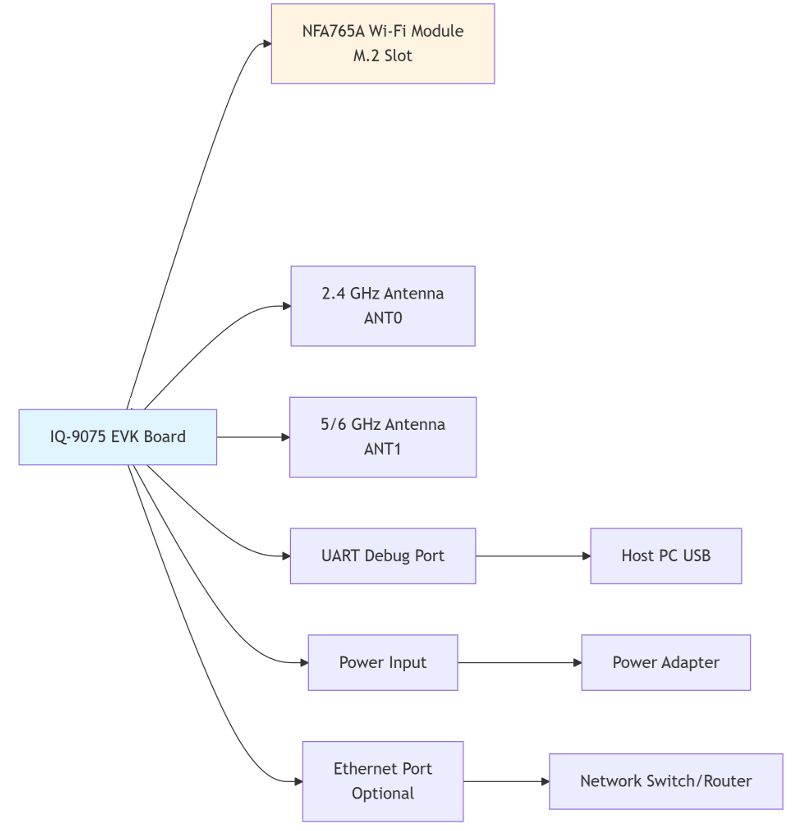 Insert the NFA765A module into the M.2 slot at a 30-degree angle, press flat, and secure with the provided screw.
* **ANT0 (2.4G)** — shared between Wi-Fi and Bluetooth
* **ANT1 (5G/6G)** — Wi-Fi 5 GHz and 6 GHz only
Connect the UART cable to the debug port and note the assigned COM port or `/dev/ttyUSB` device.
Power on and observe the boot sequence via UART console. Default login: `ubuntu` / `ubuntu`.
## Architecture
### Wi-Fi Software Architecture
Insert the NFA765A module into the M.2 slot at a 30-degree angle, press flat, and secure with the provided screw.
* **ANT0 (2.4G)** — shared between Wi-Fi and Bluetooth
* **ANT1 (5G/6G)** — Wi-Fi 5 GHz and 6 GHz only
Connect the UART cable to the debug port and note the assigned COM port or `/dev/ttyUSB` device.
Power on and observe the boot sequence via UART console. Default login: `ubuntu` / `ubuntu`.
## Architecture
### Wi-Fi Software Architecture
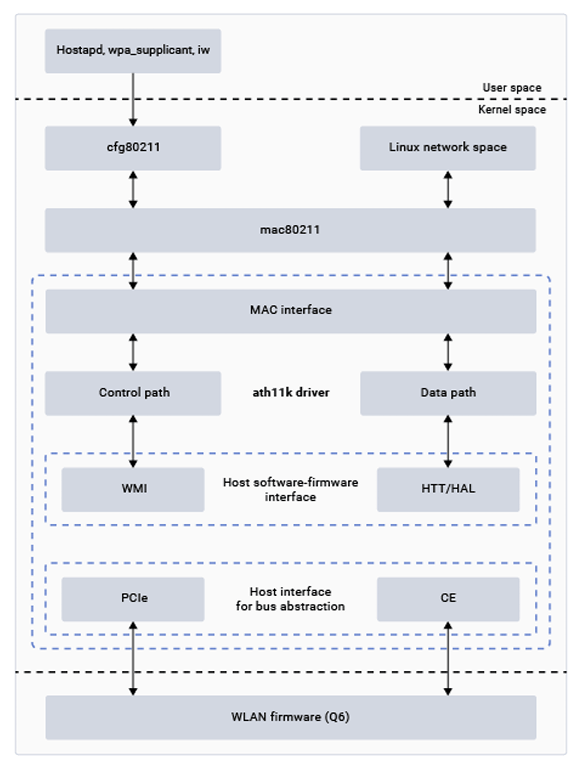 | Component | Description |
| ---------------------------- | ------------------------------------------------------ |
| **hostapd** | Access point and authentication server (WPA/WPA2/WPA3) |
| **cfg80211** | Wireless device configuration management |
| **mac80211** | Open-source WLAN protocol implementation |
| **ath11k MAC Interface** | Interface between mac80211 and lower ath11k layers |
| **ath11k Control/Data Path** | Scan, auth, association; data traffic management |
| **WMI/HTT** | High-level protocols between host driver and firmware |
### Bluetooth Software Architecture
| Component | Description |
| ---------------------------- | ------------------------------------------------------ |
| **hostapd** | Access point and authentication server (WPA/WPA2/WPA3) |
| **cfg80211** | Wireless device configuration management |
| **mac80211** | Open-source WLAN protocol implementation |
| **ath11k MAC Interface** | Interface between mac80211 and lower ath11k layers |
| **ath11k Control/Data Path** | Scan, auth, association; data traffic management |
| **WMI/HTT** | High-level protocols between host driver and firmware |
### Bluetooth Software Architecture
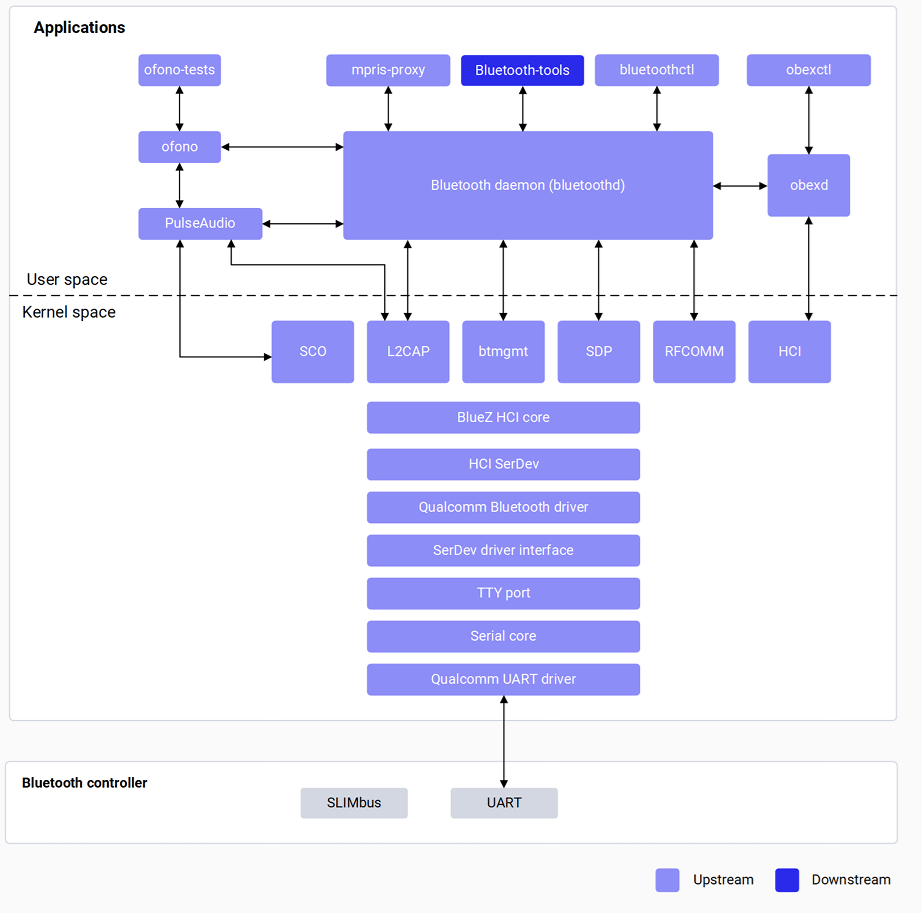 | Component | Description |
| ---------------------- | --------------------------------------------------------- |
| **bluetoothd** | Central Bluetooth daemon with D-Bus interfaces |
| **bluetoothctl** | CLI tool for Bluetooth functionality testing |
| **HCI Core** | Sends/receives HCI commands between user space and driver |
| **L2CAP** | Breaks large packets into frames; handles QoS |
| **Qualcomm BT Driver** | GPIO config, regulators, patch and NV data download |
## Verify Components
### Wi-Fi
```bash theme={null}
# Check driver
lsmod | grep ath11k
# Check interface
iw dev
# Check firmware
ls -la /lib/firmware/ath11k/
```
### Bluetooth
```bash theme={null}
# Check driver
lsmod | grep bt
# Check HCI device
hciconfig
# Check firmware
ls -la /lib/firmware/qca/
# Check BlueZ daemon
systemctl status bluetooth
```
## Wi-Fi Configuration
### Station Mode
```bash theme={null}
# Scan for networks
nmcli dev wifi list
# Connect
nmcli dev wifi connect password
# Verify connection
nmcli general status
nmcli dev status
ip addr show wlp1s0
ping 8.8.8.8
```
### Set MAC Address (Optional)
The manually set MAC address persists only until the next reboot, then reverts to the factory OTP address.
```bash theme={null}
ip link set wlp1s0 down
ip link set wlp1s0 hw ether XX:XX:XX:XX:XX:XX
ip link set wlp1s0 up
```
### Hotspot Mode
```bash theme={null}
iw dev wlp1s0 interface add wlan1 type managed
```
```bash theme={null}
# Pull default config (optional)
scp -r ubuntu@:/etc/hostapd.conf .
#Update the hostapd.conf file with the SSID, password,
#Interface name and relevant configurations & push the file.
scp -r hostapd.conf root@:/etc
# Start the hostapd process:
hostapd -B /etc/hostapd.conf
```
```bash theme={null}
#Create bridge interface
brctl addbr br0
#Add wlan1 to bridge
brctl addif br0 wlan1
#Assign IP address to bridge
ip addr add 192.168.225.1/24 dev br0
#Restart dnsmasq
killall dnsmasq
#Start dnsmasq with DHCP configuration
dnsmasq --conf-file=/etc/dnsmasq.conf --dhcp-leasefile=/var/run/dnsmasq.leases \
--addn-hosts=/data/hosts --pid-file=/var/run/dnsmasq.pid -i br0 -I lo -z \
--dhcp-range=br0,192.168.225.20,192.168.225.60,255.255.255.0,43200 --dhcp-hostsfile=/data/dhcp_hosts \
--dhcp-option-force=6,192.168.225.1 --dhcp-script=/bin/dnsmasq_script.sh
```
```bash theme={null}
#To establish a connection with the *hostapd_cli*
hostapd_cli -i wlan1 -p /var/run/hostapd
```
**Stop hotspot:**
```bash theme={null}
#To stop the hostapd process
killall hostapd
#To disable the interface
ip link set wlan1 down
#To delete *ctrl_interface*
rm -rf /var/run/hostapd/wlan1
```
### Configure Link Speed
```bash theme={null}
sudo ethtool -s end0 autoneg on speed 1000 duplex full
```
## Bluetooth Configuration
### Set Bluetooth MAC Address (Optional)
A manually set Bluetooth MAC address does not persist across reboots.
```bash theme={null}
# Power off Bluetooth first
hciconfig hci0 down
# Set address
btmgmt public-addr 22:22:9B:2C:79:1E
# Verify
hciconfig
```
### GAP Operations
| Component | Description |
| ---------------------- | --------------------------------------------------------- |
| **bluetoothd** | Central Bluetooth daemon with D-Bus interfaces |
| **bluetoothctl** | CLI tool for Bluetooth functionality testing |
| **HCI Core** | Sends/receives HCI commands between user space and driver |
| **L2CAP** | Breaks large packets into frames; handles QoS |
| **Qualcomm BT Driver** | GPIO config, regulators, patch and NV data download |
## Verify Components
### Wi-Fi
```bash theme={null}
# Check driver
lsmod | grep ath11k
# Check interface
iw dev
# Check firmware
ls -la /lib/firmware/ath11k/
```
### Bluetooth
```bash theme={null}
# Check driver
lsmod | grep bt
# Check HCI device
hciconfig
# Check firmware
ls -la /lib/firmware/qca/
# Check BlueZ daemon
systemctl status bluetooth
```
## Wi-Fi Configuration
### Station Mode
```bash theme={null}
# Scan for networks
nmcli dev wifi list
# Connect
nmcli dev wifi connect password
# Verify connection
nmcli general status
nmcli dev status
ip addr show wlp1s0
ping 8.8.8.8
```
### Set MAC Address (Optional)
The manually set MAC address persists only until the next reboot, then reverts to the factory OTP address.
```bash theme={null}
ip link set wlp1s0 down
ip link set wlp1s0 hw ether XX:XX:XX:XX:XX:XX
ip link set wlp1s0 up
```
### Hotspot Mode
```bash theme={null}
iw dev wlp1s0 interface add wlan1 type managed
```
```bash theme={null}
# Pull default config (optional)
scp -r ubuntu@:/etc/hostapd.conf .
#Update the hostapd.conf file with the SSID, password,
#Interface name and relevant configurations & push the file.
scp -r hostapd.conf root@:/etc
# Start the hostapd process:
hostapd -B /etc/hostapd.conf
```
```bash theme={null}
#Create bridge interface
brctl addbr br0
#Add wlan1 to bridge
brctl addif br0 wlan1
#Assign IP address to bridge
ip addr add 192.168.225.1/24 dev br0
#Restart dnsmasq
killall dnsmasq
#Start dnsmasq with DHCP configuration
dnsmasq --conf-file=/etc/dnsmasq.conf --dhcp-leasefile=/var/run/dnsmasq.leases \
--addn-hosts=/data/hosts --pid-file=/var/run/dnsmasq.pid -i br0 -I lo -z \
--dhcp-range=br0,192.168.225.20,192.168.225.60,255.255.255.0,43200 --dhcp-hostsfile=/data/dhcp_hosts \
--dhcp-option-force=6,192.168.225.1 --dhcp-script=/bin/dnsmasq_script.sh
```
```bash theme={null}
#To establish a connection with the *hostapd_cli*
hostapd_cli -i wlan1 -p /var/run/hostapd
```
**Stop hotspot:**
```bash theme={null}
#To stop the hostapd process
killall hostapd
#To disable the interface
ip link set wlan1 down
#To delete *ctrl_interface*
rm -rf /var/run/hostapd/wlan1
```
### Configure Link Speed
```bash theme={null}
sudo ethtool -s end0 autoneg on speed 1000 duplex full
```
## Bluetooth Configuration
### Set Bluetooth MAC Address (Optional)
A manually set Bluetooth MAC address does not persist across reboots.
```bash theme={null}
# Power off Bluetooth first
hciconfig hci0 down
# Set address
btmgmt public-addr 22:22:9B:2C:79:1E
# Verify
hciconfig
```
### GAP Operations
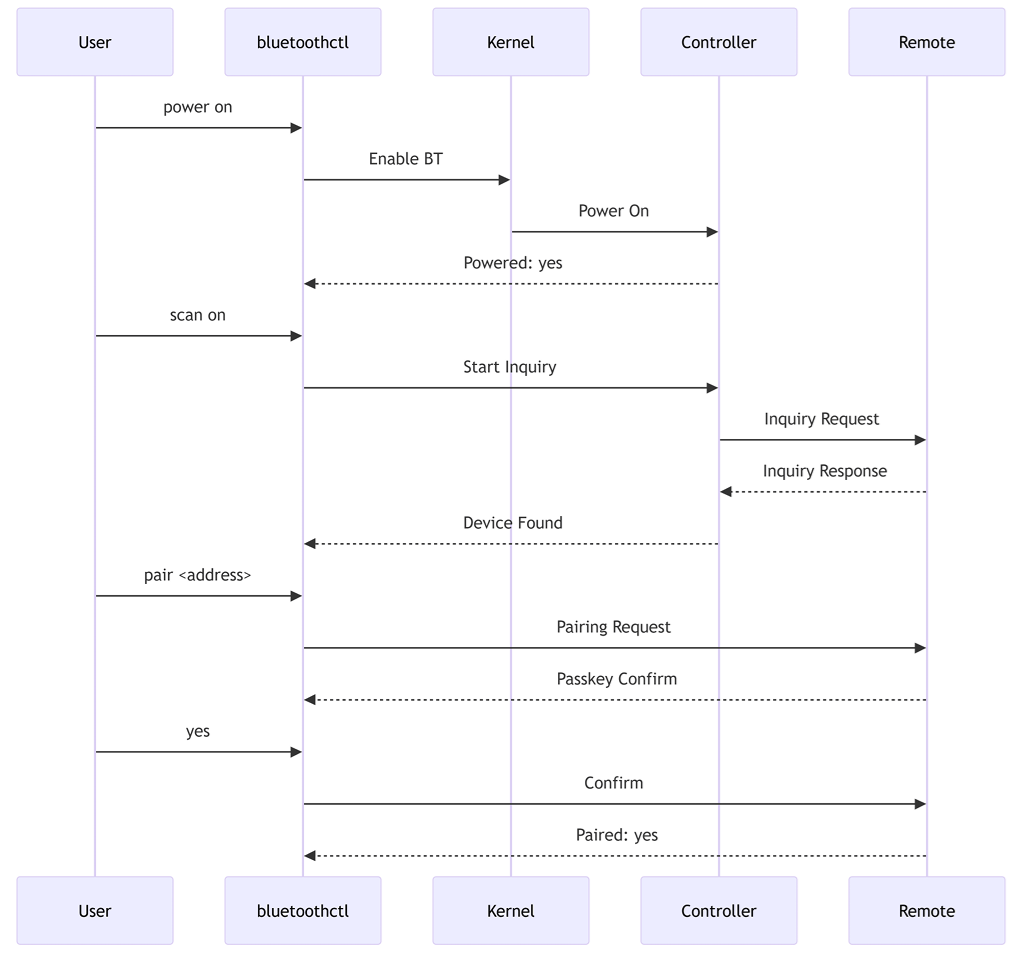 ```bash theme={null}
# Launch bluetoothctl
bluetoothctl
# Enable Bluetooth
power on
# Enable discoverable mode
discoverable on
# Scan for devices
scan on
# Pair with device
pair F8:7D:76:9D:9B:6B
# List paired devices
devices
# Disable Bluetooth
power off
```
### Supported Bluetooth Profiles
| Profile | Role | Version |
| ------- | ---------------------- | ------- |
| GAP | Central and Peripheral | — |
| SPP | Client and Server | v1.2 |
| GATT | Central and Peripheral | — |
| OPP | Client and Server | v1.2 |
| FTP | Client and Server | v1.2 |
| PBAP | Client and Server | v1.1 |
| MAP | Client and Server | v1.2 |
A2DP, AVRCP, and HFP are supported on WCN6750/WCN6856.
## Debugging
### Wi-Fi Debug Logs
```bash theme={null}
# Enable logging
echo "module ath11k +p" > /sys/kernel/debug/dynamic_debug/control
echo "module ath11k_pci +p" > /sys/kernel/debug/dynamic_debug/control
# Collect logs
dmesg > /tmp/dmesg.txt
scp ubuntu@:/tmp/dmesg.txt .
# Collect firmware dump (on crash)
cat /sys/class/devcoredump/devcd*/data > /tmp/firmware_dump.bin
```
### Bluetooth Debug Logs
```bash theme={null}
#Enable BlueZ logs
vi /lib/systemd/system/bluetooth.service
#Append -d option to the following line in the file and save
ExecStart=/usr/libexec/bluetooth/bluetoothd -d
#Restart Bluetooth
systemctl daemon-reload
systemctl restart bluetooth
# Collect HCI snoop log
hcidump --save-dump=/var/log/snoop.log
```
## Troubleshooting
**Cause:** Driver not loaded or firmware missing.
```bash theme={null}
dmesg | grep ath11k
ls /lib/firmware/ath11k/
```
**Cause:** Wrong password or security mismatch.
Verify SSID and password; check AP security settings.
**Cause:** DHCP server issue.
Check DHCP server on AP; manually assign static IP for testing.
**Cause:** hostapd configuration error.
Verify `hostapd.conf` settings; check channel and security parameters.
**Cause:** Driver not loaded or firmware missing.
```bash theme={null}
dmesg | grep -i bluetooth
ls /lib/firmware/qca/
```
**Cause:** Passkey mismatch or timeout.
Ensure both devices confirm the same passkey; retry pairing.
**Cause:** A2DP/HFP not supported on NFA765A.
Verify profile support — A2DP and HFP require WCN6750/WCN6856.
**Cause:** 2.4 GHz interference or power management.
Disable power management; check for 2.4 GHz interference from Wi-Fi.
## Quick Start Checklists
* [ ] NFA765A module installed in M.2 slot
* [ ] Antennas connected (ANT0 and ANT1)
* [ ] Firmware files present (`/lib/firmware/ath11k/`)
* [ ] `wlp1s0` interface present (`iw dev`)
* [ ] Connected to AP (`nmcli dev wifi connect ...`)
* [ ] IP address assigned (`ip addr show wlp1s0`)
* [ ] Internet reachable (`ping 8.8.8.8`)
* [ ] NFA765A chipset initialized
* [ ] Bluetooth firmware present (`/lib/firmware/qca/`)
* [ ] `hci0` controller present (`hciconfig`)
* [ ] `bluetoothd` running (`systemctl status bluetooth`)
* [ ] `bluetoothctl` available
* [ ] Bluetooth powered on (`power on`)
* [ ] Scan and pair successful
## Resources
* [Wi-Fi Alliance](https://www.wi-fi.org/certification)
* [Bluetooth SIG](https://www.bluetooth.com/specifications/)
* [Linux Wireless](https://wireless.wiki.kernel.org/)
* [ath11k](https://wireless.wiki.kernel.org/en/users/drivers/ath11k)
* [hostapd Documentation](https://w1.fi/cgit/hostap/plain/hostapd/README)
* [nmcli Manual](https://www.linux.org/docs/man1/nmcli.html)
```bash theme={null}
# Launch bluetoothctl
bluetoothctl
# Enable Bluetooth
power on
# Enable discoverable mode
discoverable on
# Scan for devices
scan on
# Pair with device
pair F8:7D:76:9D:9B:6B
# List paired devices
devices
# Disable Bluetooth
power off
```
### Supported Bluetooth Profiles
| Profile | Role | Version |
| ------- | ---------------------- | ------- |
| GAP | Central and Peripheral | — |
| SPP | Client and Server | v1.2 |
| GATT | Central and Peripheral | — |
| OPP | Client and Server | v1.2 |
| FTP | Client and Server | v1.2 |
| PBAP | Client and Server | v1.1 |
| MAP | Client and Server | v1.2 |
A2DP, AVRCP, and HFP are supported on WCN6750/WCN6856.
## Debugging
### Wi-Fi Debug Logs
```bash theme={null}
# Enable logging
echo "module ath11k +p" > /sys/kernel/debug/dynamic_debug/control
echo "module ath11k_pci +p" > /sys/kernel/debug/dynamic_debug/control
# Collect logs
dmesg > /tmp/dmesg.txt
scp ubuntu@:/tmp/dmesg.txt .
# Collect firmware dump (on crash)
cat /sys/class/devcoredump/devcd*/data > /tmp/firmware_dump.bin
```
### Bluetooth Debug Logs
```bash theme={null}
#Enable BlueZ logs
vi /lib/systemd/system/bluetooth.service
#Append -d option to the following line in the file and save
ExecStart=/usr/libexec/bluetooth/bluetoothd -d
#Restart Bluetooth
systemctl daemon-reload
systemctl restart bluetooth
# Collect HCI snoop log
hcidump --save-dump=/var/log/snoop.log
```
## Troubleshooting
**Cause:** Driver not loaded or firmware missing.
```bash theme={null}
dmesg | grep ath11k
ls /lib/firmware/ath11k/
```
**Cause:** Wrong password or security mismatch.
Verify SSID and password; check AP security settings.
**Cause:** DHCP server issue.
Check DHCP server on AP; manually assign static IP for testing.
**Cause:** hostapd configuration error.
Verify `hostapd.conf` settings; check channel and security parameters.
**Cause:** Driver not loaded or firmware missing.
```bash theme={null}
dmesg | grep -i bluetooth
ls /lib/firmware/qca/
```
**Cause:** Passkey mismatch or timeout.
Ensure both devices confirm the same passkey; retry pairing.
**Cause:** A2DP/HFP not supported on NFA765A.
Verify profile support — A2DP and HFP require WCN6750/WCN6856.
**Cause:** 2.4 GHz interference or power management.
Disable power management; check for 2.4 GHz interference from Wi-Fi.
## Quick Start Checklists
* [ ] NFA765A module installed in M.2 slot
* [ ] Antennas connected (ANT0 and ANT1)
* [ ] Firmware files present (`/lib/firmware/ath11k/`)
* [ ] `wlp1s0` interface present (`iw dev`)
* [ ] Connected to AP (`nmcli dev wifi connect ...`)
* [ ] IP address assigned (`ip addr show wlp1s0`)
* [ ] Internet reachable (`ping 8.8.8.8`)
* [ ] NFA765A chipset initialized
* [ ] Bluetooth firmware present (`/lib/firmware/qca/`)
* [ ] `hci0` controller present (`hciconfig`)
* [ ] `bluetoothd` running (`systemctl status bluetooth`)
* [ ] `bluetoothctl` available
* [ ] Bluetooth powered on (`power on`)
* [ ] Scan and pair successful
## Resources
* [Wi-Fi Alliance](https://www.wi-fi.org/certification)
* [Bluetooth SIG](https://www.bluetooth.com/specifications/)
* [Linux Wireless](https://wireless.wiki.kernel.org/)
* [ath11k](https://wireless.wiki.kernel.org/en/users/drivers/ath11k)
* [hostapd Documentation](https://w1.fi/cgit/hostap/plain/hostapd/README)
* [nmcli Manual](https://www.linux.org/docs/man1/nmcli.html)