> ## Documentation Index
> Fetch the complete documentation index at: https://dragonwingdocs.qualcomm.com/llms.txt
> Use this file to discover all available pages before exploring further.
# End-to-end samples
> Run AI samples for image classification and hand detection with published input images. No camera is required for these samples.
Run the QIR SDK AI vision samples end-to-end without any camera. Both samples use `image_publisher` to publish a bundled image at a fixed rate, then push the frame through the same QNN inference pipeline as the camera launch variant. The samples run on the IQ-9075 EVK under either Qualcomm Linux or Ubuntu, and on the Qualcomm Dragonwing™ RB3 Gen 2 Vision Kit under Ubuntu.
## Prerequisites
Confirm the following before you start either sample.
* For more information, see the Evaluate tab on the [Scenarios](./scenarios#evaluate) page.
* The host and device can reach each other over the network using the `ping` command.
* ROS 2 Jazzy is available on both the host and the device with a matching `ROS_DOMAIN_ID`.
* The device runs `qcom-robotics-proprietary-image` (Qualcomm Linux) or `qirp-sdk` or `qirp-sdk-desktop` (Ubuntu).
## Run AI samples
Follow the tab for the sample you want to run. Both samples publish input images through `image_publisher`, so no camera is required.
Run `sample_resnet101` end-to-end to classify a bundled image with the ResNet-101 model through the Qualcomm® AI Engine Direct SDK (QNN).
### Pipeline diagram
The following diagram shows the ROS 2 nodes and topics in the pipeline.
```mermaid theme={null}
flowchart TD
A[image_publisher]:::proprietary -->|/image_raw| B[Image classification preprocess]:::proprietary
B -->|/qrb_inference_input_tensor| C[qrb_ros_nn_inference]:::proprietary
C -->|/qrb_inference_output_tensor| D[Image classification postprocess]:::proprietary
D -->|/resnet101_output| E[Consumer or rqt]:::neutral
classDef proprietary fill:#31017D,color:#ffffff,stroke:#31017D
classDef neutral fill:#eeeeee,color:#000000,stroke:#999999
```
### Run the sample
Follow the OS tab. Both paths launch with the built-in image publisher, which defaults to publishing `glasses.jpg` at 10 Hz.
Over SSH to the device:
```bash theme={null}
source /usr/share/qirp-setup.sh -m
export ROS_DOMAIN_ID=123
```
```bash theme={null}
ros2 launch sample_resnet101 launch_with_image_publisher.py
```
In a second SSH session:
```bash theme={null}
ros2 topic echo /resnet101_output
```
```bash theme={null}
sudo apt install ros-jazzy-sample-resnet101
```
```bash theme={null}
source /opt/ros/jazzy/setup.bash
export ROS_DOMAIN_ID=123
```
```bash theme={null}
ros2 launch sample_resnet101 launch_with_image_publisher.py
```
```bash theme={null}
ros2 topic echo /resnet101_output
```
### Expected result
The following output shows a steady classification stream on `/resnet101_output`.
```text theme={null}
data: 'sunglass'
---
data: 'sunglass'
---
data: 'sunglass'
```
Pass `image_path:=` to the launch command to change the input image; the label updates accordingly.
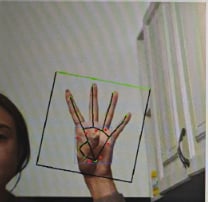
Run `sample_hand_detection` end-to-end to detect palms and hand landmarks with the MediaPipe Hand Landmark Detector through QNN. The two-stage pipeline runs palm detection followed by landmark regression, then annotates the source frame.
### Pipeline diagram
The following diagram shows the ROS 2 nodes and topics in the two-stage pipeline.
```mermaid theme={null}
flowchart TD
A[image_publisher]:::proprietary -->|/image_raw| B[palm_preprocessor]:::proprietary
B -->|/palm_detector_input_tensor| C[qrb_ros_nn_inference]:::proprietary
C -->|/palm_detector_output_tensor| D[palm_postprocessor]:::proprietary
D --> E[landmark_preprocessor]:::proprietary
E -->|/landmark_detector_input_tensor| F[qrb_ros_nn_inference]:::proprietary
F -->|/landmark_detector_output_tensor| G[landmark_postprocessor]:::proprietary
G -->|/handlandmark_result| H[rqt Image View]:::neutral
classDef proprietary fill:#31017D,color:#ffffff,stroke:#31017D
classDef neutral fill:#eeeeee,color:#000000,stroke:#999999
```
### Run the sample
Follow the OS tab. Both paths launch with the built-in image publisher, so no camera is required.
Over SSH to the device:
```bash theme={null}
source /usr/share/qirp-setup.sh -m
export ROS_DOMAIN_ID=123
export PYTHONPATH=$PYTHONPATH:/opt/ros/jazzy/lib/python3.14/site-packages/sample_hand_detection
```
```bash theme={null}
ros2 launch sample_hand_detection launch_with_image_publisher.py model_path:=/opt/model/
```
In a host terminal:
```bash theme={null}
export DISPLAY=YOUR_HOST_IP:0
export ROS_DOMAIN_ID=123
rqt
```
In `rqt`, select **Plugins** → **Visualization** → **Image View** and choose `/handlandmark_result`.
```bash theme={null}
sudo apt install ros-jazzy-sample-hand-detection
```
```bash theme={null}
source /opt/ros/jazzy/setup.bash
export ROS_DOMAIN_ID=123
```
```bash theme={null}
ros2 launch sample_hand_detection launch_with_image_publisher.py
```
On the host, open `rqt`, select **Plugins** → **Visualization** → **Image View**, and choose `/handlandmark_result`.
### Expected result
The following figure shows the annotated frame with the palm bounding box and the 21 landmark markers when a fully open palm image is published.
 ## Next steps
* [QIR SDK user guide (Qualcomm Linux)](/SDKs/QIR-SDK-2.0/) — Complete QIR SDK user guide for Qualcomm Dragonwing devices running Qualcomm Linux software, including SDK overview, install, image variants, cross-compile toolchain, overlay mechanism, migration guide, and troubleshooting.
* [QIR SDK user guide (Ubuntu)](/SDKs/QIR-SDK-Ubuntu) — Complete QIR SDK user guide for Qualcomm Dragonwing devices running Ubuntu, including software architecture, install, and sample applications.
* Try more sample applications
[Samples](/SDKs/QIR-SDK-2.0/qir-sdk-sample-applications)
[Samples](/SDKs/QIR-SDK-Ubuntu/sample-applications)
## Next steps
* [QIR SDK user guide (Qualcomm Linux)](/SDKs/QIR-SDK-2.0/) — Complete QIR SDK user guide for Qualcomm Dragonwing devices running Qualcomm Linux software, including SDK overview, install, image variants, cross-compile toolchain, overlay mechanism, migration guide, and troubleshooting.
* [QIR SDK user guide (Ubuntu)](/SDKs/QIR-SDK-Ubuntu) — Complete QIR SDK user guide for Qualcomm Dragonwing devices running Ubuntu, including software architecture, install, and sample applications.
* Try more sample applications
[Samples](/SDKs/QIR-SDK-2.0/qir-sdk-sample-applications)
[Samples](/SDKs/QIR-SDK-Ubuntu/sample-applications)