> ## Documentation Index
> Fetch the complete documentation index at: https://dragonwingdocs.qualcomm.com/llms.txt
> Use this file to discover all available pages before exploring further.

# Run from a host computer

> Run multimedia and AI sample applications on the Dragonwing Evaluation Kit from a Windows<sup>®</sup>, Ubuntu, or macOS<sup>®</sup> host computer.

Qualcomm <sup>®</sup> Linux <sup>®</sup> has various sample applications. Each application is suited for different use cases such as retail, Qualcomm <sup>®</sup> Edge AI Box Solutions, and IP camera. The sample applications can be categorized as follows:

* Multimedia sample applications, which show camera, video, and audio functionalities.
* AI sample applications, which show AI and machine learning (ML) capabilities.

<h2 id="prerequisites">
  Prerequisites
</h2>

Before you begin, set up the [IQ-8275](https://dragonwingdocs.qualcomm.com/Linux/devices/iq8275-evk/set-up-the-device) or [IQ-9075](https://dragonwingdocs.qualcomm.com/Linux/devices/iq9075-evk/set-up-the-device) device.

To use a camera, enable `camx` on the device by running the following commands on the target device:

```shell theme={null}
echo -n "camx" > /var/data
efivar -n 882f8c2b-9646-435f-8de5-f208ff80c1bd-VendorDtbOverlays -w -f /var/data
efivar -n 882f8c2b-9646-435f-8de5-f208ff80c1bd-VendorDtbOverlays -p
sync
reboot
```

## Run multimedia sample applications

The multimedia sample applications show use cases for camera, display, and video streams on the Dragonwing EVK.

### Multicamera streaming or encoding (Dash cam)

**Description:** The [**gst-multi-camera-example**](https://github.com/qualcomm/gst-plugins-imsdk/tree/main/gst-sample-apps/gst-multi-camera-example) application allows you to stream from two camera sensors simultaneously. The application composes the camera feeds side by side to display on a screen or encodes and stores the video streams to files.

A few use cases that need many camera inputs are dash camera or stereo camera. You can use this application as a reference and build your use case. For example, a security system where the goal is to capture a video from several cameras. You can either view it or archive it for a future review.

The following figure shows the pipeline for several camera streams. For more information about the elements used in this pipeline, see [pipeline flow.](#multi-camera-pipeline-flow)

<img src="https://mintcdn.com/qualcomm-prod/jy6NQT2Y7J_sAxdX/Linux/images/run-sample-applications/gst_multicamera_example_pipeline.svg?fit=max&auto=format&n=jy6NQT2Y7J_sAxdX&q=85&s=f8e3fc89f7a9fcfc877e1fb5f933df5c" alt="Multi camera pipeline" width="1080" height="420" data-path="Linux/images/run-sample-applications/gst_multicamera_example_pipeline.svg" />

**Figure: gst-multi-camera-stream-example pipeline**

**Application:** [`gst-multi-camera-example`](https://github.com/qualcomm/gst-plugins-imsdk/tree/main/gst-sample-apps/gst-multi-camera-example)
<Accordion title="Try me">
  ### Run the application

  <Note>
    **Note:** In the following commands, provide the necessary parameters, such as width, height, and output type. The width and height changes are applicable to the primary camera only.
  </Note>

  <Steps>
    <Step title="Complete prerequisites">
      Ensure that you complete the [Prerequisites](#prerequisites).
    </Step>

    <Step title="In the terminal of the target device, select any of the following use cases and run the respective command:">
      **Waylandsink use case:** View the Waylandsink output:

      ```bash theme={null}
      gst-multi-camera-example -o 0 -w 1920 -h 1080
      ```

      **Encoder use case:** View the encoder output:

      ```bash theme={null}
      gst-multi-camera-example -o 1 -w 1920 -h 1080
      ```
    </Step>

    <Step title="To Stop the running use case">
      Press `Ctrl + C`.
    </Step>

    <Step title="In the terminal of the target device, run the following command to display the available help options:">
      ```bash theme={null}
      gst-multi-camera-example --help
      ```
    </Step>

    <Step title="In the terminal of the host computer, run the following command to pull the files from the target device:">
      ```bash theme={null}
      scp root@<IP address of target device>:/etc/media/<filename to pull>
      ```
    </Step>
  </Steps>

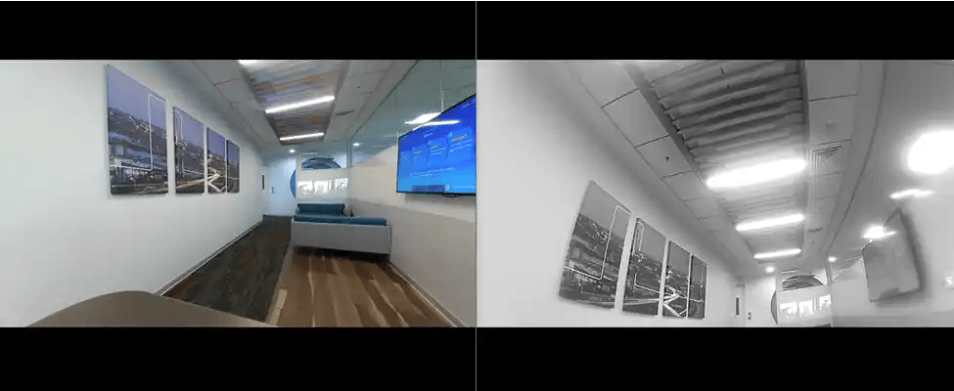
  ### Expected Output

  The output is displayed on the screen and saved to a file.

  * If the output type is display, you can preview the stream on the display.

  * If the output type is video encoding, then the encoded files are saved at
    `/etc/media/cam1_vid.mp4` and `/etc/media/cam2_vid.mp4` for camera 1 and camera 2 respectively.

  <img src="https://mintcdn.com/qualcomm-prod/jy6NQT2Y7J_sAxdX/Linux/images/run-sample-applications/multi-camera-example-output.png?fit=max&auto=format&n=jy6NQT2Y7J_sAxdX&q=85&s=2e1b19f45822901bd09756841760501a" alt="Camera Preview Output" width="954" height="391" data-path="Linux/images/run-sample-applications/multi-camera-example-output.png" />

  **Figure: Expected output for gst-multi-camera-example application–preview**

  <h3 id="multi-camera-pipeline-flow">
    Pipeline flow
  </h3>

  The following table lists the plugins used in the multi camera streaming pipeline:

  <table>
    <thead>
      <tr>
        <th>Pipeline</th>
        <th>Description</th>
      </tr>
    </thead>

    <tbody>
      <tr>
        <td>Preview on display</td>

        <td>
          <ol>
            <li>`qticamsrc` captures video from both camera0 and camera1.</li>
            <li>`Capsfilter` is applied to enforce constraints on the raw video data.</li>
            <li>`qtivcomposer` composites the video streams and sends the composited video data to Wayland display sink.</li>
            <li>`waylandsink` shows the live preview.</li>
          </ol>
        </td>
      </tr>

      <tr>
        <td>Encoder dump on the device</td>

        <td>
          <ol>
            <li>`qticamsrc` captures video from both camera0 and camera1.</li>
            <li>`Capsfilter` is applied to enforce constraints on the raw video data.</li>
            <li>`v4l2h264enc` is used to encode the video using the H.264 format.</li>
            <li>`H264parse` is used to parse the video.</li>
            <li>`Mp4mux` is used to multiplex the video into an MP4 container.</li>
            <li>`Filesink` is used to write the video to a file.</li>
          </ol>
        </td>
      </tr>
    </tbody>
  </table>
</Accordion>

### Multichannel video decode and compose (Video wall)

**Description:** The [**gst-concurrent-videoplay-composition**](https://github.com/qualcomm/gst-plugins-imsdk/tree/main/gst-sample-apps/gst-concurrent-videoplay-composition) application supports concurrent video playback for MP4 AVC (H.264) videos and performs composition on a video wall display.

In the concurrent video playback and composition pipeline, four decode and composition pipelines run concurrently. For more information about the plugins used in this pipeline, see [Pipeline flow.](#video-wall)

<img src="https://mintcdn.com/qualcomm-prod/jy6NQT2Y7J_sAxdX/Linux/images/run-sample-applications/gst_concurrent_videoplay_composition.svg?fit=max&auto=format&n=jy6NQT2Y7J_sAxdX&q=85&s=a899ee5d2cb64e99d67dba1c54190603" alt="Single camera pipeline" width="1150" height="420" data-path="Linux/images/run-sample-applications/gst_concurrent_videoplay_composition.svg" />

**Figure: gst-concurrent-videoplay-composition pipeline with four streams**

**Application:** [`gst-concurrent-videoplay-composition`](https://github.com/qualcomm/gst-plugins-imsdk/tree/main/gst-sample-apps/gst-concurrent-videoplay-composition)
<Accordion title="Try me">
  ### Run the application

  The following table lists the use cases that are supported through the gst-concurrent-videoplay-composition application:

  <table>
    <thead>
      <tr>
        <th>Use case</th>
        <th>Description</th>
      </tr>
    </thead>

    <tbody>
      <tr>
        <td>Video conferencing</td>

        <td>
          <ul>
            <li>Simultaneously decodes the video streams of several participants.</li>
            <li>Useful in a multi-party video conference scenario where the application manages several video streams.</li>
          </ul>
        </td>
      </tr>

      <tr>
        <td>Surveillance systems</td>

        <td>
          <ul>
            <li>Concurrently decodes video feeds from two separate cameras.</li>
          </ul>
        </td>
      </tr>

      <tr>
        <td>Digital signage</td>

        <td>
          <ul>
            <li>Allows simultaneous changes or updates to centrally managed information that is electronically displayed across several locations.</li>
          </ul>
        </td>
      </tr>
    </tbody>
  </table>

  To run the use cases, do the following:

  <Steps>
    <Step title="Complete prerequisites">
      Ensure that you complete the [Prerequisites.](#prerequisites)
    </Step>

    <Step title="Prepare input video files">
      Add at least one `MP4 AVC (H.264)` video file on the target device.
    </Step>

    <Step title="Run the use case">
      In the terminal of the target device, run:

      ```bash theme={null}
      gst-concurrent-videoplay-composition -c <number-of-streams> -i <input-file-1>.mp4 -i <input-file-2>.mp4
      ```

      **Command-line parameters**

      | Parameter | Description                                                                         |
      | --------- | ----------------------------------------------------------------------------------- |
      | `-c`      | Number of streams to decode for composition. Supported values: `2`, `4`, `8`, `16`. |
      | `-i`      | Absolute path to an input video file.                                               |

      **Examples**

      * **Concurrent playback of two sessions**

        ```bash theme={null}

        gst-concurrent-videoplay-composition -c 2 -i /etc/media/video_avc.mp4 -i /etc/media/video_avc.mp4
        ```
      * **Concurrent playback of four sessions**
        ```bash theme={null}

        gst-concurrent-videoplay-composition -c 4 -i /etc/media/video_avc.mp4 -i /etc/media/video_avc.mp4 -i /etc/media/video_avc.mp4 -i /etc/media/video_avc.mp4
        ```
    </Step>

    <Step title="Stop the running use case">
      Press `Ctrl + C`.
    </Step>

    <Step title="In the terminal of the target device, run the following command to display the available help options:">
      ```bash theme={null}
      gst-concurrent-videoplay-composition --help
      ```
    </Step>
  </Steps>

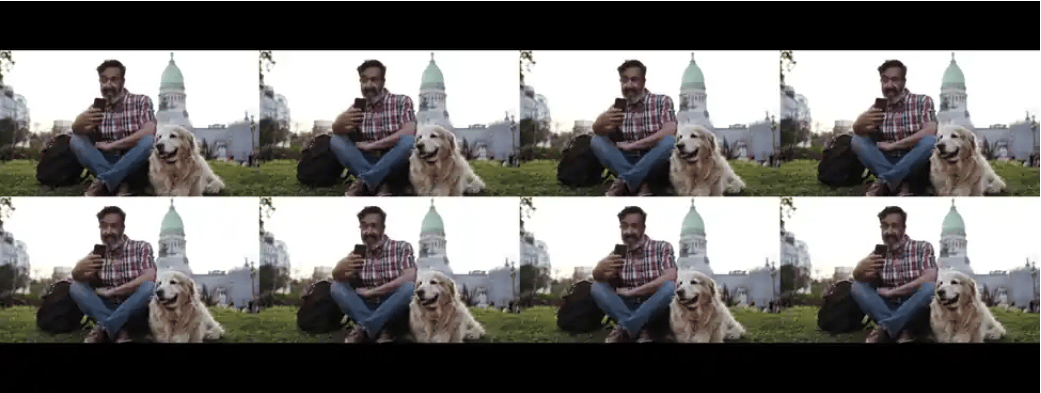
  ### Expected output

  The individual composed streams are tiled together to display as a unified stream.

  <img src="https://mintcdn.com/qualcomm-prod/jy6NQT2Y7J_sAxdX/Linux/images/run-sample-applications/video-wall-output.png?fit=max&auto=format&n=jy6NQT2Y7J_sAxdX&q=85&s=3fcbf46b7dea58fefc0bca2c94a08b78" alt="Video wall Output" width="1041" height="393" data-path="Linux/images/run-sample-applications/video-wall-output.png" />

  **Figure: Expected output for gst-concurrent-videoplay-composition application**
  <h3 id="video-wall">
    Pipeline flow
  </h3>

  The following table lists the plugins used to run the video wall pipeline:

  <table>
    <thead>
      <tr>
        <th>Plugin</th>
        <th>Description</th>
      </tr>
    </thead>

    <tbody>
      <tr>
        <td>filesrc</td>

        <td>
          <ol>
            Reads the video data.
          </ol>
        </td>
      </tr>

      <tr>
        <td>qtdemux</td>

        <td>
          <ol>
            Demultiplexes the video data.
          </ol>
        </td>
      </tr>

      <tr>
        <td>h264parse</td>

        <td>
          <ol>
            Parses the H.264 video streams.
          </ol>
        </td>
      </tr>

      <tr>
        <td>v4l2h264dec</td>

        <td>
          <ol>
            Decodes the H.264 video streams.
          </ol>
        </td>
      </tr>

      <tr>
        <td>qtivcomposer</td>

        <td>
          <ol>
            Composes the decoded streams and sends them over the display.
          </ol>
        </td>
      </tr>

      <tr>
        <td>waylandsink</td>

        <td>
          <ol>
            Displays the composed video streams on Wayland display.
          </ol>
        </td>
      </tr>
    </tbody>
  </table>
</Accordion>

## Run AI sample applications

AI sample applications show use cases for object detection, multistream inference, and parallel inferencing on input streams from a camera, video file, or Real-Time Streaming Protocol (RTSP) stream on the Dragonwing EVK.

<h3 id="download-ai-models">
  Download and transfer AI models and labels
</h3>

To run AI sample applications, download the required models and labels using one of the following methods:

* Download the AI models from [Qualcomm® AI Hub](https://aihub.qualcomm.com/iot/models) and labels from GitHub
* Download the AI models and labels using the `download_artifacts.sh` script

  On the target device, obtain the `download_artifacts.sh` script, set executable permissions, and run it to download the model, media, and label files:

  ```bash theme={null}
  cd /tmp/
  curl -L -O https://raw.githubusercontent.com/qualcomm/sample-apps-for-qualcomm-linux/refs/heads/main/qualcomm-linux/scripts/download_artifacts.sh
  chmod +x download_artifacts.sh
  ./download_artifacts.sh
  ```

To run object detection, parallel inferencing, and multistream inferencing AI use cases, the application uses the following AI models:

| Sample application    | Models required                                                                                                                                                                                                                                                                                                                    |
| --------------------- | ---------------------------------------------------------------------------------------------------------------------------------------------------------------------------------------------------------------------------------------------------------------------------------------------------------------------------------- |
| AI object detection   | [yolox\_quantized.tflite](https://aihub.qualcomm.com/iot/models/yolox?searchTerm=yolo*)                                                                                                                                                                                                                                            |
| Parallel AI inference | [yolox\_quantized.tflite](https://aihub.qualcomm.com/iot/models/yolox?searchTerm=yolo*)<br />[Inception-v3](https://aihub.qualcomm.com/iot/models/inception_v3)<br />[HRNetPose](https://aihub.qualcomm.com/iot/models/hrnet_pose)<br />[DeepLabV3-Plus-MobileNet](https://aihub.qualcomm.com/iot/models/deeplabv3_plus_mobilenet) |
| Multistream inference | [yolox\_quantized.tflite](https://aihub.qualcomm.com/iot/models/yolox?searchTerm=yolo*)<br />[Inception-v3](https://aihub.qualcomm.com/iot/models/inception_v3)                                                                                                                                                                    |

### AI object detection

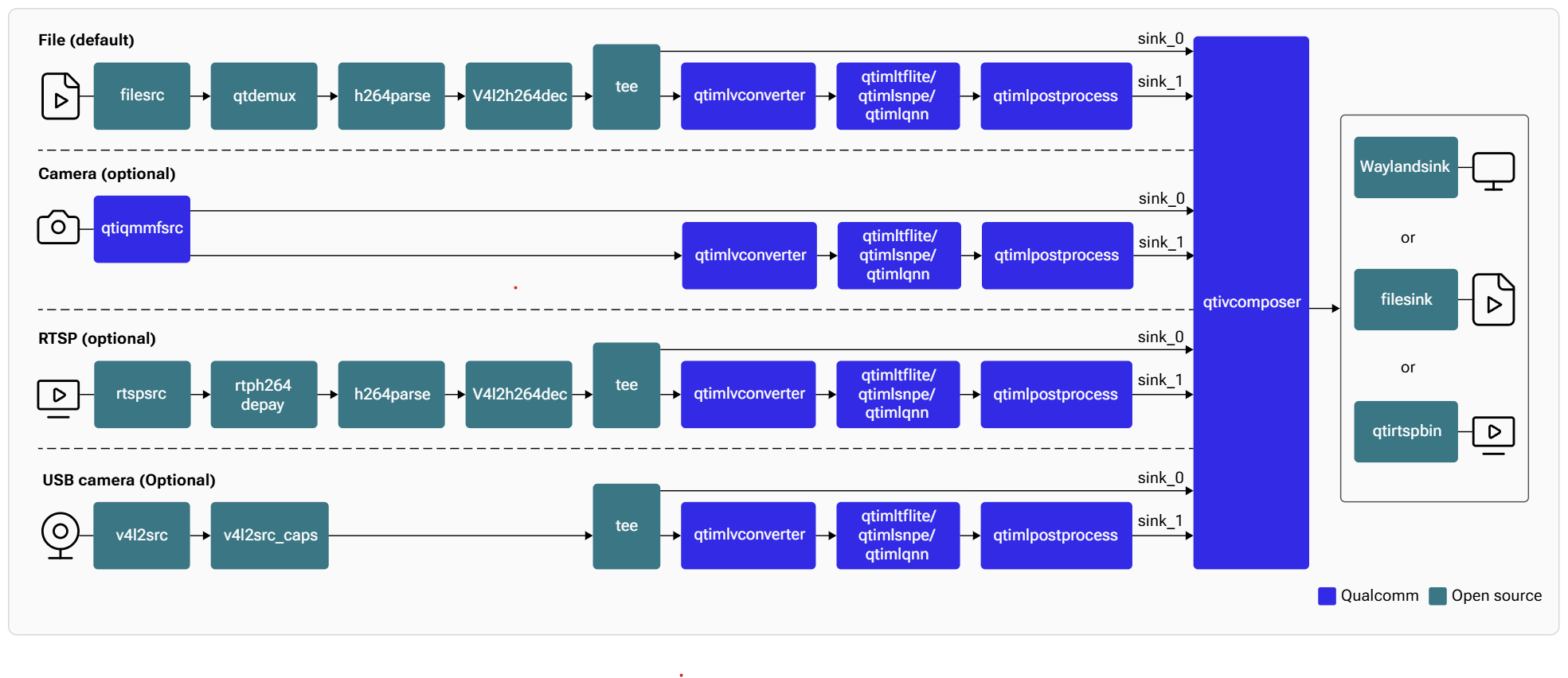
**Description:** The [**gst-ai-object-detection**](https://github.com/qualcomm/gst-plugins-imsdk/blob/main/gst-sample-apps/gst-ai-object-detection/main.c) application allows you to detect objects within images and videos. The use cases show the execution of [**YOLOv5**](https://github.com/ultralytics/yolov5), [**YOLOv8**](https://github.com/ultralytics/ultralytics) and [**YOLOX**](https://github.com/Megvii-BaseDetection/YOLOX/blob/main/README.md) on Qualcomm AI HW accelerator.

The following figure shows the pipeline, which receives the input from a live camera feed, file, USB source, or an RTSP stream, preprocesses it, runs inferences on AI hardware. The results are either displayed on the screen, saved as an encoded MP4 file, or streamed over the RTSP server. For information about the plugins used in the pipeline flow, see [**Pipeline flow**](#object-detection-pipeline-flow)

<img src="https://mintcdn.com/qualcomm-prod/jy6NQT2Y7J_sAxdX/Linux/images/run-sample-applications/ai-sample-applications-object-detection-pipeline-flow.png?fit=max&auto=format&n=jy6NQT2Y7J_sAxdX&q=85&s=119c6c0d1e0e1a333f600fdb162a7da6" alt="Pipeline Diagram" caption="Pipeline Diagram" width="1969" height="852" data-path="Linux/images/run-sample-applications/ai-sample-applications-object-detection-pipeline-flow.png" />

**Application:** [`gst-ai-object-detection`](https://github.com/qualcomm/gst-plugins-imsdk/blob/main/gst-sample-apps/gst-ai-object-detection/main.c)
<Accordion title="Try me">
  When the software image includes the **qticamsrc** plugin, the camera framework uses it by default. If absent, the framework switches to **libcamera** instead. Since Config #1 lacks support for **qticamsrc**, the system defaults to **libcamera**.

  #### Input and Output Capabilities

  | Config    | File src | RTSP | USB camera | MIPI camera | IMX577 camera | File output | Display | RTSP output |
  | --------- | -------- | ---- | ---------- | ----------- | ------------- | ----------- | ------- | ----------- |
  | Config #1 | Yes      | Yes  | Yes        | No          | Yes           | Yes         | Yes     | Yes         |
  | Config #2 | Yes      | Yes  | Yes        | Yes         | Yes           | Yes         | Yes     | Yes         |

  #### Sample Model and Label Files

  | Runtime                        | Model file                                               | Label file     |
  | ------------------------------ | -------------------------------------------------------- | -------------- |
  | Qualcomm Neural Processing SDK | `yolonas.dlc`                                            | `yolonas.json` |
  | LiteRT                         | `yolov8_det_quantized.tflite` / `yolox_quantized.tflite` | `yolox.json`   |
  | Qualcomm AI Engine Direct      | `yolov8_det_quantized.bin`                               | `yolov8.json`  |

  #### Run the application on the target device

  <Steps>
    <Step title="Download artifacts">
      Ensure that you [download](#download-ai-models) all the required artifacts to the target device.
    </Step>

    <Step title="Run the application">
      ```bash theme={null}
      gst-ai-object-detection --config-file=/etc/configs/config_detection.json
      ```

      The sample application uses the `/etc/configs/config_detection.json` file to read the input parameters.

      To display all available options:

      ```bash theme={null}
      gst-ai-object-detection -h
      ```

      To stop the use case, press **CTRL + C**.
    </Step>
  </Steps>

  #### Configurations

  The gst-ai-object-detection application uses the `/etc/configs/config_detection.json` file. Update its properties to match your model, input stream, and output. See [**Config JSON Field Description**](#object-detection-config-json-description) for all fields.

  ```json theme={null}
  {
    "file-path": "<path-to-input-video>",
    "ml-framework": "<snpe or tflite or qnn framework>",
    "yolo-model-type": "<yolov8 or yolonas or yolov5 or yolox>"
    "model": "<path-to-model-file>",
    "labels": "<path-to-label-file>",
    "threshold": <post processsing threshold, integer value from 1 to 100>,
    "runtime": "<dsp, gpu, cpu runtime>",
    "output-type": "waylandsink or filesink or rtspsink"
    "snpe-tensors": "<model output tensor name>"
  }
  ```

  <Note>
    For USB camera input, set the `video-format`, `resolution`, and `framerate` parameters in the config file
    to match the camera capabilities, see [Configure USB camera](https://dragonwingdocs.qualcomm.com/System/Interfaces/usb#configure-usb-camera).
  </Note>

  <Note>
    The `snpe-tensors` field applies only to the SNPE runtime. To retrieve the output tensor names for a DLC model, open the model in [**Netron**](https://netron.app/).
  </Note>

  <Note>
    When using DLC models from the AI Hub, the `snpe-tensors` field is optional.
  </Note>

  <Accordion title="Available configurations">
    <Tabs>
      <Tab title="Config #2">
        Camera source, LiteRT model, DSP runtime

        ```json theme={null}
        {
          "camera": 0,
          "ml-framework": "tflite",
          "yolo-model-type": "yolox",
          "model": "/etc/models/yolox_quantized.tflite",
          "labels": "/etc/labels/yolox.json",
          "threshold": 40,
          "runtime": "dsp",
          "output-type": "waylandsink",
          "snpe-tensors": "<Model output tensor name>"
        }
        ```
      </Tab>

      <Tab title="Config #1">
        Camera source, LiteRT model, CPU runtime

        ```json theme={null}
        {
          "ml-framework": "tflite",
          "yolo-model-type": "yolox",
          "model": "/etc/models/yolox_quantized.tflite",
          "labels": "/etc/labels/yolox.json",
          "threshold": 40,
          "runtime": "cpu",
          "output-type": "waylandsink",
          "snpe-tensors": "<Model output tensor name>"
        }
        ```

        <Note>
          Config #1 supports only LiteRT models and the CPU runtime.
        </Note>
      </Tab>
    </Tabs>
  </Accordion>

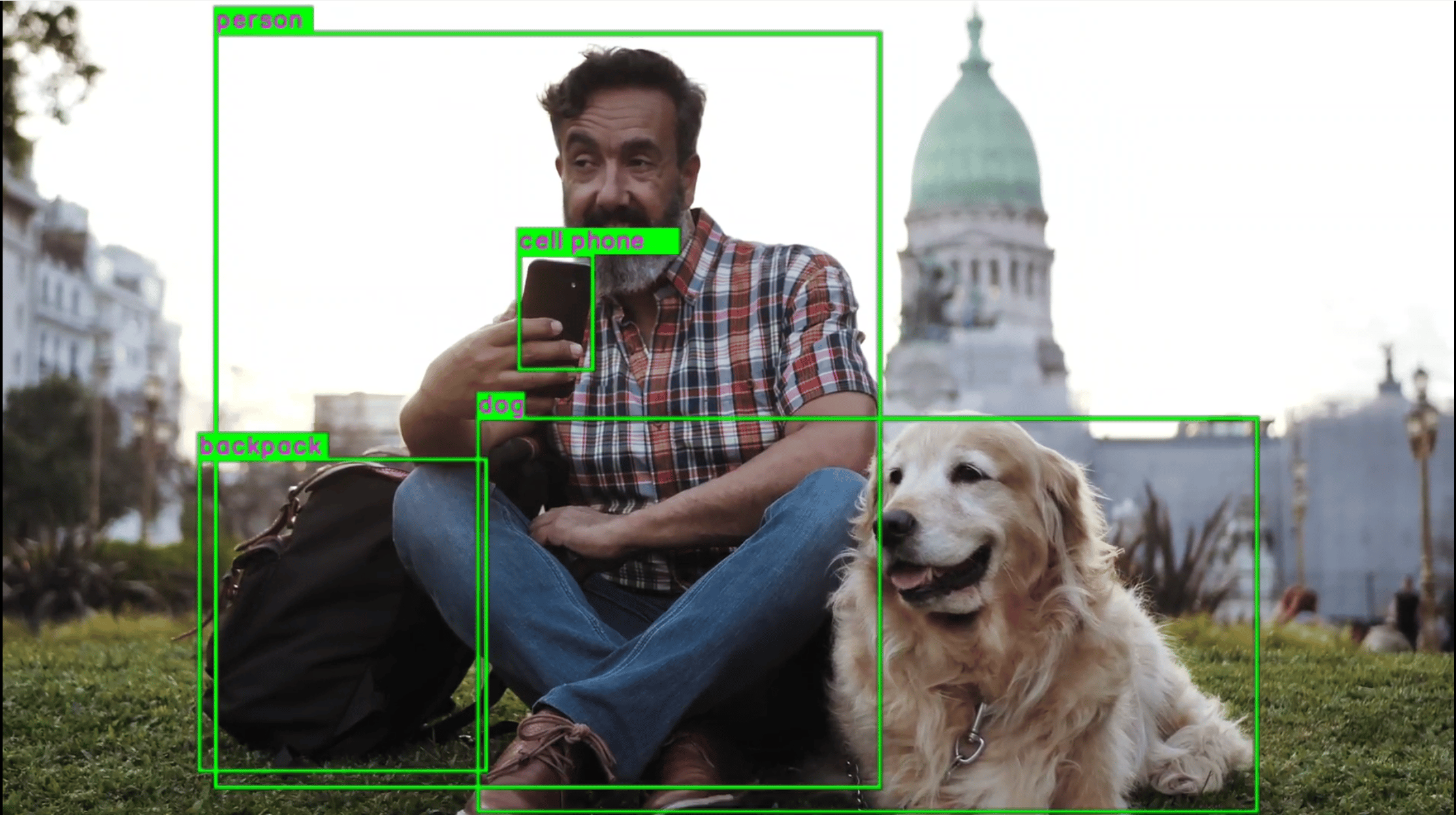
  #### Expected Output

  Detected objects with bounding boxes and labels are overlaid on the video and displayed on the local display.

  <img src="https://mintcdn.com/qualcomm-prod/jy6NQT2Y7J_sAxdX/Linux/images/run-sample-applications/gst-ai-object-detection.png?fit=max&auto=format&n=jy6NQT2Y7J_sAxdX&q=85&s=cee38493713409bc1074881522a9f7c4" alt="Output Diagram" width="2230" height="1249" data-path="Linux/images/run-sample-applications/gst-ai-object-detection.png" />

  <h4 id="object-detection-pipeline-flow">
    Pipeline Flow
  </h4>

  The following table lists the plugins used in the object detection pipeline:

  | Plugin                                                                                                                                                                   | Description                                                                                                                                                                                                                                                                                                                                             |
  | :----------------------------------------------------------------------------------------------------------------------------------------------------------------------- | :------------------------------------------------------------------------------------------------------------------------------------------------------------------------------------------------------------------------------------------------------------------------------------------------------------------------------------------------------ |
  | [`qticamsrc`](https://imsdkdocs.qualcomm.com/plugin-reference/qticamsrc)                                                                                                 | • Captures the live stream from camera.<br /> • Uses `tee` to split the stream for inferencing.                                                                                                                                                                                                                                                         |
  | `filesrc`                                                                                                                                                                | • Captures the video stream using `filesrc`, followed by `qtdemux`, which demultiplexes the stream.<br />• Uses `tee` to split the stream for inferencing.                                                                                                                                                                                              |
  | `rtspsrc`                                                                                                                                                                | • Captures the RTSP stream using `rtspsrc`, followed by `rtph264depay` for video extraction.<br />• Uses `tee` to split the stream for inferencing.                                                                                                                                                                                                     |
  | `v4l2src`                                                                                                                                                                | • Captures the live stream from USB camera.<br />• Uses `tee` to split the stream for inferencing.                                                                                                                                                                                                                                                      |
  | `h264parse`                                                                                                                                                              | Parses the H.264 video bitstream.                                                                                                                                                                                                                                                                                                                       |
  | [`v4l2h264dec`](https://imsdkdocs.qualcomm.com/plugin-reference/v4l2h264dec)                                                                                             | Hardware-decodes H.264 video to raw frames.                                                                                                                                                                                                                                                                                                             |
  | [`qtimlvconverter`](https://imsdkdocs.qualcomm.com/plugin-reference/qtimlvconverter)                                                                                     | 1. Receives the video stream on its sink pad.<br />2. Performs the following preprocessing on the stream data:<br />   • Color conversion<br />   • Scaling (up or down)<br />   • Normalization<br />3. Converts the preprocessed video stream to a tensor stream.<br />The tensor stream is used for inferencing in the later stages of the pipeline. |
  | [`qtimlsnpe`](https://imsdkdocs.qualcomm.com/plugin-reference/qtimlsnpe)<br />[`qtimltflite`](plugin-reference/qtimltflite)<br />[`qtimlqnn`](plugin-reference/qtimlqnn) | 1. After the inference runtime receives the tensor stream on its sink pad, it runs inference using the provided model.<br />2. Produces a tensor stream with the inference results on its source pad.                                                                                                                                                   |
  | [`qtimlpostprocess`](https://imsdkdocs.qualcomm.com/plugin-reference/qtimlpostprocess)                                                                                   | Handles inference results from any object detection model.<br />1. Applies a threshold to the chosen number of results.<br />2. Loads the YOLO (YOLOv5, YOLOv8, or YOLO-NAS) module.<br />3. Produces video frames with only bounding boxes that can be overlaid on objects.<br />4. Sends these processed frames to the sink pad of `qtivcomposer`.    |
  | [`qtivcomposer`](https://imsdkdocs.qualcomm.com/plugin-reference/qtivcomposer)                                                                                           | 1. Composes frames with contents from its sink pads.<br />2. Pushes the GStreamer buffers containing these composed frames to its source pad.                                                                                                                                                                                                           |
  | [`waylandsink`](https://imsdkdocs.qualcomm.com/plugin-reference/waylandsink)                                                                                             | 1. Submits the video stream received on its sink pad to Weston.<br />2. Weston renders the video stream on a local display.                                                                                                                                                                                                                             |
  | `filesink`                                                                                                                                                               | Receives the video stream on sink pad and saves it as an H.264-encoded MP4 file.                                                                                                                                                                                                                                                                        |
  | [`qtirtspbin`](https://imsdkdocs.qualcomm.com/plugin-reference/qtirtspbin)                                                                                               | 1. Serves as a network sink.<br />2. Transmits UDP packets to the network.                                                                                                                                                                                                                                                                              |

  <h4 id="object-detection-config-json-description">
    Config JSON Field Description
  </h4>

  | Field                                    | Values / Description                                                                                                                                                                                                                                             |   |
  | :--------------------------------------- | :--------------------------------------------------------------------------------------------------------------------------------------------------------------------------------------------------------------------------------------------------------------- | - |
  | `ml-framework`                           | Supported ML frameworks:<br />• `snpe` (Qualcomm Neural Processing SDK)<br />• `tflite` (LiteRT)<br />• `qnn` (Qualcomm AI Engine Direct)                                                                                                                        |   |
  | `yolo-model-type`                        | Supported YOLO architectures:<br />• `yolov8`<br />• `yolonas`<br />• `yolov5`<br />• `yolox`                                                                                                                                                                    |   |
  | `runtime`                                | Hardware runtimes:<br />• `cpu`<br />• `gpu`<br />• `dsp`                                                                                                                                                                                                        |   |
  | `Input source`                           | Supported input sources:<br />• `camera` (0=primary, 1=secondary)<br />• `file-path`<br />• `rtsp-ip-port`<br />• `usb-camera` (set `enable-usb-camera` to `TRUE`)                                                                                               |   |
  | `output-ip-address`                      | Output RTSP server IP address                                                                                                                                                                                                                                    |   |
  | `port`                                   | Output RTSP server port                                                                                                                                                                                                                                          |   |
  | `output-type`                            | Supported output sinks:<br />• `waylandsink` (display)<br />• `filesink` (MP4 file)<br />• `rtspsink` (RTSP stream)                                                                                                                                              |   |
  | `snpe-tensors`                           | `["output-tensor-name", "output-tensor-name"]`                                                                                                                                                                                                                   |   |
  | `USB camera video-format and resolution` | 1. Use one of the following `video-format` options:<br />   • `waylandsink` (display)<br />   • `filesink` (MP4 file)<br />   • `rtspsink` (RTSP stream)<br />2. Use the following resolution fields:<br />   • `width`<br />   • `height`<br />   • `framerate` |   |
  | `output-file`                            | Output filename. The default output file is `output_object_detection.mp4`.                                                                                                                                                                                       |   |
</Accordion>

### Parallel AI inference

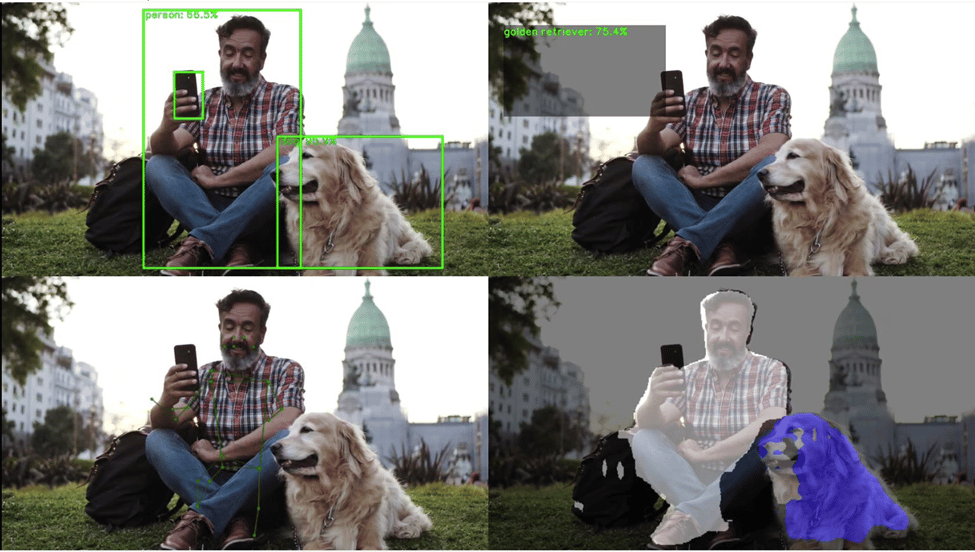
**Description**: The [**gst-ai-parallel-inference**](https://github.com/qualcomm/gst-plugins-imsdk/blob/main/gst-sample-apps/gst-ai-parallel-inference/main.c) application allows you to perform object detection, object classification, pose detection, and image segmentation on an input stream from different sources such as a camera, a file, or an RTSP network. The use cases implement the LiteRT models for object detection, image segmentation, classification, and pose detection.

The following figure shows the pipeline, which receives input streams from a camera, file, or an RTSP stream, performs the parallel inferencing for the four use cases, and displays the results side by side on the screen.

<Note>
  This application isn't supported in `Config #1` for the `QLI 2.0` release
  because CPU runtime is not supported.
</Note>

For information about the plugins used in this pipeline, see [**Pipeline flow**](#parallel-inference-pipeline-flow).

<img src="https://mintcdn.com/qualcomm-prod/jy6NQT2Y7J_sAxdX/Linux/images/run-sample-applications/gst_ai_parallel_inference_pipeline.svg?fit=max&auto=format&n=jy6NQT2Y7J_sAxdX&q=85&s=da9276cde8186a5db37127a4c9eb2eb9" alt="Pipeline Diagram" caption="Pipeline Diagram" width="1303" height="407" data-path="Linux/images/run-sample-applications/gst_ai_parallel_inference_pipeline.svg" />

**Application:** [`gst-ai-parallel-inference`](https://github.com/qualcomm/gst-plugins-imsdk/blob/main/gst-sample-apps/gst-ai-parallel-inference/main.c)
<Accordion title="Try me">
  #### Input and Output Capabilities

  | Config    | File src | RTSP | USB camera | MIPI camera | File output | Display | RTSP output |
  | --------- | -------- | ---- | ---------- | ----------- | ----------- | ------- | ----------- |
  | Config #2 | Yes      | Yes  | No         | Yes         | No          | Yes     | No          |

  #### Sample Model and Label Files

  | Runtime | Model file                                                                                                                                                                                       | Label file                                                                                                                                                          |
  | ------- | ------------------------------------------------------------------------------------------------------------------------------------------------------------------------------------------------ | ------------------------------------------------------------------------------------------------------------------------------------------------------------------- |
  | LiteRT  | detection: `yolox_quantized.tflite`<br />classification: `inception_v3_quantized.tflite`<br />segmentation: `deeplabv3_plus_mobilenet_quantized.tflite`<br />pose: `hrnet_pose_quantized.tflite` | detection: `yolox.json`<br />classification: `classification.json`<br />segmentation: `deeplabv3_resnet50.json`<br />pose: `hrnet_pose.json`, `hrnet_settings.json` |

  #### Run the application on the target device

  <Steps>
    <Step title="Download artifacts">
      Ensure that you [download](#download-ai-models) all the required artifacts to the target device.
    </Step>

    <Step title="Run the application">
      ```bash theme={null}
      gst-ai-parallel-inference --config-file=/etc/configs/config-parallel-inference.json
      ```

      The sample application uses the `/etc/configs/config-parallel-inference.json` file to read the input parameters.

      To display all available options:

      ```bash theme={null}
      gst-ai-parallel-inference -h
      ```

      To stop the use case, press **CTRL + C**.
    </Step>
  </Steps>

  #### Configurations

  The gst-ai-parallel-inference application uses the `/etc/configs/config-parallel-inference.json` file. Update its properties to match your model, input stream, and output. See [**Config JSON Field Description**](#parallel-inference-config-json-description) for all fields.

  ```json theme={null}
  {
    "camera": "<camera-id>",
    "file-path": "<input-video-path>",
    "rtsp-ip-port": "<RTSP-IP-Port-address>",
    "detection-model": "<path-to-detection model>",
    "detection-labels": "<path-to-detection-labels>",
    "pose-model": "<path-to-pose-model>",
    "pose-labels": "<path-to-pose-label>",
    "pose-settings-path": "<path-to-pose-settings-file>",
    "segmentation-model": "<path-to-segmentation-model>",
    "segmentation-labels": "<path-to-segmentation-labels>",
    "classification-model": "<path-to-classification-model>",
    "classification-labels": "<path-to-classification-labels>"
  }
  ```

  <Note>
    For QCS6490, if `file-path` and `rtsp-ip-port` are not present in the configuration file, then the camera input is selected.
  </Note>

  <Accordion title="Available configurations">
    <Tabs>
      <Tab title="Config #2">
        File source, LiteRT model, DSP runtime

        ```json theme={null}
        {
            "file-path": "/etc/media/video.mp4",
            "detection-model": "/etc/models/yolox_quantized.tflite",
            "detection-labels": "/etc/labels/yolox.json",
            "pose-model": "/etc/models/hrnet_pose_quantized.tflite",
            "pose-labels": "/etc/labels/hrnet_pose.json",
            "pose-settings-path": "/etc/labels/hrnet_settings.json",
            "segmentation-model": "/etc/models/deeplabv3_plus_mobilenet_quantized.tflite",
            "segmentation-labels": "/etc/labels/deeplabv3_resnet50.json",
            "classification-model": "/etc/models/inception_v3_quantized.tflite",
            "classification-labels": "/etc/labels/classification.json"
        }
        ```
      </Tab>
    </Tabs>
  </Accordion>

  #### Expected Output

  After performing the four parallel inferences, the results are displayed side by side on the screen.

  <img src="https://mintcdn.com/qualcomm-prod/jy6NQT2Y7J_sAxdX/Linux/images/run-sample-applications/expected_output_gst-ai-parallel-inference.png?fit=max&auto=format&n=jy6NQT2Y7J_sAxdX&q=85&s=94e7742c378c96e7a6cf7fc5180ef398" alt="Pipeline Diagram" caption="Pipeline Diagram" width="975" height="552" data-path="Linux/images/run-sample-applications/expected_output_gst-ai-parallel-inference.png" />

  <h4 id="parallel-inference-pipeline-flow">
    Pipeline Flow
  </h4>

  The following table lists the plugins used in the metadata parser pipeline:

  | Plugin                                                                                                  | Description                                                                                                                                                                                                                                                                                                                                                                                                                                                                                                                                                                       |
  | ------------------------------------------------------------------------------------------------------- | --------------------------------------------------------------------------------------------------------------------------------------------------------------------------------------------------------------------------------------------------------------------------------------------------------------------------------------------------------------------------------------------------------------------------------------------------------------------------------------------------------------------------------------------------------------------------------- |
  | [`qticamsrc`](https://imsdkdocs.qualcomm.com/plugin-reference/qticamsrc)                                | • Captures the live stream from the camera.<br />• Uses `tee` to split the stream for inferencing.                                                                                                                                                                                                                                                                                                                                                                                                                                                                                |
  | `filesrc`                                                                                               | • Captures the video stream using `filesrc`.<br />• Followed by `qtdemux`, which demultiplexes the stream.<br />• Uses `tee` to split the stream for inferencing.                                                                                                                                                                                                                                                                                                                                                                                                                 |
  | `rtspsrc`                                                                                               | • Captures the RTSP stream using `rtspsrc`.<br />• Followed by `rtph264depay` for video extraction.<br />• Uses `tee` to split the stream for inferencing.                                                                                                                                                                                                                                                                                                                                                                                                                        |
  | `h264parse`                                                                                             | Parses the H.264 video.                                                                                                                                                                                                                                                                                                                                                                                                                                                                                                                                                           |
  | [`v4l2h264dec`](https://imsdkdocs.qualcomm.com/plugin-reference/v4l2h264dec)                            | Decodes the video.                                                                                                                                                                                                                                                                                                                                                                                                                                                                                                                                                                |
  | [`qtimlvconverter`](https://imsdkdocs.qualcomm.com/plugin-reference/qtimlvconverter)                    | 1. Receives the video stream on its sink pad.<br />2. Performs the following preprocessing on the stream data when the model expects floating-point values as input:<br />  • Color conversion<br />  • Scaling (up or down)<br />  • Normalization<br />3. The tensor stream is used for inferencing in the later stages of the pipeline.                                                                                                                                                                                                                                        |
  | [`qtimltflite`](https://imsdkdocs.qualcomm.com/plugin-reference/qtimltflite)                            | • After the inference runtime receives the tensor stream on its sink pad, it runs the inference.<br />• Produces a tensor stream with the inference results on its source pad.                                                                                                                                                                                                                                                                                                                                                                                                    |
  | [`qtimlpostprocess`](https://imsdkdocs.qualcomm.com/plugin-reference/qtimlpostprocess) — detection      | a. Receives the inference tensors from the object detection model.<br />b. Converts the inference tensors on its sink pad into formats such as video or text that the multimedia plugins can process later.<br />c. Applies the threshold to the chosen number of results.<br />d. Loads the corresponding modules for detection models.<br />In this use case, `qtimlpostprocess` does the following:<br />  • Loads the YOLOv8 submodule.<br />  • Produces results as structures of text.<br />  • Sends them to the sink pad of `qtimetamux`.                                 |
  | [`qtimlpostprocess`](https://imsdkdocs.qualcomm.com/plugin-reference/qtimlpostprocess) — classification | a. Receives the inference tensors from the classification model.<br />b. Converts the inference tensors on its sink pad into formats such as video or text that the multimedia plugins can process later.<br />c. Applies the threshold to the chosen number of results.<br />d. Loads the corresponding modules for classification models.<br />In this use case, `qtimlpostprocess` does the following:<br />  • Loads the submodule of the model.<br />  • Produces results as video frames with classification labels.<br />  • Sends them to the sink pad of `qtivcomposer`. |
  | [`qtimlpostprocess`](https://imsdkdocs.qualcomm.com/plugin-reference/qtimlpostprocess) — segmentation   | a. Receives the inference tensors on its sink pad.<br />b. Converts the inference tensors into video formats that the multimedia plugins can process later.<br />c. Produces the semantic segmentations for the frame.<br />d. Loads the corresponding modules for the segmentation models.<br />In this use case, `qtimlpostprocess` does the following:<br />  • Loads the deeplab-argmax submodule.<br />  • Produces video frames with segmentation masks.<br />  • Sends them to the sink pad of `qtivcomposer`.                                                             |
  | [`qtimlpostprocess`](https://imsdkdocs.qualcomm.com/plugin-reference/qtimlpostprocess) — pose           | a. Receives the inference tensors on its sink pad.<br />b. Converts the inference tensors into video formats that the multimedia plugins can process later.<br />c. Applies the threshold to the chosen number of results.<br />d. Loads the corresponding modules for various pose estimation models.<br />In this use case, `qtimlpostprocess` does the following:<br />  • Loads the HRNet module.<br />  • Produces results as video frames with poses drawn.<br />  • Sends them to the sink pad of `qtivcomposer`.                                                          |
  | [`qtivcomposer`](https://imsdkdocs.qualcomm.com/plugin-reference/qtivcomposer)                          | 1. Composes frames with contents from its sink pads.<br />2. Pushes the GStreamer buffers containing these composed frames to its source pad.                                                                                                                                                                                                                                                                                                                                                                                                                                     |
  | [`waylandsink`](https://imsdkdocs.qualcomm.com/plugin-reference/waylandsink)                            | 1. Submits the video stream received on its sink pad to Weston.<br />2. Weston renders the video stream on a local display.                                                                                                                                                                                                                                                                                                                                                                                                                                                       |

  <h4 id="parallel-inference-config-json-description">
    Config JSON Field Description
  </h4>

  | Field               | Values/Description                                                                                                                                                                                                                                                                                                                                                                                                                                                                                    |
  | ------------------- | ----------------------------------------------------------------------------------------------------------------------------------------------------------------------------------------------------------------------------------------------------------------------------------------------------------------------------------------------------------------------------------------------------------------------------------------------------------------------------------------------------- |
  | `Input source`      | Use one of the following input sources:<br />• `camera`: Primary (`0`) or secondary (`1`).<br />• `file-path`: The directory path to the video file.<br />• `rtsp-ip-port`: The address of the RTSP stream: `rtsp://<ip>:<port>/<stream>`                                                                                                                                                                                                                                                             |
  | `Models and labels` | • `detection-model`: The path to the detection model.<br />• `detection-labels`: The path to the detection label.<br />• `pose-model`: The path to the pose model.<br />• `pose-labels`: The path to the pose labels.<br />• `segmentation-model`: The path to the segmentation model.<br />• `segmentation-labels`: The path to the segmentation labels.<br />• `classification-model`: The path to the classification model.<br />• `classification-labels`: The path to the classification labels. |
</Accordion>

### Multistream inference

**Description**: The [**gst-ai-multistream-inference**](https://github.com/qualcomm/gst-plugins-imsdk/blob/main/gst-sample-apps/gst-ai-multistream-inference/main.c) application shows AI inference (object detection and classification) on up to 32 input streams coming from camera, file, or RTSP stream.

The following figure shows the pipeline, which receives several input streams, preprocesses them, runs AI inferences, combines the streams, and merges them all into a single video output.

The maximum number of input streams supported on each SoC as verified on 1080P and 720P are follows:

* QCS6490–8

* Dragonwing IQ-8275–16

* Dragonwing IQ-9075–32
  <Note>
    This application isn't supported in `Config #1` for the `QLI 2.0`
    release because CPU runtime is not supported.
  </Note>
  The output is displayed on an HDMI display, saved as an H.264 encoded MP4
  file, or converted into an RTSP stream.

For information about the plugins used in this pipeline, see [**Pipeline flow**](#multistream-inference-pipeline-flow).

<img src="https://mintcdn.com/qualcomm-prod/jy6NQT2Y7J_sAxdX/Linux/images/run-sample-applications/gst_ai_multistream_inference_pipeline.svg?fit=max&auto=format&n=jy6NQT2Y7J_sAxdX&q=85&s=6aaf1c18139d289b43637b34e8ad9ca9" alt="Pipeline Diagram" caption="Pipeline Diagram" width="1525" height="1365" data-path="Linux/images/run-sample-applications/gst_ai_multistream_inference_pipeline.svg" />

**Application:** [`gst-ai-multistream-inference`](https://github.com/qualcomm/gst-plugins-imsdk/blob/main/gst-sample-apps/gst-ai-multistream-inference/main.c)

<Accordion title="Try me">
  #### Input and Output Capabilities

  | Config    | File src | RTSP | USB camera | MIPI camera | File output | Display | RTSP output |
  | --------- | -------- | ---- | ---------- | ----------- | ----------- | ------- | ----------- |
  | Config #2 | Yes      | Yes  | No         | Yes         | Yes         | Yes     | Yes         |

  #### Sample Model and Label Files

  | Runtime | Model file                                                                               | Label file                                                         |
  | ------- | ---------------------------------------------------------------------------------------- | ------------------------------------------------------------------ |
  | LiteRT  | detection: `yolox_quantized.tflite`<br />classification: `inception_v3_quantized.tflite` | detection: `yolox.json`<br />classification: `classification.json` |

  #### Run the application on the target device

  <Steps>
    <Step title="Download artifacts">
      Ensure that you complete the [`Prerequisites`](#prerequisites). This downloads all required artifacts to the target device.
    </Step>

    <Step title="Run the application">
      ```bash theme={null}
      gst-ai-multistream-inference --config-file=/etc/configs/config-multistream-inference.json
      ```

      The sample application uses the `/etc/configs/config-multistream-inference.json` file to read the input parameters.

      To display all available options:

      ```bash theme={null}
      gst-ai-multistream-inference -h
      ```

      To stop the use case, press **CTRL + C**.
    </Step>
  </Steps>

  #### Configurations

  The gst-ai-multistream-inference application uses the `/etc/configs/config-multistream-inference.json` file. Update its properties to match your model, input stream, and output. See [**Config JSON Field Description**](#multistream-inference-config-json-description) for all fields.

  ```json theme={null}
  {
    "input-file-path": ["<input file 1>", "<input file 2>"],
    "input-rtsp-path": ["<rtsp stream 1>", "<rtsp stream 2 >"],
    "input-type": "<h264 or h265>",
    "model": "<path to model file>",
    "labels": "<path to label file>",
    "output-display": "<0 or 1>",
    "output-file-path": "<output file path>",
    "output-ip-address": "<ip address of test kit>",
    "output-port-number": "<port number over which rtsp stream can be listened>",
    "use-case": "<0 or 1>"
  }
  ```

  <Note>
    If a drop in performance is observed, you can use YOLOv8 LiteRT model. For YOLOv8 export instructions, see [**Prerequisites**](#prerequisites).
  </Note>

  <Accordion title="Available configurations">
    <Tabs>
      <Tab title="Config #2">
        Object Detection on 8 H.264 file inputs, LiteRT model, DSP runtime

        ```json theme={null}
        {
          "input-file-path":
            [
              "/etc/media/video.mp4",
              "/etc/media/video.mp4",
              "/etc/media/video.mp4",
              "/etc/media/video.mp4",
              "/etc/media/video.mp4",
              "/etc/media/video.mp4",
              "/etc/media/video.mp4",
              "/etc/media/video.mp4"
            ],
          "model": "/etc/models/yolox_quantized.tflite",
          "labels": "/etc/labels/yolox.json",
          "input-type": "h264",
          "output-display": 1,
          "use-case": 0
        }
        ```
      </Tab>
    </Tabs>
  </Accordion>

  #### Expected Output

  <img src="https://mintcdn.com/qualcomm-prod/jy6NQT2Y7J_sAxdX/Linux/images/run-sample-applications/multistream.png?fit=max&auto=format&n=jy6NQT2Y7J_sAxdX&q=85&s=aafc6ef6bb8288f2f5b2e6d82762484e" alt="Pipeline Diagram" caption="Pipeline Diagram" width="1795" height="1009" data-path="Linux/images/run-sample-applications/multistream.png" />

  <h4 id="multistream-inference-pipeline-flow">
    Pipeline Flow
  </h4>

  The following table lists the plugins used in the metadata parser pipeline:

  | Plugin                                                                                 | Description                                                                                                                                                                                                                                                                                                                                                                                                                                                                                                                                                                                                                                                                   |
  | :------------------------------------------------------------------------------------- | :---------------------------------------------------------------------------------------------------------------------------------------------------------------------------------------------------------------------------------------------------------------------------------------------------------------------------------------------------------------------------------------------------------------------------------------------------------------------------------------------------------------------------------------------------------------------------------------------------------------------------------------------------------------------------- |
  | [`qticamsrc`](https://imsdkdocs.qualcomm.com/plugin-reference/qticamsrc)               | • Captures the live stream from camera.<br />• Uses `tee` to split the stream for inferencing.                                                                                                                                                                                                                                                                                                                                                                                                                                                                                                                                                                                |
  | `filesrc`                                                                              | • Captures the video stream using `filesrc`, followed by `qtdemux`, which demultiplexes the stream.<br />• Uses `tee` to split the stream for inferencing.                                                                                                                                                                                                                                                                                                                                                                                                                                                                                                                    |
  | `rtspsrc`                                                                              | • Captures the RTSP stream using `rtspsrc`, followed by `rtph264depay` for video extraction.<br />• Uses `tee` to split the stream for inferencing.                                                                                                                                                                                                                                                                                                                                                                                                                                                                                                                           |
  | `h264parse`                                                                            | • Parses the H.264 video.                                                                                                                                                                                                                                                                                                                                                                                                                                                                                                                                                                                                                                                     |
  | [`v4l2h264dec`](https://imsdkdocs.qualcomm.com/plugin-reference/v4l2h264dec)           | • Decodes the video.                                                                                                                                                                                                                                                                                                                                                                                                                                                                                                                                                                                                                                                          |
  | [`qtimlvconverter`](https://imsdkdocs.qualcomm.com/plugin-reference/qtimlvconverter)   | 1. Receives the video stream on its sink pad.<br />2. Performs the following preprocessing on the stream data. This preprocessing is done when the model expects floating-point values as input:<br />   • Color conversion<br />   • Scaling (up or down)<br />   • Normalization<br />3. Converts the preprocessed video stream to a tensor stream on its source pad.<br />The tensor stream is used for inferencing in the later stages of the pipeline.                                                                                                                                                                                                                   |
  | [`qtimltflite`](https://imsdkdocs.qualcomm.com/plugin-reference/qtimltflite)           | 1. After the inference runtime receives the tensor stream on its sink pad, it runs the inference.<br />2. Produces a tensor stream with the inference results on its source pad.                                                                                                                                                                                                                                                                                                                                                                                                                                                                                              |
  | [`qtimlpostprocess`](https://imsdkdocs.qualcomm.com/plugin-reference/qtimlpostprocess) | Handles the inference results from any object detection, classification, pose detection, and segmentation model.<br /><br />**Detection use case:**<br />   • Applies a threshold to the chosen number of results.<br />   • Loads the YOLOv8 module.<br />   • Produces video frames with only bounding boxes that can be overlaid on objects, sending them to the sink pad of `qtivcomposer`.<br /><br />**Classification use case:**<br />   • Applies the threshold to the chosen number of results.<br />   • Loads the MobileNet-softmax module.<br />   • Produces results as video frames with classification labels, sending them to the sink pad of `qtivcomposer`. |
  | [`qtivcomposer`](https://imsdkdocs.qualcomm.com/plugin-reference/qtivcomposer)         | 1. Composes frames with contents from its sink pads.<br />2. Pushes the GStreamer buffers containing these composed frames to its source pad.                                                                                                                                                                                                                                                                                                                                                                                                                                                                                                                                 |
  | [`waylandsink`](https://imsdkdocs.qualcomm.com/plugin-reference/waylandsink)           | 1. `waylandsink` submits the video stream received on its sink pad to Weston.<br />2. Weston renders the video stream on a local display.                                                                                                                                                                                                                                                                                                                                                                                                                                                                                                                                     |
  | `filesink`                                                                             | 1. Receives the video stream on its sink pad.<br />2. Saves the stream as a H.264-encoded MP4 file.                                                                                                                                                                                                                                                                                                                                                                                                                                                                                                                                                                           |
  | [`qtirtspbin`](https://imsdkdocs.qualcomm.com/plugin-reference/qtirtspbin)             | 1. Serves as a network sink.<br />2. Transmits UDP packets to the network.                                                                                                                                                                                                                                                                                                                                                                                                                                                                                                                                                                                                    |

  <h4 id="multistream-inference-config-json-description">
    Config JSON Field Description
  </h4>

  | Field          | Values / Description                                                                                                                                                                                                                                                                                                                                                                                                          |
  | :------------- | :---------------------------------------------------------------------------------------------------------------------------------------------------------------------------------------------------------------------------------------------------------------------------------------------------------------------------------------------------------------------------------------------------------------------------- |
  | `Input source` | Use one of the following input sources:<br />   • `num-camera`: The number of inputs from the camera.<br />   • `camera`: The input camera if `num-camera=1`.<br />   • `input-file-path`: The directory path to the video file.<br />   • `input-rtsp-path`: The address of the RTSP stream: `rtsp://<ip>:<port>/<stream>`                                                                                                   |
  | `input-type`   | The video encoding type for file and RTSP input:<br />   • `H.264`<br />   • `H.265`                                                                                                                                                                                                                                                                                                                                          |
  | `Output`       | Use one of the following outputs:<br />   • `output-file-path`: The directory path to save the output file.<br />   • `output-ip-address`: The IP address of the device on which the RTSP stream can be played.<br />   • `output-port-number`: The port number of the device on which the RTSP stream can be played.<br />   • `output-display`: The connected display device for preview. Select `1` to enable this option. |
</Accordion>
