

Computer Vision
A real-time object detection pipeline built with IM SDK using a YOLOv8 TensorFlow Lite model, supporting USB cameras, ISP cameras, RTSP streams, and video files — with RTSP/WebRTC output.
Introduction
Managing video feeds from multiple IP cameras simultaneously is a core requirement in modern surveillance, retail analytics, smart city, and industrial monitoring deployments. Processing each stream independently on a CPU is costly and difficult to scale — but with the QIM SDK, multiple concurrent RTSP streams can be decoded, processed through AI inference, and rendered or streamed out in real time, all using Qualcomm’s dedicated hardware accelerators. The QIM SDK’s GStreamer-based plugin architecture offloads compute-intensive tasks — including multi-stream hardware H.264/H.265 decoding, frame preparation, AI inference via the Neural Processing Unit (NPU), and re-encoding — entirely from the CPU to purpose-built hardware blocks. This enables low-latency, power-efficient processing of multiple simultaneous IP camera feeds directly on Qualcomm edge devices. At the core of this use case is a parallel multi-stream pipeline, where each incoming RTSP stream is independently decoded and processed through its own AI inference chain. Results from all streams are then composited into a unified output — either for display, recording, or network streaming. The pipeline supports flexible input configurations, from a single RTSP source up to multiple concurrent streams, making it suitable for scalable, real-world deployments. The complete application source code is available here.Use Case Overview
1
Video Input
Accepts multiple concurrent RTSP streams from IP cameras, each decoded independently using hardware-accelerated H.264/H.265 decoding.
2
AI Inference
Each decoded stream is passed through a dedicated AI inference chain — including preprocessing (
qtimlvconverter), model execution (qtimltflite), and post-processing (qtimlpostprocess) — for per-stream object detection.3
Metadata Attachment
Inference results are attached to each stream as structured per-frame metadata via
qtimetamux, maintaining stream–detection correspondence.4
Visualization
Bounding boxes and labels are rendered onto each stream’s frames via
qtivoverlay for real-time visual feedback.5
Composition
Annotated frames from all streams are composited into a unified output layout using
qtivcomposer.6
Output
The composited stream is delivered to a local Wayland display, encoded and saved to file, or streamed over RTSP/WebRTC.
Pipeline diagram
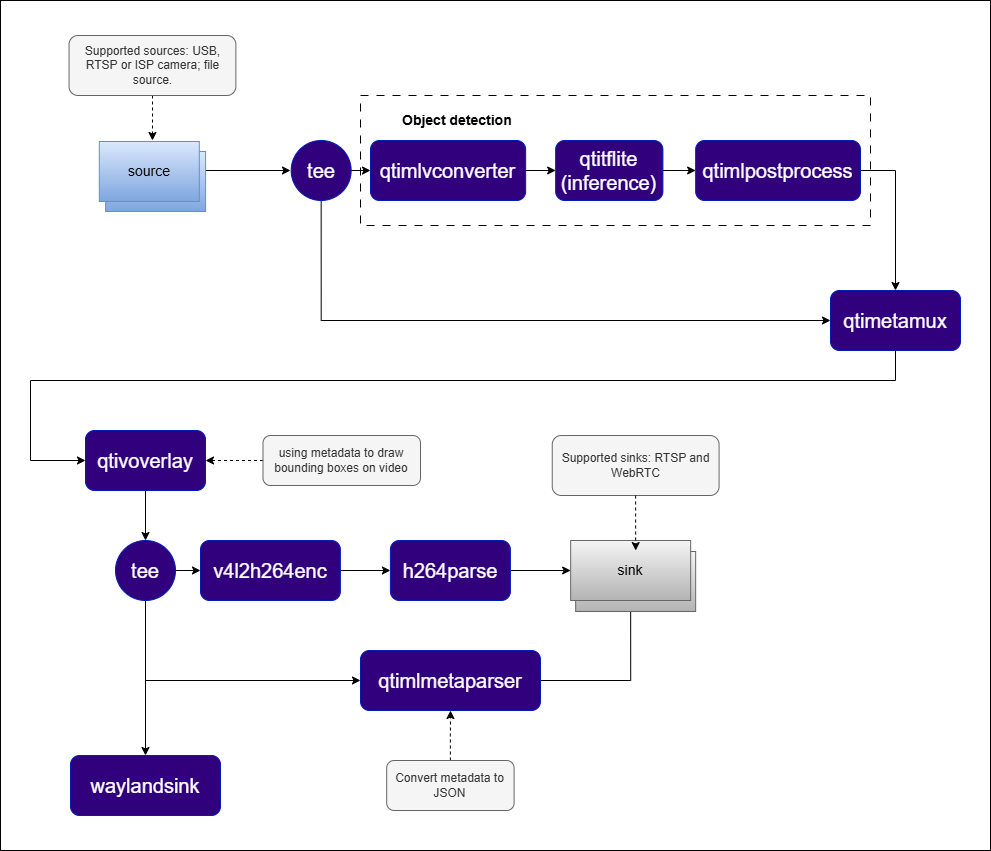
Elements used in pipeline
How it works
1
Stream Ingestion
Each
rtspsrc element receives an RTSP stream from an IP camera. The RTP/H.264 payload is depayloaded and parsed, then passed to a hardware-accelerated decoder (v4l2h264dec) to produce raw NV12 frames.2
Parallel AI Processing
A
tee splits each decoded stream into two branches. The first branch feeds qtimlvconverter → qtimltflite → qtimlpostprocess for AI inference. The second branch feeds qtimetamux as the reference video.3
Metadata Synchronization
qtimetamux attaches inference results from the AI branch to the corresponding reference video frames, maintaining per-stream temporal alignment.4
Visualization
qtivoverlay draws bounding boxes and labels onto each annotated stream.5
Composition
qtivcomposer tiles the annotated streams side-by-side (or in a configurable grid layout) into a single output frame.6
Output Delivery
The composited frame is delivered to a Wayland display, saved to file, or streamed over RTSP.
Run application on device
Setup Requirements
Hardware
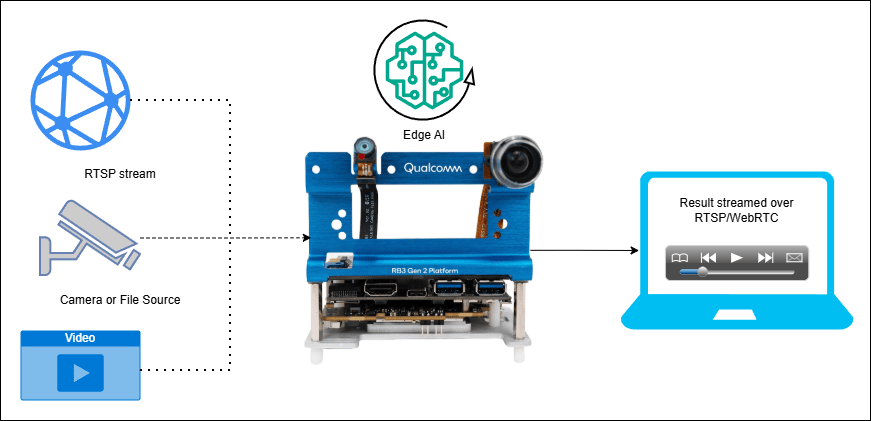
Software
Flash your Qualcomm Edge device by following the device setup and flashing instructions here:<provide QLI device setup and flash instruction link>
Once your device is ready, follow the instructions below to set up the Multi-Stream IP Camera pipeline.
AI Model and config files
Copy files to device
Note: A display must be connected to the device. If no display is available, use the --no-display flag to run in headless mode.
Use the following base path for model and label files based on your OS:
File input (offline test)
File input (offline test)
WebRTC
WebRTC
Display (multi-stream)
Display (multi-stream)
RTSP output
RTSP output
Note: This example uses an offline video file as input. To use an IP/RTSP camera or USB camera instead, update the --input-type argument accordingly — refer to the Command-Line Options section below for details.
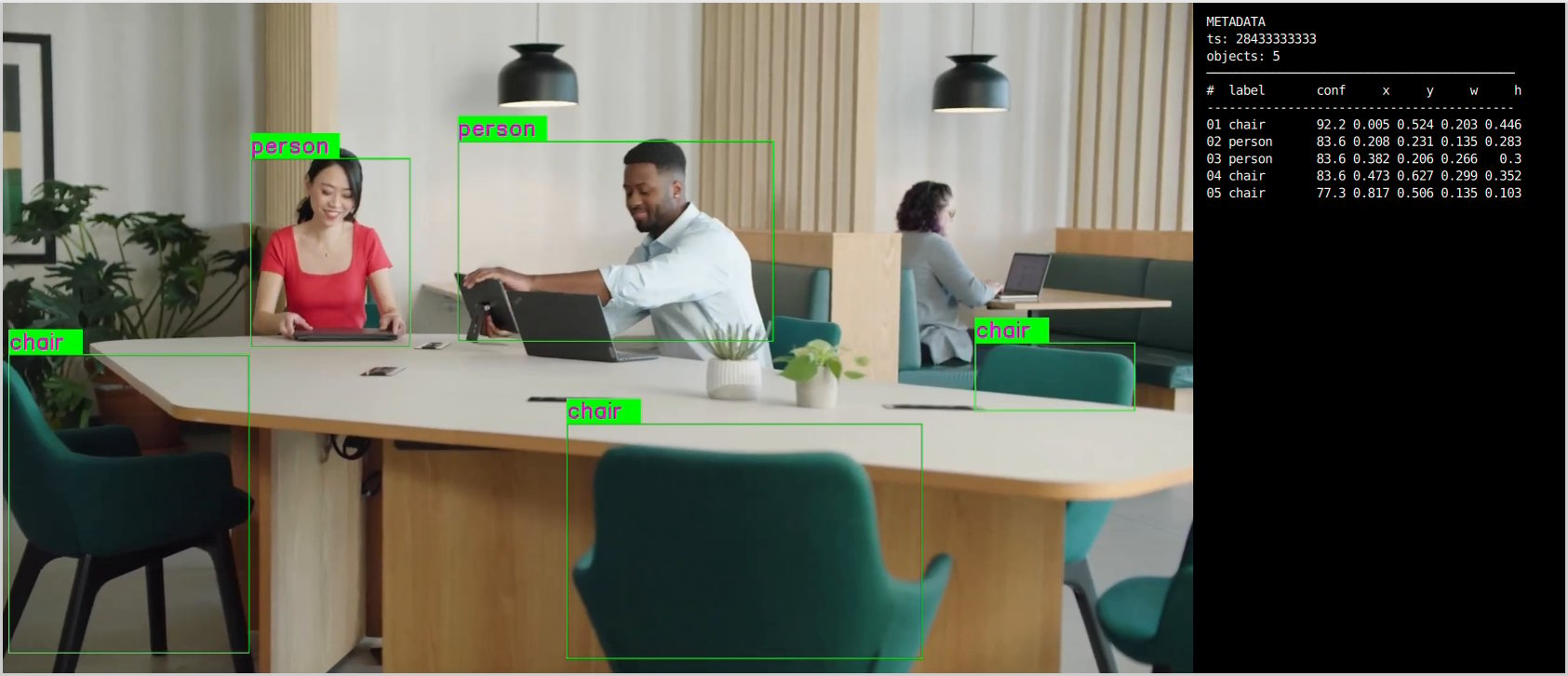
Visualize the Results - Host-Side Visualization (Windows + WSL)
This section describes how to run the visualization client on a Windows host machine using WSL (Windows Subsystem for Linux). The client renders the live composited video stream alongside a real-time AI metadata panel. 📥 The visualization client script can be downloaded here: rtsp_webrtc_client.py It displays:- Left panel — Live composited video stream with AI overlays from all camera inputs.
- Right panel — Real-time AI metadata (JSON): object detections, bounding boxes, and confidence scores per stream.
RTSP
RTSP
WebRTC
WebRTC
Command-Line Options
--input-type
--input-type
Selects the video input source for the pipeline.
--input-config
--input-config
Specifies the input source configuration corresponding to the selected
--input-type.--output-type
--output-type
Defines how the processed output video stream is delivered.
--output-config
--output-config
Specifies the output destination configuration corresponding to the selected
--output-type.--no-display
--no-display
Disables local on-screen rendering. Recommended for headless deployments and remote streaming setups.
--model-base-path
--model-base-path
Specifies the root directory for AI model, label, and configuration files.
--width / --height / --framerate
--width / --height / --framerate
Sets the raw input video resolution and frame rate. Applicable only to ISP and USB inputs.
Build the Application
- Source code: gst-multi-stream-ip-camera
- Build instructions: Steps to build custom application