Overview

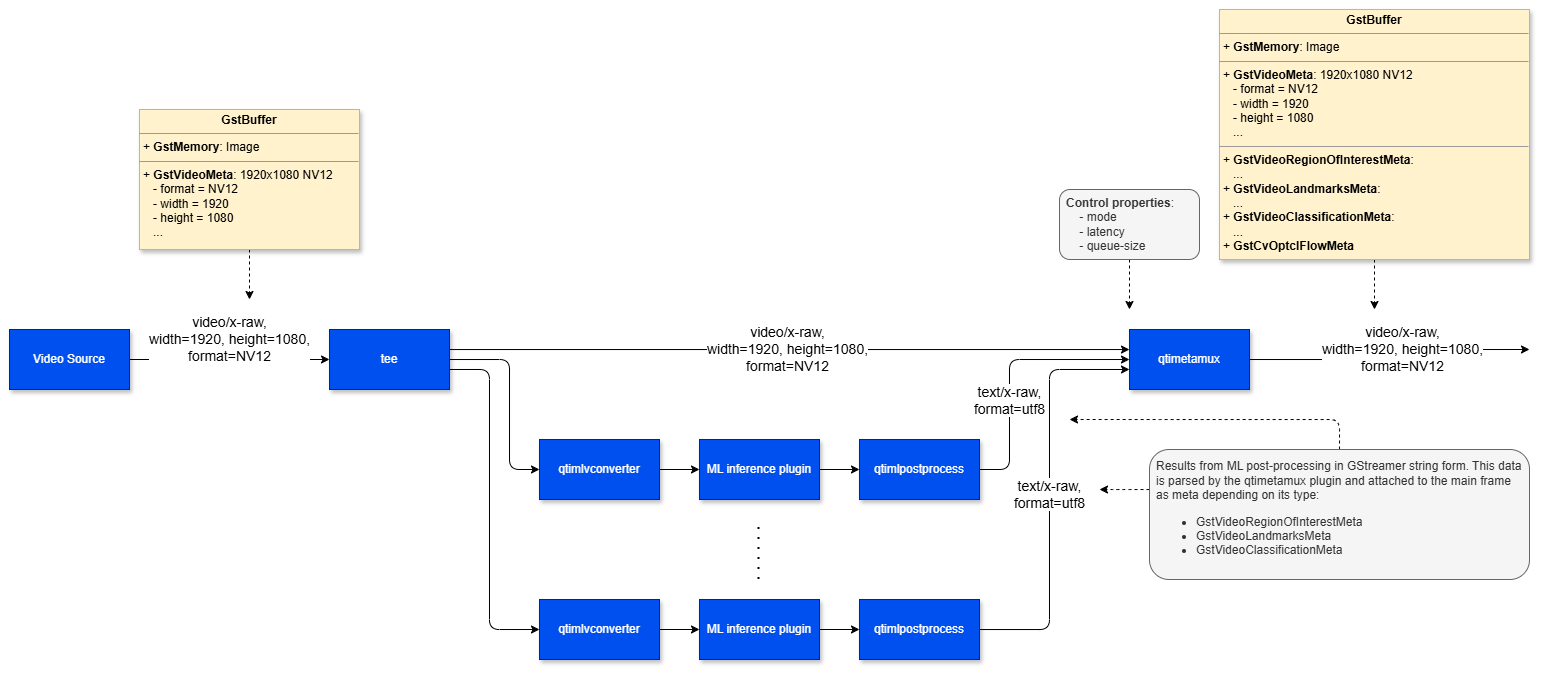
The qtimetamux element is a core component of an AI-enabled GStreamer pipeline. Its purpose is to synchronize post-processed AI/CV results with the original media buffer and attach those results as GstMeta using the standard metadata mechanism provided by GStreamer. In practice, outputs generated by ML post-processing stages — such as:
  • Bounding box coordinates
  • Class labels
  • Segmentation masks
  • Key points
  • Motion vectors
  • Other custom AI/CV metadata
Can be associated with the corresponding video or audio frame and carried forward through the pipeline as a single, unified buffer. This design makes it easier to build pipelines where inference results remain tightly coupled with the original frame. Downstream components can consume both the media buffer and its metadata without needing separate synchronization logic. By embedding metadata directly into the frame, qtimetamux enables several common AI pipeline patterns:
  • Live visualization — Metadata can be consumed by overlay elements such as qtivoverlay to render bounding boxes, labels, and other inference results directly on the video output.
  • Daisy-chained AI pipelines — The metadata-bearing buffer can be passed to a subsequent inference stage, allowing multi-stage AI workflows where the output of one model feeds the next.
  • Application-level access — The resulting buffer can be sent to an appsink, giving a custom application access to both the media frame and the attached metadata for business logic or decision-making.
  • Metadata serialization and external integration — The metadata can be forwarded to qtimlmetaparser, which converts it into JSON. That JSON can then be published to external systems such as MQTT, Kafka, or a REDIS server via qtiredissink.
In addition to AI inference outputs, qtimetamux is also capable of attaching other metadata types such as motion vectors, making it useful for both AI and broader computer-vision-based workflows. qtimetamux_workflow

Example Pipeline

1

Download Required Files

FileDownloadSave as
YOLOX W8A8 modelQualcomm AI Hub — YOLOXyolo_x_w8a8.tflite
Detection labelsyolov8.jsonyolov8.json
Sample videoInput videoDraw_1080p_180s_30FPS.mp4
2

Copy files to device

# Replace $HOME to the appropriate device path before running the commands.
# For QLI:    /root
# For Ubuntu: /home/ubuntu
# Modify this based on your platform and ensure files are copied to the correct location on the device.
# Run from your host machine — replace <user> and <device-ip>

ssh <user>@<device-ip> "mkdir -p $HOME/{models,labels,media,media/output}"
scp yolo_x_w8a8.tflite          <user>@<device-ip>:$HOME/models/
scp yolov8.json                  <user>@<device-ip>:$HOME/labels/
scp Draw_1080p_180s_30FPS.mp4   <user>@<device-ip>:$HOME/media/
3

Connect to device

# Run from your host machine — replace <user> and <device-ip>
ssh <user>@<device-ip>
4

Set environment variables

Run below command on your device
mkdir -p $HOME/{models,labels,media,media/output}
export MODEL_NAME=yolo_x_w8a8.tflite
export LABELS_NAME=yolov8.json
export SRC_VIDEO_NAME=Draw_1080p_180s_30FPS.mp4
5

Run the pipeline

gst-launch-1.0 -e --gst-debug=2 \
filesrc location=$HOME/media/$SRC_VIDEO_NAME ! qtdemux ! h264parse ! \
v4l2h264dec capture-io-mode=4 output-io-mode=4 ! video/x-raw,format=NV12 ! queue ! \
tee name=t ! qtimetamux name=obj_mux ! qtivoverlay ! waylandsink fullscreen=true sync=false \
t. ! queue ! qtimlvconverter ! queue ! \
qtimltflite model=$HOME/models/$MODEL_NAME delegate=external external-delegate-path=libQnnTFLiteDelegate.so \
  external-delegate-options="QNNExternalDelegate,backend_type=htp,log_level=(string)1;" ! queue ! \
qtimlpostprocess module=yolov8 labels=$HOME/labels/$LABELS_NAME \
  settings="{\"confidence\": 51.0}" ! text/x-raw ! queue ! obj_mux.

Hierarchy

GObject
   GstObject
      GstElement
         qtimetamux

Pad Templates

sink

Capabilities
video/x-raw(ANY)format: NA
audio/x-raw(ANY)format: NA
Availability: Always
Direction: sink
Pad Name: sink
Capabilities
text/x-rawformat: utf8
cv/x-optical-flowformat: NA
Availability: On request
Direction: sink
Pad Name: data_%u

src

Capabilities
video/x-raw(ANY)format: NA
audio/x-raw(ANY)format: NA
Availability: Always
Direction: source

Element Properties

PropertyDescription
latencyAdditional latency in nanoseconds to allow more time for upstream to produce metadata entries for the current position. Useful in sync mode when metadata generation takes longer than the default hold window.

Type: Unsigned Integer64
Default: 0
Range: 0 - 18446744073709551615
Flags: readable/writable (changeable only in NULL or READY state)
modeControls the synchronization strategy used to associate metadata buffers with main media frames.

Type: Enum
Default: 0, "async"
Range:
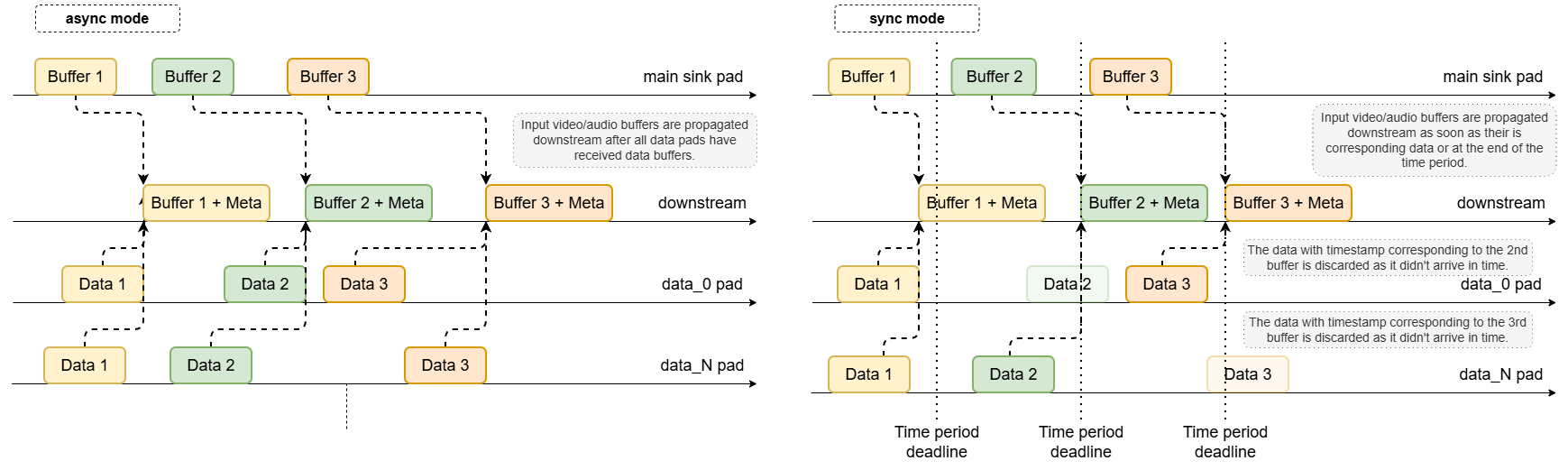
    (0): async - No timestamp synchronization. The N-th incoming media frame is held until the N-th data buffer has been received on all data pads. Suitable for fixed, predictable sequences
    (1): sync - Timestamp-based synchronization. Each incoming frame is held for up to 1 / framerate (video) or 1 / rate (audio). Metadata with matching timestamps is attached before the frame is forwarded downstream
Flags: readable/writable (changeable only in NULL or READY state)
Example: mode="sync" (or) mode=1
queue-sizeSets the size of the internal input and output queues.

Type: Unsigned Integer
Default: 10
Range: 3 - 4294967295
Flags: readable/writable (changeable only in NULL or READY state)

Main Buffer, Metadata Synchronization and Latency control

The plugin is designed with a single main sink pad that receives the primary video or audio buffers, and multiple auxiliary data pads that collect ML post-processing results or CV motion vectors. Data arriving on auxiliary pads may be provided in string or blob form and is parsed into structured representations. Once parsed, the plugin matches each data buffer to its corresponding main media frame and attaches the result as GstMeta.

Async Mode

This is the default synchronization mode. No timestamp-based matching is performed. Instead, metadata buffers are associated with main frames in strict 1:1 order:
  • The N-th incoming video/audio frame is held until the N-th data buffer has been received on all data pads.
  • Once all required data for that frame is available, the metadata is attached.
  • The enriched buffer is then pushed downstream.
This mode is suitable when media buffers and metadata buffers are produced in a fixed, predictable sequence.

Sync Mode

In sync mode, the plugin performs timestamp-based synchronization. Each incoming main frame is held for a limited time window of up to 1 / framerate seconds (video) or 1 / rate seconds (audio). For example, at 30 fps, the frame may be held for approximately 33.3 ms. During this hold period, the plugin waits for data buffers on its auxiliary pads whose timestamps match the timestamp of the main frame:
  • If all expected data buffers arrive within the time window, they are attached before forwarding.
  • If one or more auxiliary pads do not provide matching buffers in time, only the successfully matched metadata is attached and the main buffer is released downstream.

Latency Control

In some use cases, the default hold period in sync mode may be too short — especially when metadata generation takes longer than expected. The latency property extends the waiting period by accepting an integer value in nanoseconds, allowing the plugin to wait longer for late-arriving data buffers before forwarding the main frame. qtimetamux_latency_control
Usage

Person Detection

1

Download Required Files

FileDownloadSave as
YOLOX W8A8 modelQualcomm AI Hub — YOLOXyolo_x_w8a8.tflite
Detection labelsyolov8.jsonyolov8.json
Sample videoInput videoDraw_1080p_180s_30FPS.mp4
If any downloaded file is a .zip archive, extract it on your host machine before copying: unzip filename.zip
2

Copy files to device

# Replace $HOME to the appropriate device path before running the commands.
# For QLI:    /root
# For Ubuntu: /home/ubuntu
# Modify this based on your platform and ensure files are copied to the correct location on the device.
# Run from your host machine — replace <user> and <device-ip>

ssh <user>@<device-ip> "mkdir -p $HOME/{models,labels,media,media/output}"
scp yolo_x_w8a8.tflite           <user>@<device-ip>:$HOME/models/
scp yolov8.json                  <user>@<device-ip>:$HOME/labels/
scp Draw_1080p_180s_30FPS.mp4    <user>@<device-ip>:$HOME/media/
3

Connect to device

# Run from your host machine — replace <user> and <device-ip>
ssh <user>@<device-ip>
4

Set environment variables

Run below command on your device
export MODEL_NAME=yolo_x_w8a8.tflite
export LABELS_NAME=yolov8.json
export SRC_VIDEO_NAME=Draw_1080p_180s_30FPS.mp4
5

Run the pipeline

gst-launch-1.0 -e --gst-debug=2 \
filesrc location=$HOME/media/$SRC_VIDEO_NAME ! qtdemux ! h264parse ! \
v4l2h264dec capture-io-mode=4 output-io-mode=4 ! video/x-raw,format=NV12 ! queue ! \
tee name=t ! qtimetamux name=obj_mux ! qtivoverlay ! waylandsink fullscreen=true sync=false \
t. ! queue ! qtimlvconverter ! queue ! \
qtimltflite model=$HOME/models/$MODEL_NAME delegate=external external-delegate-path=libQnnTFLiteDelegate.so \
external-delegate-options="QNNExternalDelegate,backend_type=htp,log_level=(string)1;" ! queue ! \
qtimlpostprocess module=yolov8 labels=$HOME/labels/$LABELS_NAME \
settings="{\"confidence\": 51.0}" ! text/x-raw ! queue ! obj_mux.

Detection-Classification Daisy Chain Pipeline

This pipeline demonstrates a cascaded inference approach where the output of one model (Detection) is used to crop regions of interest (ROIs) which are then fed into secondary models (Classification).
1

Download Required Files

FileDownloadSave as
YOLOX modelQualcomm AI Hub — YOLOXyolox-yolo-x-w8a8.tflite
YOLO labelsyolov8.jsonyolov8.json
MobileNet modelmobilenet-softmaxmobilenet_v2-mobilenet-v2-w8a8.tflite
MobileNet labelsmobilenet.jsonmobilenet_v2.json
Input videoInput videovideo.mp4
2

Copy files to device

ssh <user>@<device-ip> "mkdir -p $HOME/{models,labels,media}"
scp yolox-yolo-x-w8a8.tflite                     <user>@<device-ip>:$HOME/models/
scp yolov8.json                                  <user>@<device-ip>:$HOME/labels/
scp mobilenet_v2-mobilenet-v2-w8a8.tflite        <user>@<device-ip>:$HOME/models/
scp mobilenet_v2.json                            <user>@<device-ip>:$HOME/labels/
scp video.mp4                                    <user>@<device-ip>:$HOME/media/
3

Connect to device

ssh <user>@<device-ip>
4

Set environment variables

Run below command on your device
mkdir -p $HOME/{models,labels,media}
5

Run the pipeline

gst-launch-1.0 -e --gst-debug=2 \
  qtimlvconverter name=det_conv \
  qtimltflite name=det_infer delegate=external external-delegate-path=libQnnTFLiteDelegate.so external-delegate-options="QNNExternalDelegate,backend_type=htp,log_level=(string)1;" model=$HOME/models/yolox-yolo-x-w8a8.tflite \
  qtimlpostprocess name=det_post module=yolov8 labels=$HOME/labels/yolov8.json settings="{\"confidence\": 51.0}" \
  qtimetamux name=det_mux \
  qtivoverlay name=main_overlay \
  qtimlvconverter name=cls_conv \
  qtimltflite name=cls_infer delegate=external external-delegate-path=libQnnTFLiteDelegate.so external-delegate-options="QNNExternalDelegate,backend_type=htp,log_level=(string)1;" model=$HOME/models/mobilenet_v2-mobilenet-v2-w8a8.tflite \
  qtimlpostprocess name=cls_post module=mobilenet labels=$HOME/labels/mobilenet_v2.json settings="{\"confidence\": 51.0}" \
  qtimetamux name=cls_mux \
  qtivoverlay name=cls_overlay \
  filesrc location=$HOME/media/video.mp4 ! qtdemux ! h264parse ! v4l2h264dec capture-io-mode=4 output-io-mode=4 ! video/x-raw,format=NV12 ! queue ! tee name=src_tee \
  src_tee. ! queue ! det_mux. \
  src_tee. ! queue ! det_conv. det_conv. ! queue ! det_infer. det_infer. ! queue ! det_post. det_post. ! text/x-raw ! queue ! det_mux. \
  det_mux. ! queue ! tee name=meta_tee \
  meta_tee. ! queue ! cls_mux. \
  meta_tee. ! queue ! cls_conv. cls_conv. ! queue ! cls_infer. cls_infer. ! queue ! cls_post. cls_post. ! text/x-raw ! queue ! cls_mux. \
  cls_mux. ! queue ! cls_overlay. cls_overlay. ! queue ! waylandsink fullscreen=true sync=false