> ## Documentation Index
> Fetch the complete documentation index at: https://dragonwingdocs.qualcomm.com/llms.txt
> Use this file to discover all available pages before exploring further.
# qtiredissink
> Redis Pub/Sub sink plugin for real-time text-based metadata publishing
# Overview
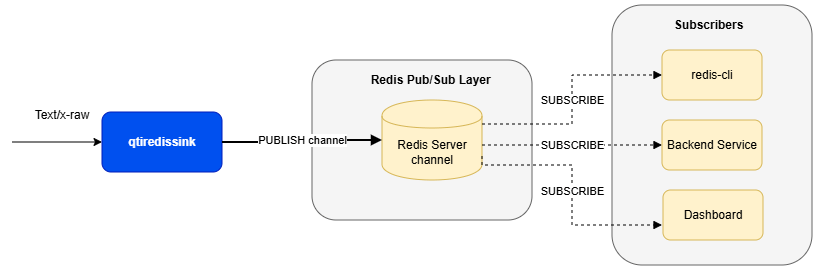
The **qtiredissink** is a GStreamer sink element that publishes text-based pipeline output to a Redis server in real time via Redis Pub/Sub. It accepts `text/x-raw` buffers from upstream elements and forwards each buffer as a message to a configured Redis channel.
It is designed for media and AI pipelines where machine learning results, analytics output, or serialized metadata must be delivered to backend systems, dashboards, or distributed consumers with minimal integration effort.
**Supported payload types:**
* Machine learning metadata — detection/classification results, tracking information
* Application-generated messages or serialized custom data
* JSON or other serialized text payloads
**qtiredissink** manages the Redis connection and publishing internally, reducing the application logic needed to bridge a GStreamer pipeline with Redis messaging.
**Core capabilities:**
* **Redis connectivity** — connects to a Redis server using configurable host and port, with optional authentication
* **Channel-based publishing** — sends each incoming buffer to a selected Redis Pub/Sub channel
* **Live data forwarding** — publishes metadata or text output as soon as it arrives
- `qtiredissink` is a sink element — it terminates the pipeline branch.
- It accepts only `text/x-raw` input; it is not intended for raw audio or video transport.
- Messages are delivered only to currently connected subscribers and are **not retained** for later delivery.
- A valid `channel` must be configured before publishing.
 ## Example Pipeline
 | File | Download | Save as |
| ---------------- | ----------------------------------------------------------------------------------------------------------------------------------- | --------------------------- |
| YOLOX W8A8 model | [Qualcomm AI Hub — YOLOX](https://aihub.qualcomm.com/iot/models/yolox) | `yolo_x_w8a8.tflite` |
| Detection labels | yolov8.json | `yolov8.json` |
| Sample video | Input video | `Draw_1080p_180s_30FPS.mp4` |
```bash SCP (SSH) theme={null}
# Replace $HOME to the appropriate device path before running the commands.
# For QLI: /root
# For Ubuntu: /home/ubuntu
# Modify this based on your platform and ensure files are copied to the correct location on the device.
# Run from your host machine — replace and
ssh @ "mkdir -p $HOME/{models,labels,media,media/output}"
scp yolo_x_w8a8.tflite @:$HOME/models/
scp yolov8.json @:$HOME/labels/
scp Draw_1080p_180s_30FPS.mp4 @:$HOME/media/
```
```bash SCP (SSH) theme={null}
# Run from your host machine — replace and
ssh @
```
Run below command on your device
```bash theme={null}
export MODEL_NAME=yolo_x_w8a8.tflite
export LABELS_NAME=yolov8.json
export SRC_VIDEO_NAME=Draw_1080p_180s_30FPS.mp4
```
```bash theme={null}
gst-launch-1.0 -e --gst-debug=2 \
filesrc location=$HOME/media/$SRC_VIDEO_NAME ! qtdemux ! h264parse ! \
v4l2h264dec capture-io-mode=4 output-io-mode=4 ! video/x-raw,format=NV12 ! queue ! \
qtimlvconverter ! queue ! \
qtimltflite model=$HOME/models/$MODEL_NAME delegate=external external-delegate-path=libQnnTFLiteDelegate.so \
external-delegate-options="QNNExternalDelegate,backend_type=htp,log_level=(string)1;" ! queue ! \
qtimlpostprocess module=yolov8 labels=$HOME/labels/$LABELS_NAME \
settings="{\"confidence\": 51.0}" ! text/x-raw ! qtiredissink host=127.0.0.1 port=6379 channel=ml_results
#Listen to the published data with Redis CLI from another shell:
redis-cli SUBSCRIBE detections
```
# Hierarchy
[GObject](https://docs.gtk.org/gobject/)
| File | Download | Save as |
| ---------------- | ----------------------------------------------------------------------------------------------------------------------------------- | --------------------------- |
| YOLOX W8A8 model | [Qualcomm AI Hub — YOLOX](https://aihub.qualcomm.com/iot/models/yolox) | `yolo_x_w8a8.tflite` |
| Detection labels | yolov8.json | `yolov8.json` |
| Sample video | Input video | `Draw_1080p_180s_30FPS.mp4` |
```bash SCP (SSH) theme={null}
# Replace $HOME to the appropriate device path before running the commands.
# For QLI: /root
# For Ubuntu: /home/ubuntu
# Modify this based on your platform and ensure files are copied to the correct location on the device.
# Run from your host machine — replace and
ssh @ "mkdir -p $HOME/{models,labels,media,media/output}"
scp yolo_x_w8a8.tflite @:$HOME/models/
scp yolov8.json @:$HOME/labels/
scp Draw_1080p_180s_30FPS.mp4 @:$HOME/media/
```
```bash SCP (SSH) theme={null}
# Run from your host machine — replace and
ssh @
```
Run below command on your device
```bash theme={null}
export MODEL_NAME=yolo_x_w8a8.tflite
export LABELS_NAME=yolov8.json
export SRC_VIDEO_NAME=Draw_1080p_180s_30FPS.mp4
```
```bash theme={null}
gst-launch-1.0 -e --gst-debug=2 \
filesrc location=$HOME/media/$SRC_VIDEO_NAME ! qtdemux ! h264parse ! \
v4l2h264dec capture-io-mode=4 output-io-mode=4 ! video/x-raw,format=NV12 ! queue ! \
qtimlvconverter ! queue ! \
qtimltflite model=$HOME/models/$MODEL_NAME delegate=external external-delegate-path=libQnnTFLiteDelegate.so \
external-delegate-options="QNNExternalDelegate,backend_type=htp,log_level=(string)1;" ! queue ! \
qtimlpostprocess module=yolov8 labels=$HOME/labels/$LABELS_NAME \
settings="{\"confidence\": 51.0}" ! text/x-raw ! qtiredissink host=127.0.0.1 port=6379 channel=ml_results
#Listen to the published data with Redis CLI from another shell:
redis-cli SUBSCRIBE detections
```
# Hierarchy
[GObject](https://docs.gtk.org/gobject/)
[GstObject](https://gstreamer.freedesktop.org/documentation/gstreamer/gstobject.html?gi-language=c)
[GstElement](https://gstreamer.freedesktop.org/documentation/gstreamer/gstelement.html?gi-language=c)
[GstBaseSink](https://gstreamer.freedesktop.org/documentation/base/gstbasesink.html?gi-language=c)
qtiredissink
# Pad Templates
### sink
| Capabilities | |
| ---------------------- | ------------ |
| `text/x-raw` | `format: NA` |
| Availability: *Always* | |
| Direction: *sink* | |
# Element Properties
| Property | Description |
| ---------- | ----------------------------------------------------------------------------------------------------------------------------------------------- |
| `channel` | Redis Pub/Sub channel to publish messages to.
`Type: String`
`Default: NULL`
`Flags: readable/writable` |
| `host` | Redis server hostname or IP address.
`Type: String`
`Default: "127.0.0.1"`
`Flags: readable/writable` |
| `password` | Password for Redis authentication.
`Type: String`
`Default: NULL`
`Flags: readable/writable` |
| `port` | Redis server TCP port.
`Type: Unsigned Integer`
`Default: 6379`
`Range: 0 - 4294967295`
`Flags: readable/writable` |
| `username` | Username for Redis authentication.
`Type: String`
`Default: NULL`
`Flags: readable/writable` |
# Internal Architecture and Messaging Model
**qtiredissink** connects to the configured Redis host and port (with optional authentication), reads each incoming `text/x-raw` buffer, and publishes its contents to the specified channel using the Redis `PUBLISH` command.
Because it uses Pub/Sub, messages are delivered only in real time to currently connected subscribers and are not retained for later delivery. This makes the element suitable for live metadata and event distribution rather than persistent storage.
### Custom Payload Support
**qtiredissink** can transport any custom textual or serialized payload as long as it is `text/x-raw`. This is useful for:
* Sensor or telemetry data serialized as text
* Application-specific metadata such as JSON
* Event notifications and status messages
* Any AI metadata not natively supported by IMSDK
***
# Usage
Ensure you have followed the [prerequisites](qtiredissink#example-pipeline) before continuing
### AI pipeline with video overlay and Redis metadata streaming
This pipeline performs object detection on offline video. Inference results are attached to each frame as metadata by [`qtimetamux`](qtimetamux), converted to JSON by [`qtimlmetaparser`](qtimetaparser), and published to a Redis channel by **qtiredissink**. In parallel, the video stream continues to the display path where detection overlays are rendered on screen. This separates metadata distribution from video rendering, allowing external applications to consume real-time inference results through Redis independently of the displayed video.
 ```bash theme={null}
gst-launch-1.0 filesrc location=$HOME/media/$SRC_VIDEO_NAME ! qtdemux ! h264parse ! v4l2h264dec capture-io-mode=4 output-io-mode=4 ! video/x-raw,format=NV12 ! queue ! tee name=t t. ! queue ! qtimlvconverter ! queue ! qtimltflite delegate=external external-delegate-path=libQnnTFLiteDelegate.so external-delegate-options="QNNExternalDelegate,backend_type=htp;" model=$HOME/models/$MODEL_NAME ! queue ! qtimlpostprocess module=yolov8 results=6 labels=$HOME/labels/$LABELS_NAME ! queue ! text/x-raw ! metamux. t. ! qtimetamux name=metamux ! qtivoverlay ! tee name=t_split_4 t_split_4. ! queue ! waylandsink sync=false fullscreen=true t_split_4. ! queue ! qtimlmetaparser module=json ! qtiredissink sync=false async=false channel=ml_results host=127.0.0.1 port=6379
```
Listen to the published data with Redis CLI:
```bash theme={null}
redis-cli SUBSCRIBE ml_results
```
***
### AI pipeline with direct metadata streaming to Redis
This pipeline performs object detection on offline video. The decoded frames pass through the inference and post-processing stages, which produce detection results as structured text. That output is consumed directly by **qtiredissink**, which publishes the inference metadata to a Redis channel — without any video overlay or display path.
```bash theme={null}
gst-launch-1.0 filesrc location=$HOME/media/$SRC_VIDEO_NAME ! qtdemux ! h264parse ! v4l2h264dec capture-io-mode=4 output-io-mode=4 ! video/x-raw,format=NV12 ! queue ! tee name=t t. ! queue ! qtimlvconverter ! queue ! qtimltflite delegate=external external-delegate-path=libQnnTFLiteDelegate.so external-delegate-options="QNNExternalDelegate,backend_type=htp;" model=$HOME/models/$MODEL_NAME ! queue ! qtimlpostprocess module=yolov8 results=6 labels=$HOME/labels/$LABELS_NAME ! queue ! text/x-raw ! metamux. t. ! qtimetamux name=metamux ! qtivoverlay ! tee name=t_split_4 t_split_4. ! queue ! waylandsink sync=false fullscreen=true t_split_4. ! queue ! qtimlmetaparser module=json ! qtiredissink sync=false async=false channel=ml_results host=127.0.0.1 port=6379
```
Listen to the published data with Redis CLI:
```bash theme={null}
redis-cli SUBSCRIBE ml_results
```
***
### AI pipeline with direct metadata streaming to Redis
This pipeline performs object detection on offline video. The decoded frames pass through the inference and post-processing stages, which produce detection results as structured text. That output is consumed directly by **qtiredissink**, which publishes the inference metadata to a Redis channel — without any video overlay or display path.
 ```bash theme={null}
gst-launch-1.0 -e --gst-debug=2 filesrc location=$HOME/media/$SRC_VIDEO_NAME ! qtdemux ! h264parse ! v4l2h264dec capture-io-mode=4 output-io-mode=4 ! video/x-raw,format=NV12 ! queue ! qtimlvconverter ! queue ! qtimltflite delegate=external external-delegate-path=libQnnTFLiteDelegate.so external-delegate-options="QNNExternalDelegate,backend_type=htp;" model=$HOME/models/$MODEL_NAME ! queue ! qtimlpostprocess results=5 module=yolov8 labels=$HOME/labels/$LABELS_NAME ! text/x-raw ! queue ! qtiredissink host=127.0.0.1 port=6379 channel=detections
```
Listen to the published data with Redis CLI:
```bash theme={null}
redis-cli SUBSCRIBE detections
```
```bash theme={null}
gst-launch-1.0 -e --gst-debug=2 filesrc location=$HOME/media/$SRC_VIDEO_NAME ! qtdemux ! h264parse ! v4l2h264dec capture-io-mode=4 output-io-mode=4 ! video/x-raw,format=NV12 ! queue ! qtimlvconverter ! queue ! qtimltflite delegate=external external-delegate-path=libQnnTFLiteDelegate.so external-delegate-options="QNNExternalDelegate,backend_type=htp;" model=$HOME/models/$MODEL_NAME ! queue ! qtimlpostprocess results=5 module=yolov8 labels=$HOME/labels/$LABELS_NAME ! text/x-raw ! queue ! qtiredissink host=127.0.0.1 port=6379 channel=detections
```
Listen to the published data with Redis CLI:
```bash theme={null}
redis-cli SUBSCRIBE detections
```