> ## Documentation Index
> Fetch the complete documentation index at: https://dragonwingdocs.qualcomm.com/llms.txt
> Use this file to discover all available pages before exploring further.
# qtivsplit
> qtivsplit is a GStreamer plugin that creates new video buffers from an input video frame by applying spatial transformations such as cropping, resizing, and color conversion.
# Overview
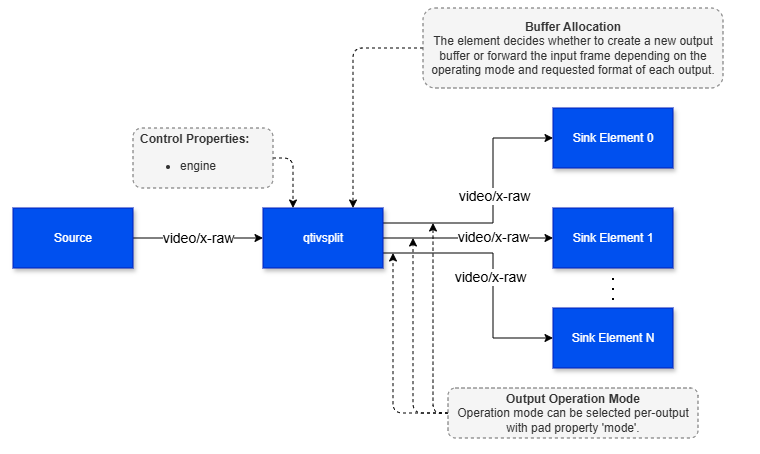
`qtivsplit` is a GStreamer plugin that creates new video buffers from an input video frame by applying spatial transformations such as **cropping, resizing, and color conversion**. It can use either the **entire input frame** or **regions of interest (ROIs)** attached as metadata as the source for these transformations. This allows a single input stream to be repurposed into multiple output streams, each tailored to the requirements of different downstream elements.
When used in **full-frame mode**, `qtivsplit` treats the entire input frame as the source image and generates one or more output buffers from it. Each output can be configured independently with its own: **resolution, pixel format, color space**
This is useful when the same video stream must be prepared differently for multiple downstream paths, such as: **display, video encoding, network streaming, and AI inference**.
`qtivsplit` generates a separate output buffer for each branch, so each downstream path receives its own independent buffer. This prevents one branch from affecting another. If one of the requested outputs already matches the input frame format and resolution, the plugin may forward the original input buffer to that branch instead of creating a duplicate, while still generating separate buffers for the remaining outputs.
When used in **ROI mode**, `qtivsplit` operates on metadata-defined regions inside the input frame rather than on the full frame. For each ROI, the plugin extracts the corresponding image region and generates a new output buffer after applying the required: **crop, resize, and format conversion**.
This makes it possible to move from **frame-based processing** to **object-based processing**. Instead of sending the full frame downstream, the pipeline can send individual object images derived from the detected ROIs. This is useful in workflows where downstream elements need to process each detected object independently.
ROI-derived outputs can be delivered in two ways:
* **sequentially on a single output pad**, for example when generating a stream of thumbnails for all detected objects
* **across multiple output pads in parallel**, for example when several downstream inference branches process different objects at the same time
In practice, `qtivsplit` is useful whenever a pipeline needs to transform a single input frame into multiple derived outputs—either as multiple full-frame variants or as separate object-level buffers. This makes it a flexible element for building pipelines that combine video rendering, encoding, and AI processing in the same workflow.
 # Hierarchy
[GObject](https://docs.gtk.org/gobject/)
# Hierarchy
[GObject](https://docs.gtk.org/gobject/)
[GstObject](https://gstreamer.freedesktop.org/documentation/gstreamer/gstobject.html?gi-language=c)
[GstElement](https://gstreamer.freedesktop.org/documentation/gstreamer/gstelement.html?gi-language=c)
qtivsplit
# Pad Templates
### sink
| Capabilities | |
| ---------------------- | -------------------------------------------------------------------------------------------------------------------------------------------------------------------------------------------------------- |
| `video/x-raw` | `format: { NV12, NV21, UYVY, YUY2, RGBA, BGRA, ARGB, ABGR, RGBx, BGRx, xRGB, xBGR, RGB, BGR, GRAY8, NV12_Q08C }`
`width: [1, 32767]`
`height: [1, 32767]`
`framerate: [0/1, 255/1]` |
| Availability: *Always* | |
| Direction: *sink* | |
### src
| Capabilities | |
| -------------------------- | -------------------------------------------------------------------------------------------------------------------------------------------------------------------------------------------------------- |
| `video/x-raw` | `format: { NV12, NV21, UYVY, YUY2, RGBA, BGRA, ARGB, ABGR, RGBx, BGRx, xRGB, xBGR, RGB, BGR, GRAY8, NV12_Q08C }`
`width: [1, 32767]`
`height: [1, 32767]`
`framerate: [0/1, 255/1]` |
| Availability: *On request* | |
| Direction: *source* | |
# Pad Properties
### src
| Property | Description |
| -------- | ------------------------------------------------------------------------------------------------------------------------------------------------------------------------------------------------------------------------------------------------------------------------------------------------------------------------------------------------------------------------------------------------------------------------------------------------------------------------------------------------------------------------------------------------------------------------------------------------------------------------------------------------------------------------------------------------------------------------------------------------------------------------------------------------------------------------------------------------------------------------------------------------------------------------------------------------------------------------------------------------------------------------------------------------------------------------------------------------------------------------------------------------------------------------------------------------------------------------------------------------------------------------------------------------------------------------------------------------------------------------------------------------------------------------ |
| `mode` | Source pad operational mode.
`Type: Enum `
`Default: 0, "none"`
`Range:`
`(0): none - The input buffer is resized and color-converted as needed to match the negotiated output caps. If the input and output caps already match, the original input buffer is forwarded directly to the output pad by increasing its reference count`
`(1): force-transform - The input buffer is resized and color-converted to match the negotiated output caps. Unlike none, this mode always produces a new output buffer, even when the input and output caps are identical`
`(2): single-roi-meta - The input buffer is checked for ROI metadata. If an ROI entry corresponding to this pad is found, the plugin crops that region from the input frame, applies the required resize and color conversion, and pushes the transformed buffer downstream. If no matching ROI is found, the pad produces a GAP buffer`
`(3): batch-roi-meta - The input buffer is checked for ROI metadata. For every ROI entry found, the plugin crops the corresponding region from the input frame, applies the required resize and color conversion, and produces a separate output buffer. If no ROI metadata is present, the pad produces a GAP buffer`
`Flags: readable/writable (changeable only in NULL or READY state)`
`Example: mode="force-transform" (or) mode=1` |
# Element Properties
| Property | Description |
| -------- | ----------------------------------------------------------------------------------------------------------------------------------------------------------------------------------------------------------------------------------------------------------------------------------------------------------------------------------------------- |
| `engine` | Engine backend used for the conversion operations.
`Type: Enum `
`Default: 2, "gles"`
`Range:`
`(0): none - No backend used`
`(2): gles - OpenGLES based engine is used`
`(3): fcv - FastCV based engine is used`
`Flags: readable/writable`
`Example: engine="gles" (or) engine=2` |
# Architecture Details
`qtivsplit` uses a single sink pad and a dynamically created set of source pads (`src_%u`). Each source pad has its own internal output context, which stores the pad's operating mode, negotiated output format and resolution, dedicated buffer pool, and an internal queue for staging generated buffers.
Internally, the element uses an asynchronous, queue-based processing model. When an input frame arrives, `qtivsplit` quickly determines the required output operations for each active source pad based on its configuration. These operations may include cropping, resizing, and color conversion, and are submitted to the underlying hardware conversion engine. The input frame and its associated output work are then placed into an internal request queue.
Worker tasks process this queue asynchronously. As conversion operations complete, the generated output buffers are delivered to the corresponding source pads. This design separates input-frame handling from output-buffer production, which helps maintain high throughput even when different output branches run at different speeds.
Each source pad uses its own image buffer pool, created after output caps negotiation. The pool is configured using the negotiated resolution, pixel format, and alignment requirements, so the generated buffers are ready for downstream use without additional allocation or format conversion.
This architecture allows `qtivsplit` to generate multiple independent outputs from the same input frame, whether those outputs are derived from the full frame or from ROI metadata. It also keeps output branches isolated from one another and provides predictable behavior under varying downstream load conditions.
# Output Operation Modes
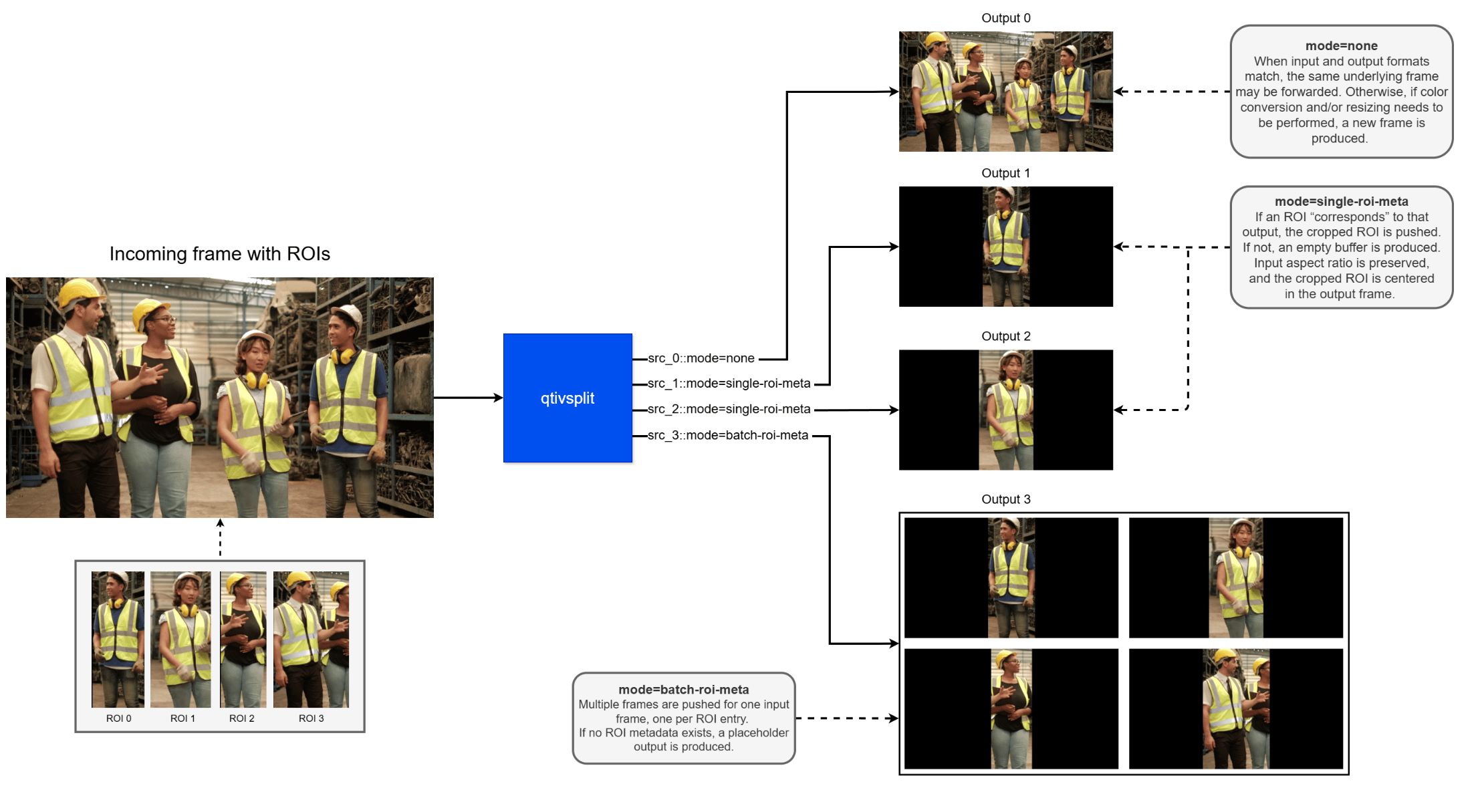 Each output pad of **qtivsplit** operates in a specific mode that defines how output video buffers are produced from the input stream. The selected mode controls whether the output is derived from the full input frame or from regions of interest (ROIs), and whether output buffers are reused or always newly created.
In **full‑frame modes**, the entire input frame is used to generate exactly one output frame per input frame.
## Example Pipeline
| File | Download | Save as |
| ------------ | ----------------------------------------------------------------------------------------------------------------------------------- | --------------------------- |
| Sample video | Input video | `Draw_1080p_180s_30FPS.mp4` |
```bash SCP (SSH) theme={null}
# Replace $HOME to the appropriate device path before running the commands.
# For QLI: /root
# For Ubuntu: /home/ubuntu
# Modify this based on your platform and ensure files are copied to the correct location on the device.
# Run from your host machine — replace and
ssh @ "mkdir -p $HOME/{media,media/output}"
scp Draw_1080p_180s_30FPS.mp4 @:$HOME/media/
```
```bash SCP (SSH) theme={null}
# Run from your host machine — replace and
ssh @
```
Run below command on your device
```bash theme={null}
mkdir -p $HOME/{media,media/output}
export SRC_VIDEO_NAME=Draw_1080p_180s_30FPS.mp4
```
```bash theme={null}
gst-launch-1.0 -e --gst-debug=2 \
filesrc location=$HOME/media/$SRC_VIDEO_NAME ! qtdemux ! h264parse ! \
v4l2h264dec capture-io-mode=4 output-io-mode=4 ! video/x-raw,format=NV12 ! queue ! \
qtivsplit name=vsplit \
vsplit. ! video/x-raw,format=NV12 ! queue ! waylandsink fullscreen=true sync=false \
vsplit. ! video/x-raw,format=NV12 ! queue ! v4l2h264enc capture-io-mode=4 output-io-mode=4 ! h264parse ! mp4mux ! filesink location=$HOME/media/output/split_output.mp4
```
## Frame-based (reuse when possible) (`mode=none`)
For each input frame, a full-frame output is produced. If the input and output formats already
match, the input buffer may be forwarded directly to the output to avoid extra processing. If
the formats differ, the frame is resized and/or color‑converted to match the configured output
format.
## Frame-based (forced transform) (`mode=force-transform`)
This mode also produces one full-frame output per input frame, but always creates a new
output buffer, even when the input format already matches. This is useful when downstream
elements require a guaranteed independent buffer.
In ROI‑based modes, qtivsplit uses ROI metadata attached to the input frame to generate
output buffers from specific regions.
## Single‑ROI output (`mode=single-roi-meta`)
Each input frame is checked for ROI metadata. If an ROI is present, the output buffer is
created by cropping the frame to that region, then applying the configured resize and color
conversion. If no ROI is available, an empty (GAP‑like) frame is produced. This mode is
typically used when ROIs are processed as a serialized stream.
## Multi‑ROI output (`mode=batch-roi-meta`)
When multiple ROIs are present on a frame, this mode generates one output buffer per ROI.
All buffers are emitted sequentially on the same output pad, forming a single serialized output
stream. Each output is cropped from the corresponding ROI and then resized and
color‑converted according to the output configuration.
# Processing Flow
## Output pads and configuration
`qtivsplit` exposes a single sink pad and a dynamically created set of output pads named `src_%u`. Output pads are created on demand.
Each output pad is configured with a **mode** property (default: `none`) that defines how output buffers are generated from incoming frames. The mode must be set before streaming starts (it is mutable in the READY state). Attempts to change the mode while streaming are rejected and reported as warnings.
## Output format negotiation
Each output pad performs caps negotiation independently with its downstream peer.
During negotiation:
* Downstream‑accepted caps are queried and fixated. The element prefers formats that minimize destructive conversion, such as:
* Matching pixel formats and base types
* Preserving alpha channels where applicable
* Width, height, and pixel aspect ratio are fixated to preserve display aspect ratio whenever possible.
* The output frame rate must match the input frame rate. Negotiation fails if they differ.
* In `batch-roi-meta` mode, `multiview-mode` is set to a frame‑by‑frame mode to signal that multiple output frames may be produced from a single input frame.
## Buffer pool setup
After caps negotiation, an allocation query is issued downstream. Based on the response:
* A buffer pool is created per output pad.
* The pool is configured with the appropriate allocator and GPU alignment requirements derived from the negotiated output format.
* The pool is activated and retained for subsequent buffer acquisition.
## Input frame handling
For each incoming input frame:
* A request object is created, with one slot per configured output pad.
* A reference to the input frame is stored along with a timestamp for internal tracking.
* A set of conversion compositions is prepared. This determines:
* Which outputs will produce frames
* Whether each output is generated from the full frame or from ROIs
* The required spatial transforms, scaling, and color conversion
All compositions for the input frame are submitted together in a single conversion engine call to allow efficient scheduling and resource reuse.
## Output generation modes
The output generation behavior depends on the configured mode of each output pad.
`mode = none`
* Each input frame produces one full‑frame output.
* If the input already matches the negotiated output format and dimensions, the buffer may be forwarded by reference (passthrough).
* Otherwise, a new buffer is generated using resize and/or color conversion.
`mode = force-transform`
* Each input frame produces one full‑frame output.
* A new output buffer is always generated, even if the input already matches the output configuration.
* This mode guarantees a distinct buffer instance for downstream processing.
`mode = single-roi-meta`
* Each input frame is inspected for ROI metadata.
* Only top‑level ROIs (`parent_id == -1`) are considered.
* If an applicable ROI is found:
* The frame is cropped to the ROI
* The result is resized and color‑converted to the configured output format
* Aspect ratio is preserved and content is centered where applicable
* An `ImageRegion` meta is attached to describe the filled region
* If no applicable ROI is found, an empty (GAP‑like) buffer is produced for that output.
`mode = batch-roi-meta`
* Each input frame is inspected for ROI metadata.
* One output buffer is generated per ROI using the same crop, resize, and conversion behavior as `single-roi-meta`.
* All generated buffers are emitted sequentially on the same output pad, forming a single serialized stream.
* If no ROI metadata is present, a GAP buffer is emitted to indicate that no result is available for the current frame and to maintain downstream synchronization.
## Request Submission and synchronization
When conversion work is required:
* All prepared compositions are submitted to the hardware conversion engine as a batch.
* A synchronization fence is returned and stored with the corresponding request.
* Worker tasks monitor the request queue, wait for conversion completion, and push the resulting buffers to their respective output pads.
## Output delivery
* In passthrough cases, the input buffer is forwarded by reference.
* If no output buffer was generated for an output pad, an empty buffer is emitted as a placeholder.
* Otherwise, produced buffers are dequeued from the request and pushed downstream in order.
## State transitions and flushing
When leaving the streaming state:
* Worker tasks are stopped.
* The conversion engine is flushed.
* All pending requests are cleared.
This ensures a clean shutdown and prevents incomplete or stale conversions from carrying across state transitions.
## Chained scaling optimization
When multiple full‑frame outputs are configured at different resolutions, `qtivsplit` applies a chained scaling strategy to reduce hardware load.
Instead of scaling each output directly from the input resolution:
* The highest‑resolution output is generated first from the input frame.
* Each subsequent lower‑resolution output is derived from the closest preceding intermediate resolution.
For example, with an 8K input and outputs at 4K, Full HD, HD, and 640×360:
| Step | Input | Output |
| ---- | ------- | ------- |
| 1 | 8K | 4K |
| 2 | 4K | Full HD |
| 3 | Full HD | HD |
| 4 | HD | 640×360 |
This significantly reduces the total cost of scaling.
Scaling and color conversion are treated as separate operations. When outputs require different pixel formats, scaling results may still be reused, and color conversion is applied only where needed after the appropriate spatial resolution has been produced. This optimization is transparent to downstream elements and preserves per‑output guarantees for buffer independence and format correctness, while improving overall hardware efficiency.
# Usage
### Camera Stream Usecase
This example demonstrates how a live 1080p camera stream can be split into three output branches using the default `qtivsplit` mode (`none`). One branch preserves the original input resolution and format and renders the stream using [`waylandsink`](waylandsink). The second branch performs color conversion from `NV12` to `RGB` and delivers the output to `appsink`. The third branch scales the video to 720p and stores the result as an MP4 file using `filesink`.
Each output pad of **qtivsplit** operates in a specific mode that defines how output video buffers are produced from the input stream. The selected mode controls whether the output is derived from the full input frame or from regions of interest (ROIs), and whether output buffers are reused or always newly created.
In **full‑frame modes**, the entire input frame is used to generate exactly one output frame per input frame.
## Example Pipeline
| File | Download | Save as |
| ------------ | ----------------------------------------------------------------------------------------------------------------------------------- | --------------------------- |
| Sample video | Input video | `Draw_1080p_180s_30FPS.mp4` |
```bash SCP (SSH) theme={null}
# Replace $HOME to the appropriate device path before running the commands.
# For QLI: /root
# For Ubuntu: /home/ubuntu
# Modify this based on your platform and ensure files are copied to the correct location on the device.
# Run from your host machine — replace and
ssh @ "mkdir -p $HOME/{media,media/output}"
scp Draw_1080p_180s_30FPS.mp4 @:$HOME/media/
```
```bash SCP (SSH) theme={null}
# Run from your host machine — replace and
ssh @
```
Run below command on your device
```bash theme={null}
mkdir -p $HOME/{media,media/output}
export SRC_VIDEO_NAME=Draw_1080p_180s_30FPS.mp4
```
```bash theme={null}
gst-launch-1.0 -e --gst-debug=2 \
filesrc location=$HOME/media/$SRC_VIDEO_NAME ! qtdemux ! h264parse ! \
v4l2h264dec capture-io-mode=4 output-io-mode=4 ! video/x-raw,format=NV12 ! queue ! \
qtivsplit name=vsplit \
vsplit. ! video/x-raw,format=NV12 ! queue ! waylandsink fullscreen=true sync=false \
vsplit. ! video/x-raw,format=NV12 ! queue ! v4l2h264enc capture-io-mode=4 output-io-mode=4 ! h264parse ! mp4mux ! filesink location=$HOME/media/output/split_output.mp4
```
## Frame-based (reuse when possible) (`mode=none`)
For each input frame, a full-frame output is produced. If the input and output formats already
match, the input buffer may be forwarded directly to the output to avoid extra processing. If
the formats differ, the frame is resized and/or color‑converted to match the configured output
format.
## Frame-based (forced transform) (`mode=force-transform`)
This mode also produces one full-frame output per input frame, but always creates a new
output buffer, even when the input format already matches. This is useful when downstream
elements require a guaranteed independent buffer.
In ROI‑based modes, qtivsplit uses ROI metadata attached to the input frame to generate
output buffers from specific regions.
## Single‑ROI output (`mode=single-roi-meta`)
Each input frame is checked for ROI metadata. If an ROI is present, the output buffer is
created by cropping the frame to that region, then applying the configured resize and color
conversion. If no ROI is available, an empty (GAP‑like) frame is produced. This mode is
typically used when ROIs are processed as a serialized stream.
## Multi‑ROI output (`mode=batch-roi-meta`)
When multiple ROIs are present on a frame, this mode generates one output buffer per ROI.
All buffers are emitted sequentially on the same output pad, forming a single serialized output
stream. Each output is cropped from the corresponding ROI and then resized and
color‑converted according to the output configuration.
# Processing Flow
## Output pads and configuration
`qtivsplit` exposes a single sink pad and a dynamically created set of output pads named `src_%u`. Output pads are created on demand.
Each output pad is configured with a **mode** property (default: `none`) that defines how output buffers are generated from incoming frames. The mode must be set before streaming starts (it is mutable in the READY state). Attempts to change the mode while streaming are rejected and reported as warnings.
## Output format negotiation
Each output pad performs caps negotiation independently with its downstream peer.
During negotiation:
* Downstream‑accepted caps are queried and fixated. The element prefers formats that minimize destructive conversion, such as:
* Matching pixel formats and base types
* Preserving alpha channels where applicable
* Width, height, and pixel aspect ratio are fixated to preserve display aspect ratio whenever possible.
* The output frame rate must match the input frame rate. Negotiation fails if they differ.
* In `batch-roi-meta` mode, `multiview-mode` is set to a frame‑by‑frame mode to signal that multiple output frames may be produced from a single input frame.
## Buffer pool setup
After caps negotiation, an allocation query is issued downstream. Based on the response:
* A buffer pool is created per output pad.
* The pool is configured with the appropriate allocator and GPU alignment requirements derived from the negotiated output format.
* The pool is activated and retained for subsequent buffer acquisition.
## Input frame handling
For each incoming input frame:
* A request object is created, with one slot per configured output pad.
* A reference to the input frame is stored along with a timestamp for internal tracking.
* A set of conversion compositions is prepared. This determines:
* Which outputs will produce frames
* Whether each output is generated from the full frame or from ROIs
* The required spatial transforms, scaling, and color conversion
All compositions for the input frame are submitted together in a single conversion engine call to allow efficient scheduling and resource reuse.
## Output generation modes
The output generation behavior depends on the configured mode of each output pad.
`mode = none`
* Each input frame produces one full‑frame output.
* If the input already matches the negotiated output format and dimensions, the buffer may be forwarded by reference (passthrough).
* Otherwise, a new buffer is generated using resize and/or color conversion.
`mode = force-transform`
* Each input frame produces one full‑frame output.
* A new output buffer is always generated, even if the input already matches the output configuration.
* This mode guarantees a distinct buffer instance for downstream processing.
`mode = single-roi-meta`
* Each input frame is inspected for ROI metadata.
* Only top‑level ROIs (`parent_id == -1`) are considered.
* If an applicable ROI is found:
* The frame is cropped to the ROI
* The result is resized and color‑converted to the configured output format
* Aspect ratio is preserved and content is centered where applicable
* An `ImageRegion` meta is attached to describe the filled region
* If no applicable ROI is found, an empty (GAP‑like) buffer is produced for that output.
`mode = batch-roi-meta`
* Each input frame is inspected for ROI metadata.
* One output buffer is generated per ROI using the same crop, resize, and conversion behavior as `single-roi-meta`.
* All generated buffers are emitted sequentially on the same output pad, forming a single serialized stream.
* If no ROI metadata is present, a GAP buffer is emitted to indicate that no result is available for the current frame and to maintain downstream synchronization.
## Request Submission and synchronization
When conversion work is required:
* All prepared compositions are submitted to the hardware conversion engine as a batch.
* A synchronization fence is returned and stored with the corresponding request.
* Worker tasks monitor the request queue, wait for conversion completion, and push the resulting buffers to their respective output pads.
## Output delivery
* In passthrough cases, the input buffer is forwarded by reference.
* If no output buffer was generated for an output pad, an empty buffer is emitted as a placeholder.
* Otherwise, produced buffers are dequeued from the request and pushed downstream in order.
## State transitions and flushing
When leaving the streaming state:
* Worker tasks are stopped.
* The conversion engine is flushed.
* All pending requests are cleared.
This ensures a clean shutdown and prevents incomplete or stale conversions from carrying across state transitions.
## Chained scaling optimization
When multiple full‑frame outputs are configured at different resolutions, `qtivsplit` applies a chained scaling strategy to reduce hardware load.
Instead of scaling each output directly from the input resolution:
* The highest‑resolution output is generated first from the input frame.
* Each subsequent lower‑resolution output is derived from the closest preceding intermediate resolution.
For example, with an 8K input and outputs at 4K, Full HD, HD, and 640×360:
| Step | Input | Output |
| ---- | ------- | ------- |
| 1 | 8K | 4K |
| 2 | 4K | Full HD |
| 3 | Full HD | HD |
| 4 | HD | 640×360 |
This significantly reduces the total cost of scaling.
Scaling and color conversion are treated as separate operations. When outputs require different pixel formats, scaling results may still be reused, and color conversion is applied only where needed after the appropriate spatial resolution has been produced. This optimization is transparent to downstream elements and preserves per‑output guarantees for buffer independence and format correctness, while improving overall hardware efficiency.
# Usage
### Camera Stream Usecase
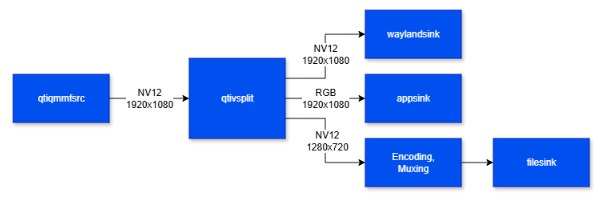
This example demonstrates how a live 1080p camera stream can be split into three output branches using the default `qtivsplit` mode (`none`). One branch preserves the original input resolution and format and renders the stream using [`waylandsink`](waylandsink). The second branch performs color conversion from `NV12` to `RGB` and delivers the output to `appsink`. The third branch scales the video to 720p and stores the result as an MP4 file using `filesink`.
 ```bash theme={null}
gst-launch-1.0 -e --gst-debug=2 \
qticamsrc ! video/x-raw,width=1920,height=1080,framerate=30/1,format=NV12 ! queue ! \
qtivsplit name=vsplit \
vsplit. ! video/x-raw,width=1920,height=1080,format=NV12 ! queue ! waylandsink fullscreen=true sync=false \
vsplit. ! video/x-raw,width=1920,height=1080,format=RGB ! queue ! appsink \
vsplit. ! video/x-raw,width=1280,height=720,format=NV12 ! queue ! \
v4l2h264enc capture-io-mode=4 output-io-mode=4 ! h264parse ! mp4mux ! queue ! filesink location="$HOME/media/output_720p.mp4"
```
### Single ROI Meta
This example demonstrates the `single-roi-meta` mode of `qtivsplit` in a live camera pipeline with object detection. The camera stream is processed by a YOLOv8 detection branch, and the resulting ROI metadata is attached to the video buffer using [`qtimetamux`](qtimetamux). qtivsplit then reads the ROI metadata for each detected objects and generates up to four ROI-derived outputs, one per source pad. These outputs are combined into a 2×2 layout by [`qtivcomposer`](qtivcomposer) and rendered for display using [`waylandsink`](waylandsink).
```bash theme={null}
gst-launch-1.0 -e --gst-debug=2 \
qticamsrc ! video/x-raw,width=1920,height=1080,framerate=30/1,format=NV12 ! queue ! \
qtivsplit name=vsplit \
vsplit. ! video/x-raw,width=1920,height=1080,format=NV12 ! queue ! waylandsink fullscreen=true sync=false \
vsplit. ! video/x-raw,width=1920,height=1080,format=RGB ! queue ! appsink \
vsplit. ! video/x-raw,width=1280,height=720,format=NV12 ! queue ! \
v4l2h264enc capture-io-mode=4 output-io-mode=4 ! h264parse ! mp4mux ! queue ! filesink location="$HOME/media/output_720p.mp4"
```
### Single ROI Meta
This example demonstrates the `single-roi-meta` mode of `qtivsplit` in a live camera pipeline with object detection. The camera stream is processed by a YOLOv8 detection branch, and the resulting ROI metadata is attached to the video buffer using [`qtimetamux`](qtimetamux). qtivsplit then reads the ROI metadata for each detected objects and generates up to four ROI-derived outputs, one per source pad. These outputs are combined into a 2×2 layout by [`qtivcomposer`](qtivcomposer) and rendered for display using [`waylandsink`](waylandsink).
 | File | Download | Save as |
| ----------- | ------------------------------------------------------------------------------------------------------------------------ | ----------------------------- |
| YOLO model | [Qualcomm AI hub model](https://aihub.qualcomm.com/iot/models/yolox) | `yolov8_det_quantized.tflite` |
| YOLO labels | \yolov8.json\ | `yolov8.json` |
| Input video | [Input video](https://github.com/qualcomm/sample-apps-for-qualcomm-linux/raw/refs/heads/main/artifacts/videos/video.mp4) | `ppe_video.mp4` |
```bash SCP (SSH) theme={null}
ssh @ "mkdir -p $HOME/{models,labels,media}"
scp yolov8_det_quantized.tflite @:$HOME/models/
scp yolov8.json @:$HOME/labels/
scp ppe_video.mp4 @:$HOME/media/
```
```bash SCP (SSH) theme={null}
ssh @
```
Run below command on your device
```bash theme={null}
mkdir -p $HOME/{models,labels,media}
```
```bash theme={null}
gst-launch-1.0 -e --gst-debug=2 \
qtivsplit name=vsplit src_0::mode=batch-roi-meta \
filesrc location=$HOME/media/ppe_video.mp4 ! qtdemux ! h264parse ! v4l2h264dec capture-io-mode=4 output-io-mode=4 ! video/x-raw,format=NV12 ! queue ! \
tee name=t_split ! queue ! qtimetamux name=metamux ! queue ! vsplit. \
t_split. ! queue ! qtimlvconverter ! queue ! \
qtimltflite delegate=external external-delegate-path=libQnnTFLiteDelegate.so external-delegate-options="QNNExternalDelegate,backend_type=htp;" model=$HOME/models/yolov8_det_quantized.tflite ! queue ! \
qtimlpostprocess results=5 module=yolov8 labels=$HOME/models/yolov8.json settings="{\"confidence\": 70.0}" ! text/x-raw ! metamux. \
vsplit. ! video/x-raw,width=640,height=360,format=NV12 ! multifilesink enable-last-sample=false location=$HOME/media/frame%d.yuv
```
### Batch ROI Meta
This example demonstrates the `batch-roi-meta` mode of qtivsplit in a file-based object-detection pipeline. The input video is decoded and processed by a YOLOv8 detection branch, and the resulting ROI metadata is attached to the video buffer using [`qtimetamux`](qtimetamux). qtivsplit then reads all ROI metadata entries and generates a separate ROI-derived output buffer for each detected object on the same source pad. The resulting outputs are written to individual YUV files using `multifilesink`.
| File | Download | Save as |
| ----------- | ------------------------------------------------------------------------------------------------------------------------ | ----------------------------- |
| YOLO model | [Qualcomm AI hub model](https://aihub.qualcomm.com/iot/models/yolox) | `yolov8_det_quantized.tflite` |
| YOLO labels | \yolov8.json\ | `yolov8.json` |
| Input video | [Input video](https://github.com/qualcomm/sample-apps-for-qualcomm-linux/raw/refs/heads/main/artifacts/videos/video.mp4) | `ppe_video.mp4` |
```bash SCP (SSH) theme={null}
ssh @ "mkdir -p $HOME/{models,labels,media}"
scp yolov8_det_quantized.tflite @:$HOME/models/
scp yolov8.json @:$HOME/labels/
scp ppe_video.mp4 @:$HOME/media/
```
```bash SCP (SSH) theme={null}
ssh @
```
Run below command on your device
```bash theme={null}
mkdir -p $HOME/{models,labels,media}
```
```bash theme={null}
gst-launch-1.0 -e --gst-debug=2 \
qtivsplit name=vsplit src_0::mode=batch-roi-meta \
filesrc location=$HOME/media/ppe_video.mp4 ! qtdemux ! h264parse ! v4l2h264dec capture-io-mode=4 output-io-mode=4 ! video/x-raw,format=NV12 ! queue ! \
tee name=t_split ! queue ! qtimetamux name=metamux ! queue ! vsplit. \
t_split. ! queue ! qtimlvconverter ! queue ! \
qtimltflite delegate=external external-delegate-path=libQnnTFLiteDelegate.so external-delegate-options="QNNExternalDelegate,backend_type=htp;" model=$HOME/models/yolov8_det_quantized.tflite ! queue ! \
qtimlpostprocess results=5 module=yolov8 labels=$HOME/models/yolov8.json settings="{\"confidence\": 70.0}" ! text/x-raw ! metamux. \
vsplit. ! video/x-raw,width=640,height=360,format=NV12 ! multifilesink enable-last-sample=false location=$HOME/media/frame%d.yuv
```
### Batch ROI Meta
This example demonstrates the `batch-roi-meta` mode of qtivsplit in a file-based object-detection pipeline. The input video is decoded and processed by a YOLOv8 detection branch, and the resulting ROI metadata is attached to the video buffer using [`qtimetamux`](qtimetamux). qtivsplit then reads all ROI metadata entries and generates a separate ROI-derived output buffer for each detected object on the same source pad. The resulting outputs are written to individual YUV files using `multifilesink`.
 | File | Download | Save as |
| ----------- | ------------------------------------------------------------------------------------------------------------------------ | ----------------------------- |
| YOLO model | [Qualcomm AI Hub](https://aihub.qualcomm.com/iot/models/yolox) | `yolov8_det_quantized.tflite` |
| YOLO labels | \yolov8.json\ | `yolov8.json` |
| Input video | [Input Video](https://github.com/qualcomm/sample-apps-for-qualcomm-linux/raw/refs/heads/main/artifacts/videos/video.mp4) | `ppe_video.mp4` |
```bash SCP (SSH) theme={null}
ssh @ "mkdir -p $HOME/{models,labels,media}"
scp yolov8_det_quantized.tflite @:$HOME/models/
scp yolov8.json @:$HOME/labels/
scp ppe_video.mp4 @:$HOME/media/
```
```bash SCP (SSH) theme={null}
ssh @
```
Run below command on your device
```bash theme={null}
mkdir -p $HOME/{models,labels,media}
```
```bash theme={null}
gst-launch-1.0 -e --gst-debug=2 \
qtivsplit name=vsplit src_0::mode=batch-roi-meta \
filesrc location=$HOME/media/ppe_video.mp4 ! qtdemux ! h264parse ! v4l2h264dec capture-io-mode=4 output-io-mode=4 ! video/x-raw,format=NV12 ! queue ! \
tee name=t_split ! queue ! qtimetamux name=metamux ! queue ! vsplit. \
t_split. ! queue ! qtimlvconverter ! queue ! \
qtimltflite delegate=external external-delegate-path=libQnnTFLiteDelegate.so external-delegate-options="QNNExternalDelegate,backend_type=htp;" model=$HOME/models/yolov8_det_quantized.tflite ! queue ! \
qtimlpostprocess results=5 module=yolov8 labels=$HOME/models/yolov8.json settings="{\"confidence\": 70.0}" ! text/x-raw ! metamux. \
vsplit. ! video/x-raw,width=640,height=360,format=NV12 ! multifilesink enable-last-sample=false location=$HOME/media/frame%d.yuv
```
| File | Download | Save as |
| ----------- | ------------------------------------------------------------------------------------------------------------------------ | ----------------------------- |
| YOLO model | [Qualcomm AI Hub](https://aihub.qualcomm.com/iot/models/yolox) | `yolov8_det_quantized.tflite` |
| YOLO labels | \yolov8.json\ | `yolov8.json` |
| Input video | [Input Video](https://github.com/qualcomm/sample-apps-for-qualcomm-linux/raw/refs/heads/main/artifacts/videos/video.mp4) | `ppe_video.mp4` |
```bash SCP (SSH) theme={null}
ssh @ "mkdir -p $HOME/{models,labels,media}"
scp yolov8_det_quantized.tflite @:$HOME/models/
scp yolov8.json @:$HOME/labels/
scp ppe_video.mp4 @:$HOME/media/
```
```bash SCP (SSH) theme={null}
ssh @
```
Run below command on your device
```bash theme={null}
mkdir -p $HOME/{models,labels,media}
```
```bash theme={null}
gst-launch-1.0 -e --gst-debug=2 \
qtivsplit name=vsplit src_0::mode=batch-roi-meta \
filesrc location=$HOME/media/ppe_video.mp4 ! qtdemux ! h264parse ! v4l2h264dec capture-io-mode=4 output-io-mode=4 ! video/x-raw,format=NV12 ! queue ! \
tee name=t_split ! queue ! qtimetamux name=metamux ! queue ! vsplit. \
t_split. ! queue ! qtimlvconverter ! queue ! \
qtimltflite delegate=external external-delegate-path=libQnnTFLiteDelegate.so external-delegate-options="QNNExternalDelegate,backend_type=htp;" model=$HOME/models/yolov8_det_quantized.tflite ! queue ! \
qtimlpostprocess results=5 module=yolov8 labels=$HOME/models/yolov8.json settings="{\"confidence\": 70.0}" ! text/x-raw ! metamux. \
vsplit. ! video/x-raw,width=640,height=360,format=NV12 ! multifilesink enable-last-sample=false location=$HOME/media/frame%d.yuv
```