> ## Documentation Index
> Fetch the complete documentation index at: https://dragonwingdocs.qualcomm.com/llms.txt
> Use this file to discover all available pages before exploring further.

# Multimedia

> Ready-to-run C++ applications demonstrating QIM SDK camera, video, and audio capabilities

The multimedia sample applications provide custom use cases for camera, video, audio, graphics, and display capabilities of Qualcomm Linux.

The following tables list all available GStreamer C/C++ multimedia applications and their platform support. Select the appropriate configuration tab for your setup.

<Tabs>
  <Tab title="Config #1">
    | Application                            | Source code                                                                                                                                                          | Description                                                     | QCS6490 | IQ-8275 | IQ-9075 | IQ-615 |
    | -------------------------------------- | -------------------------------------------------------------------------------------------------------------------------------------------------------------------- | --------------------------------------------------------------- | :-----: | :-----: | :-----: | :----: |
    | **Camera**                             |                                                                                                                                                                      |                                                                 |         |         |         |        |
    | Single camera streaming                | [`gst-camera-single-stream-example`](https://github.com/qualcomm/gst-plugins-imsdk/tree/main/gst-sample-apps/gst-camera-single-stream-example)                       | Single camera: preview, encode, YUV dump, or RTSP.              |    ✓    |    ✓    |    ✓    |    ✓   |
    | Multi-camera streaming                 | [`gst-multi-camera-example`](https://github.com/qualcomm/gst-plugins-imsdk/tree/main/gst-sample-apps/gst-multi-camera-example)                                       | Concurrent streaming from two cameras.                          |    ×    |    ×    |    ×    |   TBD  |
    | Multistream                            | [`gst-multi-stream-example`](https://github.com/qualcomm/gst-plugins-imsdk/tree/main/gst-sample-apps/gst-multi-stream-example)                                       | Single camera duplicated into two streams via tee.              |    ×    |    ×    |    ×    |    ×   |
    | Live snapshot                          | [`gst-snapshot-stream-example`](https://github.com/qualcomm/gst-plugins-imsdk/tree/main/gst-sample-apps/gst-snapshot-stream-example)                                 | Preview + JPEG snapshot capture simultaneously.                 |    ×    |    ×    |    ×    |    ×   |
    | RTMP camera streaming                  | [`gst-rtmp-stream-example`](https://github.com/qualcomm/gst-plugins-imsdk/tree/main/gst-sample-apps/gst-rtmp-stream-example)                                         | ISP / RTSP camera feed converted to RTMP stream.                |    ×    |    ×    |    ×    |    ×   |
    | Activate/deactivate streams at runtime | [`gst-activate-deactivate-streams-runtime-example`](https://github.com/qualcomm/gst-plugins-imsdk/tree/main/gst-sample-apps/gst-activate-deactivate-streams-runtime) | Change resolution on-the-fly without sensor restart.            |    ×    |    ×    |    ×    |    ×   |
    | Add/remove streams at runtime          | [`gst-add-remove-streams-runtime`](https://github.com/qualcomm/gst-plugins-imsdk/tree/main/gst-sample-apps/gst-add-remove-streams-runtime)                           | Dynamically add and remove streams.                             |    ×    |    ×    |    ×    |    ×   |
    | Camera frame processing                | [`gst-appsink-example`](https://github.com/qualcomm/gst-plugins-imsdk/tree/main/gst-sample-apps/gst-appsink-example)                                                 | Apply transforms to camera frames before encoding.              |    ×    |    ×    |    ×    |    ×   |
    | Camera metadata                        | [`gst-camera-metadata-example`](https://github.com/qualcomm/gst-plugins-imsdk/tree/main/gst-sample-apps/gst-camera-metadata-example)                                 | Capture scene mode, white balance, and bit rate metadata.       |    ×    |    ×    |    ×    |    ×   |
    | Camera stream configuration            | [`gst-add-streams-as-bundle-example`](https://github.com/qualcomm/gst-plugins-imsdk/tree/main/gst-sample-apps/gst-add-streams-as-bundle-example)                     | Configure camera streams as a bundle.                           |    ×    |    ×    |    ×    |    ×   |
    | Camera burst capture                   | [`gst-camera-burst-capture-example`](https://github.com/qualcomm/gst-plugins-imsdk/tree/main/gst-sample-apps/gst-camera-burst-capture-example)                       | Burst-mode snapshot capture.                                    |    ×    |    ×    |    ×    |    ×   |
    | Camera switch                          | [`gst-camera-switch-example`](https://github.com/qualcomm/gst-plugins-imsdk/tree/main/gst-sample-apps/gst-camera-switch-example)                                     | Switch between two cameras without stopping pipeline.           |    ×    |    ×    |    ×    |    ×   |
    | SHDR / LDC / EIS                       | [`gst-camera-shdr-ldc-eis-example`](https://github.com/qualcomm/gst-plugins-imsdk/tree/main/gst-sample-apps/gst-camera-shdr-ldc-eis-example)                         | Super HDR, lens distortion correction, and image stabilization. |    ×    |    ×    |    ×    |    ×   |
    | Decode JPEG images                     | [`gst-jpg-decode-example`](https://github.com/qualcomm/gst-plugins-imsdk/tree/main/gst-sample-apps/gst-jpg-decode-example)                                           | Decode JPEG images and preview on screen.                       |    ✓    |    ✓    |    ✓    |    ✓   |
    | **Video**                              |                                                                                                                                                                      |                                                                 |         |         |         |        |
    | Video Wall                             | [`gst-concurrent-videoplay-composition`](https://github.com/qualcomm/gst-plugins-imsdk/tree/main/gst-sample-apps/gst-concurrent-videoplay-composition)               | Concurrent video playback composed on display.                  |    ✓    |    ✓    |    ✓    |    ✓   |
    | Smart codec                            | [`gst-smartcodec-example`](https://github.com/qualcomm/gst-plugins-imsdk/tree/main/gst-sample-apps/gst-smartcodec-example)                                           | Reduce bandwidth / storage for camera input.                    |    ×    |    ×    |    ×    |    ×   |
    | Multiformat encode/decode              | [`gst-videocodec-concurrent-playback`](https://github.com/qualcomm/gst-plugins-imsdk/tree/main/gst-sample-apps/gst-videocodec-concurrent-playback)                   | Concurrent decode and playback of multiple formats.             |    ✓    |    ✓    |    ✓    |    ✓   |
    | Audio-video playback                   | [`gst-audio-video-playback`](https://github.com/qualcomm/gst-plugins-imsdk/tree/main/gst-sample-apps/gst-audio-video-playback)                                       | Simultaneous audio and video decode and playback.               |    ✓    |    ✓    |    ✓    |    ✓   |
    | Video transcoding                      | [`gst-video-transcode-example`](https://github.com/qualcomm/gst-plugins-imsdk/tree/main/gst-sample-apps/gst-video-transcode-example)                                 | Transcode AVC↔HEVC.                                             |    ✓    |    ✓    |    ✓    |    ✓   |
    | Video playback                         | [`gst-video-playback-example`](https://github.com/qualcomm/gst-plugins-imsdk/tree/main/gst-sample-apps/gst-video-playback-example)                                   | Decode and play back a video file.                              |    ✓    |    ✓    |    ✓    |    ✓   |
    | Record and preview transformed video   | [`gst-transform-example`](https://github.com/qualcomm/gst-plugins-imsdk/tree/main/gst-sample-apps/gst-transform-example)                                             | Rotate, flip, and scale a video stream.                         |    ×    |    ×    |    ×    |    ×   |
    | Video composition using Weston         | [`gst-weston-composition-example`](https://github.com/qualcomm/gst-plugins-imsdk/tree/main/gst-sample-apps/gst-weston-composition-example)                           | Compose live camera and offline file sources.                   |    ×    |    ×    |    ×    |    ×   |
    | Encode audio and video                 | [`gst-audio-video-encode`](https://github.com/qualcomm/gst-plugins-imsdk/tree/main/gst-sample-apps/gst-audio-video-encode)                                           | Encode audio and video to a file.                               |    ×    |    ×    |    ×    |    ×   |
    | **Audio**                              |                                                                                                                                                                      |                                                                 |         |         |         |        |
    | Audio playback                         | [`gst-audio-decode-example`](https://github.com/qualcomm/gst-plugins-imsdk/tree/main/gst-sample-apps/gst-audio-decode-example)                                       | Decode and play back WAV, MP3, or FLAC.                         |    ✓    |    ✓    |    ✓    |    ✓   |
    | Audio recording                        | [`gst-audio-encode-example`](https://github.com/qualcomm/gst-plugins-imsdk/tree/main/gst-sample-apps/gst-audio-encode-example)                                       | Record and encode audio to FLAC or WAV.                         |    ✓    |    ✓    |    ✓    |    ✓   |
  </Tab>

  <Tab title="Config #2">
    | Application                            | Source code                                                                                                                                                          | Description                                                     | QCS6490 | IQ-8275 | IQ-9075 | IQ-615 |
    | -------------------------------------- | -------------------------------------------------------------------------------------------------------------------------------------------------------------------- | --------------------------------------------------------------- | :-----: | :-----: | :-----: | :----: |
    | **Camera**                             |                                                                                                                                                                      |                                                                 |         |         |         |        |
    | Single camera streaming                | [`gst-camera-single-stream-example`](https://github.com/qualcomm/gst-plugins-imsdk/tree/main/gst-sample-apps/gst-camera-single-stream-example)                       | Single camera: preview, encode, YUV dump, or RTSP.              |    ✓    |    ✓    |    ✓    |    ✓   |
    | Multi-camera streaming                 | [`gst-multi-camera-example`](https://github.com/qualcomm/gst-plugins-imsdk/tree/main/gst-sample-apps/gst-multi-camera-example)                                       | Concurrent streaming from two cameras.                          |    ✓    |    ✓    |    ✓    |    ×   |
    | Multistream                            | [`gst-multi-stream-example`](https://github.com/qualcomm/gst-plugins-imsdk/tree/main/gst-sample-apps/gst-multi-stream-example)                                       | Single camera duplicated into two streams via tee.              |    ✓    |    ✓    |    ✓    |    ×   |
    | Live snapshot                          | [`gst-snapshot-stream-example`](https://github.com/qualcomm/gst-plugins-imsdk/tree/main/gst-sample-apps/gst-snapshot-stream-example)                                 | Preview + JPEG snapshot capture simultaneously.                 |    ✓    |    ×    |    ×    |    ×   |
    | RTMP camera streaming                  | [`gst-rtmp-stream-example`](https://github.com/qualcomm/gst-plugins-imsdk/tree/main/gst-sample-apps/gst-rtmp-stream-example)                                         | ISP / RTSP camera feed converted to RTMP stream.                |    ✓    |    ✓    |    ✓    |    ×   |
    | Activate/deactivate streams at runtime | [`gst-activate-deactivate-streams-runtime-example`](https://github.com/qualcomm/gst-plugins-imsdk/tree/main/gst-sample-apps/gst-activate-deactivate-streams-runtime) | Change resolution on-the-fly without sensor restart.            |    ✓    |    ✓    |    ✓    |    ×   |
    | Add/remove streams at runtime          | [`gst-add-remove-streams-runtime`](https://github.com/qualcomm/gst-plugins-imsdk/tree/main/gst-sample-apps/gst-add-remove-streams-runtime)                           | Dynamically add and remove streams.                             |    ✓    |    ✓    |    ✓    |    ×   |
    | Camera frame processing                | [`gst-appsink-example`](https://github.com/qualcomm/gst-plugins-imsdk/tree/main/gst-sample-apps/gst-appsink-example)                                                 | Apply transforms to camera frames before encoding.              |    ✓    |    ✓    |    ✓    |    ✓   |
    | Camera metadata                        | [`gst-camera-metadata-example`](https://github.com/qualcomm/gst-plugins-imsdk/tree/main/gst-sample-apps/gst-camera-metadata-example)                                 | Capture scene mode, white balance, and bit rate metadata.       |    ✓    |    ✓    |    ✓    |    ×   |
    | Camera stream configuration            | [`gst-add-streams-as-bundle-example`](https://github.com/qualcomm/gst-plugins-imsdk/tree/main/gst-sample-apps/gst-add-streams-as-bundle-example)                     | Configure camera streams as a bundle.                           |    ✓    |    ✓    |    ✓    |    ×   |
    | Camera burst capture                   | [`gst-camera-burst-capture-example`](https://github.com/qualcomm/gst-plugins-imsdk/tree/main/gst-sample-apps/gst-camera-burst-capture-example)                       | Burst-mode snapshot capture.                                    |    ✓    |    ×    |    ×    |    ×   |
    | Camera switch                          | [`gst-camera-switch-example`](https://github.com/qualcomm/gst-plugins-imsdk/tree/main/gst-sample-apps/gst-camera-switch-example)                                     | Switch between two cameras without stopping pipeline.           |    ✓    |    ✓    |    ✓    |    ×   |
    | SHDR / LDC / EIS                       | [`gst-camera-shdr-ldc-eis-example`](https://github.com/qualcomm/gst-plugins-imsdk/tree/main/gst-sample-apps/gst-camera-shdr-ldc-eis-example)                         | Super HDR, lens distortion correction, and image stabilization. |    ✓    |    ×    |    ×    |    ×   |
    | Decode JPEG images                     | [`gst-jpg-decode-example`](https://github.com/qualcomm/gst-plugins-imsdk/tree/main/gst-sample-apps/gst-jpg-decode-example)                                           | Decode JPEG images and preview on screen.                       |    ✓    |    ✓    |    ✓    |    ✓   |
    | **Video**                              |                                                                                                                                                                      |                                                                 |         |         |         |        |
    | Video Wall                             | [`gst-concurrent-videoplay-composition`](https://github.com/qualcomm/gst-plugins-imsdk/tree/main/gst-sample-apps/gst-concurrent-videoplay-composition)               | Concurrent video playback composed on display.                  |    ✓    |    ✓    |    ✓    |    ✓   |
    | Smart codec                            | [`gst-smartcodec-example`](https://github.com/qualcomm/gst-plugins-imsdk/tree/main/gst-sample-apps/gst-smartcodec-example)                                           | Reduce bandwidth / storage for camera input.                    |    ✓    |    ✓    |    ✓    |    ×   |
    | Multiformat encode/decode              | [`gst-videocodec-concurrent-playback`](https://github.com/qualcomm/gst-plugins-imsdk/tree/main/gst-sample-apps/gst-videocodec-concurrent-playback)                   | Concurrent decode and playback of multiple formats.             |    ✓    |    ✓    |    ✓    |    ✓   |
    | Audio-video playback                   | [`gst-audio-video-playback`](https://github.com/qualcomm/gst-plugins-imsdk/tree/main/gst-sample-apps/gst-audio-video-playback)                                       | Simultaneous audio and video decode and playback.               |    ✓    |    ✓    |    ✓    |    ✓   |
    | Video transcoding                      | [`gst-video-transcode-example`](https://github.com/qualcomm/gst-plugins-imsdk/tree/main/gst-sample-apps/gst-video-transcode-example)                                 | Transcode AVC↔HEVC.                                             |    ✓    |    ✓    |    ✓    |    ✓   |
    | Video playback                         | [`gst-video-playback-example`](https://github.com/qualcomm/gst-plugins-imsdk/tree/main/gst-sample-apps/gst-video-playback-example)                                   | Decode and play back a video file.                              |    ✓    |    ✓    |    ✓    |    ✓   |
    | Record and preview transformed video   | [`gst-transform-example`](https://github.com/qualcomm/gst-plugins-imsdk/tree/main/gst-sample-apps/gst-transform-example)                                             | Rotate, flip, and scale a video stream.                         |    ✓    |    ✓    |    ✓    |    ✓   |
    | Video composition using Weston         | [`gst-weston-composition-example`](https://github.com/qualcomm/gst-plugins-imsdk/tree/main/gst-sample-apps/gst-weston-composition-example)                           | Compose live camera and offline file sources.                   |    ✓    |    ✓    |    ✓    |    ✓   |
    | Encode audio and video                 | [`gst-audio-video-encode`](https://github.com/qualcomm/gst-plugins-imsdk/tree/main/gst-sample-apps/gst-audio-video-encode)                                           | Encode audio and video to a file.                               |    ✓    |    ✓    |    ✓    |    ✓   |
    | **Audio**                              |                                                                                                                                                                      |                                                                 |         |         |         |        |
    | Audio playback                         | [`gst-audio-decode-example`](https://github.com/qualcomm/gst-plugins-imsdk/tree/main/gst-sample-apps/gst-audio-decode-example)                                       | Decode and play back WAV, MP3, or FLAC.                         |    ✓    |    ✓    |    ✓    |    ✓   |
    | Audio recording                        | [`gst-audio-encode-example`](https://github.com/qualcomm/gst-plugins-imsdk/tree/main/gst-sample-apps/gst-audio-encode-example)                                       | Record and encode audio to FLAC or WAV.                         |    ✓    |    ✓    |    ✓    |    ✓   |
  </Tab>
</Tabs>

***

<Note>
  For camera and video sample applications that require a YUV player, see the [Sourceforge YUV player project](https://sourceforge.net/projects/raw-yuvplayer/).
</Note>

<h2 id="prerequisites">
  Prerequisites
</h2>

<Accordion title="Try me">
  <Note>
    **Note:** Some of the steps in the pre-requisties will be removed from future releases once the necessary fixes are mainlined.
  </Note>

  <Steps>
    <Step title="Set up Wi-Fi">
      Connect to the Wireless Access Point (Wi-Fi Router):

      ```bash theme={null}
      nmcli dev wifi connect <WiFi-SSID> password <WiFi-password>
      ```

      Check the connection and device status:

      ```bash theme={null}
      nmcli -p device
      ```

      **Login to the target device**

      Locate the IP address of the device according to the type of network connection,
      using the UART console on the Linux host:

      For Ethernet:

      ```bash theme={null}
      ip address show eth2
      ```

      For Wi-Fi:

      ```bash theme={null}
      ip address show wlp1s0
      ```

      Use the IP address from the Linux host to establish an SSH connection to the device:

      ```bash theme={null}
      ssh root@<ip-address>
      ```

      Example:

      ```bash theme={null}
      ssh root@192.168.0.222
      ```

      Connect to the SSH shell using the following password:

      ```bash theme={null}
      oelinux123
      ```
    </Step>

    <Step title="Set up Wi-Fi">
      Connect to the Wireless Access Point (Wi-Fi Router):

      ```bash theme={null}
      nmcli dev wifi connect <WiFi-SSID> password <WiFi-password>
      ```

      Check the connection and device status:

      ```bash theme={null}
      nmcli -p device
      ```

      **Login to the target device**

      Locate the IP address of the device according to the type of network connection,
      using the UART console on the Linux host:

      For Ethernet:

      ```bash theme={null}
      ip address show eth2
      ```

      For Wi-Fi:

      ```bash theme={null}
      ip address show wlp1s0
      ```

      Use the IP address from the Linux host to establish an SSH connection to the device:

      ```bash theme={null}
      ssh root@<ip-address>
      ```

      Example:

      ```bash theme={null}
      ssh root@192.168.0.222
      ```

      Connect to the SSH shell using the following password:

      ```bash theme={null}
      oelinux123
      ```
    </Step>

    <Step title="Download Models and Artifacts">
      On the target device, obtain the `download_artifacts.sh` script, set executable
      permissions, and run it to download the model, media, and label files:

      ```bash theme={null}
      cd /tmp/
      curl -L -O https://raw.githubusercontent.com/quic/sample-apps-for-qualcomm-linux/refs/heads/main/qualcomm-linux/scripts/download_artifacts.sh
      chmod +x download_artifacts.sh
      ./download_artifacts.sh
      ```
    </Step>

    <Step title="Enable qticamsrc">
      In the terminal of the target device, run the following command to enable the `qticamsrc` on Config #2:

      ```bash theme={null}
      echo -n "camx" > /var/data
      efivar -n 882f8c2b-9646-435f-8de5-f208ff80c1bd-VendorDtbOverlays -w -f /var/data
      efivar -n 882f8c2b-9646-435f-8de5-f208ff80c1bd-VendorDtbOverlays -p
      sync
      reboot
      ```
    </Step>

    <Step title="Enable libcamera">
      For Dragonwing RB3 Gen 2 Development Kit, enable the libcamera using the following instructions:

      <Note>
        **Note:** The libcamera plugin supports only the IMX577 camera sensor. Connect the IMX577 sensor before enabling libcamera.
      </Note>

      In the terminal of the target device, enable the bootloader mode using the
      following command:

      ```bash theme={null}
      reboot bootloader
      ```

      Once the device enters bootloader mode, flash the Vision Kit CDT file from
      the extracted folder:

      ```bash theme={null}
      fastboot flash cdt cdt_vision_kit.bin
      ```

      <Note>
        **Note:** You can obtain the `cdt_vision_kit.bin` file from [Qualcomm multimedia proprietary image](https://artifacts.codelinaro.org/ui/native/qli-ci/flashable-binaries/meta-qcom/rb3gen2-core-kit/qli-2.0-rc3-qcom-multimedia-proprietary-image.zip) at `images/rb3gen2-core-kit/qcom-multimedia-proprietary-image-rb3gen2-core-kit`:
      </Note>

      Reboot the device:

      ```bash theme={null}
      fastboot reboot
      ```
    </Step>

    <Step title="Enable Audio and GPU Delegate">
      In the terminal of the target device, run the following command to enable audio:

      ```bash theme={null}
      systemctl stop pipewire wireplumber pipewire.socket pipewire-manager.socket
      chmod 777 /dev/dma_heap/system
      adsprpcd audiopd &
      systemctl start pipewire wireplumber
      wpctl status
      ```

      To set the default devices for sink and source, get the device numbers from
      `wpctl status` and run the following command:

      ```bash theme={null}
      wpctl set-default <device ID>
      ```

      In the terminal of the target device, run the following command to enable the
      GPU delegate and backend:

      ```bash theme={null}
      ln -sf /usr/lib/libOpenCL.so.1 /usr/lib/libOpenCL.so
      export OCL_ICD_FILENAMES=/usr/lib/libOpenCL_adreno.so.1
      ```
    </Step>
  </Steps>
</Accordion>

## Camera Applications

### Single Camera Streaming

**Description:** The [**gst-camera-single-stream-example**](https://github.com/qualcomm/gst-plugins-imsdk/tree/main/gst-sample-apps/gst-camera-single-stream-example) application demonstrates single camera use cases with possible outputs: live camera preview on display, store video encoder output, dump the camera YUV, and live RTSP streaming.

* Live camera preview on display
* Encode MP4 saved to file
* Encode YUV saved to file
* RTSP use case
* **Usage Example:** For example, you can use this application in a security system where the goal is to capture a video from one camera and stream it across a network. You can either view it or archive it for future review.
  The following figure shows the pipeline flow for various single camera stream use cases.For more information, see [pipeline flow.](#single-camera-pipeline-flow)
  <img src="https://mintcdn.com/qualcomm-prod/YDSiHowP2IVf4iM5/SDKs/IMSDK/sample-application/images/mm_images/gst_camera_source_bin_single_stream_example_pipeline.svg?fit=max&auto=format&n=YDSiHowP2IVf4iM5&q=85&s=5fbd7eb49c21f03ef2b4d3719d5cb64d" alt="Single camera pipeline" width="1100" height="413" data-path="SDKs/IMSDK/sample-application/images/mm_images/gst_camera_source_bin_single_stream_example_pipeline.svg" />
  **Figure: gst-camera-single-stream-example pipeline**
<Note>
  **Note:** The **camera-source-bin** uses the **libcamerasrc** and **qtivtransform** plugins in Config #1 and the **qticamsrc** plugin in the Config #2 to generate the output stream.
</Note>

**Application:** [`gst-camera-single-stream-example`](https://github.com/qualcomm/gst-plugins-imsdk/tree/main/gst-sample-apps/gst-camera-single-stream-example)

<Accordion title="Try me">
  ### Run the application

  <Steps>
    <Step title="Complete prerequisites">
      Ensure that you complete the [Prerequisites](#prerequisites).
    </Step>

    <Step title="In the terminal of the target device, select a use case and run the command">
      **Live camera use case:** View the live camera on Waylandsink:

      ```bash theme={null}
      gst-camera-single-stream-example -o 0 -w 1920 -h 1080
      ```

      **MP4 use case:** Dump the MP4 to the `/etc/media/` folder:

      ```bash theme={null}
      gst-camera-single-stream-example -o 1 -w 1920 -h 1080
      ```

      **YUV use case:** Dump the YUV data to the `/etc/media/` folder:

      ```bash theme={null}
      gst-camera-single-stream-example -o 2 -w 1920 -h 1080
      ```

      **RTSP use case:** View the RTSP stream (run the RTSP server) on the Linux host computer:

      1. Run the RTSP server in a separate console on the target device with udpsrc (you can run it in the background as a service):

      ```bash theme={null}
      gst-rtsp-server  -p 8900 -a <ip_address> -m /live "( udpsrc name=pay0 port=<port_num> caps=\"application/x-rtp,media=video,clock-rate=90000,encoding-name=H264,payload=96\" )"
      ```

      For Example:

      ```bash theme={null}
      gst-rtsp-server -p 8900 -a 10.92.182.47 -m /live "( udpsrc name=pay0 port=8554 caps=\"application/x-rtp,media=video,clock-rate=90000,encoding-name=H264,payload=96\" )"
      ```

      2. Then start single camera streaming:

      ```bash theme={null}
      gst-camera-single-stream-example -o 3 -w 1280 -h 720 -i <ip_address> -p <port_num>
      ```
    </Step>

    <Step title="In the terminal of the host computer, run one of the following commands to view the stream">
      **For VLC:**

      ```bash theme={null}
      vlc -vvv rtsp://<ip_address>:8900/live
      ```

      **For FFplay:**

      ```bash theme={null}
      ffplay rtsp://<ip_address>:8900/live
      ```
    </Step>

    <Step title="To Stop the running use case">
      Press `Ctrl + C`.
    </Step>

    <Step title="In the terminal of the target device, run the following command to display the available help options:">
      ```bash theme={null}
      gst-camera-single-stream-example --help
      ```
    </Step>

    <Step title="In the terminal of the host computer, run the following command to pull the files from the target device:">
      ```bash theme={null}
      scp root@<IP address of target device>:/etc/media/<filename to pull> <destination directory>
      ```
    </Step>
  </Steps>

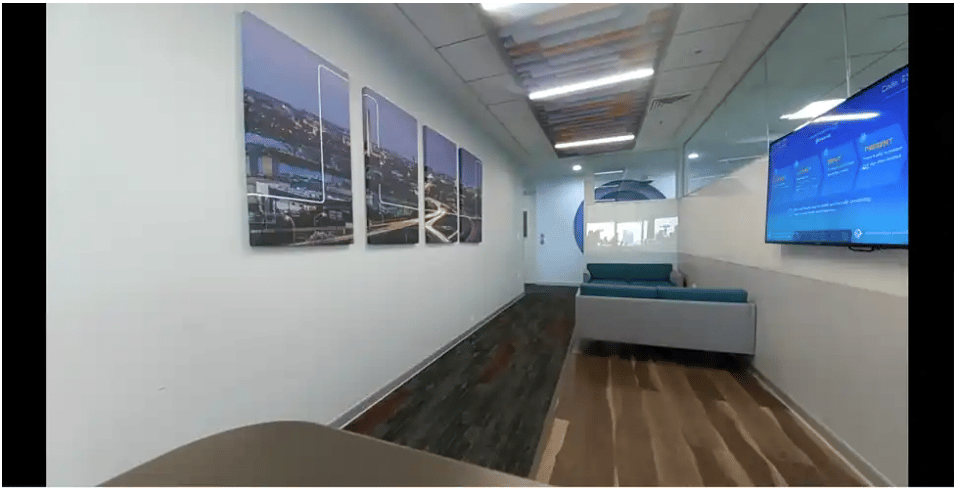
  ### Expected output

  The following table lists the expected output based on the selected output type.

  <img src="https://mintcdn.com/qualcomm-prod/YDSiHowP2IVf4iM5/SDKs/IMSDK/sample-application/images/mm_images/Camera-Preview-Output.png?fit=max&auto=format&n=YDSiHowP2IVf4iM5&q=85&s=dfab10a933b949e4ba7ab5d7cbee43b7" alt="Camera Preview Output" width="954" height="488" data-path="SDKs/IMSDK/sample-application/images/mm_images/Camera-Preview-Output.png" />

  **Figure2: Expected output for gst-camera-single-stream-example**

  **Table:Expected output for gst-camera-single-stream-example**

  | Output                    | Description                                 |
  | ------------------------- | ------------------------------------------- |
  | Display                   | Preview the stream.                         |
  | Dump the MP4 and YUV data | Save the output to a file at `/etc/media/`. |
  | RTSP                      | View the output on a remote display.        |

  <h3 id="single-camera-pipeline-flow">
    Pipeline flow
  </h3>

  The following table lists the plugins used in the single camera streaming pipeline:

  <table>
    <thead>
      <tr>
        <th>Pipeline</th>
        <th>Description</th>
      </tr>
    </thead>

    <tbody>
      <tr>
        <td>Live camera preview on display</td>

        <td>
          <ol>
            <li>`qticamsrc` captures the camera live stream.</li>
            <li>`Capsfilter` is applied to enforce constraints on the raw video data.</li>
            <li>The data is sent to the Wayland display sink (`waylandsink`) for live preview.</li>
          </ol>
        </td>
      </tr>

      <tr>
        <td>Video encoding</td>

        <td>
          <ol>
            <li>`qticamsrc` captures the camera live stream.</li>
            <li>`Capsfilter` is applied to enforce constraints on the raw video data.</li>
            <li>The data is sent to the Wayland display sink (`waylandsink`) for live preview.</li>
            <li>`v4l2h264enc` is used to encode the video using the H.264 format.</li>
            <li>`H264parse` is used to parse the video.</li>
            <li>`Mp4mux` is used to multiplex the video into an MP4 container.</li>
            <li>`Filesink` is used to write the video to a file.</li>
          </ol>
        </td>
      </tr>

      <tr>
        <td>Dump the camera YUV to a filesink</td>

        <td>
          <ol>
            <li>`qticamsrc` captures the camera live stream.</li>
            <li>`Capsfilter` is applied to enforce constraints on the raw video data.</li>
            <li>`Filesink` is used to dump the YUV data into a file.</li>
          </ol>
        </td>
      </tr>

      <tr>
        <td>RTSP streaming</td>

        <td>
          <ol>
            <li>`qticamsrc` captures the camera live stream.</li>
            <li>`Capsfilter` is applied to enforce constraints on the raw video data.</li>
            <li>`v4l2h264enc` is used to encode the video using the H.264 format.</li>
            <li>`H264parse` is used to parse the video, rtph264pay is used to load the stream to RTSP, and then the stream is
            sent to a UDP sink for RTSP streaming.</li>
          </ol>
        </td>
      </tr>
    </tbody>
  </table>
</Accordion>

***

### Multi-Camera

**Description:** The [**gst-multi-camera-example**](https://github.com/qualcomm/gst-plugins-imsdk/tree/main/gst-sample-apps/gst-multi-camera-example) application allows you to stream from two camera sensors simultaneously. The application composes the camera feeds side by side to display on a screen or encodes and stores the video streams to files.

A few use cases that need many camera inputs are dash camera or stereo camera. You can use this application as a reference and build your use case. For example, a security system where the goal is to capture a video from several cameras. You can either view it or archive it for a future review.

The following figure shows the pipeline for several camera streams. For more information about the elements used in this pipeline, see [pipeline flow.](#multi-camera-pipeline-flow)

<img src="https://mintcdn.com/qualcomm-prod/YDSiHowP2IVf4iM5/SDKs/IMSDK/sample-application/images/mm_images/gst_multicamera_example_pipeline.svg?fit=max&auto=format&n=YDSiHowP2IVf4iM5&q=85&s=57b4170c8360828a5afb5f74c0046096" alt="Multi camera pipeline" width="1080" height="420" data-path="SDKs/IMSDK/sample-application/images/mm_images/gst_multicamera_example_pipeline.svg" />

**Figure: gst-multi-camera-stream-example pipeline**

**Application:** [`gst-multi-camera-example`](https://github.com/qualcomm/gst-plugins-imsdk/tree/main/gst-sample-apps/gst-multi-camera-example)
<Accordion title="Try me">
  ### Run the application

  <Note>
    **Note:** In the following commands, provide the necessary parameters, such as width, height, and output type. The width and height changes are applicable to the primary camera only.
  </Note>

  <Steps>
    <Step title="Complete prerequisites">
      Ensure that you complete the [Prerequisites](#prerequisites).
    </Step>

    <Step title="In the terminal of the target device, select any of the following use cases and run the respective command:">
      **Waylandsink use case:** View the Waylandsink output:

      ```bash theme={null}
      gst-multi-camera-example -o 0 -w 1920 -h 1080
      ```

      **Encoder use case:** View the encoder output:

      ```bash theme={null}
      gst-multi-camera-example -o 1 -w 1920 -h 1080
      ```
    </Step>

    <Step title="To Stop the running use case">
      Press `Ctrl + C`.
    </Step>

    <Step title="In the terminal of the target device, run the following command to display the available help options:">
      ```bash theme={null}
      gst-multi-camera-example --help
      ```
    </Step>

    <Step title="In the terminal of the host computer, run the following command to pull the files from the target device:">
      ```bash theme={null}
      scp root@<IP address of target device>:/etc/media/<filename to pull>
      ```
    </Step>
  </Steps>

  ### Expected Output

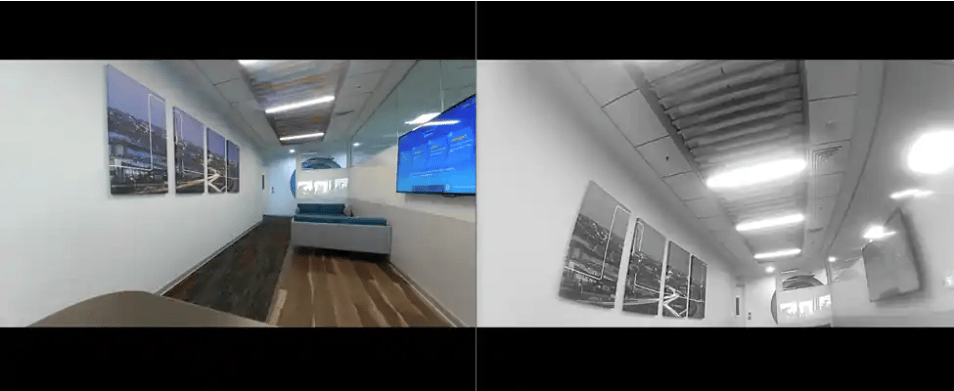
  The output is displayed on the screen and saved to a file.

  * If the output type is display, you can preview the stream on the display.

  * If the output type is video encoding, then the encoded files are saved at
    `/etc/media/cam1_vid.mp4` and `/etc/media/cam2_vid.mp4` for camera 1 and camera 2 respectively.

  <img src="https://mintcdn.com/qualcomm-prod/YDSiHowP2IVf4iM5/SDKs/IMSDK/sample-application/images/mm_images/multi-camera-example-output.png?fit=max&auto=format&n=YDSiHowP2IVf4iM5&q=85&s=456d147449eade6e23b6ef049a11b446" alt="Camera Preview Output" width="954" height="391" data-path="SDKs/IMSDK/sample-application/images/mm_images/multi-camera-example-output.png" />

  **Figure: Expected output for gst-multi-camera-example application–preview**

  <h3 id="multi-camera-pipeline-flow">
    Pipeline flow
  </h3>

  The following table lists the plugins used in the multi camera streaming pipeline:

  <table>
    <thead>
      <tr>
        <th>Pipeline</th>
        <th>Description</th>
      </tr>
    </thead>

    <tbody>
      <tr>
        <td>Preview on display</td>

        <td>
          <ol>
            <li>`qticamsrc` captures video from both camera0 and camera1.</li>
            <li>`Capsfilter` is applied to enforce constraints on the raw video data.</li>
            <li>`qtivcomposer` composites the video streams and sends the composited video data to Wayland display sink.</li>
            <li>`waylandsink` shows the live preview.</li>
          </ol>
        </td>
      </tr>

      <tr>
        <td>Encoder dump on the device</td>

        <td>
          <ol>
            <li>`qticamsrc` captures video from both camera0 and camera1.</li>
            <li>`Capsfilter` is applied to enforce constraints on the raw video data.</li>
            <li>`v4l2h264enc` is used to encode the video using the H.264 format.</li>
            <li>`H264parse` is used to parse the video.</li>
            <li>`Mp4mux` is used to multiplex the video into an MP4 container.</li>
            <li>`Filesink` is used to write the video to a file.</li>
          </ol>
        </td>
      </tr>
    </tbody>
  </table>
</Accordion>

***

### Camera Switch

**Description:** The [**gst-camera-switch-example**](https://github.com/qualcomm/gst-plugins-imsdk/tree/main/gst-sample-apps/gst-camera-switch-example) application allows you to switch between two cameras.

The following figure shows the pipeline, which demonstrates the camera switch between the two cameras of the device without changing the state of the pipeline. The switching is done in the Playing state after every 5 seconds.

For more information about the plugins used in this pipeline, see [Pipeline flow.](#camera-switch-pipeline-flow)

<img src="https://mintcdn.com/qualcomm-prod/YDSiHowP2IVf4iM5/SDKs/IMSDK/sample-application/images/mm_images/gst_camera_switch_example_pipeline.svg?fit=max&auto=format&n=YDSiHowP2IVf4iM5&q=85&s=90d82cd60c36b361e6e43500cc224110" alt="camera switch pipeline" width="1080" height="200" data-path="SDKs/IMSDK/sample-application/images/mm_images/gst_camera_switch_example_pipeline.svg" />

**Figure: gst-camera-switch-example pipeline**

**Application:** [`gst-camera-switch-example`](https://github.com/qualcomm/gst-plugins-imsdk/tree/main/gst-sample-apps/gst-camera-switch-example)
<Accordion title="Try me">
  ### Run the application

  <Steps>
    <Step title="Complete prerequisites">
      Ensure that you complete the [Prerequisites](#prerequisites).
    </Step>

    <Step title="In the terminal of the target device, run the respective command for any of the following use cases:">
      **Camera switch:**

      ```bash theme={null}
      gst-camera-switch-example <OPTION>
      ```

      **Display the stream after switching (default option):**

      ```bash theme={null}
      gst-camera-switch-example -d 1
      ```

      **Encode the stream after switching:**

      ```bash theme={null}
      gst-camera-switch-example -d 0
      ```
    </Step>

    <Step title="To Stop the running use case">
      Press `Ctrl + C`.
    </Step>

    <Step title="In the terminal of the target device, run the following command to display the available help options:">
      ```bash theme={null}
      gst-camera-switch-example --help
      ```
    </Step>

    <Step title="In the terminal of the host computer, run the following command to pull the files from the target device:">
      ```bash theme={null}
        scp root@<IP address of target device>:/etc/media/<filename to pull>
      ```
    </Step>
  </Steps>

  ### Expected output

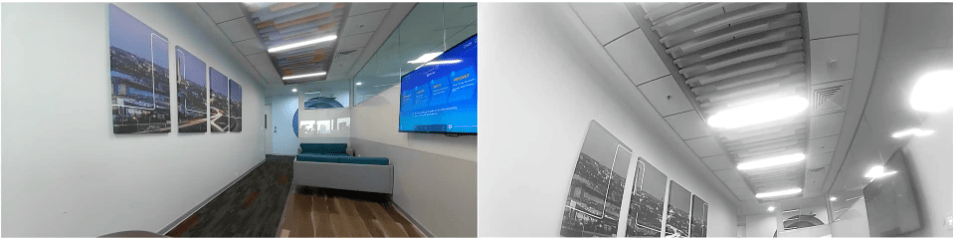
  The application generates the output as a preview or an encoded MP4 file.

  <img src="https://mintcdn.com/qualcomm-prod/YDSiHowP2IVf4iM5/SDKs/IMSDK/sample-application/images/mm_images/camera-switch-example-output.png?fit=max&auto=format&n=YDSiHowP2IVf4iM5&q=85&s=f29a1bfdda04797916475628c4698f15" alt="Camera Preview Output" width="954" height="238" data-path="SDKs/IMSDK/sample-application/images/mm_images/camera-switch-example-output.png" />

  **Figure: Expected output for gst-camera-switch-example application**

  <h3 id="camera-switch-pipeline-flow">
    Pipeline flow
  </h3>

  The following table lists the plugins used in the camera switch pipeline:

  <table>
    <thead>
      <tr>
        <th>Pipeline</th>
        <th>Description</th>
      </tr>
    </thead>

    <tbody>
      <tr>
        <td>Display preview</td>

        <td>
          <ol>
            <li>`qticamsrc` captures the camera live stream and uses capsfilter to create a branch for preview.</li>
            <li>The data is sent to the Wayland display sink (`waylandsink`) for preview.</li>
          </ol>
        </td>
      </tr>

      <tr>
        <td>Encode as MP4 file</td>

        <td>
          <ol>
            <li>`qticamsrc` captures the camera live stream and uses capsfilter to create a branch for encoding.</li>
            <li>The stream data is encoded.</li>
            <li>`H264parse` is used to parse the captured data.</li>
            <li>`Mp4mux` is used to multiplex the data.</li>
          </ol>
        </td>
      </tr>
    </tbody>
  </table>
</Accordion>

***

### Multi-Stream

**Description:** The [**gst-multi-stream-example**](https://github.com/qualcomm/gst-plugins-imsdk/tree/main/gst-sample-apps/gst-multi-stream-example) The gst-multi-stream-example application allows you to access several streams from a single camera and either display them simultaneously on a screen or save them in MP4 format.
For example, you can use this application for a camera security system where the video is captured from a camera. This video can be simultaneously streamed over a network, displayed on a monitor, and archived for future review.

The figure shows the pipeline, which is run with flags to specify width, height, stream count, and output file.
For more information, see [Pipeline flow.](#multi-stream-pipeline-flow)

<img src="https://mintcdn.com/qualcomm-prod/YDSiHowP2IVf4iM5/SDKs/IMSDK/sample-application/images/mm_images/gst_multistream_example_pipeline.svg?fit=max&auto=format&n=YDSiHowP2IVf4iM5&q=85&s=54332b99b335edaf0532adfc44982e27" alt="camera switch pipeline" width="1080" height="260" data-path="SDKs/IMSDK/sample-application/images/mm_images/gst_multistream_example_pipeline.svg" />

**Figure: gst-multi-stream-example pipeline**

**Application:** [`gst-multi-stream-example`](https://github.com/qualcomm/gst-plugins-imsdk/tree/main/gst-sample-apps/gst-multi-stream-example)
<Accordion title="Try me">
  ### Run the application

  <Steps>
    <Step title="Complete prerequisites">
      Ensure that you complete the [Prerequisites](#prerequisites).
    </Step>

    <Step title="In the terminal of the target device, run the use case:">
      ```bash theme={null}
      gst-multi-stream-example -w 1920 -h 1080 -n 2
      ```
    </Step>

    <Step title="In the terminal of the target device, run the following command to display the available help options:">
      ```bash theme={null}
      gst-multi-stream-example --help
      ```
    </Step>

    <Step title="In the terminal of the host computer, run the following command to pull the files from the target device:">
      ```bash theme={null}
      scp root@<IP address of target device>:/etc/media/<filename to pull>
      ```
    </Step>
  </Steps>

  ### Expected output

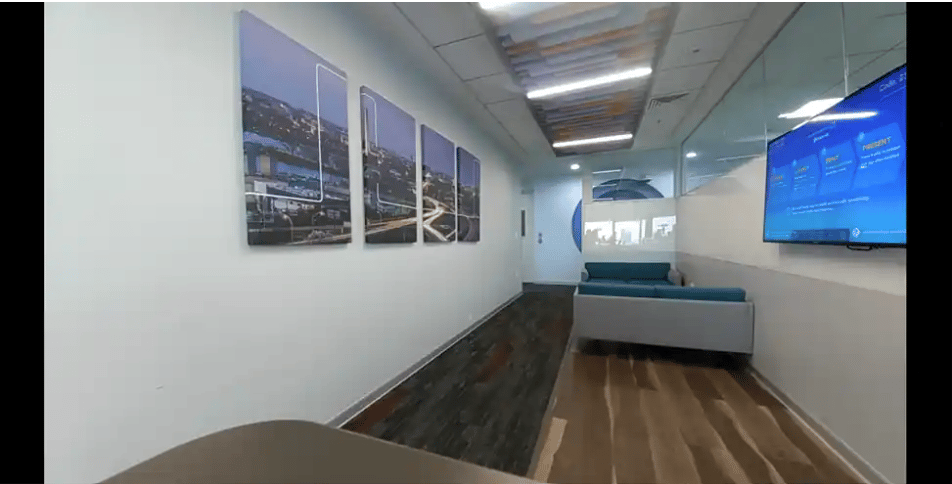
  The output streams are displayed simultaneously on the screen or saved to a file.

  <img src="https://mintcdn.com/qualcomm-prod/YDSiHowP2IVf4iM5/SDKs/IMSDK/sample-application/images/mm_images/multi-stream-camera-output.png?fit=max&auto=format&n=YDSiHowP2IVf4iM5&q=85&s=79815696aed1564265c37d1c1fd5928d" alt="Camera Preview Output" width="952" height="484" data-path="SDKs/IMSDK/sample-application/images/mm_images/multi-stream-camera-output.png" />

  **Figure: Expected output for gst-multi-stream-example application - Preview**

  <h3 id="multi-stream-pipeline-flow">
    Pipeline flow
  </h3>

  The following table lists the plugins used in the multistream pipeline:

  <table>
    <thead>
      <tr>
        <th>Plugin</th>
        <th>Description</th>
      </tr>
    </thead>

    <tbody>
      <tr>
        <td>qticamsrc</td>

        <td>
          <ol>
            <li><code>qticamsrc</code> captures the video stream and feeds it into the capsfilter.</li>
          </ol>
        </td>
      </tr>

      <tr>
        <td>Capsfilter</td>

        <td>
          <ul>
            <li>Branches the source into two separate pipelines. In one pipeline, the output is sent to <code>waylandsink</code> for display.</li>

            <li>
              In the other pipeline, the video undergoes the following:

              <ol>
                <li>Encoded using <code>v4l2h264enc</code>.</li>
                <li>Parsed with <code>h264parse</code>.</li>
                <li>Multiplexed into MP4 format with <code>mp4mux</code>.</li>
                <li>Written to a file using <code>filesink</code>.</li>
              </ol>
            </li>
          </ul>
        </td>
      </tr>
    </tbody>
  </table>

  ### Known Issues

  * The default bit rate for the encoded video is configured to a low setting, leading to reduced quality at higher resolutions.
  * The application may not work due to v4l2h264enc encoder issue.
</Accordion>

***

### Wide dynamic range and electronic image stabilization

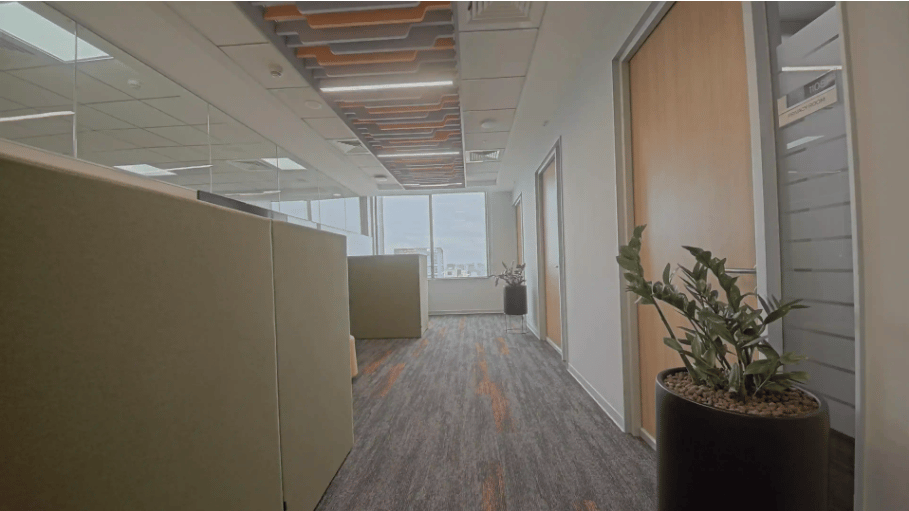
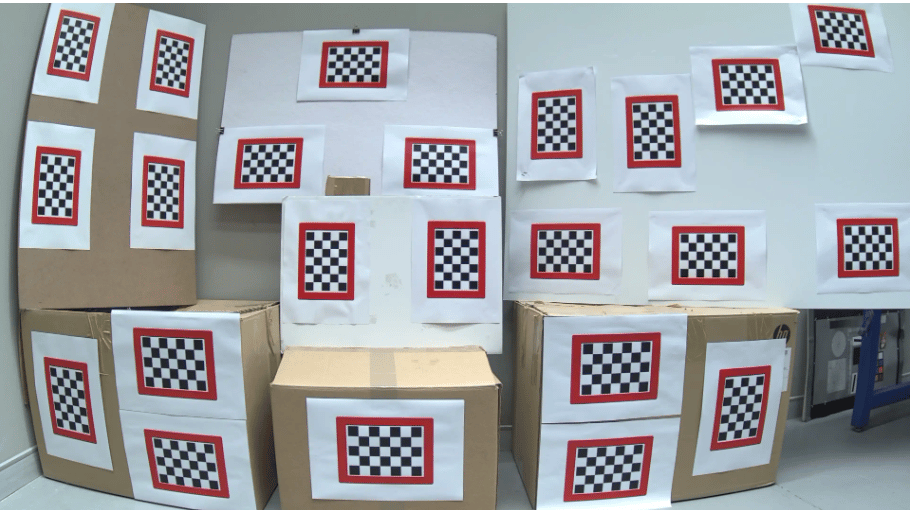
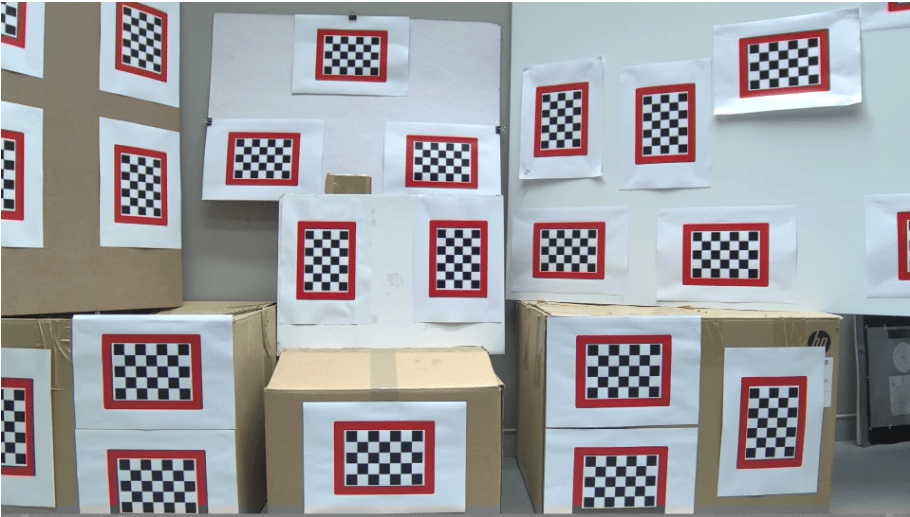
**Description:** The [**gst-camera-shdr-ldc-eis-example**](https://github.com/qualcomm/gst-plugins-imsdk/tree/main/gst-sample-apps/gst-camera-shdr-ldc-eis-example) application shows the staggered high dynamic range (sHDR), lens distortion correction (LDC), and electronic image stabilization (EIS) camera imaging features. For more information, see Overview of camera imaging features.

<Note>
  **Note:** This sample application isn’t supported on Dragonwing IQ-8275 and Dragonwing IQ-9075.
</Note>

The following figure shows the pipeline, where the input is received from the camera and the output is displayed using Waylandsink. For more information about the pipeline, see [Pipeline flow.](#dynamic-range-pipeline-flow)

<img src="https://mintcdn.com/qualcomm-prod/YDSiHowP2IVf4iM5/SDKs/IMSDK/sample-application/images/mm_images/gst_camera_shdr_ldc_eis_example.svg?fit=max&auto=format&n=YDSiHowP2IVf4iM5&q=85&s=84a2cd9c814f95e7335f60b8cacd38ba" alt="wide range pipeline" width="500" height="120" data-path="SDKs/IMSDK/sample-application/images/mm_images/gst_camera_shdr_ldc_eis_example.svg" />

* For sHDR, ensure that the Sensor mode for Digital Overlap mode is enabled and tuned.
* For LDC and EIS, ensure that the sensor and hardware are tuned.

  **Application:** [`gst-camera-shdr-ldc-eis-example`](https://github.com/qualcomm/gst-plugins-imsdk/tree/main/gst-sample-apps/gst-camera-shdr-ldc-eis-example)
<Accordion title="Try me">
  ### Run the application

  <Steps>
    <Step title="Complete prerequisites">
      Ensure that you complete the [Prerequisites](#prerequisites).
    </Step>

    <Step title="In the terminal of the target device, run the respective command for any of the following use cases to display the output:">
      **sHDR**

      ```bash theme={null}
      gst-camera-shdr-ldc-eis-example -s 1 -w 1920 -h 1080
      ```

      <Note>
        **Note:** This use case isn’t supported on the Ubuntu Server.
      </Note>

      **LDC**

      ```bash theme={null}
      gst-camera-shdr-ldc-eis-example -l 1 -w 1920 -h 1080
      ```

      **EIS**

      ```bash theme={null}
      gst-camera-shdr-ldc-eis-example -e 1 -w 1920 -h 1080
      ```
    </Step>

    <Step title="To Stop the running use case">
      Press `Ctrl + C`.
    </Step>

    <Step title="In the terminal of the target device, run the following command to display the available help options:">
      ```bash theme={null}
      gst-camera-shdr-ldc-eis-example --help
      ```
    </Step>
  </Steps>

  ### Expected output

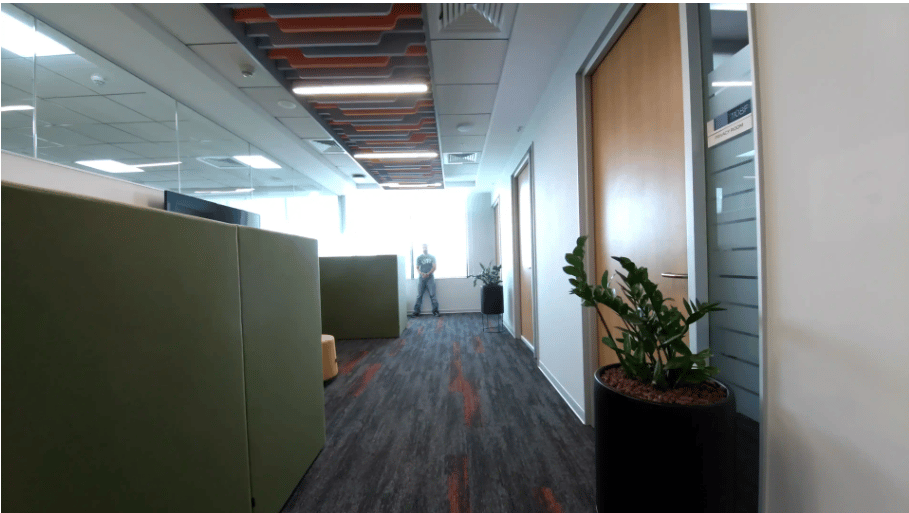
  * sHDR
      <img src="https://mintcdn.com/qualcomm-prod/YDSiHowP2IVf4iM5/SDKs/IMSDK/sample-application/images/mm_images/output-without-sHDR.png?fit=max&auto=format&n=YDSiHowP2IVf4iM5&q=85&s=7d00d0d7b8a78f6d48ec7baed911071b" alt="without sHDR" width="909" height="513" data-path="SDKs/IMSDK/sample-application/images/mm_images/output-without-sHDR.png" />
    **Figure: Output without sHDR**
      <img src="https://mintcdn.com/qualcomm-prod/YDSiHowP2IVf4iM5/SDKs/IMSDK/sample-application/images/mm_images/output-with-sHDR.png?fit=max&auto=format&n=YDSiHowP2IVf4iM5&q=85&s=8ec043f43d1d17e742cb86b35b01ff2c" alt="with sHDR" width="909" height="511" data-path="SDKs/IMSDK/sample-application/images/mm_images/output-with-sHDR.png" />
    **Figure: Output with sHDR**
  * LDC
      <img src="https://mintcdn.com/qualcomm-prod/YDSiHowP2IVf4iM5/SDKs/IMSDK/sample-application/images/mm_images/output-without-LDC.png?fit=max&auto=format&n=YDSiHowP2IVf4iM5&q=85&s=0b8d0247e65134977273367964faf046" alt="without LDC" width="910" height="510" data-path="SDKs/IMSDK/sample-application/images/mm_images/output-without-LDC.png" />
    **Figure: Output without LDC**
      <img src="https://mintcdn.com/qualcomm-prod/YDSiHowP2IVf4iM5/SDKs/IMSDK/sample-application/images/mm_images/output-with-LDC.png?fit=max&auto=format&n=YDSiHowP2IVf4iM5&q=85&s=afdd0fb52118bf4d155460c90321286e" alt="with LDC" width="910" height="517" data-path="SDKs/IMSDK/sample-application/images/mm_images/output-with-LDC.png" />
    **Figure: Output with LDC**

  <h3 id="dynamic-range-pipeline-flow">
    Pipeline flow
  </h3>

  The following table lists the plugins used in the gst-camera-shdr-ldc-eis-example pipeline:

  <table>
    <thead>
      <tr>
        <th>Plugin</th>
        <th>Description</th>
      </tr>
    </thead>

    <tbody>
      <tr>
        <td>qticamsrc</td>

        <td>
          <ol>
            Captures the camera feed and sends it to the capsfilter.
          </ol>
        </td>
      </tr>

      <tr>
        <td>Capsfilter</td>

        <td>
          <ol>
            Passes the feed for display.
          </ol>
        </td>
      </tr>

      <tr>
        <td>waylandsink</td>

        <td>
          <ol>
            Shows the output on the Wayland display.
          </ol>
        </td>
      </tr>
    </tbody>
  </table>

  ### Overview of camera imaging features

  The following table provides a brief description of the supported imaging features:

  **Table : Camera imaging features**

  <table>
    <thead>
      <tr>
        <th>Feature</th>
        <th>Description</th>
      </tr>
    </thead>

    <tbody>
      <tr>
        <td>sHDR</td>

        <td>
          <ol>
            * The video high dynamic range feature is supported on camera sensors that operate in the Digital Overlap mode.
            * The fusion of the low and high exposure frames is enabled in the processor GPU.
            * Use the sHDR flag to enable the sHDR mode.
          </ol>
        </td>
      </tr>

      <tr>
        <td>LDC</td>

        <td>
          <ol>
            * A GPU-based LDC algorithm is supported to rectify barrel distortion artifacts that are inherent with wide field of vision (FoV) lens.
            * Use the LDC flag to enable the LDC mode.
          </ol>
        </td>
      </tr>

      <tr>
        <td>EIS</td>

        <td>
          <ol>
            * A GPU-based EIS algorithm is supported.
            * Use the EIS flag to enable the EIS mode.
          </ol>
        </td>
      </tr>
    </tbody>
  </table>
</Accordion>

***

### Snapshot Stream

**Description:** The [**gst-snapshot-stream-example**](https://github.com/qualcomm/gst-plugins-imsdk/tree/main/gst-sample-apps/gst-snapshot-stream-example) application allows you to generate two streams: a preview stream for live display and a snapshot stream that captures images and saves them as JPEG files.
For the snapshot stream, you can determine the number of snapshots.

<Note>
  **Note:** This sample application isn’t supported on Dragonwing IQ-8275 and Dragonwing IQ-9075.
</Note>

The following figure shows the pipeline, which allows for simultaneous live preview and snapshot capture from the same video source.
For more information, see [Pipeline flow.](#snapshot-pipeline-flow)

<img src="https://mintcdn.com/qualcomm-prod/YDSiHowP2IVf4iM5/SDKs/IMSDK/sample-application/images/mm_images/gst_snapshot_stream_example_pipeline.svg?fit=max&auto=format&n=YDSiHowP2IVf4iM5&q=85&s=8b51c20e965ff92744e4bbe323600131" alt="Snapshot pipeline" width="610" height="200" data-path="SDKs/IMSDK/sample-application/images/mm_images/gst_snapshot_stream_example_pipeline.svg" />

**Figure: gst-snapshot-stream-example pipeline**

**Application:** [`gst-snapshot-stream-example`](https://github.com/qualcomm/gst-plugins-imsdk/tree/main/gst-sample-apps/gst-snapshot-stream-example)

<Accordion title="Try me">
  ### Run the application

  <Steps>
    <Step title="Complete prerequisites">
      Ensure that you complete the [Prerequisites](#prerequisites).
    </Step>

    <Step title="In the terminal of the target device, use the following command to run the use case. Specify the application with parameters, such as camera width, height, and the maximum snapshot count for dumping JPEG files.">
      ```bash theme={null}
      gst-snapshot-stream-example -W 1280 -H 720 -w 3840 -h 2160 -c 5
      ```
    </Step>

    <Step title="To Stop the running use case">
      Press `Ctrl + C`.
    </Step>

    <Step title="In the terminal of the target device, run the following command to display the available help options:">
      ```bash theme={null}
      gst-snapshot-stream-example --help
      ```
    </Step>
  </Steps>

  ### Expected output

  The application generates an output for preview on the display and dumps the JPEG files in the respective location on the device.
  After the use case stops, the snapshot output files are available at the `/etc/media/` path.

  <h3 id="snapshot-pipeline-flow">
    Pipeline flow
  </h3>

  The following table lists the plugins used in the live snapshot pipeline:

  <table>
    <thead>
      <tr>
        <th>Plugin</th>
        <th>Description</th>
      </tr>
    </thead>

    <tbody>
      <tr>
        <td>qticamsrc</td>

        <td>
          <ol>
            <li><code>qticamsrc</code> captures the video stream and feeds it into the capsfilter.</li>
          </ol>
        </td>
      </tr>

      <tr>
        <td>Capsfilter</td>

        <td>
          <ul>
            <li>Branches the source into two separate pipelines. In one pipeline, the constraints on the raw video data are enforced, and then the video data is sent to `waylandsink` for live preview.</li>

            <li>
              In the other pipeline:

              <ol>
                <li>The frames are written to multiple files using multi filesink.</li>
                <li>The snapshots or frames from the video stream are saved to a disk.</li>
              </ol>
            </li>
          </ul>
        </td>
      </tr>
    </tbody>
  </table>
</Accordion>

***

### Camera frame processing

**Description:** The [gst-appsink-example](https://github.com/qualcomm/gst-plugins-imsdk/tree/main/gst-sample-apps/gst-appsink-example) application allows you to extract the buffer samples from a camera pipeline. These buffers can configure the camera resolution with the options such as width and height.

For example, the appsink plugin can be used for a multimedia application that processes the video frame samples in real-time. Filters or transformations can be applied to the data before playing it back.

The following figure shows the pipeline, which configures the camera resolution using parameters such as width and height. When appsink emits a signal indicating the availability of a new sample in the pipeline, the application extracts the buffer from this sample.

For information about the plugins used in this pipeline, see [Pipeline flow.](#appsink-pipeline)

<img src="https://mintcdn.com/qualcomm-prod/YDSiHowP2IVf4iM5/SDKs/IMSDK/sample-application/images/mm_images/gst_appsink_example_pipeline.svg?fit=max&auto=format&n=YDSiHowP2IVf4iM5&q=85&s=28632bd8bf957e2c6e8d86fd9e19ebca" alt="Appsink pipeline : gst-appsink-example pipeline" width="500" height="110" data-path="SDKs/IMSDK/sample-application/images/mm_images/gst_appsink_example_pipeline.svg" />

**Figure : gst-appsink-example pipeline**

**Application:** [`gst-appsink-example`](https://github.com/qualcomm/gst-plugins-imsdk/tree/main/gst-sample-apps/gst-appsink-example)
<Accordion title="Try me">
  ### Run the application

  <Steps>
    <Step title="Complete prerequisites">
      Ensure that you complete the [Prerequisites.](#prerequisites)
    </Step>

    <Step title="In the terminal of the target device, run the use case">
      ```bash theme={null}
      gst-appsink-example -w 1920 -h 1080
      ```
    </Step>

    <Step title="To stop the running use case">
      Press `CTRL + C`.
    </Step>

    <Step title="In the terminal of the target device, run the following command to display the available help options:">
      ```bash theme={null}
      gst-appsink-example --help
      ```
    </Step>
  </Steps>

  ### Expected output

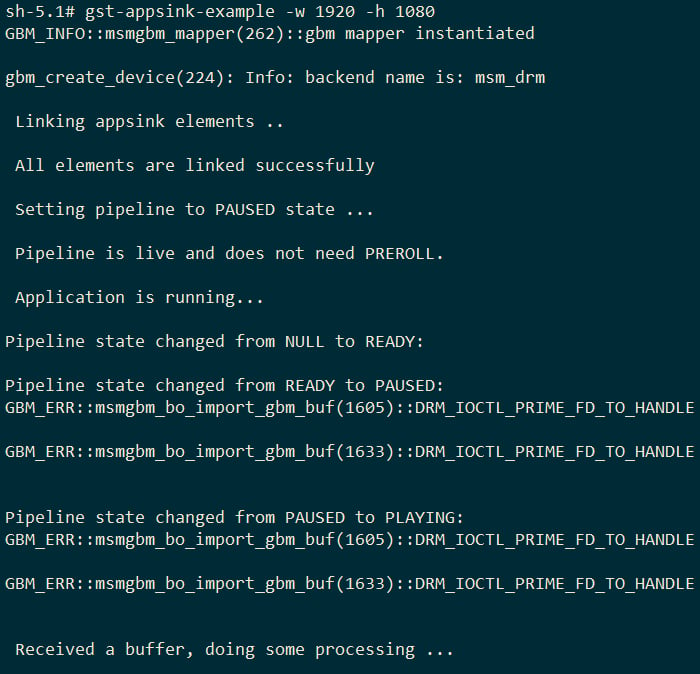
  The user interface displays the following message:

  ```text theme={null}
  Received a buffer, doing some processing.
  ```

  <img src="https://mintcdn.com/qualcomm-prod/YDSiHowP2IVf4iM5/SDKs/IMSDK/sample-application/images/mm_images/appsink-output.png?fit=max&auto=format&n=YDSiHowP2IVf4iM5&q=85&s=59a1c48a734da1f1d05b1e9725b039d8" alt="Appsink output : Expected output for gst-appsink-example application" width="700" height="674" data-path="SDKs/IMSDK/sample-application/images/mm_images/appsink-output.png" />

  **Figure : Expected output for gst-appsink-example application**

  <h3 id="appsink-pipeline">
    Pipeline flow
  </h3>

  The following table lists the plugins used in the camera frame processing pipeline:

  | Plugin       | Description                                                |
  | ------------ | ---------------------------------------------------------- |
  | `qticamsrc`  | Captures the camera feed and sends it into the capsfilter. |
  | `Capsfilter` | Ensures that the video stream is in the correct format.    |
  | `Appsink`    | Provides the video data as an output to an application.    |
</Accordion>

***

### Camera metadata

**Description:** The [gst-camera-metadata-example](https://github.com/qualcomm/gst-plugins-imsdk/tree/main/gst-sample-apps/gst-camera-metadata-example) application starts with a menu that allows you to choose between multiple properties of the camera plugin such as `video-metadata`, `static-metadata`, and `image-metadata`.

A practical use case for this application is handling camera metadata such as white balance, International Organization for Standardization (ISO) sensitivity, and exposure to tune the camera.

The following figure shows the execution of appsink when a new sample is available in the pipeline. The application is run from the command-line with specific options for custom pipeline, display type, and timestamp location.

For information about the plugins used in this pipeline, see [Pipeline flow.](#camera-metadata-pipeline)

<img src="https://mintcdn.com/qualcomm-prod/YDSiHowP2IVf4iM5/SDKs/IMSDK/sample-application/images/mm_images/gst_camera_metadata_example_pipeline.svg?fit=max&auto=format&n=YDSiHowP2IVf4iM5&q=85&s=65d32c08da54762ab7cef3eb686e1b1c" alt="camera metadata : gst-camera-metadata-example pipeline" width="530" height="180" data-path="SDKs/IMSDK/sample-application/images/mm_images/gst_camera_metadata_example_pipeline.svg" />

**Figure : gst-camera-metadata-example pipeline**

**Application:** [`gst-camera-metadata-example`](https://github.com/qualcomm/gst-plugins-imsdk/tree/main/gst-sample-apps/gst-camera-metadata-example)
<Accordion title="Try me">
  ### Run the application

  <Steps>
    <Step title="Complete prerequisites">
      Ensure that you complete the [Prerequisites.](#prerequisites)
    </Step>

    <Step title="In the terminal of the target device, run the following use case:">
      Camera metadata use case with output on Waylandsink:

      ```bash theme={null}
      gst-camera-metadata-example
      ```

      Camera metadata use case without Waylandsink:

      ```bash theme={null}
      gst-camera-metadata-example -d 0
      ```

      Dump metadata of saturation:

      ```bash theme={null}
      gst-camera-metadata-example -d 0 -r "org.codeaurora.qcamera3. saturation use_saturation"
      ```

      Dump metadata of exposureTime:

      ```bash theme={null}
      gst-camera-metadata-example -d 0 -r "spectra.sensor exposureTime"
      ```
    </Step>

    <Step title="To stop the use case">
      Press `CTRL + C`.
    </Step>

    <Step
      title="In the terminal of the target device, run the following command to display the available help options:

"
    >
      ```bash theme={null}
      gst-camera-metadata-example --help
      ```
    </Step>
  </Steps>

  ### Expected output

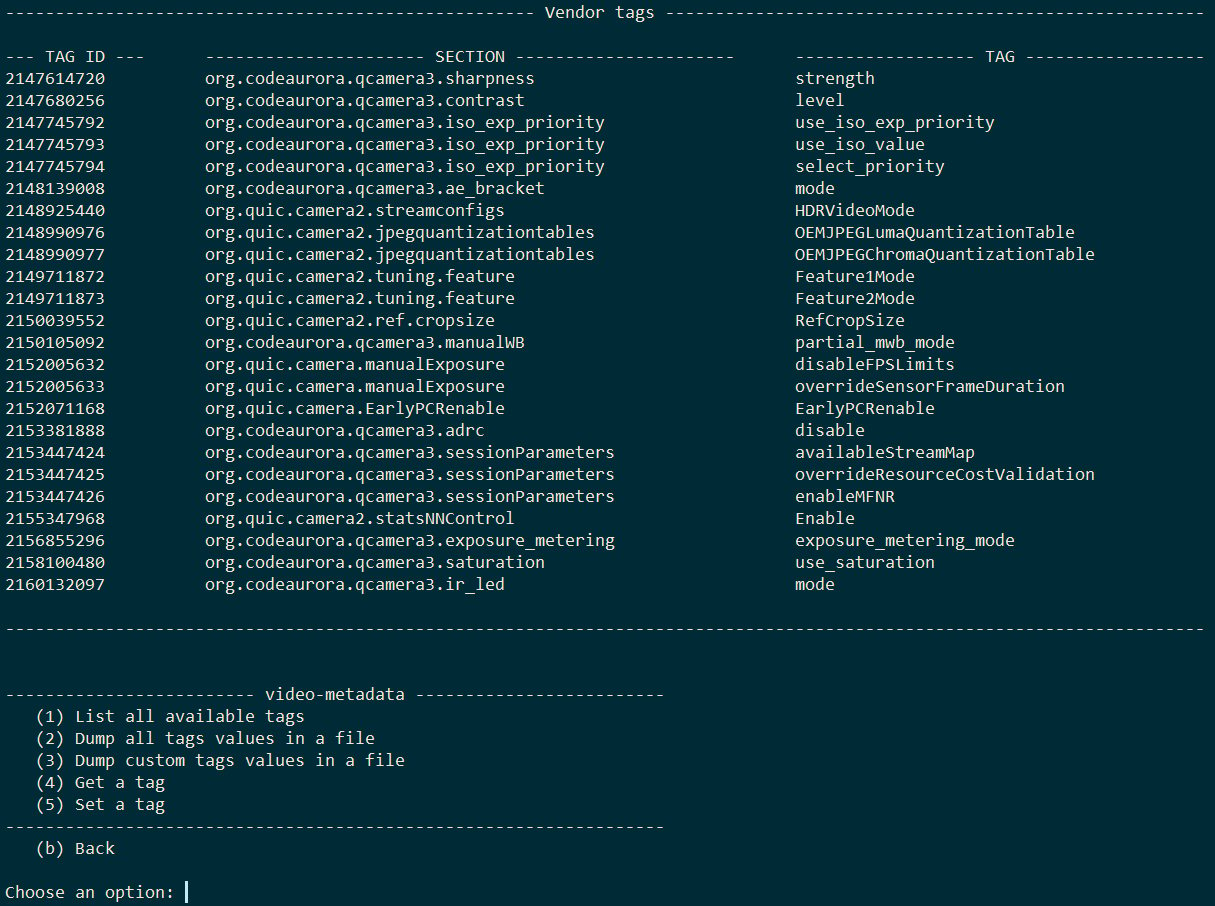
  * During the execution, the application requires the command-line options to output the camera metadata and options available to set or get the vendor tags.
  * On successful execution of the application, you can find and dump the respective metadata information.

  <img src="https://mintcdn.com/qualcomm-prod/YDSiHowP2IVf4iM5/SDKs/IMSDK/sample-application/images/mm_images/camera-metadata-output.png?fit=max&auto=format&n=YDSiHowP2IVf4iM5&q=85&s=fdf4a25476d75d3b64fb35a98715580c" alt="camera metadata output : Expected output for gst-camera-metadata-example application" width="1215" height="906" data-path="SDKs/IMSDK/sample-application/images/mm_images/camera-metadata-output.png" />

  **Figure : Expected output for gst-camera-metadata-example application**

  <h3 id="camera-metadata-pipeline">
    Pipeline flow
  </h3>

  The following table lists the plugins used in the camera metadata pipeline:

  | Plugin       | Description                                                                                               |
  | ------------ | --------------------------------------------------------------------------------------------------------- |
  | `qticamsrc`  | Captures the camera feed and sends it into the capsfilter.                                                |
  | `Capsfilter` | Passes the feed to waylandsink for display. If display option isn’t provided, passes the feed to appsink. |

  The application extracts the buffer from the sample for further processing. During execution, the application expects an argument on which the following options should be displayed on the console.

  * Video metadata
  * Image metadata
  * Static metadata
  * Session metadata

  Based on the options selected, the application displays the output on the console.

  ### Known issue

  When the GetTag menu option is selected, the capture options don’t work.
</Accordion>

***

### Camera stream configuration

**Description:** The [gst-add-streams-as-bundle-example](https://github.com/qualcomm/gst-plugins-imsdk/tree/main/gst-sample-apps/gst-add-streams-as-bundle-example) application allows you to activate and configure camera streams as a bundle instead of configuring each stream one at a time thus reducing the delay in configuring new streams.

The following figure shows the pipeline, which takes the configuration parameters such as width and height, processes to either display on a screen, or encodes and saves to a file. For more information about the plugins used in the pipeline, see [Pipeline flow.](#add-stream-as-bundle)

<img src="https://mintcdn.com/qualcomm-prod/YDSiHowP2IVf4iM5/SDKs/IMSDK/sample-application/images/mm_images/gst_add_streamsas_bundle_example_pipeline.svg?fit=max&auto=format&n=YDSiHowP2IVf4iM5&q=85&s=be361fecf4f845297ad764f3311b55a9" alt="add stream as bundle pipeline: gst-add-streams-as-bundle-example pipeline" width="1080" height="213" data-path="SDKs/IMSDK/sample-application/images/mm_images/gst_add_streamsas_bundle_example_pipeline.svg" />

**Figure : gst-add-streams-as-bundle-example pipeline**

**Application:** [`gst-add-streams-as-bundle-example`](https://github.com/qualcomm/gst-plugins-imsdk/tree/main/gst-sample-apps/gst-add-streams-as-bundle-example)
<Accordion title="Try me">
  ### Run the application

  <Steps>
    <Step title="Complete prerequisites">
      Ensure that you complete the [Prerequisites.](#prerequisites)
    </Step>

    <Step title="In the terminal of the target device,run the use case:">
      ```bash theme={null}
      gst-add-streams-as-bundle-example <OPTION>
      ```
    </Step>

    <Step title="Run for various use cases">
      Preview the stream:

      ```bash theme={null}
      gst-add-streams-as-bundle-example -o Display
      ```

      Encode the stream and save it to a file:

      ```bash theme={null}
      gst-add-streams-as-bundle-example -o File
      ```

      The encoded stream is saved at `/etc/media/video_%d.mp4`.
    </Step>

    <Step title="To stop the running use case">
      Use CTRL + C.
    </Step>

    <Step title="In the terminal of the target device, run the following command to display the available help options:">
      ```bash theme={null}
      gst-add-streams-as-bundle-example --help
      ```
    </Step>

    <Step title="In the terminal of the host computer, run the following command to pull the files from the target device:">
      ```bash theme={null}
      scp root@<IP address of target device>:/etc/media/<filename to pull>
      ```
    </Step>
  </Steps>

  ### Expected output

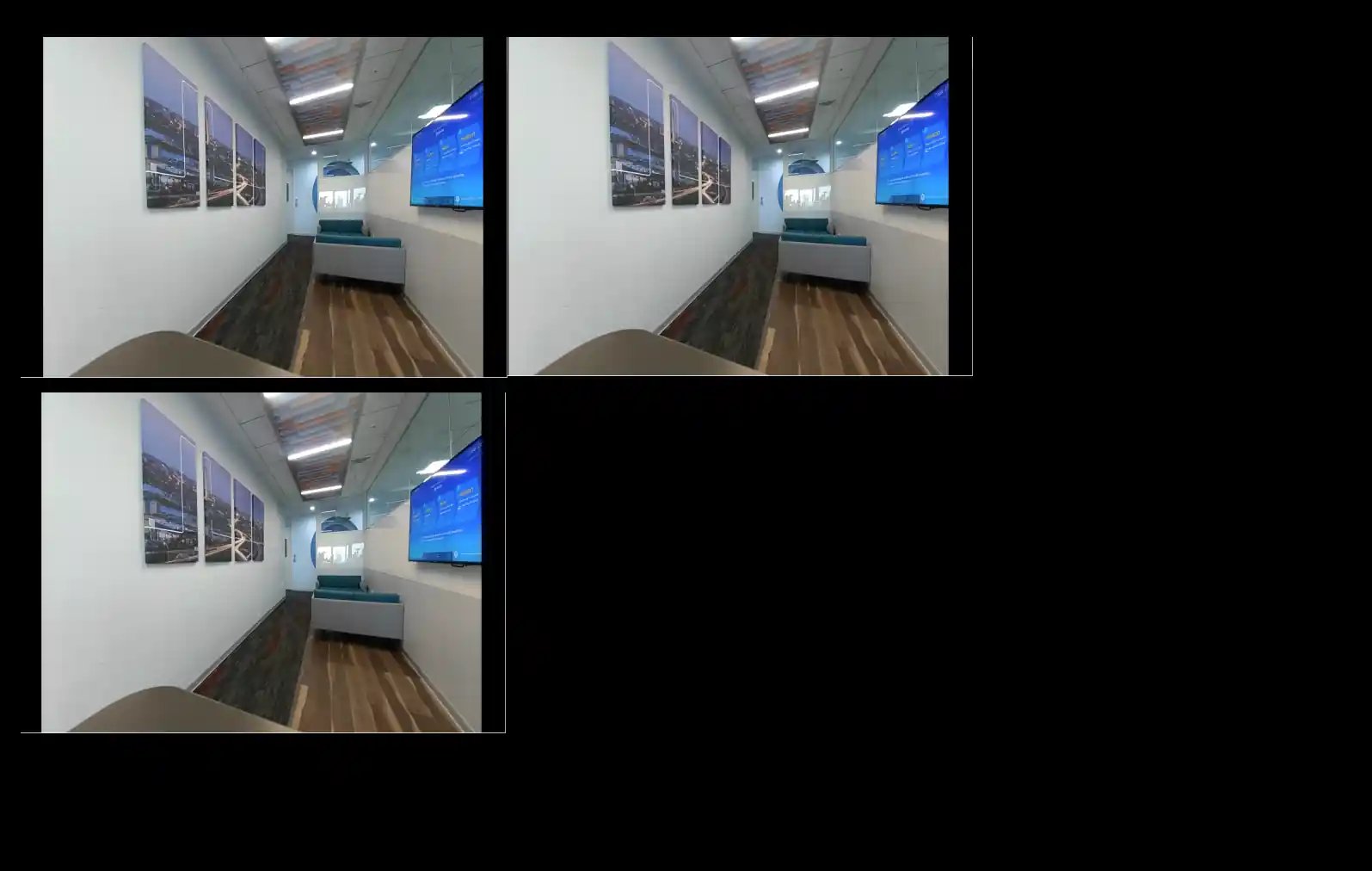
  One stream is sent to display and the other stream is saved to a file.

  <img src="https://mintcdn.com/qualcomm-prod/YDSiHowP2IVf4iM5/SDKs/IMSDK/sample-application/images/mm_images/add-stream-as-bundle-output.png?fit=max&auto=format&n=YDSiHowP2IVf4iM5&q=85&s=f7c73c479cd4b93ac9f89e79e5c8d71f" alt="Add stream as bundle : Expected output for gst-add-streams-as-bundle-example application" width="1595" height="1012" data-path="SDKs/IMSDK/sample-application/images/mm_images/add-stream-as-bundle-output.png" />

  **Figure : Expected output for gst-add-streams-as-bundle-example application**

  <h3 id="add-stream-as-bundle">
    Pipeline flow
  </h3>

  The following table lists the plugins used in the camera stream configuration pipeline:

  | Plugin       | Description                                                                                                                                                                                                                                                                                                            |
  | ------------ | ---------------------------------------------------------------------------------------------------------------------------------------------------------------------------------------------------------------------------------------------------------------------------------------------------------------------- |
  | `qticamsrc`  | Captures the video stream and feeds it into the capsfilter.                                                                                                                                                                                                                                                            |
  | `Capsfilter` | Branches the source into two separate pipelines. In one pipeline, the output is sent to waylandsink for display. In the other pipeline, the video undergoes the following: 1. Encoded using v4l2h264enc. 2. Parsed with h264parse. 3. Multiplexed into an MP4 format with mp4mux. 4. Written to a file using filesink. |

  ### Known issue

  The application doesn't work due to video encoder issue.
</Accordion>

***

### Camera Burst Capture

**Description:** The [**gst-camera-burst-capture-example**](https://github.com/qualcomm/gst-plugins-imsdk/tree/main/gst-sample-apps/gst-camera-burst-capture-example)  application allows you to capture snapshots in the Burst mode. It captures five burst snapshots delayed by a 10-second timer and displays the snapshots on a screen.

<Note>
  **Note:** This sample application isn’t supported on Dragonwing IQ-8275 and Dragonwing IQ-9075.
</Note>

The following figure shows the pipeline, which captures the snapshots and processes them in using one of the following three branches:

* They’re displayed on the screen.
* They’re encoded and saved to a file.
* They’re saved to a buffer and based on the capture format (BAYER/RAW/JPEG), saved to the device storage.

  For more information about the plugins used in the pipeline, see [Pipeline flow.](#burst-capture-pipeline-flow)

  <img src="https://mintcdn.com/qualcomm-prod/YDSiHowP2IVf4iM5/SDKs/IMSDK/sample-application/images/mm_images/gst_camera_burst_capture_example_pipeline.svg?fit=max&auto=format&n=YDSiHowP2IVf4iM5&q=85&s=b25a610067f7bd71fa629b2c051dcb12" alt="camera burst pipeline" width="920" height="260" data-path="SDKs/IMSDK/sample-application/images/mm_images/gst_camera_burst_capture_example_pipeline.svg" />

  **Figure: gst-camera-burst-capture-example pipeline**

**Application:** [`gst-camera-burst-capture-example`](https://github.com/qualcomm/gst-plugins-imsdk/tree/main/gst-sample-apps/gst-camera-burst-capture-example)

<Accordion title="Try me">
  ### Run the application

  <Steps>
    <Step title="Complete prerequisites">
      Ensure that you complete the [Prerequisites](#prerequisites).
    </Step>

    <Step title="In the terminal of the target device, run the respective command for any of the following use cases:">
      **Display stream and JPEG capture:**

      ```bash theme={null}
      gst-camera-burst-capture-example -w 1280 -h 720 -p 1 -c 0
      ```

      **Encode stream and JPEG capture:**

      ```bash theme={null}
      gst-camera-burst-capture-example -w 1280 -h 720 -p 0 -c 0
      ```
    </Step>

    <Step title="To Stop the running use case">
      Press `Ctrl + C`.
    </Step>

    <Step title="In the terminal of the target device, run the following command to display the available help options:">
      ```bash theme={null}
      gst-camera-burst-capture-example --help
      ```
    </Step>

    <Step title="In the terminal of the host computer, run the following command to pull the files from the target device:">
      ```bash theme={null}
      scp root@<IP address of target device>:/etc/media/<filename to pull>
      ```
    </Step>
  </Steps>

  ### Expected output

  * If you choose to display the stream, the snapshots are displayed on the screen.
  * If you choose to encode the stream, the encoded stream is saved at `/etc/media/video_%d.mp4`.

  <h3 id="burst-capture-pipeline-flow">
    Pipeline flow
  </h3>

  The following table lists the plugins used in the camera burst capture pipeline:

  <table>
    <thead>
      <tr>
        <th>Pipeline</th>
        <th>Description</th>
      </tr>
    </thead>

    <tbody>
      <tr>
        <td>Display preview</td>

        <td>
          <ol>
            <li>`qticamsrc` captures the camera live stream and uses capsfilter to create a branch for preview.</li>
            <li>The data is sent to the Wayland display sink (`waylandsink`) for preview.</li>
          </ol>
        </td>
      </tr>

      <tr>
        <td>Encode and save to a file</td>

        <td>
          <ol>
            <li>`qticamsrc` captures the camera live stream and uses capsfilter to create a branch for encoding.</li>
            <li>The snapshots are encoded.</li>
            <li>H264parse is used to parse the captured data.</li>
            <li>Mp4mux is used to multiplex the data.</li>
          </ol>
        </td>
      </tr>

      <tr>
        <td>BAYER/RAW/JPEG dump</td>

        <td>
          <ol>
            <li>`qticamsrc` captures the camera live stream and uses capsfilter to create a branch for preview.</li>
            <li>Appsink is used to capture callback and save the snapshots in the storage dump.</li>
          </ol>
        </td>
      </tr>
    </tbody>
  </table>

  ### Known issue

  The test cases for 144p and 240p resolutions are failing.
</Accordion>

***

### RTMP Streaming

**Description:** The [**gst-rtmp-stream-example**](https://github.com/qualcomm/gst-plugins-imsdk/tree/main/gst-sample-apps/gst-rtmp-stream-example) application uses the input from ISP or RTSP camera source to generate RTMP streams on a Waylandsink. You can use this application as a reference to develop and configure new applications.
This application is primarily targeted for security systems and media broadcasting, where a video from RTSP source or camera source streams across a network. You can either view the stream or archive it for future review.

The following figure shows the pipeline involved in RTMP streaming with different sources. For more information about the elements used in this pipeline, see [Pipeline flow.](#rtmp-streaming-pipeline-flow)

<img src="https://mintcdn.com/qualcomm-prod/YDSiHowP2IVf4iM5/SDKs/IMSDK/sample-application/images/mm_images/gst-rtmp-stream-example.svg?fit=max&auto=format&n=YDSiHowP2IVf4iM5&q=85&s=bb28db0cc0e856023d4ddaa8e99a6f66" alt="RTMP streaming pipeline" width="970" height="220" data-path="SDKs/IMSDK/sample-application/images/mm_images/gst-rtmp-stream-example.svg" />

**Figure: gst-rtmp-stream-example pipeline**

**Application:** [`gst-rtmp-stream-example`](https://github.com/qualcomm/gst-plugins-imsdk/tree/main/gst-sample-apps/gst-rtmp-stream-example)

<Accordion title="Try me">
  ### Run the application

  <Steps>
    <Step title="Complete prerequisites">
      Ensure that you complete the [Prerequisites](#prerequisites).
    </Step>

    <Step title="In the terminal of the target device, download and run the RTMP server:">
      ```bash theme={null}
      docker pull tiangolo/nginx-rtmp
      docker run -d -p 1935:1935 --name nginx-rtmp tiangolo/nginx-rtmp
      ```
    </Step>

    <Step title="In the terminal of the target device, select any of the following use cases and run the respective command:">
      **RTSP camera AVC to RTMP use case:**

      ```bash theme={null}
      gst-rtmp-stream-example  -u 0 -d rtmp://<192.168.1.171/>live/01 -r <rtsp://admin:qualcomm1@192.168.1.252:554/Streaming/Channels/101 ! >
      ```

      **ISP camera to RTMP use case:**

      ```bash theme={null}
      gst-rtmi-camera-stream-example  -u 1 -d rtmp://192.168.1.171/live/01
      ```
    </Step>

    <Step title="In the terminal of the target device, run the following command to connect VLC to the stream:">
      ```bash theme={null}
      rtmp://192.168.1.171/live/01
      ```

      In this command, replace `rtmp://192.168.1.171/live/01` with the IP address of your device.
    </Step>

    <Step title="In the terminal of the target device, run the following commands to stop the RTMP server:">
      ```bash theme={null}
      docker stop nginx-rtmp
      docker rm nginx-rtmp
      ```
    </Step>

    <Step title="To Stop the running use case">
      Press `Ctrl + C`.
    </Step>

    <Step title="In the terminal of the target device, run the following command to display the available help options:">
      ```bash theme={null}
      gst-rtmp-stream-example --help

      ```
    </Step>
  </Steps>

  ### Expected output

  The output is displayed on a Waylandsink.

  <h3 id="rtmp-streaming-pipeline-flow">
    Pipeline flow
  </h3>

  The following table lists the plugins used in the RTMP stream pipeline:

  <table>
    <thead>
      <tr>
        <th>Plugin</th>
        <th>Description</th>
      </tr>
    </thead>

    <tbody>
      <tr>
        <td>qticamsrc</td>

        <td>
          <ol>
            <li>`qticamsrc` Captures the camera feed and sends it into the capsfilter.</li>
          </ol>
        </td>
      </tr>

      <tr>
        <td>Capsfilter</td>

        <td>
          <ol>
            <li>Passes the feed to `waylandsink` for display.</li>
            <li>If display option isn’t provided, passes the feed to appsink.</li>
          </ol>
        </td>
      </tr>

      <tr>
        <td>v4l2h264enc</td>

        <td>
          <ol>
            <li>Encodes the video for AVC (H.264) format.</li>
          </ol>
        </td>
      </tr>

      <tr>
        <td>h264parse</td>

        <td>
          <ol>
            <li>Parses the H.264 video.</li>
          </ol>
        </td>
      </tr>

      <tr>
        <td>flvmux</td>

        <td>
          <ol>
            <li>Wraps the video into an FLV container</li>
          </ol>
        </td>
      </tr>

      <tr>
        <td>rtmp2sink</td>

        <td>
          <ol>
            <li>Transmits to an RTMP server for live streaming.</li>
          </ol>
        </td>
      </tr>
    </tbody>
  </table>
</Accordion>

***

### Smart Codec

**Description:** The [**gst-smartcodec-example**](https://github.com/qualcomm/gst-plugins-imsdk/tree/main/gst-sample-apps/gst-smartcodec-example) application reduces bandwidth and storage resources based on scene change estimate thresholds.
The smart codec plugin, `qtismartvencbin`, uses smart fps, smart I-frame, smart bit rate, and smart ROI to do the following:

* Decrease the bit rate without compromising the quality.
* Enable efficient use of network and storage resources.

The following figure shows the pipeline flow for a two-stream use case. For more information, see [Pipeline flow.](#smartcodec-pipeline-flow)

<img src="https://mintcdn.com/qualcomm-prod/YDSiHowP2IVf4iM5/SDKs/IMSDK/sample-application/images/mm_images/gst_smartcodec_example_pipeline_twostreams.svg?fit=max&auto=format&n=YDSiHowP2IVf4iM5&q=85&s=01d3ea993e164a54ba60834460aa8957" alt="Smart codec pipeline" width="1056" height="212" data-path="SDKs/IMSDK/sample-application/images/mm_images/gst_smartcodec_example_pipeline_twostreams.svg" />

**Figure: gst-smartcodec-example pipeline for two streams**

**Application:** [`gst-smartcodec-example`](https://github.com/qualcomm/gst-plugins-imsdk/tree/main/gst-sample-apps/gst-smartcodec-example)

<Accordion title="Try me">
  ### Run the application

  <Steps>
    <Step title="Complete prerequisites">
      Ensure that you complete the [Prerequisites](#prerequisites).
    </Step>

    <Step title="In the terminal of the target device, run the use case with a camera source:">
      ```bash theme={null}
      gst-smartcodec-example -w 1920 -h 1080 -o /etc/media/video.mp4
      ```
    </Step>

    <Step title="To Stop the running use case">
      Press `Ctrl + C`.
    </Step>

    <Step title="In the terminal of the target device, run the following command to display the available help options:">
      ```bash theme={null}
      gst-smartcodec-example --help
      ```
    </Step>
  </Steps>

  ### Expected output

  The application generates the output as an encoded MP4 file.
  The following table lists the file sizes of a 1080p video with and without smart codec.
  **Table:Smart codec–file sizes**

  | Smart codec | File size |
  | ----------- | --------- |
  | Enabled     | 3718 KB.  |
  | Disabled    | 17706 KB. |

  <h3 id="smartcodec-pipeline-flow">
    Pipeline flow
  </h3>

  The following table lists the plugins used in the smart codec pipeline:

  <table>
    <thead>
      <tr>
        <th>Plugin</th>
        <th>Description</th>
      </tr>
    </thead>

    <tbody>
      <tr>
        <td>qticamsrc</td>

        <td>
          <ul>
            <li>Captures the video stream.</li>
            <li>Feeds the stream to capsfilter.</li>
          </ul>
        </td>
      </tr>

      <tr>
        <td>Capsfilter</td>

        <td>
          <ul>
            <li>Branches the source into two separate pipelines. In one pipeline, qtismartvencbin processes the output.</li>

            <li>
              <li>In the other pipeline, the video undergoes the following:</li>

              * Encoded using v4l2h264enc.
              * Parsed with h264parse.
              * Multiplexed into an MP4 format with mp4mux.
                * Written to a file using filesink.
            </li>
          </ul>
        </td>
      </tr>
    </tbody>
  </table>
</Accordion>

***

### GstD single camera streaming

**Description:** The [**GstD-camera-single-stream-example**](https://github.com/qualcomm/gst-plugins-imsdk/tree/main/gst-sample-apps/GstD-camera-single-stream-example) shows how to use a menu‑driven GstD application to create and control a single‑camera pipeline with configurable resolution. The application supports live preview, MP4 recording, and raw YUV dumping, and manages the GStreamer pipeline lifecycle cleanly for capture and archival use cases.

The following figure shows the pipeline flow for various single camera stream use case. For more information, see [Pipeline flow.](#gstd-pipeline-flow)

<img src="https://mintcdn.com/qualcomm-prod/YDSiHowP2IVf4iM5/SDKs/IMSDK/sample-application/images/mm_images/gst_camera_source_bin_single_stream_example_pipeline.svg?fit=max&auto=format&n=YDSiHowP2IVf4iM5&q=85&s=5fbd7eb49c21f03ef2b4d3719d5cb64d" alt="GstD pipeline" width="1100" height="413" data-path="SDKs/IMSDK/sample-application/images/mm_images/gst_camera_source_bin_single_stream_example_pipeline.svg" />

**Figure: GstD-camera-single-stream-example pipeline**

**Application:** [`GstD-camera-single-stream-example`](https://github.com/qualcomm/gst-plugins-imsdk/tree/main/gst-sample-apps/GstD-camera-single-stream-example)

<Accordion title="Try me">
  ### Run the application

  <Steps>
    <Step title="Complete prerequisites">
      Ensure that you complete the [Prerequisites](#prerequisites).
    </Step>

    <Step title="In the terminal of the target device, select any of the following use cases and run the respective command:">
      **Live camera use case:** View the live camera on Waylandsink:

      ```bash theme={null}
      GstD-camera-single-stream-example -o 0 -W 1280 -H 720
      ```

      **MP4 use case:** Dump the MP4 to the `/opt` folder:

      ```bash theme={null}
      GstD-camera-single-stream-example -o 1
      ```

      **YUV use case:** Dump the YUV data to the `/opt` folder:

      ```bash theme={null}
      GstD-camera-single-stream-example -o 2 -W 640 -H 480
      ```
    </Step>

    <Step title="To Stop the running use case">
      Press `Ctrl + C`.
    </Step>

    <Step title="In the terminal of the target device, run the following command to display the available help options:">
      ```bash theme={null}
      GstD-camera-single-stream-example --help
      ```
    </Step>

    <Step title="In the terminal of the host computer, run the following command to pull the files from the target device:">
      ```bash theme={null}
      scp root@<IP address of target device>:/opt/<filename to pull> <destination directory>
      ```
    </Step>
  </Steps>

  ### Expected output

  The following table lists the expected output based on the selected use case.

  <img src="https://mintcdn.com/qualcomm-prod/YDSiHowP2IVf4iM5/SDKs/IMSDK/sample-application/images/mm_images/Camera-Preview-Output.png?fit=max&auto=format&n=YDSiHowP2IVf4iM5&q=85&s=dfab10a933b949e4ba7ab5d7cbee43b7" alt="GstD camera Output" width="954" height="488" data-path="SDKs/IMSDK/sample-application/images/mm_images/Camera-Preview-Output.png" />

  **Figure: Expected output for gst-camera-single-stream-example**

  **Table: Expected output**

  | Output Type | Description                          |
  | ----------- | ------------------------------------ |
  | Display     | Preview the camera stream on display |
  | MP4         | Saves encoded video to `/opt`        |
  | YUV         | Dumps raw YUV data to `/opt`         |
  | RTSP        | View the stream on a remote display  |

  <h3 id="gstd-pipeline-flow">
    Pipeline flow
  </h3>

  The following table lists the pipelines and their descriptions:

  | Pipeline                          | Description                                                                                                                                                                                                                                                                                                                                                                                                          |
  | --------------------------------- | -------------------------------------------------------------------------------------------------------------------------------------------------------------------------------------------------------------------------------------------------------------------------------------------------------------------------------------------------------------------------------------------------------------------- |
  | Live camera preview on display    | 1. `qtiqmmfsrc` captures the camera live stream.<br />2. Capsfilter is applied to enforce constraints on the raw video data.<br />3. The data is sent to the Wayland display sink (`waylandsink`) for live preview.                                                                                                                                                                                                  |
  | Video encoding                    | 1. `qtiqmmfsrc` captures the camera live stream.<br />2. Capsfilter is applied to enforce constraints on the raw video data.<br />3. The stream is sent to (`waylandsink`) for preview.<br />4. `v4l2h264enc` encodes the video using the H.264 format.<br />5. `h264parse` parses the encoded stream.<br />6. `mp4mux` multiplexes the stream into an MP4 container.<br />7. `filesink` writes the video to a file. |
  | Dump the camera YUV to a filesink | 1. `qtiqmmfsrc` captures the camera live stream.<br />2. Capsfilter is applied to enforce constraints on the raw video data.<br />3. `filesink` dumps the YUV data into a file.                                                                                                                                                                                                                                      |
</Accordion>

## Dynamic configuration

A common scenario in Edge AI applications is changing the image resolution at runtime for minimal frame loss or gap in the display or adding and removing several streams for camera reconfiguration. The dynamic configuration sample applications support these runtime changes.

### Activate-deactivate streams at runtime

The [gst-activate-deactivate-streams-runtime-example](https://github.com/qualcomm/gst-plugins-imsdk/tree/main/gst-sample-apps/gst-activate-deactivate-streams-runtime) application allows you to change the resolution dynamically without the need to reconfigure the camera sensor.

This application can be used in surveillance systems, videoconferencing, and broadcasting where several live streams are processed in parallel and you can control the active streams dynamically.

The following figure shows the pipeline, where the application creates two streams of different resolutions, and activates and deactivates them at runtime. For information about the plugins used in this pipeline, see [Pipeline flow.](#activate-deactivate)

<img src="https://mintcdn.com/qualcomm-prod/YDSiHowP2IVf4iM5/SDKs/IMSDK/sample-application/images/mm_images/gst_activate_deactivate_streams_runtime_example_pipeline.svg?fit=max&auto=format&n=YDSiHowP2IVf4iM5&q=85&s=7b02383df649166e7e6ca8d71774816f" alt="activate deactivate at runtime : gst-activate-deactivate-streams-runtime-example pipeline" width="1080" height="200" data-path="SDKs/IMSDK/sample-application/images/mm_images/gst_activate_deactivate_streams_runtime_example_pipeline.svg" />

**Figure : gst-activate-deactivate-streams-runtime-example pipeline**

**Application:** [`gst-activate-deactivate-streams-runtime-example`](https://github.com/qualcomm/gst-plugins-imsdk/tree/main/gst-sample-apps/gst-activate-deactivate-streams-runtime)
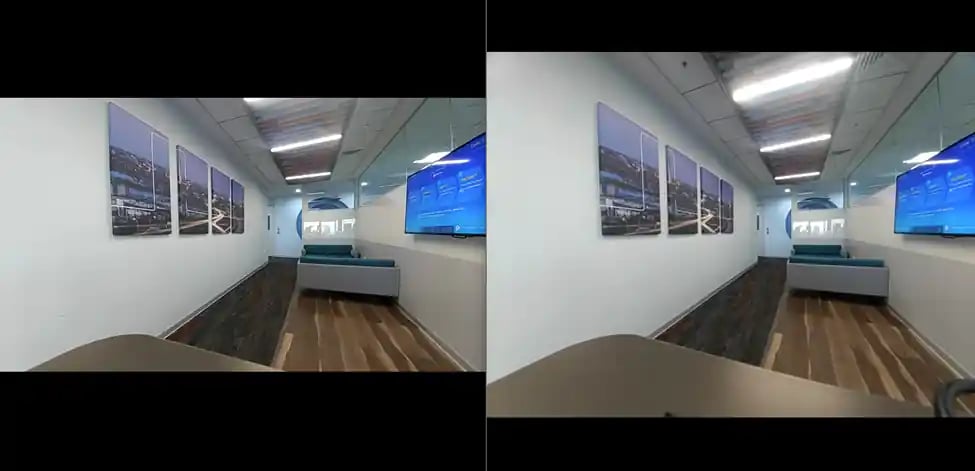
<Accordion title="Try me">
  ### Run the application

  The following table lists the application use case modes. The NULL state is the initial state of a GStreamer element.

  <Note>
    **Note:**: Currently, the application is compatible only with the Basic mode. Full mode will be supported in a future release.
  </Note>

  | Use case mode | Description                                                               |
  | ------------- | ------------------------------------------------------------------------- |
  | `Basic`       | Activates or deactivates several streams without entering the NULL state. |
  | `Full`        | Activates or deactivates several streams by entering the NULL state.      |

  For more information, see GStreamer states.

  <Steps>
    <Step title="Complete prerequisites">
      Ensure that you complete the [Prerequisites.](#prerequisites)
    </Step>

    <Step title="In the terminal of the target device, run the respective command for any of the following use cases. Before running the application, ensure to configure the use cases and output type parameters.">
      Basic use cases

      Stream on Waylandsink:

      ```bash theme={null}
      gst-activate-deactivate-streams-runtime-example -u Basic -o Display
      ```

      Encode to MP4 file:

      ```bash theme={null}
      gst-activate-deactivate-streams-runtime-example -u Basic -o File
      ```

      Full use cases

      Stream on Waylandsink:

      ```bash theme={null}
      gst-activate-deactivate-streams-runtime-example -u Full -o Display
      ```

      Encode to MP4 file:

      ```bash theme={null}
      gst-activate-deactivate-streams-runtime-example -u Full -o File
      ```
    </Step>

    <Step title="To Stop the running use case">
      Press `Ctrl + C`.
    </Step>

    <Step title="In the terminal of the target device, run the following command in the SSH shell to display the available help options:">
      ```bash theme={null}
      gst-activate-deactivate-streams-runtime-example --help
      ```
    </Step>

    <Step title="In the terminal of the host computer, run the following command to pull the files from the target device:">
      ```bash theme={null}
      scp root@<IP address of target device>:/etc/media/<destination directory>
      ```
    </Step>
  </Steps>

  ### Expected output

  During the execution, the first stream is activated followed by the second stream. After a while, the streams deactivate.

  * If the output option is set to `Display`, the output is displayed as a preview.
  * If the output option is set to `File`, the encoded video files are generated.

  <img src="https://mintcdn.com/qualcomm-prod/YDSiHowP2IVf4iM5/SDKs/IMSDK/sample-application/images/mm_images/activate-deactivate-output.png?fit=max&auto=format&n=YDSiHowP2IVf4iM5&q=85&s=5e1412c0690d4444b58216fd3eac03a4" alt="activate deactivate output : Expected output for gst-activate-deactivate-streams-runtime-example application" width="975" height="471" data-path="SDKs/IMSDK/sample-application/images/mm_images/activate-deactivate-output.png" />

  **Figure : Expected output for gst-activate-deactivate-streams-runtime-example application**

  <h3 id="activate-deactivate">
    Pipeline flow
  </h3>

  The following table lists the plugins used in the gst-activate-deactivate-streams-runtime-example pipeline:

  | Plugin       | Description                                                                                   |
  | ------------ | --------------------------------------------------------------------------------------------- |
  | `qticamsrc`  | Captures the camera feed and sends it into the capsfilter.                                    |
  | `Capsfilter` | Passes the feed to waylandsink for display. Passes the feed to filesink to save it to a file. |
</Accordion>

***

### Add-remove streams at runtime

The [gst-add-remove-streams-runtime](https://github.com/qualcomm/gst-plugins-imsdk/tree/main/gst-sample-apps/gst-add-remove-streams-runtime) application allows you to add or remove several camera streams dynamically during runtime.

The following figure shows the pipeline, which demonstrates the ability of the application to add or remove the streams at runtime with camera reconfiguration. It creates three streams and adds or removes them in different order.

For information about the plugins used in the pipeline, see [Pipeline flow.](#add-remove-stream)

<img src="https://mintcdn.com/qualcomm-prod/YDSiHowP2IVf4iM5/SDKs/IMSDK/sample-application/images/mm_images/gst_add_remove_streams_runtime_pipeline.svg?fit=max&auto=format&n=YDSiHowP2IVf4iM5&q=85&s=444df6f8ef48a9ba7d555f54d7096d68" alt="Figure : gst-add-remove-streams-runtime pipeline" width="900" height="200" data-path="SDKs/IMSDK/sample-application/images/mm_images/gst_add_remove_streams_runtime_pipeline.svg" />

**Figure : gst-add-remove-streams-runtime pipeline**

**Application:** [`gst-add-remove-streams-runtime`](https://github.com/qualcomm/gst-plugins-imsdk/tree/main/gst-sample-apps/gst-add-remove-streams-runtime)
<Accordion title="Try me">
  ### Run the application

  <Steps>
    <Step title="Complete prerequisites">
      Ensure that you complete the [Prerequisites.](#prerequisites)
    </Step>

    <Step title="In the terminal of the target device, run the following command to verify if many streams can run simultaneously:">
      ```bash theme={null}
      gst-add-remove-streams-runtime <OPTION>
      ```
    </Step>

    <Step title="Use the following commands to run the application for various use cases:">
      Default mode preview on the display:

      ```bash theme={null}
      gst-add-remove-streams-runtime
      ```

      Preview the stream:

      ```bash theme={null}
      gst-add-remove-streams-runtime -o Display
      ```

      Encode the stream:

      ```bash theme={null}
      gst-add-remove-streams-runtime -o File
      ```
    </Step>

    <Step title="To Stop the running use case">
      Press `Ctrl + C`.
    </Step>

    <Step title="In the terminal of the target device, run the following command to display the available help options:">
      ```bash theme={null}
      gst-add-remove-streams-runtime --help
      ```
    </Step>

    <Step title="In the terminal of the host computer, run the following command to pull the files from the target device:">
      ```bash theme={null}
      scp root@<IP address of target device>:/etc/media/<destination directory>
      ```
    </Step>
  </Steps>

  ### Expected output

  * If you choose to preview, the stream is displayed on the screen.
  * If you choose to encode the stream, the encoded stream is saved at `/etc/media/video_%d.mp4`.

  <img src="https://mintcdn.com/qualcomm-prod/YDSiHowP2IVf4iM5/SDKs/IMSDK/sample-application/images/mm_images/add-remove-stream-output.png?fit=max&auto=format&n=YDSiHowP2IVf4iM5&q=85&s=6851bd45630de27779170848b9d0e0eb" alt="Figure : Expected output for gst-add-remove-streams-runtime application–Preview" width="975" height="496" data-path="SDKs/IMSDK/sample-application/images/mm_images/add-remove-stream-output.png" />

  **Figure : Expected output for gst-add-remove-streams-runtime application–Preview**

  <h3 id="add-remove-stream">
    Pipeline flow
  </h3>

  The following table lists the plugins used in the gst-add-remove-streams-runtime pipeline:

  <table border="1" cellspacing="0" cellpadding="8">
    <thead>
      <tr>
        <th>`Plugin`</th>
        <th>`Description`</th>
      </tr>
    </thead>

    <tbody>
      <tr>
        <td>qticamsrc</td>
        <td>Captures the video stream and feeds it into the `capsfilter`.</td>
      </tr>

      <tr>
        <td rowspan="3">Capsfilter</td>

        <td>
          Branches the source into two separate pipelines. In one pipeline, the output is sent to `waylandsink` for display.
        </td>
      </tr>

      <tr>
        <td>
          <ul>
            <li>In the other pipeline, the video undergoes the following:</li>
          </ul>
        </td>
      </tr>

      <tr>
        <td>
          <ol>
            <li>Encoded using `v4l2h264enc`.</li>
            <li>Parsed with `h264parse`.</li>
            <li>Multiplexed into an MP4 format with `mp4mux`.</li>
          </ol>
        </td>
      </tr>
    </tbody>
  </table>
</Accordion>

***

## Video and Audio Applications

### Video playback

**Description:** The [**gst-video-playback-example**](https://github.com/qualcomm/gst-plugins-imsdk/tree/main/gst-sample-apps/gst-video-playback-example) application allows you to decode and playback a video file. The standard playback options such as play,
pause, resume, and fast forward are supported.

**Application:** [`gst-video-playback-example`](https://github.com/qualcomm/gst-plugins-imsdk/tree/main/gst-sample-apps/gst-video-playback-example)

The following figure shows the pipeline workflow of the video playback GStreamer application. The file is read,
demultiplexed, parsed, decoded, and displayed on a screen.For more information about the plugins, see [pipeline flow.](#video-playback-pipeline-flow)

<img src="https://mintcdn.com/qualcomm-prod/YDSiHowP2IVf4iM5/SDKs/IMSDK/sample-application/images/mm_images/gst_video_playback_example.svg?fit=max&auto=format&n=YDSiHowP2IVf4iM5&q=85&s=c5fa8ebd33a1d428ae844dd192f51466" alt="Video playback pipeline" width="1060" height="240" data-path="SDKs/IMSDK/sample-application/images/mm_images/gst_video_playback_example.svg" />

**Figure: gst-video-playback-example pipeline**
<Accordion title="Try me">
  ### Run the application

  <Steps>
    <Step title="Complete prerequisites">
      Ensure that you complete the [Prerequisites](#prerequisites).
    </Step>

    <Step>
      Input the **AVC.mp4 (H.264)** and **HEVC.mp4 (H.265)** video files on the target device.
    </Step>

    <Steps>
      In the terminal of the target device, play back the video file:

      ```bash theme={null}
      gst-video-playback-example -e filesrc location=/etc/media/video_avc.mp4 ! qtdemux ! queue ! h264parse ! v4l2h264dec capture-io-mode=4 output-io-mode=4 ! video/x-raw,format=NV12 ! waylandsink enable-last-sample=false fullscreen=true
      ```

      The following table provides a description of the command-line parameters:

      | Command-line parameter | Description                                       |
      | ---------------------- | ------------------------------------------------- |
      | `<input-file>`         | Specifies the MP4 input file to playback.         |
      | `<video-parser>`       | `h264parse` for H.264, `h265parse` for H.265.     |
      | `<video-decoder>`      | `v4l2h264dec` for H.264, `v4l2h265dec` for H.265. |

      For example, run the following commands for different video playback use cases:

      **Playback AVC (H.264) video:**

      ```bash theme={null}
      gst-video-playback-example -e filesrc location=/etc/media/video_avc.mp4 ! qtdemux ! queue ! h264parse ! v4l2h264dec capture-io-mode=4 output-io-mode=4 ! waylandsink enable-last-sample=false fullscreen=true
      ```

      **Playback HEVC (H.265) video:**

      ```bash theme={null}
      gst-video-playback-example -e filesrc location=/etc/media/video_hevc.mp4 ! qtdemux ! queue ! h265parse ! v4l2h265dec capture-io-mode=4 output-io-mode=4 ! waylandsink enable-last-sample=false fullscreen=true
      ```
    </Steps>

    <Step title="To Stop the running use case">
      Press `Ctrl + C`.
    </Step>

    <Step>
      In the terminal of the target device, run the following command to display the available help options:

      ```bash theme={null}
      gst-video-playback-example --help
      ```
    </Step>
  </Steps>

  ### Expected output

  The video is captured, decoded, and played on the local display.

  <img src="https://mintcdn.com/qualcomm-prod/YDSiHowP2IVf4iM5/SDKs/IMSDK/sample-application/images/mm_images/video-playback-output-image.png?fit=max&auto=format&n=YDSiHowP2IVf4iM5&q=85&s=746f8120c4324569540c3b866e326485" alt="video playback output" width="975" height="473" data-path="SDKs/IMSDK/sample-application/images/mm_images/video-playback-output-image.png" />

  **Figure : Expected output for gst-video-playback-example application**

  <h3 id="video-playback-pipeline-flow">
    Pipeline flow
  </h3>

  The following table lists the plugins used to run the video playback pipeline:

  <table>
    <thead>
      <tr>
        <th>Plugin</th>
        <th>Description</th>
      </tr>
    </thead>

    <tbody>
      <tr>
        <td>filesrc</td>

        <td>
          <ol>
            Reads the AVC or HEVC MP4 file.
          </ol>
        </td>
      </tr>

      <tr>
        <td>qtdemux</td>

        <td>
          <ol>
            Demultiplexes the AVC or HEVC MP4 file.
          </ol>
        </td>
      </tr>

      <tr>
        <td>h264parse</td>

        <td>
          <ol>
            Parses the video stream for H.264 format.
          </ol>
        </td>
      </tr>

      <tr>
        <td>h265parse</td>

        <td>
          <ol>
            Parses the video stream for H.265 format.
          </ol>
        </td>
      </tr>

      <tr>
        <td>v4l2h264dec</td>

        <td>
          <ol>
            Decodes the video stream for H.264 format.
          </ol>
        </td>
      </tr>

      <tr>
        <td>v4l2h265dec</td>

        <td>
          <ol>
            Decodes the video stream for H.265 format.
          </ol>
        </td>
      </tr>

      <tr>
        <td>waylandsink</td>

        <td>
          <ol>
            Displays the video in full-screen mode on a Wayland display.
          </ol>
        </td>
      </tr>
    </tbody>
  </table>

  **Known Issue**

  The rewind playback option isn’t supported.
</Accordion>

***

### Video Transcode

**Description:** The [**gst-video-transcode-example**](https://github.com/qualcomm/gst-plugins-imsdk/tree/main/gst-sample-apps/gst-video-transcode-example)  application supports video transcoding of AVC-to-HEVC or HEVC-to-AVC format. A few use cases can be video editing, security camera, and augmented reality.

The following figure shows the pipeline, which reads the incoming stream, decodes and encodes it, and either displays the transcoded output on a screen, or saves it to a file. For information about the plugins used in this pipeline, see [Pipeline flow](#video-transcode-pipeline)

<img src="https://mintcdn.com/qualcomm-prod/YDSiHowP2IVf4iM5/SDKs/IMSDK/sample-application/images/mm_images/gst_video_transcode_example.svg?fit=max&auto=format&n=YDSiHowP2IVf4iM5&q=85&s=8b03821b13782e4760b5444a9a87332f" alt="video transcode pipeline" width="1050" height="140" data-path="SDKs/IMSDK/sample-application/images/mm_images/gst_video_transcode_example.svg" />

**Figure: gst-video-transcode-example pipeline**

**Application:** [`gst-video-transcode-example`](https://github.com/qualcomm/gst-plugins-imsdk/tree/main/gst-sample-apps/gst-video-transcode-example)

<Accordion title="Try me">
  ### Run the application

  The following table lists the actions that can be performed for the common use cases of gst-videotranscode- example application:

  | Use case          | Actions                                                                                               |
  | ----------------- | ----------------------------------------------------------------------------------------------------- |
  | Video editing     | Rotate, flip, or resize videos.                                                                       |
  | Security camera   | Invert or rotate the video image to compensate for situations where the camera is improperly mounted. |
  | Augmented reality | Scale or rotate the video feed to synchronize with the virtual components.                            |

  <Steps>
    <Step title="Complete prerequisites">
      Ensure that you complete the [Prerequisites](#prerequisites).
    </Step>

    <Step>
      Input `AVC.mp4` and `HEVC.mp4` video files on the target device.
    </Step>

    <Step title="In the terminal of the target device, transcode the video file:">
      ```bash theme={null}
      gst-video-transcode-example -i /etc/media/<input-file>.mp4 -c <format> -o /etc/media/<output-file>.mp4
      ```

      The following table provides a description of the command-line parameters:

      | Command-line parameter | Description                                                            |
      | ---------------------- | ---------------------------------------------------------------------- |
      | `-1`                   | Specifies the absolute path to the MP4 input file.                     |
      | `-c`                   | Specifies the video codec of the input file.                           |
      | `-o`                   | Specifies the absolute path to where the transcoded MP4 file is saved. |
    </Step>

    <Step title="Run the use cases for different video formats:">
      * Transcode from AVC to HEVC:

      ```bash theme={null}
      gst-video-transcode-example -i /etc/media/video_avc.mp4 -c 1 -o /etc/media/hevc_transcode_out.mp4
      ```

      * Transcode from HEVC to AVC:

      ```bash theme={null}
      gst-video-transcode-example -i /etc/media/video_hevc.mp4 -c 2 -o /etc/media/avc_transcode_out.mp4
      ```
    </Step>

    <Step title="To Stop the running use case">
      Press `Ctrl + C`.
    </Step>

    <Step title="In the terminal of the target device, run the following command to display the available help options:">
      ```bash theme={null}
      gst-video-transcode-example --help
      ```
    </Step>
  </Steps>

  ### Expected output

  The video stream is transcoded from H.264 to H.265 and back again to the H.264 format.

  <h3 id="video-transcode-pipeline">
    Pipeline flow
  </h3>

  The following table lists the plugins used in the video transcoding pipeline:

  <table>
    <thead>
      <tr>
        <th>Plugin</th>
        <th>Description</th>
      </tr>
    </thead>

    <tbody>
      <tr>
        <td>filesrc</td>

        <td>
          <ol>
            Reads the video streams.
          </ol>
        </td>
      </tr>

      <tr>
        <td>qtdemux</td>

        <td>
          <ol>
            Demultiplexes the streams into separate audio and video streams.
          </ol>
        </td>
      </tr>

      <tr>
        <td>h264parse</td>

        <td>
          <ol>
            Parses the H.264 video stream.
          </ol>
        </td>
      </tr>

      <tr>
        <td>h265parse</td>

        <td>
          <ol>
            Parses the H.265 video stream.
          </ol>
        </td>
      </tr>

      <tr>
        <td>v4l2h264dec</td>

        <td>
          <ol>
            Decodes the H.264 video stream using Video4Linux.
          </ol>
        </td>
      </tr>

      <tr>
        <td>v4l2h265dec</td>

        <td>
          <ol>
            Decodes the H.265 video stream using Video4Linux.
          </ol>
        </td>
      </tr>

      <tr>
        <td>waylandsink</td>

        <td>
          <ol>
            Displays the H.264 video stream on Wayland display.
          </ol>
        </td>
      </tr>

      <tr>
        <td>filesink</td>

        <td>
          <ol>
            Writes the H.265 video to a YUV file for playback.
          </ol>
        </td>
      </tr>
    </tbody>
  </table>

  The following table provides information on how the decoded video streams are handled to generate the transcoded output:

  <table>
    <thead>
      <tr>
        <th>Plugin</th>
        <th>Description</th>
      </tr>
    </thead>

    <tbody>
      <tr>
        <td>H.264</td>

        <td>
          <ol>
            <li>v4l2h265enc encodes the decoded H.264 video into H.265 format.</li>
            <li>h265parse parses the H.265 video stream.</li>
            <li>mp4mux multiplexes the stream into an MP4 container.</li>
            <li>filesink writes the stream data to a file.</li>
            The AVC (H.264) video is transcoded to HEVC (H.265) format.
          </ol>
        </td>
      </tr>

      <tr>
        <td>H.265</td>

        <td>
          <ol>
            <li>v4l2h264enc encodes the decoded H.265 video into H.264 format.</li>
            <li>h264parse parses the H.264 video stream.</li>
            <li>mp4mux multiplexes the stream into an MP4 container.</li>
            <li>filesink writes the stream data to a file.</li>
            The HEVC (H.265) video is transcoded to AVC (H.264) format.
          </ol>
        </td>
      </tr>
    </tbody>
  </table>
</Accordion>

***

### Video Transform

**Description:** The [**gst-transform-example**](https://github.com/qualcomm/gst-plugins-imsdk/tree/main/gst-sample-apps/gst-transform-example) application supports rotation, flipping, and scaling operations.
You can use this application for a security camera. Adjust the orientation of the displayed image using the flip and mirror operations on the CCTV camera. For more information about the transformation properties, see qtivtransform.

The following figure shows the pipeline, which takes the captured video stream, transforms it, and either displays it or saves it to a file. For information about the plugins used in the pipeline, see [Pipeline flow.](#vtransform-pipeline)

<img src="https://mintcdn.com/qualcomm-prod/YDSiHowP2IVf4iM5/SDKs/IMSDK/sample-application/images/mm_images/gst_transform_example_pipeline.svg?fit=max&auto=format&n=YDSiHowP2IVf4iM5&q=85&s=ff8626bb3f3964c5b2642256085bdf8b" alt="Single camera pipeline" width="1050" height="220" data-path="SDKs/IMSDK/sample-application/images/mm_images/gst_transform_example_pipeline.svg" />

**Figure: gst-transform-example pipeline**

**Application:** [`gst-transform-example`](https://github.com/qualcomm/gst-plugins-imsdk/tree/main/gst-sample-apps/gst-transform-example)
<Accordion title="Try me">
  <Steps>
    <Step title="Complete prerequisites">
      Ensure that you complete the [Prerequisites](#prerequisites).
    </Step>

    <Step title="In the terminal of the target device, run the following use cases to rotate, downscale, or flip the video:">
      * **Use camera source and save output to a file.**

      Perform operations such as rotate, flip, upscale/downscale simultaneously:

      ```bash theme={null}
        gst-transform-example -r 90 -f 2 --output_width 1920 --output_height 1080  -o /etc/media/video_transform.mp4 -i <inputfile>.mp4
      ```

      Rotate:

      ```bash theme={null}
        gst-transform-example -r 90 --input_width 3840 --input_height 2160 -o <output_file>.mp4
      ```

      Downscale/upscale:

      ```bash theme={null}
        gst-transform-example --input_width 3840 --input_height 2160 --output_width 1920 --output_height 1080 -o <output_file>.mp4
      ```

      Flip:

      ```bash theme={null}
        gst-transform-example -f 2 --input_width 3840 --input_height 2160 -o <output_file>.mp4
      ```

      * **Use file source and save output to a file.**

      Perform operations such as rotate, flip, upscale/downscale simultaneously:

      ```bash theme={null}
      gst-transform-example -r 90 -f 2 –i /etc/media/video_avc.mp4 --output_width 1920 --output_height 1080 -o <output_file>.mp4
      ```

      Rotate:

      ```bash theme={null}
      gst-transform-example -r 90 -i /etc/media/video_avc.mp4 -o <output_file>.mp4
      ```

      Downscale/upscale:

      ```bash theme={null}
      gst-transform-example -i /etc/media/video_avc.mp4 --output_width 1920 --output_height 1080 -o <output_file>.mp4
      ```

      Flip:

      ```bash theme={null}
      gst-transform-example -f 2 -i /etc/media/video_avc.mp4 -o <output_file>.mp4
      ```
    </Step>

    <Step title="To Stop the running use case">
      Press `Ctrl + C`.
    </Step>

    <Step title="In the terminal of the target device, run the following command to display the available help options:">
      ```bash theme={null}
      gst-transform-example --help
      ```
    </Step>

    <Step title="In the terminal of the host computer, run the following command to pull the files from the target device:">
      ```bash theme={null}
      scp root@<IP address of target device>:/etc/media/<filename to pull>
      ```
    </Step>
  </Steps>

  The following table provides a description of the command-line parameters:

  | Parameter             | Description                                                                                                                                                       |
  | --------------------- | ----------------------------------------------------------------------------------------------------------------------------------------------------------------- |
  | `-h`, `--help`        | Help                                                                                                                                                              |
  | `--output_width`      | Downscale/upscale width. <br /><br />- Default value: **1920** <br />- Supports scaling: **1080 → 720** or **720 → 1080**                                         |
  | `--output_height`     | Downscale/upscale height. Default value: **1080**                                                                                                                 |
  | `-o`                  | Absolute path to generate the file                                                                                                                                |
  | `-r`                  | Image rotation. Supported values: `0`, `90`, `180`, `270`                                                                                                         |
  | `--input_width`       | Camera width. Default value: **1920**                                                                                                                             |
  | `--input_height`      | Camera height. Default value: **1080**                                                                                                                            |
  | `-f`                  | Flip the image: <br /><br />- `0`: Don’t flip (Default) <br />- `1`: Flip horizontally <br />- `2`: Flip vertically <br />- `3`: Flip horizontally and vertically |
  | `-I`, `--input_file`  | Absolute path of the input file. <br />Example: `-I /etc/media/inputfileh264.mp4`                                                                                 |
  | `-o`, `--output_file` | Absolute path of the output file. <br />Example: `-o /etc/media/video_transform.mp4`                                                                              |

  ### Expected output

  This pipeline supports simultaneous live preview and recording of the transformed video stream.
  It provides two outputs:

  * A video recording that’s stored as an MP4 file in the specified path.
  * A preview on a display device.
      <img src="https://mintcdn.com/qualcomm-prod/YDSiHowP2IVf4iM5/SDKs/IMSDK/sample-application/images/mm_images/transform-output.png?fit=max&auto=format&n=YDSiHowP2IVf4iM5&q=85&s=b693bbe17633fb1c019a3847914df088" alt="vtransform Output" width="975" height="473" data-path="SDKs/IMSDK/sample-application/images/mm_images/transform-output.png" />
    **Figure: Expected output for gst-transform-example application–Preview**

  <h3 id="vtransform-pipeline">
    Pipeline flow
  </h3>

  The following table lists the plugins used to run the video transforming pipeline:

  ## Plugins Overview

  <table>
    <thead>
      <tr>
        <th>Plugin</th>
        <th>Description</th>
      </tr>
    </thead>

    <tbody>
      <tr>
        <td>qticamsrc and filesrc</td>

        <td>
          <ol>
            Captures the video data.
          </ol>
        </td>
      </tr>

      <tr>
        <td>capsfilter</td>

        <td>
          <ol>
            Enforces constraints on the raw video data.
          </ol>
        </td>
      </tr>

      <tr>
        <td>qtivtransform</td>

        <td>
          <ol>
            <li>Transforms the video data.</li>
            <li>After transformation, capsfilter is applied again.</li>
          </ol>
        </td>
      </tr>

      <tr>
        <td>tee</td>

        <td>
          <ol>
            <li>Splits the transformed video data into two output paths:</li>

            * Live preview.
            * Save to file.
          </ol>
        </td>
      </tr>

      <tr>
        <td>waylandsink</td>

        <td>
          <ol>
            Displays the video in live preview.
          </ol>
        </td>
      </tr>

      <tr>
        <td>h264parse</td>

        <td>
          <ol>
            Parses the encoded H.264 video stream.
          </ol>
        </td>
      </tr>

      <tr>
        <td>mp4mux</td>

        <td>
          <ol>
            Multiplexes the stream into an MP4 container.
          </ol>
        </td>
      </tr>

      <tr>
        <td>filesink</td>

        <td>
          <ol>
            Writes the video data to a file.
          </ol>
        </td>
      </tr>
    </tbody>
  </table>
</Accordion>

***

### Concurrent Playback & Composition(video wall)

The [**gst-concurrent-videoplay-composition**](https://github.com/qualcomm/gst-plugins-imsdk/tree/main/gst-sample-apps/gst-concurrent-videoplay-composition) application supports concurrent video playback for MP4 AVC (H.264) videos and performs composition on a video wall display.

In the concurrent video playback and composition pipeline, four decode and composition pipelines run concurrently. For more information about the plugins used in this pipeline, see [Pipeline flow.](#video-wall)

<img src="https://mintcdn.com/qualcomm-prod/YDSiHowP2IVf4iM5/SDKs/IMSDK/sample-application/images/mm_images/gst_concurrent_videoplay_composition.svg?fit=max&auto=format&n=YDSiHowP2IVf4iM5&q=85&s=92b004f981cff52a588c101106ffeabb" alt="Single camera pipeline" width="1150" height="420" data-path="SDKs/IMSDK/sample-application/images/mm_images/gst_concurrent_videoplay_composition.svg" />

**Figure: gst-concurrent-videoplay-composition pipeline with 4 streams**

**Application:** [`gst-concurrent-videoplay-composition`](https://github.com/qualcomm/gst-plugins-imsdk/tree/main/gst-sample-apps/gst-concurrent-videoplay-composition)
<Accordion title="Try me">
  ### Run the application

  The following table lists the use cases that are supported through the gst-concurrent-videoplay-composition application:

  <table>
    <thead>
      <tr>
        <th>Use case</th>
        <th>Description</th>
      </tr>
    </thead>

    <tbody>
      <tr>
        <td>Video conferencing</td>

        <td>
          <ul>
            <li>Simultaneously decodes the video streams of several participants.</li>
            <li>Useful in a multi-party video conference scenario where the application manages several video streams.</li>
          </ul>
        </td>
      </tr>

      <tr>
        <td>Surveillance systems</td>

        <td>
          <ul>
            <li>Concurrently decodes video feeds from two separate cameras.</li>
          </ul>
        </td>
      </tr>

      <tr>
        <td>Digital signage</td>

        <td>
          <ul>
            <li>Allows simultaneous changes or updates to centrally managed information that is electronically displayed across several locations.</li>
          </ul>
        </td>
      </tr>
    </tbody>
  </table>

  To run the use cases, do the following:

  <Steps>
    <Step title="Complete prerequisites">
      Ensure that you complete the [Prerequisites.](#prerequisites)
    </Step>

    <Step title="Prepare input video files">
      Add at least one `MP4 AVC (H.264)` video file on the target device.
    </Step>

    <Step title="Run the use case">
      In the terminal of the target device, run:

      ```bash theme={null}
      gst-concurrent-videoplay-composition -c <number-of-streams> -i <input-file-1>.mp4 -i <input-file-2>.mp4
      ```
    </Step>
  </Steps>

  ### Command-line parameters

  | Parameter | Description                                                                         |
  | --------- | ----------------------------------------------------------------------------------- |
  | `-c`      | Number of streams to decode for composition. Supported values: `2`, `4`, `8`, `16`. |
  | `-i`      | Absolute path to an input video file.                                               |

  ### Examples

  * **Concurrent playback of two sessions**

    ```bash theme={null}

    gst-concurrent-videoplay-composition -c 2 -i /etc/media/video_avc.mp4 -i /etc/media/video_avc.mp4
    ```
  * **Concurrent playback of four sessions**

    ```bash theme={null}

    gst-concurrent-videoplay-composition -c 4 -i /etc/media/video_avc.mp4 -i /etc/media/video_avc.mp4 -i /etc/media/video_avc.mp4 -i /etc/media/video_avc.mp4
    ```

      <Step title="4. Stop the running use case">
        Press `Ctrl + C`.
      </Step>

      <Step title="5. In the terminal of the target device, run the following command to display the available help options:">
        ```bash theme={null}
        gst-concurrent-videoplay-composition --help
        ```
      </Step>

  ### Expected output

  The individual composed streams are tiled together to display as a unified stream.

  <img src="https://mintcdn.com/qualcomm-prod/YDSiHowP2IVf4iM5/SDKs/IMSDK/sample-application/images/mm_images/video-wall-output.png?fit=max&auto=format&n=YDSiHowP2IVf4iM5&q=85&s=b8e2763a2f26a0e4bd458ee234111a1b" alt="Video wall Output" width="1041" height="393" data-path="SDKs/IMSDK/sample-application/images/mm_images/video-wall-output.png" />

  **Figure: Expected output for gst-concurrent-videoplay-composition application**

  <h3 id="video-wall">
    Pipeline flow
  </h3>

  The following table lists the plugins used to run the video wall pipeline:

  <table>
    <thead>
      <tr>
        <th>Plugin</th>
        <th>Description</th>
      </tr>
    </thead>

    <tbody>
      <tr>
        <td>filesrc</td>

        <td>
          <ol>
            Reads the video data.
          </ol>
        </td>
      </tr>

      <tr>
        <td>qtdemux</td>

        <td>
          <ol>
            Demultiplexes the video data.
          </ol>
        </td>
      </tr>

      <tr>
        <td>h264parse</td>

        <td>
          <ol>
            Parses the H.264 video streams.
          </ol>
        </td>
      </tr>

      <tr>
        <td>v4l2h264dec</td>

        <td>
          <ol>
            Decodes the H.264 video streams.
          </ol>
        </td>
      </tr>

      <tr>
        <td>qtivcomposer</td>

        <td>
          <ol>
            Composes the decoded streams and sends them over the display.
          </ol>
        </td>
      </tr>

      <tr>
        <td>waylandsink</td>

        <td>
          <ol>
            Displays the composed video streams on Wayland display.
          </ol>
        </td>
      </tr>
    </tbody>
  </table>

  ### Known issue

  Video playback closes or freezes. About an hour later, it continues running with 16 H.264 720p concurrent video playback sessions.
</Accordion>

***

### Weston Composition

The [**gst-weston-composition-example**](https://github.com/qualcomm/gst-plugins-imsdk/tree/main/gst-sample-apps/gst-weston-composition-example) application allows you to arrange live camera input or offline files on the screen using the picture-in-picture (PiP) or side by side display formats. A few use cases of this application are video conferencing and online educational courses.
This application involves several pipelines and elements. For more information, see [Pipeline flow.](#weston-composition-pipeline-flow)

<img src="https://mintcdn.com/qualcomm-prod/YDSiHowP2IVf4iM5/SDKs/IMSDK/sample-application/images/mm_images/gst_weston_composition_example_pipeline.svg?fit=max&auto=format&n=YDSiHowP2IVf4iM5&q=85&s=9adebe5df63e578caeafb47f788af397" alt="Weston composition pipeline" width="1070" height="570" data-path="SDKs/IMSDK/sample-application/images/mm_images/gst_weston_composition_example_pipeline.svg" />

**Figure: gst-weston-composition-example pipeline**

**Application:** [`gst-weston-composition-example`](https://github.com/qualcomm/gst-plugins-imsdk/tree/main/gst-sample-apps/gst-weston-composition-example)
<Accordion title="Try me">
  ### Run the application

  The following table lists the use cases that supported through the gst-weston-composition-example application:

  | Use case               | Description                                                                                                                                                                                                                                             |
  | ---------------------- | ------------------------------------------------------------------------------------------------------------------------------------------------------------------------------------------------------------------------------------------------------- |
  | **Video conferencing** | • Simultaneously displays several video streams from many participants.<br />• Videos are displayed in either PiP or side-by-side format.<br />• Useful in a multi-party video conference scenario where the application manages several video streams. |
  | **Online education**   | Enhances the learning experience by enabling the PiP or side-by-side display of the instructional video.                                                                                                                                                |

  <Steps>
    <Step title="Complete prerequisites">
      Ensure that you complete the [Prerequisites](#prerequisites).
    </Step>

    <Step>
      Input a `<h264_file>.mp4` video file on the target device.
    </Step>

    <Step title="In the terminal of the target device, run any of the following use cases:">
      * Compose PiP:

      ```bash theme={null}
      gst-weston-composition-example -t 0 -i /etc/media/video_avc.mp4
      ```

      * Compose side by side:

      ```bash theme={null}
      gst-weston-composition-example -t 1 -i /etc/media/video_avc.mp4
      ```
    </Step>

    <Step title="To Stop the running use case">
      Press `Ctrl + C`.
    </Step>

    <Step title="In the terminal of the target device, run the following command to display the available help options:">
      ```bash theme={null}
      gst-weston-composition-example --help
      ```
    </Step>
  </Steps>

  The following table provides a description of the command-line parameters:

  ## Command-line Parameters

  | Command-line parameter | Description                                                                                        |
  | ---------------------- | -------------------------------------------------------------------------------------------------- |
  | `-t`                   | Specifies the type of composition:<br /><br />• `0` = Picture in picture<br />• `1` = Side by side |
  | `-i`                   | Specifies the absolute path to the input video file.                                               |

  ### Expected output

  The video is rendered as PiP and side by side display on the screen.

  <img src="https://mintcdn.com/qualcomm-prod/YDSiHowP2IVf4iM5/SDKs/IMSDK/sample-application/images/mm_images/weston-composition-output.png?fit=max&auto=format&n=YDSiHowP2IVf4iM5&q=85&s=c8d865bf4b173bee507881b60da0000a" alt="Weston compostion Output" width="975" height="428" data-path="SDKs/IMSDK/sample-application/images/mm_images/weston-composition-output.png" />

  **Figure: Expected output for gst-weston-composition-example application**

  <h3 id="weston-composition-pipeline-flow">
    Pipeline flow
  </h3>

  The following table lists the plugins used to run the video composition pipeline:

  | Plugin         | Description                       |
  | -------------- | --------------------------------- |
  | `qticamsrc`    | Captures the video from a source. |
  | `capsfilter`   | Filters the video file.           |
  | `filesrc`      | Reads the video data.             |
  | `qtdemux`      | Demultiplexes the video data.     |
  | `h264parse`    | Parses the H.264 video.           |
  | `v4l2h264dec`  | Decodes H.264 video from a file.  |
  | `qtivcomposer` | Composes the decoded video.       |
</Accordion>

***

### Multi format decode

**Description:** The [**gst-videocodec-concurrent-playback**](https://github.com/qualcomm/gst-plugins-imsdk/tree/main/gst-sample-apps/gst-videocodec-concurrent-playback)  application supports concurrent video playback for AVC (H.264) and HEVC (H.265) videos. It demonstrates the concurrent decoding capabilities of the Qualcomm Linux video engine, which can process different video codecs simultaneously.
As shown in the following figure, the sample application uses H.264 and H.265 videos, both encapsulated in MP4 containers. The pipeline involves several elements for concurrent video playback. For more information about these elements, see [Pipeline flow.](#multi-format-decode-pipeline-flow)

<img src="https://mintcdn.com/qualcomm-prod/YDSiHowP2IVf4iM5/SDKs/IMSDK/sample-application/images/mm_images/gst_videocodec_concurrent_playback.svg?fit=max&auto=format&n=YDSiHowP2IVf4iM5&q=85&s=4ed83b60db09b051dad4bd5e58b106cb" alt="Multi format decode pipeline" width="1000" height="280" data-path="SDKs/IMSDK/sample-application/images/mm_images/gst_videocodec_concurrent_playback.svg" />

**Figure:  gst-videocodec-concurrent-playback pipeline**

**Application:** [`gst-videocodec-concurrent-playback`](https://github.com/qualcomm/gst-plugins-imsdk/tree/main/gst-sample-apps/gst-videocodec-concurrent-playback)

<Accordion title="Try me">
  ### Run the application

  The following table lists the use cases that are supported through the `gst-videocodec-concurrent-playback` application:

  | Use case                 | Description                                                                                                                                                                       |
  | ------------------------ | --------------------------------------------------------------------------------------------------------------------------------------------------------------------------------- |
  | **Video conferencing**   | • Simultaneously decodes the video streams of several participants.<br />• Useful in a multi-party video conference scenario where the application manages several video streams. |
  | **Surveillance systems** | Concurrently decodes video feeds from two separate cameras, each employing a different encoding method.                                                                           |

  <Steps>
    <Step title="Complete prerequisites">
      Ensure that you complete the [Prerequisites](#prerequisites).
    </Step>

    <Step>
      **Input MP4 AVC (`H.264`) and HEVC (`H.265`) video files on the target device.**
    </Step>

    <Step title="In the terminal of the target device, run the use case:">
      ```bash theme={null}
      gst-videocodec-concurrent-playback -i /etc/media/video_avc.mp4 -i /etc/media/video_hevc.mp4 -o /etc/media/h265_dump.yuv
      ```
    </Step>

    <Step title="To Stop the running use case">
      Press `Ctrl + C`.
    </Step>

    <Step title="In the terminal of the target device, run the following command to display the available help options:">
      ```bash theme={null}
      gst-videocodec-concurrent-playback --help
      ```
    </Step>
  </Steps>

  <Note>
    **Note:** Due to the large size of YUV data, it’s recommended to run this use case for a short duration (less than 5 seconds) to avoid exhausting the storage space.
  </Note>

  ### Command-line parameters

  | Command-line parameter | Description                                                                                                                       |
  | ---------------------- | --------------------------------------------------------------------------------------------------------------------------------- |
  | `-i`                   | Specifies the absolute path to the H.264 and H.265 input video files. Ensure that the H.264 input file is specified before H.265. |
  | `-o`                   | Specifies the absolute path to the H.265 output YUV file.                                                                         |

  ### Expected output

  * The H.264 video is displayed on the Wayland display.
  * The H.265 video is written to the YUV file.

  To play the YUV file:

  1. Pull the YUV dump file from the device.
  2. Use a YUV player running on the host to play the video.
     For example, select `YUV420planarNV12` format, and use `1920` and `1088` as the stride and scan lines.

  <Note>
    **Note:** If a default YUV player is not available on the host computer, use [Raw YUV Player](https://sourceforge.net/projects/raw-yuvplayer/).
  </Note>

  <h3 id="multi-format-decode-pipeline-flow">
    Pipeline flow
  </h3>

  The following table lists the plugins used to run the videocodec concurrent playback pipeline:

  | Plugin        | Description                                         |
  | ------------- | --------------------------------------------------- |
  | `filesrc`     | Reads the video data.                               |
  | `qtdemux`     | Demultiplexes the video data.                       |
  | `h264parse`   | Parses the H.264 video stream.                      |
  | `h265parse`   | Parses the H.265 video stream.                      |
  | `v4l2h264dec` | Decodes the H.264 video stream using Video4Linux.   |
  | `v4l2h265dec` | Decodes the H.265 video stream using Video4Linux.   |
  | `waylandsink` | Displays the H.264 video stream on Wayland display. |
  | `filesink`    | Writes the H.265 video to a YUV file for playback.  |

  ### Known issues

  * Video playback may not work as expected when the stream is generated from a file source.
</Accordion>

***

### JPEG Decode

**Description:** The [**gst-jpg-decode-example**](https://github.com/qualcomm/gst-plugins-imsdk/tree/main/gst-sample-apps/gst-jpg-decode-example) application allows you to decode JPEG images and view the decoded images on a screen.

The following figure shows the pipeline for gst-jpg-decode-example. For information about the plugins used in the pipeline flow, see [Pipeline flow.](#jpeg-decode-pipeline-flow)

<img src="https://mintcdn.com/qualcomm-prod/YDSiHowP2IVf4iM5/SDKs/IMSDK/sample-application/images/mm_images/gst-jpg-image-decode.svg?fit=max&auto=format&n=YDSiHowP2IVf4iM5&q=85&s=eb7b34e2b231c48125810345631f69d6" alt="JPEG decode images pipeline" width="860" height="120" data-path="SDKs/IMSDK/sample-application/images/mm_images/gst-jpg-image-decode.svg" />

**Figure: gst-jpg-decode-example pipeline**

**Application:** [`gst-jpg-decode-example`](https://github.com/qualcomm/gst-plugins-imsdk/tree/main/gst-sample-apps/gst-jpg-decode-example)

<Accordion title="Try me">
  ### Run the application

  <Steps>
    <Step title="Complete prerequisites">
      Ensure that you complete the [Prerequisites](#prerequisites).
    </Step>

    <Step>
      Input at least one imagefiles\_%d.jpg on the target device.
    </Step>

    <Step title="In the terminal of the target device, run the use case. Specify the application with parameters such as width and height.">
      ```bash theme={null}
      gst-jpg-decode-example -w 1920 -h 1080 -i /etc/media/imagefiles_%d.jpg
      ```
    </Step>

    <Step title="To Stop the running use case">
      Press `Ctrl + C`.
    </Step>

    <Step title="In the terminal of the target device, run the following command to display the available help options:">
      ```bash theme={null}
      gst-jpg-decode-example --help
      ```
    </Step>
  </Steps>

  ### Expected output

  The decoded image is displayed on the screen for preview.

  <h3 id="jpeg-decode-pipeline-flow">
    Pipeline flow
  </h3>

  The following table lists the plugins used to run the decode JPEG images pipeline:

  <table>
    <thead>
      <tr>
        <th>Plugin</th>
        <th>Description</th>
      </tr>
    </thead>

    <tbody>
      <tr>
        <td>multifilesrc</td>

        <td>
          <ol>
            Reads the video data from sequentially named files.
          </ol>
        </td>
      </tr>

      <tr>
        <td>capsfilter</td>

        <td>
          <ol>
            Enforces constraints on the video data.
          </ol>
        </td>
      </tr>

      <tr>
        <td>jpegdec</td>

        <td>
          <ol>
            Decodes the JPEG video stream.
          </ol>
        </td>
      </tr>

      <tr>
        <td>videoconvert</td>

        <td>
          <ol>
            Converts the video frames from one format to another.
          </ol>
        </td>
      </tr>

      <tr>
        <td>waylandsink</td>

        <td>
          <ol>
            Displays the video stream on the Wayland display.
          </ol>
        </td>
      </tr>
    </tbody>
  </table>
</Accordion>

***

### Audio Playback

**Description:** The [**gst-audio-decode-example**](https://github.com/qualcomm/gst-plugins-imsdk/tree/main/gst-sample-apps/gst-audio-decode-example) application demonstrates the playback of audio files in WAV, MP3, and FLAC formats. Separate pipelines for each audio format ensure efficient processing and compatibility.

This sample application provides a basic template that can be extended and adapted.

The following figure shows the pipeline, which reads and parses the audio file, and then decodes and plays the audio. For information about the plugins used in the pipeline, see [Pipeline flow.](#audio-playback-pipeline-flow)

<img src="https://mintcdn.com/qualcomm-prod/YDSiHowP2IVf4iM5/SDKs/IMSDK/sample-application/images/mm_images/gst_audio_decode_example.svg?fit=max&auto=format&n=YDSiHowP2IVf4iM5&q=85&s=3cfacb87ef4c5f09f086375b21270be0" alt="Audio decode pipeline" width="818" height="371" data-path="SDKs/IMSDK/sample-application/images/mm_images/gst_audio_decode_example.svg" />

**Figure: gst-audio-decode-example pipeline**

**Application:** [`gst-audio-decode-example`](https://github.com/qualcomm/gst-plugins-imsdk/tree/main/gst-sample-apps/gst-audio-decode-example)

<Accordion title="Try me">
  ### Run the application

  <Steps>
    <Step title="Complete prerequisites">
      Ensure that you complete the [Prerequisites](#prerequisites).
    </Step>

    <Step>
      **Input at least one of these audio files on the target device: `<filename>.mp3`, `<filename>.wav`, or `<filename>.flac`.**
    </Step>

    <Step title="In the terminal of the target device, run the application:">
      ```bash theme={null}
      gst-audio-decode-example -i /etc/media/<filename> --audio_format=<format>
      ```
    </Step>

    <Step title="To stop the running use case">
      Press `Ctrl + C`.
    </Step>

    <Step title="In the terminal of the target device, run the following command to display available help options:">
      ```bash theme={null}
      gst-audio-decode-example --help
      ```
    </Step>
  </Steps>

  ### Command-line parameters

  | Command-line parameter | Description                                                                                 |
  | ---------------------- | ------------------------------------------------------------------------------------------- |
  | `-i`                   | Specifies the absolute path to the input audio file to decode.                              |
  | `--audio_format`       | Specifies the format of the audio file:<br />• `1` = MP3<br />• `2` = WAV<br />• `3` = FLAC |

  For example, run the application as follows:

  * Decode MP3:
    ```bash theme={null}
    gst-audio-decode-example -i /etc/media/audio.mp3 --audio_format=1
    ```

  * Decode WAV:
    ```bash theme={null}
    gst-audio-decode-example -i /etc/media/audio.wav --audio_format=2
    ```

  * Decode FLAC:
    ```bash theme={null}
    gst-audio-decode-example -i /etc/media/audio.flac --audio_format=3
    ```

  ### Expected output

  Based on the selected format (MP3, WAV, or FLAC), the decoded audio file is played back.

  <h3 id="audio-playback-pipeline-flow">
    Pipeline flow
  </h3>

  The following table lists the plugins used to run the audio decode pipeline:

  | Plugin         | Description              |
  | -------------- | ------------------------ |
  | filesrc        | Reads the audio files.   |
  | mpegaudioparse | Parses MPEG audio files. |
  | wavparse       | Parses WAV audio files.  |
  | flacparse      | Parses FLAC audio files. |
  | mpg123audiodec | Decodes MP3 files.       |
  | flacdec        | Decodes FLAC files.      |
  | pulsesink      | Plays the decoded audio. |

  ### Known issues

  * Audio playback may not work if the audio sink isn't selected using wpctl.
</Accordion>

***

### Audio Encode

**Description:** The [**gst-audio-encode-example**](https://github.com/qualcomm/gst-plugins-imsdk/tree/main/gst-sample-apps/gst-audio-encode-example) application encodes audio in FLAC or WAV format.
A common use case for this application can be to encode live audio data for streaming or storage.
The following figure shows the pipeline, which captures the audio, converts the stream into FLAC or WAV formats, encodes the stream, and stores it in a file. For more information about the plugins used in the pipeline, see [Pipeline flow.](#audio-recording-pipeline-flow)

<img src="https://mintcdn.com/qualcomm-prod/YDSiHowP2IVf4iM5/SDKs/IMSDK/sample-application/images/mm_images/gst_audio_encode_example_pipeline.svg?fit=max&auto=format&n=YDSiHowP2IVf4iM5&q=85&s=9ef3a301fefb441637ab64006fe8c41e" alt="Single camera pipeline" width="970" height="250" data-path="SDKs/IMSDK/sample-application/images/mm_images/gst_audio_encode_example_pipeline.svg" />

**Figure: gst-audio-encode-example pipeline**

**Application:** [`gst-audio-encode-example`](https://github.com/qualcomm/gst-plugins-imsdk/tree/main/gst-sample-apps/gst-audio-encode-example)

<Accordion title="Try me">
  ### Run the application

  For this use case, if you have a live audio source (such as a microphone or an internet radio stream), you can encode this
  audio data into a more compact or standardized format for efficient transmission or storage.

  <Steps>
    <Step title="Complete prerequisites">
      Ensure that you complete the [Prerequisites](#prerequisites).
    </Step>

    <Step title="In the terminal of the target device, run the application for different audio formats:">
      ```bash theme={null}
      gst-audio-encode-example -o <path-file> --audio_format=<format>
      ```
    </Step>

    <Step title="To stop the running use case">
      Press `Ctrl + C`.
    </Step>

    <Step title="In the terminal of the target device, run the following command to display available help options:">
      ```bash theme={null}
      gst-audio-encode-example --help
      ```
    </Step>

    <Step title="In the terminal of the host computer,run the following command to pull files from the target device:">
      ```bash theme={null}
      scp root@<IP address of target device>:/etc/media/<destination directory>
      ```
    </Step>
  </Steps>

  ### Command-line parameters

  | Command-line parameter | Description                                                                |
  | ---------------------- | -------------------------------------------------------------------------- |
  | `-o`                   | Specifies the absolute path to the output audio file.                      |
  | `--audio_format`       | Specifies the format of the audio file:<br />• `1` = FLAC<br />• `2` = WAV |

  For example, use the following commands to run the application for FLAC and WAV audio formats::

  * Encode FLAC audio:
    ```bash theme={null}
    gst-audio-encode-example -o /etc/media/audio_record.flac.flac --audio_format=1
    ```
  * Encode WAV audio:
    ```bash theme={null}
    gst-audio-encode-example -o /etc/media/audio_record.flac.wav --audio_format=2
    ```

  ### Expected output

  The captured audio is encoded and written to a file based on the selected format (FLAC or WAV).

  <h3 id="audio-recording-pipeline-flow">
    Pipeline flow
  </h3>

  In audio encoding, the pipeline differs slightly based on the encoding format.
  The following table lists the plugins used to run the audio recording pipeline:

  | Plugin       | Description                                                     |
  | ------------ | --------------------------------------------------------------- |
  | pulsesrc     | Captures audio from the system sound device.                    |
  | capsfilter   | Ensures that the audio is in a format suitable for the encoder. |
  | audioconvert | Converts the audio to the required format.                      |
  | flacenc      | Encodes audio into FLAC format.                                 |
  | wavenc       | Encodes audio into WAV format.                                  |
  | filesink     | Writes the encoded audio to a file.                             |

  ### Known issues

  * Audio encode may not work if the audio sink is not selected using wpctl.
</Accordion>

***

### Audio-Video Encode

**Description:** The [**gst-audio-video-encode**](https://github.com/qualcomm/gst-plugins-imsdk/tree/main/gst-sample-apps/gst-audio-video-encode) application encodes audio and video data, which is stored in a user-specified output file. A few use cases for this application are streaming services, video conferencing, and surveillance systems.

The following figure shows the pipeline, which receives the video and audio feed, encodes, and parses the video stream. It then captures the audio stream and encodes it in MP3 format. Both streams are multiplexed and written to a file.

For information about the plugins used in the pipeline, see [Pipeline flow.](#audio-video-encode-pipeline-flow)

<img src="https://mintcdn.com/qualcomm-prod/YDSiHowP2IVf4iM5/SDKs/IMSDK/sample-application/images/mm_images/gst_audio_video_encode.svg?fit=max&auto=format&n=YDSiHowP2IVf4iM5&q=85&s=c4649fea287da23158060a4456927ea3" alt="Audio video pipeline" width="1289" height="405" data-path="SDKs/IMSDK/sample-application/images/mm_images/gst_audio_video_encode.svg" />

**Figure: gst-audio-video-encode pipeline**

**Application:** [`gst-audio-video-encode`](https://github.com/qualcomm/gst-plugins-imsdk/tree/main/gst-sample-apps/gst-audio-video-encode)

<Accordion title="Try me">
  ### Run the application

  The following table lists the actions that can be performed for common use cases of the `gst-audio-video-encode`
  application:

  | Use case               | Actions                                                                                               |
  | ---------------------- | ----------------------------------------------------------------------------------------------------- |
  | **Streaming services** | Encode audio and video streams for live internet streaming.                                           |
  | **Security camera**    | Invert or rotate the video image to compensate for situations where the camera is improperly mounted. |
  | **Augmented reality**  | Scale or rotate the video feed to synchronize with virtual components.                                |

  <Steps>
    <Step title="Complete prerequisites">
      Ensure that you complete the [Prerequisites](#prerequisites).
    </Step>

    <Step title="In the terminal of the target device, run the use case:">
      ```bash theme={null}
      gst-audio-video-encode -w <width> -h <height> -c <inputcodec> -o /etc/media/<output-file>.mp4
      ```
    </Step>

    <Step title="To stop the running use case">
      Press `Ctrl + C`.
    </Step>

    <Step title="In the terminal of the target device, run the following command to display available help options:">
      ```bash theme={null}
      gst-audio-video-encode --help
      ```
    </Step>

    <Step title="In the terminal of the host computer,run the following command to pull files from the target device:">
      ```bash theme={null}
      scp root@<IP address of target device>:/etc/media/<destination directory>
      ```
    </Step>
  </Steps>

  ### Command-line parameters

  | Command-line parameter | Description                                                                   |
  | ---------------------- | ----------------------------------------------------------------------------- |
  | `-w`                   | Specifies the camera width.                                                   |
  | `-h`                   | Specifies the camera height.                                                  |
  | `-c`                   | Specifies the video codec:<br />• `1` = AVC (H.264)<br />• `2` = HEVC (H.265) |
  | `-o`                   | Provides the absolute path to the output file.                                |

  For example, run different video encode use cases as follows:

  * AVC:
    ```bash theme={null}
    gst-audio-video-encode -w 1920 -h 1080 -c 1 -o /etc/media/audiovideo.mp4
    ```
  * HEVC:
    ```bash theme={null}
    gst-audio-video-encode -w 1920 -h 1080 -c 2 -o /etc/media/audiovideo.mp4
    ```

  ### Expected output

  The encoded audio and video streams are multiplexed into an MP4 container and written to a file.

  <h3 id="audio-video-encode-pipeline-flow">
    Pipeline flow
  </h3>

  The following table lists the plugins used to run the audio and video stream encoding pipeline:

  | Plugin                       | Description                                                |
  | ---------------------------- | ---------------------------------------------------------- |
  | `qticamsrc` and `capsfilter` | Captures the media stream.                                 |
  | `v4l2h264enc`                | Encodes video for AVC (H.264) format.                      |
  | `v4l2h265enc`                | Encodes video for HEVC (H.265) format.                     |
  | `h264parse`                  | Parses the H.264 video stream.                             |
  | `h265parse`                  | Parses the H.265 video stream.                             |
  | `pulsesrc`                   | Captures the audio stream, filtered using capsfilter.      |
  | `audioconvert`               | Converts the audio for encoding.                           |
  | `lamemp3enc`                 | Encodes the audio in MP3 format.                           |
  | `mp4mux`                     | Multiplexes encoded video and audio into an MP4 container. |
  | `filesink`                   | Writes the stream into a file.                             |

  ### Known issues

  * Audio and video encode may not work if the sink is not selected using wpctl.
</Accordion>

***

### Audio-Video Playback

The [**gst-audio-video-playback**](https://github.com/qualcomm/gst-plugins-imsdk/tree/main/gst-sample-apps/gst-video-playback-example) application supports simultaneous audio and video decoding and playback of FLAC/MP3 audio and AVC/HEVC video.

The following are the applicable scenarios to use the gst-audio-video-playback application:

* Media player applications
* Streaming services
* Video conferencing
* Surveillance systems
* Educational platforms
* Entertainment platforms that can play back audio and video files in various formats

As shown in the following figure, the pipeline involves several elements for audio and video playback. For more information about these elements, see [Pipeline flow.](#audio-video-playback-pipeline-flow)

<img src="https://mintcdn.com/qualcomm-prod/YDSiHowP2IVf4iM5/SDKs/IMSDK/sample-application/images/mm_images/gst_audio_video_playback.svg?fit=max&auto=format&n=YDSiHowP2IVf4iM5&q=85&s=5276173b127e36b0ae2021fa8afb5606" alt="Audio video playback pipeline" width="1050" height="520" data-path="SDKs/IMSDK/sample-application/images/mm_images/gst_audio_video_playback.svg" />

**Figure: gst-audio-video-playback pipeline**

**Application:** [`gst-audio-video-playback`](https://github.com/qualcomm/gst-plugins-imsdk/tree/main/gst-sample-apps/gst-video-playback-example)
<Accordion title="Try me">
  ### Run the application

  <Steps>
    <Step title="Complete prerequisites">
      Ensure that you complete the [Prerequisites](#prerequisites).
    </Step>

    <Step>
      Input these video files on the target device: `<avc_flac_file>.mp4`, `<hevc_flac_file>.mp4`, `<avc_mp3_file>.mp4`, and `<hevc_mp3_file>.mp4`.
    </Step>

    <Step title="In the terminal of the target device, run the use case:">
      ```bash theme={null}
      gst-audio-video-playback -v 1 -a 1 -i /etc/media/<filename>.mp4
      ```
    </Step>

    <Step title="To stop the running use case">
      Press `Ctrl + C`.
    </Step>

    <Step title="In the terminal of the target device, run the following command to display available help options:">
      ```bash theme={null}
      gst-audio-video-playback --help
      ```
    </Step>
  </Steps>

  ### Command-line parameters

  | Command-line parameter | Description                                                                 |
  | ---------------------- | --------------------------------------------------------------------------- |
  | `-v`                   | Specifies the video codec:<br /> `1` = AVC (H.264)<br /> `2` = HEVC (H.265) |
  | `-a`                   | Specifies the audio codec:<br /> `1` = FLAC<br /> `2` = MP3                 |
  | `-i`                   | Specifies the absolute path to the MP4 input file.                          |

  For example, run the following for different audio/video formats:

  * AVC video with FLAC audio:
    ```bash theme={null}
    gst-audio-video-playback -v 1 -a 1 -i /etc/media/avc_flac.mp4
    ```
  * AVC video with MP3 audio:
    ```bash theme={null}
    gst-audio-video-playback -v 1 -a 2 -i /etc/media/avc_mp3.mp4
    ```
  * HEVC video with FLAC audio:
    ```bash theme={null}
    gst-audio-video-playback -v 2 -a 1 -i /etc/media/hevc_flac.mp4
    ```
  * HEVC video with MP3 audio:
    ```bash theme={null}
    gst-audio-video-playback -v 2 -a 2 -i /etc/media/hevc_mp3.mp4
    ```

  ### Expected output

  * The AVC/HEVC video is displayed on the screen.
  * The audio plays through the device speaker.
      <img src="https://mintcdn.com/qualcomm-prod/YDSiHowP2IVf4iM5/SDKs/IMSDK/sample-application/images/mm_images/audio-video-playback-output.png?fit=max&auto=format&n=YDSiHowP2IVf4iM5&q=85&s=ca4e8074f7936c26dddfa204f713f3aa" alt="audio video output" width="975" height="473" data-path="SDKs/IMSDK/sample-application/images/mm_images/audio-video-playback-output.png" />
    **Figure: Expected output for gst-audio-video-playback application**

  <h3 id="audio-video-playback-pipeline-flow">
    Pipeline flow
  </h3>

  The following table lists the plugins used to run the audio-video playback pipeline:

  | Plugin                          | Description                                                         |
  | ------------------------------- | ------------------------------------------------------------------- |
  | `filesrc`                       | Reads the video data.                                               |
  | `qtdemux`                       | Demultiplexes the video data into separate audio and video streams. |
  | `h264parse`                     | Parses the H.264 video stream.                                      |
  | `h265parse`                     | Parses the H.265 video stream.                                      |
  | `v4l2h264dec`                   | Decodes the H.264 video stream.                                     |
  | `v4l2h265dec`                   | Decodes the H.265 video stream.                                     |
  | `waylandsink`                   | Displays the video stream on Wayland display.                       |
  | `flacparse` or `mpegaudioparse` | Parses the audio stream.                                            |
  | `flacdec` or `mpg123audiodec`   | Decodes the audio stream.                                           |
  | `pulsesink`                     | Allows playback of the audio stream.                                |

  ### Known issues

  * Audio and video playback may not work if the sink is not selected using wpctl.
</Accordion>