> ## Documentation Index
> Fetch the complete documentation index at: https://dragonwingdocs.qualcomm.com/llms.txt
> Use this file to discover all available pages before exploring further.

# Enable pick-and-place in the simulator with simulation_sample_pick_and_place

This pick-and-place simulated sample application uses the C++ based robotic manipulation ROS 2 node `simulation_sample_pick_and_place` to demonstrate autonomous pick-and-place operations using `MoveIt2` for motion planning and `Gazebo` for physics simulation.

<Note>
  **Note**

  For more information, see [simulation\_sample\_pick\_and\_place](https://github.com/qualcomm-qrb-ros/qrb_ros_samples/tree/stable-simulation_sample_pick_and_place/1.0.1) on GitHub.
</Note>

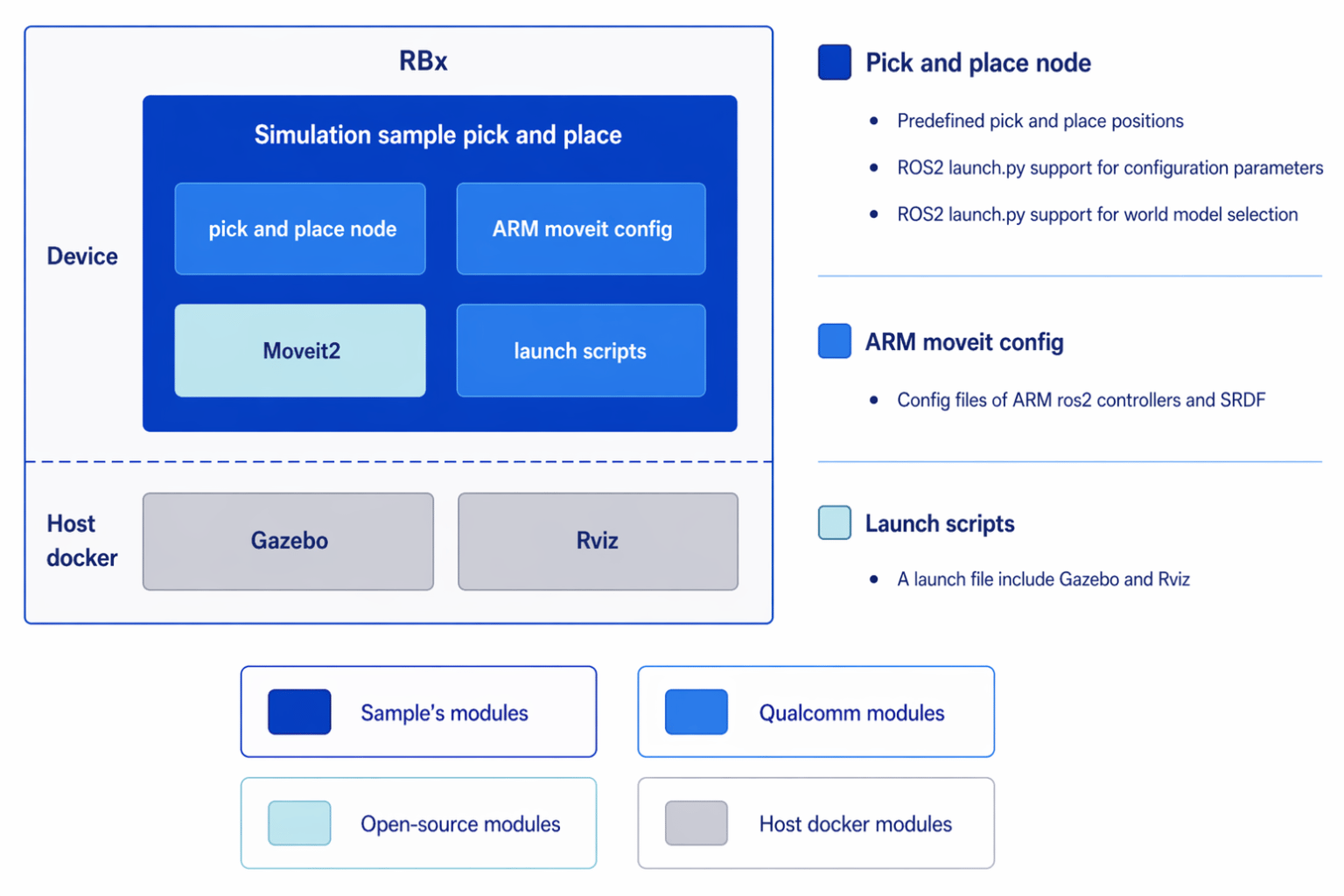
## Pipeline flow for `simulation_sample_pick_and_place`

<img src="https://mintcdn.com/qualcomm-prod/IP0o0G5fE3MFmCJ8/SDKs/QIR-SDK-2.0/media/80-65220-2-qirp-sdk-qsg/simulation-sample-pick-and-place-architecture.png?fit=max&auto=format&n=IP0o0G5fE3MFmCJ8&q=85&s=ed953593d2feede282a0a86dcfa4b64f" alt="image" width="1536" height="1024" data-path="SDKs/QIR-SDK-2.0/media/80-65220-2-qirp-sdk-qsg/simulation-sample-pick-and-place-architecture.png" />

## ROS nodes used in the `simulation_sample_pick_and_place `pipeline

| ROS node                           | Description                                                                                                                                                                                                 |
| :--------------------------------- | :---------------------------------------------------------------------------------------------------------------------------------------------------------------------------------------------------------- |
| `qrb_ros_simulation`               | A ROS package that sets up the Qualcomm robotic simulation environment. For details, see [QRB ROS Simulation](https://github.com/qualcomm-qrb-ros/qrb_ros_simulation).                                      |
| `simulation_sample_pick_and_place` | Source code for pick-and-place.                                                                                                                                                                             |
| `moveit_ros_move_group`            | A ROS package that provides the MoveIt ROS MoveGroup interface. For details, see [MoveIt MoveGroup](https://moveit.picknik.ai/humble/doc/examples/move_group_interface/move_group_interface_tutorial.html). |

## ROS topics used in the `simulation_sample_pick_and_place` pipeline

<table>
  <thead>
    <tr>
      <th style={{width: '25%' }}>ROS Topics</th>
      <th style={{ width: '25%' }}>Type</th>
      <th astyle={{ width: '50%' }}>Description</th>
    </tr>
  </thead>

  <tbody>
    <tr>
      <td align="left"><code>/joint\_states</code></td>
      <td align="left"><code>sensor\_msgs/msg/JointState</code></td>
      <td align="left">Real-time data for all robot joints control information.</td>
    </tr>

    <tr>
      <td align="left"><code>/hand\_controller/controller\_state</code></td>
      <td align="left"><code>control\_msgs.msg.ControllerState</code></td>
      <td align="left">Current state and status information of the gripper controller.</td>
    </tr>

    <tr>
      <td align="left"><code>/rm\_group\_controller/controller\_state</code></td>
      <td align="left"><code>control\_msgs.msg.ControllerState</code></td>
      <td align="left">Current state and status information of the robotic arm controller.</td>
    </tr>

    <tr>
      <td align="left"><code>/robot\_description</code></td>
      <td align="left"><code>std\_msgs.msg.String</code></td>
      <td align="left">URDF robot description in XML format for robot modeling and visualization.</td>
    </tr>

    <tr>
      <td align="left"><code>/robot\_description\_semantic</code></td>
      <td align="left"><code>std\_msgs.msg.String</code></td>
      <td align="left">SRDF semantic robot description for MoveIt planning and configuration.</td>
    </tr>
  </tbody>
</table>

## Prerequisites

You have completed the following settings in [Set up the environment for running sample applications](./set-up-env-for-sample-app).

* Set up the device
* Set up the host docker

### Set up the simulation environment

1. On your host computer, complete the following to build the Qualcomm robotic simulation environment according to the **README** of [QRB ROS Simulation](https://github.com/qualcomm-qrb-ros/qrb_ros_simulation). Ensure that the device and the host are on the same local network and can communicate with each other through ROS communication.
   1. Set up development environment on Ubuntu24.04 host or Docker.
   2. Build from source.
2. Run the `qrb ros simulation` on the host. Open a terminal and run the following commands to launch the `Gazebo` simulation environment:
   ```powershell theme={null}
   # Set the ROS_DOMAIN_ID
   (ssh) source install/setup.sh
   (ssh) export ROS_DOMAIN_ID=55
   (ssh) ros2 launch qrb_ros_sim_gazebo gazebo_rml_63_gripper.launch.py world_model:=warehouse initial_x:=2.2 initial_y:=-2 initial_z:=1.025 initial_yaw:=3.14159 initial_pitch:=0.0 initial_roll:=0.0 use_sim_time:=true
   ```
3. Select the `Play` button in `Gazebo` to start the simulation, and then open another terminal and run the following commands to launch the controller manager:
   ```powershell theme={null}
   # Set the ROS_DOMAIN_ID
   (ssh) source install/setup.sh
   (ssh) export ROS_DOMAIN_ID=55
   (ssh) ros2 launch qrb_ros_sim_gazebo gazebo_rml_63_gripper_load_controller.launch.py
   ```

## Run out-of-the-box `simulation_sample_pick_and_place`

1. On the development kit, open a terminal and run the following commands to launch the `moveit` ROS move group:
   ```cpp theme={null}
   # setup runtime environment
   (ssh) source /usr/share/qirp-setup.sh
   # Set the ROS_DOMAIN_ID
   (ssh) export ROS_DOMAIN_ID=55
   (ssh) ros2 launch simulation_sample_pick_and_place simulation_sample_pick_and_place.launch.py
   ```
   If the ROS node is launched successfully, the log starting from `[move_group-1] You can start planning now!` appears.

2. Open another terminal and run the following commands to launch the pick-and-place sample application:
   ```cpp theme={null}
   # setup runtime environment
   (ssh) source /usr/share/qirp-setup.sh
   # Set the ROS_DOMAIN_ID
   (ssh) export ROS_DOMAIN_ID=55
   (ssh) ros2 run simulation_sample_pick_and_place qrb_ros_arm_pick_place
   ```

**Result**

If the ROS node launches successfully, you can see the robot arm performing the pick-and-place operation in Gazebo.

## Build and run `simulation_sample_pick_and_place`

1. In a terminal of the host computer, run the following commands:

   <Note>
     **Note**

     * `<qir_version>`: Version of the QIR SDK, see [QIR SDK 2.0 Release Notes](../../Key-Documents/QIR-SDK-Release-Notes/robotics-sdk-qli2.0-062026).
     * `<qir_decompressed_path>`: The path where you decompress the QIR SDK.
   </Note>

   1. Build the sample application project.

      ```powershell theme={null}
      # Set up the QIR SDK  environment
      (ssh) tar -zxf qirp-sdk_<qir_version>.tar.gz
      (ssh) cd <qir_decompressed_path>/qirp-sdk
      (ssh) source setup.sh
      # Build the sample
      (ssh) cd <qir_decompressed_path>/qirp-sdk/qirp-samples/robotics/simulation_sample_pick_and_place
      (ssh) chmod +x scripts/build.sh
      (ssh) bash scripts/build.sh
      ```
   2. Package and push the sample application to the device.
      ```powershell theme={null}
      # package and push build result of sample
      (ssh) cd <qir_decompressed_path>/qirp-sdk/qirp-amples/robotics/simulation_sample_pick_and_place/install
      (ssh) tar -czf simulation_sample_pick_and_place.tar.gz lib share
      (ssh) scp simulation_sample_pick_and_place.tar.gz root@[ip-addr]:/opt/
      ```
2. On the development kit, run the following commands:
   1. Install the sample application.
      ```python theme={null}
      # Install sample package
      (ssh) tar --no-overwrite-dir --no-same-owner -zxf /opt/simulation_sample_pick_and_place.tar.gz -C /usr/ros/jazzy/
      ```
   2. Run the sample application with the steps in [Run out-of-the-box simulation\_sample\_pick\_and\_place](#run-out-of-the-box-simulation_sample_pick_and_place).
