> ## Documentation Index
> Fetch the complete documentation index at: https://dragonwingdocs.qualcomm.com/llms.txt
> Use this file to discover all available pages before exploring further.
# Enable Orbbec Gemini 335L with orbbec_camera
> The orbbec_camera sample application enables the Orbbec Gemini camera 335L to work in RGB or depth mode. This application generates the RGB and depth information by topics.
`orbbec_camera` is the OrbbecSDK ROS2 Wrapper, which provides integration of Orbbec cameras within the ROS 2 environment.
## Pipeline flow for `orbbec_camera`
The following figure shows the pipeline flow for `orbbec_camera`.
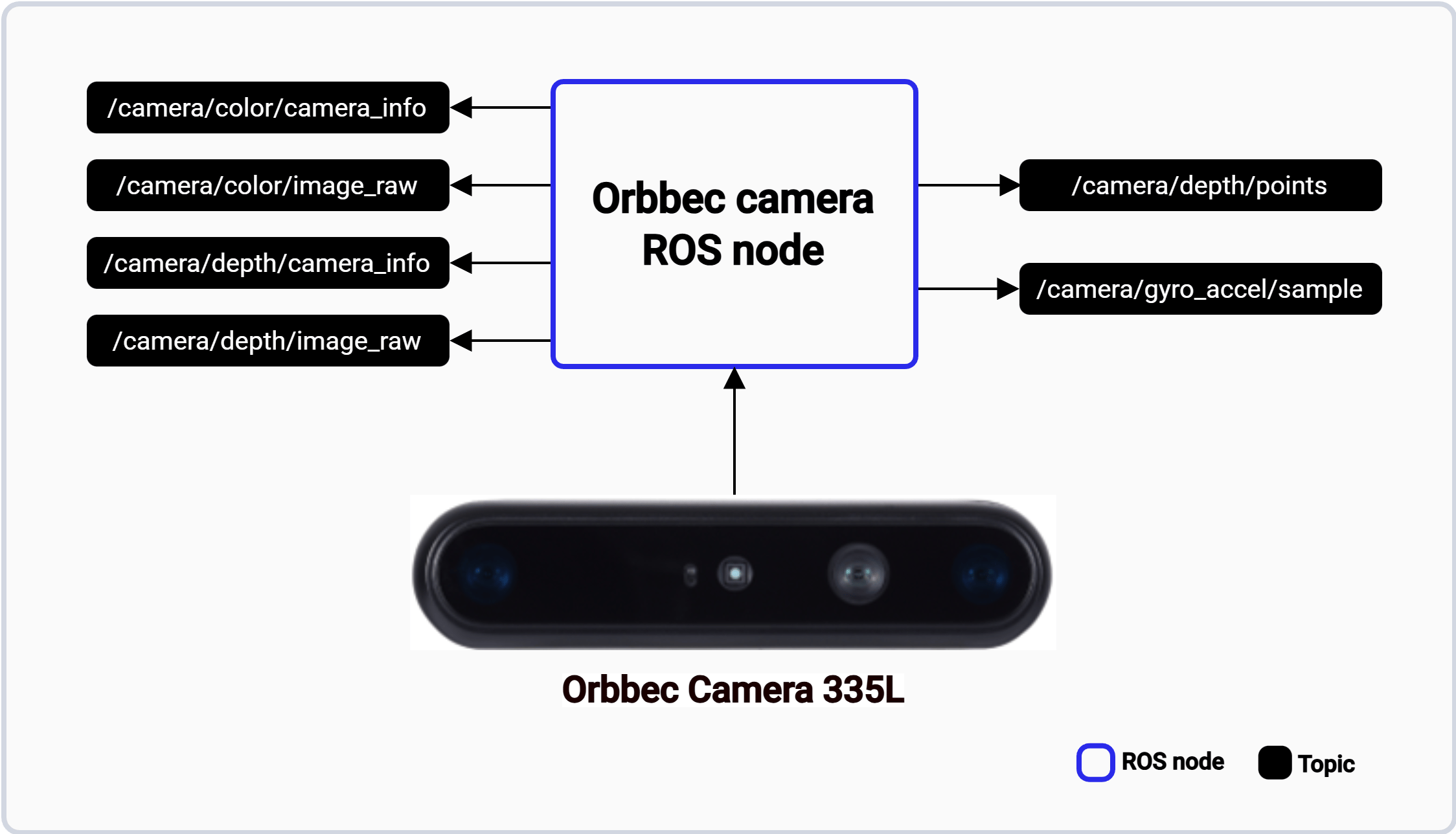 ## ROS topics used in the `orbbec_camera` pipeline
The following table lists the ROS topics used in the `orbbec_camera` pipeline, with the message type and a description of each topic.
| ROS topic | Type | Description |
| --------------------------- | --------------------------------- | -------------------------------------- |
| `/camera/color/camera_info` | `` | Published by the `orbbec_camera` node. |
| `/camera/color/image_raw` | `` | Published by the `orbbec_camera` node. |
| `/camera/depth/camera_info` | `` | Published by the `orbbec_camera` node. |
| `/camera/depth/image_raw` | `` | Published by the `orbbec_camera` node. |
| `/camera/depth/points` | `` | Published by the `orbbec_camera` node. |
| `/camera/gyro_accel/sample` | `` | Published by the `orbbec_camera` node. |
## Prerequisites
* You have set up the device, installed ROS2 Jazzy and the Qualcomm Intelligent Robotics (QIR) SDK on the device according to [Install the QIR SDK](./install-the-qir-sdk).
* Connect the USB port of Orbbec Gemini 335L camera.
## Run out-of-the-box `orbbec_camera`
```bash Install the packages theme={null}
sudo apt install ros-jazzy-image-transport-plugins
sudo apt install ros-jazzy-orbbec-camera
```
```bash Install the udev rules theme={null}
sudo cp /opt/ros/jazzy/share/orbbec_camera/udev/99-obsensor-libusb.rules /etc/udev/rules.d/
sudo udevadm control --reload-rules && sudo udevadm trigger
```
```bash Enable the RGB module theme={null}
source /opt/ros/jazzy/setup.bash
ros2 launch orbbec_camera gemini_330_series.launch.py depth_registration:=false enable_depth:=false enable_point_cloud:=false color_width:=848 color_height:=480 color_fps:=30 color_qos:=default
```
```bash Enable the depth module theme={null}
source /opt/ros/jazzy/setup.bash
ros2 launch orbbec_camera gemini_330_series.launch.py depth_registration:=true enable_depth:=true enable_sync:=true enable_point_cloud:=false color_width:=848 color_height:=480 color_fps:=30 depth_fps:=30
```
```bash Enable the IMU module theme={null}
source /opt/ros/jazzy/setup.bash
ros2 launch orbbec_camera gemini_330_series.launch.py depth_registration:=false enable_depth:=false enable_point_cloud:=false color_width:=640 color_height:=360 color_fps:=30 color_qos:=default enable_accel:=true enable_gyro:=true enable_sync_output_accel_gyro:=true
```
If the image frequency doesn't meet the set value, perform a fast DDS optimization:
a. Perform the steps according to [Fast DDS Optimization](https://orbbec.github.io/OrbbecSDK_ROS2/en/source/camera_devices/5_advanced_guide/performance/fastdds_tuning.html).
b. Restart the camera.
## ROS topics used in the `orbbec_camera` pipeline
The following table lists the ROS topics used in the `orbbec_camera` pipeline, with the message type and a description of each topic.
| ROS topic | Type | Description |
| --------------------------- | --------------------------------- | -------------------------------------- |
| `/camera/color/camera_info` | `` | Published by the `orbbec_camera` node. |
| `/camera/color/image_raw` | `` | Published by the `orbbec_camera` node. |
| `/camera/depth/camera_info` | `` | Published by the `orbbec_camera` node. |
| `/camera/depth/image_raw` | `` | Published by the `orbbec_camera` node. |
| `/camera/depth/points` | `` | Published by the `orbbec_camera` node. |
| `/camera/gyro_accel/sample` | `` | Published by the `orbbec_camera` node. |
## Prerequisites
* You have set up the device, installed ROS2 Jazzy and the Qualcomm Intelligent Robotics (QIR) SDK on the device according to [Install the QIR SDK](./install-the-qir-sdk).
* Connect the USB port of Orbbec Gemini 335L camera.
## Run out-of-the-box `orbbec_camera`
```bash Install the packages theme={null}
sudo apt install ros-jazzy-image-transport-plugins
sudo apt install ros-jazzy-orbbec-camera
```
```bash Install the udev rules theme={null}
sudo cp /opt/ros/jazzy/share/orbbec_camera/udev/99-obsensor-libusb.rules /etc/udev/rules.d/
sudo udevadm control --reload-rules && sudo udevadm trigger
```
```bash Enable the RGB module theme={null}
source /opt/ros/jazzy/setup.bash
ros2 launch orbbec_camera gemini_330_series.launch.py depth_registration:=false enable_depth:=false enable_point_cloud:=false color_width:=848 color_height:=480 color_fps:=30 color_qos:=default
```
```bash Enable the depth module theme={null}
source /opt/ros/jazzy/setup.bash
ros2 launch orbbec_camera gemini_330_series.launch.py depth_registration:=true enable_depth:=true enable_sync:=true enable_point_cloud:=false color_width:=848 color_height:=480 color_fps:=30 depth_fps:=30
```
```bash Enable the IMU module theme={null}
source /opt/ros/jazzy/setup.bash
ros2 launch orbbec_camera gemini_330_series.launch.py depth_registration:=false enable_depth:=false enable_point_cloud:=false color_width:=640 color_height:=360 color_fps:=30 color_qos:=default enable_accel:=true enable_gyro:=true enable_sync_output_accel_gyro:=true
```
If the image frequency doesn't meet the set value, perform a fast DDS optimization:
a. Perform the steps according to [Fast DDS Optimization](https://orbbec.github.io/OrbbecSDK_ROS2/en/source/camera_devices/5_advanced_guide/performance/fastdds_tuning.html).
b. Restart the camera.