> ## Documentation Index
> Fetch the complete documentation index at: https://dragonwingdocs.qualcomm.com/llms.txt
> Use this file to discover all available pages before exploring further.
# Run basic OCR with ocr_service
> The ocr_service sample application enables a service that provides the optical character recognition (OCR) function. It captures the image topic from the ROS system and publishes the result with ocr_topic.
## Pipeline flow for `ocr_service`
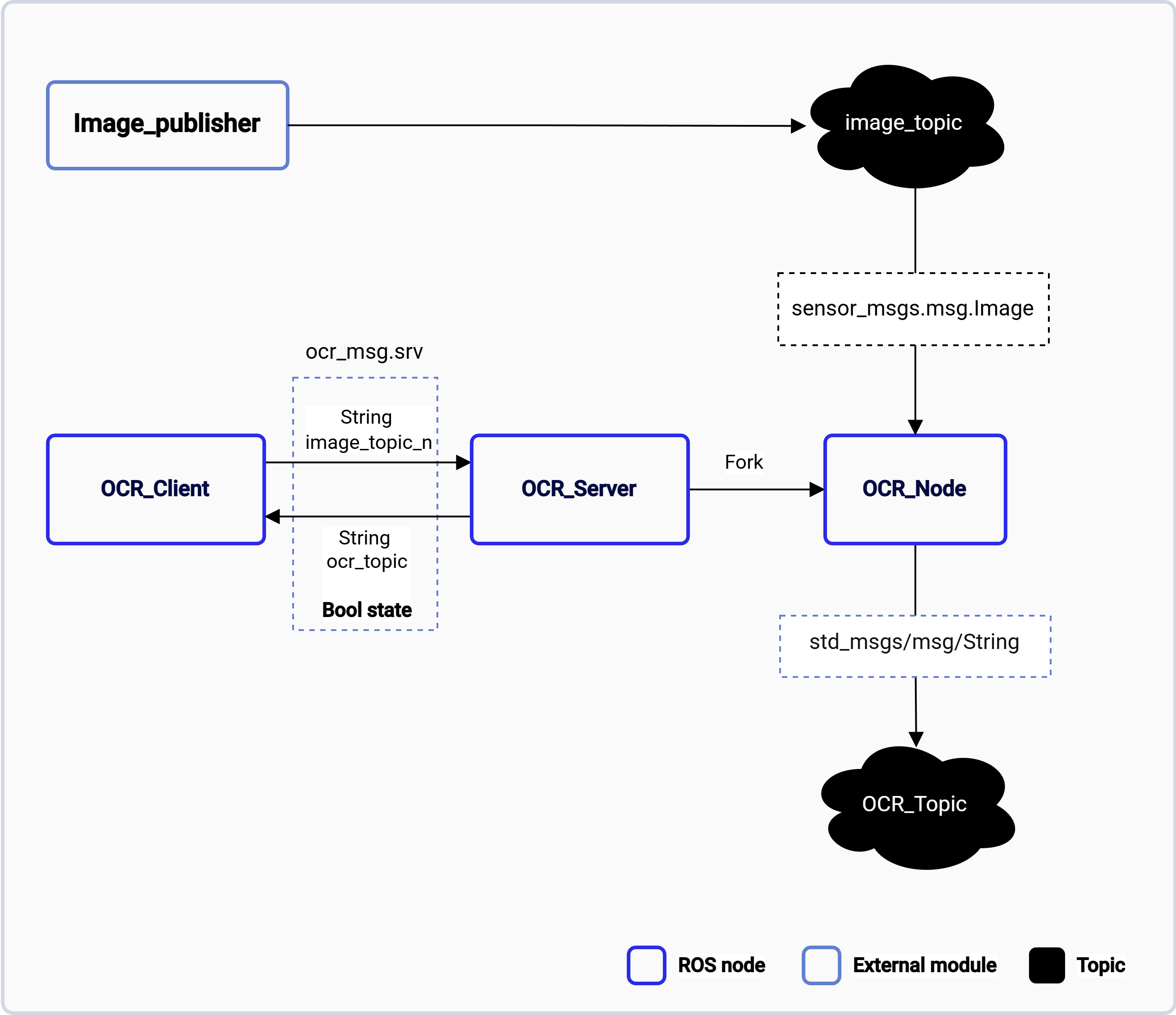
The following figure shows the pipeline flow among the relevant client/server and ROS nodes, with the basic messages and data transfer channels.
 ## ROS nodes used in the `ocr_service` pipeline
The following table lists the ROS nodes used in the `ocr_service` pipeline and describes what each node does.
| ROS node | Description |
| ------------- | ------------------------------------------------------------------------------------------------- |
| `OCR_CLIENT` | Sends the optical character recognition (OCR) request to `ocr_server` and gets the server result. |
| `OCR_SERVER` | Gets the OCR request from `ocr_server` , and forks the `ocr_rosnode` according to the request. |
| `OCR_ROSNODE` | Subscribes to the image topic according to the request. |
## ROS topics used in the `ocr_service` pipeline
The following table lists the ROS topics used in the `ocr_service` pipeline, with the message type and the publisher of each topic.
| ROS topic | Type | Published by |
| ----------------------- | --------------------------- | ------------------ |
| `/image_topic_name` | `< sensor_msgs.msg.Image >` | Any ROS node |
| `/ocr_image_topic_name` | `< std_msgs/msg/String >` | `ocr-rosnode` node |
## Prerequisites
You have set up the device, installed ROS2 Jazzy and the Qualcomm Intelligent Robotics (QIR) SDK on the device according to [Install the QIR SDK](./install-the-qir-sdk).
## Run out-of-the-box `ocr_service`
Run `ocr_service` with the following commands:
```bash Run ocr_service theme={null}
source /opt/ros/jazzy/setup.bash
ros2 run ocr_service ocr_server
ros2 run ocr_service ocr_testnode --topic --picture
ros2 run ocr_service ocr_client
```
### Example
This example shows the commands you can run in the three terminals:
* In terminal 1:
```bash Start the OCR server theme={null}
source /opt/ros/jazzy/setup.bash
ros2 run ocr_service ocr_server
```
* In terminal 2:
```bash Publish a test image theme={null}
source /opt/ros/jazzy/setup.bash
scp /test.png ubuntu@IP:/home/ubuntu/image
ros2 run ocr_service ocr_testnode --topic test --picture /home/ubuntu/image/test.png
```
* In terminal 3:
```bash Run the OCR client theme={null}
source /opt/ros/jazzy/setup.bash
ros2 run ocr_service ocr_client test
```
## ROS nodes used in the `ocr_service` pipeline
The following table lists the ROS nodes used in the `ocr_service` pipeline and describes what each node does.
| ROS node | Description |
| ------------- | ------------------------------------------------------------------------------------------------- |
| `OCR_CLIENT` | Sends the optical character recognition (OCR) request to `ocr_server` and gets the server result. |
| `OCR_SERVER` | Gets the OCR request from `ocr_server` , and forks the `ocr_rosnode` according to the request. |
| `OCR_ROSNODE` | Subscribes to the image topic according to the request. |
## ROS topics used in the `ocr_service` pipeline
The following table lists the ROS topics used in the `ocr_service` pipeline, with the message type and the publisher of each topic.
| ROS topic | Type | Published by |
| ----------------------- | --------------------------- | ------------------ |
| `/image_topic_name` | `< sensor_msgs.msg.Image >` | Any ROS node |
| `/ocr_image_topic_name` | `< std_msgs/msg/String >` | `ocr-rosnode` node |
## Prerequisites
You have set up the device, installed ROS2 Jazzy and the Qualcomm Intelligent Robotics (QIR) SDK on the device according to [Install the QIR SDK](./install-the-qir-sdk).
## Run out-of-the-box `ocr_service`
Run `ocr_service` with the following commands:
```bash Run ocr_service theme={null}
source /opt/ros/jazzy/setup.bash
ros2 run ocr_service ocr_server
ros2 run ocr_service ocr_testnode --topic --picture
ros2 run ocr_service ocr_client
```
### Example
This example shows the commands you can run in the three terminals:
* In terminal 1:
```bash Start the OCR server theme={null}
source /opt/ros/jazzy/setup.bash
ros2 run ocr_service ocr_server
```
* In terminal 2:
```bash Publish a test image theme={null}
source /opt/ros/jazzy/setup.bash
scp /test.png ubuntu@IP:/home/ubuntu/image
ros2 run ocr_service ocr_testnode --topic test --picture /home/ubuntu/image/test.png
```
* In terminal 3:
```bash Run the OCR client theme={null}
source /opt/ros/jazzy/setup.bash
ros2 run ocr_service ocr_client test
```