> ## Documentation Index
> Fetch the complete documentation index at: https://dragonwingdocs.qualcomm.com/llms.txt
> Use this file to discover all available pages before exploring further.
# Enable SELinux
This feature isn’t enabled in the current release.
When SELinux is enabled, all system objects, including files, directories, processes, sockets, drivers, and more, are labeled with a security context.
A security context consists of a user, role, type identifier, and optional sensitivity, separated by colons.
For example: `user:role:type:sensitivity`
**Note**
*User* is unrelated to a Linux user, and *Type* is unrelated to the kind of object it is.
* A set of valid users, roles, and types is defined in the policy.
* Different objects are labeled with the same security context.
* The MAC mechanism of SELinux security policies is implemented using:
* Type enforcement (TE)
* Role-based access control (RBAC)
* Multilevel security (MLS)
* Types enable the policy to specify the allowed operations.
**Figure : SELinux process**
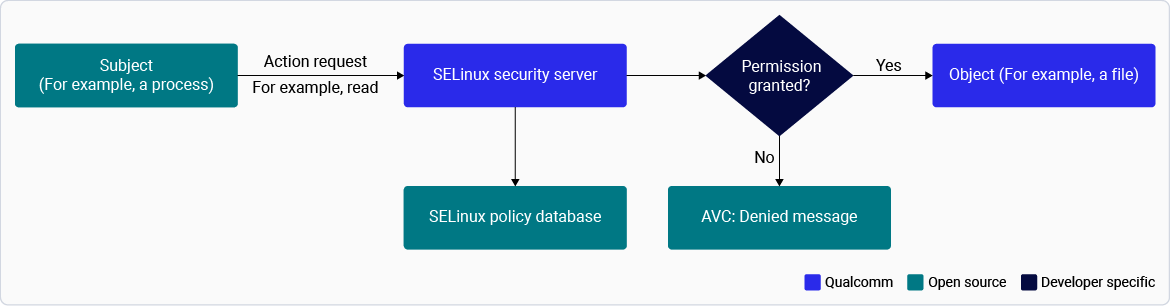 The following procedures explains how to verify and enable SELinux and modify SELinux modes.
**Note**
By default, **SELinux is disabled** to simplify the validation process while working with the SoC and SDK. For commercial use, it’s recommended to enable the SELinux security feature.
## **Verify and modify SELinux mode**
If SELinux is enabled, you may not be allowed to update the anti-rollback protection flag.
1. Check the current SELinux configuration of the device (Enforcing or Permissive mode):
```text theme={null}
getenforce
```
2. If it’s set to the Enforcing mode, run the `setenforce` command to change the mode.
1. Connect to the device using SSH.
2. Change the SELinux mode by using the following commands.
* To switch the device to Enforcing mode:
```text theme={null}
setenforce 1
```
* To switch the device to Permissive mode:
```text theme={null}
setenforce 0
```
* To recheck the current configuration of the device (Enforcing or Permissive mode):
```text theme={null}
getenforce
```
## **Configure SELinux (Enable, disable, and switch modes)**
To switch to Enforcing mode (restrictive) or Permissive mode (non-restrictive with logging), follow these steps:
1. To enable or disable SELinux:
* To disable SELinux for the build, delete the lines of code. By default, these lines are already removed from the distro section, which results in SELinux being disabled.
* To enable SELinux, add the lines of code as shown in the figure to enable SELinux.
* Use policy version 33.
* To add policies for SELinux, see upstream [refpolicy](https://github.com/SELinuxProject/refpolicy). The following figure shows the steps in a SELinux:
The following procedures explains how to verify and enable SELinux and modify SELinux modes.
**Note**
By default, **SELinux is disabled** to simplify the validation process while working with the SoC and SDK. For commercial use, it’s recommended to enable the SELinux security feature.
## **Verify and modify SELinux mode**
If SELinux is enabled, you may not be allowed to update the anti-rollback protection flag.
1. Check the current SELinux configuration of the device (Enforcing or Permissive mode):
```text theme={null}
getenforce
```
2. If it’s set to the Enforcing mode, run the `setenforce` command to change the mode.
1. Connect to the device using SSH.
2. Change the SELinux mode by using the following commands.
* To switch the device to Enforcing mode:
```text theme={null}
setenforce 1
```
* To switch the device to Permissive mode:
```text theme={null}
setenforce 0
```
* To recheck the current configuration of the device (Enforcing or Permissive mode):
```text theme={null}
getenforce
```
## **Configure SELinux (Enable, disable, and switch modes)**
To switch to Enforcing mode (restrictive) or Permissive mode (non-restrictive with logging), follow these steps:
1. To enable or disable SELinux:
* To disable SELinux for the build, delete the lines of code. By default, these lines are already removed from the distro section, which results in SELinux being disabled.
* To enable SELinux, add the lines of code as shown in the figure to enable SELinux.
* Use policy version 33.
* To add policies for SELinux, see upstream [refpolicy](https://github.com/SELinuxProject/refpolicy). The following figure shows the steps in a SELinux:
 2. Check the system status with `getenforce` on target. This command returns one of the three values:
* Enforcing
* Permissive
* Disabled
3. To change the mode, select a mode at runtime by running `setenforce` with a number (this change won’t persist after reboot).
| **Command** | **Result** |
| :------------: | :-----------------------: |
| `setenforce 1` | Switch to Enforcing mode |
| `setenforce 0` | Switch to Permissive mode |
1. To persist after reboot:
1. Connect to the device using SSH. For instructions, see [Qualcomm Linux Build Guide](https://docs.qualcomm.com/bundle/publicresource/topics/80-80021-254/how_to.html#use-ssh).
2. Edit SELINUX= to one of the three supported values: `enforcing`, `permissive`, or `disabled` in `/etc/selinux/config`.
3. Reboot the device using the following command:
> ```text theme={null}
> reboot
> ```
2. To specify the SELinux mode in the build: Change the `DEFAULT_ENFORCING` build flag to one of the three supported values: enforcing, permissive, or disabled.
```text theme={null}
conf/distro/include/qcom-base.inc
-- DEFAULT_ENFORCING = "permissive"
++ DEFAULT_ENFORCING = "enforcing"
```
4. The SELinux Disabled mode leaves behind many code paths that go through the SELinux framework. These code paths aren’t useful for KPI testing or verifying bugs in the SELinux framework. It also doesn’t allow any more access than Permissive mode.
To disable the feature for testing, remove SELinux from `DISTRO_FEATURES`:
```text theme={null}
conf/distro/include/qcom-base.inc
-- DISTRO_FEATURES:append = " selinux"
```
## **Next steps**
* To ensure that only the verified and trusted applications are loaded during the startup process, see [Enable UEFI secure boot](./enable-uefi-secure-boot).
* For chipset feature management and to upgrade the chipset feature packs, see [Install or upgrade SoftSKU feature packs](./install-or-upgrade-the-soft-sku-feature-packs).
2. Check the system status with `getenforce` on target. This command returns one of the three values:
* Enforcing
* Permissive
* Disabled
3. To change the mode, select a mode at runtime by running `setenforce` with a number (this change won’t persist after reboot).
| **Command** | **Result** |
| :------------: | :-----------------------: |
| `setenforce 1` | Switch to Enforcing mode |
| `setenforce 0` | Switch to Permissive mode |
1. To persist after reboot:
1. Connect to the device using SSH. For instructions, see [Qualcomm Linux Build Guide](https://docs.qualcomm.com/bundle/publicresource/topics/80-80021-254/how_to.html#use-ssh).
2. Edit SELINUX= to one of the three supported values: `enforcing`, `permissive`, or `disabled` in `/etc/selinux/config`.
3. Reboot the device using the following command:
> ```text theme={null}
> reboot
> ```
2. To specify the SELinux mode in the build: Change the `DEFAULT_ENFORCING` build flag to one of the three supported values: enforcing, permissive, or disabled.
```text theme={null}
conf/distro/include/qcom-base.inc
-- DEFAULT_ENFORCING = "permissive"
++ DEFAULT_ENFORCING = "enforcing"
```
4. The SELinux Disabled mode leaves behind many code paths that go through the SELinux framework. These code paths aren’t useful for KPI testing or verifying bugs in the SELinux framework. It also doesn’t allow any more access than Permissive mode.
To disable the feature for testing, remove SELinux from `DISTRO_FEATURES`:
```text theme={null}
conf/distro/include/qcom-base.inc
-- DISTRO_FEATURES:append = " selinux"
```
## **Next steps**
* To ensure that only the verified and trusted applications are loaded during the startup process, see [Enable UEFI secure boot](./enable-uefi-secure-boot).
* For chipset feature management and to upgrade the chipset feature packs, see [Install or upgrade SoftSKU feature packs](./install-or-upgrade-the-soft-sku-feature-packs).