> ## Documentation Index
> Fetch the complete documentation index at: https://dragonwingdocs.qualcomm.com/llms.txt
> Use this file to discover all available pages before exploring further.
# Perform Bluetooth MAP server functions
> You can verify Bluetooth MAP server functionality using the commands provided in the main menu of ``obexctl``. Bluetooth MAP server functions allow you to get and read a message on the server.
## Pull and read a message
Before you begin, do the following:
* Pair the DUT and the remote device. For instructions, see Pair with a remote Bluetooth device.
* Create a MAP directory on the server.
In the BlueZ stack, MAP server functionality can't be tested or verified directly as you can't send or receive cellular messages on the device. Hence, you must create a MAP directory on the DUT. For more information about creating a MAP directory, see Sample MAP directory.
To pull and read a message from the server, do the following:
1. Initiate a connection from the remote device to the DUT.
2. Accept the connection request on the DUT as follows:
a. Run SSH on the DUT.
b. Open the `bluetoothctl` application by running the following command:
```text theme={null}
bluetoothctl
```
c. Authenticate the connection request.
3. Pull the intended message from the server to the client.
4. Open and verify the retrieved message on the client.
## Sample MAP directory
You can create a sample MAP directory to verify MAP server functionality as follows:
1. Run SSH on the DUT.
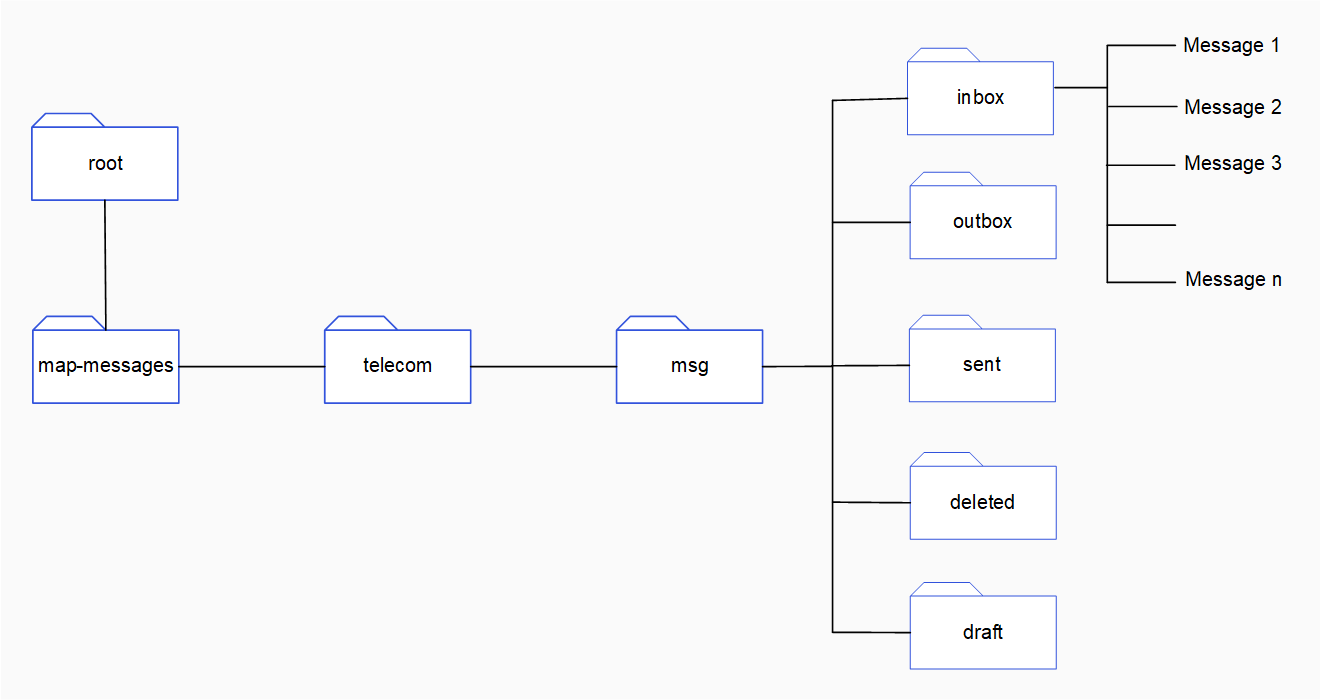
2. Create a message directory `map-messages/telecom/msg` by running the following commands in sequence:
a. Create the `map-messages` directory:
```text theme={null}
mkdir map-messages
```
b. Change into the `map-messages` directory:
```text theme={null}
cd map-messages
```
c. Create the `telecom` directory:
```text theme={null}
mkdir telecom
```
d. Change into the `telecom` directory:
```text theme={null}
cd map-messages/telecom
```
e. Create the `msg` directory:
```text theme={null}
mkdir msg
```
f. Change into the `telecom/msg` directory:
```text theme={null}
cd telecom/msg
```
3. In the `msg` directory, create the following subfolders:
* `inbox`
* `outbox`
* `sent`
* `deleted`
* `draft`
To create the subfolder at `msg`, run the following command:
```text theme={null}
mkdir
```
`` is the name of the subfolder. For example, `inbox`.
4. In each subfolder, create message files.
The following figure shows a sample MAP directory. In the `/map-messages/telecom/msg/` directory, there are subfolders for different types of messages. These subfolders contain messages.