> ## Documentation Index
> Fetch the complete documentation index at: https://dragonwingdocs.qualcomm.com/llms.txt
> Use this file to discover all available pages before exploring further.
# Stream cameras
> Connect camera sensors to your reference hardware platform and stream using GStreamer and V4L2 APIs — QCS6490, IQ-9075-EVK, IQ-8275-EVK, and IQ615.
QCS6490
IQ-9075-EVK
IQ-8275-EVK
IQ615
Stable
Multi-platform support
Quad deserializer
Primary API
Driver API
***
This page describes how to connect camera sensors to your reference hardware platform and provides information about available APIs.
***
## 01 · Set up the camera
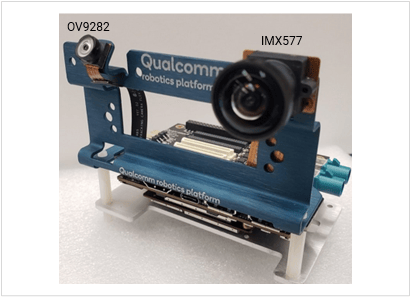
## QCS6490 Camera Topology
**Default camera modules**
* **OV9282**
* **IMX577**
***
## RB3G2 Vision Mezzanine: MIPI CSI
### Camera Connections
| Slot | Sensor | Status |
| --------- | ------ | --------- |
| **CAM0A** | OV9282 | Supported |
| **CAM3** | IMX577 | Supported |
Connect:
* **OV9282 → CAM0A**
* **IMX577 → CAM3**
### SW2300 DIP Switch on Interposer Board
| Slot | SW2300 Switch 1 | Default | Function |
| --------- | --------------- | ------- | ------------------------- |
| **CAM0A** | Not required | N/A | Works without DIP setting |
| **CAM3** | **OFF** | OFF | Enables CAM3 use |
To use the **CAM3** slot on the vision mezzanine board, **SW2300 switch 1 must be OFF**.
This is the **default** state.
**CAM0A** works without any DIP switch setting.
***
## RB3G2 Vision Mezzanine: GMSL
There are **two GMSL slots** on the vision mezzanine board:
* **GMSL1**
* **GMSL2**
| Slot | Shared CSI | Switch Required | Default State | Status |
| --------- | -------------------- | ------------------------ | ------------- | --------- |
| **GMSL1** | No | None | N/A | Supported |
| **GMSL2** | Shares CSI with CAM3 | **SW2300 switch 1 = ON** | OFF | Supported |
**Important**
* **GMSL1** works without any hardware setting
* **CAM3 CSI** and **GMSL2** share the same CSI path
* To use **GMSL2**, set **SW2300 switch 1 to ON**
* Default state of SW2300 switch 1 is **OFF**
***
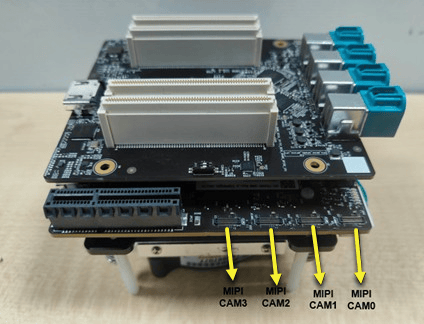
## RB3G2 Interposer Board: MIPI CSI
### Camera Connections
| Slot | Sensor | Status |
| -------- | ------ | --------- |
| **CAM1** | OV9282 | Supported |
| **CAM2** | IMX577 | Supported |
Connect:
* **OV9282 → CAM1**
* **IMX577 → CAM2**
### DIP Switch Settings
| Switch | Setting | Default | Purpose |
| ----------------- | ------- | ------- | ---------------- |
| **CSI1\_DIP\_SW** | **ON** | OFF | Enables **CAM1** |
| **CSI2\_DIP\_SW** | **ON** | OFF | Enables **CAM2** |
Set **CSI1\_DIP\_SW** and **CSI2\_DIP\_SW** to **ON** to use **CAM1** and **CAM2** on the interposer board.
Default state is **OFF**.
***
## Supported Features
| Feature | IMX577 (CAM3) | OV9282 (CAM0A) | AR0231 (GMSL) |
| -------- | ------------- | -------------- | ------------- |
| **SHDR** | Yes | No | No |
| **LDC** | Yes | No | No |
| **EIS** | Yes | No | No |
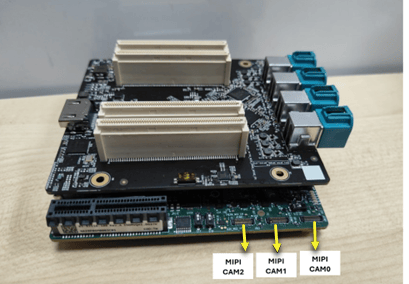
## IQ-9075-EVK Camera Topology
IQ-9075-EVK is offered as the **core kit**.
The core kit supports **MIPI CSI** cameras only.
**GMSL** cameras require a separate **GMSL mezzanine board** connected to the core kit.
| Interface | Hardware Path | Status |
| ------------ | ----------------------- | ------------------------------ |
| **MIPI CSI** | Core kit / main board | **Supported** |
| **GMSL** | External GMSL mezzanine | **Supported via add-on board** |
In the IQ-9075-EVK hardware stack:
* The core kit / main board exposes **four MIPI CSI (C/D-PHY) connectors**
* The GMSL mezzanine board exposes **four GMSL ports (0 to 3)**
***
## GMSL Port Map
There are **four GMSL ports (0 to 3)** on the GMSL mezzanine board.
**Important**
* GMSL port numbering is **not sequential**
* Port numbers are assigned based on the **CSI index** to which the GMSL port is connected
* Each GMSL port connects to a **MAX96724 quad GMSL deserializer**
* Each deserializer is connected to **one CSI**
| Port | CSI Mapping | Deserializer | Status | Sensor Class |
| ---------- | ----------------- | ------------ | ------------ | --------------------------- |
| **Port-0** | CSI-based mapping | MAX96724 | **Enabled** | OX03F10 Bayer |
| **Port-1** | CSI-based mapping | MAX96724 | **Disabled** | Not enabled in this release |
| **Port-2** | CSI-based mapping | MAX96724 | **Enabled** | OX03F10 YUV |
| **Port-3** | CSI-based mapping | MAX96724 | **Enabled** | OX03F10 YUV |
**Current release status**
* **Port-0**, **Port-2**, and **Port-3** are enabled for GMSL cameras
* **Port-1** is not enabled
### Port Capacity
Each GMSL port contains **four slots** (also referred to as **channels**) numbered **1 to 4**.
| Item | Value |
| ----------------------- | ------- |
| **Slots per GMSL port** | 4 |
| **Channel range** | 1 to 4 |
| **Cameras per port** | Up to 4 |
### Sensor Support by Port
| Port | Supported Sensor | Resolution / FPS | Capacity |
| ---------- | ------------------ | -------------------- | --------- |
| **Port-0** | OX03F10 Bayer GMSL | 1824 × 1536 @ 30 FPS | 4 cameras |
| **Port-2** | OX03F10 YUV GMSL | 1920 × 1536 @ 30 FPS | 4 cameras |
| **Port-3** | OX03F10 YUV GMSL | 1920 × 1536 @ 30 FPS | 4 cameras |
***
## DIP Switch Setup
IQ-9075-EVK has **four CSI PHYs**.
Each CSI PHY can be routed to either a **MIPI camera port** or a **GMSL camera port** using the DIP switch on the core kit / main board.
The switch assignment differs between **EVT** and **DVT/PVT** hardware.
DIP switch setting for IQ-9075-EVK EVT hardware:
| Switch | OFF (Default) | ON | Connection When ON | Connection When OFF |
| --------- | ------------- | --- | --------------------- | ------------------- |
| **SW2-1** | HIGH | LOW | CSI0 → GMSL mezzanine | CSI0 → main board |
| **SW2-2** | HIGH | LOW | CSI1 → GMSL mezzanine | CSI1 → main board |
| **SW2-3** | HIGH | LOW | CSI2 → GMSL mezzanine | CSI2 → main board |
| **SW2-4** | HIGH | LOW | CSI3 → GMSL mezzanine | CSI3 → main board |
DIP switch setting for IQ-9075-EVK DVT/PVT hardware:
| Switch | ON | OFF (Default) |
| --------- | --------------------- | ----------------- |
| **SW1-5** | CSI0 → GMSL mezzanine | CSI0 → main board |
| **SW1-6** | CSI1 → GMSL mezzanine | CSI1 → main board |
| **SW1-7** | CSI2 → GMSL mezzanine | CSI2 → main board |
| **SW1-8** | CSI3 → GMSL mezzanine | CSI3 → main board |
***
## Concurrent Camera Support
### MIPI Support
The software supports the **OV9282 MIPI camera**.
| MIPI Camera | Supported Resolution / FPS | CAM0 | CAM1 | CAM2 | CAM3 | Notes |
| ----------- | -------------------------- | --------: | --------: | --------: | --------: | ------------------------------------------------------------------------------------------------------------------------------------------------------------------------------------------- |
| **OV9282** | 1280 × 720 @ 30 FPS | Supported | Supported | Supported | Supported | Any camera can operate independently. A maximum of **two cameras** can run concurrently with **real-time IFE**. All **four cameras** can run concurrently with the **Offline IFE** feature. |
### GMSL Support
The software supports **OX03F10 Bayer** and **OX03F10 YUV** GMSL cameras.
| GMSL Port | Supported Resolution / FPS | Sensor | Notes |
| ------------------- | -------------------------- | ------------- | ------------------------------------------------------------------------------------------------------------------------------------------------------------------------------------------------------------------------- |
| **Port-0** | 1824 × 1536 @ 30 FPS | OX03F10 Bayer | Four OX03F10 Bayer GMSL cameras can be connected on Port-0. Any one camera can operate independently. All four cameras on a single port can run concurrently using the **Per Port Group** feature. |
| **Port-2** | 1920 × 1536 @ 30 FPS | OX03F10 YUV | Four OX03F10 YUV GMSL cameras can be connected on Port-2. Any one camera can operate independently. All four cameras on a single port can run concurrently using the **Per Port Group** feature. |
| **Port-3** | 1920 × 1536 @ 30 FPS | OX03F10 YUV | Four OX03F10 YUV GMSL cameras can be connected on Port-3. Any one camera can operate independently. All four cameras on a single port can run concurrently using the **Per Port Group** feature. |
| **Port-2 + Port-3** | 1920 × 1536 @ 30 FPS | OX03F10 YUV | Eight OX03F10 YUV GMSL cameras can be connected, four on Port-2 and four on Port-3. Any one camera from each port can operate independently. All eight cameras can run concurrently using the **Per Port Group** feature. |
### GMSL + MIPI Concurrency
| CAM0 | CAM1 | GMSL Port-2 | GMSL Port-3 | Notes |
| -------------------------- | -------------------------- | -------------------------------- | -------------------------------- | -------------------------------------------------------------------------------- |
| OV9282 1280 × 720 @ 30 FPS | OV9282 1280 × 720 @ 30 FPS | OX03F10 YUV 1920 × 1080 @ 30 FPS | OX03F10 YUV 1920 × 1080 @ 30 FPS | Any camera can operate independently. All four cameras can operate concurrently. |
## IQ-8275-EVK Camera Topology
IQ-8275-EVK is offered in the **core kit**.
The core kit supports **MIPI CSI** cameras.
**GMSL** cameras require a separate **GMSL mezzanine board** connected to the core kit.
| Interface | Hardware Path | Status |
| ------------ | -------------- | ------------------------------ |
| **MIPI CSI** | Main board | **Supported** |
| **GMSL** | GMSL mezzanine | **Supported via add-on board** |
***
## GMSL Port Map
There are **four GMSL ports (0 to 3)** on the GMSL mezzanine board.
**Important**
* GMSL port numbering is **not sequential**
* Port numbers are defined by the **CSI index** to which the GMSL port is connected
* Ports **0, 1, and 2** each connect to a **MAX96724 quad GMSL deserializer**
* Each deserializer is connected to **one CSI**
* **Port-3** is a **dummy port**
| Port | CSI Mapping | Deserializer | Status | Sensor Class |
| ---------- | ----------------- | ------------ | ------------- | -------------- |
| **Port-0** | CSI-based mapping | MAX96724 | **Supported** | OX03F10 Bayer |
| **Port-1** | CSI-based mapping | MAX96724 | **Disabled** | Hardware issue |
| **Port-2** | CSI-based mapping | MAX96724 | **Supported** | OX03F10 YUV |
| **Port-3** | — | — | **Dummy** | No support |
**Current release status**
* **Port-0** and **Port-2** are supported for GMSL cameras
* **Port-1** is not enabled due to a hardware issue
* **Port-3** is a dummy port
### Port Capacity
Each GMSL port contains **four slots** (also referred to as **channels**) numbered **1 to 4**.
| Item | Value |
| ------------------------- | ------------------ |
| **Slots per GMSL port** | 4 |
| **Channel range** | 1 to 4 |
| **Cameras per port** | Up to 4 |
| **Port-0 sensor support** | OX03F10 Bayer GMSL |
| **Port-2 sensor support** | OX03F10 YUV GMSL |
***
## DIP Switch Setup
IQ-8275-EVK has **three CSI PHYs**.
Each CSI PHY can be routed to either a **MIPI camera port** or a **GMSL camera port** using the DIP switch on the core kit/main board.
The switch assignment differs for **EVT** and **DVT/PVT** hardware.
DIP switch setting on IQ-8275-EVK EVT hardware:
| Switch | ON | OFF (Default) |
| --------- | --------------------- | ----------------- |
| **SW2-1** | CSI0 → GMSL mezzanine | CSI0 → main board |
| **SW2-2** | CSI1 → GMSL mezzanine | CSI1 → main board |
| **SW2-3** | CSI2 → GMSL mezzanine | CSI2 → main board |
DIP switch setting on IQ-8275-EVK DVT/PVT hardware:
| Switch | ON | OFF (Default) |
| --------- | --------------------- | ----------------- |
| **SW1-5** | CSI0 → GMSL mezzanine | CSI0 → main board |
| **SW1-6** | CSI1 → GMSL mezzanine | CSI1 → main board |
| **SW1-7** | CSI2 → GMSL mezzanine | CSI2 → main board |
***
## Concurrent Camera Support
### MIPI Support
The software supports the **OV9282 MIPI camera**.
| MIPI Camera | Supported Resolution / FPS | CAM0 | CAM1 | CAM2 | Notes |
| ----------- | -------------------------- | --------: | --------: | --------: | -------------------------------------------------------------------------------------------------------------------------------------------------------------------------- |
| **OV9282** | 1280 × 720 @ 30 FPS | Supported | Supported | Supported | Any camera can operate independently. Up to **two cameras** can run concurrently with **real-time IFE**. All **three cameras** can run concurrently using **Offline IFE**. |
### GMSL Support
The software supports **OX03F10 Bayer** and **OX03F10 YUV** GMSL cameras.
| GMSL Port | Supported Resolution / FPS | Sensor | Notes |
| ---------- | -------------------------- | ------------- | ------------------------------------------------------------------------------------------------------------------------------------------------------------------------------------------ |
| **Port-0** | 1824 × 1536 @ 30 FPS | OX03F10 Bayer | Four Bayer GMSL cameras can be connected on Port-0. Any one camera can operate independently. All four cameras on a single port can run concurrently using the **Per Port Group** feature. |
| **Port-2** | 1920 × 1536 @ 30 FPS | OX03F10 YUV | Four YUV GMSL cameras can be connected on Port-2. Any one camera can operate independently. All four cameras on a single port can run concurrently using the **Per Port Group** feature. |
### GMSL Port-0 + Port-2 Concurrency
| Configuration | Status | Notes |
| --------------------------------------------------------- | ------------- | --------------------------------------------------------------------------- |
| **4× OX03F10 Bayer on Port-0 + 4× OX03F10 YUV on Port-2** | **Supported** | All eight cameras can run concurrently using the **Per Port Group** feature |
| **Independent camera on each port** | **Supported** | Any one camera from each port can operate independently |
| **Full 8-camera concurrency on IQ-8275-EVK** | **Stable** | All eight cameras can run concurrently |
### GMSL + MIPI Concurrency
| GMSL Port-0 | MIPI | GMSL Port-2 | Status |
| -------------------------------------- | -------------------------------------- | ------------------------------------ | ------------- |
| **OX03F10 Bayer 1824 × 1536 @ 30 FPS** | **OV9282 1280 × 720 @ 30 FPS** | **OX03F10 YUV 1920 × 1080 @ 30 FPS** | **Supported** |
| **OV9282 1280 × 720 @ 30 FPS** | **OX03F10 Bayer 1824 × 1536 @ 30 FPS** | **OX03F10 YUV 1920 × 1080 @ 30 FPS** | **Supported** |
**Rule:** Any camera can operate independently.
**Result:** All three cameras can run concurrently.
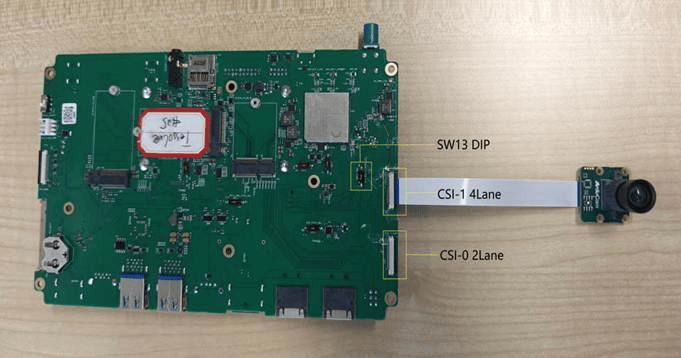
## IQ615 EVK Camera Topology
The IQ615 EVK supports **MIPI CSI cameras**.
**GMSL** is routed through a dedicated interface, but **GMSL cameras are not enabled in the current release**.
### Board Overview
| Interface | Connector | Lane Count | Default State | Status |
| --------- | ------------------- | ---------: | ------------------------- | ---------------------------------- |
| **CSI0** | 22-pin CSI | 2-lane | Enabled | **Supported** |
| **CSI1** | 22-pin CSI | 4-lane | Routed to GMSL by default | **Supported via SW13** |
| **GMSL** | Dedicated GMSL slot | — | Available | **Not enabled in current release** |
**Important**
* The IQ615 EVK does **not** ship with a default sensor connection
* **CSI0** requires **no DIP switch configuration**
* **CSI1** uses **SW13** for path selection
***
## CSI1 Path Selection
**SW13 controls CSI1 routing.**
| SW13 Setting | CSI1 Routing | Result |
| ------------ | ---------------------------- | ---------------------------- |
| **OFF** | GMSL deserializer path | CSI1 configured for **GMSL** |
| **ON** | 22-pin camera connector path | CSI1 configured for **MIPI** |
**Default state:** SW13 is **OFF**
* CSI1 defaults to the **GMSL path**
* CSI1 can be switched to **MIPI** by setting SW13 to **ON**
***
## GMSL Interface
| Item | Status |
| ------------------------------ | ------------ |
| **GMSL slot** | Present |
| **Additional hardware config** | Not required |
| **Current release support** | **Disabled** |
GMSL cameras are currently **not enabled** on the IQ615 EVK board.
***
## Switch Configuration
| Carrier Board Function | Switch | Configuration | Comment |
| ---------------------------- | ------------ | ------------------------------ | ------------------- |
| Enable **MIPI** for **CSI1** | **SW13 OFF** | GMSL deserializer → CSI1 | Default state |
| Enable **MIPI** for **CSI1** | **SW13 ON** | 22-pin camera connector → CSI1 | Switch to MIPI path |
### Summary
| Path | CSI0 | CSI1 | GMSL |
| -------- | -------------- | ----------------------------- | ------------------------------------------- |
| **MIPI** | Direct use | Enabled via **SW13 ON** | Not enabled |
| **GMSL** | Not applicable | Default path via **SW13 OFF** | Present, but not enabled in current release |
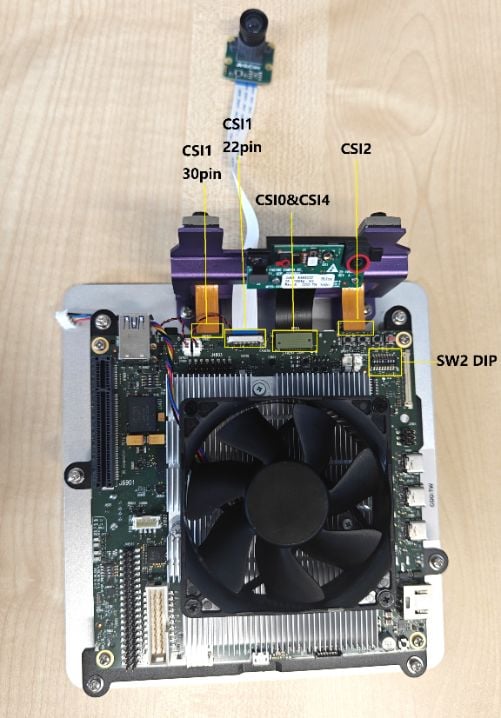
IQx7181 EVK provides multiple camera serial interface (CSI) connectors, supporting camera modules with different PHY types and lane configurations.
This enables flexible camera connectivity for bring-up and validation use cases.
## Interface summary
The following table provides a summary of interface configurations.
| CSI Interface | Sensor | PHY Type | Notes |
| :-----------: | :-------------: | :-----------: | :----------------------------------: |
| CSI0 | OG0VA1B | D-PHY | 1-lane |
| CSI1 | IMX766 / IMX577 | C-PHY / D-PHY | 30-pin (default) or 22-pin via SW2-6 |
| CSI2 | IMX766 | C-PHY | N/A |
| CSI4 | IMX688 | C-PHY | N/A |
***
## Supported CSI interfaces
The available CSI interfaces on the IQx7181 EVK are:
* CSI0
* CSI1
* CSI2
* CSI4
The following image shows the CSI connector layout on the IQx7181 EVK board.
***
## CSI interface details
### CSI0 interface
* Connected sensor: OG0VA1B
* Lane configuration: 1-lane
* PHY type: D-PHY
### CSI4 interface
* Connected sensor: IMX688
* PHY type: C-PHY
### CSI1 and CSI2 interfaces
* Default connected sensor: IMX766 (C-PHY)
* Optional configuration: CSI1 can connect to a 22-pin D-PHY IMX577 sensor
***
## Configure CSI1 connector (30-pin and 22-pin)
The CSI1 interface supports two physical connector types:
* 30-pin connector
* 22-pin connector
Select the active connector on CSI1 using switch SW2-6 as described in the following table.
| SW2-6 position | Active connector |
| :------------: | :--------------: |
| OFF (default) | 30-pin connector |
| ON | 22-pin connector |
The default configuration is SW2-6 = OFF, which enables the 30-pin CSI1 connector.
***
## Use IMX577 sensor with CSI1
When connecting an IMX577 image sensor:
* Use the CSI1 22-pin interface.
* Set SW2-6 to ON to enable the 22-pin connector.
* Connect the sensor using a 22-pin Type-B FFC/FPC cable.
* Ensure the cable orientation and pin alignment are correct before powering on the system.
***
## 02 · Choose the stream API
Qualcomm Linux supports the following APIs for camera:
GStreamer is an open-source multimedia framework. Qualcomm provides a GStreamer plugin (`qtiqmmfsrc`) that allows developers to control the camera subsystem in applications. See [Qualcomm GStreamer plugins](https://docs.qualcomm.com/bundle/publicresource/topics/80-70023-50/qim-sdk-plugins.html) for more information.
V4L2 is a framework within the Linux kernel that provides support for video capture, video output, and other multimedia devices. Developers can operate the camera using the V4L2 API. The V4L2 API, which uses the CAMSS driver, is suitable for developers who only need to obtain raw images from the camera.
***
## 03 · Stream camera with the GStreamer API
`gst-launch-1.0` is a command-line GStreamer utility used to build and run a GStreamer pipeline. The pipeline is specified as a collection of elements with properties separated by exclamation marks (`!`).
### Prerequisites
To use [gst-launch-1.0](https://gstreamer.freedesktop.org/documentation/tools/gst-launch.html?gi-language=c) and GStreamer plugins, flash the Config2 image. For overlay configuration details, see [Overlay Configurations](https://dragonwingdocs.qualcomm.com/Key-Documents/Migration-Guide/use-overlay-configurations-to-derive-image-recipes).
Connect to the device console using SSH. See [How To SSH?](https://dragonwingdocs.qualcomm.com/Linux/devices/iq9075-evk/set-up-the-device#connect-over-ssh) for instructions.
If a GStreamer command was executed before enabling the camera overlay, the GStreamer registry must be cleared after enabling the camera overlay. Run the following command to clear the registry:
```bash Terminal theme={null}
rm ~/.cache/gstreamer-1.0/registry.aarch64.bin
```
Camera use-cases are expected to run on a performance (perf) build for optimal results. On default builds, reduce the kernel console log level as shown below:
```bash Terminal theme={null}
echo 4 > /proc/sys/kernel/printk
```
Before running any Advanced camera use cases like SHDRv2, SHDRv3, Defog, etc., configure the `cam-server` systemd service to use the Adreno OpenCL ICD library.
Edit the `cam-server` systemd unit so it can load a custom environment file.
```bash Terminal theme={null}
systemctl edit --full cam-server
```
Add this line under the `[Service]` section:
```bash Terminal theme={null}
EnvironmentFile=/etc/cam-server-env
```
Save and exit.
Set the OpenCL ICD path used by `cam-server`.
```bash Terminal theme={null}
echo "OCL_ICD_FILENAMES=/usr/lib/libOpenCL_adreno.so.1" > /etc/cam-server-env
```
Apply the updated service configuration and restart `cam-server`.
```bash Terminal theme={null}
systemctl daemon-reload
systemctl restart cam-server
```
***
### Run camera use cases
Ensure that MIPI cameras are connected to CSI slots. The OV9282 MIPI camera should be connected to the CAM 0A slot and the IMX577 MIPI camera should be connected to the CAM3 slot.
#### Single camera stream start
Run the following command in the device terminal:
```bash GStreamer (Fakesink) theme={null}
gst-launch-1.0 -e qtiqmmfsrc name=camsrc camera=0 ! 'video/x-raw,format=NV12,\
width=1280,height=720,framerate=30/1' ! fakesink
```
This command starts the camera with 720p at 30 FPS configuration. The frame coming from the camera sensor is thrown away by fakesink. If the gst pipeline status is changed to "PLAYING" as shown below, this indicates that the camera is running. Since this command dumps camera frames to fakesink, nothing will be saved on the device.
```text Log Output theme={null}
gbm_create_device(187): Info: backend name is: msm_drm
Setting pipeline to PAUSED ...
Pipeline is live and does not need PREROLL ...
Setting pipeline to PLAYING ...
New clock: GstSystemClock
```
To stop the camera, press **CTRL+C**.
***
#### Video encoding
Run the following command in the device terminal:
```bash GStreamer (MP4 Record) theme={null}
gst-launch-1.0 -e qtiqmmfsrc name=camsrc camera=0 ! \
video/x-raw,format=NV12,width=1280,height=720,framerate=30/1,\
interlace-mode=progressive,colorimetry=bt601 ! v4l2h264enc \
capture-io-mode=4 output-io-mode=5 extra-controls="controls,video_bitrate=6000000,\
video_bitrate_mode=0;" ! h264parse ! mp4mux ! filesink location=/opt/mux_avc.mp4
```
This command starts the camera with 720p at 30 FPS configuration and saves it as a video file after h264 video encoding. If the gst pipeline status is changed to "PLAYING", this indicates the camera is running.
To stop the camera, press **CTRL+C**.
`/opt/mux_avc.mp4` is generated on the device. The recorded content can be pulled from the device by running the following scp command on the host PC:
```bash SCP (SSH) theme={null}
$ scp -r root@[ip-addr]:/opt/mux_avc.mp4 .
```
***
#### Video encoding and snapshot
Run the following command in the device terminal:
```bash GStreamer (Snapshot + Video) theme={null}
gst-pipeline-app -e qtiqmmfsrc name=camsrc camera=0 ! \
video/x-raw,format=NV12,width=1280,height=720,framerate=30/1,\
interlace-mode=progressive,colorimetry=bt601 ! v4l2h264enc \
capture-io-mode=4 output-io-mode=5 extra-controls="controls,video_bitrate=6000000,\
video_bitrate_mode=0;" ! h264parse ! mp4mux ! filesink location=/opt/mux_avc.mp4 \
camsrc.image_1 ! "image/jpeg,width=1280,height=720,framerate=30/1" \
! multifilesink location=/opt/frame%d.jpg async=false sync=true enable-last-sample=false
```
Press **Enter**. This command will print the following menu and wait for user input.
```text Menu theme={null}
##################################### MENU #####################################
============================== Pipeline Controls==============================
(0) NULL: Set the pipeline into NULL state
(1) READY: Set the pipeline into READY state
(2) PAUSED: Set the pipeline into PAUSED state
(3) PLAYING: Set the pipeline into PLAYING state
==================================== Other====================================
(p) Plugin Mode: Choose a plugin which to control
(q) Quit : Exit the application
Choose an option:
```
Use the following menu steps to take a snapshot while recording video.
```text Menu Steps theme={null}
(1) ready -> (3) Playing -> (p)Plugin Mode : Select (8)camerasrc -> (37) capture-image -> (1): still - Snapshot ->(1) Snapshot count ( 'guint' value for arg1)
```
To stop the camera, press **Enter**, press **b** (back), and then press **q** (quit). The recorded video file and snapshot images are saved in `/opt/`. The recorded content can be pulled from the device by running the following scp command on the host PC:
```bash SCP (SSH) theme={null}
$ scp -r root@[ip-addr]:/opt/ .
```
***
#### MIPI multi-camera streaming
QCS6490 has five CSI PHYs to which you can connect five MIPI cameras.
QCS6490 has three IFEs and two IFE Lites. This means you can run three cameras with IFEs and two cameras with IFE Lites. IFE Lites only support raw dumps from the sensor. You can connect mono cameras to the IFE Lites, dump raw frames, and then convert the output to YUV frames using a CHI node.
To validate five camera concurrency on the RB3 platform:
Connect MIPI cameras as described in the following table.
| **Slot** | **Camera sensor** |
| :------: | :-----------------: |
| CAM 0A | OV9282 mono camera |
| CAM 0B | OV9282 mono camera |
| CAM1 | IMX577 bayer camera |
| CAM2 | IMX577 bayer camera |
| CAM3 | IMX577 bayer camera |
For OV9282 mono cameras, a separate camera pipeline (RealTimeMonoToYUV) is used. This pipeline uses IFE Lites to dump the raw frame and then convert it to a YUV frame using a CHI node. Use the GST parameter `ife-direct-stream=1` to use this camera pipeline. Since it runs with an IFE Lite, 2A is not applied on these cameras.
The QCS6490 maximum encode capability is 4K\@30. Thus, the total encode processing from all five cameras has to be under the 4k\@30 limit.
**Cam 0: IMX577**
```bash GStreamer (Cam 0) theme={null}
gst-launch-1.0 -e qtiqmmfsrc name=camsrc camera=0 ! video/x-raw,format=NV12,width=1920,height=1080,\
framerate=30/1 ! v4l2h264enc capture-io-mode=4 output-io-mode=5 extra-controls="controls,video_bitrate=5000000,\
video_bitrate_mode=0;" ! queue ! h264parse ! mp4mux ! queue ! filesink location=/opt/Cam_0_1080p.mp4
```
**Cam 1: IMX577**
```bash GStreamer (Cam 1) theme={null}
gst-launch-1.0 -e qtiqmmfsrc name=camsrc camera=1 ! video/x-raw,format=NV12,width=1920,height=1080,\
framerate=30/1 ! v4l2h264enc capture-io-mode=4 output-io-mode=5 extra-controls="controls,video_bitrate=5000000,\
video_bitrate_mode=0;" ! queue ! h264parse ! mp4mux ! queue ! filesink location=/opt/Cam_1_1080p.mp4
```
**Cam 8: IMX577**
```bash GStreamer (Cam 8) theme={null}
gst-launch-1.0 -e qtiqmmfsrc name=camsrc camera=8 ! video/x-raw,format=NV12,width=1920,height=1080,\
framerate=30/1 ! v4l2h264enc capture-io-mode=4 output-io-mode=5 extra-controls="controls,video_bitrate=5000000,\
video_bitrate_mode=0;" ! queue ! h264parse ! mp4mux ! queue ! filesink location=/opt/Cam_8_1080p.mp4
```
**Cam 2: OV9282**
```bash GStreamer (Cam 2) theme={null}
gst-launch-1.0 -e qtiqmmfsrc name=camsrc camera=2 ife-direct-stream=1 ! video/x-raw,format=NV12,width=1280,height=720,\
framerate=30/1 ! v4l2h264enc capture-io-mode=4 output-io-mode=5 extra-controls="controls,video_bitrate=5000000,\
video_bitrate_mode=0;" ! queue ! h264parse ! mp4mux ! queue ! filesink location=/opt/Cam_2_720p.mp4
```
**Cam 3: OV9282**
```bash GStreamer (Cam 3) theme={null}
gst-launch-1.0 -e qtiqmmfsrc name=camsrc camera=3 ife-direct-stream=1 ! video/x-raw,format=NV12,width=1280,height=720,\
framerate=30/1 ! v4l2h264enc capture-io-mode=4 output-io-mode=5 extra-controls="controls,video_bitrate=5000000,\
video_bitrate_mode=0;" ! queue ! h264parse ! mp4mux ! queue ! filesink location=/opt/Cam_3_720p.mp4
```
Ensure that the camera (MIPI or GMSL) sensor is connected to the IQ-9075-EVK device. You can connect OV9282 MIPI cameras on CSI slots. Connect OX03f10 Bayer GMSL cameras to GMSL Port-0 and OX03f10 YUV GMSL cameras to Port-2 and Port-3.
#### Single camera stream start
Run the following command in the device terminal:
```bash GStreamer (Fakesink) theme={null}
gst-launch-1.0 -e qtiqmmfsrc name=camsrc camera=0 ! 'video/x-raw,format=NV12,\
width=1280,height=720,framerate=30/1' ! fakesink
```
The following command starts the camera with 720p at 30 FPS configuration. The frame coming from the camera sensor is thrown away by fakesink. If the gst pipeline status is changed to "PLAYING" as shown below, this indicates that the camera is running. Since this command dumps camera frames to fakesink, nothing will be saved on the device.
```text Log Output theme={null}
gbm_create_device(187): Info: backend name is: msm_drm
Setting pipeline to PAUSED ...
Pipeline is live and does not need PREROLL ...
Setting pipeline to PLAYING ...
New clock: GstSystemClock
```
To stop the camera, press **CTRL+C**.
***
#### Video encoding
Run the following command in the device terminal:
```bash GStreamer (MP4 Record) theme={null}
gst-launch-1.0 -e qtiqmmfsrc name=camsrc camera=0 ! \
video/x-raw,format=NV12,width=1280,height=720,framerate=30/1,\
interlace-mode=progressive,colorimetry=bt601 ! v4l2h264enc \
capture-io-mode=4 output-io-mode=5 extra-controls="controls,video_bitrate=6000000,\
video_bitrate_mode=0;" ! h264parse ! mp4mux ! filesink location=/opt/mux_avc.mp4
```
This command starts the camera with 720p at 30 FPS configuration and saves it as a video file after h264 video encoding. If the gst pipeline status is changed to "PLAYING", this indicates the camera is running. To stop the camera, press **CTRL+C**.
`/opt/mux_avc.mp4` is generated on the device. The recorded content can be pulled from the device by running the following scp command on the host PC:
```bash SCP (SSH) theme={null}
$ scp -r root@[ip-addr]:/opt/mux_avc.mp4 .
```
***
#### Video encoding and snapshot
IQ-9075-EVK doesn't have a hardware JPEG encoder. The snapshot use case works using a software JPEG encoder algorithm that runs on the CPU.
Run the following command in the device terminal:
```bash GStreamer (Snapshot + Video) theme={null}
gst-pipeline-app -e qtiqmmfsrc name=camsrc camera=0 ! video/x-raw,format=NV12,width=1280,height=720,\
framerate=30/1,interlace-mode=progressive,colorimetry=bt601 ! queue ! v4l2h264enc capture-io-mode=4 \
output-io-mode=5 extra-controls="controls,video_bitrate_mode=0,video_bitrate=6000000;" ! queue ! \
h264parse ! mp4mux ! queue ! filesink location="/opt/mux_720_avc.mp4" camsrc.image_1 ! "image/jpeg,\
width=1280,height=720,framerate=30/1" ! multifilesink location=/opt/frame%d.jpg async=false sync=true \
enable-last-sample=false
```
Press **Enter**. This command will print the following menu and wait for user input.
```text Menu theme={null}
##################################### MENU #####################################
============================== Pipeline Controls==============================
(0) NULL: Set the pipeline into NULL state
(1) READY: Set the pipeline into READY state
(2) PAUSED: Set the pipeline into PAUSED state
(3) PLAYING: Set the pipeline into PLAYING state
==================================== Other====================================
(p) Plugin Mode: Choose a plugin which to control
(q) Quit : Exit the application
Choose an option:
```
Use the following menu steps to take a snapshot while recording video.
```text Menu Steps theme={null}
(1) ready -> (3) Playing -> (p)Plugin Mode : Select (11)camerasrc ->
(38) capture-image -> (1): still - Snapshot ->(1) Snapshot count ( 'guint' value for arg1)
```
To stop the camera, press **Enter**, press **b** (back), and then press **q** (quit). The recorded video file and snapshot images are saved in `/opt/`. The recorded content can be pulled from the device by running the following scp command on the host PC:
```bash SCP (SSH) theme={null}
$ scp -r root@[ip-addr]:/opt/ .
```
***
#### MIPI multi-camera streaming
There are four MIPI CSI slots present on the IQ-9075-EVK main board. Connect OV9282 cameras to MIPI CSI ports. You can run any two OV9282 cameras concurrently out of four cameras.
Run the following GST command in two different terminals with camera = 0, 1 to validate MIPI camera concurrency. Use different file names when saving the encoded file of each camera.
```bash GStreamer (Dual MIPI) theme={null}
gst-launch-1.0 -e qtiqmmfsrc name=camsrc camera=0 ! \
video/x-raw,format=NV12,width=1280,height=720,framerate=30/1,\
interlace-mode=progressive,colorimetry=bt601 ! v4l2h264enc \
capture-io-mode=4 output-io-mode=5 extra-controls="controls, video_bitrate=6000000,\
video_bitrate_mode=0;" ! h264parse ! mp4mux ! filesink location=/opt/mux_avc.mp4
```
You can also run all four MIPI cameras concurrently using the offline IFE feature. Refer to [Support multi-camera using offline IFE](./support-multi-camera-using-offline-ife) for information on four camera validation.
***
#### GMSL multi-camera streaming
A single GMSL port contains four slots, allowing connection of four GMSL cameras to a single CSI using different virtual channel IDs. The four cameras connected on one CSI are treated as group. A group of cameras can be run concurrently using the [per port grouping feature](./support-per-port-grouping).
Ensure that the camera (MIPI or GMSL) sensor is connected to the IQ-8275-EVK device. You can connect OV9282 MIPI cameras on CSI slots. Connect OX03f10 bayer GMSL cameras to GMSL Port-0 and OX03f10 YUV GMSL cameras to GMSL Port-2.
#### Single camera stream start
Run the following command in the device terminal:
```bash GStreamer (Fakesink) theme={null}
gst-launch-1.0 -e qtiqmmfsrc name=camsrc camera=0 ! 'video/x-raw,format=NV12,\
width=1280,height=720,framerate=30/1' ! fakesink
```
The following command starts the camera with 720p at 30 FPS configuration. The frame coming from the camera sensor is thrown away by fakesink. If the gst pipeline status is changed to "PLAYING" as shown below, this indicates that the camera is running. Since this command dumps camera frames to fakesink, nothing will be saved on the device.
```text Log Output theme={null}
gbm_create_device(187): Info: backend name is: msm_drm
Setting pipeline to PAUSED ...
Pipeline is live and does not need PREROLL ...
Setting pipeline to PLAYING ...
New clock: GstSystemClock
```
To stop the camera, press **CTRL+C**.
***
#### Video encoding
Run the following command in the device terminal:
```bash GStreamer (MP4 Record) theme={null}
gst-launch-1.0 -e qtiqmmfsrc name=camsrc camera=0 ! \
video/x-raw,format=NV12,width=1280,height=720,framerate=30/1,\
interlace-mode=progressive,colorimetry=bt601 ! v4l2h264enc \
capture-io-mode=4 output-io-mode=5 extra-controls="controls,video_bitrate=6000000,\
video_bitrate_mode=0;" ! h264parse ! mp4mux ! filesink location=/opt/mux_avc.mp4
```
This command starts the camera with 720p at 30 FPS configuration and saves it as a video file after h264 video encoding. If the gst pipeline status is changed to "PLAYING", this indicates the camera is running. To stop the camera, press **CTRL+C**.
`/opt/mux_avc.mp4` is generated on the device. The recorded content can be pulled from the device by running the following scp command on the host PC:
```bash SCP (SSH) theme={null}
$ scp -r root@[ip-addr]:/opt/mux_avc.mp4 .
```
***
#### Video encoding and snapshot
IQ-8275-EVK doesn't have a hardware JPEG encoder. The snapshot use case works using a software JPEG encoder algorithm that runs on the CPU.
Run the following command in the device terminal:
```bash GStreamer (Snapshot + Video) theme={null}
gst-pipeline-app -e qtiqmmfsrc name=camsrc camera=0 ! video/x-raw,format=NV12,width=1280,height=720,\
framerate=30/1,interlace-mode=progressive,colorimetry=bt601 ! queue ! v4l2h264enc capture-io-mode=4 \
output-io-mode=5 extra-controls="controls,video_bitrate_mode=0,video_bitrate=6000000;" ! queue ! \
h264parse ! mp4mux ! queue ! filesink location="/opt/mux_720_avc.mp4" camsrc.image_1 ! "image/jpeg,\
width=1280,height=720,framerate=30/1" ! multifilesink location=/opt/frame%d.jpg async=false sync=true \
enable-last-sample=false
```
Press **Enter**. This command will print the following menu and wait for user input.
```text Menu theme={null}
##################################### MENU #####################################
============================== Pipeline Controls==============================
(0) NULL: Set the pipeline into NULL state
(1) READY: Set the pipeline into READY state
(2) PAUSED: Set the pipeline into PAUSED state
(3) PLAYING: Set the pipeline into PLAYING state
==================================== Other====================================
(p) Plugin Mode: Choose a plugin which to control
(q) Quit : Exit the application
Choose an option:
```
Use the following menu steps to take a snapshot while recording video.
```text Menu Steps theme={null}
(1) ready -> (3) Playing -> (p)Plugin Mode : Select (11)camerasrc ->
(38) capture-image -> (1): still - Snapshot ->(1) Snapshot count ( 'guint' value for arg1)
```
To stop the camera, press **Enter**, press **b** (back), and then press **q** (quit). The recorded video file and snapshot images are saved in `/opt/`. The recorded content can be pulled from the device by running the following scp command on the host PC:
```bash SCP (SSH) theme={null}
$ scp -r root@[ip-addr]:/opt/ .
```
***
#### MIPI multi-camera streaming
There are three MIPI CSI slots present on the IQ-8275-EVK main board. Connect OV9282 cameras to MIPI CSI ports. You can run any two OV9282 cameras concurrently.
Run the following GST command in two different terminals with camera = 0, 1 to validate MIPI camera concurrency. Use different file names when saving the encoded file of each camera.
```bash GStreamer (Dual MIPI) theme={null}
gst-launch-1.0 -e qtiqmmfsrc name=camsrc camera=0 ! \
video/x-raw,format=NV12,width=1280,height=720,framerate=30/1,\
interlace-mode=progressive,colorimetry=bt601 ! v4l2h264enc \
capture-io-mode=4 output-io-mode=5 extra-controls="controls, video_bitrate=6000000,\
video_bitrate_mode=0;" ! h264parse ! mp4mux ! filesink location=/opt/mux_avc.mp4
```
You can also run all three MIPI cameras concurrently using the offline IFE feature. Refer to [Support multi-camera using offline IFE](./support-multi-camera-using-offline-ife) for information on three camera validation.
***
#### GMSL multi-camera streaming
A single GMSL port contains four slots, allowing connection of four GMSL cameras to a single CSI using different virtual channel IDs. The four cameras connected on one CSI are treated as group. A group of cameras can be run concurrently using the [per port grouping feature](./support-per-port-grouping).
Ensure that the camera MIPI sensor is connected to the IQ15 device. You can connect IMX577 MIPI cameras on CSI slots.
#### Single camera stream start
Run the following command in the device terminal:
```bash GStreamer (Fakesink) theme={null}
gst-launch-1.0 -e qtiqmmfsrc name=camsrc camera=0 ! 'video/x-raw,format=NV12,\
width=1280,height=720,framerate=30/1' ! fakesink
```
The following command starts the camera with 720p at 30 FPS configuration. The frame coming from the camera sensor is thrown away by fakesink. If the gst pipeline status is changed to "PLAYING" as shown below, this indicates that the camera is running. Since this command dumps camera frames to fakesink, nothing will be saved on the device.
```text Log Output theme={null}
gbm_create_device(187): Info: backend name is: msm_drm
Setting pipeline to PAUSED ...
Pipeline is live and does not need PREROLL ...
Setting pipeline to PLAYING ...
New clock: GstSystemClock
```
To stop the camera, press **CTRL+C**.
***
#### Video encoding
Run the following command in the device terminal:
```bash GStreamer (MP4 Record) theme={null}
gst-launch-1.0 -e qtiqmmfsrc name=camsrc camera=0 ! \
video/x-raw,format=NV12,width=1280,height=720,framerate=30/1,\
interlace-mode=progressive,colorimetry=bt601 ! v4l2h264enc \
capture-io-mode=4 output-io-mode=5 extra-controls="controls,video_bitrate=6000000,\
video_bitrate_mode=0;" ! h264parse ! mp4mux ! filesink location=/opt/mux_avc.mp4
```
This command starts the camera with 720p at 30 FPS configuration and saves it as a video file after h264 video encoding. If the gst pipeline status is changed to "PLAYING", this indicates the camera is running. To stop the camera, press **CTRL+C**.
`/opt/mux_avc.mp4` is generated on the device. The recorded content can be pulled from the device by running the following scp command on the host PC:
```bash SCP (SSH) theme={null}
$ scp -r root@[ip-addr]:/opt/mux_avc.mp4 .
```
***
#### Video encoding and snapshot
IQ-9075-EVK doesn't have a hardware JPEG encoder. The snapshot use case works using a software JPEG encoder algorithm that runs on the CPU.
Run the following command in the device terminal:
```bash GStreamer (Snapshot + Video) theme={null}
gst-pipeline-app -e qtiqmmfsrc name=camsrc camera=0 ! video/x-raw,format=NV12,width=1280,height=720,\
framerate=30/1,interlace-mode=progressive,colorimetry=bt601 ! queue ! v4l2h264enc capture-io-mode=4 \
output-io-mode=5 extra-controls="controls,video_bitrate_mode=0,video_bitrate=6000000;" ! queue ! \
h264parse ! mp4mux ! queue ! filesink location="/opt/mux_720_avc.mp4" camsrc.image_1 ! "image/jpeg,\
width=1280,height=720,framerate=30/1" ! multifilesink location=/opt/frame%d.jpg async=false sync=true \
enable-last-sample=false
```
Press **Enter**. This command will print the following menu and wait for user input.
```text Menu theme={null}
##################################### MENU #####################################
============================== Pipeline Controls==============================
(0) NULL: Set the pipeline into NULL state
(1) READY: Set the pipeline into READY state
(2) PAUSED: Set the pipeline into PAUSED state
(3) PLAYING: Set the pipeline into PLAYING state
==================================== Other====================================
(p) Plugin Mode: Choose a plugin which to control
(q) Quit : Exit the application
Choose an option:
```
Use the following menu steps to take a snapshot while recording video.
```text Menu Steps theme={null}
(1) ready -> (3) Playing -> (p)Plugin Mode : Select (11)camerasrc ->
(38) capture-image -> (1): still - Snapshot ->(1) Snapshot count ( 'guint' value for arg1)
```
To stop the camera, press **Enter**, press **b** (back), and then press **q** (quit). The recorded video file and snapshot images are saved in `/opt/`. The recorded content can be pulled from the device by running the following scp command on the host PC:
```bash SCP (SSH) theme={null}
$ scp -r root@[ip-addr]:/opt/ .
```
***
GStreamer app support is not enabled in this release.
***
### Other GStreamer Samples
The QIM SDK includes [GStreamer sample applications for camera](https://dragonwingdocs.qualcomm.com/SDKs/IMSDK/sample-application/multimedia-sample-applications) and sample applications for [AI/ML and other multimedia applications](https://docs.qualcomm.com/bundle/publicresource/topics/80-70023-50/example-applications.html).
Before using the sample applications, ensure that the installation prerequisites for gst-launch-1.0 and GStreamer plugins are met.
See [Multimedia use case examples](https://docs.qualcomm.com/bundle/publicresource/topics/80-70023-50/multimedia-use-cases.html) for examples using `gst-launch-1.0`.
***
## 04 · Stream camera with the V4L2 API
To use the V4L2 API, flash the Config1 image. For overlay configuration details, see [Overlay Configurations](https://dragonwingdocs.qualcomm.com/Key-Documents/Migration-Guide/use-overlay-configurations-to-derive-image-recipes).
The V4L2 framework within the Linux kernel supports video devices. It provides an API that allows user space applications to interact with devices such as cameras and video capture cards.
More information on V4L2 is available from [kernel.org](http://kernel.org).

Qualcomm supports the V4L2 interface camera ISP driver for raw frame dump functionality in the upstream kernel.
***
### CAMSS driver
The Qualcomm camera subsystem (CAMSS) driver in the upstream kernel implements the V4L2, media controller, and V4L2 subdev interfaces.
Camera sensors using the V4L2 subdev interface in the kernel are supported.
The CAMSS driver consists of:
* **CSIPHY module** – Handles the physical layer of the CSI2 receivers. A separate camera sensor can be connected to each CSIPHY module.
* **CSI Decoder (CSID) module** – Handles the protocol and application layers of the CSI2 receivers. A CSID can decode a data stream from any CSIPHY.
* **Video Front End (VFE) module** – Represents the Image Front End (IFE) that contains Raw Dump Interface (RDI) input interfaces that bypass the image processing pipeline. The VFE also contains the AXI bus interface which writes output data to memory.

The CAMSS driver implements the V4L2 interface. Each CSIPHY, CSID, and VFE module is represented by a single V4L2 sub-device.
As shown in the following diagram, each CSIPHY can connect to each CSID. Each CSID can connect to each VFE. Each RDI port has an individual video node.

CAMSS V4L2 drivers are in `/drivers/media/platform/qcom/camss`. `` is the directory of the Linux kernel.
***
### V4L2 sample application — Yavta
This section describes how to capture raw frame data using an application that supports the V4L2 interface.
Connect the IMX577 MIPI camera sensor to the CAM3 slot of the RB3 device.
Yavta is available by default as part of the image; no explicit installation is required.
The IMX412 and CAMSS modules are loaded by default. Verify that the qcom\_camss and IMX412 modules are loaded by running the following lsmod commands:
```bash Verify Modules theme={null}
root@rb3gen2-core-kit:/# lsmod |grep -iE "qcom_camss|imx412"
imx412 16384 0
qcom_camss 569344 20
```
The expected result is that the IMX412 sensor driver and qcom\_camss camera subsystem modules are loaded successfully, confirming the upstream camera stack is active.
Run the following command to print the media device node number for the CAMSS driver.
If /dev/media0 does not list the qcom-camss driver, try it with /dev/media1.
```bash Check Media Node theme={null}
# media-ctl -p -d /dev/media0 | grep camss
driver qcom-camss
bus info platform:acaf000.camss
```
Run the following command to check the media device graph:
```bash Media Device Graph theme={null}
media-ctl -p -d /dev/media'x'
```
Run the following command to print the sensor name to the terminal:
```bash Find Sensor theme={null}
# cat /sys/dev/char/81\:*/name | grep imx
imx577 21-001a
```
The media controller utility (media-ctrl) is a [V4L2 utility](https://git.linuxtv.org/v4l-utils.git) used to configure camera subsystem subdevices. Use `media-ctl --help` to print usage information.
Replace \[x] with the number found via :ref. \. For example, `# media-ctl -d /dev/media1 --reset`.
1. Reset all links to inactive:
```bash Reset Links theme={null}
# media-ctl -d /dev/media[x] --reset
```
2. Configure the camera sensor format and resolution on pipeline nodes:
```bash Configure Sensor theme={null}
# media-ctl -d /dev/media[x] -V '"imx577 17-001a":0[fmt:SRGGB10/4056x3040 field:none]'
```
3. Configure CSIPHY with 4056x3040 resolution:
```bash Configure CSIPHY theme={null}
# media-ctl -d /dev/media[x] -V '"msm_csiphy3":0[fmt:SRGGB10/ 4056x3040]'
# media-ctl -d /dev/media[x] -V '"msm_csiphy3":1[fmt: SRGGB10/4056x3040]'
```
4. Configure CSID with 4056x3040 resolution:
```bash Configure CSID theme={null}
# media-ctl -d /dev/media[x] -V '"msm_csid0":0[fmt:SRGGB10/4056x3040] '
# media-ctl -d /dev/media[x] -V '"msm_csid0":1[fmt:SRGGB10/ 4056x3040]'
```
5. Configure ISP with 3840x2160 resolution:
```bash Configure ISP theme={null}
# media-ctl -d /dev/media[x] -V '"msm_vfe0_rdi0":0[fmt:SRGGB10/ 4056x3040]'
# media-ctl -d /dev/media[x] -V '"msm_vfe0_rdi0":1[fmt: SRGGB10/4056x3040]'
```
6. Link the pipeline:
```bash Link Pipeline theme={null}
# media-ctl -d /dev/media[x] -l '"msm_csiphy3":1->"msm_csid0":0[1]'
# media-ctl -d /dev/media[x] -l '"msm_csid0":1->"msm_vfe0_rdi0":0[1]'
```
The [Yavta test application](https://git.ideasonboard.org/yavta.git) validates the camera using the V4L2 interface. Run Yavta to capture images:
```bash Yavta Capture theme={null}
# yavta -B capture-mplane -c -I -n 5 -f SRGGB10P -s 4056x3040 -F /dev/video0 --capture=5 --file='frame-#.raw'
```
***
### V4L2 sample application — libcamera
libcamera is an open-source software framework. It handles control of the V4L2 camera interface and exposes a native C++ API to upper layers. The applications and upper-level frameworks run based on the [libcamera framework](https://www.kernel.org/doc/html/v4.9/media/kapi/v4l2-core.html).
See [libcamera architecture](https://libcamera.org/docs.html#libcamera-architecture) for more detail about the libcamera architecture.

libcamera is validated using the [cam utility](https://libcamera.org/getting-started.html#basic-testing-with-cam-utility).
### Capture raw frame data
The following steps describe how to capture raw frame data with the camera utility app using the V4L2 interface.
Connect the IMX577 MIPI camera sensor to the CAM3 slot of the RB3 device.
libcamera is available by default as part of the image; no explicit installation is required.
The IMX412 and CAMSS modules are loaded by default. Verify that the qcom\_camss and IMX412 modules are loaded by running the following lsmod command:
```bash Verify Modules theme={null}
# lsmod | grep qcom_camss
# lsmod | grep imx412
```
```bash Delete YAML theme={null}
# rm -rf /usr/share/libcamera/ipa/simple/uncalibrated.yaml
```
```bash Run cam Utility theme={null}
# cam -c 1 --capture=10 --file='frame-#.raw'
```
This runs the utility and captures 10 raw frames in the root directory and saves them into files.
Check the console log messages for information about the resolution and format of the dumped images.
```text Log Output theme={null}
Using camera /base/soc@0/cci@ac4b000/i2c-bus@1/camera@1a as cam0 [0:15:01.067615799] [2155] INFO Camera camera.cpp:945 configuring streams:
(0) 4056x3040-SRGGB10_CSI2P
cam0: Capture 10 frames
```
The V4L2 framework within the Linux kernel supports video devices. It provides an API that allows user space applications to interact with devices such as cameras and video capture cards.
More information on V4L2 is available from [kernel.org](http://kernel.org).
Qualcomm supports the V4L2 interface camera ISP driver for raw frame dump functionality in the upstream kernel.
***
### CAMSS driver
The Qualcomm camera subsystem (CAMSS) driver in the upstream kernel implements the V4L2, media controller, and V4L2 subdev interfaces.
Camera sensors using the V4L2 subdev interface in the kernel are supported.
The CAMSS driver consists of:
* **CSIPHY module** – Handles the physical layer of the CSI2 receivers. A separate camera sensor can be connected to each CSIPHY module.
* **CSI Decoder (CSID) module** – Handles the protocol and application layers of the CSI2 receivers. A CSID can decode a data stream from any CSIPHY.
* **Video Front End (VFE) module** – Represents the Image Front End (IFE) that contains Raw Dump Interface (RDI) input interfaces that bypass the image processing pipeline. The VFE also contains the AXI bus interface which writes output data to memory.
The CAMSS driver implements the V4L2 interface. Each CSIPHY, CSID, and VFE module is represented by a single V4L2 sub-device.
As shown in the following diagram, each CSIPHY can connect to each CSID. Each CSID can connect to each VFE. Each RDI port has an individual video node.
CAMSS V4L2 drivers are in `/drivers/media/platform/qcom/camss`. `` is the directory of the Linux kernel.
***
### V4L2 sample application — Yavta
This section describes how to capture raw frame data using an application that supports the V4L2 interface.
Connect the IMX577 MIPI camera sensor to the CAM1 slot of the IQ-9075-EVK device.
Yavta is available by default as part of the image; no explicit installation is required.
The IMX412 and CAMSS modules are loaded by default. Verify the qcom\_camss and IMX412 modules are loaded by running the following lsmod commands:
```bash Verify Modules theme={null}
root@iq-9075-evk:/# lsmod |grep -iE "qcom_camss|imx412"
qcom_camss 569344 20
imx412 16384 0
```
The expected result is that the IMX412 sensor driver and qcom\_camss camera subsystem modules are loaded successfully, confirming the upstream camera stack is active.
Run the following command to print the media device node number for the CAMSS driver.
If /dev/media0 does not list the qcom-camss driver, try it with /dev/media1.
```bash Check Media Node theme={null}
# media-ctl -p -d /dev/media1 | grep camss
driver qcom-camss
bus info platform:acaf000.camss
```
Run the following command to check the media device graph:
```bash Media Device Graph theme={null}
media-ctl -p -d /dev/media'x'
```
Run the following command to print the sensor name to the terminal:
```bash Find Sensor theme={null}
# cat /sys/dev/char/81\:*/name | grep imx
imx577 21-001a
```
The media controller utility (media-ctrl) is a [V4L2 utility](https://git.linuxtv.org/v4l-utils.git) used to configure camera subsystem subdevices. Use `media-ctl --help` to print usage information.
Replace \[x] with the number found via :ref. \. For example, `# media-ctl -d /dev/media1 --reset`.
1. Reset all links to inactive:
```bash Reset Links theme={null}
# media-ctl -d /dev/media[x] --reset
```
2. Configure the camera sensor format and resolution on pipeline nodes:
```bash Configure Sensor theme={null}
# media-ctl -d /dev/media[x] -V '"imx577 21-001a":0[fmt:SRGGB10/ 4056x3040 field:none]'
```
3. Configure CSIPHY with 4056x3040 resolution:
```bash Configure CSIPHY theme={null}
# media-ctl -d /dev/media[x] -V '"msm_csiphy1":0[fmt:SRGGB10/ 4056x3040]'
# media-ctl -d /dev/media[x] -V '"msm_csiphy1":1[fmt: SRGGB10/ 4056x3040]'
```
4. Configure CSID with 4056x3040 resolution:
```bash Configure CSID theme={null}
# media-ctl -d /dev/media[x] -V '"msm_csid0":0[fmt:SRGGB10/4056x3040] '
# media-ctl -d /dev/media[x] -V '"msm_csid0":1[fmt:SRGGB10/ 4056x3040]'
```
5. Configure ISP with 3840x2160 resolution:
```bash Configure ISP theme={null}
# media-ctl -d /dev/media[x] -V '"msm_vfe0_rdi0":0[fmt:SRGGB10/ 4056x3040]'
# media-ctl -d /dev/media[x] -V '"msm_vfe0_rdi0":1[fmt: SRGGB10/ 4056x3040]'
```
6. Link the pipeline:
```bash Link Pipeline theme={null}
# media-ctl -d /dev/media[x] -l '"msm_csiphy1":1->"msm_csid0":0[1]'
# media-ctl -d /dev/media[x] -l '"msm_csid0":1->"msm_vfe0_rdi0":0[1]'
```
The [Yavta test application](https://git.ideasonboard.org/yavta.git) validates the camera using the V4L2 interface. Run Yavta to capture images:
```bash Yavta Capture theme={null}
# yavta -B capture-mplane -c -I -n 5 -f SRGGB10P -s 4056x3040 -F /dev/video0 --capture=5 --file='frame-#.raw'
```
***
### V4L2 sample application — libcamera
libcamera is an open-source software framework. It handles control of the V4L2 camera interface and exposes a native C++ API to upper layers. The applications and upper-level frameworks run based on the [libcamera framework](https://www.kernel.org/doc/html/v4.9/media/kapi/v4l2-core.html).
See [libcamera architecture](https://libcamera.org/docs.html#libcamera-architecture) for more detail about the libcamera architecture.
libcamera is validated using the [cam utility](https://libcamera.org/getting-started.html#basic-testing-with-cam-utility).
### Capture raw frame data
The following steps describe how to capture raw frame data with the camera utility app using the V4L2 interface.
Connect the IMX577 MIPI camera sensor to the CAM1 slot of the IQ-9075-EVK device.
libcamera is available by default as part of the image; no explicit installation is required.
The IMX412 and CAMSS modules are loaded by default. Verify the qcom\_camss and IMX412 modules are loaded by running the following lsmod commands:
```bash Verify Modules theme={null}
# lsmod | grep qcom_camss
# lsmod | grep imx412
```
```bash Delete YAML theme={null}
# rm -rf /usr/share/libcamera/ipa/simple/uncalibrated.yaml
```
```bash Run cam Utility theme={null}
# cam -c 1 --capture=10 --file='frame-#.raw'
```
This runs the utility and captures 10 raw frames in the root directory and saves them into files.
Check the console log messages for information about the resolution and format of the dumped images.
```text Log Output theme={null}
Using camera /base/soc@0/cci@ac4b000/i2c-bus@1/camera@1a as cam0 [0:15:01.067615799] [2155] INFO Camera camera.cpp:945 configuring streams:
(0) 4056x3040-SRGGB10_CSI2P
cam0: Capture 10 frames
```
The V4L2 framework within the Linux kernel supports video devices. It provides an API that allows user space applications to interact with devices such as cameras and video capture cards.
More information on V4L2 is available from [kernel.org](http://kernel.org).
Qualcomm supports the V4L2 interface camera ISP driver for raw frame dump functionality in the upstream kernel.
***
### CAMSS driver
The Qualcomm camera subsystem (CAMSS) driver in the upstream kernel implements the V4L2, media controller, and V4L2 subdev interfaces.
Camera sensors using the V4L2 subdev interface in the kernel are supported.
The CAMSS driver consists of:
* **CSIPHY module** – Handles the physical layer of the CSI2 receivers. A separate camera sensor can be connected to each CSIPHY module.
* **CSI Decoder (CSID) module** – Handles the protocol and application layers of the CSI2 receivers. A CSID can decode a data stream from any CSIPHY.
* **Video Front End (VFE) module** – Represents the Image Front End (IFE) that contains Raw Dump Interface (RDI) input interfaces that bypass the image processing pipeline. The VFE also contains the AXI bus interface which writes output data to memory.
The CAMSS driver implements the V4L2 interface. Each CSIPHY, CSID, and VFE module is represented by a single V4L2 sub-device.
As shown in the following diagram, each CSIPHY can connect to each CSID. Each CSID can connect to each VFE. Each RDI port has an individual video node.
CAMSS V4L2 drivers are in `/drivers/media/platform/qcom/camss`. `` is the directory of the Linux kernel.
***
### V4L2 sample application — Yavta
This section describes how to capture raw frame data using an application that supports the V4L2 interface.
Connect the IMX577 MIPI camera sensor to the CAM1 slot of the IQ-8275-EVK device.
Yavta is available by default as part of the image; no explicit installation is required.
The IMX412 and CAMSS modules are loaded by default. Verify the qcom\_camss and IMX412 modules are loaded by running the following lsmod commands:
```bash Verify Modules theme={null}
root@iq-8275-evk:/# lsmod |grep -iE "qcom_camss|imx412"
qcom_camss 569344 20
imx412 16384 0
```
The expected result is that the IMX412 sensor driver and qcom\_camss camera subsystem modules are loaded successfully, confirming the upstream camera stack is active.
Run the following command to print the media device node number for the CAMSS driver.
If /dev/media0 does not list the qcom-camss driver, try it with /dev/media1.
```bash Check Media Node theme={null}
# media-ctl -p -d /dev/media1 | grep camss
driver qcom-camss
bus info platform:acaf000.camss
```
Run the following command to check the media device graph:
```bash Media Device Graph theme={null}
media-ctl -p -d /dev/media'x'
```
Run the following command to print the sensor name to the terminal:
```bash Find Sensor theme={null}
# cat /sys/dev/char/81\:*/name | grep imx
imx577 21-001a
```
The media controller utility (media-ctrl) is a [V4L2 utility](https://git.linuxtv.org/v4l-utils.git) used to configure camera subsystem subdevices. Use `media-ctl --help` to print usage information.
Replace \[x] with the number found via :ref. \. For example, `# media-ctl -d /dev/media1 --reset`.
1. Reset all links to inactive:
```bash Reset Links theme={null}
# media-ctl -d /dev/media[x] --reset
```
2. Configure the camera sensor format and resolution on pipeline nodes:
```bash Configure Sensor theme={null}
# media-ctl -d /dev/media[x] -V '"imx577 21-001a":0[fmt:SRGGB10/ 4056x3040 field:none]'
```
3. Configure CSIPHY with 4056x3040 resolution:
```bash Configure CSIPHY theme={null}
# media-ctl -d /dev/media[x] -V '"msm_csiphy1":0[fmt:SRGGB10/ 4056x3040]'
# media-ctl -d /dev/media[x] -V '"msm_csiphy1":1[fmt: SRGGB10/ 4056x3040]'
```
4. Configure CSID with 4056x3040 resolution:
```bash Configure CSID theme={null}
# media-ctl -d /dev/media[x] -V '"msm_csid0":0[fmt:SRGGB10/4056x3040] '
# media-ctl -d /dev/media[x] -V '"msm_csid0":1[fmt:SRGGB10/ 4056x3040]'
```
5. Configure ISP with 3840x2160 resolution:
```bash Configure ISP theme={null}
# media-ctl -d /dev/media[x] -V '"msm_vfe0_rdi0":0[fmt:SRGGB10/ 4056x3040]'
# media-ctl -d /dev/media[x] -V '"msm_vfe0_rdi0":1[fmt: SRGGB10/ 4056x3040]'
```
6. Link the pipeline:
```bash Link Pipeline theme={null}
# media-ctl -d /dev/media[x] -l '"msm_csiphy1":1->"msm_csid0":0[1]'
# media-ctl -d /dev/media[x] -l '"msm_csid0":1->"msm_vfe0_rdi0":0[1]'
```
The [Yavta test application](https://git.ideasonboard.org/yavta.git) validates the camera using the V4L2 interface. Run Yavta to capture images:
```bash Yavta Capture theme={null}
# yavta -B capture-mplane -c -I -n 5 -f SRGGB10P -s 4056x3040 -F /dev/video0 --capture=5 --file='frame-#.raw'
```
***
### V4L2 sample application — libcamera
libcamera is an open-source software framework. It handles control of the V4L2 camera interface and exposes a native C++ API to upper layers. The applications and upper-level frameworks run based on the [libcamera framework](https://www.kernel.org/doc/html/v4.9/media/kapi/v4l2-core.html).
See [libcamera architecture](https://libcamera.org/docs.html#libcamera-architecture) for more detail about the libcamera architecture.
libcamera is validated using the [cam utility](https://libcamera.org/getting-started.html#basic-testing-with-cam-utility).
### Capture raw frame data
The following steps describe how to capture raw frame data with the camera utility app using the V4L2 interface.
Connect the IMX577 MIPI camera sensor to the CAM1 slot of the IQ-8275-EVK device.
libcamera is available by default as part of the image; no explicit installation is required.
The IMX412 and CAMSS modules are loaded by default. Verify the qcom\_camss and IMX412 modules are loaded by running the following lsmod commands:
```bash Verify Modules theme={null}
# lsmod | grep qcom_camss
# lsmod | grep imx412
```
```bash Delete YAML theme={null}
# rm -rf /usr/share/libcamera/ipa/simple/uncalibrated.yaml
```
```bash Run cam Utility theme={null}
# cam -c 1 --capture=10 --file='frame-#.raw'
```
This runs the utility and captures 10 raw frames in the root directory and saves them into files.
Check the console log messages for information about the resolution and format of the dumped images.
```text Log Output theme={null}
Using camera /base/soc@0/cci@ac4b000/i2c-bus@1/camera@1a as cam0 [0:15:01.067615799] [2155] INFO Camera camera.cpp:945 configuring streams:
(0) 4056x3040-SRGGB10_CSI2P
cam0: Capture 10 frames
```
The V4L2 framework within the Linux kernel supports video devices. It provides an API that allows user space applications to interact with devices such as cameras and video capture cards.
More information on V4L2 is available from [kernel.org](http://kernel.org).
Qualcomm supports the V4L2 interface camera ISP driver for raw frame dump functionality in the upstream kernel.
***
### CAMSS driver
The Qualcomm camera subsystem (CAMSS) driver in the upstream kernel implements the V4L2, media controller, and V4L2 subdev interfaces.
Camera sensors using the V4L2 subdev interface in the kernel are supported.
The CAMSS driver consists of:
* **CSIPHY module** – Handles the physical layer of the CSI2 receivers. A separate camera sensor can be connected to each CSIPHY module.
* **CSI Decoder (CSID) module** – Handles the protocol and application layers of the CSI2 receivers. A CSID can decode a data stream from any CSIPHY.
* **Video Front End (VFE) module** – Represents the Image Front End (IFE) that contains Raw Dump Interface (RDI) input interfaces that bypass the image processing pipeline. The VFE also contains the AXI bus interface which writes output data to memory.
The CAMSS driver implements the V4L2 interface. Each CSIPHY, CSID, and VFE module is represented by a single V4L2 sub-device.
As shown in the following diagram, each CSIPHY can connect to each CSID. Each CSID can connect to each VFE. Each RDI port has an individual video node.
CAMSS V4L2 drivers are in `/drivers/media/platform/qcom/camss`. `` is the directory of the Linux kernel.
***
### V4L2 sample application — Yavta
This section describes how to capture raw frame data using an application that supports the V4L2 interface.
Connect the IMX577 MIPI camera sensor to the CAM1 slot of the IQ615 device.
Yavta is available by default as part of the image; no explicit installation is required.
The IMX412 and CAMSS modules are loaded by default. Verify the qcom\_camss and IMX412 modules are loaded by running the following lsmod commands:
```bash Verify Modules theme={null}
root@iq-615-evk:/# lsmod |grep -iE "qcom_camss|imx412"
qcom_camss 569344 20
imx412 16384 0
```
The expected result is that the IMX412 sensor driver and qcom\_camss camera subsystem modules are loaded successfully, confirming the upstream camera stack is active.
Run the following command to print the media device node number for the CAMSS driver.
If /dev/media0 does not list the qcom-camss driver, try it with /dev/media1.
```bash Check Media Node theme={null}
# media-ctl -p -d /dev/media1 | grep camss
driver qcom-camss
bus info platform:acaf000.camss
```
Run the following command to check the media device graph:
```bash Media Device Graph theme={null}
media-ctl -p -d /dev/media'x'
```
Run the following command to print the sensor name to the terminal:
```bash Find Sensor theme={null}
# cat /sys/dev/char/81\:*/name | grep imx
imx577 21-001a
```
The media controller utility (media-ctrl) is a [V4L2 utility](https://git.linuxtv.org/v4l-utils.git) used to configure camera subsystem subdevices. Use `media-ctl --help` to print usage information.
Replace \[x] with the number found via :ref. \. For example, `# media-ctl -d /dev/media1 --reset`.
1. Reset all links to inactive:
```bash Reset Links theme={null}
# media-ctl -d /dev/media[x] --reset
```
2. Configure the camera sensor format and resolution on pipeline nodes:
```bash Configure Sensor theme={null}
# media-ctl -d /dev/media[x] -V '"imx577 21-001a":0[fmt:SRGGB10/ 4056x3040 field:none]'
```
3. Configure CSIPHY with 4056x3040 resolution:
```bash Configure CSIPHY theme={null}
# media-ctl -d /dev/media[x] -V '"msm_csiphy1":0[fmt:SRGGB10/ 4056x3040]'
# media-ctl -d /dev/media[x] -V '"msm_csiphy1":1[fmt: SRGGB10/ 4056x3040]'
```
4. Configure CSID with 4056x3040 resolution:
```bash Configure CSID theme={null}
# media-ctl -d /dev/media[x] -V '"msm_csid0":0[fmt:SRGGB10/4056x3040] '
# media-ctl -d /dev/media[x] -V '"msm_csid0":1[fmt:SRGGB10/ 4056x3040]'
```
5. Configure ISP with 3840x2160 resolution:
```bash Configure ISP theme={null}
# media-ctl -d /dev/media[x] -V '"msm_vfe0_rdi0":0[fmt:SRGGB10/ 4056x3040]'
# media-ctl -d /dev/media[x] -V '"msm_vfe0_rdi0":1[fmt: SRGGB10/ 4056x3040]'
```
6. Link the pipeline:
```bash Link Pipeline theme={null}
# media-ctl -d /dev/media[x] -l '"msm_csiphy1":1->"msm_csid0":0[1]'
# media-ctl -d /dev/media[x] -l '"msm_csid0":1->"msm_vfe0_rdi0":0[1]'
```
The [Yavta test application](https://git.ideasonboard.org/yavta.git) validates the camera using the V4L2 interface. Run Yavta to capture images:
```bash Yavta Capture theme={null}
# yavta -B capture-mplane -c -I -n 5 -f SRGGB10P -s 4056x3040 -F /dev/video0 --capture=5 --file='frame-#.raw'
```
***
### V4L2 sample application — libcamera
libcamera is an open-source software framework. It handles control of the V4L2 camera interface and exposes a native C++ API to upper layers. The applications and upper-level frameworks run based on the [libcamera framework](https://www.kernel.org/doc/html/v4.9/media/kapi/v4l2-core.html).
See [libcamera architecture](https://libcamera.org/docs.html#libcamera-architecture) for more detail about the libcamera architecture.
libcamera is validated using the [cam utility](https://libcamera.org/getting-started.html#basic-testing-with-cam-utility).
### Capture raw frame data
The following steps describe how to capture raw frame data with the camera utility app using the V4L2 interface.
Connect the IMX577 MIPI camera sensor to the CAM1 slot of the IQ615 device.
libcamera is available by default as part of the image; no explicit installation is required.
The IMX412 and CAMSS modules are loaded by default. Verify the qcom\_camss and IMX412 modules are loaded by running the following lsmod commands:
```bash Verify Modules theme={null}
# lsmod | grep qcom_camss
# lsmod | grep imx412
```
```bash Delete YAML theme={null}
# rm -rf /usr/share/libcamera/ipa/simple/uncalibrated.yaml
```
```bash Run cam Utility theme={null}
# cam -c 1 --capture=10 --file='frame-#.raw'
```
This runs the utility and captures 10 raw frames in the root directory and saves them into files.
Check the console log messages for information about the resolution and format of the dumped images.
```text Log Output theme={null}
Using camera /base/soc@0/cci@ac4b000/i2c-bus@1/camera@1a as cam0 [0:15:01.067615799] [2155] INFO Camera camera.cpp:945 configuring streams:
(0) 4056x3040-SRGGB10_CSI2P
cam0: Capture 10 frames
```
The V4L2 framework within the Linux kernel supports video devices. It provides an API that allows user space applications to interact with devices such as cameras and video capture cards.
More information on V4L2 is available from [kernel.org](http://kernel.org).
Qualcomm supports the V4L2 interface camera ISP driver for raw frame dump functionality in the upstream kernel.
***
### CAMSS driver
The Qualcomm camera subsystem (CAMSS) driver in the upstream kernel implements the V4L2, media controller, and V4L2 subdev interfaces.
Camera sensors using the V4L2 subdev interface in the kernel are supported.
The CAMSS driver consists of:
* **CSIPHY module** – Handles the physical layer of the CSI2 receivers. A separate camera sensor can be connected to each CSIPHY module.
* **CSI Decoder (CSID) module** – Handles the protocol and application layers of the CSI2 receivers. A CSID can decode a data stream from any CSIPHY.
* **Video Front End (VFE) module** – Represents the Image Front End (IFE) that contains Raw Dump Interface (RDI) input interfaces that bypass the image processing pipeline. The VFE also contains the AXI bus interface which writes output data to memory.
The CAMSS driver implements the V4L2 interface. Each CSIPHY, CSID, and VFE module is represented by a single V4L2 sub-device.
As shown in the following diagram, each CSIPHY can connect to each CSID. Each CSID can connect to each VFE. Each RDI port has an individual video node.
CAMSS V4L2 drivers are in `/drivers/media/platform/qcom/camss`. `` is the directory of the Linux kernel.
***
### V4L2 sample application — Yavta
This section describes how to capture raw frame data using an application that supports the V4L2 interface.
Connect the IMX577 MIPI camera sensor to the CAM1 (CSI1 22-pin) slot of the IQx7181 device.
Yavta is available by default as part of the image; no explicit installation is required.
The IMX412 and CAMSS modules are loaded by default. Verify the qcom\_camss and IMX412 modules are loaded by running the following lsmod commands:
```bash Verify Modules theme={null}
lsmod | grep qcom_camss
lsmod | grep imx412
```
Run the following command to print the media device node number for the CAMSS driver.
If /dev/media0 does not list the qcom-camss driver, try it with /dev/media1.
```bash Check Media Node theme={null}
# media-ctl -p -d /dev/media1 | grep camss
driver qcom-camss
bus info platform:acaf000.camss
```
Run the following command to check the media device graph:
```bash Media Device Graph theme={null}
media-ctl -p -d /dev/media'x'
```
Run the following command to print the sensor name to the terminal:
```bash Find Sensor theme={null}
# cat /sys/dev/char/81\:*/name | grep imx
imx577 21-001a
```
The media controller utility (media-ctrl) is a [V4L2 utility](https://git.linuxtv.org/v4l-utils.git) used to configure camera subsystem subdevices. Use `media-ctl --help` to print usage information.
Replace \[x] with the number found via :ref. \. For example, `# media-ctl -d /dev/media1 --reset`.
1. Reset all links to inactive:
```bash Reset Links theme={null}
# media-ctl -d /dev/media[x] --reset
```
2. Configure the camera sensor format and resolution on pipeline nodes:
```bash Configure Sensor theme={null}
# media-ctl -d /dev/media[x] -V '"imx577 21-001a":0[fmt:SRGGB10/ 4056x3040 field:none]'
```
3. Configure CSIPHY with 4056x3040 resolution:
```bash Configure CSIPHY theme={null}
# media-ctl -d /dev/media[x] -V '"msm_csiphy1":0[fmt:SRGGB10/ 4056x3040]'
# media-ctl -d /dev/media[x] -V '"msm_csiphy1":1[fmt: SRGGB10/ 4056x3040]'
```
4. Configure CSID with 4056x3040 resolution:
```bash Configure CSID theme={null}
# media-ctl -d /dev/media[x] -V '"msm_csid0":0[fmt:SRGGB10/4056x3040] '
# media-ctl -d /dev/media[x] -V '"msm_csid0":1[fmt:SRGGB10/ 4056x3040]'
```
5. Configure ISP with 3840x2160 resolution:
```bash Configure ISP theme={null}
# media-ctl -d /dev/media[x] -V '"msm_vfe0_rdi0":0[fmt:SRGGB10/ 4056x3040]'
# media-ctl -d /dev/media[x] -V '"msm_vfe0_rdi0":1[fmt: SRGGB10/ 4056x3040]'
```
6. Link the pipeline:
```bash Link Pipeline theme={null}
# media-ctl -d /dev/media[x] -l '"msm_csiphy1":1->"msm_csid0":0[1]'
# media-ctl -d /dev/media[x] -l '"msm_csid0":1->"msm_vfe0_rdi0":0[1]'
```
The [Yavta test application](https://git.ideasonboard.org/yavta.git) validates the camera using the V4L2 interface. Run Yavta to capture images:
```bash Yavta Capture theme={null}
# yavta -B capture-mplane -c -I -n 5 -f SRGGB10P -s 4056x3040 -F /dev/video0 --capture=5 --file='frame-#.raw'
```
***
### V4L2 sample application — libcamera
libcamera is an open-source software framework. It handles control of the V4L2 camera interface and exposes a native C++ API to upper layers. The applications and upper-level frameworks run based on the [libcamera framework](https://www.kernel.org/doc/html/v4.9/media/kapi/v4l2-core.html).
See [libcamera architecture](https://libcamera.org/docs.html#libcamera-architecture) for more detail about the libcamera architecture.
libcamera is validated using the [cam utility](https://libcamera.org/getting-started.html#basic-testing-with-cam-utility).
### Capture raw frame data
The following steps describe how to capture raw frame data with the camera utility app using the V4L2 interface.
Connect the IMX577 MIPI camera sensor to the CAM1 slot of the IQx7181 device.
libcamera is available by default as part of the image; no explicit installation is required.
The IMX412 and CAMSS modules are loaded by default. Verify the qcom\_camss and IMX412 modules are loaded by running the following lsmod commands:
```bash Verify Modules theme={null}
# lsmod | grep qcom_camss
# lsmod | grep imx412
```
```bash Delete YAML theme={null}
# rm -rf /usr/share/libcamera/ipa/simple/uncalibrated.yaml
```
```bash Run cam Utility theme={null}
# cam -c 1 --capture=10 --file='frame-#.raw'
```
This runs the utility and captures 10 raw frames in the root directory and saves them into files.
Check the console log messages for information about the resolution and format of the dumped images.
```text Log Output theme={null}
Using camera /base/soc@0/cci@ac4b000/i2c-bus@1/camera@1a as cam0 [0:15:01.067615799] [2155] INFO Camera camera.cpp:945 configuring streams:
(0) 4056x3040-SRGGB10_CSI2P
cam0: Capture 10 frames
```
## **USB camera**
Qualcomm Linux devices provide driver support for USB web cameras that adhere to the USB video class (UVC) standard. The UVC video driver exposes these cameras as V4L2 video devices, which can be accessed through the character device nodes such as /dev/videoX. See [USB camera configuration](https://dragonwingdocs.qualcomm.com/System/Interfaces/usb) for an USB camera usage. The sample application [gst-usb-single-camera-app](https://dragonwingdocs.qualcomm.com/Ubuntu/devices/iq9075-evk/peripherals-interfaces/USB#usb-camera) can be used for USB camera validation.
## **Network camera**
A network camera can be supported with the open source GStreamer plugin. Getting a camera stream from the network depends on the network protocols supported by the GStreamer plugin. Developers can use an open source GStreamer plugin (for example, rtspsrc) to handle camera streams from the network and create a pipeline as needed. See [rtspsrc](https://gstreamer.freedesktop.org/documentation/rtsp/rtspsrc.html?gi-language=c) for plugin details.
The sample application [gst-ai-multistream-inference](https://dragonwingdocs.qualcomm.com/Tools/Qualcomm-Device-Cloud/run-sample-applications) can also be used for network camera validation. See [Bring up Ethernet](https://dragonwingdocs.qualcomm.com/Technologies/Ethernet/bring-up-ethernet) for instructions on setting up an Ethernet network connection.
For developing a GStreamer application on the Qualcomm platform, see [Qualcomm Intelligent Multimedia SDK](https://dragonwingdocs.qualcomm.com/SDKs/IMSDK).