> ## Documentation Index
> Fetch the complete documentation index at: https://dragonwingdocs.qualcomm.com/llms.txt
> Use this file to discover all available pages before exploring further.

# QCS6490

<Note>
  For supported interfaces and capabilities, see [QCS6490 display specifications](display-specs-qcs6490).
</Note>

<Tabs>
  <Tab title="HDMI setup">
    ## Set up the high-definition multimedia interface (HDMI) display

    The display subsystem provides the Weston and Wayland compositors, along with `libdrm` APIs, all of which interact with the DPU driver to render the Wayland client applications. Use the sample test applications to evaluate the basic rendering of Wayland applications and to connect to the HDMI display.

    <div className="flex flex-col items-center gap-2">
      <img src="https://mintcdn.com/qualcomm-prod/h7j64QujhJHkLxyj/Technologies/Display/media/qli-display/set_up_HDMI_2_colourchange.svg?fit=max&auto=format&n=h7j64QujhJHkLxyj&q=85&s=456e889c923d736c6e1bdf54de37a4af" alt="Figure: HDMI setup workflow" width="1122" height="212" data-path="Technologies/Display/media/qli-display/set_up_HDMI_2_colourchange.svg" />

      <p className="text-sm text-gray-700">**Figure: HDMI setup workflow**</p>
    </div>

    **Prerequisite**

    * Connect the device to the HDMI display.

    **Verify the HDMI display setup**

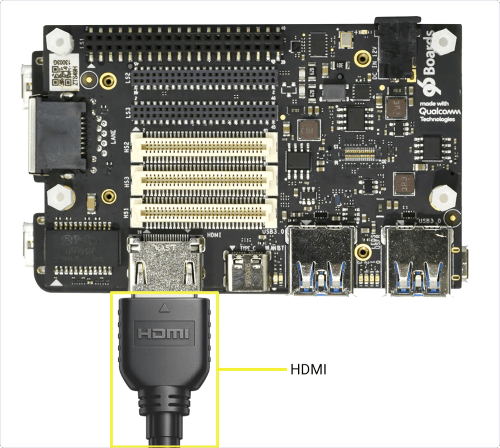
    1. Connect the display using an HDMI cable.

           <div className="flex flex-col items-center gap-2">
             <img src="https://mintcdn.com/qualcomm-prod/h7j64QujhJHkLxyj/Technologies/Display/media/qli-display/qcs6490_hdmi_cable_connection.png?fit=max&auto=format&n=h7j64QujhJHkLxyj&q=85&s=24ffbf80f5dec755d04c93c3b18b6baf" alt="Figure: HDMI cable connection" width="500" height="448" data-path="Technologies/Display/media/qli-display/qcs6490_hdmi_cable_connection.png" />

             <p className="text-sm text-gray-700">**Figure: HDMI cable connection**</p>
           </div>

    2. Power on the device. Weston starts automatically during boot.

    3. Verify the display.

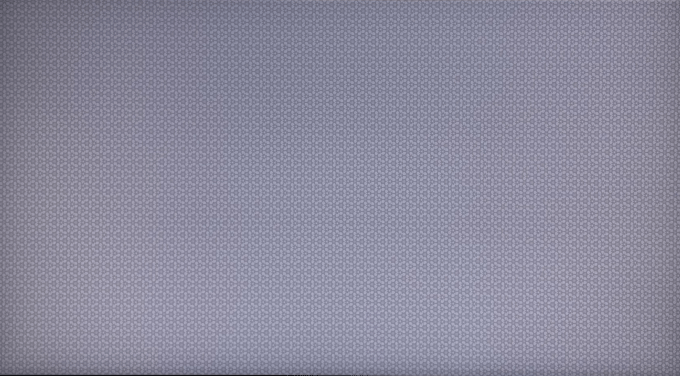
       The following Weston flower pattern displays on the screen, indicating a successful setup:

           <div className="flex flex-col items-center gap-2">
             <img src="https://mintcdn.com/qualcomm-prod/mGpYCfBsZaJSFIEo/Technologies/Display/media/qli-display/Weston_flower_pattern.PNG?fit=max&auto=format&n=mGpYCfBsZaJSFIEo&q=85&s=7be04aa671e4986b111a23843ab2033c" alt="Figure: Weston flower pattern" width="680" height="376" data-path="Technologies/Display/media/qli-display/Weston_flower_pattern.PNG" />
           </div>

           <Note>
             If you are experiencing a no-display screen issue on HDMI, see [Debug the HDMI display](troubleshoot-debug-hdmi-qcs6490).
           </Note>

    After you have set up the HDMI display, run the following test applications to verify the display functionality:

    <CardGroup cols={2}>
      <Card title="Run Weston simple EGL" icon="play" href="run-weston-simple-egl">
        Verify composition and rendering of frames on your display.
      </Card>

      <Card title="Run DRM modetest" icon="wrench" href="run-drm-modetest">
        Verify the display driver topology and DPU paths.
      </Card>
    </CardGroup>
  </Tab>

  <Tab title="DisplayPort setup">
    ## Set up the DisplayPort

    The display subsystem provides the Weston and Wayland compositors, along with `libdrm`, which interact with the DPU driver to render the Wayland client applications. Use the sample test applications to evaluate the basic rendering of the Wayland applications and to connect to the DisplayPort.

    <div className="flex flex-col items-center gap-2">
      <img src="https://mintcdn.com/qualcomm-prod/h7j64QujhJHkLxyj/Technologies/Display/media/qli-display/set_up_HDMI_2_lemans_colourchange.svg?fit=max&auto=format&n=h7j64QujhJHkLxyj&q=85&s=bacc19cfaa8d681b335c5138aa30ab08" alt="Figure: DisplayPort setup workflow" width="1122" height="212" data-path="Technologies/Display/media/qli-display/set_up_HDMI_2_lemans_colourchange.svg" />

      <p className="text-sm text-gray-700">**Figure: DisplayPort setup workflow**</p>
    </div>

    **Verify the DisplayPort setup**

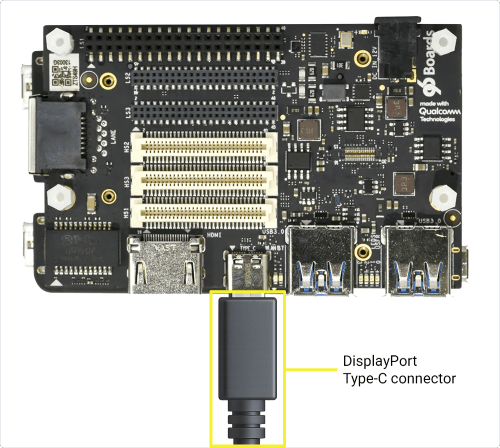
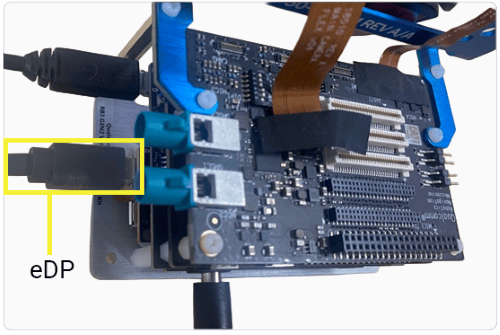
    1. Connect the DisplayPort cable to either of the connectors as shown in the following figures:

       * DisplayPort over USB Type-C connector
       * Embedded DisplayPort (eDP) connector

           <div className="flex flex-col items-center gap-2">
             <img src="https://mintcdn.com/qualcomm-prod/h7j64QujhJHkLxyj/Technologies/Display/media/qli-display/qcs6490_displayport.png?fit=max&auto=format&n=h7j64QujhJHkLxyj&q=85&s=7d5ff65ce25c030cbe1ef530744ca549" alt="Figure: DisplayPort setup" width="500" height="448" data-path="Technologies/Display/media/qli-display/qcs6490_displayport.png" />

             <p className="text-sm text-gray-700">**Figure: DisplayPort setup**</p>
           </div>

           <div className="flex flex-col items-center gap-2">
             <img src="https://mintcdn.com/qualcomm-prod/h7j64QujhJHkLxyj/Technologies/Display/media/qli-display/qcs6490_edp.png?fit=max&auto=format&n=h7j64QujhJHkLxyj&q=85&s=cd8f00819687664c8ef75e70c3072a00" alt="Figure: eDP setup" width="500" height="335" data-path="Technologies/Display/media/qli-display/qcs6490_edp.png" />

             <p className="text-sm text-gray-700">**Figure: eDP setup**</p>
           </div>

    2. Power on the device. Weston launches automatically during boot.

    3. Verify the display.

       The following Weston flower pattern displays on both DisplayPort screens, indicating successful setup.

           <div className="flex flex-col items-center gap-2">
             <img src="https://mintcdn.com/qualcomm-prod/mGpYCfBsZaJSFIEo/Technologies/Display/media/qli-display/Weston_flower_pattern.PNG?fit=max&auto=format&n=mGpYCfBsZaJSFIEo&q=85&s=7be04aa671e4986b111a23843ab2033c" alt="Figure: Weston flower pattern" width="680" height="376" data-path="Technologies/Display/media/qli-display/Weston_flower_pattern.PNG" />
           </div>

    After you have set up the DisplayPort, run the following test applications to verify the display functionality:

    <CardGroup cols={2}>
      <Card title="Run Weston simple EGL" icon="play" href="run-weston-simple-egl">
        Verify composition and rendering of frames on your display.
      </Card>

      <Card title="Run DRM modetest" icon="wrench" href="run-drm-modetest">
        Verify the display driver topology and DPU paths.
      </Card>
    </CardGroup>
  </Tab>
</Tabs>