> ## Documentation Index
> Fetch the complete documentation index at: https://dragonwingdocs.qualcomm.com/llms.txt
> Use this file to discover all available pages before exploring further.
# Integrated MCP Server
> Use the built-in Model Context Protocol server to let AI assistants directly control tools for device management, AI models, projects, and more.
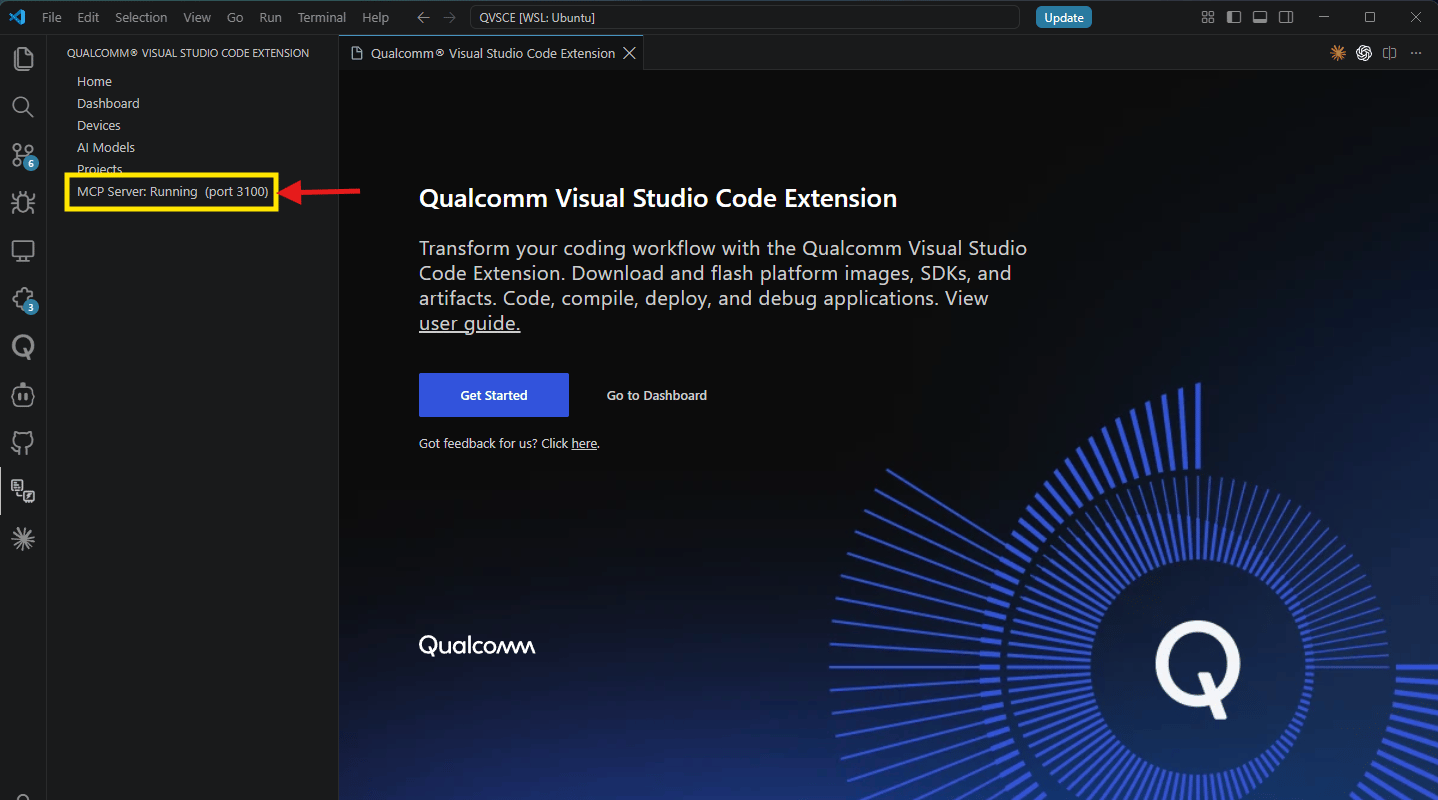
The Qualcomm VS Code Extension ships with an **embedded MCP (Model Context Protocol) server** that starts automatically when the extension loads. AI coding assistants such as Claude, Codex, Cursor, GitHub Copilot, etc. can connect to it over `localhost` and invoke a structured tool call — no manual configuration required.
 The MCP server runs entirely on your local machine. No data leaves your device
through the MCP channel; all tool calls go to `127.0.0.1` only.
***
## How It Works
When enabled, the extension starts an HTTP server on `localhost`.
```
http://127.0.0.1:3100/mcp
```
The MCP server runs entirely on your local machine. No data leaves your device
through the MCP channel; all tool calls go to `127.0.0.1` only.
***
## How It Works
When enabled, the extension starts an HTTP server on `localhost`.
```
http://127.0.0.1:3100/mcp
```
 ***
## Configuration
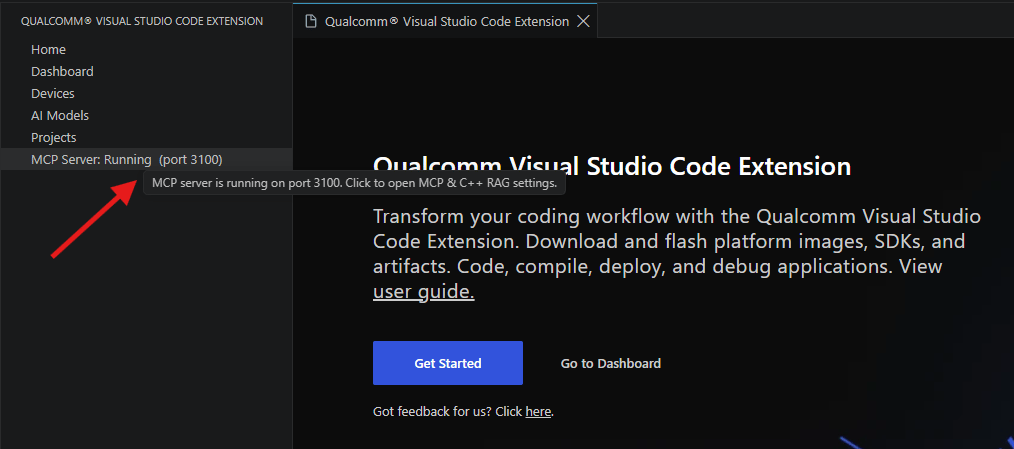
The sidebar shows **MCP Server: Running (port 3100)** when active. Click this label to open the MCP & C++ RAG settings directly.
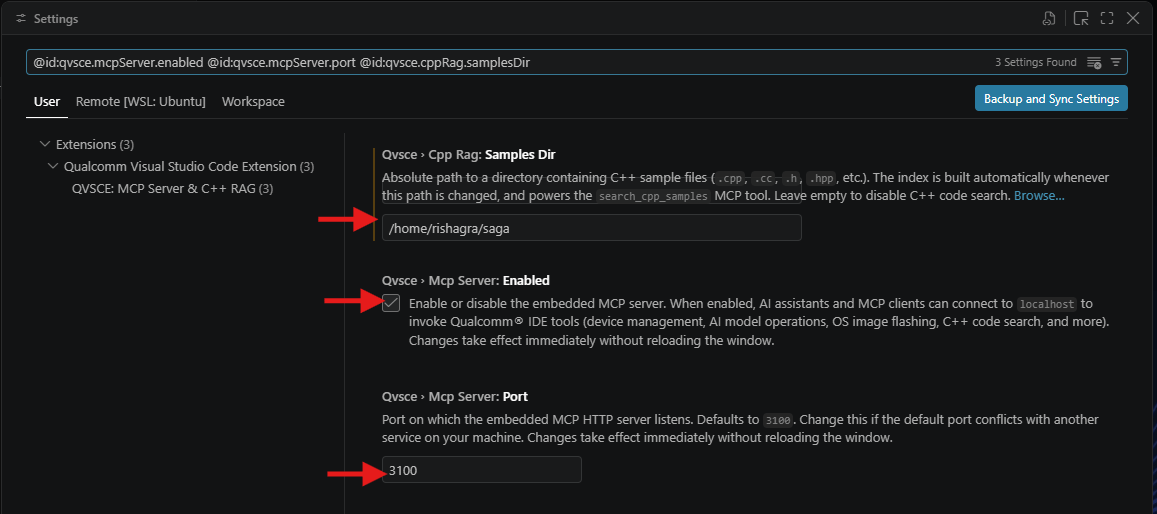
Alternatively, Open VS Code Settings and search for `@id:qvsce.mcpServer.enabled @id:qvsce.mcpServer.port @id:qvsce.cppRag.samplesDir` to see all three MCP-related settings in one view.
***
## Configuration
The sidebar shows **MCP Server: Running (port 3100)** when active. Click this label to open the MCP & C++ RAG settings directly.
Alternatively, Open VS Code Settings and search for `@id:qvsce.mcpServer.enabled @id:qvsce.mcpServer.port @id:qvsce.cppRag.samplesDir` to see all three MCP-related settings in one view.
 | Setting | Default | Description |
| ------------------------- | --------- | ------------------------------------------------------------------------------------------------------------------------------------------------------------------------------------------------------------------------------------------------------------------------------------------------------------------------------------------------------------------------------------------------------------------------------------------------------------------------------------------------------ |
| `qvsce.mcpServer.enabled` | `true` | Enable or disable the embedded MCP server. Changes take effect immediately — no window reload needed. |
| `qvsce.mcpServer.port` | `3100` | Port the HTTP server listens on (1–65535). Change this if port 3100 conflicts with another process. |
| `qvsce.cppRag.samplesDir` | *(empty)* | Absolute path to a directory of C/C++ source files (`.cpp`, `.cc`, `.cxx`, `.h`, `.hpp`, `.hxx`) representing your preferred coding style, SDK-specific patterns, or domain-specific application code — for example, internal SDK wrapper libraries, team utility code, or reference applications. All matching files in subdirectories are discovered recursively. After setting this path, call `build_cpp_rag_index` to populate the index. Leave empty to rely on the built-in default index only. |
After changing the port, any MCP client configuration pointing to the old port
(e.g., a `claude_desktop_config.json` entry) must be updated to match.
### Connecting an AI Client
Any MCP-compatible AI assistant can connect to the server. The general pattern is the same across clients: point it at `http://127.0.0.1:3100/mcp` using the **Streamable HTTP** transport.
Check the extension sidebar for **MCP Server: Running (port 3100)**. If it shows Stopped, enable it in Settings (`qvsce.mcpServer.enabled`).
Add the server endpoint to your client's MCP configuration. See the examples below for Claude and Codex — other clients follow the same pattern.
Add to `claude_desktop_config.json` (Claude Desktop) or `.claude/mcp.json` (Claude Code in a project):
```json theme={null}
{
"mcpServers": {
"qualcomm-ide": {
"url": "http://127.0.0.1:3100/mcp"
}
}
}
```
In **Claude Code** you can also add it from the terminal:
```bash theme={null}
claude mcp add qualcomm-ide --transport http http://127.0.0.1:3100/mcp
```
Add to `~/.codex/config.toml` or pass inline:
```toml theme={null}
[[mcp_servers]]
name = "qualcomm-ide"
url = "http://127.0.0.1:3100/mcp"
```
Or pass it as a flag when running Codex:
```bash theme={null}
codex --mcp-server "qualcomm-ide=http://127.0.0.1:3100/mcp"
```
Any client that supports the MCP Streamable HTTP transport can connect. Use:
* **URL:** `http://127.0.0.1:3100/mcp`
* **Transport:** Streamable HTTP (session-based)
* **Auth:** None — local-only, no credentials required
Consult your client's documentation for where to add MCP server entries.
Ask your assistant: *"List my connected Qualcomm devices."* A response with device information confirms the server is reachable and tools are available.
***
## Available Tools
The server exposes tools across nine functional categories. The tool set continues to evolve — to see the latest available tools, ask your AI assistant: *"What MCP tools are available from the Qualcomm IDE?"* Click a category below to jump to its tool reference. Tools marked **Linux-only** are unavailable on Windows-native VS Code (WSL remote connections are supported).
*"What devices are connected right now?"*
*"Connect to my device over SSH at 192.168.1.42 as root."*
*"Flash the latest Qualcomm Linux image onto my active device."*
*"Scan for Wi-Fi networks on my device and connect it to my network."*
*"Build my project and deploy it to the connected device."*
*"Create a new C++ application project using the installed SDK."*
*"Import the GStreamer sample project from my SDK."*
*"Register my existing project at \~/myapp with the installed SDK."*
*"Find C++ sample code for initializing a camera pipeline."*
*"Show me examples of camera sensor initialization from the SDK samples."*
*"How do I set up a GStreamer source element? Find relevant samples."*
*"How do I flash a device using the extension?"*
*"What are the prerequisites for building a project?"*
*"Explain how SSH key-based authentication is set up for a device."*
*"Download the Llama 3 model for my RB3 Gen 2 device."*
*"Profile the ResNet50 model on my connected device and show me the results."*
*"Compile the Whisper model for my device and push it once done."*
*"What AI models are available for the RB5 platform?"*
*"What SDKs are available for my devkit?"*
*"Download the latest OS image and SDK for my RB3 Gen 2 in one go."*
*"Is my SDK download finished yet?"*
*"What skills are available for my connected device?"*
*"Install the best skill for working with GStreamer pipelines."*
*"Show me the documentation for the camera-capture skill."*
*"What overlay configurations are available on my device?"*
*"Switch my device to the upstream overlay configuration."*
*"Show me which files would change if I did an incremental deploy now."*
*"Sync only the changed build artifacts to my device over SSH."*
*"Do a dry run of the delta flash and then apply it if it looks right."*
***
### Device Management
These tools give AI assistants full visibility and control over connected Qualcomm hardware. Most other tool categories depend on an active device being selected first.
Returns every device currently detected by the extension, including serial
numbers, connection type (SSH or EDL), and device state.
Returns details about the device currently set as active. Most other device
and project tools operate on this device implicitly.
Sets a device as active by serial number. If the serial number is omitted or
not found, an interactive VS Code picker is shown.
Adds a new device to the known list using an SSH connection. Can generate a
new SSH key pair; prompts securely for the device password when needed.
Verifies that the SSH connection to a device is reachable without performing
any other operations.
Updates the SSH connection parameters (host, port, user, key) for the active
device.
Scans, connects, disconnects, and inspects Wi-Fi on connected devices over
SSH.
Reboots the active device normally or into EDL (Emergency Download) mode.
EDL reboots require explicit destructive confirmation.
Flashes an OS image onto the active device. Streams real-time stage
notifications: EDL wait, flashing progress, and CamX overlay pending status.
Applies the CamX proprietary overlay after `flash_device_software` signals
it is awaiting the overlay step. Requires Qualcomm Linux Proprietary v2.0+.
Returns all supported Qualcomm devkits with IDs, chipsets, supported OS
versions, and host architectures.
Retrieves the pre-flash instructions URL for a given devkit and target OS
combination.
Reads and sets whether the extension automatically selects a device when one
is connected.
Clears the active device selection and resets the auto-activation state.
Removes a device from the known device list. Requires destructive
confirmation.
**provision\_ufs**: Provisions Universal Flash Storage on the device in EDL
mode. **program\_cdt**: Programs the Configuration Data Table. Both require
EDL mode and destructive confirmation.
***
### Projects
Build, deploy, and run applications directly from an AI conversation. The full workflow — from project creation to on-device execution — is available as tool calls.
Runs the `qvsce-build` task. Supports a headless mode that accepts
`projectPath` and `sdkId` directly — no open VS Code window required.
Builds the project and deploys the binary to the active device via
SSH. Supports headless mode.
Executes the deployed application on the active device. Supports headless
mode.
Imports a sample project from an installed SDK into the VS Code workspace,
including source and build dependencies.
Creates a new C/C++ Application or GStreamer Plugin Application from an SDK
template, then configures `.vscode` with `tasks.json`, `launch.json`, and
`c_cpp_properties.json`.
Associates an existing local project with an installed SDK and writes the
`.vscode` configuration files needed to build and debug it.
Sets or refreshes the SDK used by the workspace for compilation and
deployment.
***
### C++ Code Search (RAG)
The extension maintains a local TF-IDF index of C++ code samples that AI assistants query automatically when writing or explaining code.
Searches the index using TF-IDF similarity against a natural-language or
code query. Returns up to 10 function-level code chunks with relevance
scores.
Builds or rebuilds the C++ code search index from the directory set in
`qvsce.cppRag.samplesDir`. A built-in default index is always present; user
samples are merged on top. Returns the total chunk and vocabulary counts on
completion.
Returns the total chunk count, vocabulary size, default chunk count, and
user chunk count for the current index.
The index is built and stored entirely on your local machine — no source code
or index data is transmitted externally. If multiple developers on a team need
the same coding conventions reflected in their agent's suggestions, each
developer must configure `qvsce.cppRag.samplesDir` and run
`build_cpp_rag_index` individually. Teams can share the same source directory
(for example, via a shared repository) to achieve consistent results, but the
index build must be performed locally by each developer.
***
### Documentation Search
The assistant calls these tools automatically — on tool failures, before complex operations, and whenever you ask about IDE features.
Searches the Qualcomm DragonWing IDE documentation via the external docs
server. Called automatically on tool failures, before complex multi-step
operations, and whenever you ask about IDE features.
Fetches a documentation page or resource by URI from the DragonWing docs
server.
***
### AI Models
Full integration with Qualcomm AI Hub for cloud profiling and compilation, plus local on-device benchmarking.
Lists AI models available for download, with optional filters for device
name and model type (LLM, vision, audio, etc.).
Downloads an AI model from the catalog. Fetches available precision/runtime
variants first; an interactive picker appears if a variant is not specified.
Returns the current download, compile, and flash status of all models in the
local cache.
Pushes a downloaded model to the active device as a background operation.
Submits a profiling job to Qualcomm AI Hub for a specified device. Returns a
job reference for polling.
Runs a profiling job directly on the active device — measures real inference
time and memory usage on hardware.
Polls profiling job results keyed by model UID — cloud or on-device.
Compiles a model via AI Hub for a specific device target, with optional
precision and optimization settings.
Returns inference time, memory usage, layer counts, and tool versions for a
model. Filterable by device, precision, and runtime.
Imports a model file already on disk into the extension's model cache.
Removes a previously downloaded model from the local cache. Requires
destructive confirmation.
Returns all device types that support AI Hub profiling and compilation jobs.
***
### SDKs and OS Images
Typically used once during environment setup — browse catalogs, download, and install the SDK and OS image for your devkit.
Downloads both an OS image and an SDK in a single tool call. Either
component can be omitted.
Lists SDKs for a given devkit and OS version: names, IDs, host
architectures, versions, and download URLs.
**download\_sdk**: Starts a background SDK download. **get\_sdk\_status**:
Polls progress and install path. **install\_sdk**: Installs a downloaded SDK
(Linux-only).
Lists OS images for a devkit: names, IDs, versions, and download metadata.
**download\_os\_image**: Starts a background OS image download.
**get\_os\_image\_status**: Polls progress and flags CamX overlay requirements.
***
### Skills Hub
Browse and install agent skills that extend what AI assistants can do with the extension.
Searches skills by name, description, and tags using weighted matching.
Automatically filters by the connected device's environment.
Installs a skill into the selected agent's user skills directory (Claude,
Cursor, or Codex).
Returns the full documentation for a single catalog skill, defaulting to the
version best matched for the connected environment.
Lists every skill from all configured repositories, including all published
versions and per-version compatibility metadata.
Removes a previously installed skill from the agent's skills directory.
Bypasses the catalog TTL and re-fetches all configured skill repositories
immediately.
***
### Overlay Configuration
Advanced configuration for Qualcomm Linux devices — inspect and switch device overlays over SSH.
Returns available overlay categories, the currently active overlay, and
upstream/downstream options for the active device. Qualcomm Linux only.
Applies a chosen set of overlay selections to the active device via SSH.
Qualcomm Linux only.
***
### Delta Flash (Incremental Deploy)
Incrementally sync build artifacts to a device over SSH — faster than a full reflash when only a few files changed.
Runs `rsync --dry-run` to report exactly which files would be transferred.
No changes are made to the device. Linux and macOS only.
Executes the real rsync over SSH. Requires destructive confirmation.
Optionally runs a post-command (e.g., `depmod`) and reboots the device.
Linux and macOS only.
***
## Troubleshooting
1. Open VS Code Settings and confirm `qvsce.mcpServer.enabled` is checked.
2. Check that nothing else is using port 3100 (`lsof -i :3100` on Linux/macOS). If there is a conflict, change `qvsce.mcpServer.port` to a free port.
3. Reload the VS Code window (`Ctrl+Shift+P` → **Developer: Reload Window**).
Confirm the MCP client is configured to connect to `http://127.0.0.1:/mcp` (not `/sse` or the root path). The server uses the **Streamable HTTP** transport, not the legacy SSE-only transport.
The `qvsce.cppRag.samplesDir` setting may be empty or pointing to a directory with no `.cpp`/`.h` files. Set it to a valid path and call `build_cpp_rag_index` to populate the index.
Make sure you have opened VS Code connected to WSL (the status bar should show **WSL: Ubuntu** or similar) rather than using a Windows-native VS Code window with the extension installed on the Windows side.
| Setting | Default | Description |
| ------------------------- | --------- | ------------------------------------------------------------------------------------------------------------------------------------------------------------------------------------------------------------------------------------------------------------------------------------------------------------------------------------------------------------------------------------------------------------------------------------------------------------------------------------------------------ |
| `qvsce.mcpServer.enabled` | `true` | Enable or disable the embedded MCP server. Changes take effect immediately — no window reload needed. |
| `qvsce.mcpServer.port` | `3100` | Port the HTTP server listens on (1–65535). Change this if port 3100 conflicts with another process. |
| `qvsce.cppRag.samplesDir` | *(empty)* | Absolute path to a directory of C/C++ source files (`.cpp`, `.cc`, `.cxx`, `.h`, `.hpp`, `.hxx`) representing your preferred coding style, SDK-specific patterns, or domain-specific application code — for example, internal SDK wrapper libraries, team utility code, or reference applications. All matching files in subdirectories are discovered recursively. After setting this path, call `build_cpp_rag_index` to populate the index. Leave empty to rely on the built-in default index only. |
After changing the port, any MCP client configuration pointing to the old port
(e.g., a `claude_desktop_config.json` entry) must be updated to match.
### Connecting an AI Client
Any MCP-compatible AI assistant can connect to the server. The general pattern is the same across clients: point it at `http://127.0.0.1:3100/mcp` using the **Streamable HTTP** transport.
Check the extension sidebar for **MCP Server: Running (port 3100)**. If it shows Stopped, enable it in Settings (`qvsce.mcpServer.enabled`).
Add the server endpoint to your client's MCP configuration. See the examples below for Claude and Codex — other clients follow the same pattern.
Add to `claude_desktop_config.json` (Claude Desktop) or `.claude/mcp.json` (Claude Code in a project):
```json theme={null}
{
"mcpServers": {
"qualcomm-ide": {
"url": "http://127.0.0.1:3100/mcp"
}
}
}
```
In **Claude Code** you can also add it from the terminal:
```bash theme={null}
claude mcp add qualcomm-ide --transport http http://127.0.0.1:3100/mcp
```
Add to `~/.codex/config.toml` or pass inline:
```toml theme={null}
[[mcp_servers]]
name = "qualcomm-ide"
url = "http://127.0.0.1:3100/mcp"
```
Or pass it as a flag when running Codex:
```bash theme={null}
codex --mcp-server "qualcomm-ide=http://127.0.0.1:3100/mcp"
```
Any client that supports the MCP Streamable HTTP transport can connect. Use:
* **URL:** `http://127.0.0.1:3100/mcp`
* **Transport:** Streamable HTTP (session-based)
* **Auth:** None — local-only, no credentials required
Consult your client's documentation for where to add MCP server entries.
Ask your assistant: *"List my connected Qualcomm devices."* A response with device information confirms the server is reachable and tools are available.
***
## Available Tools
The server exposes tools across nine functional categories. The tool set continues to evolve — to see the latest available tools, ask your AI assistant: *"What MCP tools are available from the Qualcomm IDE?"* Click a category below to jump to its tool reference. Tools marked **Linux-only** are unavailable on Windows-native VS Code (WSL remote connections are supported).
*"What devices are connected right now?"*
*"Connect to my device over SSH at 192.168.1.42 as root."*
*"Flash the latest Qualcomm Linux image onto my active device."*
*"Scan for Wi-Fi networks on my device and connect it to my network."*
*"Build my project and deploy it to the connected device."*
*"Create a new C++ application project using the installed SDK."*
*"Import the GStreamer sample project from my SDK."*
*"Register my existing project at \~/myapp with the installed SDK."*
*"Find C++ sample code for initializing a camera pipeline."*
*"Show me examples of camera sensor initialization from the SDK samples."*
*"How do I set up a GStreamer source element? Find relevant samples."*
*"How do I flash a device using the extension?"*
*"What are the prerequisites for building a project?"*
*"Explain how SSH key-based authentication is set up for a device."*
*"Download the Llama 3 model for my RB3 Gen 2 device."*
*"Profile the ResNet50 model on my connected device and show me the results."*
*"Compile the Whisper model for my device and push it once done."*
*"What AI models are available for the RB5 platform?"*
*"What SDKs are available for my devkit?"*
*"Download the latest OS image and SDK for my RB3 Gen 2 in one go."*
*"Is my SDK download finished yet?"*
*"What skills are available for my connected device?"*
*"Install the best skill for working with GStreamer pipelines."*
*"Show me the documentation for the camera-capture skill."*
*"What overlay configurations are available on my device?"*
*"Switch my device to the upstream overlay configuration."*
*"Show me which files would change if I did an incremental deploy now."*
*"Sync only the changed build artifacts to my device over SSH."*
*"Do a dry run of the delta flash and then apply it if it looks right."*
***
### Device Management
These tools give AI assistants full visibility and control over connected Qualcomm hardware. Most other tool categories depend on an active device being selected first.
Returns every device currently detected by the extension, including serial
numbers, connection type (SSH or EDL), and device state.
Returns details about the device currently set as active. Most other device
and project tools operate on this device implicitly.
Sets a device as active by serial number. If the serial number is omitted or
not found, an interactive VS Code picker is shown.
Adds a new device to the known list using an SSH connection. Can generate a
new SSH key pair; prompts securely for the device password when needed.
Verifies that the SSH connection to a device is reachable without performing
any other operations.
Updates the SSH connection parameters (host, port, user, key) for the active
device.
Scans, connects, disconnects, and inspects Wi-Fi on connected devices over
SSH.
Reboots the active device normally or into EDL (Emergency Download) mode.
EDL reboots require explicit destructive confirmation.
Flashes an OS image onto the active device. Streams real-time stage
notifications: EDL wait, flashing progress, and CamX overlay pending status.
Applies the CamX proprietary overlay after `flash_device_software` signals
it is awaiting the overlay step. Requires Qualcomm Linux Proprietary v2.0+.
Returns all supported Qualcomm devkits with IDs, chipsets, supported OS
versions, and host architectures.
Retrieves the pre-flash instructions URL for a given devkit and target OS
combination.
Reads and sets whether the extension automatically selects a device when one
is connected.
Clears the active device selection and resets the auto-activation state.
Removes a device from the known device list. Requires destructive
confirmation.
**provision\_ufs**: Provisions Universal Flash Storage on the device in EDL
mode. **program\_cdt**: Programs the Configuration Data Table. Both require
EDL mode and destructive confirmation.
***
### Projects
Build, deploy, and run applications directly from an AI conversation. The full workflow — from project creation to on-device execution — is available as tool calls.
Runs the `qvsce-build` task. Supports a headless mode that accepts
`projectPath` and `sdkId` directly — no open VS Code window required.
Builds the project and deploys the binary to the active device via
SSH. Supports headless mode.
Executes the deployed application on the active device. Supports headless
mode.
Imports a sample project from an installed SDK into the VS Code workspace,
including source and build dependencies.
Creates a new C/C++ Application or GStreamer Plugin Application from an SDK
template, then configures `.vscode` with `tasks.json`, `launch.json`, and
`c_cpp_properties.json`.
Associates an existing local project with an installed SDK and writes the
`.vscode` configuration files needed to build and debug it.
Sets or refreshes the SDK used by the workspace for compilation and
deployment.
***
### C++ Code Search (RAG)
The extension maintains a local TF-IDF index of C++ code samples that AI assistants query automatically when writing or explaining code.
Searches the index using TF-IDF similarity against a natural-language or
code query. Returns up to 10 function-level code chunks with relevance
scores.
Builds or rebuilds the C++ code search index from the directory set in
`qvsce.cppRag.samplesDir`. A built-in default index is always present; user
samples are merged on top. Returns the total chunk and vocabulary counts on
completion.
Returns the total chunk count, vocabulary size, default chunk count, and
user chunk count for the current index.
The index is built and stored entirely on your local machine — no source code
or index data is transmitted externally. If multiple developers on a team need
the same coding conventions reflected in their agent's suggestions, each
developer must configure `qvsce.cppRag.samplesDir` and run
`build_cpp_rag_index` individually. Teams can share the same source directory
(for example, via a shared repository) to achieve consistent results, but the
index build must be performed locally by each developer.
***
### Documentation Search
The assistant calls these tools automatically — on tool failures, before complex operations, and whenever you ask about IDE features.
Searches the Qualcomm DragonWing IDE documentation via the external docs
server. Called automatically on tool failures, before complex multi-step
operations, and whenever you ask about IDE features.
Fetches a documentation page or resource by URI from the DragonWing docs
server.
***
### AI Models
Full integration with Qualcomm AI Hub for cloud profiling and compilation, plus local on-device benchmarking.
Lists AI models available for download, with optional filters for device
name and model type (LLM, vision, audio, etc.).
Downloads an AI model from the catalog. Fetches available precision/runtime
variants first; an interactive picker appears if a variant is not specified.
Returns the current download, compile, and flash status of all models in the
local cache.
Pushes a downloaded model to the active device as a background operation.
Submits a profiling job to Qualcomm AI Hub for a specified device. Returns a
job reference for polling.
Runs a profiling job directly on the active device — measures real inference
time and memory usage on hardware.
Polls profiling job results keyed by model UID — cloud or on-device.
Compiles a model via AI Hub for a specific device target, with optional
precision and optimization settings.
Returns inference time, memory usage, layer counts, and tool versions for a
model. Filterable by device, precision, and runtime.
Imports a model file already on disk into the extension's model cache.
Removes a previously downloaded model from the local cache. Requires
destructive confirmation.
Returns all device types that support AI Hub profiling and compilation jobs.
***
### SDKs and OS Images
Typically used once during environment setup — browse catalogs, download, and install the SDK and OS image for your devkit.
Downloads both an OS image and an SDK in a single tool call. Either
component can be omitted.
Lists SDKs for a given devkit and OS version: names, IDs, host
architectures, versions, and download URLs.
**download\_sdk**: Starts a background SDK download. **get\_sdk\_status**:
Polls progress and install path. **install\_sdk**: Installs a downloaded SDK
(Linux-only).
Lists OS images for a devkit: names, IDs, versions, and download metadata.
**download\_os\_image**: Starts a background OS image download.
**get\_os\_image\_status**: Polls progress and flags CamX overlay requirements.
***
### Skills Hub
Browse and install agent skills that extend what AI assistants can do with the extension.
Searches skills by name, description, and tags using weighted matching.
Automatically filters by the connected device's environment.
Installs a skill into the selected agent's user skills directory (Claude,
Cursor, or Codex).
Returns the full documentation for a single catalog skill, defaulting to the
version best matched for the connected environment.
Lists every skill from all configured repositories, including all published
versions and per-version compatibility metadata.
Removes a previously installed skill from the agent's skills directory.
Bypasses the catalog TTL and re-fetches all configured skill repositories
immediately.
***
### Overlay Configuration
Advanced configuration for Qualcomm Linux devices — inspect and switch device overlays over SSH.
Returns available overlay categories, the currently active overlay, and
upstream/downstream options for the active device. Qualcomm Linux only.
Applies a chosen set of overlay selections to the active device via SSH.
Qualcomm Linux only.
***
### Delta Flash (Incremental Deploy)
Incrementally sync build artifacts to a device over SSH — faster than a full reflash when only a few files changed.
Runs `rsync --dry-run` to report exactly which files would be transferred.
No changes are made to the device. Linux and macOS only.
Executes the real rsync over SSH. Requires destructive confirmation.
Optionally runs a post-command (e.g., `depmod`) and reboots the device.
Linux and macOS only.
***
## Troubleshooting
1. Open VS Code Settings and confirm `qvsce.mcpServer.enabled` is checked.
2. Check that nothing else is using port 3100 (`lsof -i :3100` on Linux/macOS). If there is a conflict, change `qvsce.mcpServer.port` to a free port.
3. Reload the VS Code window (`Ctrl+Shift+P` → **Developer: Reload Window**).
Confirm the MCP client is configured to connect to `http://127.0.0.1:/mcp` (not `/sse` or the root path). The server uses the **Streamable HTTP** transport, not the legacy SSE-only transport.
The `qvsce.cppRag.samplesDir` setting may be empty or pointing to a directory with no `.cpp`/`.h` files. Set it to a valid path and call `build_cpp_rag_index` to populate the index.
Make sure you have opened VS Code connected to WSL (the status bar should show **WSL: Ubuntu** or similar) rather than using a Windows-native VS Code window with the extension installed on the Windows side.