> ## Documentation Index
> Fetch the complete documentation index at: https://dragonwingdocs.qualcomm.com/llms.txt
> Use this file to discover all available pages before exploring further.
# Sample Projects
> Explore, import, and experiment with sample applications that match the pre-installed device apps.
## Overview
The **Projects** section lists all project templates bundled with the installed SDK. These templates are equivalent to the sample applications pre-installed on the device — a great starting point for new applications.
## Importing a Project
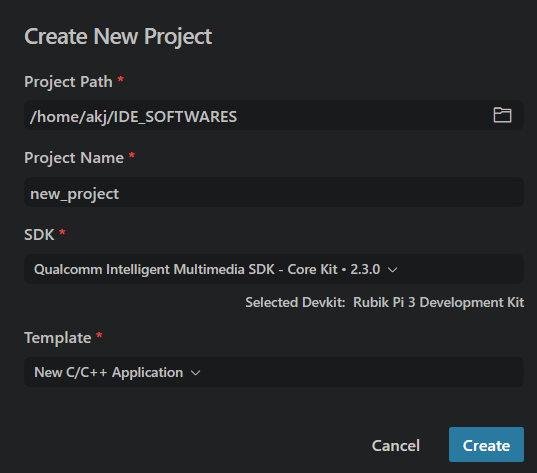
Navigate to **Dashboard → Projects** or click **Projects** in the extension side-bar. Click **Create New Project** to open the project creation dialog.
Fill in the required fields:
* **Project Path** — directory where the project will be created
* **Project Name** — name for the new project folder
* **SDK** — select the Qualcomm SDK and devkit to target
* **Template** — choose a starting template (e.g. New C/C++ Application)
Click **Create** when ready.
 The extension displays all templates available for your active SDK. Each card shows the project name, description, and source language.
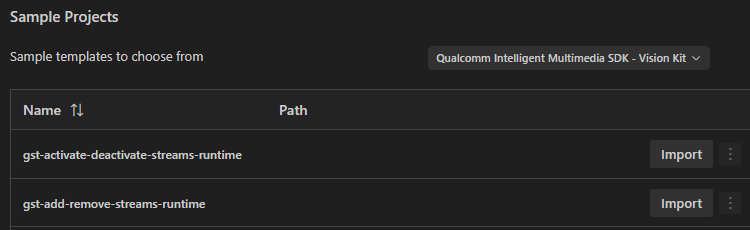 Click **Import** on the template you want. The project is cloned to disk.
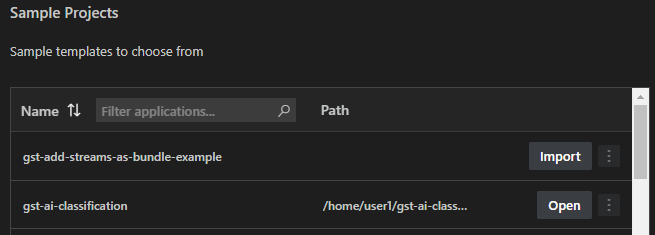 When VS Code opens the folder you will see two dialogs: **"Do you trust the authors?"** and **"Reset workspace configuration?"** — accept both.
## IntelliSense — auto-configured workspace
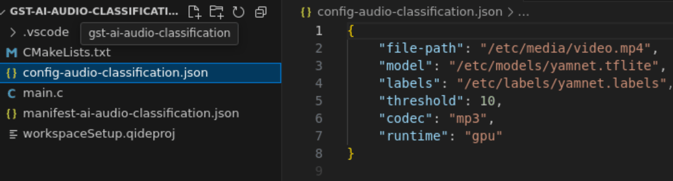
When a project is opened, the extension **automatically generates** a `.vscode/` folder and opens the workspace:
When VS Code opens the folder you will see two dialogs: **"Do you trust the authors?"** and **"Reset workspace configuration?"** — accept both.
## IntelliSense — auto-configured workspace
When a project is opened, the extension **automatically generates** a `.vscode/` folder and opens the workspace:
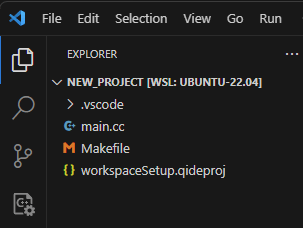 The generated files include:
* `c_cpp_properties.json` — points IntelliSense at the SDK headers
* `tasks.json` — build tasks wired to the SDK toolchain
* `launch.json` — debug configuration for the active device
The generated files include:
* `c_cpp_properties.json` — points IntelliSense at the SDK headers
* `tasks.json` — build tasks wired to the SDK toolchain
* `launch.json` — debug configuration for the active device
 Workspace configuration files in the `.vscode/` folder are auto-generated. Do
not commit them to your repository without reviewing — they contain absolute
paths specific to your host.
## Recent projects
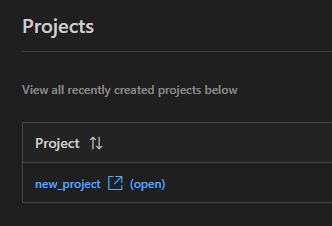
Previously opened projects are accessible from the grid in the Projects section.
Workspace configuration files in the `.vscode/` folder are auto-generated. Do
not commit them to your repository without reviewing — they contain absolute
paths specific to your host.
## Recent projects
Previously opened projects are accessible from the grid in the Projects section.
 ## Modifying and experimenting
Once the project is open you have full access to the source code. Make any changes, then use the Status Bar actions to rebuild and deploy.
## Additional binary dependencies
Some sample applications pull large binary assets (model weights, test vectors, media files) from the cloud at build or run time. This is driven by **manifest files** shipped alongside the project. The extension handles the downloads automatically when you build or run the app.
## Resetting a project
If you want to revert all changes and start fresh:
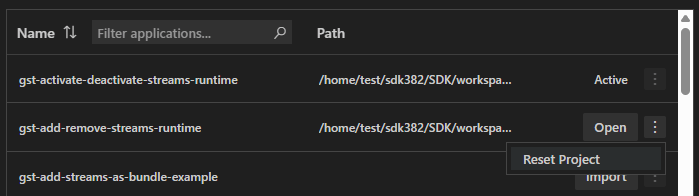
1. Right-click the project in the **Projects** section.
2. Choose **Reset Project**.
## Modifying and experimenting
Once the project is open you have full access to the source code. Make any changes, then use the Status Bar actions to rebuild and deploy.
## Additional binary dependencies
Some sample applications pull large binary assets (model weights, test vectors, media files) from the cloud at build or run time. This is driven by **manifest files** shipped alongside the project. The extension handles the downloads automatically when you build or run the app.
## Resetting a project
If you want to revert all changes and start fresh:
1. Right-click the project in the **Projects** section.
2. Choose **Reset Project**.
 **Reset Project is irreversible.** All uncommitted modifications will be lost.
Commit or back up any work you want to keep before resetting.
**Reset Project is irreversible.** All uncommitted modifications will be lost.
Commit or back up any work you want to keep before resetting.