> ## Documentation Index
> Fetch the complete documentation index at: https://dragonwingdocs.qualcomm.com/llms.txt
> Use this file to discover all available pages before exploring further.
# Qualcomm® VSCode Extension
> An integrated development environment for Qualcomm® development kits — right inside Visual Studio Code.
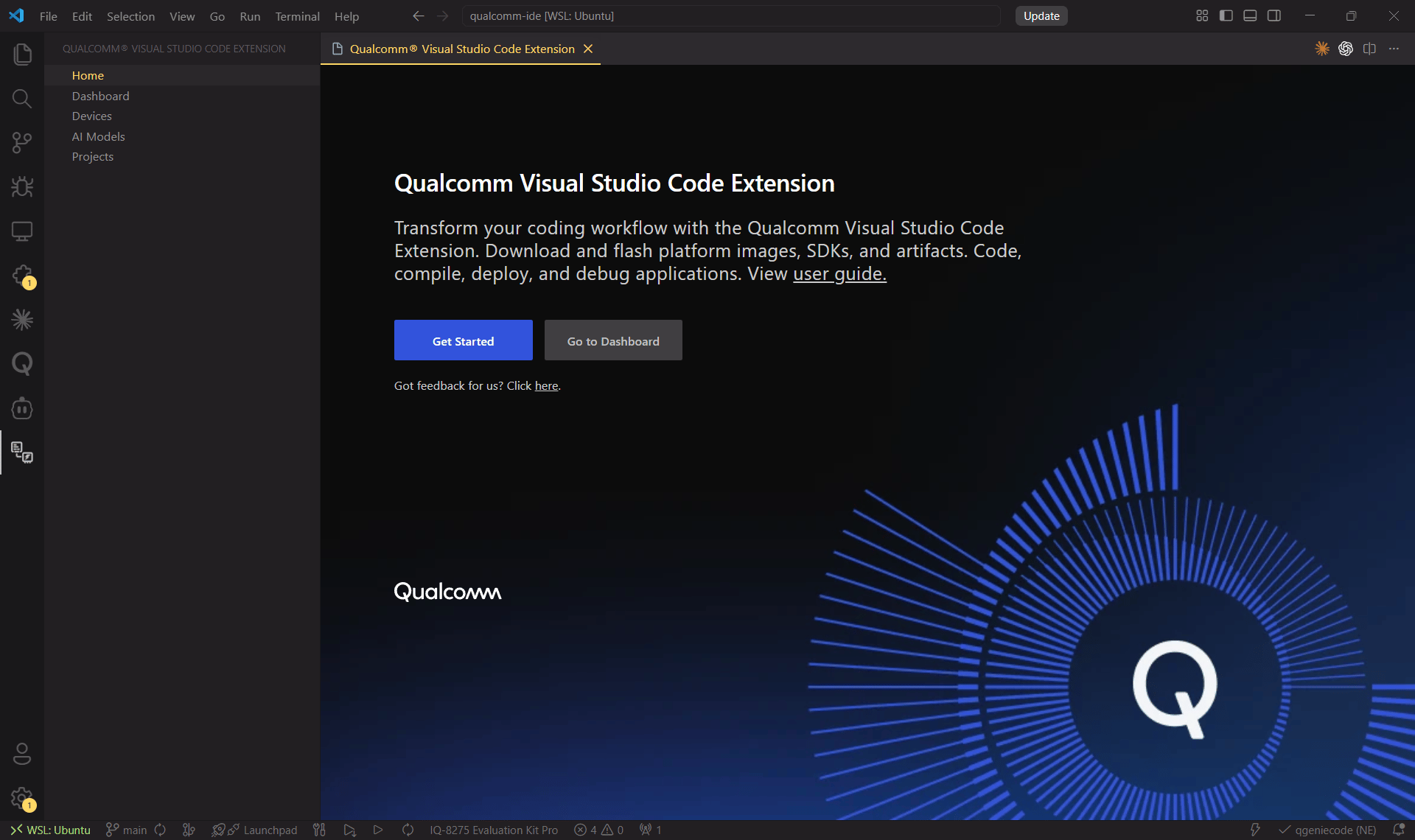 ## What is the Qualcomm VSCode Extension?
The **Qualcomm® Visual Studio Code Extension (QVSCE)** turns VS Code into a complete embedded-Linux development environment for Qualcomm® development kits. Everything you need — from firmware flashing to AI-model profiling — is available without leaving your editor.
Download platform images and SDKs, then flash them to your device in a
guided 5-step workflow.
Compile, deploy and source-level debug applications with full IntelliSense
support.
Start from ready-made templates that match the pre-installed device apps.
Browse, download, profile and deploy AI models via Qualcomm AI Hub directly
from the IDE.
## Key Features
Compile and flash platform images and Qualcomm-powered SDKs seamlessly —
then build, deploy, and debug applications from the same IDE window.
Interact with AI models using **Qualcomm AI Hub**. Optimize and profile
models for your target device without switching tools.
Connect via **ADB** (Qualcomm Linux) or **SSH** (Qualcomm Linux & Ubuntu).
Add any device by IP address.
Auto-configured `.vscode` workspace settings enable code search,
highlighting, autocompletion, input prompts, and symbol inspection.
## Host Requirements
## Next Steps
Download VS Code for
[Ubuntu](https://code.visualstudio.com/docs/setup/linux) or
[Windows](https://code.visualstudio.com/download).
Get the VSIX from [Qualcomm Software
Center](https://softwarecenter.qualcomm.com/catalog/item/qualcomm_ide_developer_edition)
and install it from within VS Code.
Click **Get Started** on the Home page to configure your host and flash your
device.
Ready to dive in? Head to the **[Quick Start](./quick-start)** guide.
## What is the Qualcomm VSCode Extension?
The **Qualcomm® Visual Studio Code Extension (QVSCE)** turns VS Code into a complete embedded-Linux development environment for Qualcomm® development kits. Everything you need — from firmware flashing to AI-model profiling — is available without leaving your editor.
Download platform images and SDKs, then flash them to your device in a
guided 5-step workflow.
Compile, deploy and source-level debug applications with full IntelliSense
support.
Start from ready-made templates that match the pre-installed device apps.
Browse, download, profile and deploy AI models via Qualcomm AI Hub directly
from the IDE.
## Key Features
Compile and flash platform images and Qualcomm-powered SDKs seamlessly —
then build, deploy, and debug applications from the same IDE window.
Interact with AI models using **Qualcomm AI Hub**. Optimize and profile
models for your target device without switching tools.
Connect via **ADB** (Qualcomm Linux) or **SSH** (Qualcomm Linux & Ubuntu).
Add any device by IP address.
Auto-configured `.vscode` workspace settings enable code search,
highlighting, autocompletion, input prompts, and symbol inspection.
## Host Requirements
## Next Steps
Download VS Code for
[Ubuntu](https://code.visualstudio.com/docs/setup/linux) or
[Windows](https://code.visualstudio.com/download).
Get the VSIX from [Qualcomm Software
Center](https://softwarecenter.qualcomm.com/catalog/item/qualcomm_ide_developer_edition)
and install it from within VS Code.
Click **Get Started** on the Home page to configure your host and flash your
device.
Ready to dive in? Head to the **[Quick Start](./quick-start)** guide.