> ## Documentation Index
> Fetch the complete documentation index at: https://dragonwingdocs.qualcomm.com/llms.txt
> Use this file to discover all available pages before exploring further.
# USB Forwarding on WSL
> Attach a physical USB device from Windows into the WSL environment using usbipd.
## Overview
On Windows + WSL, USB devices are not automatically visible inside the Linux subsystem. The `usbipd-win` tool bridges this gap by forwarding USB buses from the Windows host into WSL over a loopback IP tunnel.
`usbipd-win` must already be installed. If not, run `winget install usbipd-win` in a Windows Administrator terminal.
## Step-by-step
Open **PowerShell (Administrator Mode)** and run:
```batch theme={null}
adb kill-server
```
This command may report an error if ADB is not running — that is safe to ignore.
```batch theme={null}
usbipd list
```
Note the `BUSID` for your Qualcomm device.
```batch theme={null}
usbipd bind --busid=
```
Binding is **persistent across reboots**. If your device exposes multiple USB modes (e.g. ADB + EDL), bind each `BUSID` once.
On some corporate machines, `usbipd bind` or the subsequent attach step may fail due to firewall policies. If you see an explicit firewall error, follow the **Corporate firewall workaround** below.
```batch theme={null}
usbipd attach --wsl --busid= --auto-attach
```
* Keep this PowerShell window **open** — closing it stops the auto-attach loop.
* You must re-run this command every time you restart WSL.
* If you change the physical USB port, re-run all usbipd commands from the start.
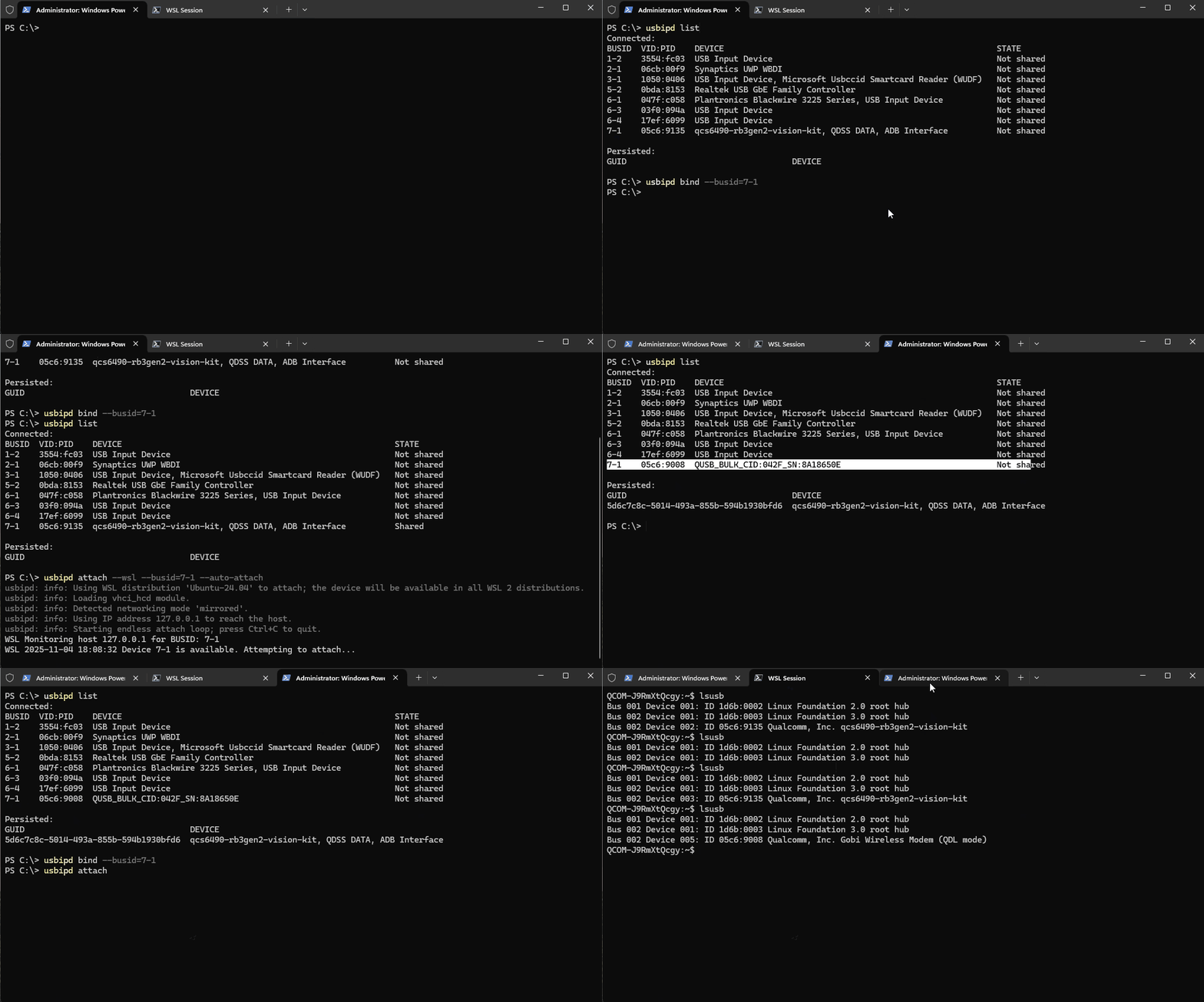
The following shows the full bind and attach sequence:
 In your WSL terminal:
```bash theme={null}
lsusb
```
You should see your Qualcomm device listed.
## Corporate firewall workaround
1. Close all open WSL terminals.
2. In PowerShell, shut down WSL:
```batch theme={null}
wsl --shutdown
```
3. Edit `%UserProfile%\.wslconfig` and add:
```ini theme={null}
[wsl2]
networkingMode=mirrored
```
4. Restart WSL:
```batch theme={null}
wsl -d ubuntu-22.04
```
5. Retry the `usbipd bind` and `usbipd attach` steps.
## Detach / unbind when done
```batch Detach theme={null}
usbipd detach --busid=
```
```batch Unbind theme={null}
usbipd unbind --busid=
```
In your WSL terminal:
```bash theme={null}
lsusb
```
You should see your Qualcomm device listed.
## Corporate firewall workaround
1. Close all open WSL terminals.
2. In PowerShell, shut down WSL:
```batch theme={null}
wsl --shutdown
```
3. Edit `%UserProfile%\.wslconfig` and add:
```ini theme={null}
[wsl2]
networkingMode=mirrored
```
4. Restart WSL:
```batch theme={null}
wsl -d ubuntu-22.04
```
5. Retry the `usbipd bind` and `usbipd attach` steps.
## Detach / unbind when done
```batch Detach theme={null}
usbipd detach --busid=
```
```batch Unbind theme={null}
usbipd unbind --busid=
```