> ## Documentation Index
> Fetch the complete documentation index at: https://dragonwingdocs.qualcomm.com/llms.txt
> Use this file to discover all available pages before exploring further.
# Install Qualcomm® Launcher
> Download and install Qualcomm® Launcher from the Qualcomm Software Center.
## Download and install
Navigate to the [Qualcomm Launcher download page](https://softwarecenter.qualcomm.com/catalog/item/Qualcomm_Launcher).
Choose **Windows** as the Operating System and select the architecture that matches your host machine.
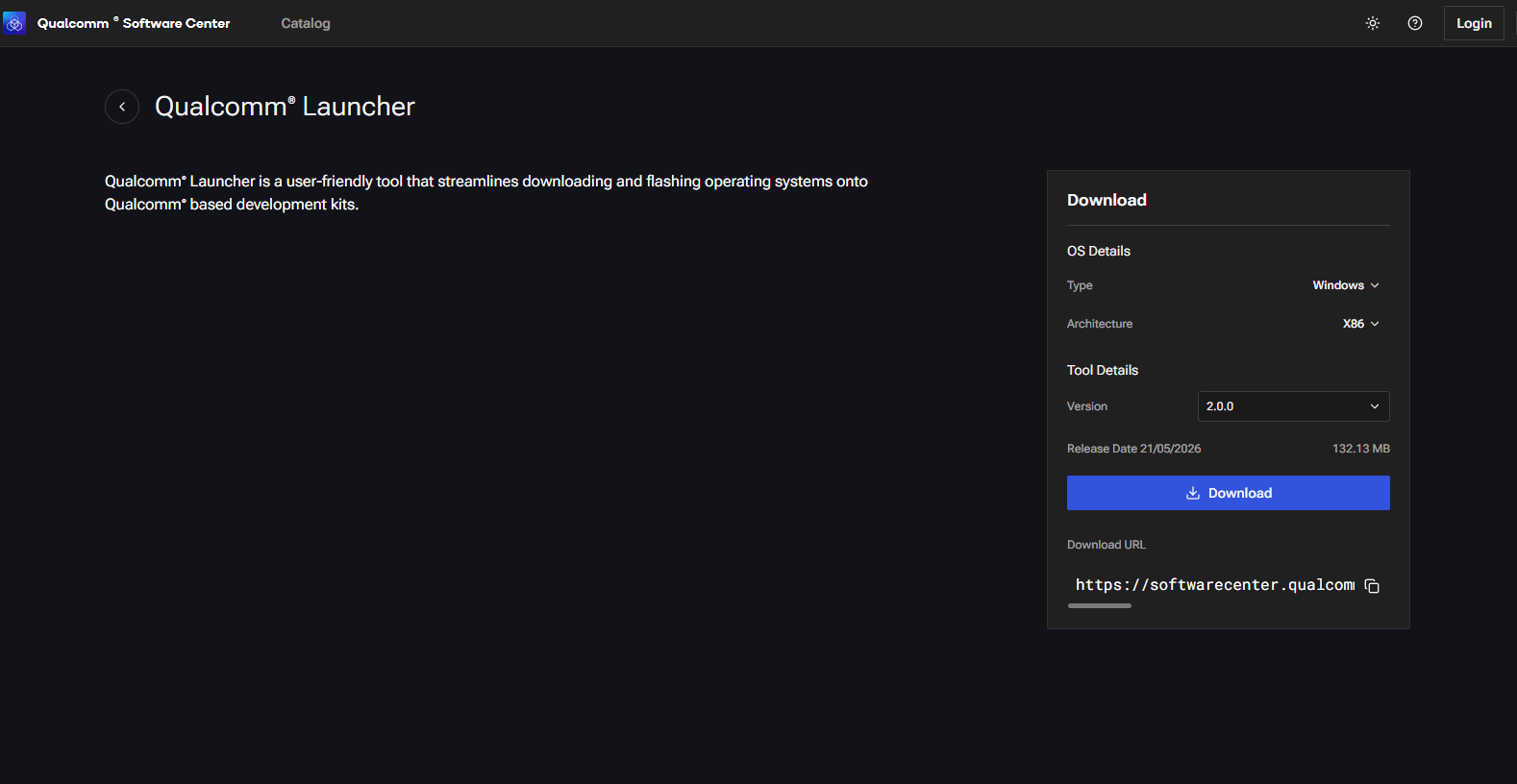 Select the latest available version from the list and click **Download**. A `.exe` installer will be saved to your machine.
Double-click the `.exe` file and follow the on-screen prompts. Once installation finishes, Qualcomm® Launcher is ready to use.
Navigate to the [Qualcomm Launcher download page](https://softwarecenter.qualcomm.com/catalog/item/Qualcomm_Launcher).
Choose **Linux** as the Operating System and select the architecture that matches your host machine.
Select the latest available version from the list and click **Download**. A `.deb` package will be saved to your machine.
Open a terminal and run:
```bash theme={null}
sudo apt install ./qualcomm-launcher_*.deb
```
Once installation finishes, Qualcomm® Launcher is ready to use.
Navigate to the [Qualcomm Launcher download page](https://softwarecenter.qualcomm.com/catalog/item/Qualcomm_Launcher).
Choose **macOS** as the Operating System and select the architecture that matches your host machine.
Select the latest available version from the list and click **Download**. A `.pkg` installer will be saved to your machine.
Double-click the `.pkg` file and follow the on-screen prompts. Once installation finishes, Qualcomm® Launcher is ready to use.
Ensure you select the architecture of your **host machine** when downloading.
## Next step
Once installed, proceed to [Flash the Operating System](./flash-os) to select a development kit and flash an OS image.
Select the latest available version from the list and click **Download**. A `.exe` installer will be saved to your machine.
Double-click the `.exe` file and follow the on-screen prompts. Once installation finishes, Qualcomm® Launcher is ready to use.
Navigate to the [Qualcomm Launcher download page](https://softwarecenter.qualcomm.com/catalog/item/Qualcomm_Launcher).
Choose **Linux** as the Operating System and select the architecture that matches your host machine.
Select the latest available version from the list and click **Download**. A `.deb` package will be saved to your machine.
Open a terminal and run:
```bash theme={null}
sudo apt install ./qualcomm-launcher_*.deb
```
Once installation finishes, Qualcomm® Launcher is ready to use.
Navigate to the [Qualcomm Launcher download page](https://softwarecenter.qualcomm.com/catalog/item/Qualcomm_Launcher).
Choose **macOS** as the Operating System and select the architecture that matches your host machine.
Select the latest available version from the list and click **Download**. A `.pkg` installer will be saved to your machine.
Double-click the `.pkg` file and follow the on-screen prompts. Once installation finishes, Qualcomm® Launcher is ready to use.
Ensure you select the architecture of your **host machine** when downloading.
## Next step
Once installed, proceed to [Flash the Operating System](./flash-os) to select a development kit and flash an OS image.