> ## Documentation Index
> Fetch the complete documentation index at: https://dragonwingdocs.qualcomm.com/llms.txt
> Use this file to discover all available pages before exploring further.

# Resolve USB Driver Conflicts

> Resolve USB driver conflicts that prevent Qualcomm® Launcher from flashing your device.

On some Windows hosts, an incorrect USB driver can interfere with the flashing process in Qualcomm® Launcher, causing repeated `qdl: unable to open USB device` errors.
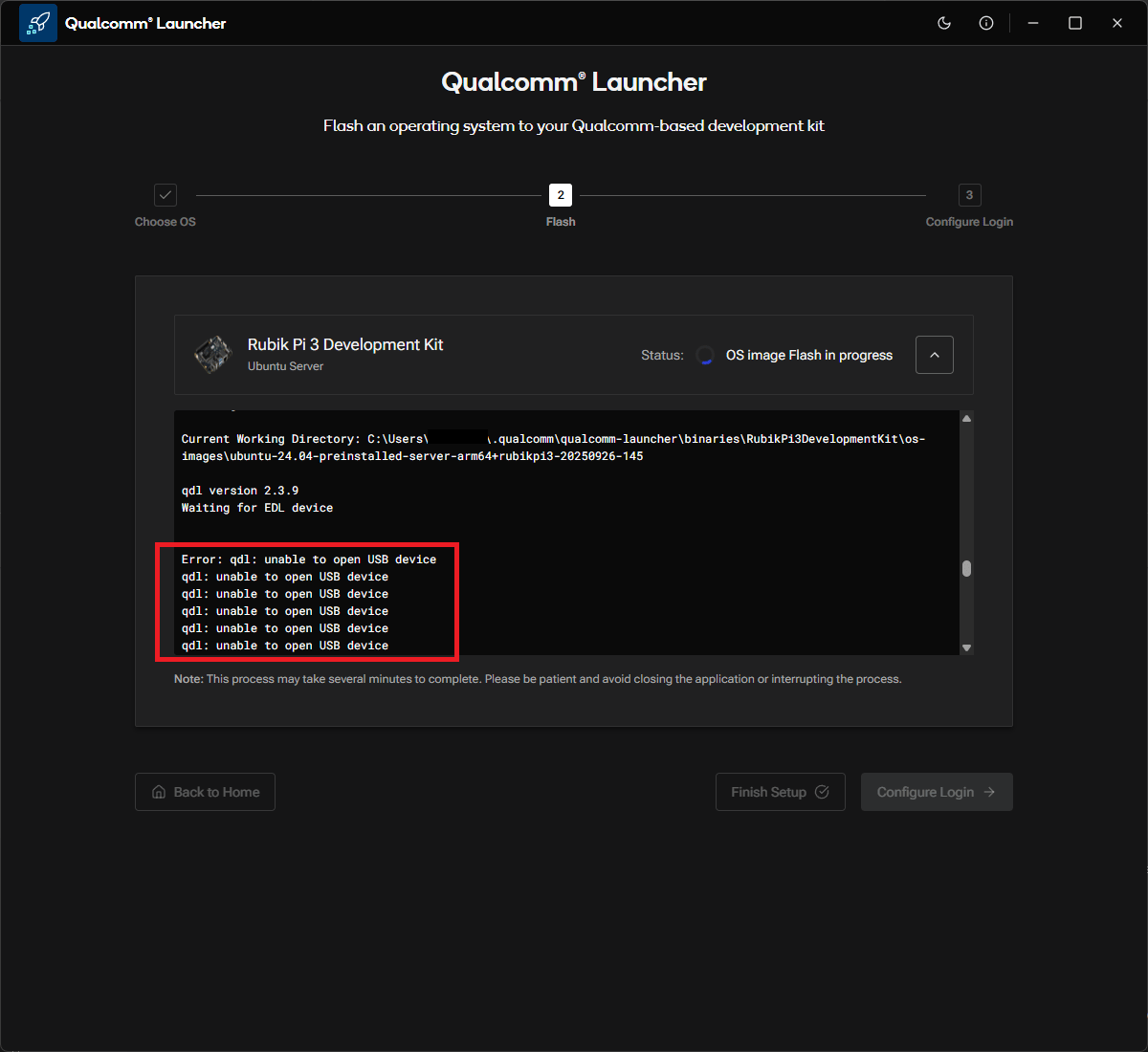
<Frame caption="Flashing fails repeatedly due to a USB driver conflict">
  <img src="https://mintcdn.com/qualcomm-prod/eScFbqwOE3FTKMjh/Tools/Qualcomm-Launcher/images/usb-driver-conflict/flash-error-qdl-unable-to-open.png?fit=max&auto=format&n=eScFbqwOE3FTKMjh&q=85&s=c4bb272e623ec97aafec3634700ead18" alt="qdl unable to open USB device error" width="1200" height="1100" data-path="Tools/Qualcomm-Launcher/images/usb-driver-conflict/flash-error-qdl-unable-to-open.png" />
</Frame>

<Note>
  This can happen with various third-party drivers. The steps below use
  third-party QDLoader driver as a representative example, but the resolution
  applies broadly.
</Note>

***

## Resolution steps

<Steps>
  <Step title="Open Device Manager">
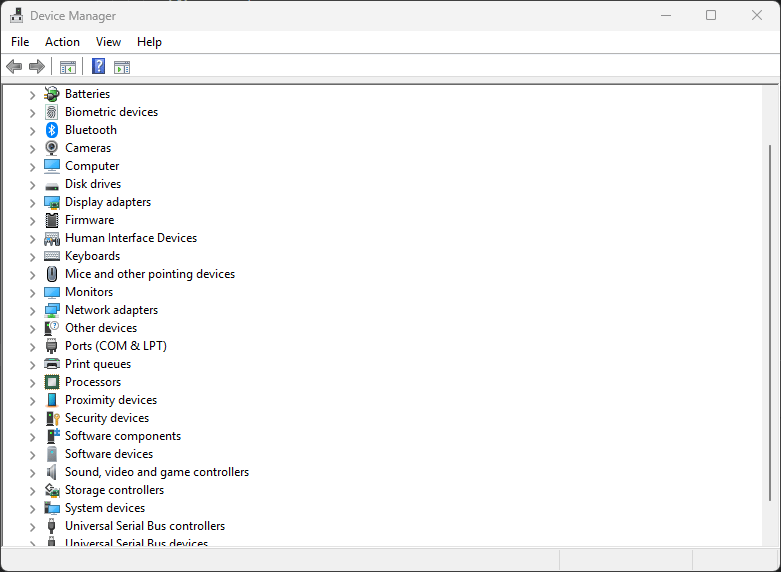
    Right-click the **Start** button and select **Device Manager**.
    <Frame>
      <img src="https://mintcdn.com/qualcomm-prod/eScFbqwOE3FTKMjh/Tools/Qualcomm-Launcher/images/usb-driver-conflict/open-device-manager.png?fit=max&auto=format&n=eScFbqwOE3FTKMjh&q=85&s=66b6844bbeffb29203a2dba6588c80f8" alt="Open Device Manager" width="781" height="572" data-path="Tools/Qualcomm-Launcher/images/usb-driver-conflict/open-device-manager.png" />
    </Frame>
  </Step>

  <Step title="Locate the conflicting device under Ports (COM & LPT)">
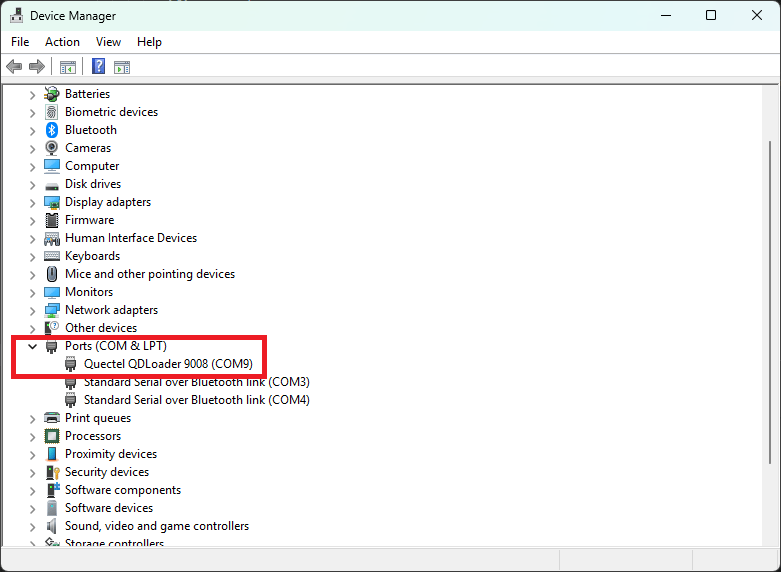
    Expand **Ports (COM & LPT)** and find the third-party **QDLoader 9008** entry.
    <Frame caption="Conflicting device listed under Ports (COM & LPT)">
      <img src="https://mintcdn.com/qualcomm-prod/eScFbqwOE3FTKMjh/Tools/Qualcomm-Launcher/images/usb-driver-conflict/conflicting-driver-under-ports.png?fit=max&auto=format&n=eScFbqwOE3FTKMjh&q=85&s=d90499667aa9c46aae5e39c1e42b6ce4" alt="Third-party QDLoader 9008 under Ports" width="781" height="572" data-path="Tools/Qualcomm-Launcher/images/usb-driver-conflict/conflicting-driver-under-ports.png" />
    </Frame>
  </Step>

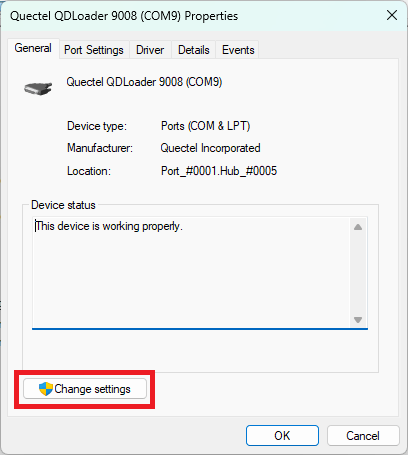
  <Step title="Open Properties and click Change settings">
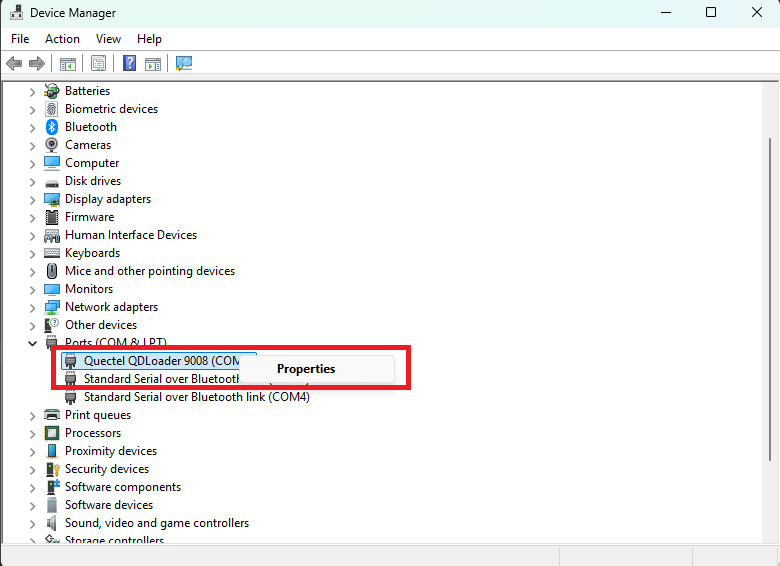
    Right-click the third-party **QDLoader 9008** entry and select **Properties**.
    <Frame>
      <img src="https://mintcdn.com/qualcomm-prod/eScFbqwOE3FTKMjh/Tools/Qualcomm-Launcher/images/usb-driver-conflict/device-properties.png?fit=max&auto=format&n=eScFbqwOE3FTKMjh&q=85&s=911ee950983cb83834eeecd632263844" alt="Device Properties" width="780" height="566" data-path="Tools/Qualcomm-Launcher/images/usb-driver-conflict/device-properties.png" />
    </Frame>

    In the **General** tab, click **Change settings**. Windows prompts for elevated privileges — accept the prompt to continue.
    <Frame>
      <img src="https://mintcdn.com/qualcomm-prod/eScFbqwOE3FTKMjh/Tools/Qualcomm-Launcher/images/usb-driver-conflict/change-settings-button.png?fit=max&auto=format&n=eScFbqwOE3FTKMjh&q=85&s=bf62ac8f7ddf3fcc780697c66035f02f" alt="Change settings button" width="408" height="455" data-path="Tools/Qualcomm-Launcher/images/usb-driver-conflict/change-settings-button.png" />
    </Frame>
  </Step>

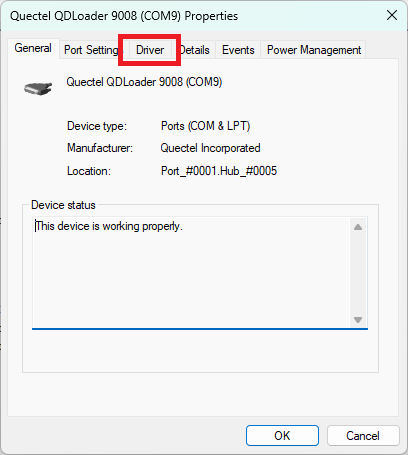
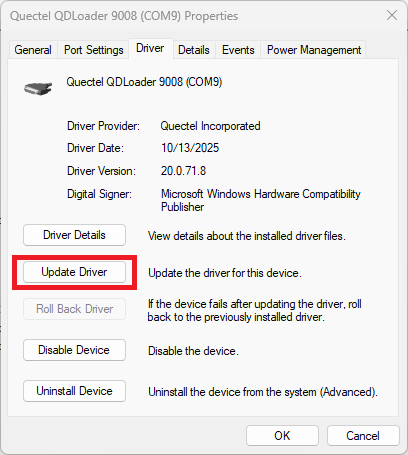
  <Step title="Open the Driver tab and click Update Driver">
    In the updated Properties window, click the **Driver** tab.
    <Frame>
      <img src="https://mintcdn.com/qualcomm-prod/eScFbqwOE3FTKMjh/Tools/Qualcomm-Launcher/images/usb-driver-conflict/driver-tab.png?fit=max&auto=format&n=eScFbqwOE3FTKMjh&q=85&s=572207c6831577ba51a3a5bc1274dd43" alt="Properties with Driver tab" width="408" height="455" data-path="Tools/Qualcomm-Launcher/images/usb-driver-conflict/driver-tab.png" />
    </Frame>

    On the **Driver** tab, click **Update Driver**.
    <Frame>
      <img src="https://mintcdn.com/qualcomm-prod/eScFbqwOE3FTKMjh/Tools/Qualcomm-Launcher/images/usb-driver-conflict/update-driver-button.png?fit=max&auto=format&n=eScFbqwOE3FTKMjh&q=85&s=0c1ec451e181ef16670e0d259ca62e41" alt="Update Driver button" width="408" height="455" data-path="Tools/Qualcomm-Launcher/images/usb-driver-conflict/update-driver-button.png" />
    </Frame>
  </Step>

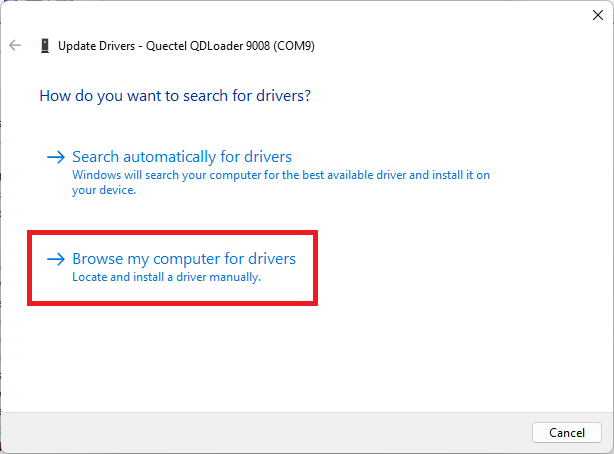
  <Step title="Browse and pick driver from a list">
    Select **Browse my computer for drivers**.
    <Frame>
      <img src="https://mintcdn.com/qualcomm-prod/eScFbqwOE3FTKMjh/Tools/Qualcomm-Launcher/images/usb-driver-conflict/browse-my-computer.png?fit=max&auto=format&n=eScFbqwOE3FTKMjh&q=85&s=3f2d4e58d2c964a6ec93124ad37dd1b6" alt="Update Driver dialog" width="614" height="454" data-path="Tools/Qualcomm-Launcher/images/usb-driver-conflict/browse-my-computer.png" />
    </Frame>

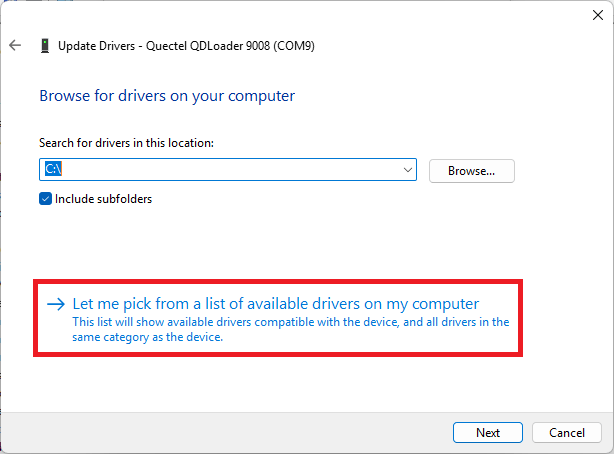
    Click **Let me pick from a list of available drivers on my computer**.
    <Frame>
      <img src="https://mintcdn.com/qualcomm-prod/eScFbqwOE3FTKMjh/Tools/Qualcomm-Launcher/images/usb-driver-conflict/pick-driver-from-list.png?fit=max&auto=format&n=eScFbqwOE3FTKMjh&q=85&s=aef21a3dd035f80db42197d2b5dc0c38" alt="Pick from a list of drivers" width="614" height="454" data-path="Tools/Qualcomm-Launcher/images/usb-driver-conflict/pick-driver-from-list.png" />
    </Frame>
  </Step>

  <Step title="Select the Qualcomm HS-USB driver and confirm">
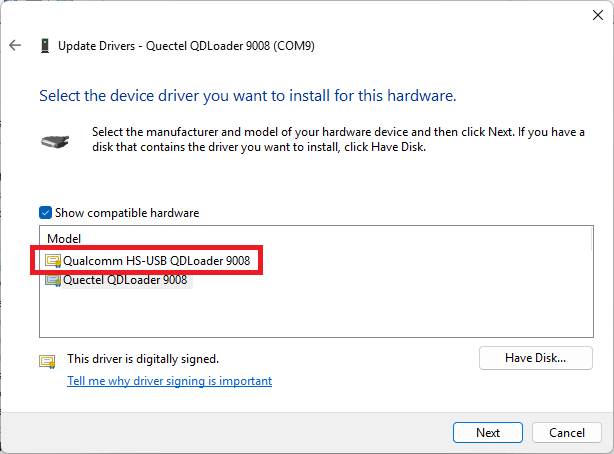
    From the list, select **Qualcomm HS-USB QDLoader 9008** and click **Next**.
    <Frame>
      <img src="https://mintcdn.com/qualcomm-prod/eScFbqwOE3FTKMjh/Tools/Qualcomm-Launcher/images/usb-driver-conflict/select-qualcomm-driver.png?fit=max&auto=format&n=eScFbqwOE3FTKMjh&q=85&s=3c823468e2264ddf167b7ad246d9672a" alt="Select compatible driver" width="614" height="454" data-path="Tools/Qualcomm-Launcher/images/usb-driver-conflict/select-qualcomm-driver.png" />
    </Frame>

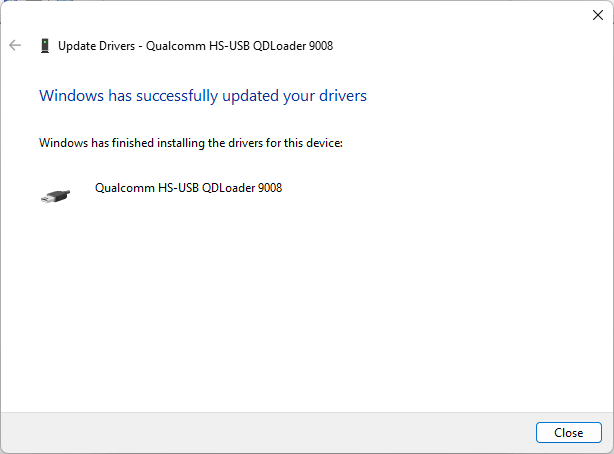
    Windows installs the driver and confirms success. Click **Close**.
    <Frame>
      <img src="https://mintcdn.com/qualcomm-prod/eScFbqwOE3FTKMjh/Tools/Qualcomm-Launcher/images/usb-driver-conflict/driver-update-success.png?fit=max&auto=format&n=eScFbqwOE3FTKMjh&q=85&s=cc05acdf0a0acd3e565ca4f0b95aea06" alt="Driver successfully updated" width="614" height="454" data-path="Tools/Qualcomm-Launcher/images/usb-driver-conflict/driver-update-success.png" />
    </Frame>
  </Step>

  <Step title="Verify in Device Manager and retry flashing">
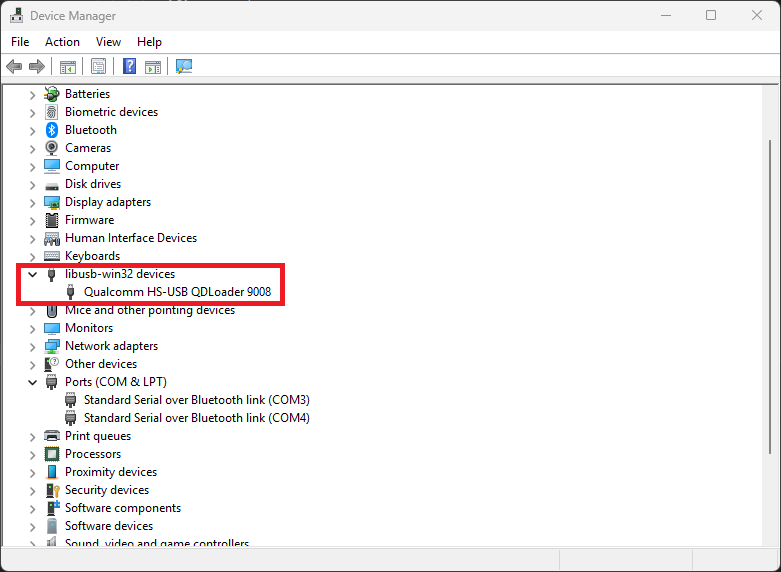
    The device now appears under **libusb-win32 devices** as **Qualcomm HS-USB QDLoader 9008**.
    <Frame caption="Device listed under libusb-win32 devices">
      <img src="https://mintcdn.com/qualcomm-prod/eScFbqwOE3FTKMjh/Tools/Qualcomm-Launcher/images/usb-driver-conflict/device-under-libusb-win32.png?fit=max&auto=format&n=eScFbqwOE3FTKMjh&q=85&s=83165c211fe21be58a8f8a75ca7cc4d4" alt="Device under libusb-win32 devices" width="781" height="572" data-path="Tools/Qualcomm-Launcher/images/usb-driver-conflict/device-under-libusb-win32.png" />
    </Frame>

    Return to Qualcomm® Launcher and retry the flash. The process should now proceed successfully.
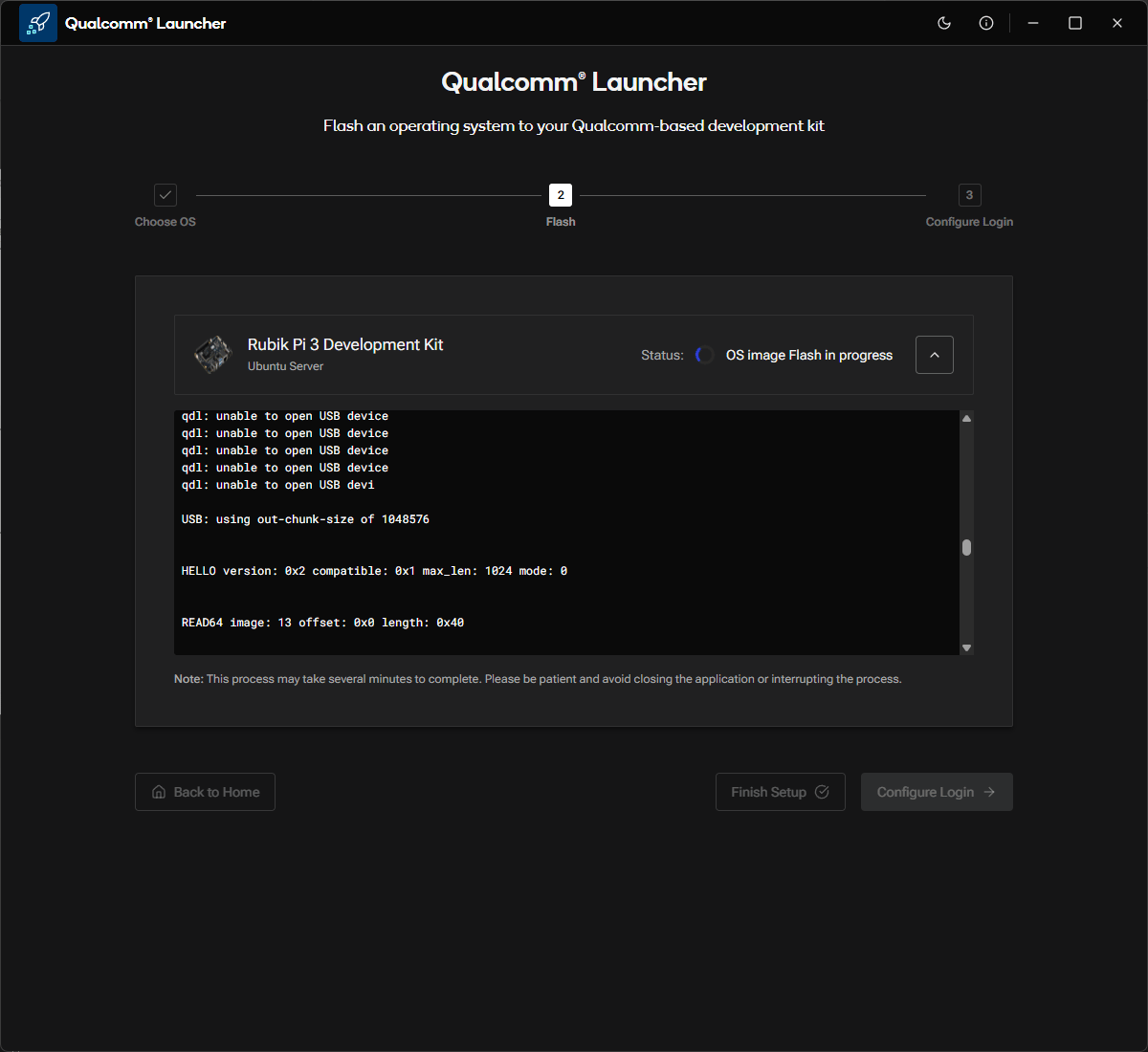
    <Frame caption="Flashing proceeds successfully after the driver fix">
      <img src="https://mintcdn.com/qualcomm-prod/eScFbqwOE3FTKMjh/Tools/Qualcomm-Launcher/images/usb-driver-conflict/flash-success.png?fit=max&auto=format&n=eScFbqwOE3FTKMjh&q=85&s=2b0499a794006ca318b43f777385860e" alt="Flashing succeeds" width="1200" height="1100" data-path="Tools/Qualcomm-Launcher/images/usb-driver-conflict/flash-success.png" />
    </Frame>

    <Check>
      The USB driver conflict is resolved and flashing can proceed.
    </Check>
  </Step>
</Steps>

<Tip>
  After flashing is complete, you can revert to the previously installed driver
  by repeating these steps and selecting it from the driver list.
</Tip>
