> ## Documentation Index
> Fetch the complete documentation index at: https://dragonwingdocs.qualcomm.com/llms.txt
> Use this file to discover all available pages before exploring further.
# Chip software
## GUI
### Download software product
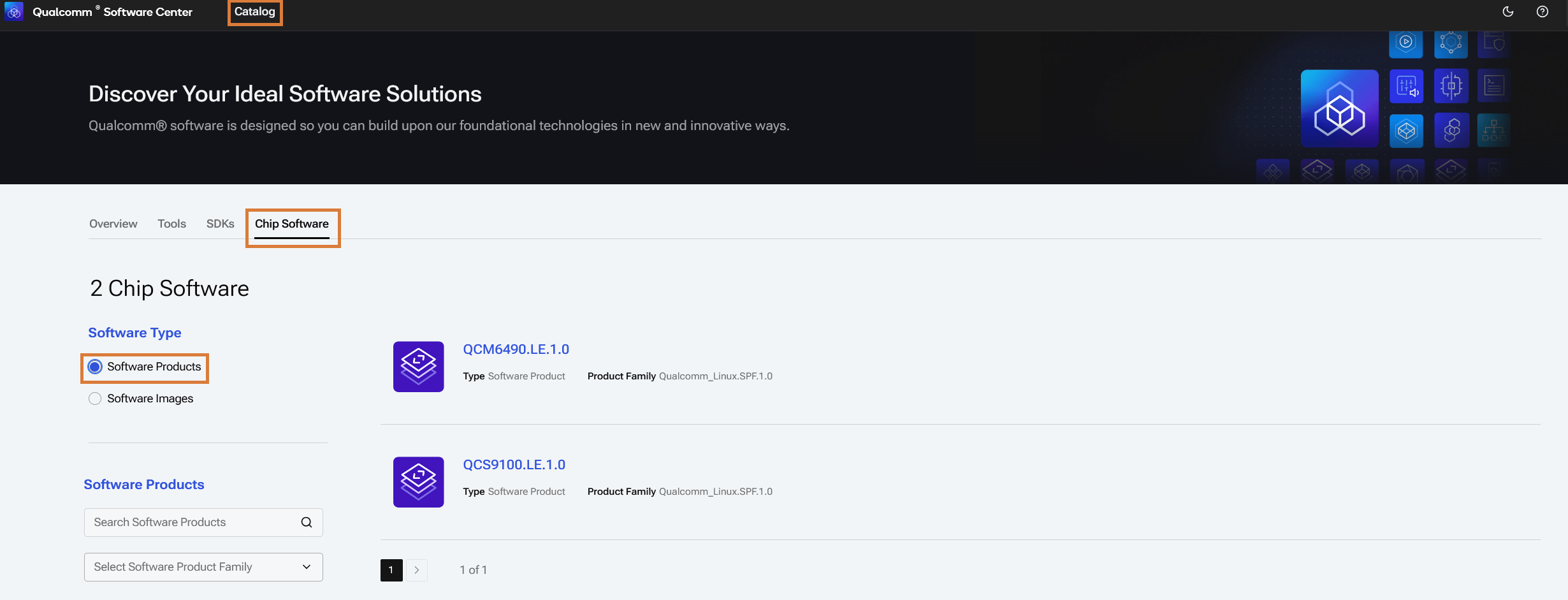
On the Qualcomm Software Center web [portal](https://softwarecenter.qualcomm.com/) (or desktop application), navigate to **Catalog** on the top menu bar and select the **Chip Software** category.
Select **Software Products** to see all software products (SPs) and software product families (SPFs) to which you have access. Click on a row to navigate to the software product detail page.
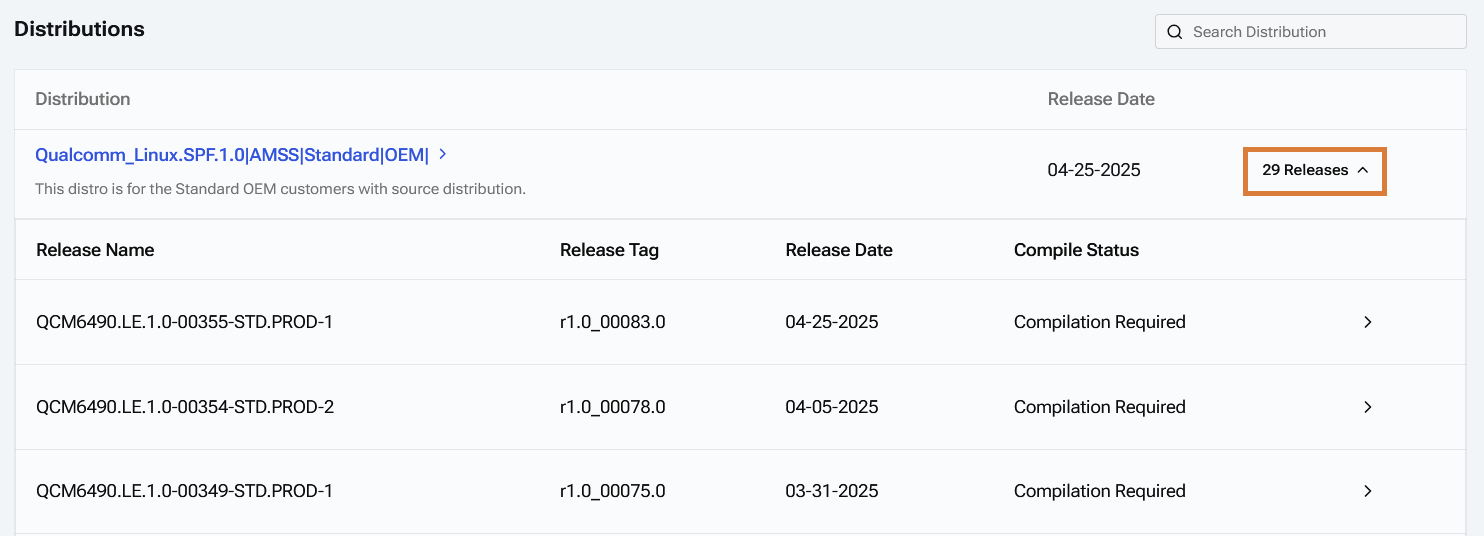
 Select a distribution to see the releases and corresponding Git commands for the selected release.
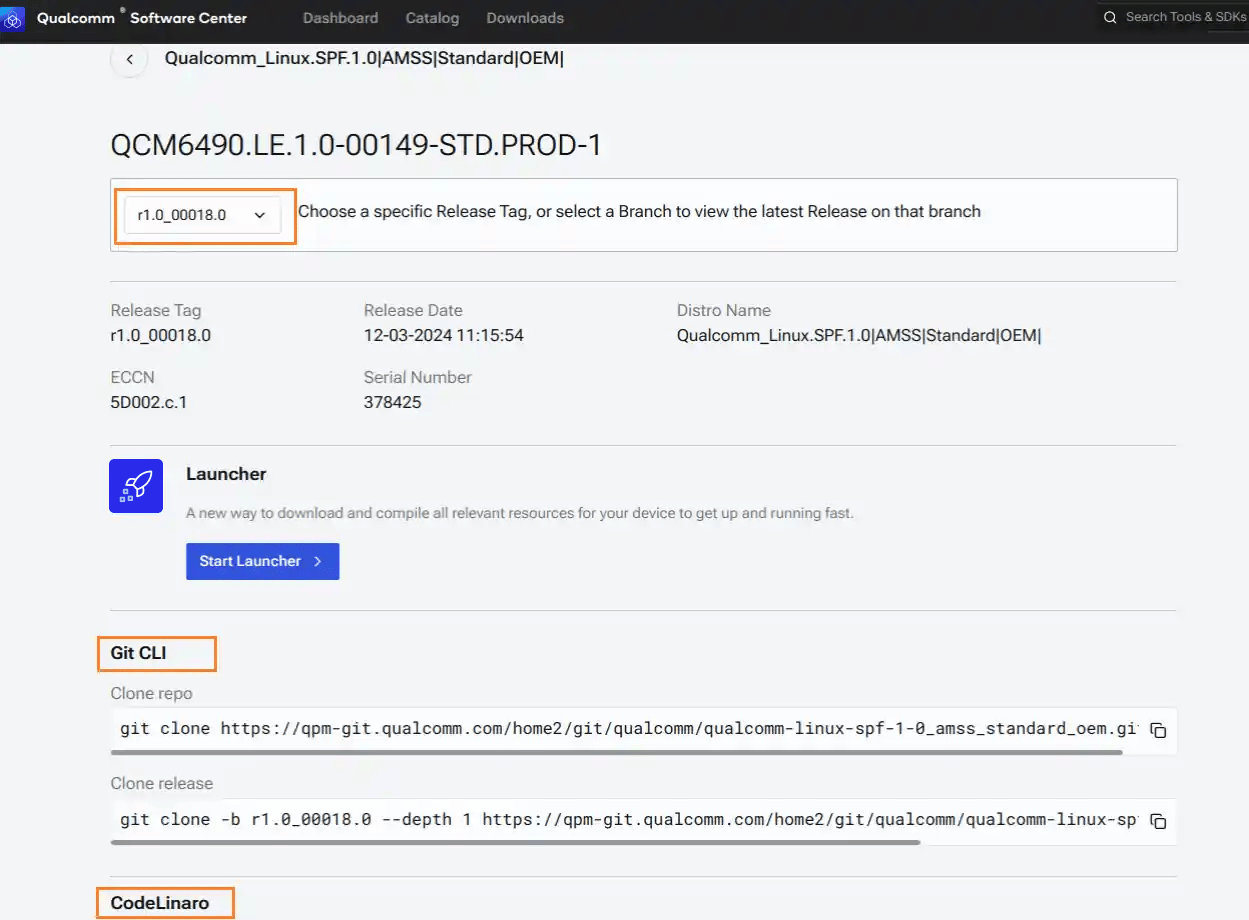
 Git CLI commands can be used to download SP releases. Download proprietary software via the qpm-git.qualcomm.com repo(s). Download open source software via CodeLinaro.
 ### Download software image
On the Qualcomm Software Center web [portal](https://softwarecenter.qualcomm.com/) (or desktop application), navigate to **Catalog** on the top menu bar and select the **Chip Software** category.
Select **Software Images** to see all independent software images (SIs) to which you have access.
### Download software image
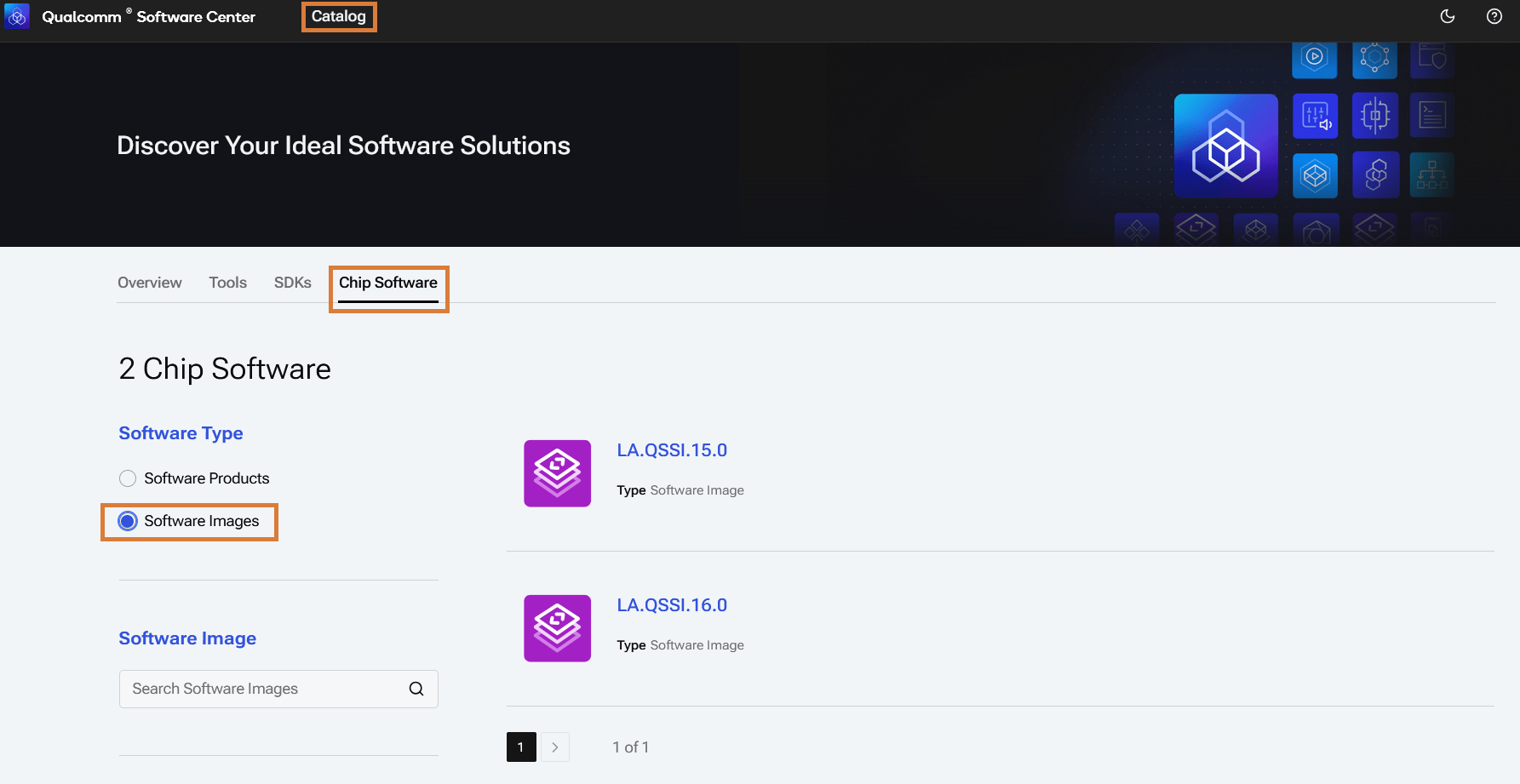
On the Qualcomm Software Center web [portal](https://softwarecenter.qualcomm.com/) (or desktop application), navigate to **Catalog** on the top menu bar and select the **Chip Software** category.
Select **Software Images** to see all independent software images (SIs) to which you have access.
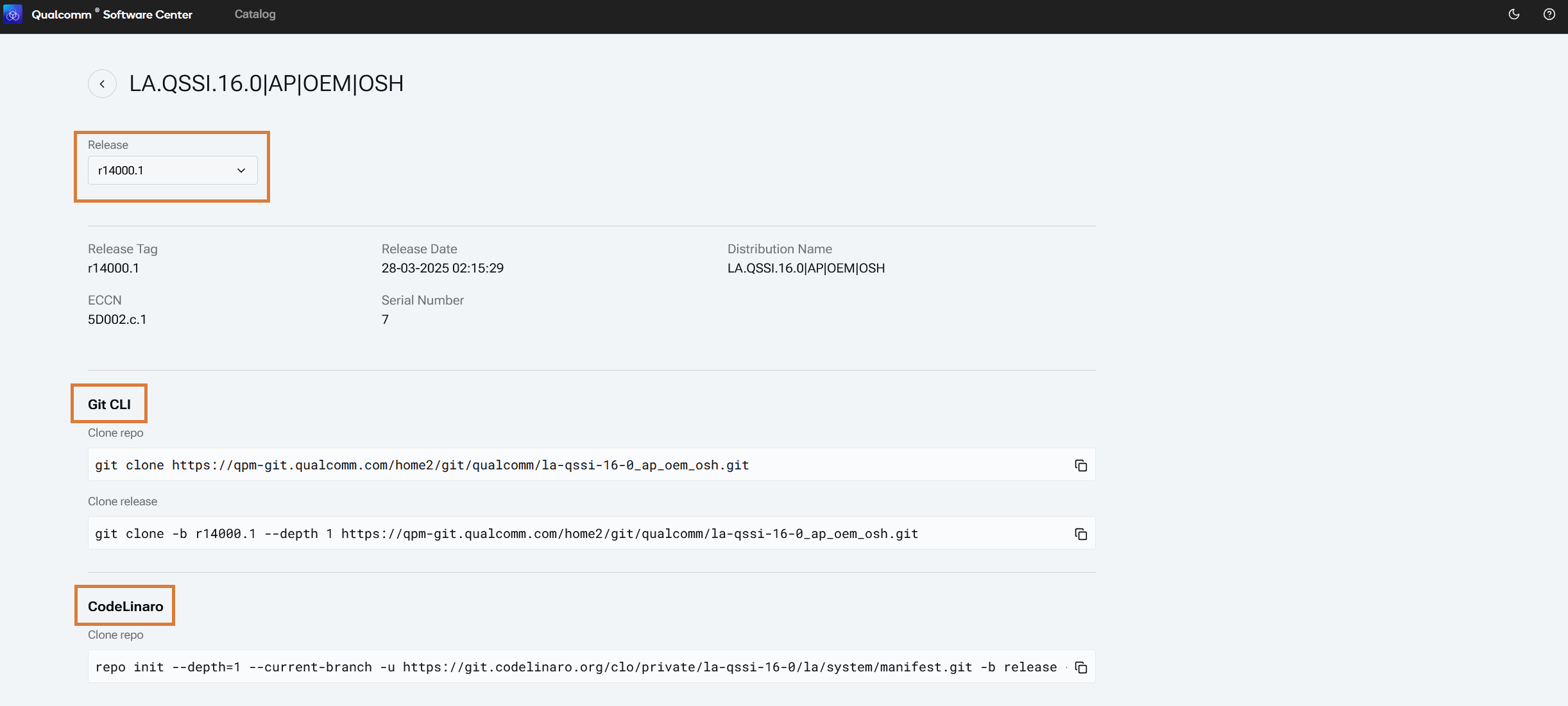
 Select a distribution to see the releases and corresponding Git commands for the selected release.
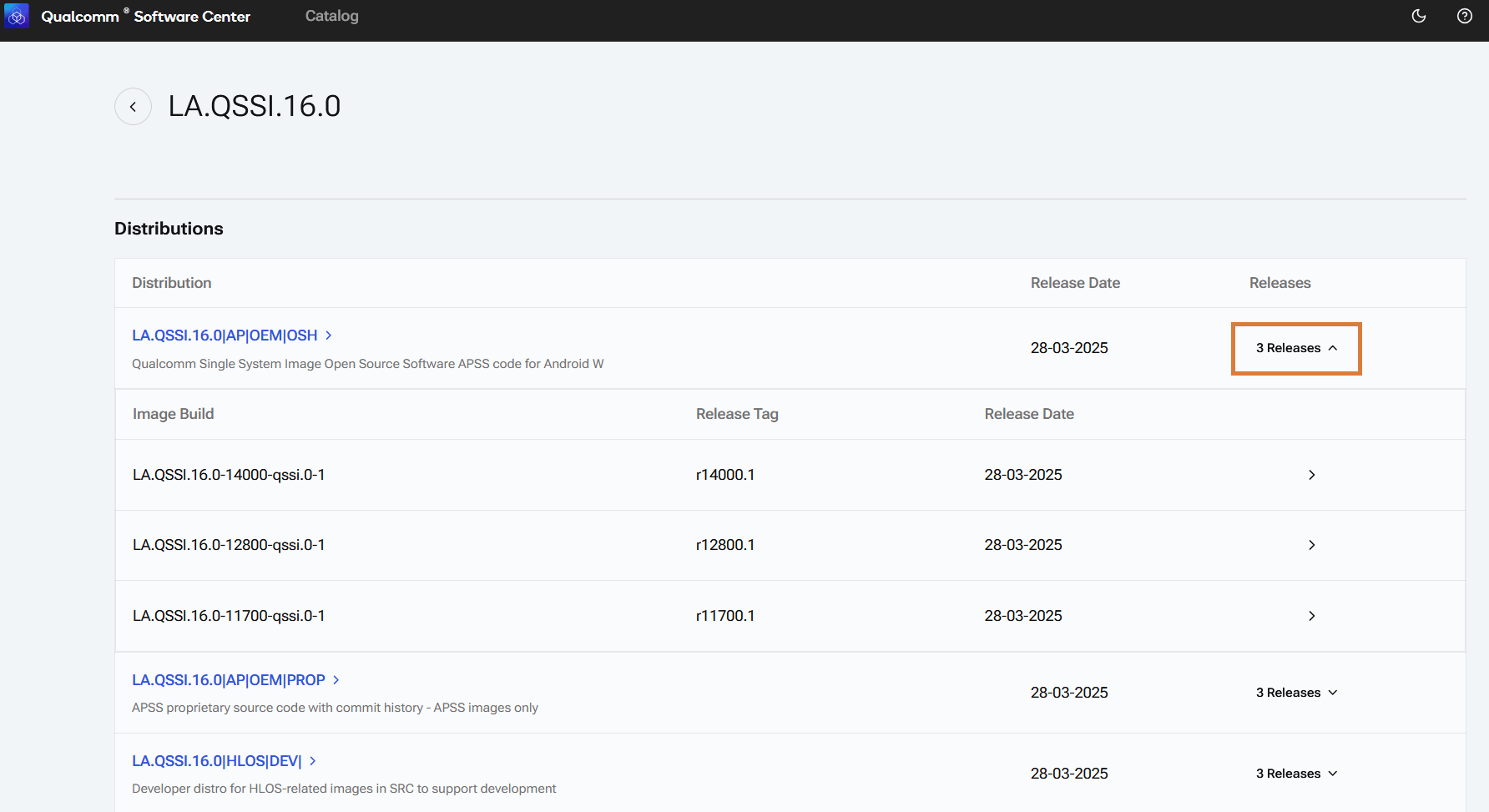 Git CLI commands can be used to download software image releases. Download proprietary software via the qpm-git.qualcomm.com repo(s). Download open source software via CodeLinaro.
 ## CLI
The Qualcomm Software Center qsc-cli command line interface can be used to activate a license, download and install tools and SDKs and chip software. qsc-cli is installed with Qualcomm Software Center.
For qsc-cli usage on WSL, start a new Ubuntu session via the Windows PowerShell. Avoid using `/mnt` for workspace creation, as it may require admin mode and compilation will be slower.
These commands are applicable for specific SPs only. For supported SPs, see chip-sw-info.
### Help
Display the qsc-cli help menu for commands and options and version.
**Tool help**
## CLI
The Qualcomm Software Center qsc-cli command line interface can be used to activate a license, download and install tools and SDKs and chip software. qsc-cli is installed with Qualcomm Software Center.
For qsc-cli usage on WSL, start a new Ubuntu session via the Windows PowerShell. Avoid using `/mnt` for workspace creation, as it may require admin mode and compilation will be slower.
These commands are applicable for specific SPs only. For supported SPs, see chip-sw-info.
### Help
Display the qsc-cli help menu for commands and options and version.
**Tool help**
qsc-cli -h
### Log in
Log in with a Qualcomm ID.
qsc-cli login -u \
### List products, distributions, and releases
List products, distributions, and releases that are available to download and compile.
Run the following command to get more information.
qsc-cli chip-software info --help
### Download
To download both proprietary and open source software from different sources, specify the following input parameters:
* `--workspace-path <workspace path>`
* `--product <Product_ID>`
* `--distribution <Distro>`
* `--release <release>`
For example:
qsc-cli chip-software download --workspace-path \ --product "QCM6490.LE.1.0" --distribution "Qualcomm\_Linux.SPF.1.0|AMSS|Standard|OEM|" --release 'r00155.4'
### Compile
To compile a downloaded software product, specify an input workspace path.
qsc-cli chip-software compile --workspace-path \
Compile a software image.
qsc-cli chip-software compile --workspace-path \ --image "LE.QCLINUX.1.0.R1"
### Flash
Flash a device.
The `--buildflavor` argument is optional and only required for devices that have multiple flavors.
qsc-cli chip-software flash --workspace-path \ --buildflavor "sa2150p\_emmc" --serialnumber "1424354"
List build flavors.
qsc-cli chip-software flash --workspace-path \ --list-buildflavor
List attached devices and get serial number.
qsc-cli chip-software device --list
### Open build environment
For optional advanced customization, open a build environment for a workspace and execute build commands for the input software image.
qsc-cli chip-software open-build-env --workspace-path \ --image \
This will set up an environment for you to execute your own build commands for a given software image. QSC will not track the status of input workspaces going forward and flash via `qsc-cli` will not be supported for this workspace.
Get the software image name.
qsc-cli chip-software list-workspace
In output, look for *Compilable Images* for the software image names.
### Manage workspaces
List a workspace.
qsc-cli chip-software list-workspace
Delete a workspace.
qsc-cli chip-software delete-workspace --workspace-path \