> ## Documentation Index
> Fetch the complete documentation index at: https://dragonwingdocs.qualcomm.com/llms.txt
> Use this file to discover all available pages before exploring further.
# Setup
> Step-by-step guide to power on, flash, connect, and configure the Dragonwing IQ-8275 EVK development board.
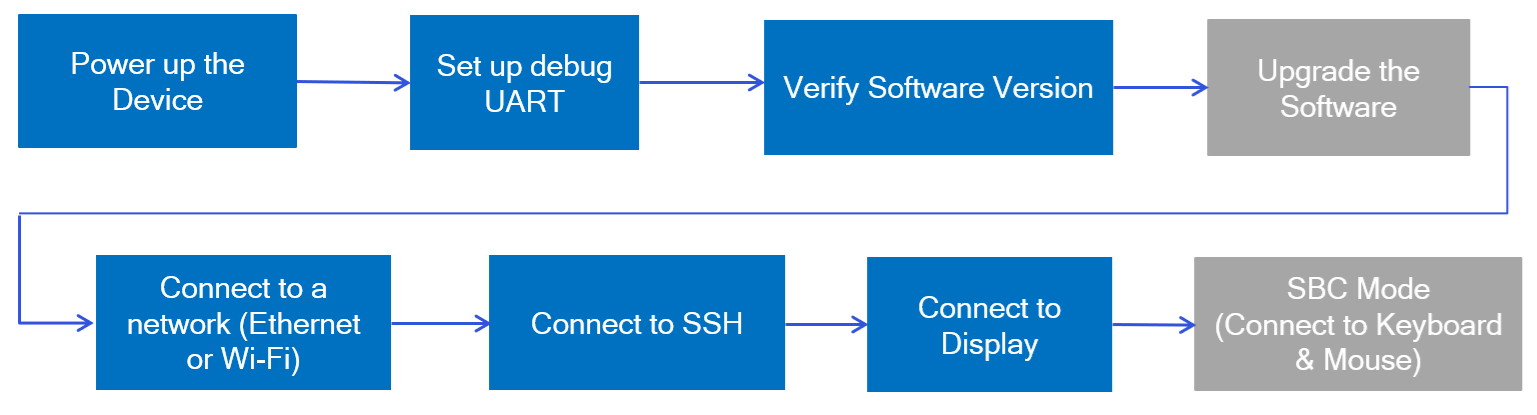
This chapter provides a comprehensive, step-by-step guide for developers to set up the IQ-8275 EVK development board across Ubuntu, Windows®, and macOS® environments. It covers essential tasks to ensure a smooth onboarding experience, including:
* **Powering on the device** for the first time.
* **Configuring the debug UART** for serial console access.
* **Verifying software versions** and performing software upgrades when required to ensure the latest features and security patches.
* **Establishing network connectivity** via Ethernet or Wi-Fi.
* **Setting up secure SSH access** for remote management.
* **Connecting display outputs** for application visualization.
* **Enabling SBC mode** to connect peripherals such as keyboard and mouse, transforming the EVK into a functional Single Board Computer for interactive development.
Whether you are flashing software, troubleshooting through UART logs, upgrading the operating system, or connecting peripherals, this section equips you with clear instructions and best practices to get your development environment up and running quickly and reliably.
### Setup workflow of Dragonwing IQ-8275 EVK
 ## Power on the device
To power up the device, do the following:
* The Dragonwing IQ-8275 board receives its main power through a 2.10 mm barrel jack connector (JPWR, JACK-C-PC-10A-RA(R)), which supports an input voltage range of **12 V to 36 V**. The EVK also includes a Type-C to barrel plug adapter for convenience. Connect a +12 V power adapter to supply power to the board.
* Connect the USB Type-C end of the cable to **USB0** and the other end (Type-A or Type-C) to the **host device**. This connection allows you to flash the software.
## Set up debug UART
The debug UART displays diagnostic messages and provides access to the device through the UART shell. To set up the debug UART, do the following:
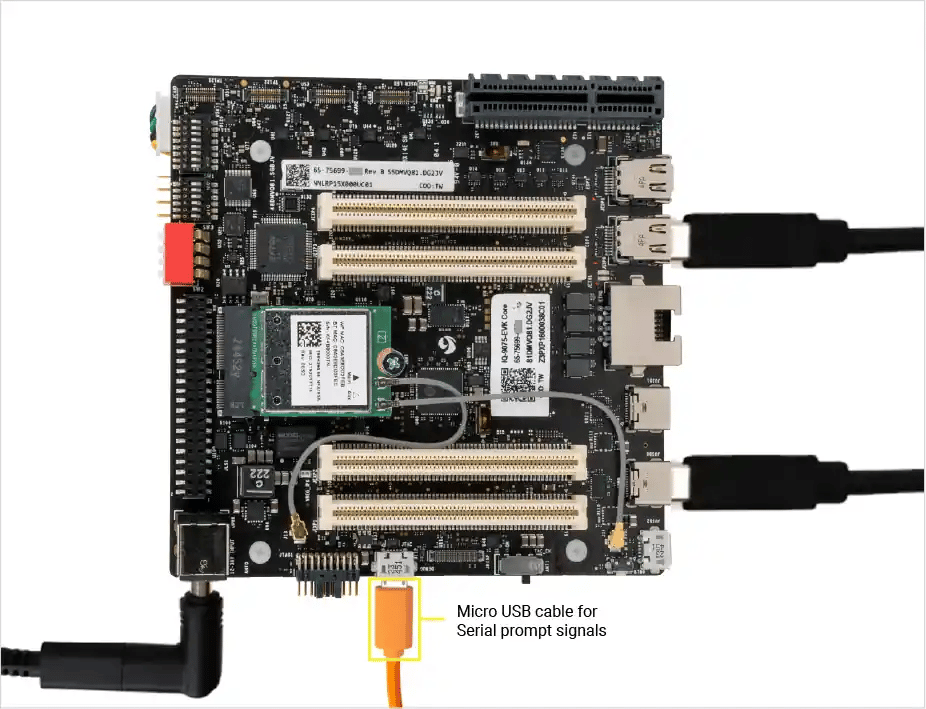
* Connect one end of a micro-USB cable to the micro-USB port on the Dragonwing IQ-8275 device.
* Connect the other end of the micro-USB cable to the host computer.
* The figure below shows the port location on the device:
## Power on the device
To power up the device, do the following:
* The Dragonwing IQ-8275 board receives its main power through a 2.10 mm barrel jack connector (JPWR, JACK-C-PC-10A-RA(R)), which supports an input voltage range of **12 V to 36 V**. The EVK also includes a Type-C to barrel plug adapter for convenience. Connect a +12 V power adapter to supply power to the board.
* Connect the USB Type-C end of the cable to **USB0** and the other end (Type-A or Type-C) to the **host device**. This connection allows you to flash the software.
## Set up debug UART
The debug UART displays diagnostic messages and provides access to the device through the UART shell. To set up the debug UART, do the following:
* Connect one end of a micro-USB cable to the micro-USB port on the Dragonwing IQ-8275 device.
* Connect the other end of the micro-USB cable to the host computer.
* The figure below shows the port location on the device:
 * Select a host computer OS below for detailed instructions.
Install the Screen application on the Ubuntu host by running the following commands:
```shell theme={null}
sudo apt update
sudo apt install screen
```
Verify the USB port connection by running the following command:
```shell theme={null}
ls /dev/ttyUSB*
```
**Sample Output:**
```shell theme={null}
/dev/ttyUSB0 /dev/ttyUSB1 /dev/ttyUSB2 /dev/ttyUSB3
```
Open the debug UART port by running the following command:
```shell theme={null}
sudo screen
```
**Details of the Parameters**\
serial\_port: is your device serial port connection.\
baud\_rate: is the appropriate baud rate, which is 115200 by default.
**Example**
* The IQ8-EVK console will likely enumerate as /dev/ttyUSB1. This is due to the onboard serial adapter, which exposes a total of 4 serial devices, and the console is rendered on the second of those devices.
* To open the debug UART port, run the following command:
```shell theme={null}
sudo screen /dev/ttyUSB1 115200
```
1. Download [**🔗PuTTY**](https://putty.software/) for your Windows host. Ensure that you choose the correct version for your Windows host (32-bit or 64-bit).
2. Run the installation wizard, follow the prompts, and complete PuTTY installation.
3. Open the PuTTY application from the Start menu or by searching for it in the taskbar search bar.
4. Start a PuTTY session for a port through the PuTTY Configuration dialog as follows:
* Select Serial.
* Specify a Serial line based on the UART port detected in the Windows Device Manager.
**Note:**\
If the UART port isn’t detected, download and update the driver as follows: For x86: Go to the [**USB-to-UART serial driver**](https://ftdichip.com/wp-content/uploads/2023/09/CDM-v2.12.36.4-WHQL-Certified.zip) page. The driver auto-downloads. Update it through the Device Manager.
For Arm®: Go to the [**FTDI USB to serial drivers**](https://oemdrivers.com/usb-ft232r-usb-uart-arm64) page. In the Drivers section, select FTDI CDM VCP Drivers. The driver download starts. Update it through the Device Manager.
**COM Port Selection Procedure**
* Select a host computer OS below for detailed instructions.
Install the Screen application on the Ubuntu host by running the following commands:
```shell theme={null}
sudo apt update
sudo apt install screen
```
Verify the USB port connection by running the following command:
```shell theme={null}
ls /dev/ttyUSB*
```
**Sample Output:**
```shell theme={null}
/dev/ttyUSB0 /dev/ttyUSB1 /dev/ttyUSB2 /dev/ttyUSB3
```
Open the debug UART port by running the following command:
```shell theme={null}
sudo screen
```
**Details of the Parameters**\
serial\_port: is your device serial port connection.\
baud\_rate: is the appropriate baud rate, which is 115200 by default.
**Example**
* The IQ8-EVK console will likely enumerate as /dev/ttyUSB1. This is due to the onboard serial adapter, which exposes a total of 4 serial devices, and the console is rendered on the second of those devices.
* To open the debug UART port, run the following command:
```shell theme={null}
sudo screen /dev/ttyUSB1 115200
```
1. Download [**🔗PuTTY**](https://putty.software/) for your Windows host. Ensure that you choose the correct version for your Windows host (32-bit or 64-bit).
2. Run the installation wizard, follow the prompts, and complete PuTTY installation.
3. Open the PuTTY application from the Start menu or by searching for it in the taskbar search bar.
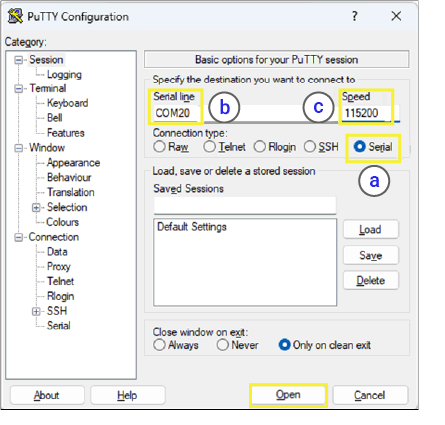
4. Start a PuTTY session for a port through the PuTTY Configuration dialog as follows:
* Select Serial.
* Specify a Serial line based on the UART port detected in the Windows Device Manager.
**Note:**\
If the UART port isn’t detected, download and update the driver as follows: For x86: Go to the [**USB-to-UART serial driver**](https://ftdichip.com/wp-content/uploads/2023/09/CDM-v2.12.36.4-WHQL-Certified.zip) page. The driver auto-downloads. Update it through the Device Manager.
For Arm®: Go to the [**FTDI USB to serial drivers**](https://oemdrivers.com/usb-ft232r-usb-uart-arm64) page. In the Drivers section, select FTDI CDM VCP Drivers. The driver download starts. Update it through the Device Manager.
**COM Port Selection Procedure**
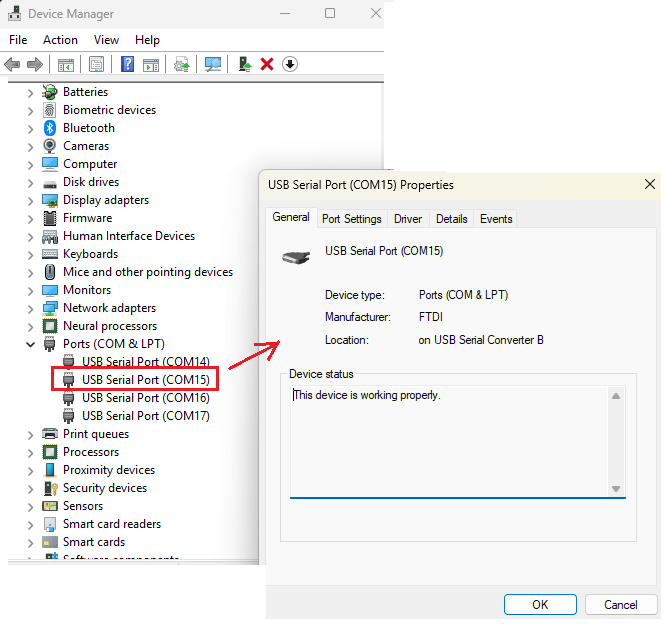 * When connecting the FTDI-based interface, 2 or 4 COM ports may appear in Device Manager.
* Only the first two ports are used for functional purposes.
* Identifying the Correct Ports: Right-click each COM port → Properties → Check the Location field.\
Example: on USB Serial Converter B.
**Hardware Design Details (FTDI Chip)**\
Converter A (ADBUS0:7) Assigned to SAIL Debug UART to collect the SAIL (Safety Island) Domain logs.
Converter B (BDBUS0:7) Assigned to Main Domain UART to collect serial prompt logs.
* Set the baud rate to 115200.
* Select Open.
* The PuTTY session for the serial port starts. The following figure shows a sample PuTTY configuration dialog.
* When connecting the FTDI-based interface, 2 or 4 COM ports may appear in Device Manager.
* Only the first two ports are used for functional purposes.
* Identifying the Correct Ports: Right-click each COM port → Properties → Check the Location field.\
Example: on USB Serial Converter B.
**Hardware Design Details (FTDI Chip)**\
Converter A (ADBUS0:7) Assigned to SAIL Debug UART to collect the SAIL (Safety Island) Domain logs.
Converter B (BDBUS0:7) Assigned to Main Domain UART to collect serial prompt logs.
* Set the baud rate to 115200.
* Select Open.
* The PuTTY session for the serial port starts. The following figure shows a sample PuTTY configuration dialog.
 Verify the serial devices connected to the macOS host by running the following command:
```shell theme={null}
ls /dev/cu.*
```
The list of serial devices connected to the macOS host is displayed. The name of your device should display in the list.
Find your serial device from the listed serial devices.
The following screen shows a sample list of serial devices connected to a macOS host. For example, consider the serial device `cu.usbserial-DM03SDQQ at node /dev/cu.usbserial-DM03SDQQ`.
Verify the serial devices connected to the macOS host by running the following command:
```shell theme={null}
ls /dev/cu.*
```
The list of serial devices connected to the macOS host is displayed. The name of your device should display in the list.
Find your serial device from the listed serial devices.
The following screen shows a sample list of serial devices connected to a macOS host. For example, consider the serial device `cu.usbserial-DM03SDQQ at node /dev/cu.usbserial-DM03SDQQ`.
 Open your serial device by running the following command:
```shell theme={null}
screen
```
**Details of the Parameters**\
serial\_device\_node: is your device node name.\
baud\_rate: is the appropriate baud rate.
**Example**\
The device node name is /dev/cu.usbserial-DM03SDQQ and baud rate is 115200. To open the serial device, run the following command:
```shell theme={null}
screen /dev/cu.usbserial-DM03SDQQ 115200
```
## Verify the SW version
Sign in to the Dragonwing IQ-8275 EVK Ubuntu UART console, using *ubuntu* as both the username and password. Then, you can reset the password in your command terminal upon first login.
Run the following commands in the terminal to verify the version:
```shell theme={null}
cat /etc/os-release
```
**Output:**
```json theme={null}
PRETTY_NAME="Ubuntu 24.04.3 LTS"
NAME="Ubuntu"
VERSION_ID="24.04"
VERSION="24.04.3 LTS (Noble Numbat)"
VERSION_CODENAME=noble
ID=ubuntu
ID_LIKE=debian
HOME_URL="https://www.ubuntu.com/"
SUPPORT_URL="https://help.ubuntu.com/"
BUG_REPORT_URL="https://bugs.launchpad.net/ubuntu/"
PRIVACY_POLICY_URL="https://www.ubuntu.com/legal/terms-and-policies/privacy-policy"
UBUNTU_CODENAME=noble
LOGO=ubuntu-logo
```
Run the following command to check the Linux version:
```shell theme={null}
uname -a
```
**Output:**
```json theme={null}
Linux ubuntu 6.8.0-1057-qcom #58-Ubuntu SMP PREEMPT_DYNAMIC Tue Nov 25 14:21:46 UTC 2025 aarch64 aarch64 aarch64 GNU/Linux
```
**Note:** If your IQ8-EVK is not currently running Ubuntu or in EDL mode, you can refer to the instructions mentioned in the [**🔗"flash Ubuntu to the device"**](./update-software/overview) section.
## Connect to network
**Prerequisites:**\
Sign in to the Dragonwing IQ-8275 EVK Ubuntu UART console, using `ubuntu` as both the username and password.
Establish an internet connection to retrieve the device IP address using one of the following methods:
#### Connect using Wi-Fi
The device operates Wi-Fi in Station mode. When the device boots up, it initializes the Wi-Fi host driver and authenticates network management. Use the following steps to establish a wireless connection.
1. Connect to a wireless access point (Wi-Fi router) by running the following command:
```shell theme={null}
sudo nmcli dev wifi connect password
```
**Details of the Parameters**\
WiFi-SSID: is the name of the Wi-Fi network.\
WiFi-password: is the password of the Wi-Fi network.
**Example**\
The name of the Wi-Fi network is QualcommWi-Fi and the password is 1234567890. To connect to this network, run the following command:
```shell theme={null}
sudo mcli dev wifi connect QualcommWiFi password 1234567890
```
**Sample output**\
The following sample output indicates successful connection.
```shell theme={null}
Device ‘wlp1s0’ successfully activated with ‘d7b990bd-3b77-4b13-b239-b706553abaf8’.
```
2. Verify the connected devices and their status by running the following command:
```shell theme={null}
nmcli -p device
```
**Sample output**\
The following sample output shows the list and status of connected devices.
```shell theme={null}
=================
Status of devices
=================
DEVICE TYPE STATE CONNECTION
wlp1s0 wifi connected QualcommWiFi
eth0 ethernet unavailable –
eth1 ethernet unavailable –
can0 can unmanaged –
lo loopback unmanaged –
```
3. Verify the WLAN connection status and get the IP address by running the following command:
```shell theme={null}
ip addr show wlp1s0
```
**Sample output**\
The following sample output shows the IP address of the Wi-Fi network.
Open your serial device by running the following command:
```shell theme={null}
screen
```
**Details of the Parameters**\
serial\_device\_node: is your device node name.\
baud\_rate: is the appropriate baud rate.
**Example**\
The device node name is /dev/cu.usbserial-DM03SDQQ and baud rate is 115200. To open the serial device, run the following command:
```shell theme={null}
screen /dev/cu.usbserial-DM03SDQQ 115200
```
## Verify the SW version
Sign in to the Dragonwing IQ-8275 EVK Ubuntu UART console, using *ubuntu* as both the username and password. Then, you can reset the password in your command terminal upon first login.
Run the following commands in the terminal to verify the version:
```shell theme={null}
cat /etc/os-release
```
**Output:**
```json theme={null}
PRETTY_NAME="Ubuntu 24.04.3 LTS"
NAME="Ubuntu"
VERSION_ID="24.04"
VERSION="24.04.3 LTS (Noble Numbat)"
VERSION_CODENAME=noble
ID=ubuntu
ID_LIKE=debian
HOME_URL="https://www.ubuntu.com/"
SUPPORT_URL="https://help.ubuntu.com/"
BUG_REPORT_URL="https://bugs.launchpad.net/ubuntu/"
PRIVACY_POLICY_URL="https://www.ubuntu.com/legal/terms-and-policies/privacy-policy"
UBUNTU_CODENAME=noble
LOGO=ubuntu-logo
```
Run the following command to check the Linux version:
```shell theme={null}
uname -a
```
**Output:**
```json theme={null}
Linux ubuntu 6.8.0-1057-qcom #58-Ubuntu SMP PREEMPT_DYNAMIC Tue Nov 25 14:21:46 UTC 2025 aarch64 aarch64 aarch64 GNU/Linux
```
**Note:** If your IQ8-EVK is not currently running Ubuntu or in EDL mode, you can refer to the instructions mentioned in the [**🔗"flash Ubuntu to the device"**](./update-software/overview) section.
## Connect to network
**Prerequisites:**\
Sign in to the Dragonwing IQ-8275 EVK Ubuntu UART console, using `ubuntu` as both the username and password.
Establish an internet connection to retrieve the device IP address using one of the following methods:
#### Connect using Wi-Fi
The device operates Wi-Fi in Station mode. When the device boots up, it initializes the Wi-Fi host driver and authenticates network management. Use the following steps to establish a wireless connection.
1. Connect to a wireless access point (Wi-Fi router) by running the following command:
```shell theme={null}
sudo nmcli dev wifi connect password
```
**Details of the Parameters**\
WiFi-SSID: is the name of the Wi-Fi network.\
WiFi-password: is the password of the Wi-Fi network.
**Example**\
The name of the Wi-Fi network is QualcommWi-Fi and the password is 1234567890. To connect to this network, run the following command:
```shell theme={null}
sudo mcli dev wifi connect QualcommWiFi password 1234567890
```
**Sample output**\
The following sample output indicates successful connection.
```shell theme={null}
Device ‘wlp1s0’ successfully activated with ‘d7b990bd-3b77-4b13-b239-b706553abaf8’.
```
2. Verify the connected devices and their status by running the following command:
```shell theme={null}
nmcli -p device
```
**Sample output**\
The following sample output shows the list and status of connected devices.
```shell theme={null}
=================
Status of devices
=================
DEVICE TYPE STATE CONNECTION
wlp1s0 wifi connected QualcommWiFi
eth0 ethernet unavailable –
eth1 ethernet unavailable –
can0 can unmanaged –
lo loopback unmanaged –
```
3. Verify the WLAN connection status and get the IP address by running the following command:
```shell theme={null}
ip addr show wlp1s0
```
**Sample output**\
The following sample output shows the IP address of the Wi-Fi network.
 4. Ensure that the connection is active by pinging a website such as yahoo.com:
```shell theme={null}
ping yahoo.com
```
#### Connect using Ethernet
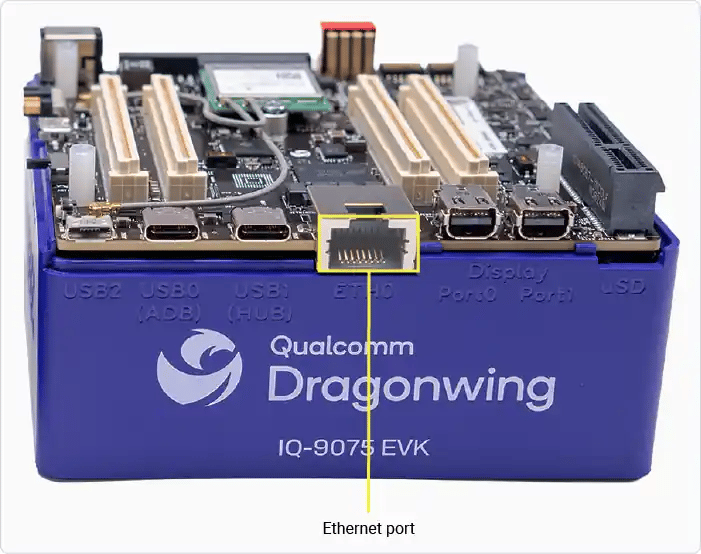
Connect one end of the Ethernet cable into the Ethernet port (RJ45) of the Dragonwing IQ-8275 device. Connect the other end of the Ethernet cable to your network router.
The following figure shows the location of the Ethernet port on the Dragonwing IQ-8275 device.
4. Ensure that the connection is active by pinging a website such as yahoo.com:
```shell theme={null}
ping yahoo.com
```
#### Connect using Ethernet
Connect one end of the Ethernet cable into the Ethernet port (RJ45) of the Dragonwing IQ-8275 device. Connect the other end of the Ethernet cable to your network router.
The following figure shows the location of the Ethernet port on the Dragonwing IQ-8275 device.
 Get the IP address of the device by running the following command on the UART serial console:
```shell theme={null}
ip addr show end0
```
The following figure shows a sample IP address fetched from the UART serial console.
Get the IP address of the device by running the following command on the UART serial console:
```shell theme={null}
ip addr show end0
```
The following figure shows a sample IP address fetched from the UART serial console.
 ## Connect to SSH
SSH facilitates secure terminal access across a network between the host computer and the Dragonwing IQ-8275 device.
Before you connect to SSH, ensure that your device has network connectivity through Ethernet or Wi-Fi.
**Note:** Ensure that the remote host computer connects to the same Wi-Fi access point as the device.
To connect to SSH, first find the IP address of the Dragonwing IQ-8275 by running the appropriate command on the UART console of the host computer, based on the network connection type:
For Ethernet:
```shell theme={null}
ip addr show end0
```
For Wi-Fi:
```shell theme={null}
ip addr show wlp1s0
```
This command displays the IP address of the Dragonwing IQ-8275 device.
Establish an SSH connection to the device from the host computer by running the following command:
```shell theme={null}
ssh ubuntu@ip-address
```
**Details of the Parameters**\
The ip-address is the IP address of eth0 or wlan0 interface.
**Example**\
To connect to a device with IP address 192.168.0.222, run the following command:
```shell theme={null}
ssh ubuntu@192.168.0.222
```
Login by entering the password for the *ubuntu* user.
## Connect to display
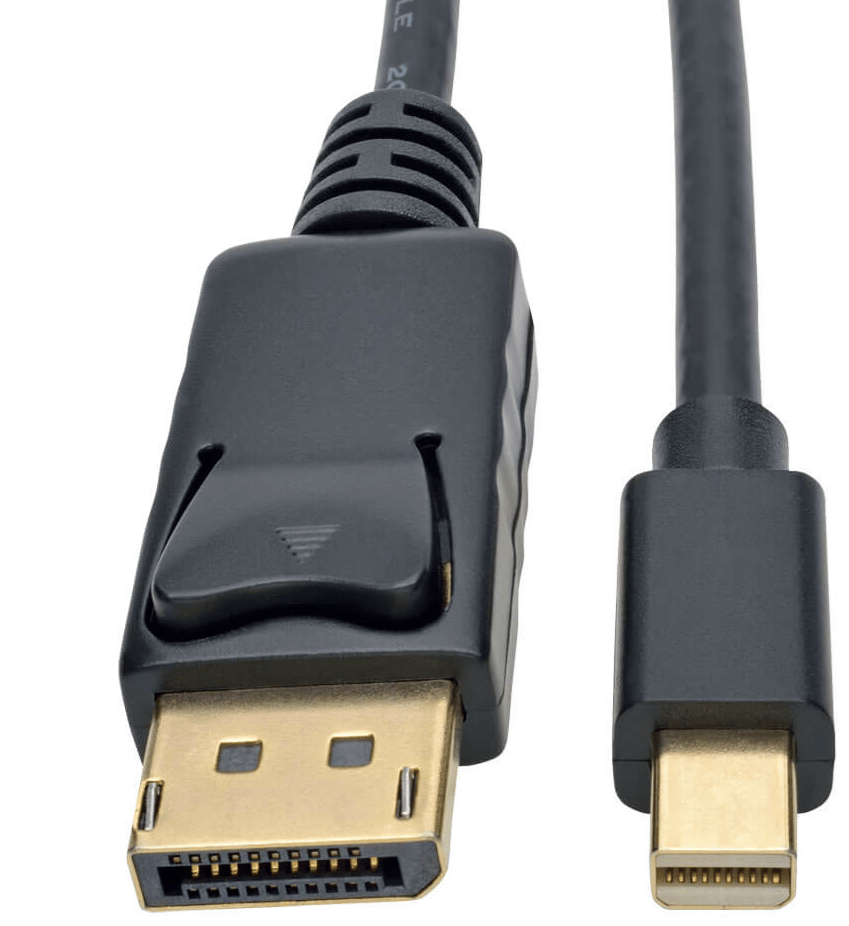
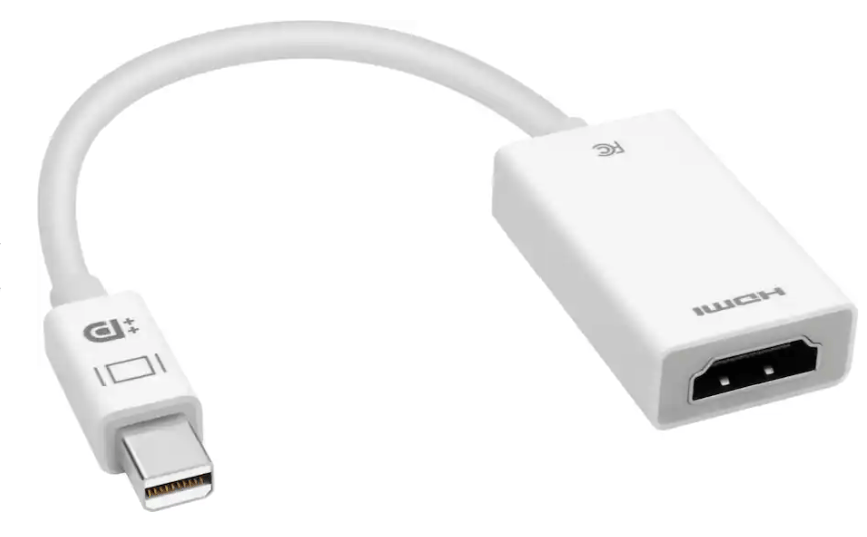
To connect a monitor to the DisplayPort JEDP0 or JEDP1 on the IQ-8275 EVK, use an ***Active*** mini-Displayport to Displayport cable, like the one that comes in the box, or use an ***Active*** mini-Displayport to HDMI adapter (this part is not included in the EVK kit).
**mini-Displayport cable to Displayport cable**
## Connect to SSH
SSH facilitates secure terminal access across a network between the host computer and the Dragonwing IQ-8275 device.
Before you connect to SSH, ensure that your device has network connectivity through Ethernet or Wi-Fi.
**Note:** Ensure that the remote host computer connects to the same Wi-Fi access point as the device.
To connect to SSH, first find the IP address of the Dragonwing IQ-8275 by running the appropriate command on the UART console of the host computer, based on the network connection type:
For Ethernet:
```shell theme={null}
ip addr show end0
```
For Wi-Fi:
```shell theme={null}
ip addr show wlp1s0
```
This command displays the IP address of the Dragonwing IQ-8275 device.
Establish an SSH connection to the device from the host computer by running the following command:
```shell theme={null}
ssh ubuntu@ip-address
```
**Details of the Parameters**\
The ip-address is the IP address of eth0 or wlan0 interface.
**Example**\
To connect to a device with IP address 192.168.0.222, run the following command:
```shell theme={null}
ssh ubuntu@192.168.0.222
```
Login by entering the password for the *ubuntu* user.
## Connect to display
To connect a monitor to the DisplayPort JEDP0 or JEDP1 on the IQ-8275 EVK, use an ***Active*** mini-Displayport to Displayport cable, like the one that comes in the box, or use an ***Active*** mini-Displayport to HDMI adapter (this part is not included in the EVK kit).
**mini-Displayport cable to Displayport cable**
 **Active mini-Displayport cable to HDMI adapter**\
**It supports:**
* Contains an active conversion chip
* Converts native DisplayPort signaling to HDMI
* Does not rely on DP++ support
**Active mini-Displayport cable to HDMI adapter**\
**It supports:**
* Contains an active conversion chip
* Converts native DisplayPort signaling to HDMI
* Does not rely on DP++ support
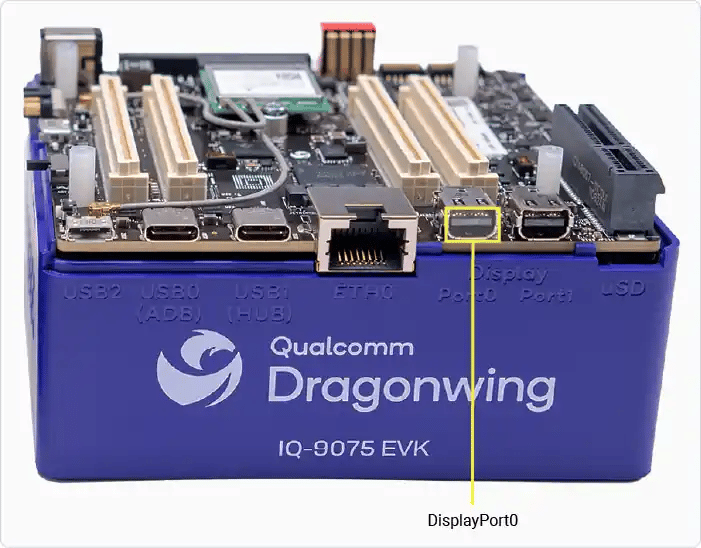
 This allows you to view the output of sample applications or the Ubuntu Desktop (if installed) on your display monitor. The following figure shows the location of DisplayPort0 on the Dragonwing IQ-8275 device.
 Power up the Dragonwing IQ-8275 device and verify the display.
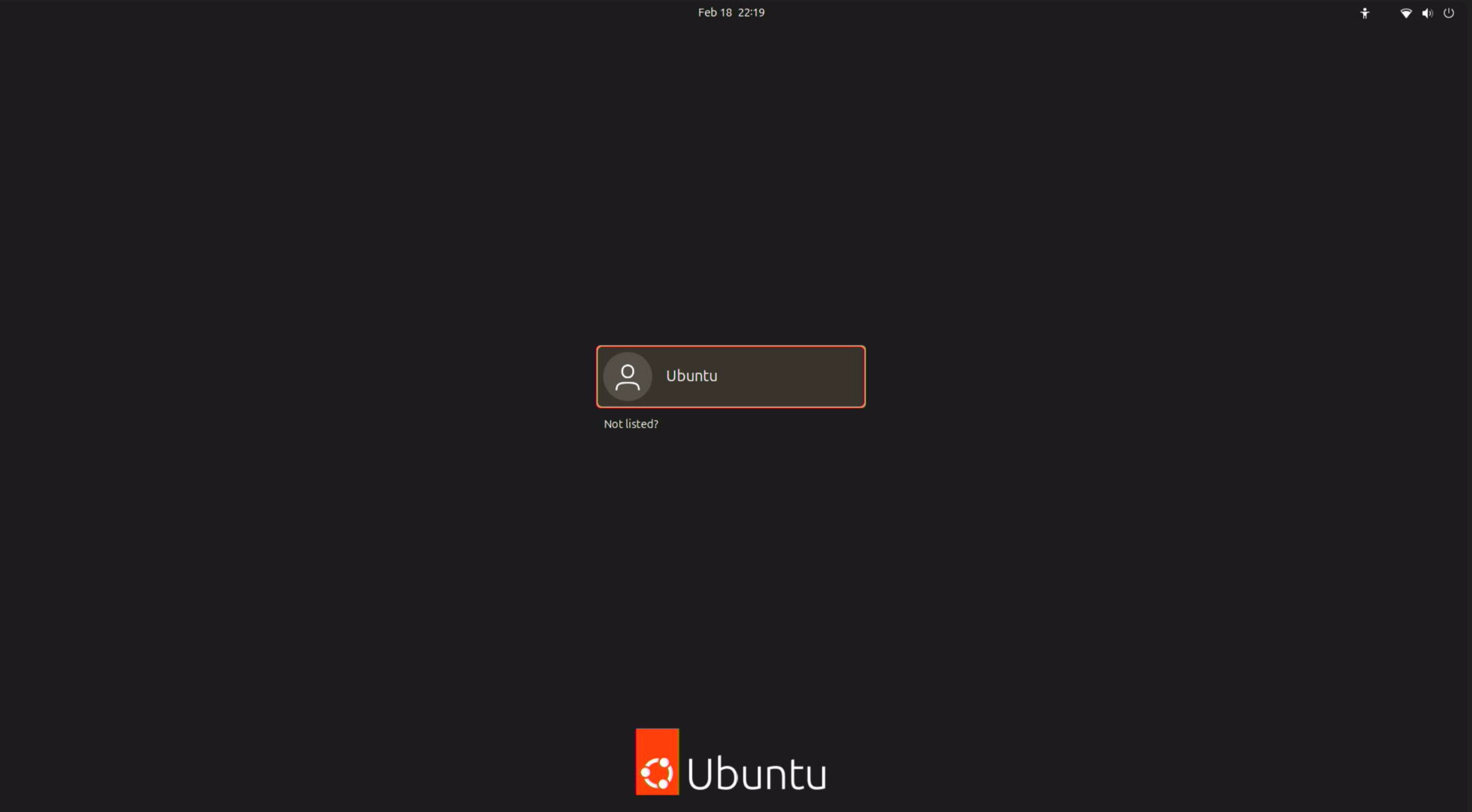
The following will appear on the display monitor when the IQ-8275 EVK is running a pre-flashed Canonical Ubuntu build.\
**Server:**
Power up the Dragonwing IQ-8275 device and verify the display.
The following will appear on the display monitor when the IQ-8275 EVK is running a pre-flashed Canonical Ubuntu build.\
**Server:**
 **Desktop:**
 ## SBC mode
**Example connection:**
## SBC mode
**Example connection:**
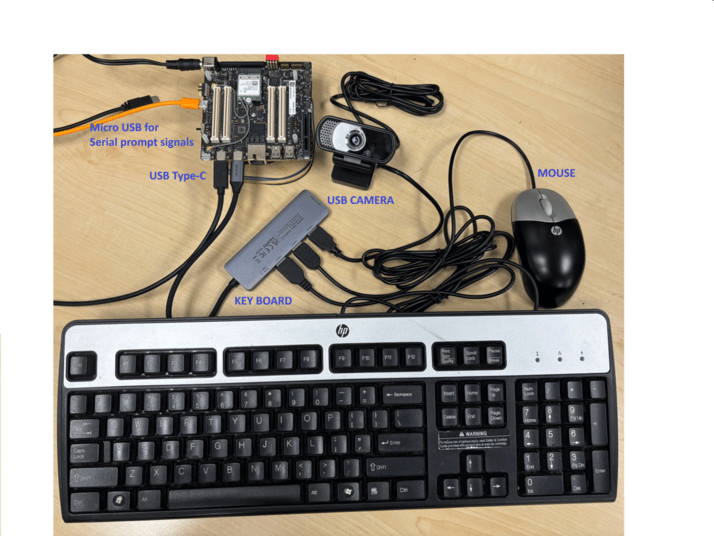 **Power Supply:**\
Connect the EVK to the recommended DC power adapter. Ensure correct voltage and polarity before powering on.
**Micro USB Cable:**\
Use the micro-USB port for serial console access or debugging. Connect to your host PC for UART logs.
**USB Hub:**\
Connect a powered USB hub to the EVK’s USB Type-C for multiple peripherals.
**Keyboard & Mouse:**\
Plug into the USB hub.
**USB Camera:**\
Connect to the USB hub. Ensure camera is UVC-compliant for Linux compatibility.
**MIPI Camera:**\
Attach to the designated MIPI CSI connector on the EVK board.
**Display:**\
Connect the EVK to a monitor with a mini-DisplayPort to DisplayPort cable, or an HDMI cable and mini-DisplayPort to HDMI adapter.
**Power Supply:**\
Connect the EVK to the recommended DC power adapter. Ensure correct voltage and polarity before powering on.
**Micro USB Cable:**\
Use the micro-USB port for serial console access or debugging. Connect to your host PC for UART logs.
**USB Hub:**\
Connect a powered USB hub to the EVK’s USB Type-C for multiple peripherals.
**Keyboard & Mouse:**\
Plug into the USB hub.
**USB Camera:**\
Connect to the USB hub. Ensure camera is UVC-compliant for Linux compatibility.
**MIPI Camera:**\
Attach to the designated MIPI CSI connector on the EVK board.
**Display:**\
Connect the EVK to a monitor with a mini-DisplayPort to DisplayPort cable, or an HDMI cable and mini-DisplayPort to HDMI adapter.