> ## Documentation Index
> Fetch the complete documentation index at: https://dragonwingdocs.qualcomm.com/llms.txt
> Use this file to discover all available pages before exploring further.
# Flash Ubuntu using QDL
> Use the Qualcomm Device Loader (QDL) command-line tool to flash Ubuntu onto the IQ-9075 EVK from Ubuntu, Windows, or macOS hosts.
**Qualcomm Device Loader (QDL)** is a cross-platform command-line flashing tool for Qualcomm devices. Use this method when you need full control over the flash process, are running in a headless environment, or want to script automated flashing.
For a GUI-based alternative, see [**Flash Ubuntu using Qualcomm Launcher**](./flash-using-qualcomm-launcher).
Flashing erases all data on the device. Back up anything important before you begin.
## What you need
* IQ-9075 EVK with 12 V power supply
* USB Type-C cable (USB0 port on the EVK → host computer)
* Host computer running Ubuntu, Windows, or macOS
## Select your host OS and follow the complete path
Download QDL for your host OS from the [**Qualcomm Software Center**](https://softwarecenter.qualcomm.com/catalog/item/Qualcomm_Device_Loader).
### Download the Ubuntu image
Download the prebuilt Ubuntu image and boot firmware from the [**Canonical Ubuntu site**](https://ubuntu.com/download/qualcomm-iot#evaluation-kit).
Always verify the latest build availability on the Canonical Ubuntu website. The links below are pinned to the latest validated release.
1. Run the following script to download and assemble the flashable image folder. Pass `--server` or `--desktop` depending on the image you want:
```shell theme={null}
./prepare_iq9075_ubuntu_flashable.sh --server
```
```shell theme={null}
./prepare_iq9075_ubuntu_flashable.sh --desktop
```
This generates the flashable images in `iq9075_flash_prep_work/IQ9075_ubuntu_images` — referred to as `` below.
To update to a new Canonical release, edit `CANONICAL_BASE`, `SERVER_IMG_XZ`, `DESKTOP_IMG_XZ`, and `BOOT_FW_URL_DEFAULT` in the script.
```bash theme={null}
#!/usr/bin/env bash
set -euo pipefail
FLAVOR="${FLAVOR:-server}" # server | desktop
OUT_DIR="${OUT_DIR:-IQ9075_ubuntu_images}"
WORK_DIR="${WORK_DIR:-$PWD/iq9075_flash_prep_work}"
CANONICAL_BASE="https://people.canonical.com/~platform/images/qualcomm-iot/ubuntu-24.04/ubuntu-24.04-x08"
SERVER_DIR="${CANONICAL_BASE}/ubuntu-server-24.04"
DESKTOP_DIR="${CANONICAL_BASE}/ubuntu-desktop-24.04"
SERVER_IMG_XZ="iot-qualcomm-dragonwing-classic-server-2404-x08-20260210.4096b.img.xz"
DESKTOP_IMG_XZ="iot-qualcomm-dragonwing-classic-desktop-2404-x08-20260210.4096b.img.xz"
BOOT_FW_URL_DEFAULT="https://artifacts.codelinaro.org/artifactory/qli-ci/flashable-binaries/ubuntu-fw/QCS9100/QLI.1.7-Ver.1.1/QLI.1.7-Ver.1.1-ubuntu-QCS9100-nhlos-bins.tar.gz"
BOOT_FW_URL="${BOOT_FW_URL:-$BOOT_FW_URL_DEFAULT}"
usage() {
cat <] [--work ]
Examples:
./prepare_iq9075_ubuntu_flashable.sh --server
./prepare_iq9075_ubuntu_flashable.sh --desktop --out IQ9075_ubuntu_images_desktop
Environment overrides:
FLAVOR=server|desktop
OUT_DIR=...
WORK_DIR=...
BOOT_FW_URL=...
EOF
}
while [[ $# -gt 0 ]]; do
case "$1" in
--server) FLAVOR="server"; shift ;;
--desktop) FLAVOR="desktop"; shift ;;
--out) OUT_DIR="$2"; shift 2 ;;
--work) WORK_DIR="$2"; shift 2 ;;
-h|--help) usage; exit 0 ;;
*) echo "Unknown option: $1"; usage; exit 1 ;;
esac
done
need_cmd() { command -v "$1" >/dev/null 2>&1 || { echo "ERROR: missing '$1'"; exit 1; }; }
need_cmd curl; need_cmd tar; need_cmd unxz; need_cmd file
need_cmd find; need_cmd cp; need_cmd head; need_cmd ls; need_cmd mkdir; need_cmd rm
download() {
local url="$1" dst="$2"
echo "Downloading: $url"
curl -L --fail --retry 3 --retry-delay 2 -o "$dst" "$url"
}
mkdir -p "$WORK_DIR" "$OUT_DIR"
cd "$WORK_DIR"
if [[ "$FLAVOR" == "server" ]]; then
BASE_DIR="$SERVER_DIR"; IMG_XZ="$SERVER_IMG_XZ"
elif [[ "$FLAVOR" == "desktop" ]]; then
BASE_DIR="$DESKTOP_DIR"; IMG_XZ="$DESKTOP_IMG_XZ"
else
echo "ERROR: FLAVOR must be 'server' or 'desktop'"; exit 1
fi
IMG_URL="${BASE_DIR}/${IMG_XZ}"
DTB_URL="${BASE_DIR}/dtb.bin"
RAWPROGRAM_URL="${BASE_DIR}/rawprogram0.xml"
download "$IMG_URL" "$IMG_XZ"
echo "Extracting OS image: $IMG_XZ"
unxz -f "$IMG_XZ"
IMG="${IMG_XZ%.xz}"
download "$DTB_URL" "dtb.bin"
download "$RAWPROGRAM_URL" "rawprogram0.xml"
BOOT_FW_TAR="$(basename "$BOOT_FW_URL")"
download "$BOOT_FW_URL" "$BOOT_FW_TAR"
if file "$BOOT_FW_TAR" | grep -qi "HTML"; then
echo "ERROR: Boot firmware download is HTML, not a tar.gz. Use the direct /artifactory/ endpoint."; exit 1
fi
if ! tar -tzf "$BOOT_FW_TAR" >/dev/null 2>&1; then
echo "ERROR: Boot firmware is not a valid gzip tarball."; exit 1
fi
BOOT_FW_EXTRACT_DIR="$WORK_DIR/boot_fw_extract"
rm -rf "$BOOT_FW_EXTRACT_DIR"; mkdir -p "$BOOT_FW_EXTRACT_DIR"
tar -xzf "$BOOT_FW_TAR" -C "$BOOT_FW_EXTRACT_DIR"
mapfile -t TOP_LEVEL_DIRS < <(find "$BOOT_FW_EXTRACT_DIR" -mindepth 1 -maxdepth 1 -type d)
TOP_DIR="${#TOP_LEVEL_DIRS[@]}" && [[ ${#TOP_LEVEL_DIRS[@]} -eq 1 ]] && TOP_DIR="${TOP_LEVEL_DIRS[0]}" || TOP_DIR="$BOOT_FW_EXTRACT_DIR"
cp -a "$TOP_DIR"/. "$OUT_DIR"/
cp -a "dtb.bin" "$OUT_DIR"/ && cp -a "rawprogram0.xml" "$OUT_DIR"/ && cp -a "$IMG" "$OUT_DIR"/
echo "✅ Flashable folder ready: $(realpath "$OUT_DIR")"
ls -lh "$OUT_DIR" | sed -n '1,200p'
```
### Download QDL
1. Download the [QDL tool for Linux (x64)](https://softwarecenter.qualcomm.com/catalog/item/Qualcomm_Device_Loader) and unzip it. The unzipped folder contains the `qdl` binary — referred to as `` below.
2. Install the required libraries (skip if already installed):
```shell theme={null}
sudo apt-get install libxml2-dev libudev-dev libusb-1.0-0-dev
```
We recommend extracting the image folder and QDL into the same parent folder. This keeps all paths under one root.
### Set up QDL driver
Ubuntu requires a udev rule so the kernel grants your user permission to communicate with the device when it enters EDL mode.
1. Check whether the rule already exists:
```shell theme={null}
ls /etc/udev/rules.d/51-qcom-usb.rules
```
2. If the file is **not** present, create it in one command:
```shell theme={null}
echo 'SUBSYSTEMS=="usb", ATTRS{idVendor}=="05c6", ATTRS{idProduct}=="9008", MODE="0664", GROUP="plugdev"' | sudo tee /etc/udev/rules.d/51-qcom-usb.rules
```
If the file **already exists**, verify the rule is present:
```shell theme={null}
cat /etc/udev/rules.d/51-qcom-usb.rules
```
3. Reload udev to apply the rule:
```shell theme={null}
sudo systemctl restart udev
```
If the USB cable was already connected, disconnect and reconnect it.
### Set up QDL path
1. Make QDL executable:
```shell theme={null}
chmod +x /qdl
```
2. Verify QDL is working:
```shell theme={null}
/qdl --help
```
You should see the QDL usage output. If you get an error, check the path.
### Put the device in EDL mode
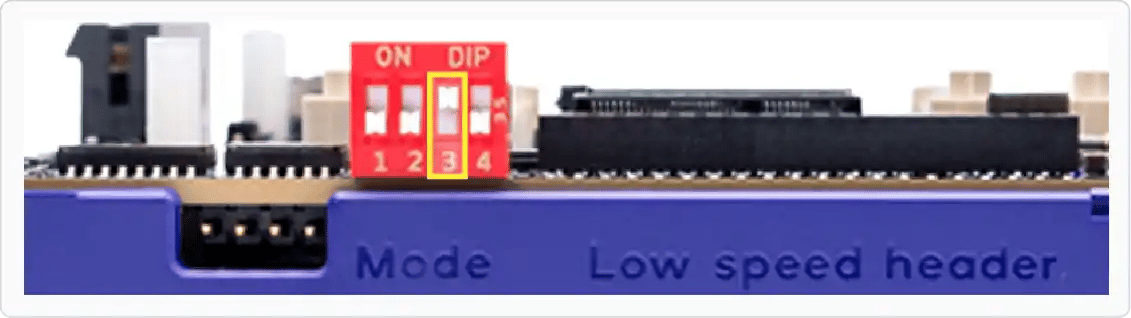
1. **Turn on** the SW2-3 DIP switch — push it up.
 2. Connect the **12 V power supply** to the EVK.
3. Connect the **USB Type-C cable** from **USB0** on the EVK to your host.
2. Connect the **12 V power supply** to the EVK.
3. Connect the **USB Type-C cable** from **USB0** on the EVK to your host.
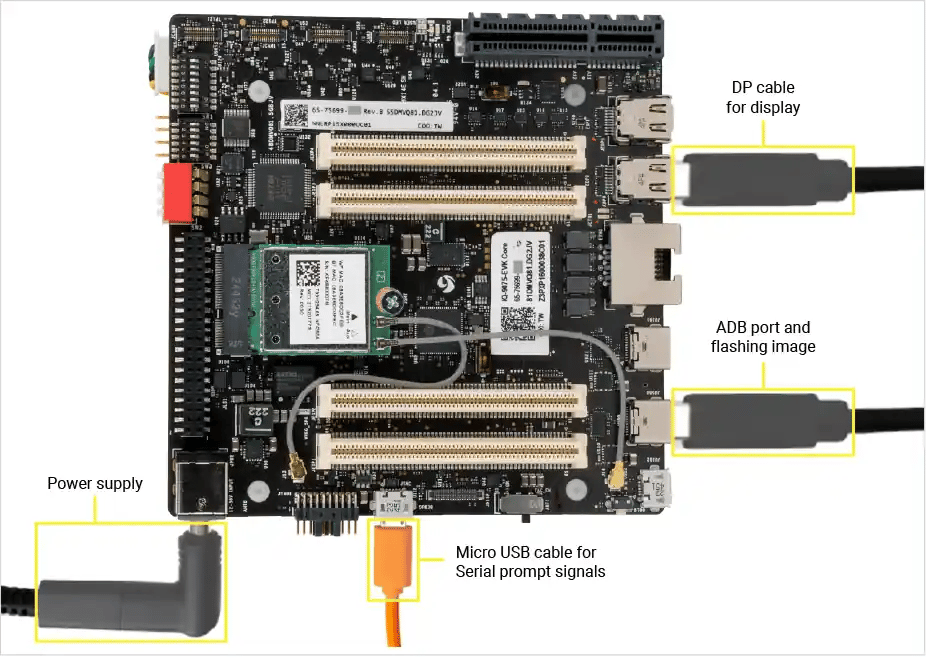 4. Toggle the **power switch** to turn on the device.
5. Confirm the device is in EDL mode:
```shell theme={null}
lsusb
```
**Expected output:**
```text theme={null}
Bus 002 Device 014: ID 05c6:9008 Qualcomm, Inc. Gobi Wireless Modem (QDL mode)
```
If the device doesn't appear, recheck SW2-3 and the USB-C cable.
### Provision UFS
UFS (Universal Flash Storage) provisioning divides the internal storage into separate logical unit numbers (LUNs). This step is required when switching from Qualcomm Linux to Ubuntu.
Run UFS provisioning if any of the following apply:
* This is a **brand-new board** that has never been flashed.
* You are **upgrading to a new image version**.
* You are **switching distributions** (Qualcomm Linux ↔ Ubuntu).
1. Download and unzip the provision file:
```shell theme={null}
wget https://artifacts.codelinaro.org/artifactory/codelinaro-le/Qualcomm_Linux/QCS9100/provision.zip
unzip provision.zip
```
2. Provision UFS from the unzipped provision directory:
```shell theme={null}
cd provision
/qdl --storage ufs prog_firehose_ddr.elf provision_1_2.xml
```
**Expected output:**
```text theme={null}
UFS provisioning succeeded
```
After UFS provisioning completes, the device disconnects from USB. Toggle the power switch off and on to reboot it back into EDL mode before continuing.
### Flash CDT
CDT provides platform-dependent data used by drivers and firmware to initialize the platform correctly.
1. Download and unzip the CDT file:
```shell theme={null}
wget https://artifacts.codelinaro.org/artifactory/codelinaro-le/Qualcomm_Linux/QCS9100/cdt/rb8_core_kit.zip
unzip rb8_core_kit.zip
```
2. Flash CDT from the unzipped directory:
```shell theme={null}
/qdl prog_firehose_ddr.elf rawprogram3.xml patch3.xml
```
**Expected output:**
```text theme={null}
flashed "cdt" successfully
13 patches applied
```
After CDT flashing completes, the device disconnects from USB. Toggle the power switch off and on to reboot it back into EDL mode before continuing.
### Flash SAIL firmware
The Safety Island (SAIL) is a separate, isolated processor that handles safety-critical functions independently from the main application processor. Its firmware lives on a dedicated **spinor** flash partition.
1. Navigate to the `sail_nor` subfolder inside the image folder:
```shell theme={null}
cd /sail_nor
```
2. Flash the SAIL firmware:
```shell theme={null}
/qdl --storage spinor prog_firehose_ddr.elf rawprogram0.xml patch0.xml
```
**Expected output:**
```text theme={null}
flashed "SAIL_HYP" successfully
flashed "SAIL_SW1" successfully
flashed "SAIL_HYP_BKUP" successfully
flashed "SAIL_SW1_BKUP" successfully
11 patches applied
```
### Flash Ubuntu
1. Navigate to the main image folder:
```shell theme={null}
cd
```
2. Flash the image:
```shell theme={null}
/qdl prog_firehose_ddr.elf rawprogram0.xml rawprogram1.xml rawprogram2.xml rawprogram3.xml rawprogram4.xml patch1.xml patch2.xml patch3.xml patch4.xml
```
The flash is complete when the final line reads:
```text theme={null}
partition 1 is now bootable
```
### Download the Ubuntu image
Download the prebuilt Ubuntu image and boot firmware from the [**Canonical Ubuntu site**](https://ubuntu.com/download/qualcomm-iot#evaluation-kit).
Always verify the latest build availability on the Canonical Ubuntu website. The links below are pinned to the latest validated release.
1. Run the following script to download and assemble the flashable image folder. Pass `server` or `desktop` as an argument:
```shell theme={null}
prepare_iq9075_windows_flashable.bat server
```
```shell theme={null}
prepare_iq9075_windows_flashable.bat desktop
```
This generates the flashable images in `IQ9075_ubuntu_images` — referred to as `` below.
To update to a new Canonical release, edit `CANONICAL_BASE`, `SERVER_IMG_XZ`, `DESKTOP_IMG_XZ`, and `BOOT_FW_URL` in the script.
```bash theme={null}
@echo on
setlocal EnableExtensions EnableDelayedExpansion
set "FLAVOR=server"
set "OUT_DIR_NAME=IQ9075_ubuntu_images"
set "SCRIPT_ROOT=%CD%"
set "WORK_DIR=%SCRIPT_ROOT%\iq9075_flash_prep_work"
set "OUT_DIR=%SCRIPT_ROOT%\%OUT_DIR_NAME%"
set "CURL_FLAGS=--ssl-no-revoke -L --fail --retry 3 --retry-delay 2"
if not "%~1"=="" (
if /I "%~1"=="server" set "FLAVOR=server"
if /I "%~1"=="desktop" set "FLAVOR=desktop"
)
set "CANONICAL_BASE=https://people.canonical.com/~platform/images/qualcomm-iot/ubuntu-24.04/ubuntu-24.04-x08"
set "SERVER_DIR=%CANONICAL_BASE%/ubuntu-server-24.04"
set "DESKTOP_DIR=%CANONICAL_BASE%/ubuntu-desktop-24.04"
set "SERVER_IMG_XZ=iot-qualcomm-dragonwing-classic-server-2404-x08-20260210.4096b.img.xz"
set "DESKTOP_IMG_XZ=iot-qualcomm-dragonwing-classic-desktop-2404-x08-20260210.4096b.img.xz"
set "BOOT_FW_URL=https://artifacts.codelinaro.org/artifactory/qli-ci/flashable-binaries/ubuntu-fw/QCS9100/QLI.1.7-Ver.1.1/QLI.1.7-Ver.1.1-ubuntu-QCS9100-nhlos-bins.tar.gz"
set "BOOT_FW_TAR=QLI.1.7-Ver.1.1-ubuntu-QCS9100-nhlos-bins.tar.gz"
if /I "%FLAVOR%"=="server" (
set "BASE_DIR=%SERVER_DIR%" & set "IMG_XZ=%SERVER_IMG_XZ%"
) else (
set "BASE_DIR=%DESKTOP_DIR%" & set "IMG_XZ=%DESKTOP_IMG_XZ%"
)
set "IMG_URL=%BASE_DIR%/%IMG_XZ%"
set "DTB_URL=%BASE_DIR%/dtb.bin"
set "RAWPROGRAM_URL=%BASE_DIR%/rawprogram0.xml"
where curl >nul 2>&1 || (echo ERROR: curl.exe not found & goto :FAIL)
where tar >nul 2>&1 || (echo ERROR: tar.exe not found & goto :FAIL)
where robocopy >nul 2>&1 || (echo ERROR: robocopy not found & goto :FAIL)
set "SEVENZIP="
if exist "%ProgramFiles%\7-Zip\7z.exe" set "SEVENZIP=%ProgramFiles%\7-Zip\7z.exe"
if exist "%ProgramFiles(x86)%\7-Zip\7z.exe" set "SEVENZIP=%ProgramFiles(x86)%\7-Zip\7z.exe"
if not exist "%WORK_DIR%" mkdir "%WORK_DIR%"
if not exist "%OUT_DIR%" mkdir "%OUT_DIR%"
pushd "%WORK_DIR%"
curl %CURL_FLAGS% -o "%IMG_XZ%" "%IMG_URL%"
if errorlevel 1 (echo ERROR: download system image failed & popd & goto :FAIL)
set "IMG=%IMG_XZ:.xz=%"
if defined SEVENZIP (
"%SEVENZIP%" x -y "%IMG_XZ%"
) else (
tar -xf "%IMG_XZ%"
if errorlevel 1 (echo ERROR: tar could not extract .xz; install 7-Zip and rerun & popd & goto :FAIL)
)
if not exist "%IMG%" (echo ERROR: expected image not found & popd & goto :FAIL)
curl %CURL_FLAGS% -o "dtb.bin" "%DTB_URL%"
if errorlevel 1 (echo ERROR: download dtb.bin failed & popd & goto :FAIL)
curl %CURL_FLAGS% -o "rawprogram0.xml" "%RAWPROGRAM_URL%"
if errorlevel 1 (echo ERROR: download rawprogram0.xml failed & popd & goto :FAIL)
curl %CURL_FLAGS% -o "%BOOT_FW_TAR%" "%BOOT_FW_URL%"
if errorlevel 1 (echo ERROR: download boot firmware failed & popd & goto :FAIL)
findstr /I /M "nul 2>&1
if not errorlevel 1 (echo ERROR: boot firmware is HTML, not tar.gz & popd & goto :FAIL)
set "BOOT_EXTRACT=%WORK_DIR%\boot_fw_extract"
if exist "%BOOT_EXTRACT%" rmdir /S /Q "%BOOT_EXTRACT%"
mkdir "%BOOT_EXTRACT%"
tar -xf "%BOOT_FW_TAR%" -C "%BOOT_EXTRACT%"
if errorlevel 1 (echo ERROR: extract boot firmware failed & popd & goto :FAIL)
set "TOPDIR=" & set "DIRCOUNT=0"
for /f "delims=" %%D in ('dir /b /ad "%BOOT_EXTRACT%"') do (
set /a DIRCOUNT+=1
if "!DIRCOUNT!"=="1" set "TOPDIR=%BOOT_EXTRACT%\%%D"
)
if "%DIRCOUNT%"=="1" (
robocopy "%TOPDIR%" "%OUT_DIR%" /E /COPY:DAT /R:2 /W:2
) else (
robocopy "%BOOT_EXTRACT%" "%OUT_DIR%" /E /COPY:DAT /R:2 /W:2
)
if %errorlevel% GEQ 8 (echo ERROR: robocopy failed & popd & goto :FAIL)
copy /Y "dtb.bin" "%OUT_DIR%\" & copy /Y "rawprogram0.xml" "%OUT_DIR%\" & copy /Y "%IMG%" "%OUT_DIR%\"
popd
echo SUCCESS. Flashable folder ready: %OUT_DIR%
dir "%OUT_DIR%" /A:-D
pause
exit /b 0
:FAIL
echo FAILED. Check messages above.
pause
exit /b 1
```
### Download QDL
1. Download the [QDL tool for Windows](https://softwarecenter.qualcomm.com/#/catalog/item/Qualcomm_Device_Loader) and extract it. The extracted folder contains `qdl.exe` — referred to as `` below.
We recommend extracting the image folder and QDL into the same parent folder (for example `C:\Users\you\Downloads\qualcomm-flash\`). This keeps all paths under one root.
### Set up QDL driver
1. Uninstall any existing Qualcomm USB drivers (QUD) — they conflict with the QDL driver. Open **Device Manager**, find your device, and uninstall any existing drivers. The device should **not** appear under COM Ports.
2. Run `install_driver.bat` from the unzipped QDL folder to install the WinUSB driver.
4. Toggle the **power switch** to turn on the device.
5. Confirm the device is in EDL mode:
```shell theme={null}
lsusb
```
**Expected output:**
```text theme={null}
Bus 002 Device 014: ID 05c6:9008 Qualcomm, Inc. Gobi Wireless Modem (QDL mode)
```
If the device doesn't appear, recheck SW2-3 and the USB-C cable.
### Provision UFS
UFS (Universal Flash Storage) provisioning divides the internal storage into separate logical unit numbers (LUNs). This step is required when switching from Qualcomm Linux to Ubuntu.
Run UFS provisioning if any of the following apply:
* This is a **brand-new board** that has never been flashed.
* You are **upgrading to a new image version**.
* You are **switching distributions** (Qualcomm Linux ↔ Ubuntu).
1. Download and unzip the provision file:
```shell theme={null}
wget https://artifacts.codelinaro.org/artifactory/codelinaro-le/Qualcomm_Linux/QCS9100/provision.zip
unzip provision.zip
```
2. Provision UFS from the unzipped provision directory:
```shell theme={null}
cd provision
/qdl --storage ufs prog_firehose_ddr.elf provision_1_2.xml
```
**Expected output:**
```text theme={null}
UFS provisioning succeeded
```
After UFS provisioning completes, the device disconnects from USB. Toggle the power switch off and on to reboot it back into EDL mode before continuing.
### Flash CDT
CDT provides platform-dependent data used by drivers and firmware to initialize the platform correctly.
1. Download and unzip the CDT file:
```shell theme={null}
wget https://artifacts.codelinaro.org/artifactory/codelinaro-le/Qualcomm_Linux/QCS9100/cdt/rb8_core_kit.zip
unzip rb8_core_kit.zip
```
2. Flash CDT from the unzipped directory:
```shell theme={null}
/qdl prog_firehose_ddr.elf rawprogram3.xml patch3.xml
```
**Expected output:**
```text theme={null}
flashed "cdt" successfully
13 patches applied
```
After CDT flashing completes, the device disconnects from USB. Toggle the power switch off and on to reboot it back into EDL mode before continuing.
### Flash SAIL firmware
The Safety Island (SAIL) is a separate, isolated processor that handles safety-critical functions independently from the main application processor. Its firmware lives on a dedicated **spinor** flash partition.
1. Navigate to the `sail_nor` subfolder inside the image folder:
```shell theme={null}
cd /sail_nor
```
2. Flash the SAIL firmware:
```shell theme={null}
/qdl --storage spinor prog_firehose_ddr.elf rawprogram0.xml patch0.xml
```
**Expected output:**
```text theme={null}
flashed "SAIL_HYP" successfully
flashed "SAIL_SW1" successfully
flashed "SAIL_HYP_BKUP" successfully
flashed "SAIL_SW1_BKUP" successfully
11 patches applied
```
### Flash Ubuntu
1. Navigate to the main image folder:
```shell theme={null}
cd
```
2. Flash the image:
```shell theme={null}
/qdl prog_firehose_ddr.elf rawprogram0.xml rawprogram1.xml rawprogram2.xml rawprogram3.xml rawprogram4.xml patch1.xml patch2.xml patch3.xml patch4.xml
```
The flash is complete when the final line reads:
```text theme={null}
partition 1 is now bootable
```
### Download the Ubuntu image
Download the prebuilt Ubuntu image and boot firmware from the [**Canonical Ubuntu site**](https://ubuntu.com/download/qualcomm-iot#evaluation-kit).
Always verify the latest build availability on the Canonical Ubuntu website. The links below are pinned to the latest validated release.
1. Run the following script to download and assemble the flashable image folder. Pass `server` or `desktop` as an argument:
```shell theme={null}
prepare_iq9075_windows_flashable.bat server
```
```shell theme={null}
prepare_iq9075_windows_flashable.bat desktop
```
This generates the flashable images in `IQ9075_ubuntu_images` — referred to as `` below.
To update to a new Canonical release, edit `CANONICAL_BASE`, `SERVER_IMG_XZ`, `DESKTOP_IMG_XZ`, and `BOOT_FW_URL` in the script.
```bash theme={null}
@echo on
setlocal EnableExtensions EnableDelayedExpansion
set "FLAVOR=server"
set "OUT_DIR_NAME=IQ9075_ubuntu_images"
set "SCRIPT_ROOT=%CD%"
set "WORK_DIR=%SCRIPT_ROOT%\iq9075_flash_prep_work"
set "OUT_DIR=%SCRIPT_ROOT%\%OUT_DIR_NAME%"
set "CURL_FLAGS=--ssl-no-revoke -L --fail --retry 3 --retry-delay 2"
if not "%~1"=="" (
if /I "%~1"=="server" set "FLAVOR=server"
if /I "%~1"=="desktop" set "FLAVOR=desktop"
)
set "CANONICAL_BASE=https://people.canonical.com/~platform/images/qualcomm-iot/ubuntu-24.04/ubuntu-24.04-x08"
set "SERVER_DIR=%CANONICAL_BASE%/ubuntu-server-24.04"
set "DESKTOP_DIR=%CANONICAL_BASE%/ubuntu-desktop-24.04"
set "SERVER_IMG_XZ=iot-qualcomm-dragonwing-classic-server-2404-x08-20260210.4096b.img.xz"
set "DESKTOP_IMG_XZ=iot-qualcomm-dragonwing-classic-desktop-2404-x08-20260210.4096b.img.xz"
set "BOOT_FW_URL=https://artifacts.codelinaro.org/artifactory/qli-ci/flashable-binaries/ubuntu-fw/QCS9100/QLI.1.7-Ver.1.1/QLI.1.7-Ver.1.1-ubuntu-QCS9100-nhlos-bins.tar.gz"
set "BOOT_FW_TAR=QLI.1.7-Ver.1.1-ubuntu-QCS9100-nhlos-bins.tar.gz"
if /I "%FLAVOR%"=="server" (
set "BASE_DIR=%SERVER_DIR%" & set "IMG_XZ=%SERVER_IMG_XZ%"
) else (
set "BASE_DIR=%DESKTOP_DIR%" & set "IMG_XZ=%DESKTOP_IMG_XZ%"
)
set "IMG_URL=%BASE_DIR%/%IMG_XZ%"
set "DTB_URL=%BASE_DIR%/dtb.bin"
set "RAWPROGRAM_URL=%BASE_DIR%/rawprogram0.xml"
where curl >nul 2>&1 || (echo ERROR: curl.exe not found & goto :FAIL)
where tar >nul 2>&1 || (echo ERROR: tar.exe not found & goto :FAIL)
where robocopy >nul 2>&1 || (echo ERROR: robocopy not found & goto :FAIL)
set "SEVENZIP="
if exist "%ProgramFiles%\7-Zip\7z.exe" set "SEVENZIP=%ProgramFiles%\7-Zip\7z.exe"
if exist "%ProgramFiles(x86)%\7-Zip\7z.exe" set "SEVENZIP=%ProgramFiles(x86)%\7-Zip\7z.exe"
if not exist "%WORK_DIR%" mkdir "%WORK_DIR%"
if not exist "%OUT_DIR%" mkdir "%OUT_DIR%"
pushd "%WORK_DIR%"
curl %CURL_FLAGS% -o "%IMG_XZ%" "%IMG_URL%"
if errorlevel 1 (echo ERROR: download system image failed & popd & goto :FAIL)
set "IMG=%IMG_XZ:.xz=%"
if defined SEVENZIP (
"%SEVENZIP%" x -y "%IMG_XZ%"
) else (
tar -xf "%IMG_XZ%"
if errorlevel 1 (echo ERROR: tar could not extract .xz; install 7-Zip and rerun & popd & goto :FAIL)
)
if not exist "%IMG%" (echo ERROR: expected image not found & popd & goto :FAIL)
curl %CURL_FLAGS% -o "dtb.bin" "%DTB_URL%"
if errorlevel 1 (echo ERROR: download dtb.bin failed & popd & goto :FAIL)
curl %CURL_FLAGS% -o "rawprogram0.xml" "%RAWPROGRAM_URL%"
if errorlevel 1 (echo ERROR: download rawprogram0.xml failed & popd & goto :FAIL)
curl %CURL_FLAGS% -o "%BOOT_FW_TAR%" "%BOOT_FW_URL%"
if errorlevel 1 (echo ERROR: download boot firmware failed & popd & goto :FAIL)
findstr /I /M "nul 2>&1
if not errorlevel 1 (echo ERROR: boot firmware is HTML, not tar.gz & popd & goto :FAIL)
set "BOOT_EXTRACT=%WORK_DIR%\boot_fw_extract"
if exist "%BOOT_EXTRACT%" rmdir /S /Q "%BOOT_EXTRACT%"
mkdir "%BOOT_EXTRACT%"
tar -xf "%BOOT_FW_TAR%" -C "%BOOT_EXTRACT%"
if errorlevel 1 (echo ERROR: extract boot firmware failed & popd & goto :FAIL)
set "TOPDIR=" & set "DIRCOUNT=0"
for /f "delims=" %%D in ('dir /b /ad "%BOOT_EXTRACT%"') do (
set /a DIRCOUNT+=1
if "!DIRCOUNT!"=="1" set "TOPDIR=%BOOT_EXTRACT%\%%D"
)
if "%DIRCOUNT%"=="1" (
robocopy "%TOPDIR%" "%OUT_DIR%" /E /COPY:DAT /R:2 /W:2
) else (
robocopy "%BOOT_EXTRACT%" "%OUT_DIR%" /E /COPY:DAT /R:2 /W:2
)
if %errorlevel% GEQ 8 (echo ERROR: robocopy failed & popd & goto :FAIL)
copy /Y "dtb.bin" "%OUT_DIR%\" & copy /Y "rawprogram0.xml" "%OUT_DIR%\" & copy /Y "%IMG%" "%OUT_DIR%\"
popd
echo SUCCESS. Flashable folder ready: %OUT_DIR%
dir "%OUT_DIR%" /A:-D
pause
exit /b 0
:FAIL
echo FAILED. Check messages above.
pause
exit /b 1
```
### Download QDL
1. Download the [QDL tool for Windows](https://softwarecenter.qualcomm.com/#/catalog/item/Qualcomm_Device_Loader) and extract it. The extracted folder contains `qdl.exe` — referred to as `` below.
We recommend extracting the image folder and QDL into the same parent folder (for example `C:\Users\you\Downloads\qualcomm-flash\`). This keeps all paths under one root.
### Set up QDL driver
1. Uninstall any existing Qualcomm USB drivers (QUD) — they conflict with the QDL driver. Open **Device Manager**, find your device, and uninstall any existing drivers. The device should **not** appear under COM Ports.
2. Run `install_driver.bat` from the unzipped QDL folder to install the WinUSB driver.
 ### Put the device in EDL mode
1. **Turn on** the SW2-3 DIP switch — push it up.
2. Connect the **12 V power supply** to the EVK.
3. Connect the **USB Type-C cable** from **USB0** on the EVK to your host.
4. Toggle the **power switch** to turn on the device.
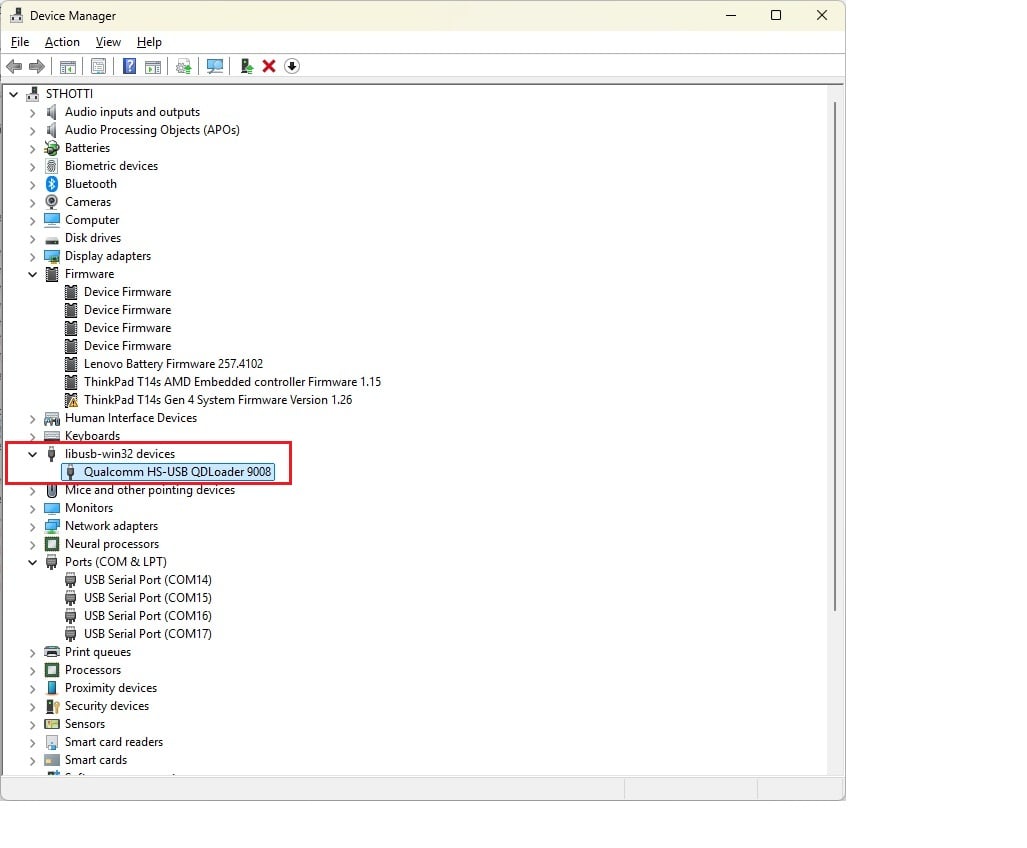
5. Open **Device Manager** and confirm a Qualcomm USB device appears (not under COM Ports).
### Put the device in EDL mode
1. **Turn on** the SW2-3 DIP switch — push it up.
2. Connect the **12 V power supply** to the EVK.
3. Connect the **USB Type-C cable** from **USB0** on the EVK to your host.
4. Toggle the **power switch** to turn on the device.
5. Open **Device Manager** and confirm a Qualcomm USB device appears (not under COM Ports).
 ### Provision UFS
UFS (Universal Flash Storage) provisioning divides the internal storage into separate logical unit numbers (LUNs). This step is required when switching from Qualcomm Linux to Ubuntu.
Run UFS provisioning if any of the following apply:
* This is a **brand-new board** that has never been flashed.
* You are **upgrading to a new image version**.
* You are **switching distributions** (Qualcomm Linux ↔ Ubuntu).
1. Download [**provision.zip**](https://artifacts.codelinaro.org/artifactory/codelinaro-le/Qualcomm_Linux/QCS9100/provision.zip) and extract it.
2. Navigate to the extracted provision folder and provision UFS:
**Command Prompt:**
```shell theme={null}
"\qdl.exe" --storage ufs prog_firehose_ddr.elf provision_1_2.xml
```
**PowerShell:**
```shell theme={null}
& "\qdl.exe" --storage ufs prog_firehose_ddr.elf provision_1_2.xml
```
**Expected output:**
```text theme={null}
UFS provisioning succeeded
```
After UFS provisioning completes, the device disconnects from USB. Toggle the power switch off and on to reboot it back into EDL mode before continuing.
### Flash CDT
CDT provides platform-dependent data used by drivers and firmware to initialize the platform correctly.
1. Download [**IQ9075 CDT**](https://artifacts.codelinaro.org/artifactory/codelinaro-le/Qualcomm_Linux/QCS9100/cdt/rb8_core_kit.zip) and extract it.
2. Flash CDT from the extracted directory:
**Command Prompt:**
```shell theme={null}
"\qdl.exe" prog_firehose_ddr.elf rawprogram3.xml patch3.xml
```
**PowerShell:**
```shell theme={null}
& "\qdl.exe" prog_firehose_ddr.elf rawprogram3.xml patch3.xml
```
**Expected output:**
```text theme={null}
flashed "cdt" successfully
13 patches applied
```
After CDT flashing completes, the device disconnects from USB. Toggle the power switch off and on to reboot it back into EDL mode before continuing.
### Flash SAIL firmware
The Safety Island (SAIL) is a separate, isolated processor that handles safety-critical functions independently from the main application processor. Its firmware lives on a dedicated **spinor** flash partition.
1. Navigate to the `sail_nor` subfolder inside the image folder:
```shell theme={null}
cd \sail_nor
```
2. Flash the SAIL firmware:
**Command Prompt:**
```shell theme={null}
"\qdl.exe" --storage spinor prog_firehose_ddr.elf rawprogram0.xml patch0.xml
```
**PowerShell:**
```shell theme={null}
& "\qdl.exe" --storage spinor prog_firehose_ddr.elf rawprogram0.xml patch0.xml
```
**Expected output:**
```text theme={null}
flashed "SAIL_HYP" successfully
flashed "SAIL_SW1" successfully
flashed "SAIL_HYP_BKUP" successfully
flashed "SAIL_SW1_BKUP" successfully
11 patches applied
```
### Flash Ubuntu
1. Navigate to the main image folder:
```shell theme={null}
cd
```
2. Flash the image (Windows does not support wildcards — list all files explicitly):
**Command Prompt:**
```shell theme={null}
"\qdl.exe" prog_firehose_ddr.elf rawprogram0.xml rawprogram1.xml rawprogram2.xml rawprogram3.xml rawprogram4.xml patch1.xml patch2.xml patch3.xml patch4.xml
```
**PowerShell:**
```shell theme={null}
& "\qdl.exe" prog_firehose_ddr.elf rawprogram0.xml rawprogram1.xml rawprogram2.xml rawprogram3.xml rawprogram4.xml patch1.xml patch2.xml patch3.xml patch4.xml
```
The flash is complete when the final line reads:
```text theme={null}
partition 1 is now bootable
```
### Download the Ubuntu image
Download the prebuilt Ubuntu image and boot firmware from the [**Canonical Ubuntu site**](https://ubuntu.com/download/qualcomm-iot#evaluation-kit).
Always verify the latest build availability on the Canonical Ubuntu website. The links below are pinned to the latest validated release.
1. Run the following script to download and assemble the flashable image folder. Pass `--server` or `--desktop` depending on the image you want:
```shell theme={null}
./prepare_iq9075_ubuntu_flashable.sh --server
```
```shell theme={null}
./prepare_iq9075_ubuntu_flashable.sh --desktop
```
This generates the flashable images in `iq9075_flash_prep_work/IQ9075_ubuntu_images` — referred to as `` below. See the Ubuntu tab for the full script.
### Download QDL
1. Download the [QDL tool for macOS (Apple Silicon)](https://softwarecenter.qualcomm.com/catalog/item/Qualcomm_Device_Loader) and unzip it. The unzipped folder contains the `qdl` binary — referred to as `` below.
We recommend extracting the image folder and QDL into the same parent folder. This keeps all paths under one root.
### Set up QDL path
1. Install required libraries via Homebrew (skip if already installed):
```shell theme={null}
brew install libusb libxml2
```
2. Make QDL executable and clear the macOS quarantine flag so Gatekeeper allows it to run:
```shell theme={null}
chmod +x /qdl
sudo xattr -dr com.apple.quarantine
```
`sudo` is needed because some bundled libraries are read-only. If macOS still blocks the tool after this step, allow it under **System Settings → Privacy & Security**.
3. Verify QDL is working:
```shell theme={null}
/qdl --help
```
You should see the QDL usage output. If you get an error, check the path.
### Put the device in EDL mode
1. **Turn on** the SW2-3 DIP switch — push it up.
2. Connect the **12 V power supply** to the EVK.
3. Connect the **USB Type-C cable** from **USB0** on the EVK to your host.
4. Toggle the **power switch** to turn on the device.
5. Confirm the device is in EDL mode:
```shell theme={null}
system_profiler SPUSBDataType | grep -A4 -i qualcomm
```
**Expected output:**
```text theme={null}
Product ID: 0x9008
Vendor ID: 0x05c6 (Qualcomm, Inc)
Manufacturer: Qualcomm CDMA Technologies MSM
```
`Product ID: 0x9008` confirms the device is in EDL mode. If it doesn't appear, recheck SW2-3 and the USB-C cable.
### Provision UFS
UFS (Universal Flash Storage) provisioning divides the internal storage into separate logical unit numbers (LUNs). This step is required when switching from Qualcomm Linux to Ubuntu.
Run UFS provisioning if any of the following apply:
* This is a **brand-new board** that has never been flashed.
* You are **upgrading to a new image version**.
* You are **switching distributions** (Qualcomm Linux ↔ Ubuntu).
1. Download [**provision.zip**](https://artifacts.codelinaro.org/artifactory/codelinaro-le/Qualcomm_Linux/QCS9100/provision.zip) and unzip it.
2. Move the provision files and the QDL binary into the same folder, then run from there:
On macOS, the `qdl` binary and its supporting libraries must be in the same directory as the provision files. Copy the provision files into ``, then run the command from there.
```shell theme={null}
/qdl --storage ufs prog_firehose_ddr.elf provision_1_2.xml
```
**Expected output:**
```text theme={null}
UFS provisioning succeeded
```
After UFS provisioning completes, the device disconnects from USB. Toggle the power switch off and on to reboot it back into EDL mode before continuing.
### Flash CDT
CDT provides platform-dependent data used by drivers and firmware to initialize the platform correctly.
1. Download [**IQ9075 CDT**](https://artifacts.codelinaro.org/artifactory/codelinaro-le/Qualcomm_Linux/QCS9100/cdt/rb8_core_kit.zip) and unzip it.
2. Flash CDT from the unzipped directory:
```shell theme={null}
/qdl prog_firehose_ddr.elf rawprogram3.xml patch3.xml
```
**Expected output:**
```text theme={null}
flashed "cdt" successfully
13 patches applied
```
After CDT flashing completes, the device disconnects from USB. Toggle the power switch off and on to reboot it back into EDL mode before continuing.
### Flash SAIL firmware
The Safety Island (SAIL) is a separate, isolated processor that handles safety-critical functions independently from the main application processor. Its firmware lives on a dedicated **spinor** flash partition.
1. Navigate to the `sail_nor` subfolder inside the image folder:
```shell theme={null}
cd /sail_nor
```
2. Flash the SAIL firmware:
```shell theme={null}
/qdl --storage spinor prog_firehose_ddr.elf rawprogram0.xml patch0.xml
```
**Expected output:**
```text theme={null}
flashed "SAIL_HYP" successfully
flashed "SAIL_SW1" successfully
flashed "SAIL_HYP_BKUP" successfully
flashed "SAIL_SW1_BKUP" successfully
11 patches applied
```
### Flash Ubuntu
1. Navigate to the main image folder:
```shell theme={null}
cd
```
2. Flash the image:
```shell theme={null}
/qdl prog_firehose_ddr.elf rawprogram0.xml rawprogram1.xml rawprogram2.xml rawprogram3.xml rawprogram4.xml patch1.xml patch2.xml patch3.xml patch4.xml
```
The flash is complete when the final line reads:
```text theme={null}
partition 1 is now bootable
```
If flashing fails at any point, disconnect the USB cable and power supply, reconnect them, and retry from the EDL mode step.
## Finish
1. **Turn off** the SW2-3 DIP switch — push it down.
2. Power-cycle the device. It boots into the newly flashed Ubuntu image.
## Next steps
Continue to [**Set up the device**](../set-up-the-device) to connect the serial console, verify the software version, and bring up the network, SSH, and display.
### Provision UFS
UFS (Universal Flash Storage) provisioning divides the internal storage into separate logical unit numbers (LUNs). This step is required when switching from Qualcomm Linux to Ubuntu.
Run UFS provisioning if any of the following apply:
* This is a **brand-new board** that has never been flashed.
* You are **upgrading to a new image version**.
* You are **switching distributions** (Qualcomm Linux ↔ Ubuntu).
1. Download [**provision.zip**](https://artifacts.codelinaro.org/artifactory/codelinaro-le/Qualcomm_Linux/QCS9100/provision.zip) and extract it.
2. Navigate to the extracted provision folder and provision UFS:
**Command Prompt:**
```shell theme={null}
"\qdl.exe" --storage ufs prog_firehose_ddr.elf provision_1_2.xml
```
**PowerShell:**
```shell theme={null}
& "\qdl.exe" --storage ufs prog_firehose_ddr.elf provision_1_2.xml
```
**Expected output:**
```text theme={null}
UFS provisioning succeeded
```
After UFS provisioning completes, the device disconnects from USB. Toggle the power switch off and on to reboot it back into EDL mode before continuing.
### Flash CDT
CDT provides platform-dependent data used by drivers and firmware to initialize the platform correctly.
1. Download [**IQ9075 CDT**](https://artifacts.codelinaro.org/artifactory/codelinaro-le/Qualcomm_Linux/QCS9100/cdt/rb8_core_kit.zip) and extract it.
2. Flash CDT from the extracted directory:
**Command Prompt:**
```shell theme={null}
"\qdl.exe" prog_firehose_ddr.elf rawprogram3.xml patch3.xml
```
**PowerShell:**
```shell theme={null}
& "\qdl.exe" prog_firehose_ddr.elf rawprogram3.xml patch3.xml
```
**Expected output:**
```text theme={null}
flashed "cdt" successfully
13 patches applied
```
After CDT flashing completes, the device disconnects from USB. Toggle the power switch off and on to reboot it back into EDL mode before continuing.
### Flash SAIL firmware
The Safety Island (SAIL) is a separate, isolated processor that handles safety-critical functions independently from the main application processor. Its firmware lives on a dedicated **spinor** flash partition.
1. Navigate to the `sail_nor` subfolder inside the image folder:
```shell theme={null}
cd \sail_nor
```
2. Flash the SAIL firmware:
**Command Prompt:**
```shell theme={null}
"\qdl.exe" --storage spinor prog_firehose_ddr.elf rawprogram0.xml patch0.xml
```
**PowerShell:**
```shell theme={null}
& "\qdl.exe" --storage spinor prog_firehose_ddr.elf rawprogram0.xml patch0.xml
```
**Expected output:**
```text theme={null}
flashed "SAIL_HYP" successfully
flashed "SAIL_SW1" successfully
flashed "SAIL_HYP_BKUP" successfully
flashed "SAIL_SW1_BKUP" successfully
11 patches applied
```
### Flash Ubuntu
1. Navigate to the main image folder:
```shell theme={null}
cd
```
2. Flash the image (Windows does not support wildcards — list all files explicitly):
**Command Prompt:**
```shell theme={null}
"\qdl.exe" prog_firehose_ddr.elf rawprogram0.xml rawprogram1.xml rawprogram2.xml rawprogram3.xml rawprogram4.xml patch1.xml patch2.xml patch3.xml patch4.xml
```
**PowerShell:**
```shell theme={null}
& "\qdl.exe" prog_firehose_ddr.elf rawprogram0.xml rawprogram1.xml rawprogram2.xml rawprogram3.xml rawprogram4.xml patch1.xml patch2.xml patch3.xml patch4.xml
```
The flash is complete when the final line reads:
```text theme={null}
partition 1 is now bootable
```
### Download the Ubuntu image
Download the prebuilt Ubuntu image and boot firmware from the [**Canonical Ubuntu site**](https://ubuntu.com/download/qualcomm-iot#evaluation-kit).
Always verify the latest build availability on the Canonical Ubuntu website. The links below are pinned to the latest validated release.
1. Run the following script to download and assemble the flashable image folder. Pass `--server` or `--desktop` depending on the image you want:
```shell theme={null}
./prepare_iq9075_ubuntu_flashable.sh --server
```
```shell theme={null}
./prepare_iq9075_ubuntu_flashable.sh --desktop
```
This generates the flashable images in `iq9075_flash_prep_work/IQ9075_ubuntu_images` — referred to as `` below. See the Ubuntu tab for the full script.
### Download QDL
1. Download the [QDL tool for macOS (Apple Silicon)](https://softwarecenter.qualcomm.com/catalog/item/Qualcomm_Device_Loader) and unzip it. The unzipped folder contains the `qdl` binary — referred to as `` below.
We recommend extracting the image folder and QDL into the same parent folder. This keeps all paths under one root.
### Set up QDL path
1. Install required libraries via Homebrew (skip if already installed):
```shell theme={null}
brew install libusb libxml2
```
2. Make QDL executable and clear the macOS quarantine flag so Gatekeeper allows it to run:
```shell theme={null}
chmod +x /qdl
sudo xattr -dr com.apple.quarantine
```
`sudo` is needed because some bundled libraries are read-only. If macOS still blocks the tool after this step, allow it under **System Settings → Privacy & Security**.
3. Verify QDL is working:
```shell theme={null}
/qdl --help
```
You should see the QDL usage output. If you get an error, check the path.
### Put the device in EDL mode
1. **Turn on** the SW2-3 DIP switch — push it up.
2. Connect the **12 V power supply** to the EVK.
3. Connect the **USB Type-C cable** from **USB0** on the EVK to your host.
4. Toggle the **power switch** to turn on the device.
5. Confirm the device is in EDL mode:
```shell theme={null}
system_profiler SPUSBDataType | grep -A4 -i qualcomm
```
**Expected output:**
```text theme={null}
Product ID: 0x9008
Vendor ID: 0x05c6 (Qualcomm, Inc)
Manufacturer: Qualcomm CDMA Technologies MSM
```
`Product ID: 0x9008` confirms the device is in EDL mode. If it doesn't appear, recheck SW2-3 and the USB-C cable.
### Provision UFS
UFS (Universal Flash Storage) provisioning divides the internal storage into separate logical unit numbers (LUNs). This step is required when switching from Qualcomm Linux to Ubuntu.
Run UFS provisioning if any of the following apply:
* This is a **brand-new board** that has never been flashed.
* You are **upgrading to a new image version**.
* You are **switching distributions** (Qualcomm Linux ↔ Ubuntu).
1. Download [**provision.zip**](https://artifacts.codelinaro.org/artifactory/codelinaro-le/Qualcomm_Linux/QCS9100/provision.zip) and unzip it.
2. Move the provision files and the QDL binary into the same folder, then run from there:
On macOS, the `qdl` binary and its supporting libraries must be in the same directory as the provision files. Copy the provision files into ``, then run the command from there.
```shell theme={null}
/qdl --storage ufs prog_firehose_ddr.elf provision_1_2.xml
```
**Expected output:**
```text theme={null}
UFS provisioning succeeded
```
After UFS provisioning completes, the device disconnects from USB. Toggle the power switch off and on to reboot it back into EDL mode before continuing.
### Flash CDT
CDT provides platform-dependent data used by drivers and firmware to initialize the platform correctly.
1. Download [**IQ9075 CDT**](https://artifacts.codelinaro.org/artifactory/codelinaro-le/Qualcomm_Linux/QCS9100/cdt/rb8_core_kit.zip) and unzip it.
2. Flash CDT from the unzipped directory:
```shell theme={null}
/qdl prog_firehose_ddr.elf rawprogram3.xml patch3.xml
```
**Expected output:**
```text theme={null}
flashed "cdt" successfully
13 patches applied
```
After CDT flashing completes, the device disconnects from USB. Toggle the power switch off and on to reboot it back into EDL mode before continuing.
### Flash SAIL firmware
The Safety Island (SAIL) is a separate, isolated processor that handles safety-critical functions independently from the main application processor. Its firmware lives on a dedicated **spinor** flash partition.
1. Navigate to the `sail_nor` subfolder inside the image folder:
```shell theme={null}
cd /sail_nor
```
2. Flash the SAIL firmware:
```shell theme={null}
/qdl --storage spinor prog_firehose_ddr.elf rawprogram0.xml patch0.xml
```
**Expected output:**
```text theme={null}
flashed "SAIL_HYP" successfully
flashed "SAIL_SW1" successfully
flashed "SAIL_HYP_BKUP" successfully
flashed "SAIL_SW1_BKUP" successfully
11 patches applied
```
### Flash Ubuntu
1. Navigate to the main image folder:
```shell theme={null}
cd
```
2. Flash the image:
```shell theme={null}
/qdl prog_firehose_ddr.elf rawprogram0.xml rawprogram1.xml rawprogram2.xml rawprogram3.xml rawprogram4.xml patch1.xml patch2.xml patch3.xml patch4.xml
```
The flash is complete when the final line reads:
```text theme={null}
partition 1 is now bootable
```
If flashing fails at any point, disconnect the USB cable and power supply, reconnect them, and retry from the EDL mode step.
## Finish
1. **Turn off** the SW2-3 DIP switch — push it down.
2. Power-cycle the device. It boots into the newly flashed Ubuntu image.
## Next steps
Continue to [**Set up the device**](../set-up-the-device) to connect the serial console, verify the software version, and bring up the network, SSH, and display.