> ## Documentation Index
> Fetch the complete documentation index at: https://dragonwingdocs.qualcomm.com/llms.txt
> Use this file to discover all available pages before exploring further.
# Run using QDemo Application
> Run sample applications on the Qualcomm Dragonwing IQ-8275 Evaluation Kit using preinstalled Qdemo GUI.
The Qualcomm® Qdemo application provides a graphical interface to explore multimedia and AI sample applications powered by the Qualcomm Intelligent Multimedia Product (QIMP) SDK. Designed for developers working on Ubuntu-based Dragonwing boards, Qdemo enables rapid evaluation of AI pipelines and multimedia capabilities without writing GStreamer code manually. These applications demonstrate real-time performance by leveraging GPU and NPU acceleration, thanks to QIMP’s zero-copy architecture. The QIMP SDK handles tasks like video capture, resizing, cropping, inference, and rendering—all orchestrated through GStreamer plugins such as:
* `qtivtransform`: Accelerates color conversion, cropping, and resizing on GPU.
* `qtimltflite`: Executes TensorFlow Lite models on NPU.
This setup allows developers to focus on evaluating performance and capabilities, rather than low-level implementation.
The following table lists the sample applications that you can run using Qdemo. For the complete list of available applications, see [Sample applications](https://imsdkdocs.qualcomm.com/sample-application/ai-sample-applications).
**Table: List of applications supported in Qdemo**
| Application | Description |
| --------------------------- | -------------------------------------------------------------------------------------------------------------------------------------------------------------------------------------------------------------------------------------------------------- |
| **Multimedia applications** | |
| DashCamera | Streams from two camera sensors simultaneously and displays the feeds side by side on a screen. This application is suitable for dash cameras or stereo camera use cases, which require capturing videos from multiple cameras for viewing or archiving. |
| Record live video | Records camera feed and saves videos up to 30 sec. This application uses a single camera that supports outputs such as preview and encoding. |
| VideoWall | Plays MP4 AVC (H.264) videos concurrently and composes them on a video wall display. Before running this application, ensure that you have a recorded video or record one using the evaluation kit. |
| **AI applications** | |
| Daisychain Pose | Performs cascaded object detection and classification on the images streamed from a camera. |
| FaceDetection | Processes inputs from a camera and uses the Qualcomm® AI Hub detection model to produce a preview. |
| Multistream | Shows AI inference (object detection) on input streams from a camera or a file. |
| ObjectDetection | Detects objects in camera streams. |
| Parallel-AI-Fusion | Detects and classifies objects, detects poses, and segments images from a camera input stream. |
To begin exploring Qdemo on your Dragonwing device, follow these step-by-step instructions to install required dependencies, configure the system, and launch the graphical interface.
## Prerequisites
* **Qualcomm Ubuntu image**: The device must be flashed with the prebuilt Qualcomm Ubuntu image.
* **HDMI monitor**: Connect to the device to view Qdemo output.
* **Mouse and keyboard**: Required to interact with the Weston desktop and the Qdemo application.
* **Wi-Fi connection**: Required for AI sample applications to download models and labels from GitHub. Not required for multimedia applications.
* **USB camera (optional)**: Required for camera-based sample applications. If connected, select it from the `Source` list in Qdemo.
To use a camera, enable `camx` on the device by running the following commands on the target device:
```shell theme={null}
echo -n "camx" > /var/data
efivar -n 882f8c2b-9646-435f-8de5-f208ff80c1bd-VendorDtbOverlays -w -f /var/data
efivar -n 882f8c2b-9646-435f-8de5-f208ff80c1bd-VendorDtbOverlays -p
sync
reboot
```
## Run sample applications using Qdemo
To run sample applications using Qdemo, do the following:
### Install needed packages
To install the needed pre-built packages, refer to the [**🔗Install required software packages**](../devices/iq8275-evk/Install_required_software_packages) section and run the provided "Install PPA Packages" script.
### Install Dependencies
Open the terminal install following packages which are needed for QDemo:
```shell theme={null}
sudo apt-get install -y libgstreamer1.0-dev gstreamer1.0-libav gstreamer1.0-alsa gstreamer1.0-gtk3
sudo apt-get install -y python3-gi-cairo gir1.2-gtk-3.0
```
### Create necessary folders and download artifacts
```shell theme={null}
sudo mkdir -p /etc/media /etc/labels /etc/models /etc/data
sudo chown -R ubuntu:ubuntu /etc/media/ /etc/labels/ /etc/models/ ubuntu:ubuntu /etc/data/
```
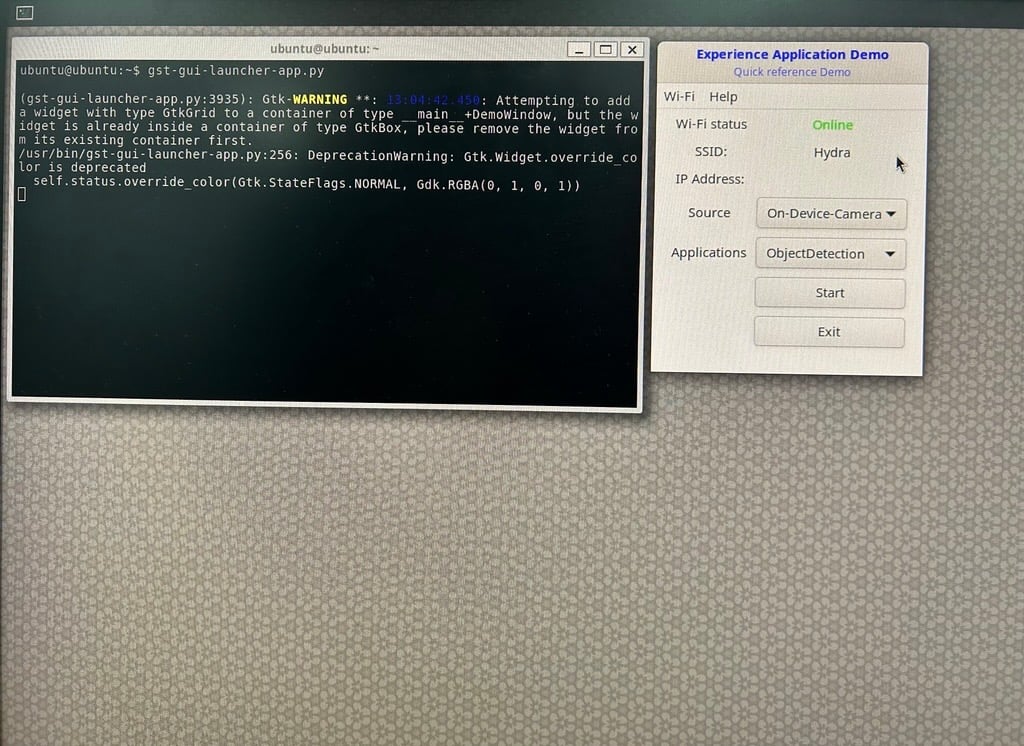
### Launch the GUI from SBC terminal
```shell# theme={null}
gst-gui-launcher-app.py
```
 ### Run a sample application
Run a sample application from the Experience Application Demo window.
Connect to a Wi-Fi network by selecting **Wi-Fi**.
A Wi-Fi connection is required to run AI sample applications only. If you want to run a multimedia application, skip this step.
In the **Source** dropdown list, select the required camera.
The Dragonwing IQ-8275 device doesn't have a built-in camera, and not all applications require a camera. If you've connected an external camera to the device, select it from the **Source** dropdown list. By default, the **On-Device-Camera** option is selected.
In the **Applications** dropdown list, select an application and select **Start**.
The selected application starts running, and a pop-up window displays the output on the screen.
When you run a sample application for the first time, it may take a minute or more to run as the device downloads the AI models and labels from GitHub.
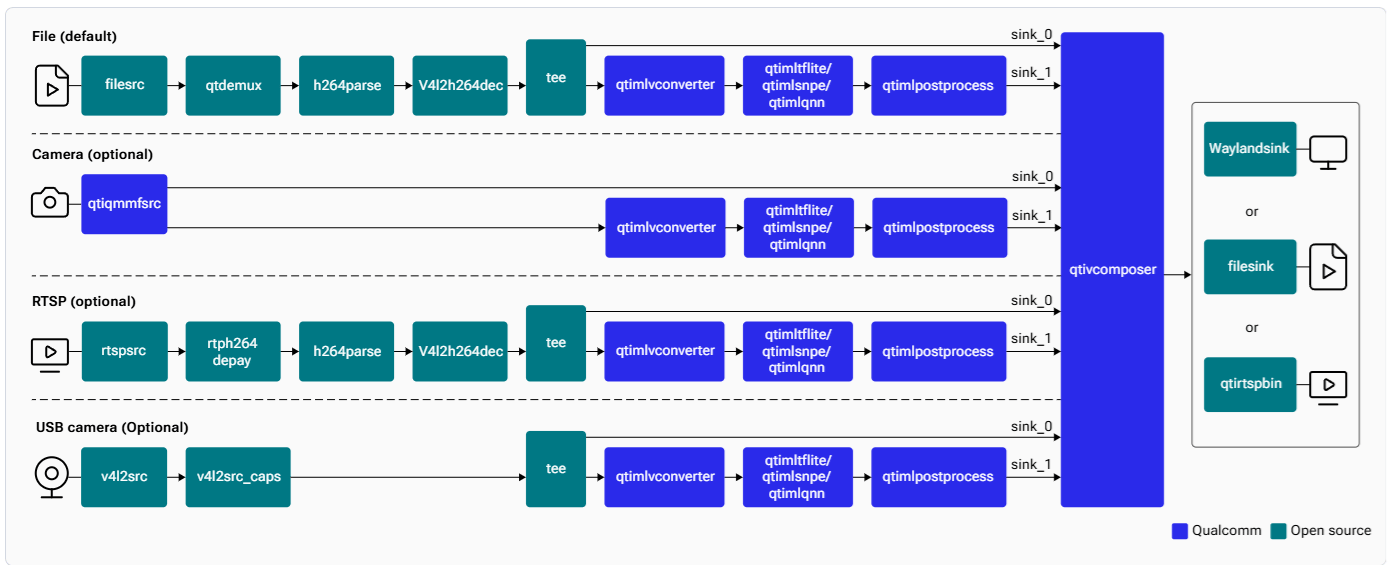
The following figure shows the sample output of the Object Detection application, identifying two objects including a person and a dog.
### Run a sample application
Run a sample application from the Experience Application Demo window.
Connect to a Wi-Fi network by selecting **Wi-Fi**.
A Wi-Fi connection is required to run AI sample applications only. If you want to run a multimedia application, skip this step.
In the **Source** dropdown list, select the required camera.
The Dragonwing IQ-8275 device doesn't have a built-in camera, and not all applications require a camera. If you've connected an external camera to the device, select it from the **Source** dropdown list. By default, the **On-Device-Camera** option is selected.
In the **Applications** dropdown list, select an application and select **Start**.
The selected application starts running, and a pop-up window displays the output on the screen.
When you run a sample application for the first time, it may take a minute or more to run as the device downloads the AI models and labels from GitHub.
The following figure shows the sample output of the Object Detection application, identifying two objects including a person and a dog.
 Stop the sample application by closing the output window.
### Run Multistream Qdemo supported sample application
The screenshot below displays the output of the Multistream Qdemo sample application running with eight streams—one live stream and seven video streams:
Stop the sample application by closing the output window.
### Run Multistream Qdemo supported sample application
The screenshot below displays the output of the Multistream Qdemo sample application running with eight streams—one live stream and seven video streams:
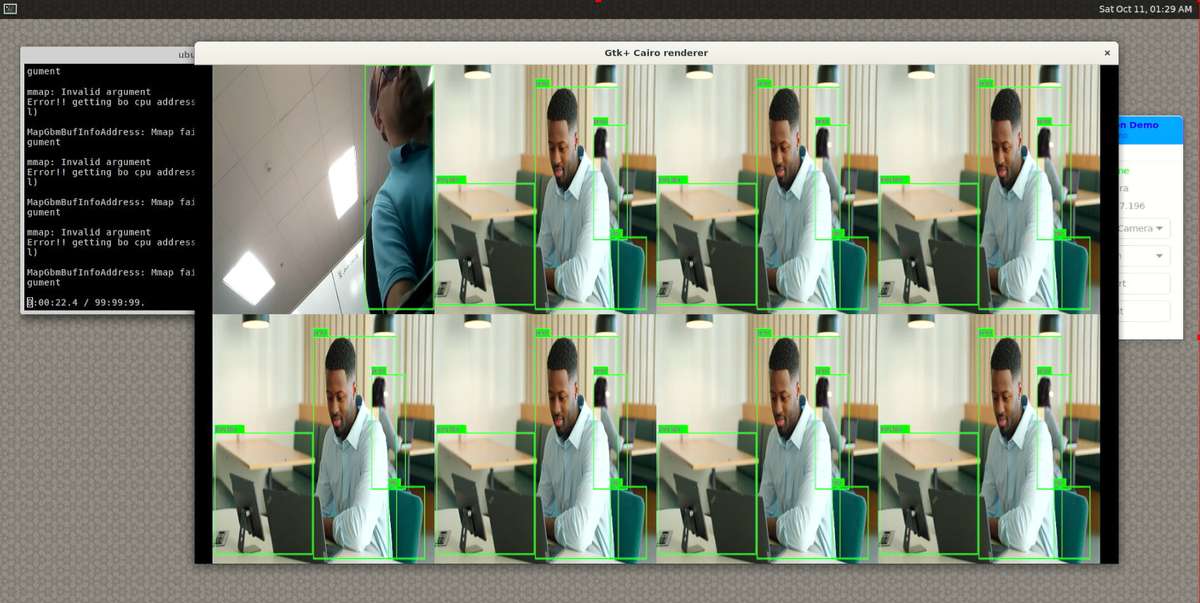 **Note:** On Wayland output, stretch the Gtk+ Cairo renderer to ensure proper display of the sample application output.