> ## Documentation Index
> Fetch the complete documentation index at: https://dragonwingdocs.qualcomm.com/llms.txt
> Use this file to discover all available pages before exploring further.
# 支持按端口分组
> 在 IQ-9075-EVK 和 IQ-8275-EVK 上通过虚拟通道(VC)映射,在单个 CSI/IFE-Lite 路径上复用多达 4 个 GMSL 传感器,实现高密度摄像头并发。
IQ-9075-EVK
IQ-8275-EVK
每个 CSI 的传感器数
复用方式
独立端口
接口
**平台适用范围:**
本节适用于 **IQ-9075-EVK** 和 **IQ-8275-EVK**。
***
## 01 · 它是什么?
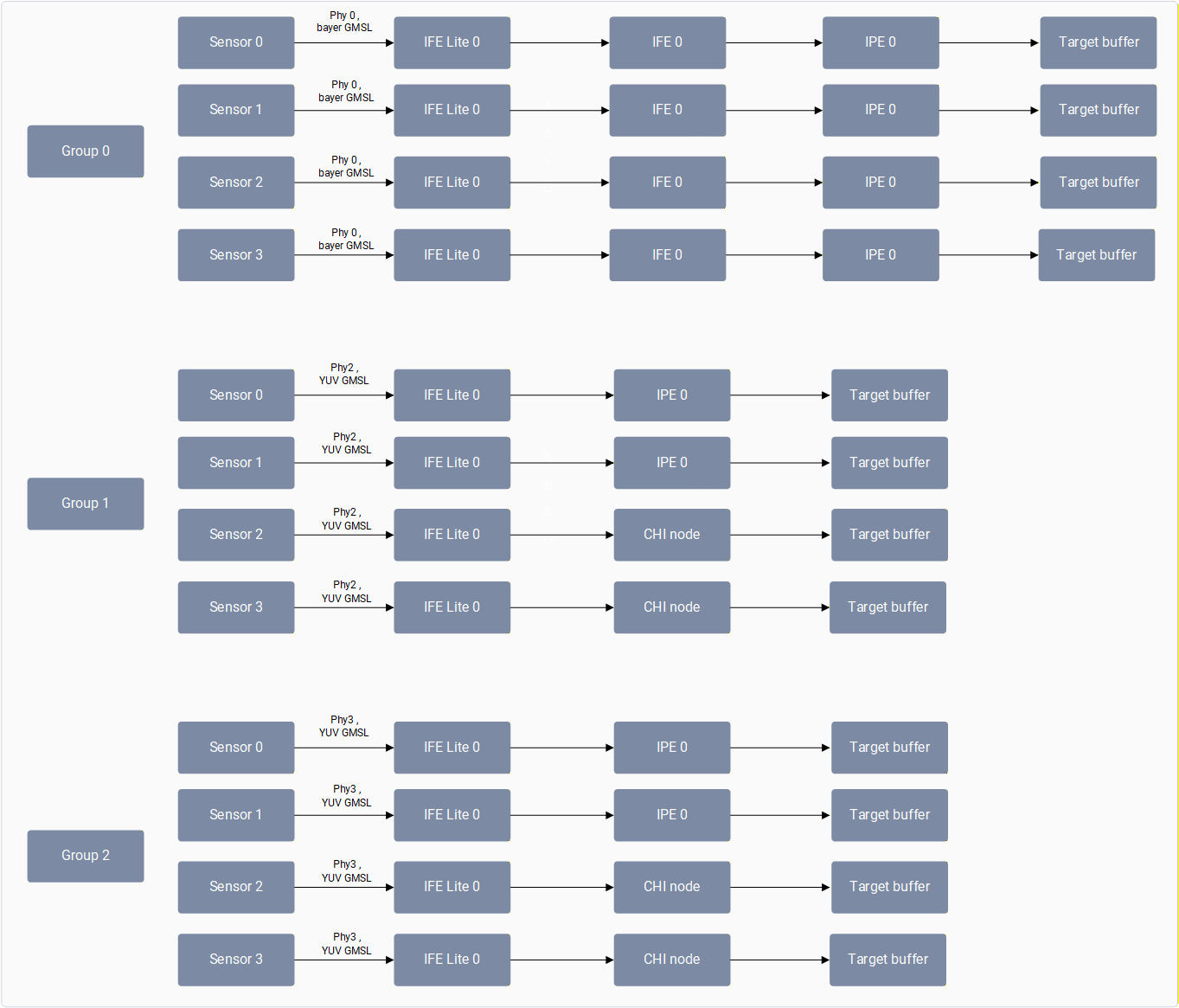
按端口分组(Per Port Grouping)支持通过单个解串器将多达 **4 个 GMSL 传感器**连接到共享的 CSI 接口和 IFE-Lite 实例。
每个传感器使用唯一的\*\*虚拟通道(VC)\*\*传输图像流。硬件随后通过 VC/DT 映射将这些流路由到各自独立的 **RDI 端口**(IFE-Lite 中有 4 个可用)。
```text theme={null}
Sensor [0..3] → Deserializer → Shared CSI → IFE-Lite [RDI 0..3] → Virtual RDI → User Space
```
***
## 02 · 它如何工作?
在启动过程中,摄像头软件通过供应商标签(`org.codeaurora.qcamera3.AvailableISPGroupsInfoTag`)将摄像头组信息发送给应用程序。应用程序随后通过 `EnabledISPGroupsConfigTag` 发送该用例中将要打开的所有摄像头的附加信息。
### 实现逻辑
* \*\*内核管理:\*\*内核空间利用端口共享信息,将虚拟 RDI 与同一 IFE-Lite 的硬件端口进行映射,从而管理连接到同一 CSI 的不同传感器。
* \*\*配置:\*\*在任何端口上启用流传输之前,需要先配置所有 RDI 端口。
* \*\*并发:\*\*只要组配置不变,应用程序可以随时启动该组中列出的任意摄像头,也可以随时停止。
***
## 03 · 硬件拓扑
在 IQ-9075-EVK 和 IQ-8275-EVK 两种架构中,每个 GMSL 解串器端口都支持将最多四个摄像头复用到一个 CSI 组中。
| 实例 | IQ-9075-EVK 配置 | IQ-8275-EVK 配置 |
| :----------------- | :--------------------- | :--------------------- |
| **Deserializer-0** | 4x 3F10 Bayer(Group-0) | 4x 3F10 Bayer(Group-0) |
| **Deserializer-1** | ❌ 已禁用(硬件问题) | ❌ 已禁用(硬件问题) |
| **Deserializer-2** | 4x 3F10 YUV(Group-1) | 4x 3F10 YUV(Group-1) |
| **Deserializer-3** | 4x 3F10 YUV(Group-2) | — |
***
## 04 · 验证
目前在 IQ-9075-EVK 上,可使用 gst-camera-per-port-example 应用程序(该应用以按端口分组功能运行摄像头)支持以下 GMSL 并发。
| **GMSL 摄像头并发** | **支持的分辨率和 FPS** | **连接方式** |
| :------------------- | :--------------- | :------------------------------------------------------------ |
| 四个 3F10 YUV GMSL 摄像头 | 1920x1536,30 FPS | 将 4 个 3F10 YUV GMSL 连接到 Port-2 |
| 四个 3F10 YUV GMSL 摄像头 | 1920x1536,30 FPS | 将 4 个 3F10 YUV GMSL 连接到 Port-3 |
| 八个 3F10 YUV GMSL 摄像头 | 1920x1536,30 FPS | 将 4 个 3F10 YUV GMSL 连接到 Port-2,将 4 个 3F10 YUV GMSL 连接到 Port-3 |
四个 YUV GMSL 并发用例在 GMSL Port 2 和 Port 3 上受支持。当前版本不支持四个 bayer GMSL 和八个 YUV GMSL 摄像头并发。
要使用 gst-camera-per-port-example 运行八个 3F10 YUV GMSL 摄像头并发用例:
将四个 3F10 YUV GMSL 连接到 Port-2,将四个 3F10 YUV GMSL 连接到 Port-3。
运行 gst-camera-per-port-example 应用程序。
```bash Application Launch theme={null}
# gst-camera-per-port-example --custom
```
输入要打开的摄像头 ID(以空格分隔):`0 1 2 3 4 5 6 7`
为所有八个摄像头输入以下详细信息:
* 摄像头 0 的流数量:1
* 摄像头 0 流 1 的宽度:1920
* 摄像头 0 流 1 的高度:1536
* 摄像头 0 流 1 的帧率:30
* 摄像头 1 的流数量:1
* 摄像头 1 流 1 的宽度:1920
* 摄像头 1 流 1 的高度:1536
* 摄像头 1 流 1 的帧率:30
为全部 8 个摄像头输入 GST 摄像头流水线命令。保存每个摄像头的编码文件时请使用不同的文件名。
GST 命令必须写在一行内,不能包含任何换行符或 '' 字符。
**摄像头 0:**
```bash GStreamer Pipeline theme={null}
qtiqmmfsrc name=camsrc0 camera=0 video_0::type=video ! video/x-raw,format=NV12,width=1920,height=1536,framerate=30/1,interlace-mode=progressive,colorimetry=bt601 ! queue ! v4l2h264enc capture-io-mode=4 output-io-mode=5 ! h264parse ! mp4mux ! queue ! filesink location=/opt/cam0_IOT_1536p_NV12.mp4
```
**摄像头 1:**
```bash GStreamer Pipeline theme={null}
qtiqmmfsrc name=camsrc1 camera=1 video_0::type=video ! video/x-raw,format=NV12,width=1920,height=1536,framerate=30/1,interlace-mode=progressive,colorimetry=bt601 ! queue ! v4l2h264enc capture-io-mode=4 output-io-mode=5 ! h264parse ! mp4mux ! queue ! filesink location=/opt/cam1_IOT_1536p_NV12.mp4
```
确认流水线已成功启动:
```text Terminal Output theme={null}
Setting pipeline gst-camera-pipeline for camera 0 to PLAYING
Pipeline is PREROLLING ...
Setting pipeline gst-camera-pipeline for camera 1 to PLAYING
Pipeline is PREROLLING ...
Pipelines are started
```
要停止摄像头流传输,选择 **(q)**。退出应用程序时会显示以下日志:
```text Exit Logs theme={null}
Quit pressed!!
gst-camera-pipeline for camera 0 Received End-of-Stream...
Setting pipeline to NULL
Pipeline state change was successful
gst-camera-pipeline for camera 1 Received End-of-Stream...
Setting pipeline to NULL
Pipeline state change was successful
g_main_loop_run ends
```
目前在 IQ-8275-EVK 上,可使用 gst-camera-per-port-example 应用程序(该应用以按端口分组功能运行摄像头)支持以下 GMSL 并发。
| **GMSL 摄像头并发** | **支持的分辨率和 FPS** | **连接方式** |
| :---------------------------------------- | :--------------------------------------------------- | :-------------------------------------------------------------- |
| 四个 3F10 Bayer GMSL 摄像头 | 1824x1536,30 FPS | 将 4 个 3F10 Bayer GMSL 连接到 Port-0 |
| 四个 3F10 YUV GMSL 摄像头 | 1920x1536,30 FPS | 将 4 个 3F10 YUV GMSL 连接到 Port-2 |
| 四个 3F10 bayer GMSL 摄像头 + 4 个 YUV GMSL 摄像头 | Bayer GMSL:1824x1536,30 FPS;YUV GMSL:1920x1536,30fps | 将 4 个 3F10 Bayer GMSL 连接到 Port-0,将 4 个 3F10 YUV GMSL 连接到 Port-2 |
当前版本不支持四个 bayer + 四个 YUV GMSL 摄像头并发。
要使用 gst-camera-per-port-example 运行八个 GMSL 摄像头并发用例(四个 3F10 bayer GMSL 摄像头 + 四个 YUV GMSL 摄像头):
将四个 3F10 bayer GMSL 连接到 Port-0,将四个 3F10 YUV GMSL 连接到 Port-2。
运行 gst-camera-per-port-example 应用程序。
```bash Application Launch theme={null}
# gst-camera-per-port-example --custom
```
输入要打开的摄像头 ID(以空格分隔):`0 1 2 3 4 5 6 7`
为所有八个摄像头输入以下详细信息:
* 摄像头 0 的流数量:1
* 摄像头 0 流 1 的宽度:1920
* 摄像头 0 流 1 的高度:1536
* 摄像头 0 流 1 的帧率:30
* 摄像头 1 的流数量:1
* 摄像头 1 流 1 的宽度:1920
* 摄像头 1 流 1 的高度:1536
* 摄像头 1 流 1 的帧率:30
为全部 8 个摄像头输入 GST 摄像头流水线命令。保存每个摄像头的编码文件时请使用不同的文件名。
GST 命令必须写在一行内,不能包含任何换行符或 '' 字符。
**摄像头 0:**
```bash GStreamer Pipeline theme={null}
qtiqmmfsrc name=camsrc0 camera=0 video_0::type=video ! video/x-raw,format=NV12,width=1824,height=1536,framerate=30/1,interlace-mode=progressive,colorimetry=bt601 ! queue ! v4l2h264enc capture-io-mode=4 output-io-mode=5 ! h264parse ! mp4mux ! queue ! filesink location=/opt/cam0_IOT_1536p_NV12.mp4
```
**摄像头 1:**
```bash GStreamer Pipeline theme={null}
qtiqmmfsrc name=camsrc1 camera=1 video_0::type=video ! video/x-raw,format=NV12,width=1824,height=1536,framerate=30/1,interlace-mode=progressive,colorimetry=bt601 ! queue ! v4l2h264enc capture-io-mode=4 output-io-mode=5 ! h264parse ! mp4mux ! queue ! filesink location=/opt/cam1_IOT_1536p_NV12.mp4
```
确认流水线已成功启动:
```text Terminal Output theme={null}
Setting pipeline gst-camera-pipeline for camera 0 to PLAYING
Pipeline is PREROLLING ...
Setting pipeline gst-camera-pipeline for camera 1 to PLAYING
Pipeline is PREROLLING ...
Pipelines are started
```
要停止摄像头流传输,选择 **(q)**。退出应用程序时会显示以下日志:
```text Exit Logs theme={null}
Quit pressed!!
gst-camera-pipeline for camera 0 Received End-of-Stream...
Setting pipeline to NULL
Pipeline state change was successful
gst-camera-pipeline for camera 1 Received End-of-Stream...
Setting pipeline to NULL
Pipeline state change was successful
g_main_loop_run ends
```
## 🛠️ 故障排除 / 已知问题
| 问题 / 现象 | 受影响平台 | 详情 / 说明 |
| ------------------- | ------------------------- | ------------------------------------------------------------------------ |
| Deserializer-1 已禁用 | IQ-9075-EVK 和 IQ-8275-EVK | 由于硬件问题,两个平台上的 Deserializer-1 均已禁用 |
| 不支持四个 Bayer GMSL 并发 | IQ-9075-EVK | 当前版本不支持 4x Bayer GMSL 并发流传输 |
| 不支持八个 YUV GMSL 并发 | IQ-9075-EVK | 当前版本不支持 8x YUV GMSL 摄像头并发 |
| Deserializer-3 不可用 | IQ-8275-EVK | Deserializer-3(Group-2,4x 3F10 YUV)在 IQ-9075-EVK 上存在,但在 IQ-8275-EVK 上不存在 |