> ## Documentation Index
> Fetch the complete documentation index at: https://dragonwingdocs.qualcomm.com/llms.txt
> Use this file to discover all available pages before exploring further.

# 示例应用

## **实现并部署 OpenCV 示例应用**

<img src="https://mintcdn.com/qualcomm-prod/cd4uHddFuoewFjq8/Technologies/Vision/images/sample-app-workflow.svg?fit=max&auto=format&n=cd4uHddFuoewFjq8&q=85&s=3bec5571deac550d5d8931f94e69afd8" alt="开发者工作流程" width="855" height="161" data-path="Technologies/Vision/images/sample-app-workflow.svg" />

## **前提条件**

* 使用以下任一方法安装 Platform SDK：
  * [使用 Qualcomm 发布归档](https://imsdkdocs.qualcomm.com/advanced/yocto-build#download-and-install-the-sdk)
  * [手动编译 Qualcomm Linux SDK](https://dragonwingdocs.qualcomm.com/Key-Documents/Yocto-Guide/how-to-perform-common-tasks#generate-an-sdk)

## **使用 FastCV 实现 OpenCV 旋转应用**

有关 API 使用详情，请参阅 [OpenCV rotate()](https://dragonwingdocs.qualcomm.com/Technologies/Vision/sample-applications#opencv-rotate-function-usage)。

1. 在 Linux 主机上进入 SDK 安装路径，并运行以下命令设置 SDK 环境：
   ```bash theme={null}
   source environment-setup-armv8a-qcom-linux
   ```
2. 运行以下命令在 SDK 安装目录中创建并进入 `opencv_rotate` 目录。
   ```bash theme={null}
   mkdir opencv_rotate
   cd opencv_rotate
   ```
3. 在 `opencv_rotate` 目录中创建以下 `configure.ac`、`Makefile.am` 和 `opencv_rotate.cpp` 文件。
   <Note>
     **注意**

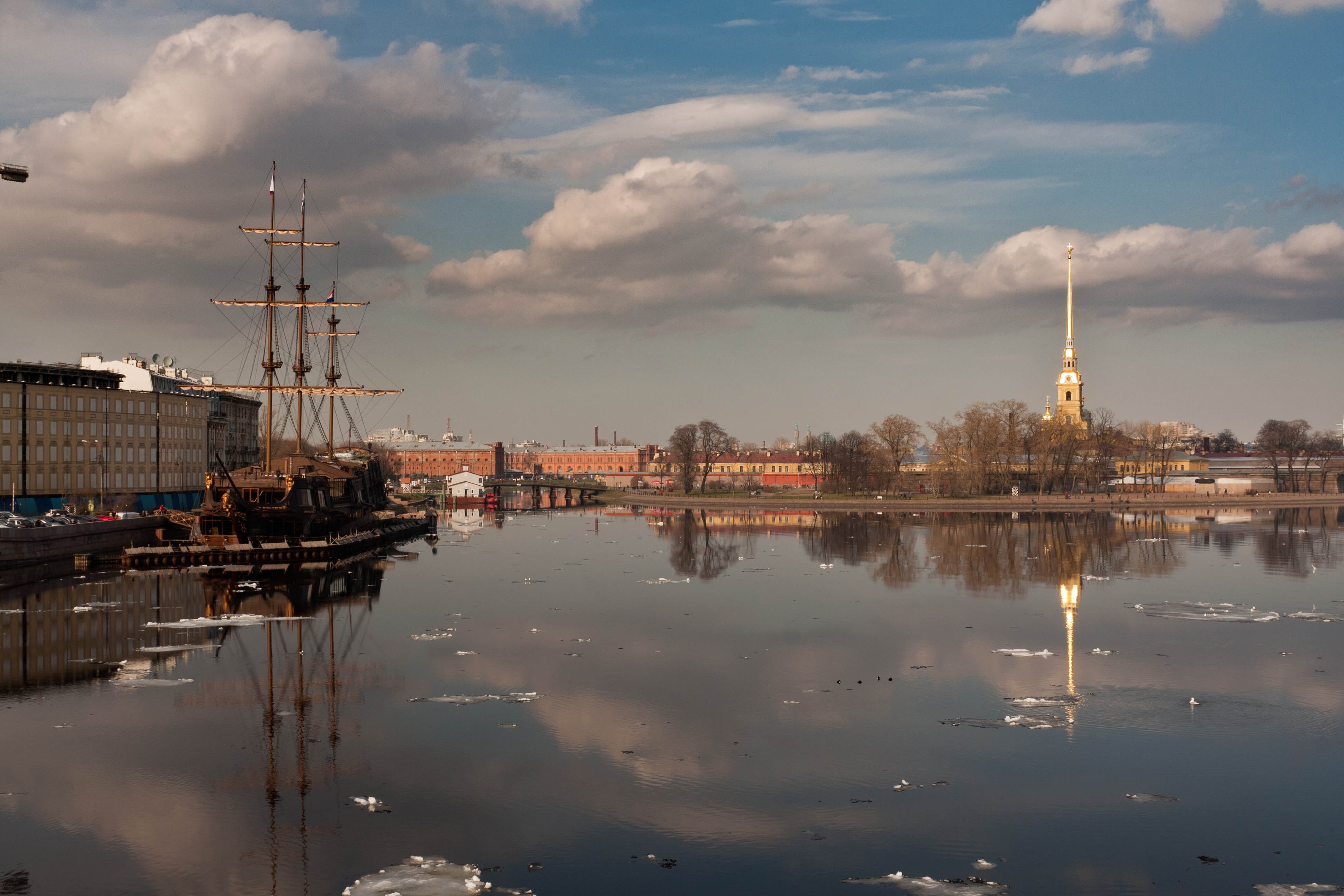
     本示例中引用的 JPG 图像来自 [https://github.com/opencv/opencv\_extra/blob/4.x/testdata/stitching/boat1.jpg](https://github.com/opencv/opencv_extra/blob/4.x/testdata/stitching/boat1.jpg)，可以更换。
   </Note>

   * `configure.ac`
     > ```bash theme={null}
     > AC_PREREQ([2.71])
     > AC_INIT([opencv_rotate],[1.0.0])
     > AM_INIT_AUTOMAKE([-Wall gnu foreign subdir-objects])
     > AC_CONFIG_SRCDIR([Makefile.am])
     > AC_CONFIG_HEADERS([config.h])
     > AC_CONFIG_MACRO_DIR([m4])
     >
     > AC_ARG_WITH([sanitized-headers],
     >     [AS_HELP_STRING([--with-sanitized-headers=DIR],[location of the sanitized Linux headers])],
     >     [CPPFLAGS="$CPPFLAGS -I$withval"])
     >
     > AM_PROG_AS
     > AM_PROG_AR
     > AC_PROG_CC
     > AM_PROG_CC_C_O
     > AC_PROG_CPP
     > AC_PROG_CXX
     > LT_INIT
     > AC_PROG_AWK
     > AC_PROG_INSTALL
     > AC_PROG_LN_S
     > AC_PROG_MAKE_SET
     >
     > AC_ARG_WITH([opencv-path],
     >     [AS_HELP_STRING([--with-opencv-path=DIR],[path to opencv])],
     >     [OPENCV_PATH="$withval"])
     >
     > # The toolchain parameter passed by the bitbake is consumed here
     > AC_ARG_WITH([toolchain-used],
     >         AS_HELP_STRING([--with-toolchain-used],
     >                 [Specify the toolchain-used for compilation]),
     >         [toolchain_used=$withval],
     >         toolchain_used=sdllvm)
     > AM_CONDITIONAL(GCC_ENABLE, test "x$toolchain_used" = "xgcc")
     > AM_CONDITIONAL(SDLLVM_ENABLE, test "x$toolchain_used" = "xsdllvm")
     >
     > AC_SUBST([OPENCV_PATH])
     >
     > AC_CONFIG_FILES([ Makefile])
     > AC_OUTPUT
     > ```
   * `Makefile.am`
     > ```makefile theme={null}
     > #ACLOCAL_AMFLAGS = -I m4
     > # ---------------------------------------------------------------------------------
     > #                       Make the libfastcvOPT library (libfastcvopt)
     > # ---------------------------------------------------------------------------------
     >
     > common_flags = -O3 \
     >                -fPIC \
     >                -Wall \
     >                -Wno-error \
     >                -Wno-error=uninitialized \
     >                -flax-vector-conversions \
     >                -I${OPENCV_PATH}
     >
     > AM_CFLAGS = $(common_flags)
     >
     > AM_CPPFLAGS = $(common_flags)
     >
     > test_sources = opencv_rotate.cpp
     >
     > bin_PROGRAMS = opencv_rotate_test
     > opencv_rotate_test_SOURCES  = $(test_sources)
     > opencv_rotate_test_CPPFLAGS = $(AM_CPPFLAGS)
     > opencv_rotate_test_CFLAGS = $(AM_CFLAGS)
     > opencv_rotate_test_LDADD = -ldl -lpthread -lopencv_core -lopencv_imgproc -lopencv_imgcodecs -lopencv_fastcv
     > ```
   * `opencv_rotate.cpp`
     > ```cpp theme={null}
     > #include<iostream>
     > #include<chrono>
     > #include "opencv2/opencv.hpp"
     > #include "opencv2/imgcodecs.hpp"
     > #include "opencv2/fastcv/scale.hpp"
     >
     > using namespace cv;
     >
     > int main()
     > {
     >    Mat input = imread("/tmp/test/samples/boat1.jpg");
     >    Mat dst;
     >    auto start = std::chrono::high_resolution_clock::now();
     >    rotate(input, dst, ROTATE_90_CLOCKWISE);
     >    imwrite("/tmp/test/samples/output.jpg", dst);
     >    auto end = std::chrono::high_resolution_clock::now();
     >    std::chrono::microseconds time_span = std::chrono::duration_cast<std::chrono::microseconds>(end - start);
     >    std::cout << "Total time taken: " << time_span.count() << " us.\n";
     >
     >     return 0;
     > }
     > ```

### **编译 OpenCV 旋转应用**

1. 运行以下命令。
   ```bash theme={null}
   mkdir -p m4
   aclocal
   autoconf
   touch NEWS README AUTHORS ChangeLog
   autoreconf --install
   automake -a
   ./configure ${CONFIGURE_FLAGS} --with-opencv_path=${SDKTARGETSYSROOT}/usr/include/opencv4
   ```
2. 运行 `make` 命令编译应用。
   ```bash theme={null}
   make
   ```
   `opencv_rotate_test` 测试应用会生成在 `opencv_rotate` 目录中。

### **运行 OpenCV 旋转应用**

1. 要推送测试二进制文件，请在主机上运行以下命令。

   ```bash theme={null}
   scp -r opencv_rotate_test root@{[IP-ADDR]}:/usr/bin/
   ```

   <Note>
     **注意**

     如果无法复制文件，请使用以下命令重新挂载：

     ```bash theme={null}
     mount -o remount,rw /usr
     ```

     使用以下命令检查权限：

     ```bash theme={null}
     mount | grep /
     ```
   </Note>
2. 运行以下命令切换目录（`cd`）到测试图像的路径（例如 `./images/boat1.jpg`）。
   ```bash theme={null}
   cd {<test image path>}
   ```
3. 在设备上创建一个目录（例如 `/tmp/test/samples/`）用于推送测试图像。

   该 `/tmp/test/samples/` 目录也是测试代码中输出图像的位置。请根据你机器上指定的输出位置修改此目录。
4. 运行以下命令将测试图像推送到设备。
   ```bash theme={null}
   scp -r boat1.jpg root@{[IP-ADDR]}:{/tmp/test/samples/}
   ```
5. 要在目标设备上开始测试，请运行以下命令。
   ```bash theme={null}
   chmod 777 /usr/bin/opencv_rotate_test
   /usr/bin/opencv_rotate_test
   ```
6. 要获取结果，请运行以下命令。

   ```bash theme={null}
   scp -r root@{[IP-ADDR]}:/tmp/test/samples/output.jpg user2@{[HOST IP-ADDR]}:/workspace
   ```

   `/tmp/test/samples/` 目录是测试代码中输出图像的位置。请根据你指定的输出位置进行修改。

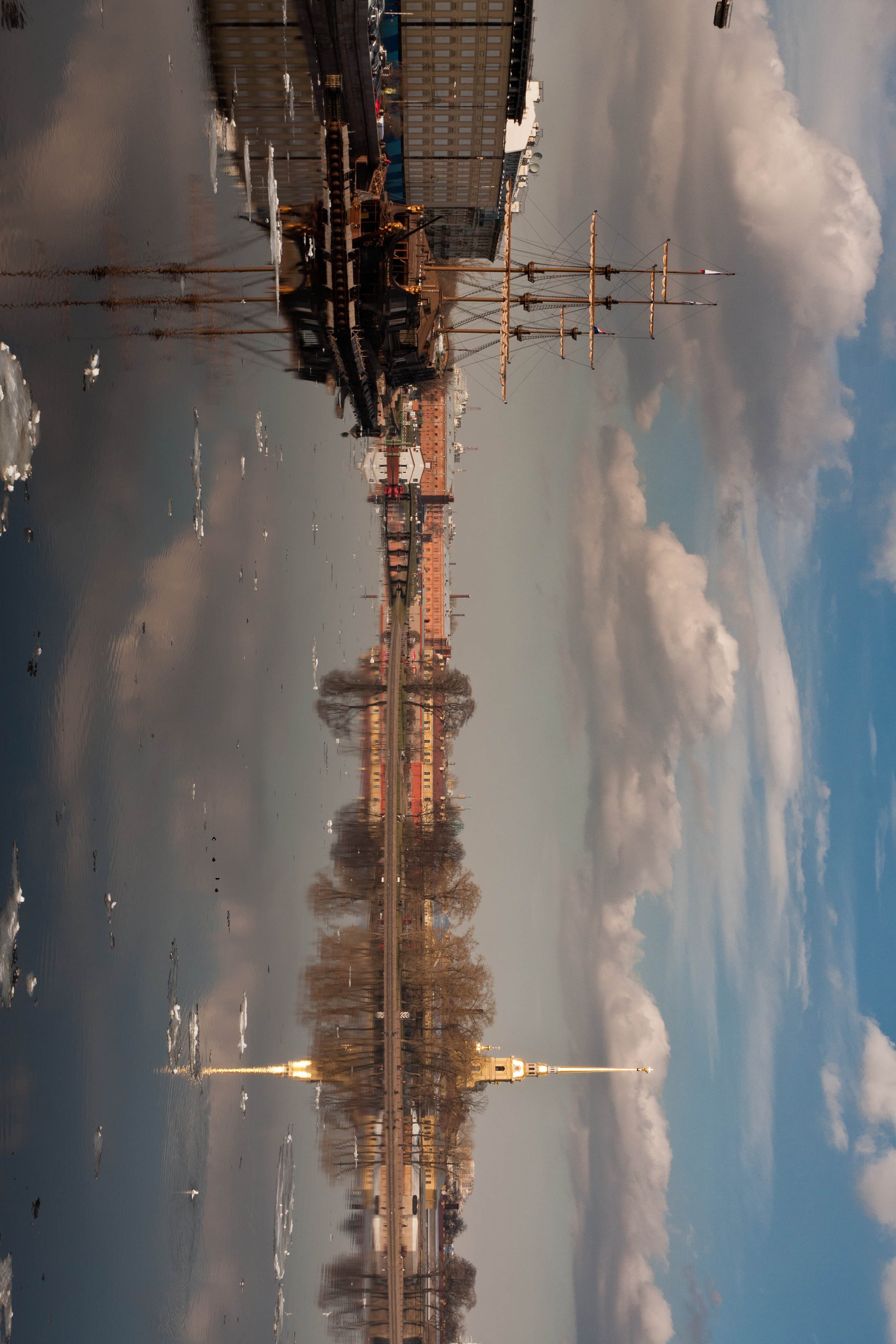
   以下是预期结果。

   |                                                                                                                                                                                                                                                                                                                                                                                                                                                                                                                                                                                                                                                                                                                                                                                               **输入**                                                                                                                                                                                                                                                                                                                                                                                                                                                                                                                                                                                                                                                                                                                                                                                               |         **旋转**        | **输出**                                                                                                                                                                                                                                                                                                                                                                                                                                                                                                                                                                                                                                                                                                                                                                                                                                                                                                                                                                                                                                                                                                                                                                                                                                                                                                                                                                                                                                                                                                                                                                                                     |
   | :------------------------------------------------------------------------------------------------------------------------------------------------------------------------------------------------------------------------------------------------------------------------------------------------------------------------------------------------------------------------------------------------------------------------------------------------------------------------------------------------------------------------------------------------------------------------------------------------------------------------------------------------------------------------------------------------------------------------------------------------------------------------------------------------------------------------------------------------------------------------------------------------------------------------------------------------------------------------------------------------------------------------------------------------------------------------------------------------------------------------------------------------------------------------------------------------------------------------------------------------------------------------------------------------------------------------------------------------------------------------------------------------------------------------------------------------------------------------------------------------------------------------------------------------------------------------------------------------: | :-------------------: | :--------------------------------------------------------------------------------------------------------------------------------------------------------------------------------------------------------------------------------------------------------------------------------------------------------------------------------------------------------------------------------------------------------------------------------------------------------------------------------------------------------------------------------------------------------------------------------------------------------------------------------------------------------------------------------------------------------------------------------------------------------------------------------------------------------------------------------------------------------------------------------------------------------------------------------------------------------------------------------------------------------------------------------------------------------------------------------------------------------------------------------------------------------------------------------------------------------------------------------------------------------------------------------------------------------------------------------------------------------------------------------------------------------------------------------------------------------------------------------------------------------------------------------------------------------------------------------------------------------- |
   | <img src="https://mintcdn.com/qualcomm-prod/RietNfmN9gs2vaJw/Technologies/Vision/images/rotate-input-image.png?fit=max&auto=format&n=RietNfmN9gs2vaJw&q=85&s=06be0368a6b85a3278ad30670e7f6413" alt="旋转输入图像" width="3888" height="2592" data-path="Technologies/Vision/images/rotate-input-image.png" /> | ROTATE\_90\_CLOCKWISE | <img src="https://mintcdn.com/qualcomm-prod/RietNfmN9gs2vaJw/Technologies/Vision/images/rotate-output-image.png?fit=max&auto=format&n=RietNfmN9gs2vaJw&q=85&s=d45f15eb4d37d4c84a19e46b61fd6702" alt="旋转输出图像" width="2592" height="3888" data-path="Technologies/Vision/images/rotate-output-image.png" /> |

## **使用 FastCV 扩展实现 OpenCV 缩放应用**

有关 API 使用详情，请参阅 [OpenCV resize()](https://dragonwingdocs.qualcomm.com/Technologies/Vision/sample-applications#opencv-resize-function-usage)。

1. SDK 安装完成后，运行以下命令在 SDK 安装目录中创建并进入 `opencv_resize_extension` 目录。
   ```bash theme={null}
   mkdir opencv_resize_extension
   cd opencv_resize_extension
   ```
2. 在 `opencv_resize_extension` 目录中创建以下 `configure.ac`、`Makefile.am` 和 `opencv_resize_extension.cpp` 文件。
   <Note>
     **注意**

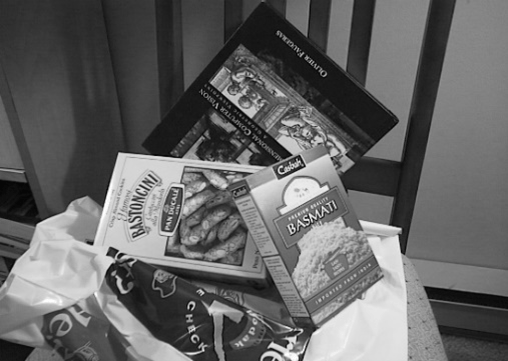
     本示例中引用的 PNG 图像是 [https://github.com/opencv/opencv/blob/4.x/samples/data/box\_in\_scene.png](https://github.com/opencv/opencv/blob/4.x/samples/data/box_in_scene.png)，如果需要，你也可以使用其他图像。
   </Note>

   * `configure.ac`
     ```bash theme={null}
     AC_PREREQ([2.71])
     AC_INIT([opencv_resize],[1.0.0])
     AM_INIT_AUTOMAKE([-Wall gnu foreign subdir-objects])
     AC_CONFIG_SRCDIR([Makefile.am])
     AC_CONFIG_HEADERS([config.h])
     AC_CONFIG_MACRO_DIR([m4])
     AC_ARG_WITH([sanitized-headers],
         [AS_HELP_STRING([--with-sanitized-headers=DIR],[location of the sanitized Linux headers])],
         [CPPFLAGS="$CPPFLAGS -I$withval"])
     AM_PROG_AS
     AM_PROG_AR
     AC_PROG_CC
     AM_PROG_CC_C_O
     AC_PROG_CPP
     AC_PROG_CXX
     LT_INIT
     AC_PROG_AWK
     AC_PROG_INSTALL
     AC_PROG_LN_S
     AC_PROG_MAKE_SET
     AC_ARG_WITH([opencv-path],
         [AS_HELP_STRING([--with-opencv-path=DIR],[path to opencv])],
         [OPENCV_PATH="$withval"])
     # The toolchain parameter passed by the bitbake is consumed here
     AC_ARG_WITH([toolchain-used],
             AS_HELP_STRING([--with-toolchain-used],
                     [Specify the toolchain-used for compilation]),
             [toolchain_used=$withval],
             toolchain_used=sdllvm)
     AM_CONDITIONAL(GCC_ENABLE, test "x$toolchain_used" = "xgcc")
     AM_CONDITIONAL(SDLLVM_ENABLE, test "x$toolchain_used" = "xsdllvm")
     AC_SUBST([OPENCV_PATH])
     AC_CONFIG_FILES([ Makefile])
     AC_OUTPUT
     ```
   * `Makefile.am`
     ```makefile theme={null}
     #ACLOCAL_AMFLAGS = -I m4
     # ---------------------------------------------------------------------------------
     #                       Make the libfastcvOPT library (libfastcvopt)
     # ---------------------------------------------------------------------------------
     common_flags = -O3 \
                    -fPIC \
                    -Wall \
                    -Wno-error \
                    -Wno-error=uninitialized \
                    -flax-vector-conversions \
                    -I${OPENCV_PATH}
     AM_CFLAGS = $(common_flags)
     AM_CPPFLAGS = $(common_flags)
     test_sources = opencv_resize_extension.cpp
     bin_PROGRAMS = opencv_resize_test
     opencv_resize_test_SOURCES  = $(test_sources)
     opencv_resize_test_CPPFLAGS = $(AM_CPPFLAGS)
     opencv_resize_test_CFLAGS = $(AM_CFLAGS)
     opencv_resize_test_LDADD = -ldl -lpthread -lopencv_core -lopencv_imgproc -lopencv_imgcodecs -lopencv_fastcv
     ```
   * `opencv_resize_extension.cpp`
     ```cpp theme={null}
     #include<iostream>
     #include<chrono>
     #include "opencv2/opencv.hpp"
     #include "opencv2/imgcodecs.hpp"
     #include "opencv2/fastcv/scale.hpp"
     using namespace cv;
     int main()
     {
        Mat input = imread("/tmp/test/samples/box_in_scene.png", IMREAD_GRAYSCALE);
        Mat dst ;
        auto start = std::chrono::high_resolution_clock::now();
        fastcv::resizeDown(input, dst, cv::Size(), 0.5, 0.5);
        //resize(input, dst, Size(), 0.5, 0.5, INTER_LINEAR);
        imwrite("/tmp/test/samples/output.png", dst);
        auto end = std::chrono::high_resolution_clock::now();
        std::chrono::microseconds time_span = std::chrono::duration_cast<std::chrono::microseconds>(end - start);
        std::cout << "Total time taken: " << time_span.count() << " us.\n";
        // if(!dst) std::cout << "Test not executed properly" << std::endl;
         return 0;
     }
     ```

### **编译 OpenCV 缩放应用**

1. 运行以下命令。
   ```bash theme={null}
   mkdir -p m4
   aclocal
   autoconf
   touch NEWS README AUTHORS ChangeLog
   autoreconf --install
   automake -a
   ./configure ${CONFIGURE_FLAGS} --with-opencv_path=${SDKTARGETSYSROOT}/usr/include/opencv4
   ```
2. 运行 make 命令编译应用。
   ```bash theme={null}
   make
   ```
   `opencv_resize_test` 测试应用会生成在 `opencv_resize_extension` 目录中。

### **运行 OpenCV 缩放应用**

1. 要推送测试二进制文件，请在主机上运行以下命令。
   ```bash theme={null}
   scp -r opencv_resize_test root@{[IP-ADDR]}:/usr/bin/
   ```
2. 运行以下命令切换目录（`cd`）到测试图像的路径（例如 `./images/box_in_scene.png`）。
   ```bash theme={null}
   cd {<test image path>}
   ```
3. 在设备上创建一个目录（例如 `/tmp/test/samples/`）用于复制测试图像。

   该 `/tmp/test/samples/` 目录也是示例代码中输出图像的位置。

   请根据你机器上指定的输出位置修改此目录。
4. 运行以下命令将测试图像复制到设备。
   ```bash theme={null}
   scp -r box_in_scene.png root@{[IP-ADDR]}:{/tmp/test/samples/}
   ```
5. 要在目标设备上开始测试，请运行以下命令。
   ```bash theme={null}
   chmod 777 /usr/bin/opencv_resize_test
   /usr/bin/opencv_resize_test
   ```
6. 要获取结果，请运行以下命令。

   ```bash theme={null}
   scp -r root@{[IP-ADDR]}:/tmp/test/samples/output.png user2@{[HOST IP-ADDR]}:/workspace
   ```

   `/tmp/test/samples/` 目录是示例代码中输出图像的位置。

   请根据你指定的输出位置修改此位置。

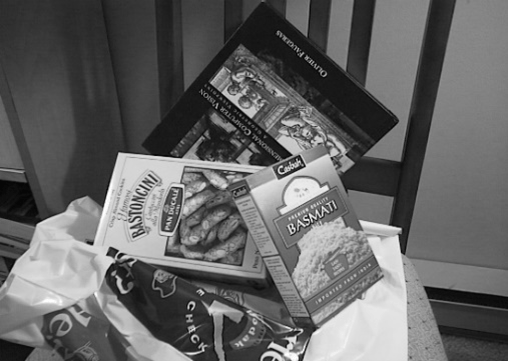
   以下是预期结果。

   |                                                                                                                                                                                                                                                                                                                                                                                                                                                                                                                                                                                                                                                                                                                                                                         **输入**                                                                                                                                                                                                                                                                                                                                                                                                                                                                                                                                                                                                                                                                                                                                                                        |    **缩放系数**   | **输出**                                                                                                                                                                                                                                                                                                                                                                                                                                                                                                                                                                                                                                                                                                                                                                                                                                                                                                                                                                                                                                                                                                                                                                                                                                                                                                                                                                                                                                                                                                                                                       |
   | :---------------------------------------------------------------------------------------------------------------------------------------------------------------------------------------------------------------------------------------------------------------------------------------------------------------------------------------------------------------------------------------------------------------------------------------------------------------------------------------------------------------------------------------------------------------------------------------------------------------------------------------------------------------------------------------------------------------------------------------------------------------------------------------------------------------------------------------------------------------------------------------------------------------------------------------------------------------------------------------------------------------------------------------------------------------------------------------------------------------------------------------------------------------------------------------------------------------------------------------------------------------------------------------------------------------------------------------------------------------------------------------------------------------------------------------------------------------------------------------------------------------------------------------------------: | :-----------: | :----------------------------------------------------------------------------------------------------------------------------------------------------------------------------------------------------------------------------------------------------------------------------------------------------------------------------------------------------------------------------------------------------------------------------------------------------------------------------------------------------------------------------------------------------------------------------------------------------------------------------------------------------------------------------------------------------------------------------------------------------------------------------------------------------------------------------------------------------------------------------------------------------------------------------------------------------------------------------------------------------------------------------------------------------------------------------------------------------------------------------------------------------------------------------------------------------------------------------------------------------------------------------------------------------------------------------------------------------------------------------------------------------------------------------------------------------------------------------------------------------------------------------------------------------------- |
   | <img src="https://mintcdn.com/qualcomm-prod/RietNfmN9gs2vaJw/Technologies/Vision/images/size-input-image.png?fit=max&auto=format&n=RietNfmN9gs2vaJw&q=85&s=b4f020dddca5dde101f10f51c661b509" width="100%" data-path="Technologies/Vision/images/size-input-image.png" /> | fx=1/2 fy=1/2 | <img src="https://mintcdn.com/qualcomm-prod/RietNfmN9gs2vaJw/Technologies/Vision/images/size-output-image.png?fit=max&auto=format&n=RietNfmN9gs2vaJw&q=85&s=d92c831a32ce943217f0bea18646bd9a" width="50%" data-path="Technologies/Vision/images/size-output-image.png" /> |

## **OpenCV rotate 函数用法**

以 90 度的倍数旋转 2D 数组。`rotate()` 函数按以下方式之一旋转数组。

* 顺时针 90 度：`rotateCode = ROTATE_90_CLOCKWISE`
* 顺时针 180 度：`rotateCode = ROTATE_180`
* 顺时针 270 度：`rotateCode = ROTATE_90_COUNTERCLOCKWISE`

<Card>
  <b style={{fontSize: "1.1rem", display: "block", textAlign: "center"}}>参数</b>

  <table>
    <thead>
      <tr>
        <th style={{color: "white", fontWeight: "bold"}}>类型</th>
        <th style={{color: "white", fontWeight: "bold"}}>参数</th>
        <th style={{color: "white", fontWeight: "bold"}}>描述</th>
      </tr>
    </thead>

    <tbody>
      <tr>
        <td>InputArray</td>
        <td>src</td>
        <td>输入数组。</td>
      </tr>

      <tr>
        <td>OutputArray</td>
        <td>dst</td>
        <td>与源类型相同的输出数组。<br />使用 <code>ROTATE\_180</code> 时尺寸不变，使用 <code>ROTATE\_90\_CLOCKWISE</code> 和 <code>ROTATE\_90\_COUNTERCLOCKWISE</code> 时行列互换。</td>
      </tr>

      <tr>
        <td>int</td>
        <td>code</td>
        <td>用于指定数组旋转方式的枚举；请参阅 <code>RotateFlags</code> 枚举。<br />RotateFlags：<ul><li><code>ROTATE\_90\_CLOCKWISE</code></li><li><code>ROTATE\_180</code></li><li><code>ROTATE\_90\_COUNTERCLOCKWISE</code></li></ul></td>
      </tr>
    </tbody>
  </table>
</Card>

有关 `rotate()` 的更多信息，请参阅[完整 API 文档](https://docs.opencv.org/3.4/d2/de8/group__core__array.html#ga4ad01c0978b0ce64baa246811deeac24)

## **OpenCV resize 函数用法**

OpenCV resize() 函数的输入是 CVMatrix 形式的源（src）图像。

<Note>
  **注意**

  仅支持灰度图像。
</Note>

输出是 CVMatrix 形式的目标图像。

FastCV 命名空间用于调用 FastCV 扩展 API。

resizeDown() 扩展 API 需要输入图像和目标图像作为参数。

<Card>
  <b style={{fontSize: "1.1rem", display: "block", textAlign: "center"}}>参数</b>

  <table>
    <thead>
      <tr>
        <th style={{color: "white", fontWeight: "bold"}}>类型</th>
        <th style={{color: "white", fontWeight: "bold"}}>参数</th>
        <th style={{color: "white", fontWeight: "bold"}}>描述</th>
      </tr>
    </thead>

    <tbody>
      <tr>
        <td>InputArray</td>
        <td>input</td>
        <td>输入图像。</td>
      </tr>

      <tr>
        <td>OutputArray</td>
        <td>dst</td>
        <td>输出图像。</td>
      </tr>

      <tr>
        <td>Size</td>
        <td>dsize</td>
        <td>期望的输出图像尺寸。如果为空，则使用 inv\_scale\_x 和 inv\_scale\_y 计算。</td>
      </tr>

      <tr>
        <td>double</td>
        <td>inv\_scale\_x</td>
        <td>宽度的逆缩放系数。如果提供了 <code>dsize</code>，则忽略此参数。</td>
      </tr>

      <tr>
        <td>double</td>
        <td>inv\_scale\_y</td>
        <td>高度的逆缩放系数。如果提供了 <code>dsize</code>，则忽略此参数。</td>
      </tr>
    </tbody>
  </table>
</Card>

有关 `resize()` 的更多信息，请参阅[完整 API 文档](https://docs.opencv.org/4.13.0/da/d54/group__imgproc__transform.html#ga47a974309e9102f5f08231edc7e7529d)。