> ## Documentation Index
> Fetch the complete documentation index at: https://dragonwingdocs.qualcomm.com/llms.txt
> Use this file to discover all available pages before exploring further.
# 安装扩展
> 从 Qualcomm Software Center 下载并安装 Qualcomm® VSCode 扩展。
## 下载
该扩展可在 [Qualcomm® Software Center (QSC)](https://softwarecenter.qualcomm.com/catalog/item/qualcomm_ide_developer_edition) 获取 — **无需账户或登录**。
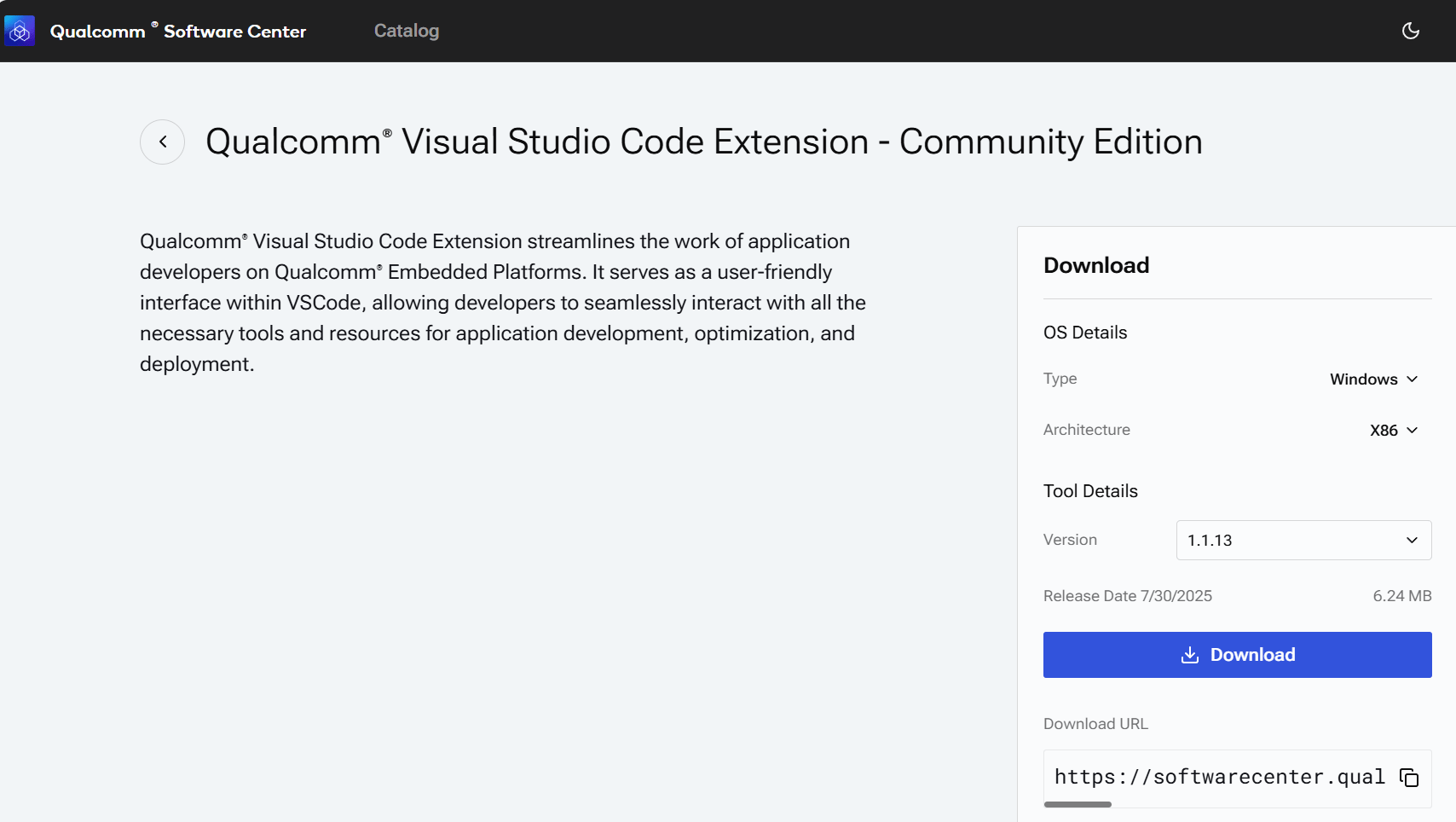 在目录页面中查找 **Qualcomm IDE Developer Edition**。下载的是一个 `.vsix` 文件。
## 在 VS Code 中安装
点击活动栏中的扩展图标(或按 `Ctrl+Shift+X`)。
点击扩展面板顶部的 `…` 溢出菜单,选择 **Install from VSIX…**
在目录页面中查找 **Qualcomm IDE Developer Edition**。下载的是一个 `.vsix` 文件。
## 在 VS Code 中安装
点击活动栏中的扩展图标(或按 `Ctrl+Shift+X`)。
点击扩展面板顶部的 `…` 溢出菜单,选择 **Install from VSIX…**
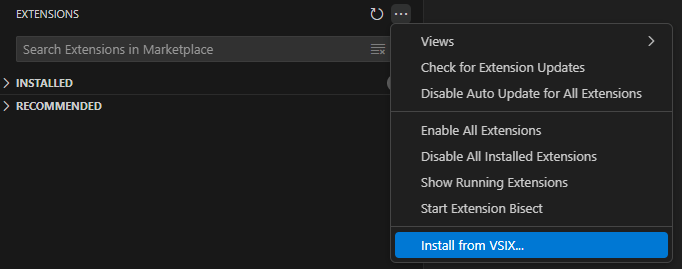 浏览到您下载的 `.vsix` 文件。
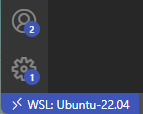
**Windows 用户:** 请在 **WSL 内部** 安装扩展。在此步骤之前,请确认 VS Code 状态栏显示 **WSL: Connected**。
浏览到您下载的 `.vsix` 文件。
**Windows 用户:** 请在 **WSL 内部** 安装扩展。在此步骤之前,请确认 VS Code 状态栏显示 **WSL: Connected**。
 安装完成后,活动栏中会出现一个 **Qualcomm** 图标。点击它。
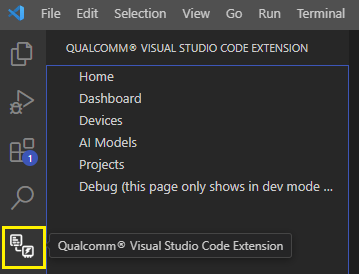 在侧边栏中选择 **Home**,然后点击 **Get Started** 启动主机设置向导。
## 验证安装
您应该能在活动栏中看到 Qualcomm 扩展图标,并且能够在侧边栏中导航到 **Home**。
**Home** 页面加载并显示 **Get Started** 按钮 — 您已准备好配置开发环境。
在侧边栏中选择 **Home**,然后点击 **Get Started** 启动主机设置向导。
## 验证安装
您应该能在活动栏中看到 Qualcomm 扩展图标,并且能够在侧边栏中导航到 **Home**。
**Home** 页面加载并显示 **Get Started** 按钮 — 您已准备好配置开发环境。