> ## Documentation Index
> Fetch the complete documentation index at: https://dragonwingdocs.qualcomm.com/llms.txt
> Use this file to discover all available pages before exploring further.
# WSL 上的 USB 转发
> 使用 usbipd 将物理 USB 设备从 Windows 挂载到 WSL 环境中。
## 概述
在 Windows + WSL 上,USB 设备不会自动在 Linux 子系统内可见。`usbipd-win` 工具通过回环 IP 隧道将 USB 总线从 Windows 主机转发到 WSL,从而弥补这一差距。
`usbipd-win` 必须已经安装。如果尚未安装,请在 Windows 管理员终端中运行 `winget install usbipd-win`。
## 分步操作
打开 **PowerShell(管理员模式)** 并运行:
```batch theme={null}
adb kill-server
```
如果 ADB 未在运行,此命令可能会报告错误 — 可以安全地忽略。
```batch theme={null}
usbipd list
```
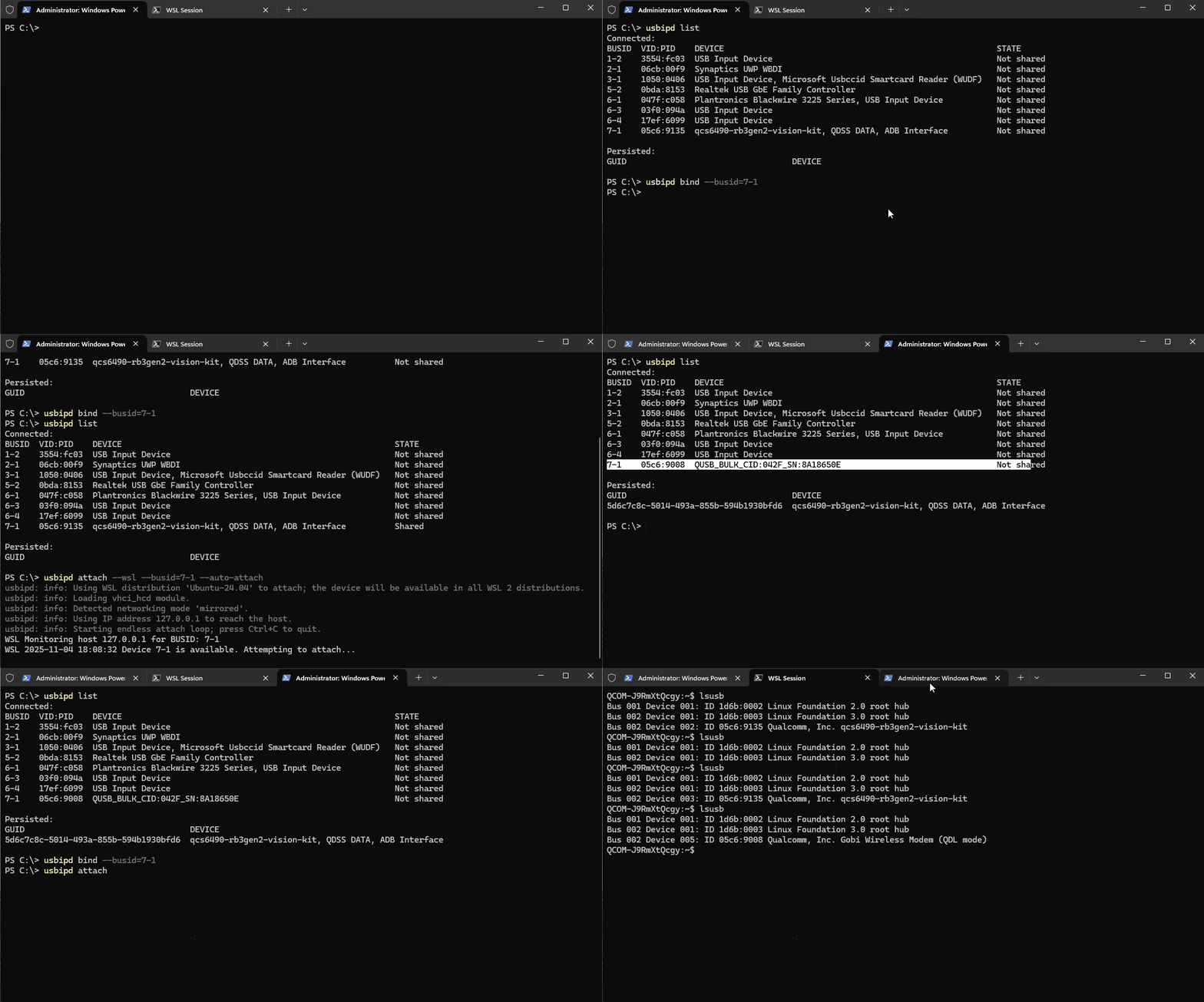
记下您的 Qualcomm 设备的 `BUSID`。
```batch theme={null}
usbipd bind --busid=
```
绑定在**重启后仍然保持**。如果您的设备暴露多个 USB 模式(例如 ADB + EDL),请对每个 `BUSID` 各绑定一次。
在某些企业机器上,`usbipd bind` 或后续的挂载步骤可能会因防火墙策略而失败。如果您看到明确的防火墙错误,请按照下面的**企业防火墙解决方法**操作。
```batch theme={null}
usbipd attach --wsl --busid= --auto-attach
```
* 保持此 PowerShell 窗口**打开** — 关闭它会停止自动挂载循环。
* 每次重启 WSL 后,您都必须重新运行此命令。
* 如果更换了物理 USB 端口,请从头重新运行所有 usbipd 命令。
下图展示了完整的绑定和挂载流程:
 在您的 WSL 终端中:
```bash theme={null}
lsusb
```
您应该能看到列出的 Qualcomm 设备。
## 企业防火墙解决方法
1. 关闭所有打开的 WSL 终端。
2. 在 PowerShell 中关闭 WSL:
```batch theme={null}
wsl --shutdown
```
3. 编辑 `%UserProfile%\.wslconfig` 并添加:
```ini theme={null}
[wsl2]
networkingMode=mirrored
```
4. 重启 WSL:
```batch theme={null}
wsl -d ubuntu-22.04
```
5. 重试 `usbipd bind` 和 `usbipd attach` 步骤。
## 完成后分离 / 解绑
```batch Detach theme={null}
usbipd detach --busid=
```
```batch Unbind theme={null}
usbipd unbind --busid=
```
在您的 WSL 终端中:
```bash theme={null}
lsusb
```
您应该能看到列出的 Qualcomm 设备。
## 企业防火墙解决方法
1. 关闭所有打开的 WSL 终端。
2. 在 PowerShell 中关闭 WSL:
```batch theme={null}
wsl --shutdown
```
3. 编辑 `%UserProfile%\.wslconfig` 并添加:
```ini theme={null}
[wsl2]
networkingMode=mirrored
```
4. 重启 WSL:
```batch theme={null}
wsl -d ubuntu-22.04
```
5. 重试 `usbipd bind` 和 `usbipd attach` 步骤。
## 完成后分离 / 解绑
```batch Detach theme={null}
usbipd detach --busid=
```
```batch Unbind theme={null}
usbipd unbind --busid=
```