> ## Documentation Index
> Fetch the complete documentation index at: https://dragonwingdocs.qualcomm.com/llms.txt
> Use this file to discover all available pages before exploring further.
# 安装所需的软件包
要继续开发并在平台上成功运行 AI 和多媒体示例应用程序,请安装以下软件包。这些软件包共同提供了评估和开发 AI、视觉及多媒体用例所需的运行时库、开发工具、硬件加速支持和示例应用程序。
## AI 和多媒体示例应用程序及框架
以下软件包借助 Qualcomm 优化的框架和硬件组件,实现 AI 推理、多媒体处理和图形加速:
#### GStreamer 和 Qualcomm 多媒体示例
* gstreamer1.0-plugins-base-apps
* gstreamer1.0-qcom-python-examples
* gstreamer1.0-qcom-sample-apps
* gstreamer1.0-tools
这些软件包提供 GStreamer 核心工具、Qualcomm 专用插件以及基于 Python 的示例应用程序,用于演示利用硬件加速的视频采集、编码/解码、AI 推理流水线和多媒体流传输。
#### AI 推理框架和工具
* libqnn-dev、qnn-tools
* libsnpe-dev、snpe-tools
* tensorflow-lite-qcom-apps
这些软件包包括 Qualcomm 神经网络(QNN)和 Snapdragon 神经处理引擎(SNPE)开发库、运行时组件和命令行工具。在 Qualcomm AI 加速器上运行和分析 AI 模型,以及执行针对该平台优化的 TensorFlow Lite 模型,都需要这些软件包。
#### 图形、视觉和计算加速
qcom-adreno1(仅适用于 Ubuntu Server)\
qcom-fastcv-binaries-dev
这些软件包支持 GPU 加速的图形渲染和基于 FastCV 的计算机视觉处理,对于高性能 AI 视觉和多媒体工作负载至关重要。
#### 多媒体和系统集成组件
* qcom-libdmabufheap-dev
* qcom-video-firmware
* qcom-sensors-test-apps
这些组件支持零拷贝缓冲区共享、硬件视频处理和传感器验证。高效的多媒体流水线以及测试摄像头和基于传感器的 AI 用例都需要它们。
#### 显示和窗口支持
* weston-autostart(仅适用于 Ubuntu Server)
* xwayland(仅适用于 Ubuntu Server)
这些软件包提供基于 Wayland 的显示管理和 X11 兼容性,使图形示例应用程序和多媒体演示能够在目标系统上正确运行。
#### 额外的图形和计算支持(Ubuntu Desktop)
* qcom-adreno-cl-dev
* ppa:kisak/kisak-mesa
* libegl-mesa0(已升级)
为支持高级 GPU 计算、图形互操作性和稳定的桌面显示流水线,此设置过程还会额外安装上述组件。
**详细信息:**
* 通过 qcom-adreno-cl-dev 在 Adreno 上启用基于 OpenCL 的 GPU 计算
* 通过 Kisak PPA 提供现代且稳定的 Mesa 图形栈
* 确保 Wayland/Weston、XWayland 和 GPU 加速的桌面应用程序所需的 EGL 兼容性
## 通用开发者工具和辅助实用程序
以下软件包是通用开发、调试、媒体处理和系统验证所必需的:
* ffmpeg – 用于音频和视频测试的媒体处理与格式转换工具
* net-tools – 网络配置和调试工具
* pulseaudio-utils – 音频测试和播放工具
* python3-pip – 用于安装额外依赖项的 Python 包管理器
* selinux-utils – 用于管理和调试 SELinux 策略的工具
* unzip – 用于解压压缩归档文件的工具
* v4l-utils – 用于摄像头和视频设备测试的 Video4Linux 工具
* yavta - yavta 是一个简单的 V4L2 测试工具,用于在 Linux 系统上验证摄像头设备、支持的格式和帧采集
## 安装 PPA 脚本
在主机上创建以下脚本,将其复制到目标设备,并运行以安装上述软件包。
**注意:** 该脚本同时支持 Server 和 Desktop 版本。
```shell theme={null}
scp install_ppa_pkgs.sh ubuntu@IP_address:/home/ubuntu
# Enter the device password
ssh ubuntu@IP_address
# Enter the device password
chmod +x install_ppa_pkgs.sh
./install_ppa_pkgs.sh
```
**install\_ppa\_pkgs.sh 脚本:**
```bash theme={null}
#!/bin/bash -e
# Set '-x' only if the option is neither '-h' nor '--help'
if [ $# -ne 1 ] || [ $# -gt 0 -a "$1" != "-h" -a "$1" != "--help" ]; then
set -x
fi
# Configuration used by the script
XDG_EXPORT="export XDG_RUNTIME_DIR=/run/user/\$(id -u ubuntu)"
VERSION=0.1
[ -d $(dirname $(realpath $0))/.git ] &&
VERSION+=+$(git -C $(dirname $(realpath $0)) describe --always)
# Common user and home dir for the ubuntu
USER_NAME=ubuntu
USER_HOME=$(eval echo "~$USER_NAME")
# Usage function with colored output
usage() {
set +x
printf "\033[1;37mUsage:\033[0m\n"
printf " %s [options]\n" "$0"
printf "\n"
printf "\033[1;37mDescription:\033[0m\n"
printf " Helps you quickly enable IQ9075's peripheral functions (CAM, AI, Audio, etc.)\n"
printf "\n"
printf "\033[1;37mOptions:\033[0m\n"
printf "\033[1;37m -h, --help\033[0m Display this help message\n"
}
add_ppa()
{
sudo apt-get update
}
add_cam_ai_pkgs()
{
# CAM/AI -- QCOM PPA
PKG_LIST+=(
gstreamer1.0-plugins-base-apps
gstreamer1.0-qcom-python-examples
gstreamer1.0-qcom-sample-apps
gstreamer1.0-tools
libqnn-dev
libsnpe-dev
qcom-fastcv-binaries-dev
qcom-libdmabufheap-dev
qcom-sensors-test-apps
qnn-tools
snpe-tools
tensorflow-lite-qcom-apps
gstreamer1.0-plugins-qcom
gstreamer1.0-libav
gstreamer1.0-plugins-ugly
)
}
weston_xwayland_support() {
if dpkg -l | grep -q '^ii ubuntu-desktop'; then
echo "Desktop build detected (ubuntu-desktop)."
# Desktop-specific packages
PKG_LIST+=(
qcom-adreno-cl-dev
)
# Desktop-only: Update Mesa
echo "Updating Mesa for Desktop build..."
sudo add-apt-repository -y ppa:kisak/kisak-mesa
sudo apt-get update
sudo apt-get install --only-upgrade -y libegl-mesa0
else
echo "Server build detected"
# Server-specific packages
PKG_LIST+=(
qcom-adreno1
weston-autostart
xwayland
)
fi
}
setup_media_and_xdg()
{
if dpkg -l | grep -q '^ii ubuntu-desktop'; then
echo "Desktop build detected (ubuntu-desktop)."
else
echo "Server build detected. Add following packages"
sudo mkdir -p /etc/media
sudo chown -R ubuntu /etc/media
grep -qxF "$XDG_EXPORT" $USER_HOME/.bashrc || echo "$XDG_EXPORT" >> $USER_HOME/.bashrc
sudo bash -c "grep -qxF '${XDG_EXPORT}' /root/.bashrc || echo '${XDG_EXPORT}' >> /root/.bashrc"
fi
}
add_system_pkgs()
{
PKG_LIST+=(
ffmpeg
net-tools
pulseaudio-utils
python3-pip
selinux-utils
unzip
v4l-utils
yavta
)
}
install()
{
sudo apt-get install -y ${PKG_LIST[@]}
sudo apt-get upgrade -y
}
finalize()
{
sync; sync; sync
if [ $reboot -eq 1 ]; then
echo "Setup completed. System will reboot in 10 seconds..."
sleep 10
sudo reboot
fi
}
# Main execution logic
main() {
echo "IQ9075 Setup Script"
echo " Version $VERSION"
echo "======================="
local reboot=1
# Parse arguments and execute accordingly
while [ "$#" -gt 0 ]; do
case "$1" in
-h|--help)
usage
exit 0
;;
*)
echo "Unknown option: $1"
echo "Use --help for usage information"
exit 1
;;
esac
shift
done
add_ppa
setup_media_and_xdg
add_cam_ai_pkgs
weston_xwayland_support
add_system_pkgs
install
finalize
echo "Script completed successfully!"
}
# Start the script
main "$@"
```
如果遇到软件包安装失败,请运行以下命令:'apt --fix-broken install'
上述软件包成功安装后,系统即已配置为可运行 Qualcomm 优化的 AI 推理工作负载、多媒体流水线、摄像头和传感器应用程序以及图形示例演示。此安装还确保所有必需的开发者工具都可用于验证、调试和持续的应用程序开发。
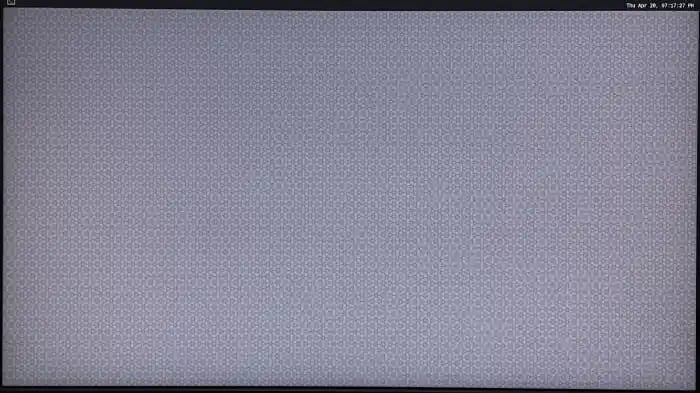
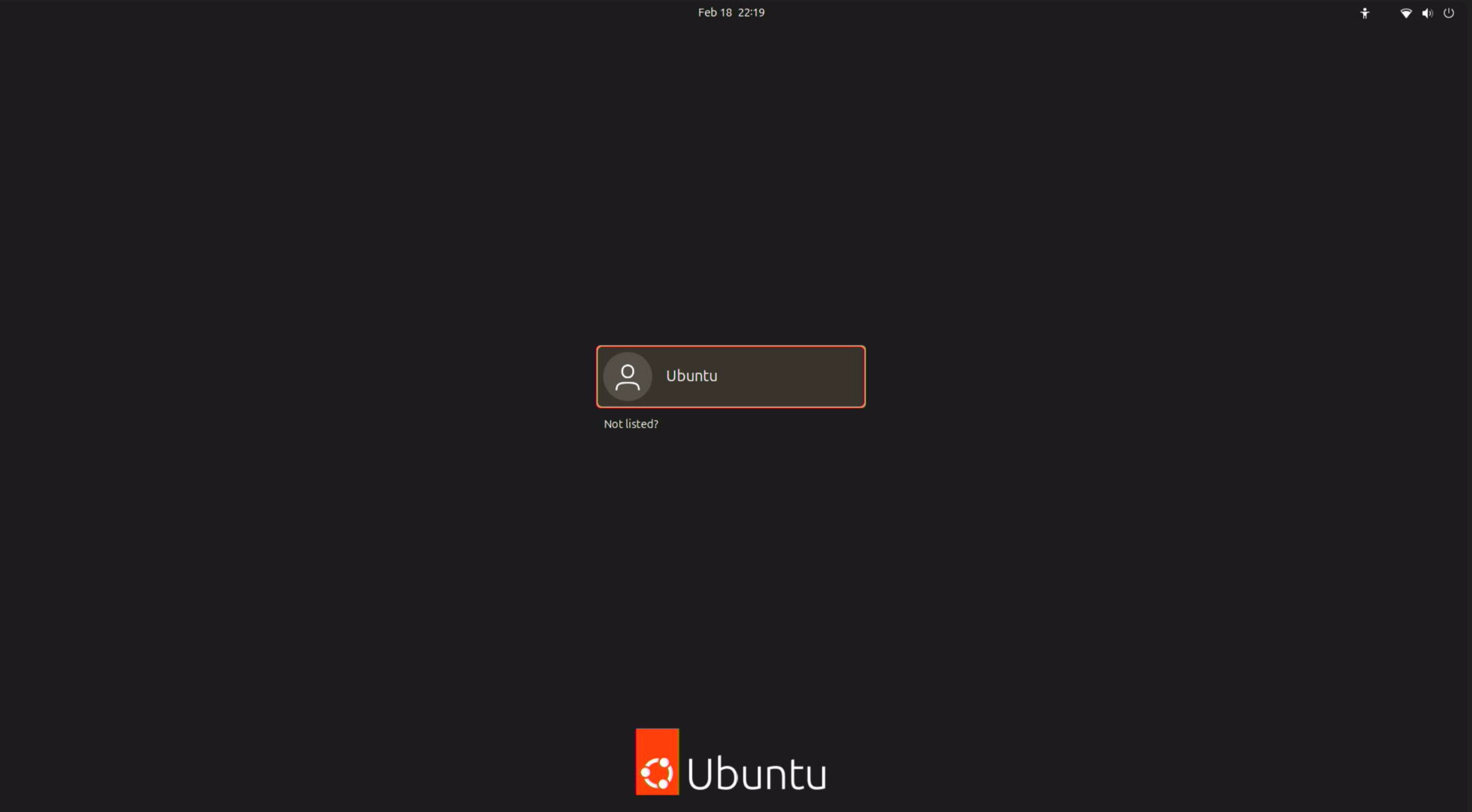
连接显示器后,将显示以下画面:
**Ubuntu Server:**
 **Ubuntu Desktop:**
 **下一步:**\
安装所需软件包后,您可以继续前往 [**🔗AI 工作流**](../../ai-workflows/ai-workflows_overview)部分,或探索[**示例应用程序**](../../sample-applications/overview)。
**下一步:**\
安装所需软件包后,您可以继续前往 [**🔗AI 工作流**](../../ai-workflows/ai-workflows_overview)部分,或探索[**示例应用程序**](../../sample-applications/overview)。