> ## Documentation Index
> Fetch the complete documentation index at: https://dragonwingdocs.qualcomm.com/llms.txt
> Use this file to discover all available pages before exploring further.
# 音频
IQ-9075 音频子系统由低功耗 AI(LPAI)驱动,通过 PipeWire 提供先进的语音 UI 和音频体验。
## 主要特性
* **低功耗 AI(LPAI)** 子系统,实现高效的音频处理
* **PipeWire** 多媒体服务器,实现低延迟音频路由
* **硬件加速**的编码/解码
* **Fluence ECNS** — 先进的回声消除与噪声抑制
* **多种音频接口** — I2S、TDM、SoundWire
## 硬件配置
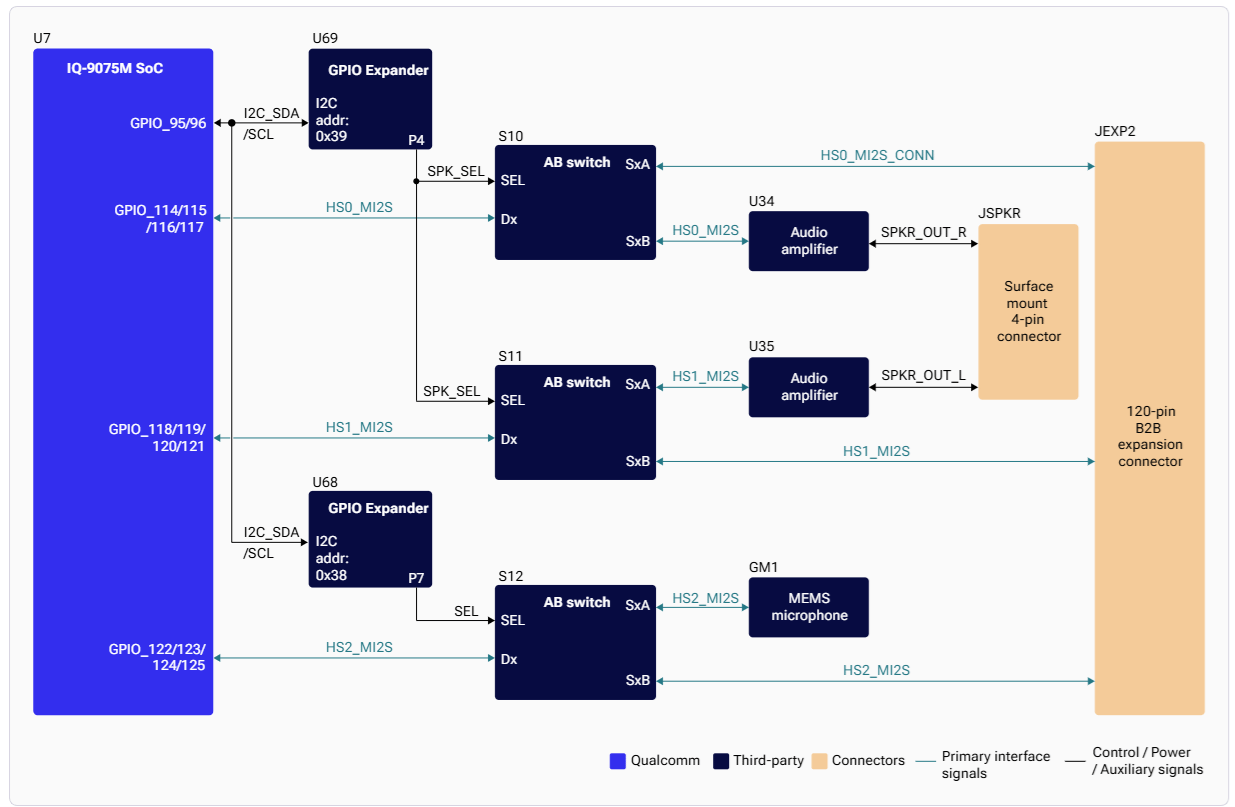
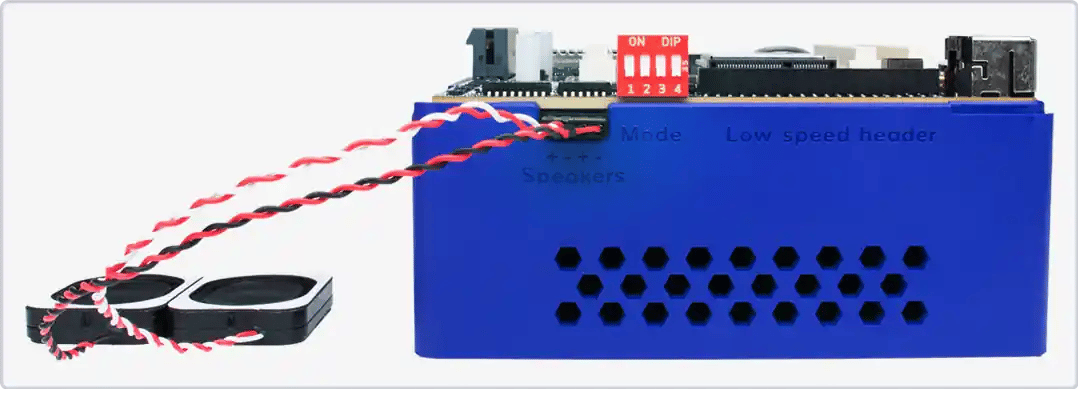
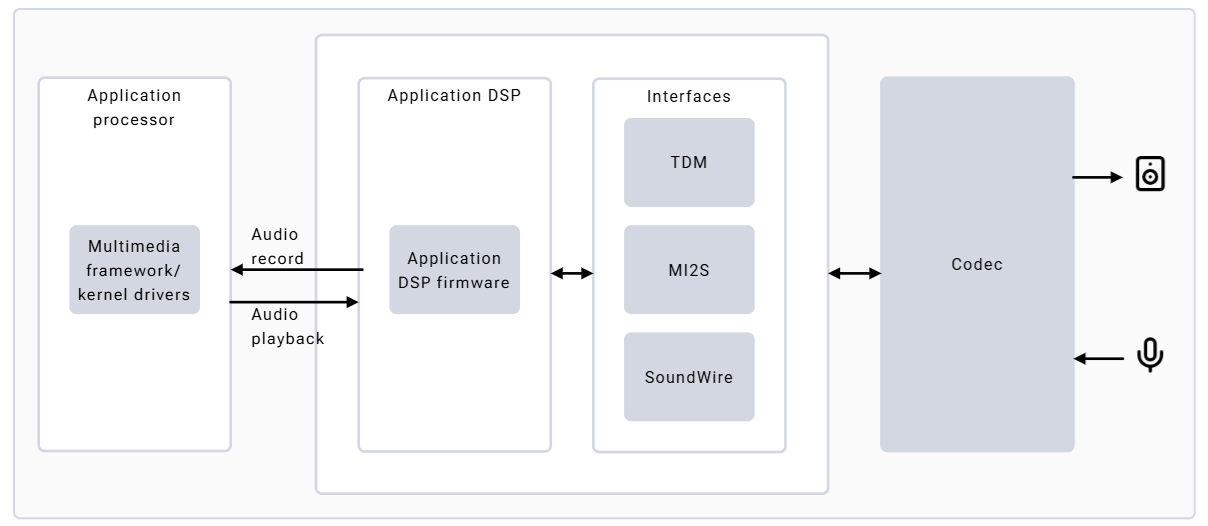 * **扬声器:** 板载 MAX98357 I2S 功放;连接随附的两个迷你扬声器即可听到输出。HS0\_MI2S 在左右声道之间共享以实现立体声。
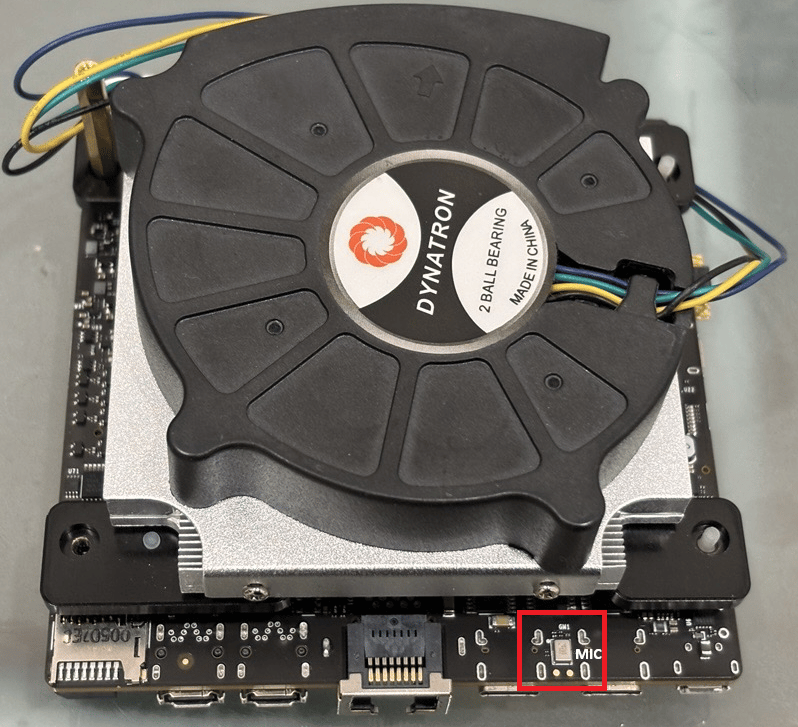
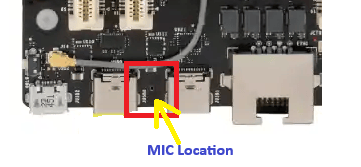
* **麦克风:** HS2\_MI2S 上的单个板载麦克风(MMICT5848),默认配置为左声道
* **扬声器:** 板载 MAX98357 I2S 功放;连接随附的两个迷你扬声器即可听到输出。HS0\_MI2S 在左右声道之间共享以实现立体声。
* **麦克风:** HS2\_MI2S 上的单个板载麦克风(MMICT5848),默认配置为左声道
 **扬声器连接:**
 **麦克风位置:**
 ## 架构
## 架构
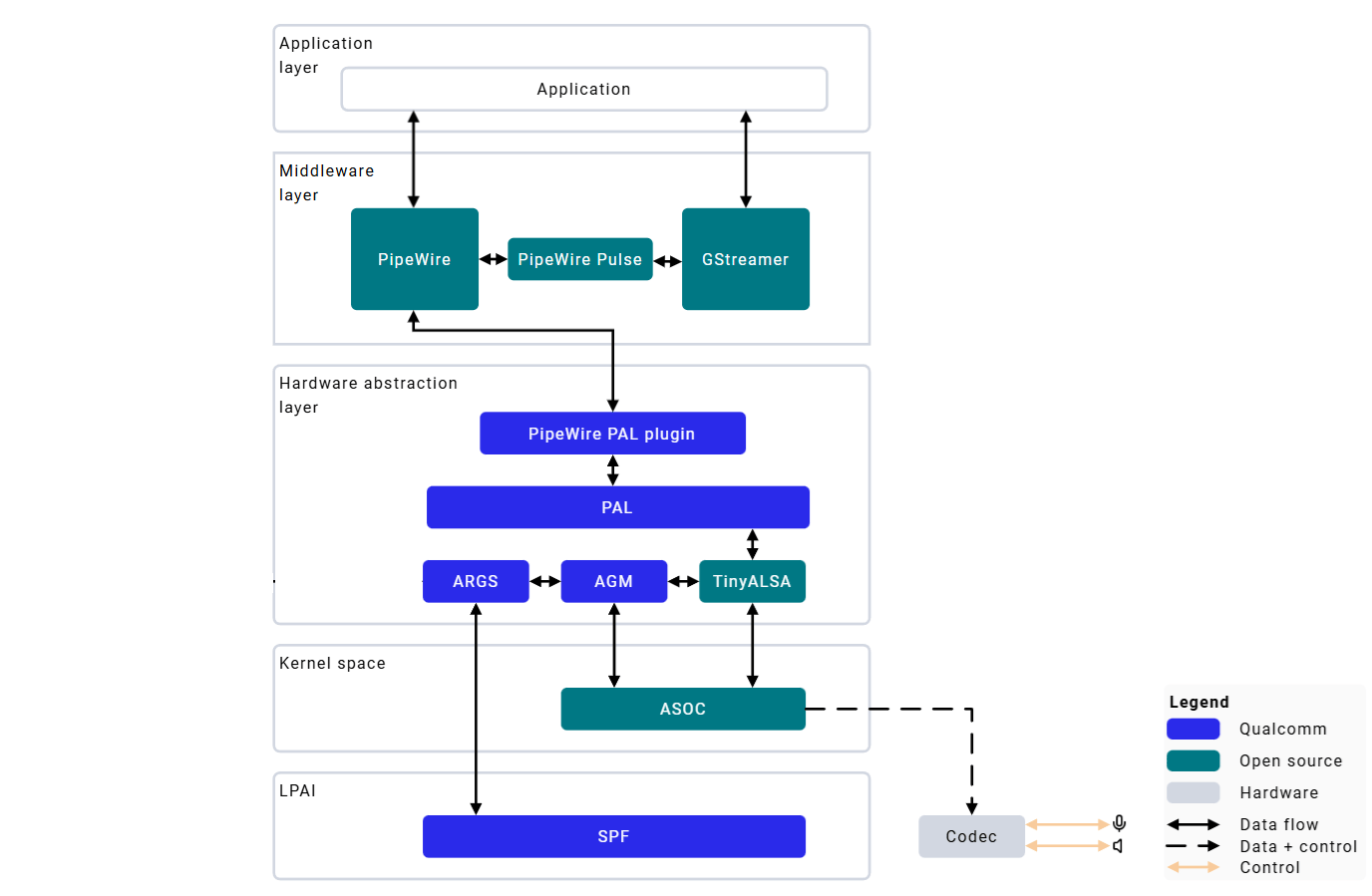 | 组件 | 描述 |
| --------------- | ------------------------------------------------------ |
| **PipeWire** | 多媒体服务器;替代 PulseAudio;低延迟、灵活的媒体处理 |
| **WirePlumber** | 会话/策略管理器;处理默认 sink/source 和自动连接规则 |
| **PAL** | 平台抽象层(Platform Abstraction Layer);提供音频专用 API 和 DSP 图操作 |
| **AGM** | 音频图管理器(Audio Graph Manager);基于 ALSA 的混音器控制和 PCM/压缩插件 |
| **ARGS/GSL** | AudioReach 图服务(AudioReach Graph Service);处理音频图的初始化和创建 |
| **SPF** | 信号处理框架(Signal Processing Framework);LPAI DSP 上的模块化框架 |
## 配置文件
| 组件 | 位置 |
| -------------- | ----------------------------------- |
| ALSA 声卡注册 | `/proc/asound/cards` |
| UCM2 配置文件 | `/usr/share/alsa/ucm2//` |
| PipeWire 配置 | `/etc/pipewire/` |
| WirePlumber 规则 | `/usr/share/wireplumber/` |
### 验证音频栈
```bash theme={null}
cat /proc/asound/cards # List registered ALSA sound cards
aplay -l # List playback (output) devices
arecord -l # List capture (input) devices
systemctl --user status pipewire wireplumber --no-pager # Confirm the audio services are active
wpctl status # Show the default sink/source and routing
pw-top # Live view of the audio graph (Ctrl+C to exit)
pw-cli ls Node # List PipeWire nodes
```
**预期结果:** `/proc/asound/cards` 至少列出一张声卡,且 `aplay -l` 和 `arecord -l` 各显示一个设备。例如:
```text theme={null}
0 [ ]: -
**** List of PLAYBACK Hardware Devices ****
card 0: [], device 0: []
Subdevices: 1/1
```
`wpctl status` 应列出默认的 **Sink** 和 **Source**(均以 `*` 标记)。如果 `/proc/asound/cards` 为空,或 `wpctl status` 未显示默认的 sink 或 source,则说明音频栈未正常启动:请参阅下方的故障排查部分。
## 音频播放与录制
### PipeWire 播放
将一段简短的测试音频复制到设备上,以便有可播放的内容。`test.wav` 可以是任意小型 PCM WAV 文件(48 kHz、16 位立体声效果较好):可以使用主机上的文件,或通过 `ffmpeg -f lavfi -i "sine=frequency=440:duration=5" -ar 48000 -ac 2 test.wav` 创建一个。
```bash theme={null}
scp test.wav ubuntu@:/home/ubuntu/
```
```bash theme={null}
wpctl status # Find sink node marked with *
wpctl set-default # If not already set
wpctl set-volume @DEFAULT_AUDIO_SINK@ 1.0
```
```bash theme={null}
pw-play /home/ubuntu/test.wav -v
```
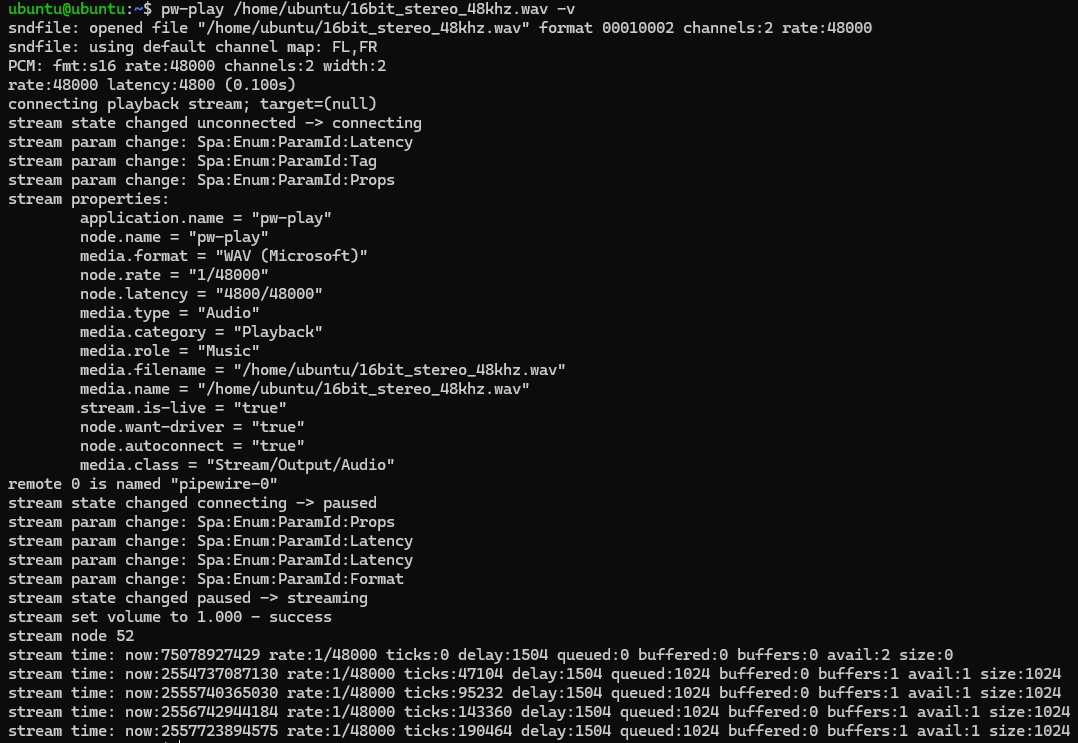
你应该能通过连接的扬声器听到该音频片段,且 `pw-play` 在运行时会打印进度和峰值电平读数:
| 组件 | 描述 |
| --------------- | ------------------------------------------------------ |
| **PipeWire** | 多媒体服务器;替代 PulseAudio;低延迟、灵活的媒体处理 |
| **WirePlumber** | 会话/策略管理器;处理默认 sink/source 和自动连接规则 |
| **PAL** | 平台抽象层(Platform Abstraction Layer);提供音频专用 API 和 DSP 图操作 |
| **AGM** | 音频图管理器(Audio Graph Manager);基于 ALSA 的混音器控制和 PCM/压缩插件 |
| **ARGS/GSL** | AudioReach 图服务(AudioReach Graph Service);处理音频图的初始化和创建 |
| **SPF** | 信号处理框架(Signal Processing Framework);LPAI DSP 上的模块化框架 |
## 配置文件
| 组件 | 位置 |
| -------------- | ----------------------------------- |
| ALSA 声卡注册 | `/proc/asound/cards` |
| UCM2 配置文件 | `/usr/share/alsa/ucm2//` |
| PipeWire 配置 | `/etc/pipewire/` |
| WirePlumber 规则 | `/usr/share/wireplumber/` |
### 验证音频栈
```bash theme={null}
cat /proc/asound/cards # List registered ALSA sound cards
aplay -l # List playback (output) devices
arecord -l # List capture (input) devices
systemctl --user status pipewire wireplumber --no-pager # Confirm the audio services are active
wpctl status # Show the default sink/source and routing
pw-top # Live view of the audio graph (Ctrl+C to exit)
pw-cli ls Node # List PipeWire nodes
```
**预期结果:** `/proc/asound/cards` 至少列出一张声卡,且 `aplay -l` 和 `arecord -l` 各显示一个设备。例如:
```text theme={null}
0 [ ]: -
**** List of PLAYBACK Hardware Devices ****
card 0: [], device 0: []
Subdevices: 1/1
```
`wpctl status` 应列出默认的 **Sink** 和 **Source**(均以 `*` 标记)。如果 `/proc/asound/cards` 为空,或 `wpctl status` 未显示默认的 sink 或 source,则说明音频栈未正常启动:请参阅下方的故障排查部分。
## 音频播放与录制
### PipeWire 播放
将一段简短的测试音频复制到设备上,以便有可播放的内容。`test.wav` 可以是任意小型 PCM WAV 文件(48 kHz、16 位立体声效果较好):可以使用主机上的文件,或通过 `ffmpeg -f lavfi -i "sine=frequency=440:duration=5" -ar 48000 -ac 2 test.wav` 创建一个。
```bash theme={null}
scp test.wav ubuntu@:/home/ubuntu/
```
```bash theme={null}
wpctl status # Find sink node marked with *
wpctl set-default # If not already set
wpctl set-volume @DEFAULT_AUDIO_SINK@ 1.0
```
```bash theme={null}
pw-play /home/ubuntu/test.wav -v
```
你应该能通过连接的扬声器听到该音频片段,且 `pw-play` 在运行时会打印进度和峰值电平读数:
 按 `Ctrl+C` 停止。
### PipeWire 录制
```bash theme={null}
wpctl status # Find mic node marked with *
wpctl set-default # If not already set
wpctl set-volume @DEFAULT_AUDIO_SOURCE@ 1.0
```
```bash theme={null}
pw-record /home/ubuntu/record.wav -v
```
按 `Ctrl+C` 停止。
值 `1.0` 表示 100% 音量。
### GStreamer 音频
```bash theme={null}
# PCM capture
gst-launch-1.0 -v pulsesrc volume=10 ! audioconvert ! wavenc ! \
filesink location=/home/ubuntu/audio.wav
# FLAC capture
gst-launch-1.0 -v pulsesrc volume=10 ! audioconvert ! flacenc ! \
filesink location=/home/ubuntu/audio.flac
```
```bash theme={null}
# WAV playback
gst-launch-1.0 -e filesrc location=/home/ubuntu/audio.wav ! \
wavparse ! audioconvert ! pulsesink volume=10
# MP3 playback
gst-launch-1.0 -e filesrc location=/home/ubuntu/audio.mp3 ! \
mpegaudioparse ! mpg123audiodec ! pulsesink volume=10
# FLAC playback
gst-launch-1.0 -e filesrc location=/home/ubuntu/audio.flac ! \
flacparse ! flacdec ! pulsesink volume=10
```
## 日志采集
```bash theme={null}
# PipeWire logs
journalctl --user -u pipewire
journalctl --user -u wireplumber
# Live debugging
journalctl --user -u pipewire -f
# Kernel audio driver logs
sudo dmesg
```
## 故障排查
```bash theme={null}
wpctl status
wpctl set-volume @DEFAULT_AUDIO_SINK@ 1.0
systemctl --user restart wireplumber
aplay -l
```
* 确认扬声器连接正确
* 如果音量为 0%,请调高音量
* 如果 PipeWire 路由不正常,请重启 WirePlumber
```bash theme={null}
# Check ALSA capture devices
arecord -l
dmesg | grep -i "snd\|audio\|asoc"
# Test raw ALSA recording (bypass PipeWire)
arecord -D hw:0,0 -f S16_LE -r 48000 test.wav
aplay test.wav
# Check PipeWire capture nodes
pw-cli ls Node | grep -i source
# Check services
systemctl --user status pipewire pipewire-pulse wireplumber
```
如果 ALSA 采集失败 → 应首先检查内核/DT。
```bash theme={null}
# Check CPU load
top
# Check PAL media config (expect rate=48000, ch=2, fmt=2)
grep "setDeviceMediaConfig" /var/log/syslog
# Check for underruns
dmesg | grep -i -e underrun -e xrun -e lpass -e audio
# Check PipeWire quantum
pw-metadata -n settings
# Monitor real-time
pw-top
```
**解决方案 — 增大 PipeWire 缓冲区:**
```bash theme={null}
mkdir -p ~/.config/pipewire/pipewire.conf.d
cat > ~/.config/pipewire/pipewire.conf.d/99-custom-buffer.conf << 'EOF'
context.properties = {
default.clock.quantum = 1024
default.clock.min-quantum = 1024
}
EOF
systemctl --user restart pipewire wireplumber
```
**解决方案 — 将音频转换为 48 kHz 16 位立体声:**
```bash theme={null}
ffmpeg -i input.wav -ar 48000 -ac 2 -sample_fmt s16 output.wav
```
```bash theme={null}
systemctl --user status pipewire pipewire-pulse wireplumber
journalctl --user -u pipewire -u wireplumber -b
# Reset configuration
rm -rf ~/.config/pipewire ~/.config/wireplumber
systemctl --user daemon-reload
systemctl --user restart pipewire pipewire-pulse wireplumber
# Reinstall if needed
sudo apt install --reinstall pipewire wireplumber pipewire-pulse
```
## 高级特性
### 面向 VoIP 的回声消除(ECNS)
```bash theme={null}
# VoIP record
pw-record /home/ubuntu/record_voip.wav -v --target=voip-tx0
# VoIP playback
pw-play /home/ubuntu/record_voip.wav -v --target=voip-rx0
```
特性:自适应回声消除、平稳与非平稳噪声抑制、声学回声路径消除。
## 资源
* [PipeWire 文档](https://docs.pipewire.org/)
* [AudioReach GitHub](https://github.com/audioreach)
* [AudioReach 文档](https://audioreach.github.io/)
按 `Ctrl+C` 停止。
### PipeWire 录制
```bash theme={null}
wpctl status # Find mic node marked with *
wpctl set-default # If not already set
wpctl set-volume @DEFAULT_AUDIO_SOURCE@ 1.0
```
```bash theme={null}
pw-record /home/ubuntu/record.wav -v
```
按 `Ctrl+C` 停止。
值 `1.0` 表示 100% 音量。
### GStreamer 音频
```bash theme={null}
# PCM capture
gst-launch-1.0 -v pulsesrc volume=10 ! audioconvert ! wavenc ! \
filesink location=/home/ubuntu/audio.wav
# FLAC capture
gst-launch-1.0 -v pulsesrc volume=10 ! audioconvert ! flacenc ! \
filesink location=/home/ubuntu/audio.flac
```
```bash theme={null}
# WAV playback
gst-launch-1.0 -e filesrc location=/home/ubuntu/audio.wav ! \
wavparse ! audioconvert ! pulsesink volume=10
# MP3 playback
gst-launch-1.0 -e filesrc location=/home/ubuntu/audio.mp3 ! \
mpegaudioparse ! mpg123audiodec ! pulsesink volume=10
# FLAC playback
gst-launch-1.0 -e filesrc location=/home/ubuntu/audio.flac ! \
flacparse ! flacdec ! pulsesink volume=10
```
## 日志采集
```bash theme={null}
# PipeWire logs
journalctl --user -u pipewire
journalctl --user -u wireplumber
# Live debugging
journalctl --user -u pipewire -f
# Kernel audio driver logs
sudo dmesg
```
## 故障排查
```bash theme={null}
wpctl status
wpctl set-volume @DEFAULT_AUDIO_SINK@ 1.0
systemctl --user restart wireplumber
aplay -l
```
* 确认扬声器连接正确
* 如果音量为 0%,请调高音量
* 如果 PipeWire 路由不正常,请重启 WirePlumber
```bash theme={null}
# Check ALSA capture devices
arecord -l
dmesg | grep -i "snd\|audio\|asoc"
# Test raw ALSA recording (bypass PipeWire)
arecord -D hw:0,0 -f S16_LE -r 48000 test.wav
aplay test.wav
# Check PipeWire capture nodes
pw-cli ls Node | grep -i source
# Check services
systemctl --user status pipewire pipewire-pulse wireplumber
```
如果 ALSA 采集失败 → 应首先检查内核/DT。
```bash theme={null}
# Check CPU load
top
# Check PAL media config (expect rate=48000, ch=2, fmt=2)
grep "setDeviceMediaConfig" /var/log/syslog
# Check for underruns
dmesg | grep -i -e underrun -e xrun -e lpass -e audio
# Check PipeWire quantum
pw-metadata -n settings
# Monitor real-time
pw-top
```
**解决方案 — 增大 PipeWire 缓冲区:**
```bash theme={null}
mkdir -p ~/.config/pipewire/pipewire.conf.d
cat > ~/.config/pipewire/pipewire.conf.d/99-custom-buffer.conf << 'EOF'
context.properties = {
default.clock.quantum = 1024
default.clock.min-quantum = 1024
}
EOF
systemctl --user restart pipewire wireplumber
```
**解决方案 — 将音频转换为 48 kHz 16 位立体声:**
```bash theme={null}
ffmpeg -i input.wav -ar 48000 -ac 2 -sample_fmt s16 output.wav
```
```bash theme={null}
systemctl --user status pipewire pipewire-pulse wireplumber
journalctl --user -u pipewire -u wireplumber -b
# Reset configuration
rm -rf ~/.config/pipewire ~/.config/wireplumber
systemctl --user daemon-reload
systemctl --user restart pipewire pipewire-pulse wireplumber
# Reinstall if needed
sudo apt install --reinstall pipewire wireplumber pipewire-pulse
```
## 高级特性
### 面向 VoIP 的回声消除(ECNS)
```bash theme={null}
# VoIP record
pw-record /home/ubuntu/record_voip.wav -v --target=voip-tx0
# VoIP playback
pw-play /home/ubuntu/record_voip.wav -v --target=voip-rx0
```
特性:自适应回声消除、平稳与非平稳噪声抑制、声学回声路径消除。
## 资源
* [PipeWire 文档](https://docs.pipewire.org/)
* [AudioReach GitHub](https://github.com/audioreach)
* [AudioReach 文档](https://audioreach.github.io/)