

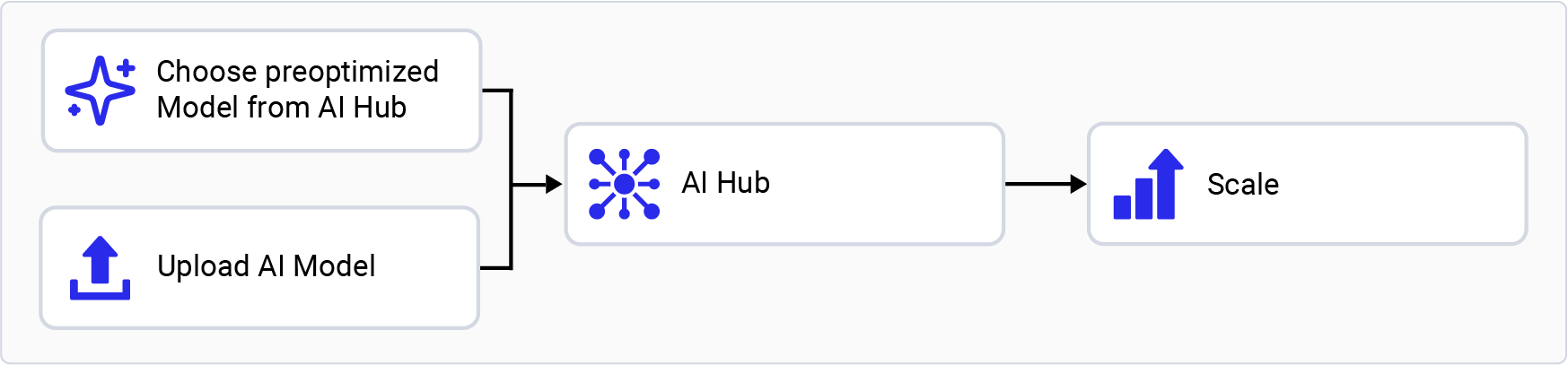
Set up your environment
-
Set up your Python environment. Install
miniconda
on your host machine.
Set up a Python virtual environment for AI Hub:
-
Install git.
-
Install the AI Hub Python client.
- Sign in to AI Hub. Go to AI Hub and sign in with your Qualcomm ID to view information about jobs you create. Once signed in, go to Account > Settings > API Token to obtain the API token used to configure your client.
-
Configure the client with your API token using the following command
in your terminal.
Choose an AI Hub workflow
Try a preoptimized model
- Go to AI Hub Model Zoo to access preoptimized models available for Qualcomm evaluation kits.
- Filter models for your EVK by selecting the matching chipset in the left pane. For example, select Qualcomm QCS6490 for the Qualcomm Dragonwing™ RB3 Gen 2, or Qualcomm QCS8300 for the Qualcomm Dragonwing™ IQ-8275 EVK.
- Select a model from the filtered view to go to the model page.
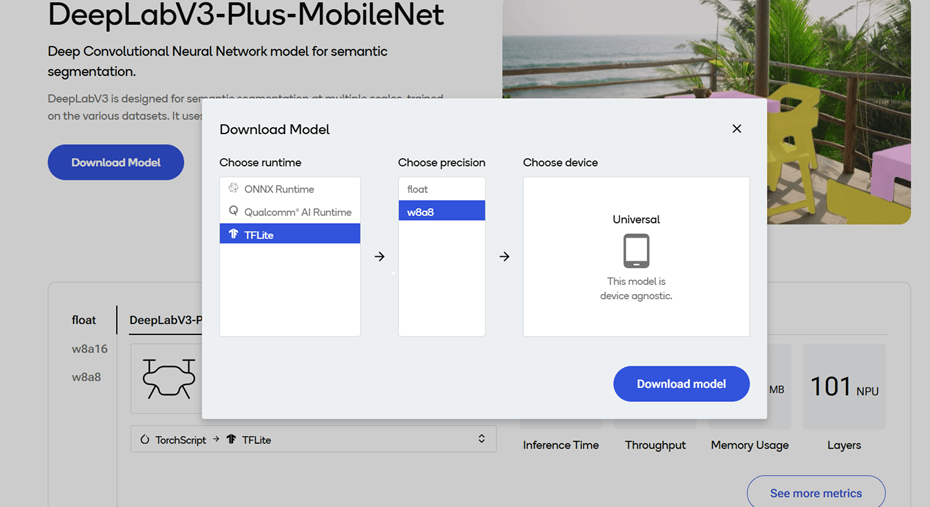
- On the model page, select the runtime and precision.
- Select Download to download the model. The downloaded model is preoptimized and ready for deployment. See Run inference for more information.
Bring your own model
- Select a pretrained model in PyTorch or ONNX format.
-
Submit a model for compilation or optimization to AI Hub using Python APIs.
When submitting a compilation job, select a device or chipset for your EVK and the target runtime. For Qualcomm Dragonwing™ RB3 Gen 2, the LiteRT runtime is supported.
On submission, AI Hub generates a unique ID for the job. You can use this job ID to view job details.
-
AI Hub optimizes the model based on your device and runtime selections.
-
Optionally, you can submit a job to profile or run inference on the
optimized model (using Python APIs) on a real device provisioned
from a device farm.
- Profiling: Benchmarks the model on a provisioned device and provides statistics, including average inference times at the layer level, runtime configuration, etc.
- Inference: Performs inference using an optimized model on data submitted as part of the inference job by running the model on a provisioned device.
-
Optionally, you can submit a job to profile or run inference on the
optimized model (using Python APIs) on a real device provisioned
from a device farm.
- Each submitted job is available for review in the AI Hub portal. A completed compilation job provides a downloadable link to the optimized model, which can then be deployed on a local development device such as Qualcomm Dragonwing™ RB3 Gen 2.
To deactivate a previously activated
qai_hub environment, use the following command.