

The Qdemo application is currently not supported through a GUI launcher icon. Launch the Qdemo application from the device terminal using
sudo.
For the complete list of available applications, see Qualcomm IM SDK sample applications.
Prerequisites
- Qualcomm Linux multimedia image: The device must be flashed with the prebuilt Qualcomm Linux multimedia proprietary image (
qcom-multimedia-proprietary-image), which includes Qdemo and the Qualcomm IM SDK. - HDMI monitor: Connect to the device to view Qdemo output.
- Mouse and keyboard: Required to interact with the Weston desktop and the Qdemo application.
- Wi-Fi connection: Required for AI sample applications to download models and labels from GitHub. Not required for multimedia applications.
- USB camera (optional): Required for camera-based sample applications. If connected, select it from the
Sourcelist in Qdemo.
For camera applications, run the following command in the terminal of the target device to enable
qticamsrc:Run sample applications using Qdemo
-
Connect the mouse, keyboard, and HDMI monitor to the device, then power it on.
The Qdemo startup screen appears on the monitor.
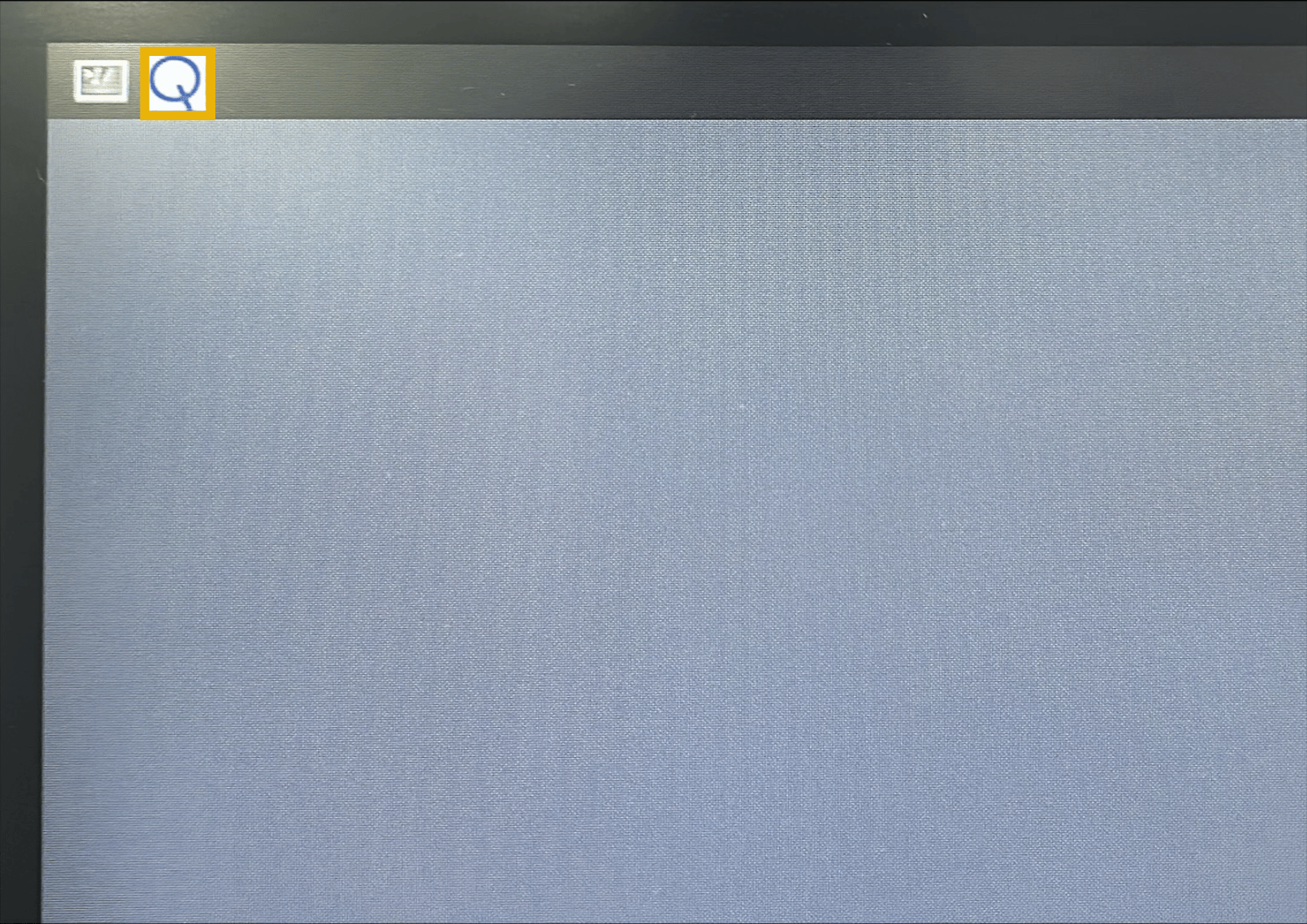
-
Open the device shell by selecting the Weston terminal icon on the Qdemo screen.
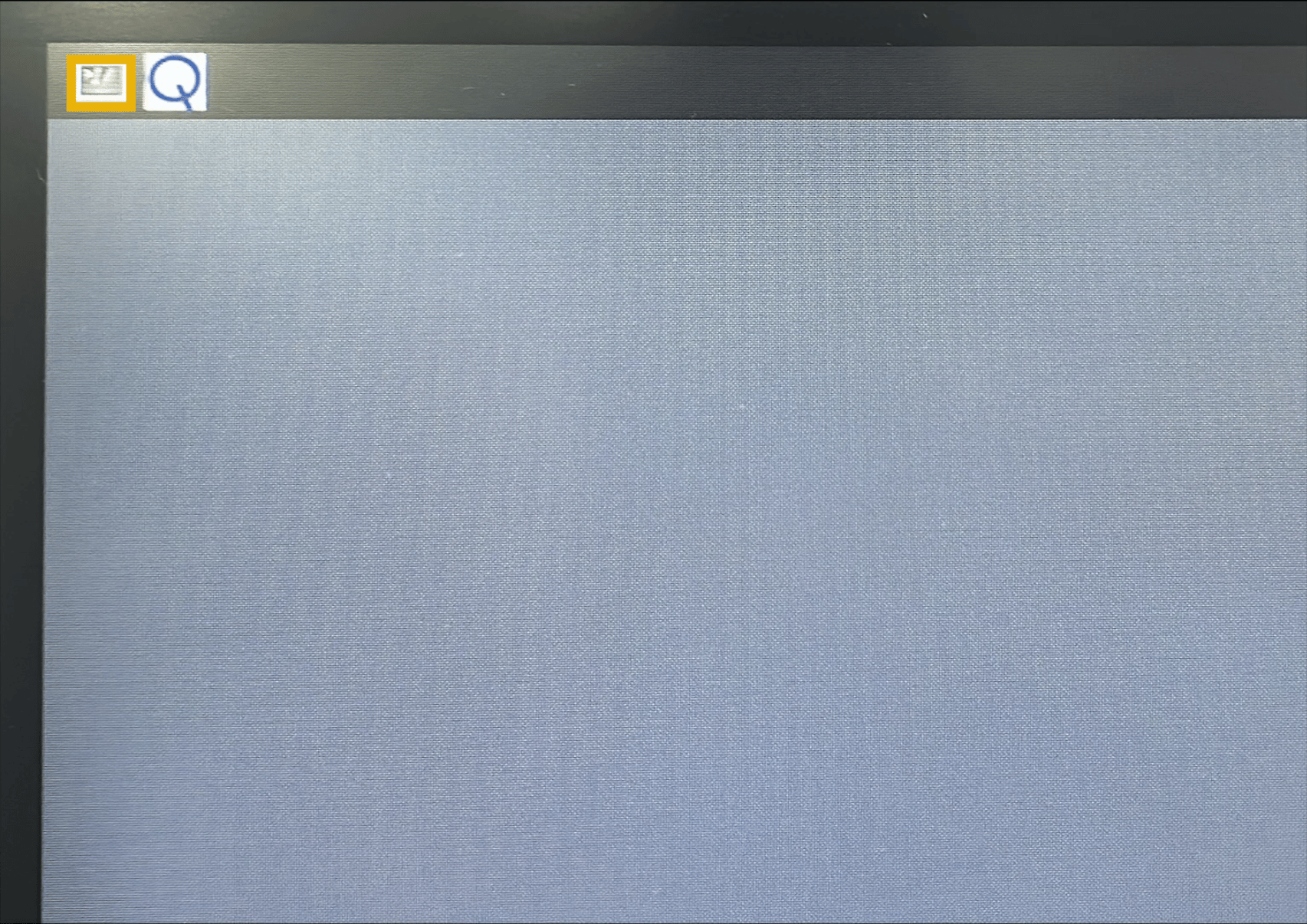
-
Sign in as a root user:
When prompted for the password, enter
oelinux123. -
Launch the Qdemo application from the Weston terminal:
The Experience Application Demo window displays.
-
Select Wi-Fi to connect to a network.
Only AI sample applications require a Wi-Fi connection. For multimedia applications, skip this step.
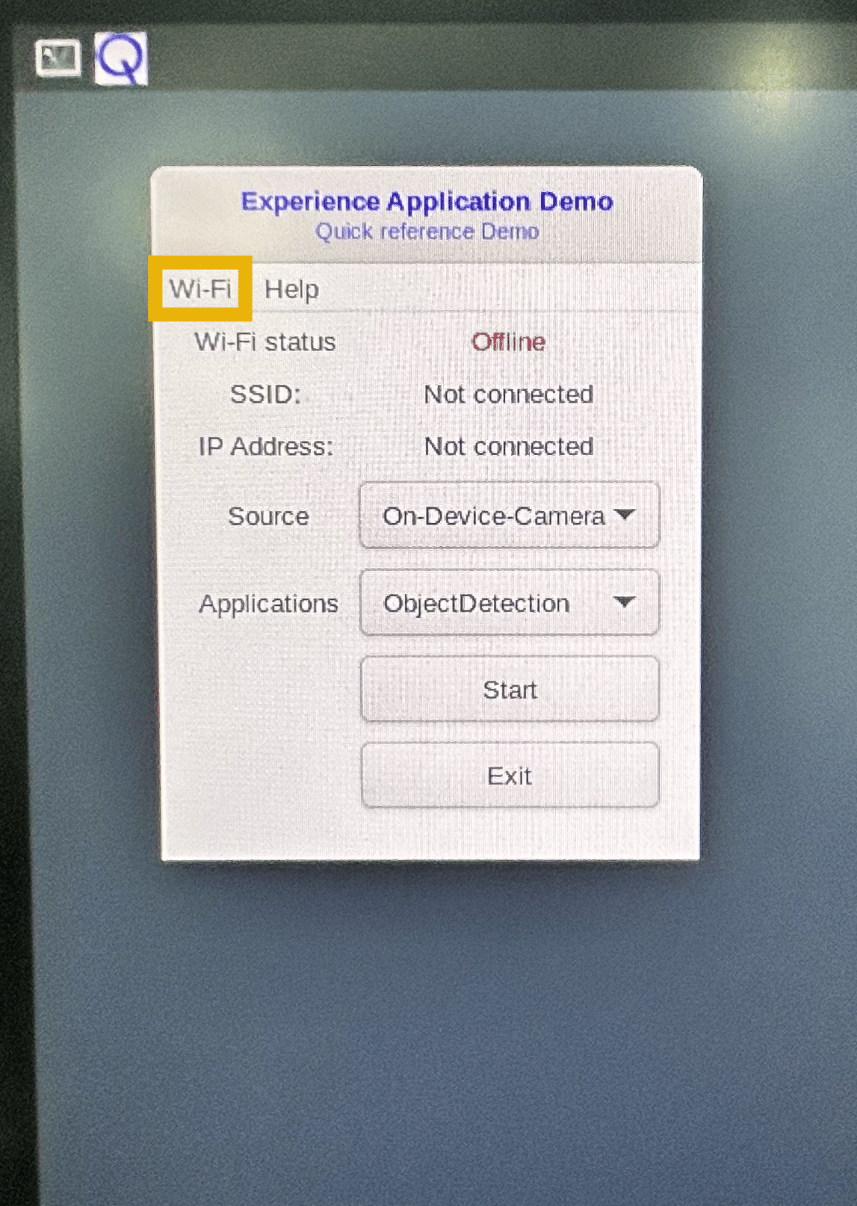
- In the Source list, select the required camera. Not all applications require a camera. If a USB camera is connected, select it from the list. The default selection is On-Device-Camera.
-
In the Applications list, select an application and click Start.
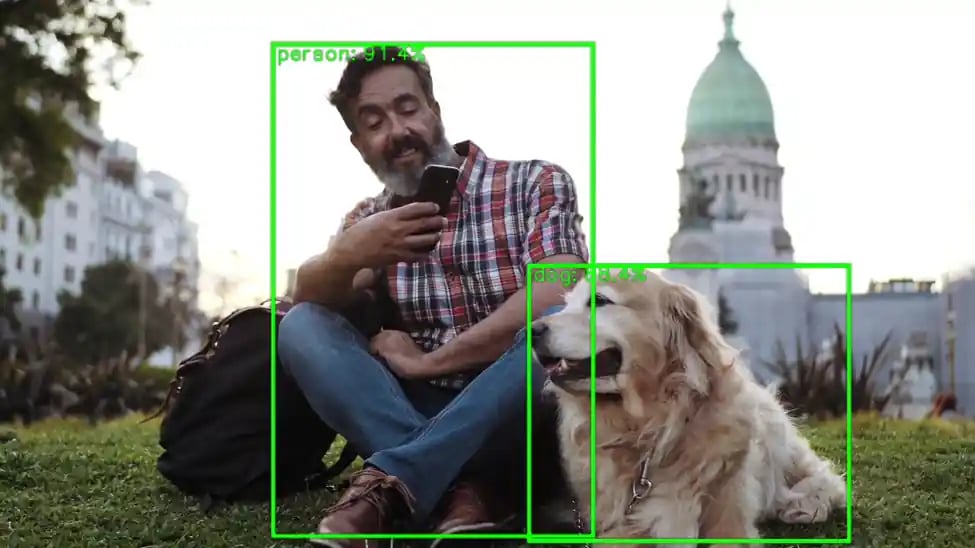
The application launches and displays output on the screen.
The following is the sample output of the ObjectDetection application:During the first run, the application may take more than a minute to start, as it downloads AI models and labels from GitHub.
- Close the output window to stop the sample application.
- Select Exit to close the Qdemo application.