


Figure: Workflow to set up an Ubuntu Server VM on an Arm64 Mac
Prerequisites to set up an Ubuntu Server VM on an Arm64 Mac
- Ensure that your host computer meets the system requirements listed in Host computer requirements for Arm64 Mac.
- Download the necessary software listed in Ubuntu Server VM software requirements for Arm64 Mac.
Host computer requirements for Arm64 Mac
The following table lists the host computer requirements to set up an Ubuntu Server VM on an Arm64 Mac: Table: Arm64 host computer system requirementsUbuntu Server VM software requirements for Arm64 Mac
The following table lists the software requirements to set up an Ubuntu Server VM on an Arm64 Mac: Table: Software requirements for Arm64 MacInstall UTM on an Arm64 Mac
To install the UTM virtualization software, do the following:-
Double-click the
UTM.dmgfile downloaded earlier and drag the UTM icon onto the Applications icon.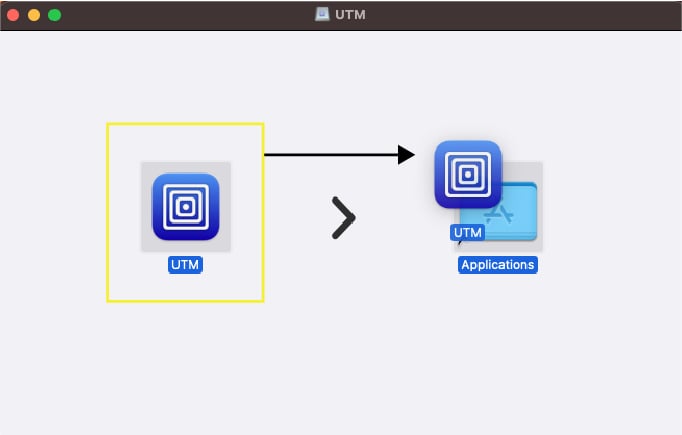
-
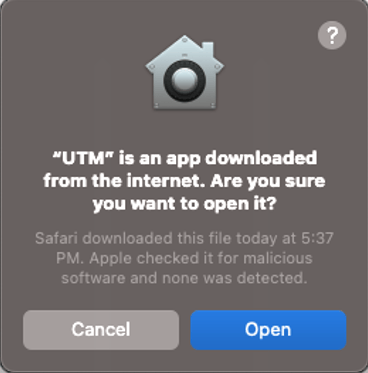
While installing UTM, if you see the following dialog, select Open:
-
Open Launchpad, search for UTM, and select UTM.
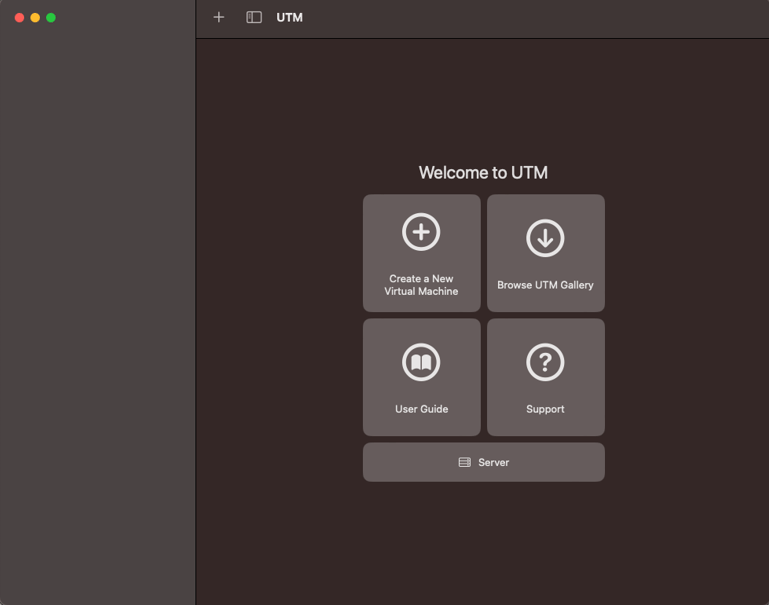
The UTM main window appears.
Create a VM in UTM on an Arm64 Mac
To create a VM for Ubuntu Server in UTM and configure the VM settings, do the following:- In the UTM main window, select Create a New Virtual Machine.
- On the Start screen, select Virtualize.
- On the Operating System screen, select the Linux OS.
- On the Hardware screen, specify the memory and CPU cores you want to assign to the Ubuntu VM, and select Continue. The recommended values are as follows:
- Memory: About 70% of the available memory
- CPU cores: At least 50% of the available cores
If you leave the CPU Cores field blank or set it to
0, UTM allocates all the host computer cores to the VM. Allocating all CPU cores to the VM can make the host computer slow or unresponsive. To check the memory size and the CPU core count of a Mac host computer, see the instructions in the macOS User Guide.
- On the Linux screen, browse and select the Ubuntu ISO image you downloaded, and select Continue.
- On the Storage screen, specify the drive size for the VM, and select Continue. Qualcomm recommends that you assign at least 400 GB of storage space for the VM.
- If you want to share a directory between the host computer and the VM, do the following on the Shared Directory screen:
- Browse and select the directory.
- Select Continue.
- On the Summary screen, do the following:
- Review the configuration summary for the VM that you’re creating.
- Provide a name for the VM.
-
Select Save. The UTM main window lists the newly created VM.

Install Ubuntu Server in UTM on an Arm64 Mac
To install Ubuntu Server in the VM you created, do the following:-
In the UTM main window, select the Play icon to run the Ubuntu ISO image through virtualization.

-
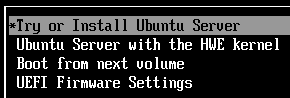
Select Try or Install Ubuntu Server using the arrow keys and select Enter.
- Choose a language and select Enter.
-
Optional: You may see a screen to update the installer. Choose one of the following options and select Enter:
- Update to the new installer
- Continue without updating
-
Do the following:
- Choose a keyboard layout.
- Select the Ubuntu Server installation base.
- Select the appropriate network interface.
- Select the appropriate proxy configuration.
-
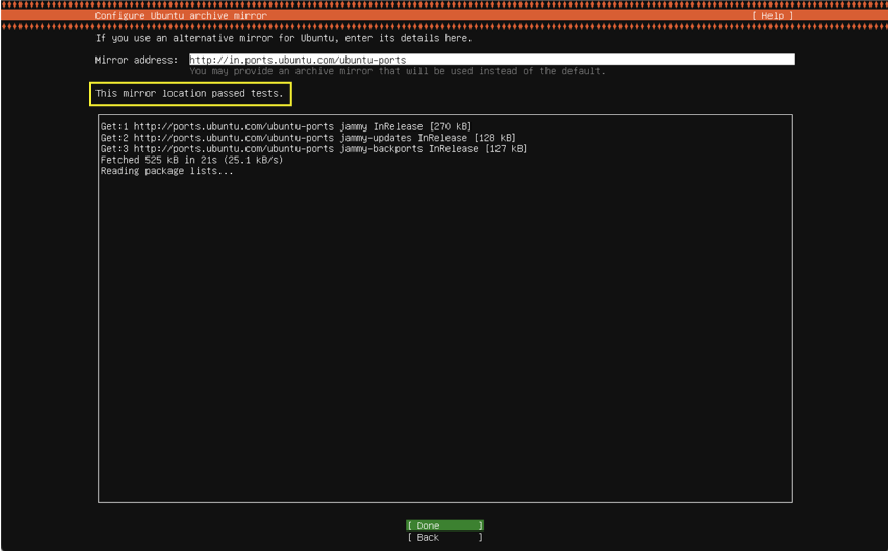
If necessary, configure the mirror address and wait until the mirror location passes all the tests, select Done, and select Enter.
-
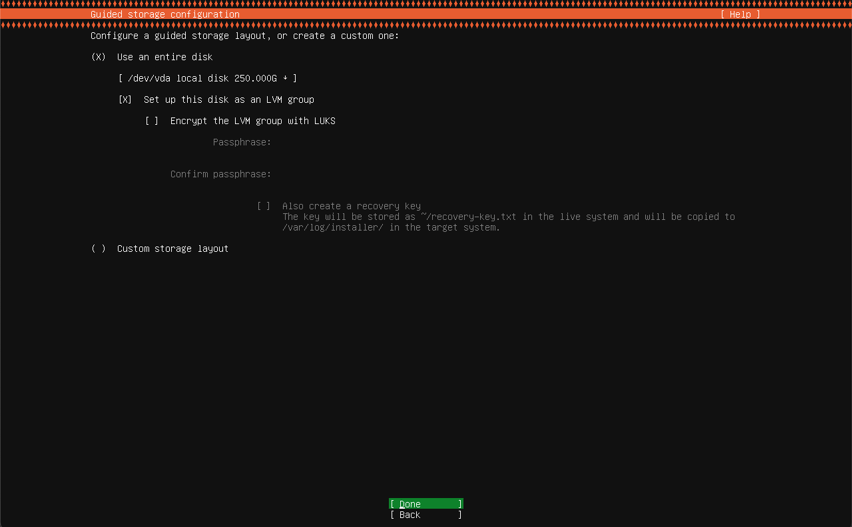
Select Use an entire disk > Set up this disk as an LVM group, select Done, and select Enter.
-
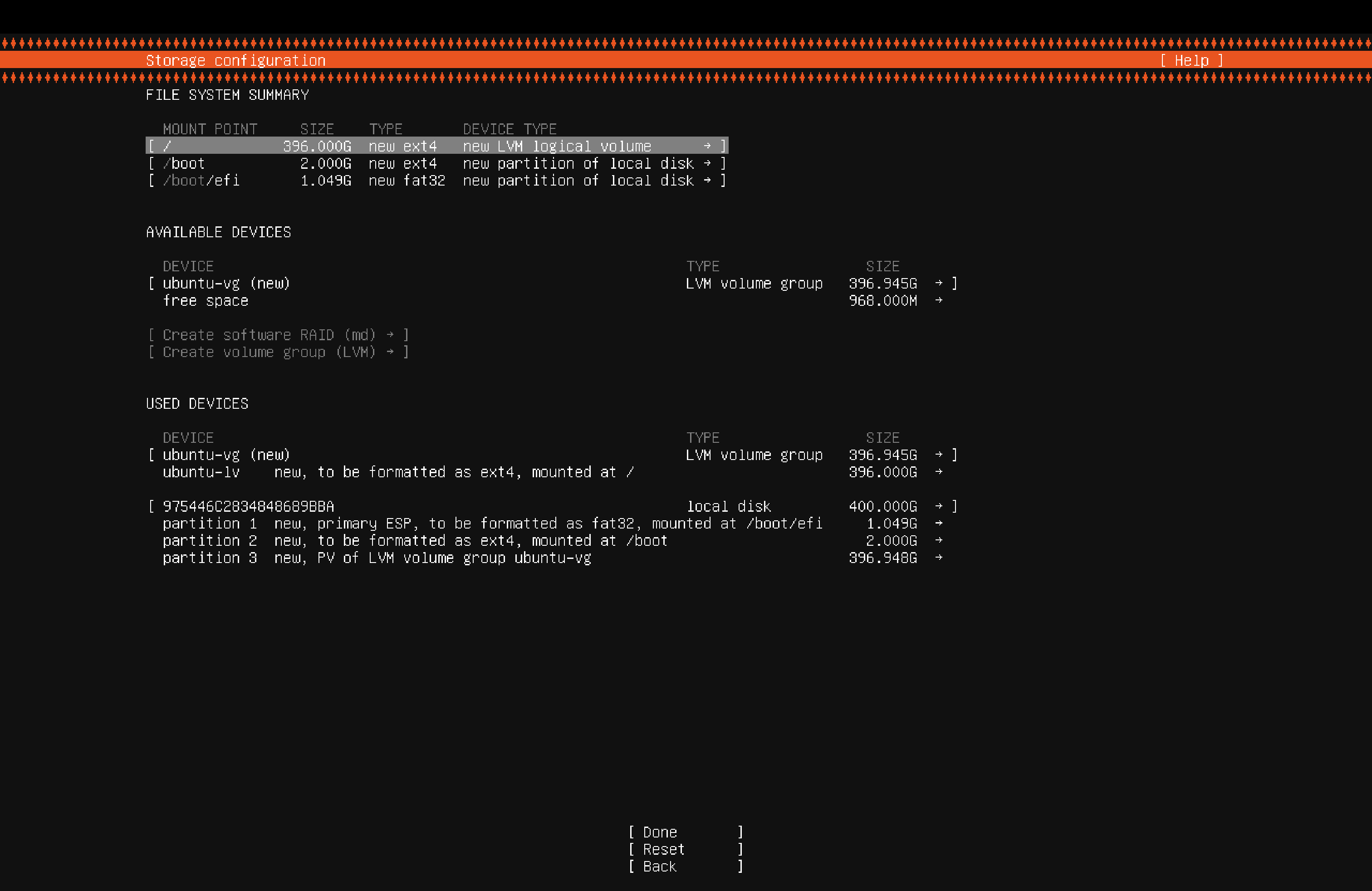
Configure the storage space as follows:
-
Under the USED DEVICES section, select ubuntu-lv, and select Enter to view more options.
-
Select Edit, and select Enter.

-
In the Size field, type
396.000G, select Save, and select Enter. The updated size should now reflect for the ubuntu-lv entry. - Select Done and select Enter.
-
Under the USED DEVICES section, select ubuntu-lv, and select Enter to view more options.
- To set up your profile, specify the required details, select Save, and select Enter.
- Skip the Ubuntu Pro upgrade option, select Continue, and select Enter.
- Optional: Select Install OpenSSH Server to set up SSH, select Done, and select Enter. Note OpenSSH isn’t required for syncing, compiling, and flashing Qualcomm Linux. Install the OpenSSH server only if you want to allow secure remote access for the Ubuntu VM.
-
After the installation is successful, select the Power icon to shut down and stop the VM, and select OK.

- After the VM stops, close the window.
Run the Ubuntu Server VM on an Arm64 Mac
To run the Ubuntu Server VM, do the following:-
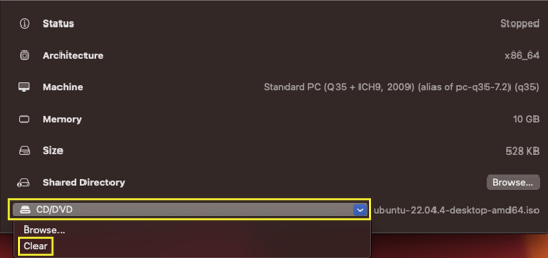
In the UTM main window, in the CD/DVD drop-down list, select Clear.
-
Ensure that the ISO image association is empty against the CD/DVD option.

-
To run the Ubuntu VM, select the Play icon.

-
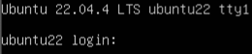
After the Ubuntu operating system boots successfully, enter the credentials to sign in and access the shell.
-
Run the following commands to update the Ubuntu operating system and install the graphical desktop environment, followed by a restart:
- Sign in to the Ubuntu Server VM you created.
Access the Qualcomm Linux development kit
To access the Qualcomm Linux development kit from the Ubuntu Server VM, do the following:-
Connect the Qualcomm Linux development kit to the host computer.
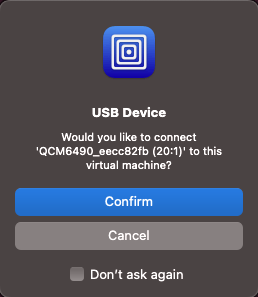
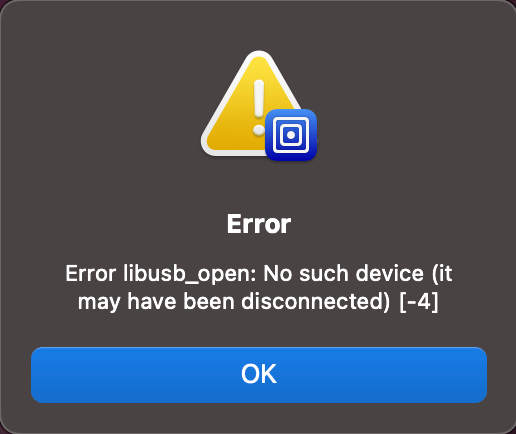
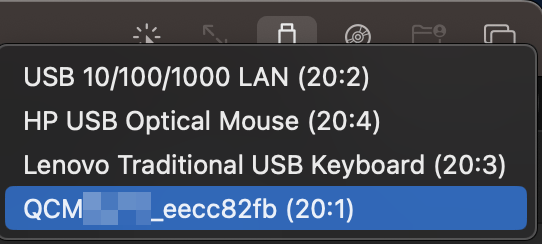
The UTM software may ask you to confirm whether the Ubuntu operating system should have access to the Qualcomm Linux development kit.
a. If you see a dialog as follows, select Confirm:
-
To verify if the Ubuntu VM can access the Qualcomm Linux development kit, run the
lsusbcommand in a Ubuntu terminal window. The output shows the Qualcomm Linux development kit as follows: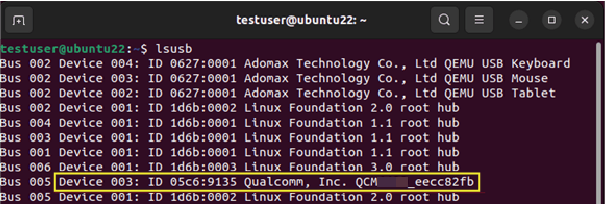
- In UTM settings, select Input in the left panel.
- In the Maximum Shared USB Devices field, set the value to
10.
Configure power settings for Arm64 Mac and Ubuntu Server
To ensure that the Mac host computer and the Ubuntu Server VM don’t go to sleep due to inactivity, do the following:- To configure the sleep and wake settings for the Mac host computer, see macOS User Guide.
- To configure the power settings for Ubuntu Server, do the following:
- In System Settings for Ubuntu, select Power.
- Turn off Automatic Suspend.