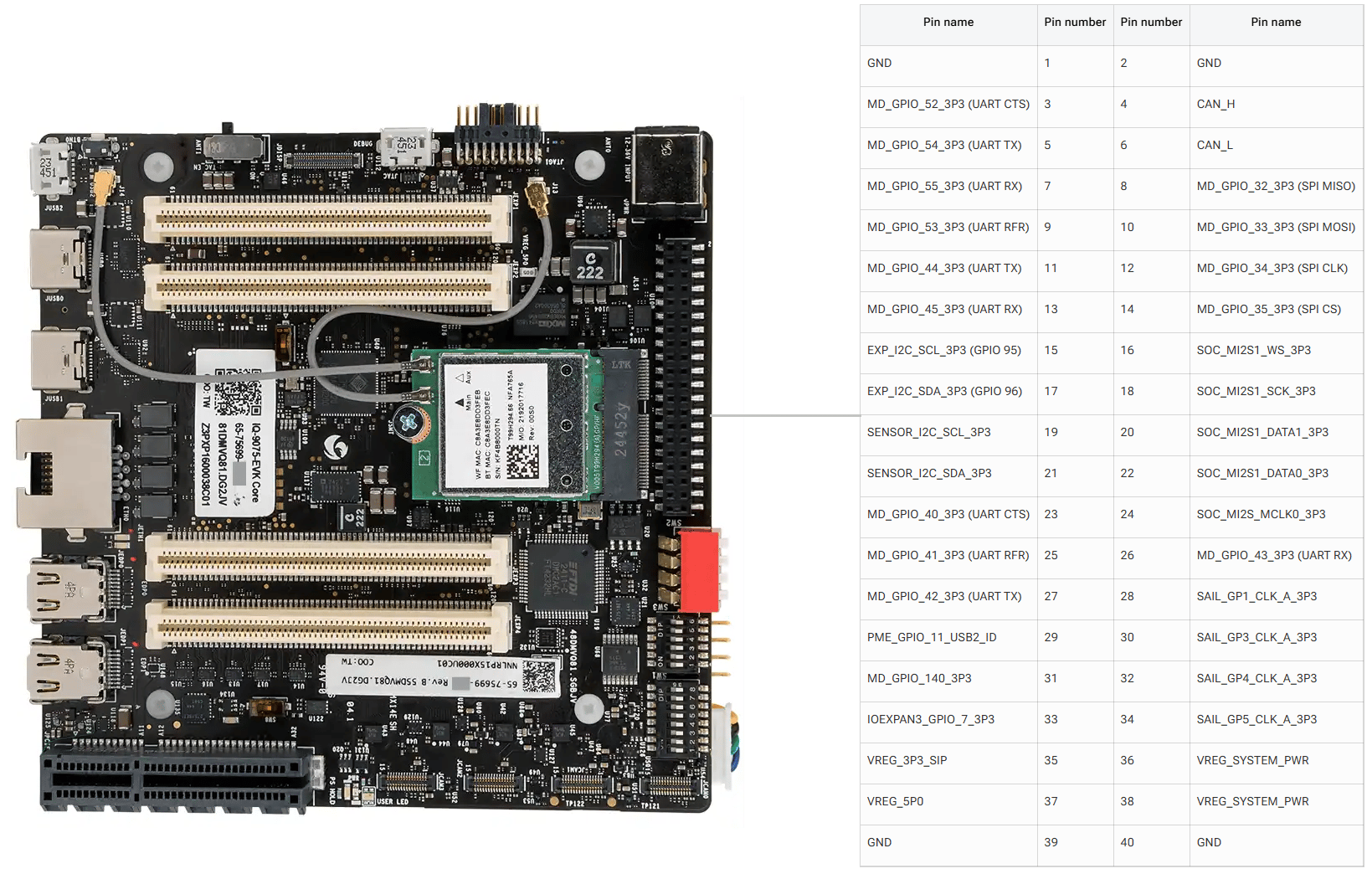
The Dragonwing IQ9-EVK contains one low-speed connector (JLS1) that provides access to various GPIOs, CAN, QUPs, and other interfaces.

Pinout

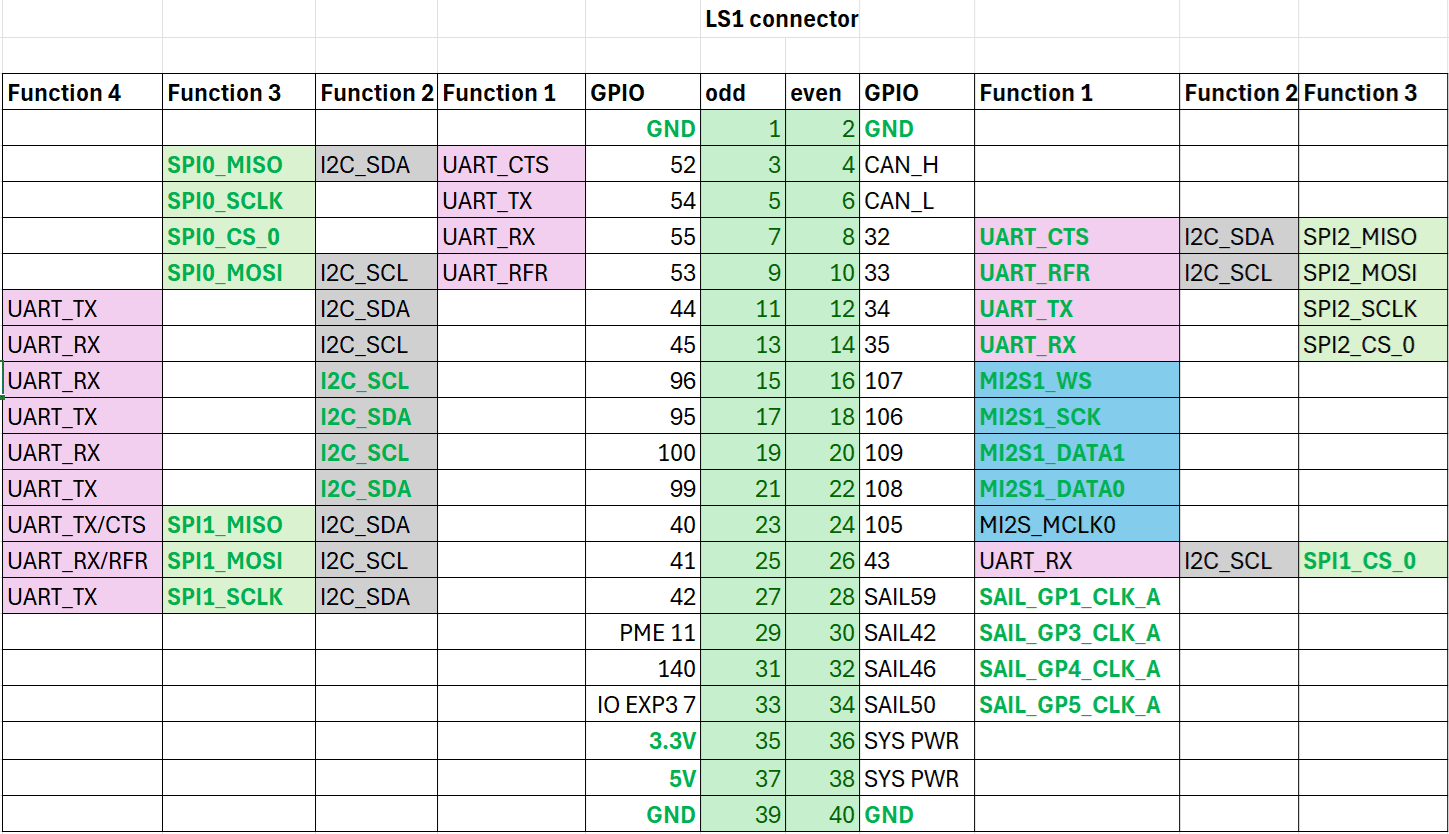
The figure below shows the default functions of the IQ-9075 EVK 40-pin LS connector.
GPIOs

The following commands require root privileges. Use sudo su to switch to the root user.

Identify GPIO Subsystem Numbers

Identify the base GPIO number by running the following command and looking for platform/f000000.pinctrl (gpiochip4).
mount -t debugfs none /sys/kernel/debug/
cat /sys/kernel/debug/gpio
LS1 Connector GPIO
GPIOOddEvenGPIO
GND12GND
5234CAN_H
5456CAN_L
557832
5391033
44111234
45131435
961516107
951718106
1001920109
992122108
402324105
41252643
422728SAIL59
PME 112930SAIL42
1403132SAIL46
IO EXP3 73334SAIL50
3.3V3536SYS PWR
5V3738SYS PWR
GND3940GND

Configure GPIOs from User Space

Use the libgpiod library from user space to control the GPIOs for better performance.
1

Install the Arm64 toolchain

sudo apt install gcc-aarch64-linux-gnu
sudo apt install binutils-aarch64-linux-gnu
2

Download and extract libgpiod

wget https://www.kernel.org/pub/software/libs/libgpiod/libgpiod-1.6.4.tar.xz
tar xvf libgpiod-1.6.4.tar.xz
cd libgpiod-1.6.4
3

Configure the sources for static linking

./configure --enable-tools=yes --build x86_64-pc-linux-gnu --host aarch64-linux-gnu CFLAGS="-static -static-libgcc -Wl,-static,--start-group,/usr/lib/gcc-cross/aarch64-linux-gnu/7.5.0/libgcc.a,/usr/lib/gcc-cross/aarch64-linux-gnu/7.5.0/libgcc_eh.a,/usr/aarch64-linux-gnu/lib/libc.a,--end-group"
4

Compile the library

make
Compiling creates linked binaries.
5

Build the statically linked binaries

aarch64-linux-gnu-gcc -static -o tools/gpiodetect tools/gpiodetect.o tools/tools-common.o -Wl,-L<ABSOLUTE_PATH_TO_LIBGPIOD>/libgpiod-1.6.4/lib/.libs,-lgpiod,-lpthread,-static
aarch64-linux-gnu-gcc -static -o tools/gpioget tools/gpioget.o tools/tools-common.o -Wl,-L<ABSOLUTE_PATH_TO_LIBGPIOD>/libgpiod-1.6.4/lib/.libs,-lgpiod,-lpthread,-static
aarch64-linux-gnu-gcc -static -o tools/gpioset tools/gpioset.o tools/tools-common.o -Wl,-L<ABSOLUTE_PATH_TO_LIBGPIOD>/libgpiod-1.6.4/lib/.libs,-lgpiod,-lpthread,-static
aarch64-linux-gnu-gcc -static -o tools/gpiofind tools/gpiofind.o tools/tools-common.o -Wl,-L<ABSOLUTE_PATH_TO_LIBGPIOD>/libgpiod-1.6.4/lib/.libs,-lgpiod,-lpthread,-static
aarch64-linux-gnu-gcc -static -o tools/gpioinfo tools/gpioinfo.o tools/tools-common.o -Wl,-L<ABSOLUTE_PATH_TO_LIBGPIOD>/libgpiod-1.6.4/lib/.libs,-lgpiod,-lpthread,-static
aarch64-linux-gnu-gcc -static -o tools/gpiomon tools/gpiomon.o tools/tools-common.o -Wl,-L<ABSOLUTE_PATH_TO_LIBGPIOD>/libgpiod-1.6.4/lib/.libs,-lgpiod,-lpthread,-static
6

Push the binaries to the device

scp gpiodetect gpioget gpioset gpiofind gpioinfo root@<IP_address>:/path/to/directory/on/device
7

List GPIO chips on the device

Run gpiodetect to list the GPIO chips.
./gpiodetect
Example output:
gpiochip0 [c440000.spmi:pmic@8:pinctrl@c00] (12 lines)
gpiochip1 [c440000.spmi:pmic@1:gpio@8800] (10 lines)
gpiochip2 [c440000.spmi:pmic@2:gpio@8800] (9 lines)
gpiochip3 [c440000.spmi:pmic@0:gpio@b000] (4 lines)
gpiochip4 [f100000.pinctrl] (176 lines)
gpiochip5 [33c0000.pinctrl] (15 lines)
8

Display GPIO line information

Run gpioinfo to view the lines for a specific chip.
./gpioinfo gpiochip4
Example output:
gpiochip4 - 151 lines:
    line   0:      unnamed          "?"   input  active-high [used]
    line   1:      unnamed       unused   input  active-high
    line   2:      unnamed      "perst"  output   active-low [used]
    line   3:      unnamed       unused   input  active-high
    line   4:      unnamed      "perst"  output   active-low [used]
    line   5:      unnamed          "?"   input  active-high [used]
    line   6:      unnamed       unused   input  active-high
    line   7:      unnamed       unused   input  active-high
    line   8:      unnamed       unused   input  active-high
    line   9:      unnamed       unused   input  active-high
    line  10:      unnamed       unused   input  active-high
    line  11:      unnamed       unused   input  active-high
    line  12:      unnamed       unused   input  active-high
    line  13:      unnamed       unused   input  active-high
    line  14:      unnamed       unused   input  active-high
    line  15:      unnamed       unused   input  active-high
......
.....
9

Set a GPIO value

To set GPIO line 54 on gpiochip4, run:
./gpioset gpiochip4 54=1
./gpioinfo gpiochip4 | grep 54
Example output:
gpiochip4 - 176 lines:
   line    54:      unnamed       unused   output  active-high
10

Read a GPIO value

To read GPIO line 0 on gpiochip4, run:
./gpioget gpiochip4 0
Example output:
1
After reading the value, gpioinfo shows the line returned to input mode.
./gpioinfo gpiochip4
Example output:
gpiochip4 - 176 lines:
         line    0:      unnamed       unused   input   active-high
         line    1:      unnamed       unused   input   active-high

UART

Pins 5 and 7 are configured for UART by default (GPIO lines 54 and 55, mapping to uart12 = qup1_se5 (0xa98000)). Follow the Modify serial engine node procedure to enable the UART interface. After enabling, the device node appears at /dev/ttyHS3.
#ls -al /dev/ttyHS3
crw-rw---- 1 root dialout 236, 2 Nov 25 18:16 ttyHS3
1

Connect pins

Short pin 5 and pin 7 with a Dupont wire.
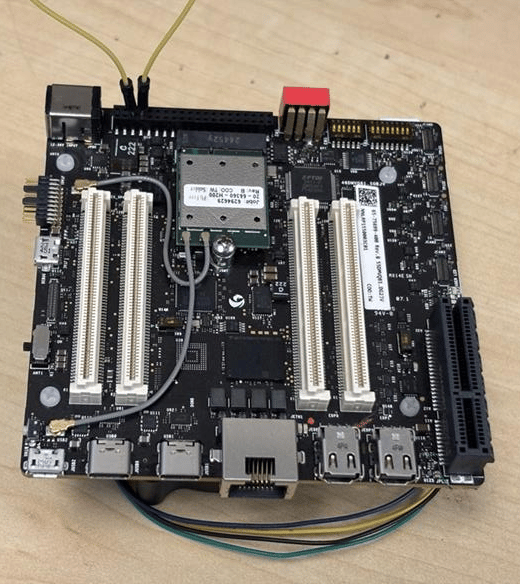
Pay attention to pin order. Do not short power and ground pins — this may damage the board.
2

Configure UART

stty -F /dev/ttyHS3 ispeed 115200 ospeed 115200
stty -F /dev/ttyHS3 115200 -echo -icanon -isig -iexten -icrnl -ixon -opost
3

Open two SSH terminals

Terminal 1 (RX):
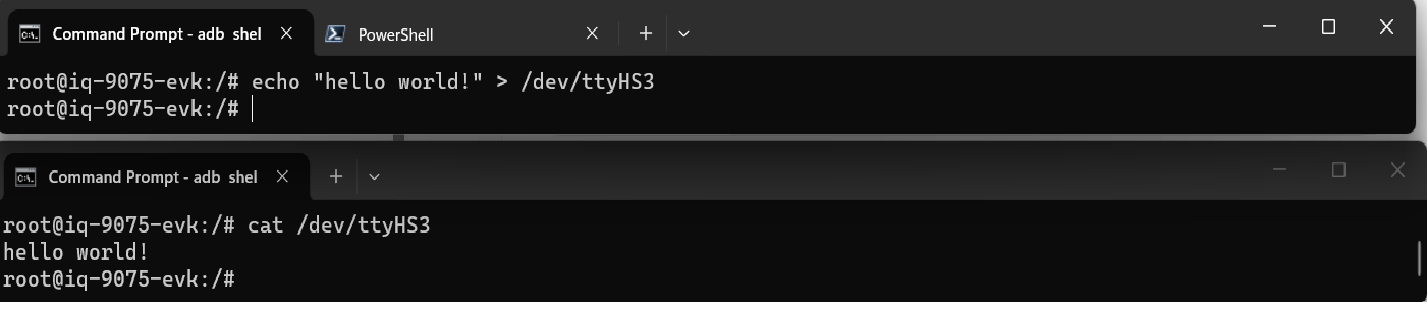
cat /dev/ttyHS3
Terminal 2 (TX):
su
echo "hello world!" > /dev/ttyHS3

I2C

I2C (Inter-Integrated Circuit) is a bidirectional 2-wire bus for inter-IC control. Every device on the bus has a unique address. The I2C core supports multi-controller mode, 10-bit target addressing, and 10-bit extendable addressing. Pins 8 and 10 are configured for I2C by default (GPIO lines 32 and 33, mapping to i2c4 = qup0_se4 (0x990000)). Follow the Modify serial engine node procedure to enable the I2C interface. After enabling, verify the device nodes:
ls /dev/i2c*
# Expected: /dev/i2c-18  /dev/i2c-19  /dev/i2c-20  /dev/i2c-21  /dev/i2c-22  /dev/i2c-23  /dev/i2c-24  /dev/i2c-25
1

push i2c-tools

scp i2cdetect root@<IP address>:/usr
2

List I2C adapters

i2cdetect -l
3

Map adapters to device tree nodes

ls -l /sys/class/i2c-adapter/i2c-*
4

Scan for devices on bus 20

i2cdetect -a -y -r 20
5

Read/write device registers

# Read all registers of device at address 0x38
i2cdump -f -y 1 0x38

# Write 0xaa to register 0x01
i2cset -f -y 1 0x38 0x01 0xaa

# Read register 0x01
i2cget -f -y 1 0x38 0x01

SPI

SPI (Serial Peripheral Interface) is a synchronous full-duplex 4-wire serial bus. Pins 11 and 13 are configured for SPI by default (GPIO lines 44 and 45, mapping to spi10 = qup1_se3 (0xa8c000)). Follow the Modify serial engine node procedure to enable the SPI interface.