
- Multimedia sample applications, which show camera, video, and audio functionalities.
- AI sample applications, which show AI and machine learning (ML) capabilities.
Prerequisites
Before you begin, set up the IQ-9075 device. To use a camera, enablecamx on the device by running the following commands on the target device:
Run multimedia sample applications
The multimedia sample applications show use cases for camera, display, and video streams on the Dragonwing EVK.Multicamera streaming or encoding (Dash cam)
Description: The gst-multi-camera-example application allows you to stream from two camera sensors simultaneously. The application composes the camera feeds side by side to display on a screen or encodes and stores the video streams to files. A few use cases that need many camera inputs are dash camera or stereo camera. You can use this application as a reference and build your use case. For example, a security system where the goal is to capture a video from several cameras. You can either view it or archive it for a future review. The following figure shows the pipeline for several camera streams. For more information about the elements used in this pipeline, see pipeline flow.
gst-multi-camera-example
Try me
Try me
Run the application
Complete prerequisites
In the terminal of the target device, select any of the following use cases and run the respective command:
To Stop the running use case
Ctrl + C.In the terminal of the target device, run the following command to display the available help options:
In the terminal of the host computer, run the following command to pull the files from the target device:
Expected Output
The output is displayed on the screen and saved to a file.- If the output type is display, you can preview the stream on the display.
-
If the output type is video encoding, then the encoded files are saved at
/etc/media/cam1_vid.mp4and/etc/media/cam2_vid.mp4for camera 1 and camera 2 respectively.
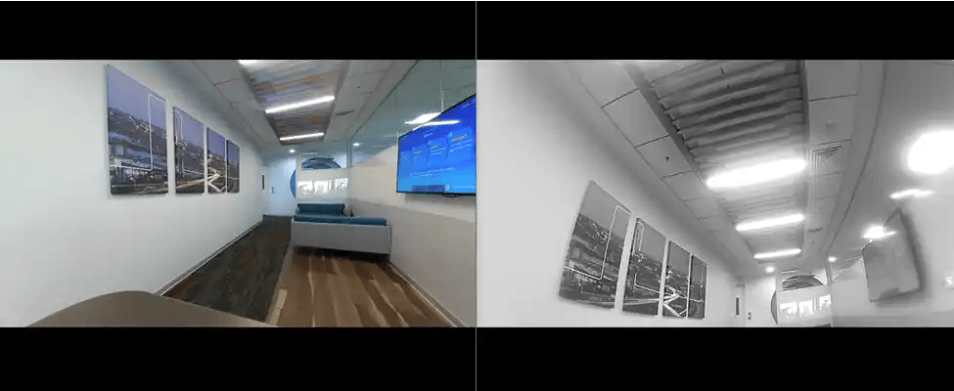
Pipeline flow
The following table lists the plugins used in the multi camera streaming pipeline:| Pipeline | Description |
|---|---|
| Preview on display |
|
| Encoder dump on the device |
|
Multichannel video decode and compose (Video wall)
Description: The gst-concurrent-videoplay-composition application supports concurrent video playback for MP4 AVC (H.264) videos and performs composition on a video wall display. In the concurrent video playback and composition pipeline, four decode and composition pipelines run concurrently. For more information about the plugins used in this pipeline, see Pipeline flow.
gst-concurrent-videoplay-composition
Try me
Try me
Run the application
The following table lists the use cases that are supported through the gst-concurrent-videoplay-composition application:| Use case | Description |
|---|---|
| Video conferencing |
|
| Surveillance systems |
|
| Digital signage |
|
Complete prerequisites
Prepare input video files
MP4 AVC (H.264) video file on the target device.Run the use case
-
Concurrent playback of two sessions
-
Concurrent playback of four sessions
Stop the running use case
Ctrl + C.In the terminal of the target device, run the following command to display the available help options:
Expected output
The individual composed streams are tiled together to display as a unified stream.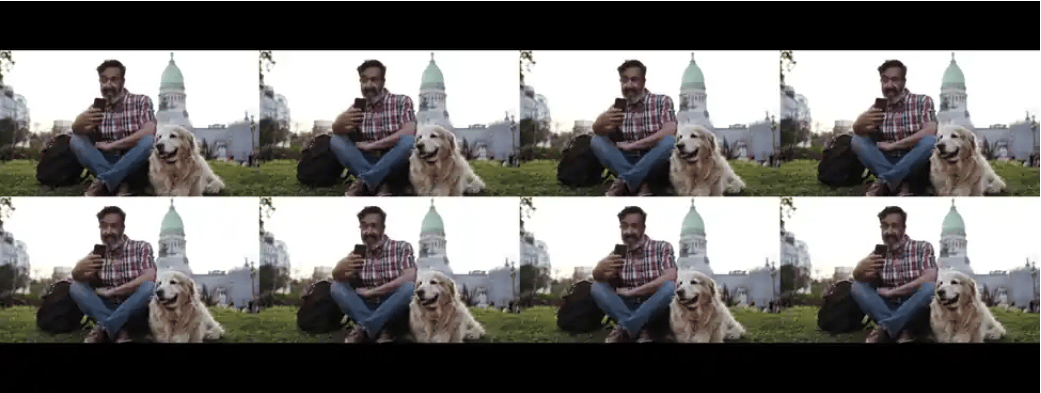
Pipeline flow
The following table lists the plugins used to run the video wall pipeline:| Plugin | Description |
|---|---|
| filesrc |
|
| qtdemux |
|
| h264parse |
|
| v4l2h264dec |
|
| qtivcomposer |
|
| waylandsink |
|
Run AI sample applications
AI sample applications show use cases for object detection, multistream inference, and parallel inferencing on input streams from a camera, video file, or Real-Time Streaming Protocol (RTSP) stream on the Dragonwing EVK.Download and transfer AI models and labels
To run AI sample applications, download the required models and labels using one of the following methods:- Download the AI models from Qualcomm® AI Hub and labels from GitHub
-
Download the AI models and labels using the
download_artifacts.shscript On the target device, obtain thedownload_artifacts.shscript, set executable permissions, and run it to download the model, media, and label files:
AI object detection
Description: The gst-ai-object-detection application allows you to detect objects within images and videos. The use cases show the execution of YOLOv5, YOLOv8 and YOLOX on Qualcomm AI HW accelerator. The following figure shows the pipeline, which receives the input from a live camera feed, file, USB source, or an RTSP stream, preprocesses it, runs inferences on AI hardware. The results are either displayed on the screen, saved as an encoded MP4 file, or streamed over the RTSP server. For information about the plugins used in the pipeline flow, see Pipeline flow
gst-ai-object-detection
Try me
Try me
Input and Output Capabilities
Sample Model and Label Files
Run the application on the target device
Download artifacts
Run the application
/etc/configs/config_detection.json file to read the input parameters.To display all available options:Configurations
The gst-ai-object-detection application uses the/etc/configs/config_detection.json file. Update its properties to match your model, input stream, and output. See Config JSON Field Description for all fields.video-format, resolution, and framerate parameters in the config file
to match the camera capabilities, see Configure USB camera.snpe-tensors field applies only to the SNPE runtime. To retrieve the output tensor names for a DLC model, open the model in Netron.snpe-tensors field is optional.Available configurations
Available configurations
- Config #2
- Config #1
Expected Output
Detected objects with bounding boxes and labels are overlaid on the video and displayed on the local display.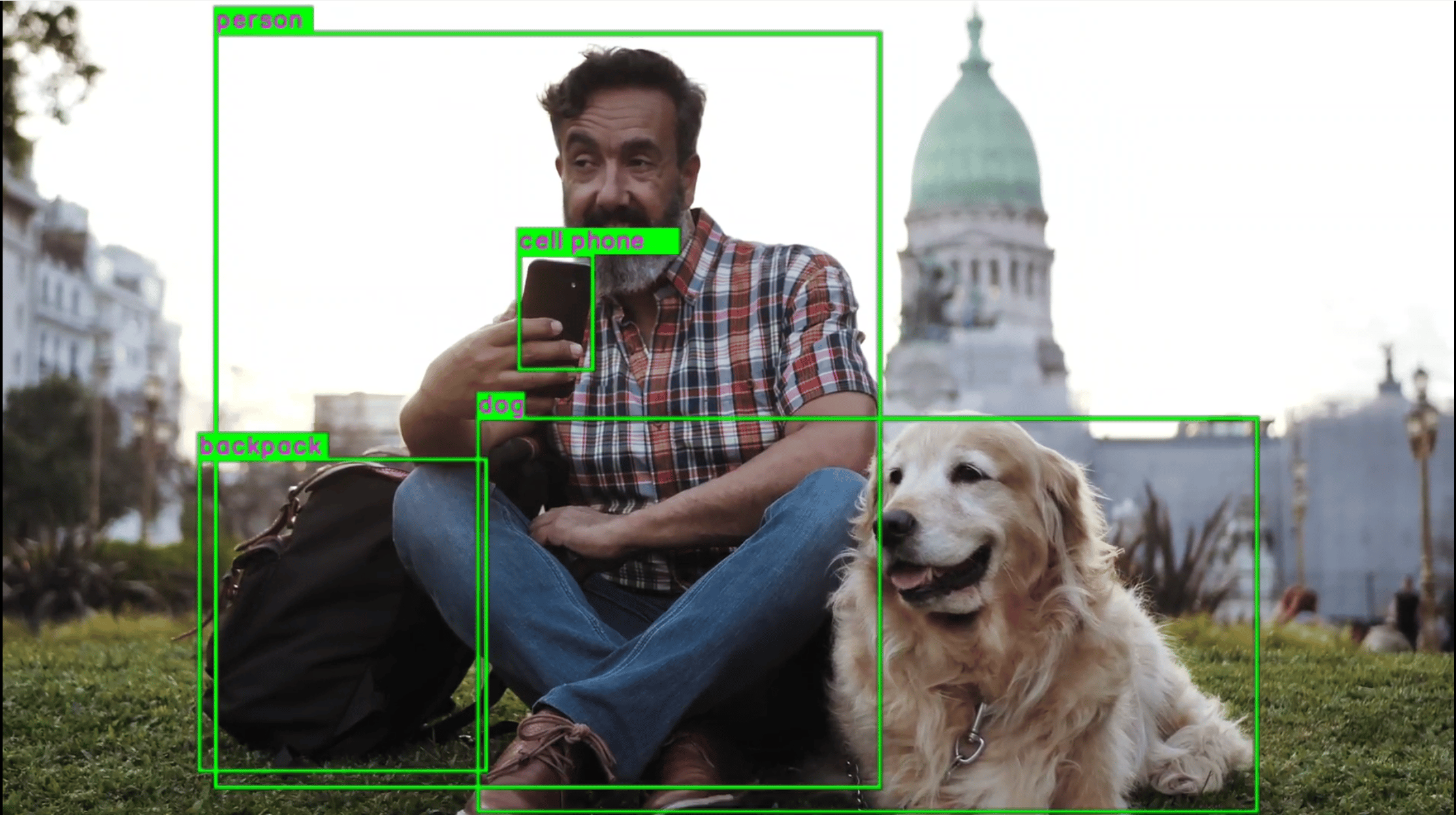
Pipeline Flow
The following table lists the plugins used in the object detection pipeline:Config JSON Field Description
Parallel AI inference
Description: The gst-ai-parallel-inference application allows you to perform object detection, object classification, pose detection, and image segmentation on an input stream from different sources such as a camera, a file, or an RTSP network. The use cases implement the LiteRT models for object detection, image segmentation, classification, and pose detection. The following figure shows the pipeline, which receives input streams from a camera, file, or an RTSP stream, performs the parallel inferencing for the four use cases, and displays the results side by side on the screen.Config #1 for the QLI 2.0 release
because CPU runtime is not supported.
gst-ai-parallel-inference
Try me
Try me
Input and Output Capabilities
Sample Model and Label Files
Run the application on the target device
Download artifacts
Run the application
/etc/configs/config-parallel-inference.json file to read the input parameters.To display all available options:Configurations
The gst-ai-parallel-inference application uses the/etc/configs/config-parallel-inference.json file. Update its properties to match your model, input stream, and output. See Config JSON Field Description for all fields.file-path and rtsp-ip-port are not present in the configuration file, then the camera input is selected.Available configurations
Available configurations
- Config #2
Expected Output
After performing the four parallel inferences, the results are displayed side by side on the screen.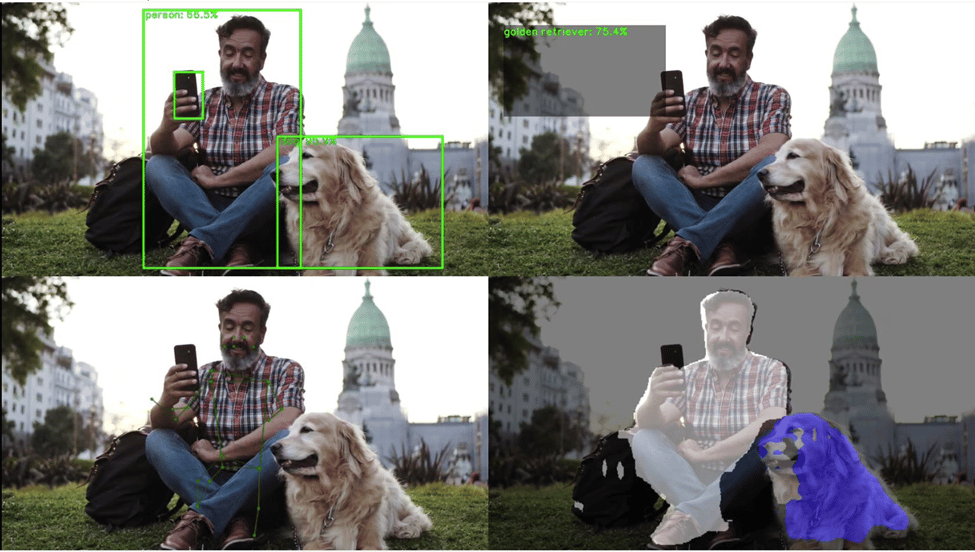
Pipeline Flow
The following table lists the plugins used in the metadata parser pipeline:Config JSON Field Description
Multistream inference
Description: The gst-ai-multistream-inference application shows AI inference (object detection and classification) on up to 32 input streams coming from camera, file, or RTSP stream. The following figure shows the pipeline, which receives several input streams, preprocesses them, runs AI inferences, combines the streams, and merges them all into a single video output. The maximum number of input streams supported on each SoC as verified on 1080P and 720P are follows:- QCS6490–8
- Dragonwing IQ-8275–16
-
Dragonwing IQ-9075–32
The output is displayed on an HDMI display, saved as an H.264 encoded MP4 file, or converted into an RTSP stream.This application isn’t supported in
Config #1for theQLI 2.0release because CPU runtime is not supported.

gst-ai-multistream-inference
Try me
Try me
Input and Output Capabilities
Sample Model and Label Files
Run the application on the target device
Download artifacts
Prerequisites. This downloads all required artifacts to the target device.Run the application
/etc/configs/config-multistream-inference.json file to read the input parameters.To display all available options:Configurations
The gst-ai-multistream-inference application uses the/etc/configs/config-multistream-inference.json file. Update its properties to match your model, input stream, and output. See Config JSON Field Description for all fields.Available configurations
Available configurations
- Config #2
Expected Output