xbl_config.elf file.
You can download QDTE from Qualcomm Software Center (QSC) and launch the UI using the command ./qdte.
QDTE offers the following features:
- Allows for experimentation with configuration settings in a test environment.
- The tool opens/reads a DTB file directly or parses an xbl_config.elf file and extracts the embedded DTB files. In the latter case, when you save the file, the tool regenerates the xbl_config.elf file with signing.
On some platforms,
xbl_config.elf contains only XBL-specific DT nodes, and the UEFI-specific DT nodes are in a separate uefi_dtbs.elf file (or its compressed/KVM variants). On these platforms, use QDTE to open and edit uefi_dtbs.elf separately to modify UEFI DT nodes. For the full platform breakdown, see Boot interfaces overview.QDTE v1.3.0 is supported on:Ubuntu 22.04 Linux host computerWindows 10 and 11 host computer
Configure QDTE
The QDTE graphical user interface (GUI) tool configures and modifies Devicetree Binary (DTB) files. For more information, see Boot interfaces overview. This section explains how to use QDTE tool to do the following:- Load, parse, edit and save the DTB file.
- Read and write the DTB file from device or on the device.
- Set up the configuration on your host PC, whether it’s Linux or Windows.
Table: Configuration for Linux/Windows
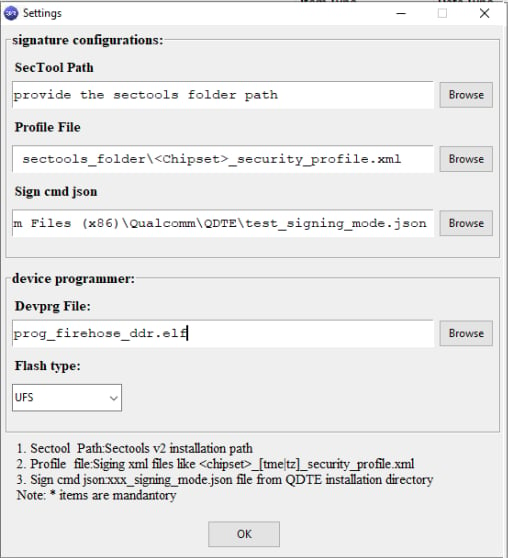
Figure: Settings for QDTE signature configuration
-
To open the XBLConfig ELF file, go to File > Open DTB Elf > From Build.
- If the file is invalid or corrupted, the system generates an error. To prevent the error, ensure that you download the valid boot binaries, including
xbl_config.elf, and use them with the XBL configuration. The binary includes the boot component, which is part of the firmware. - If the file loads successfully, a tree view appears, populated with the DTB elements.
- If the file is invalid or corrupted, the system generates an error. To prevent the error, ensure that you download the valid boot binaries, including
-
Select the XBLConfig ELF file to edit it.
The primary QDTE interface displays the file.
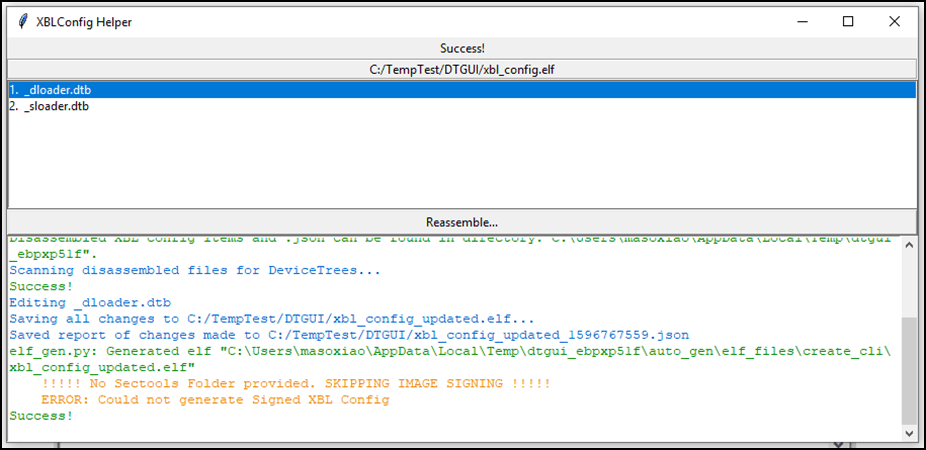
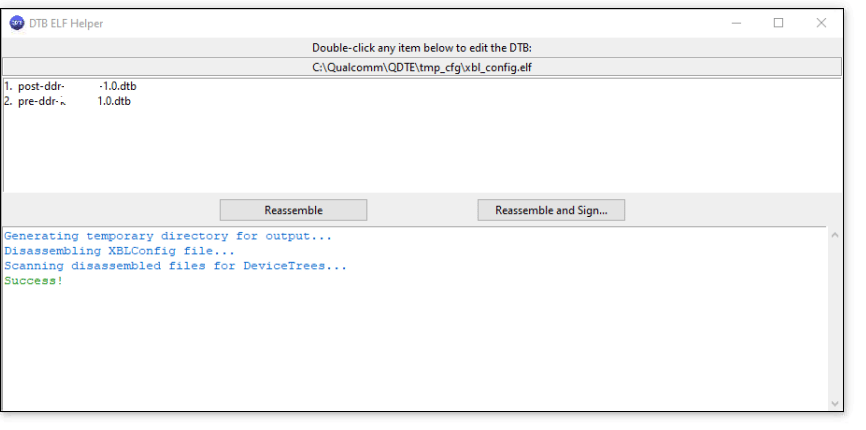
The figure shows an XBLConfig helper window displaying the disassembled results of an XBLConfig file containing two DTBs.
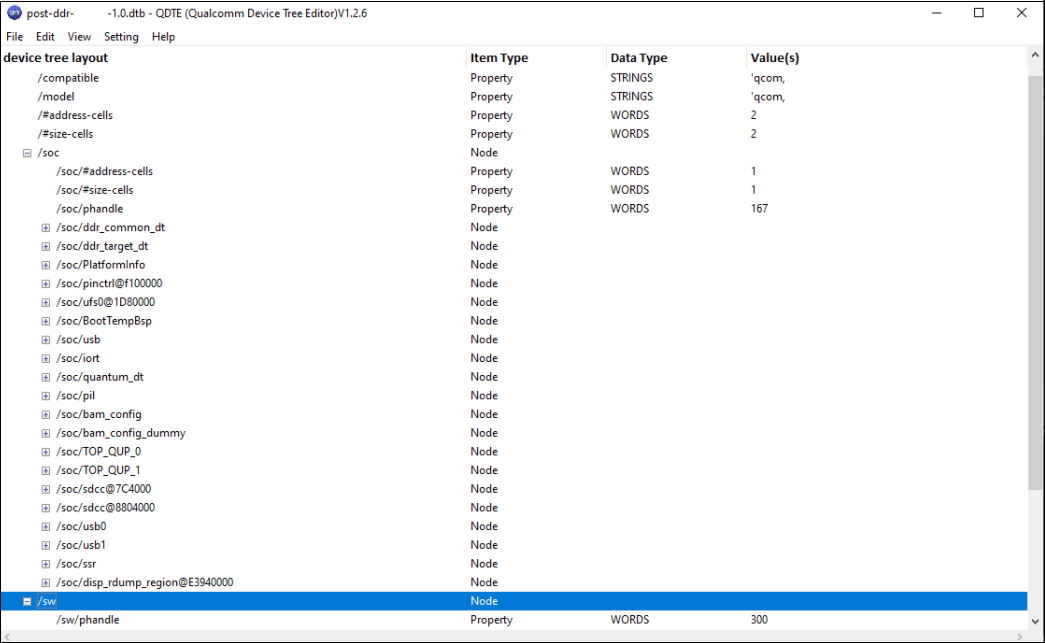
The figure shows an example file opened in a tree view with all four columns populated.
- To discard all the changes and reload the file from the disk (if the file undergoes changes on the disk while the QDTE tool is open), select File > Reload File.
-
To add items to the tree, right-click on a node. The following items are displayed:
You can remove all items in the DT, except for the root node. To delete an item, right-click on it and select Delete. Deleting a node also removes its child nodes, if any.
- To edit a property, you can either right-click and select Edit or double-click to open a dialog box. This dialog box allows you to edit both the property name and value.
-
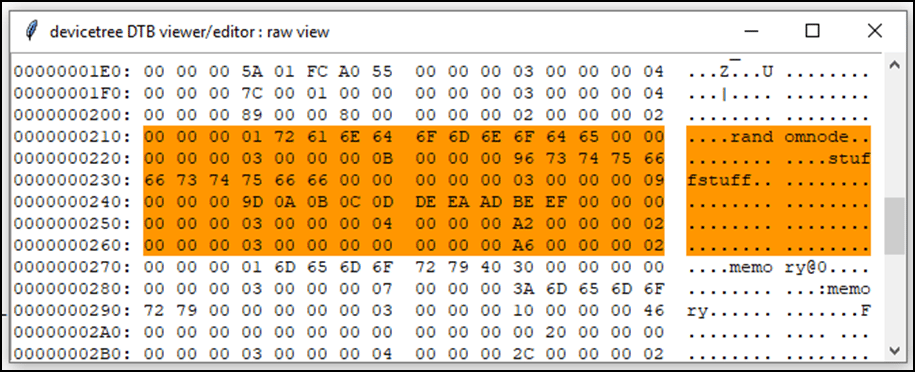
To view the DTB file as a binary hexadecimal dump, go to View > Raw, which displays the exported DTB file.
The following example of the raw view shows the offset, hexadecimal value, and corresponding character columns, with a node highlighted in orange.
To remove all highlights, go to View > Clear Highlights.
- To save the modified DTBs, you can either go to File > Save (or press CTRL + S) to overwrite the existing file or go to File > Save Copy As (or press CTRL + SHIFT + S) to save a copy of the DTB to a new file.
- To generate a summary of the changes, select File > Export Change Report. A JSON file is created, which lists all changes made to the DT in the session, along with the result of the DTB after the operation.
- To save the modified DTB files within the main QDTE, go to the XBLConfig helper window, and select Reassemble and Sign. The modified file is saved.
- Next, choose a name for the output file. The toolchain re-assembles the ELF using XBLConfig. If an error message indicates that a signed XBLConfig wasn’t generated, it downgrades the error to a warning and shows a success message instead.