

If you have not flashed the device yet, start with Update software.
Power on the device
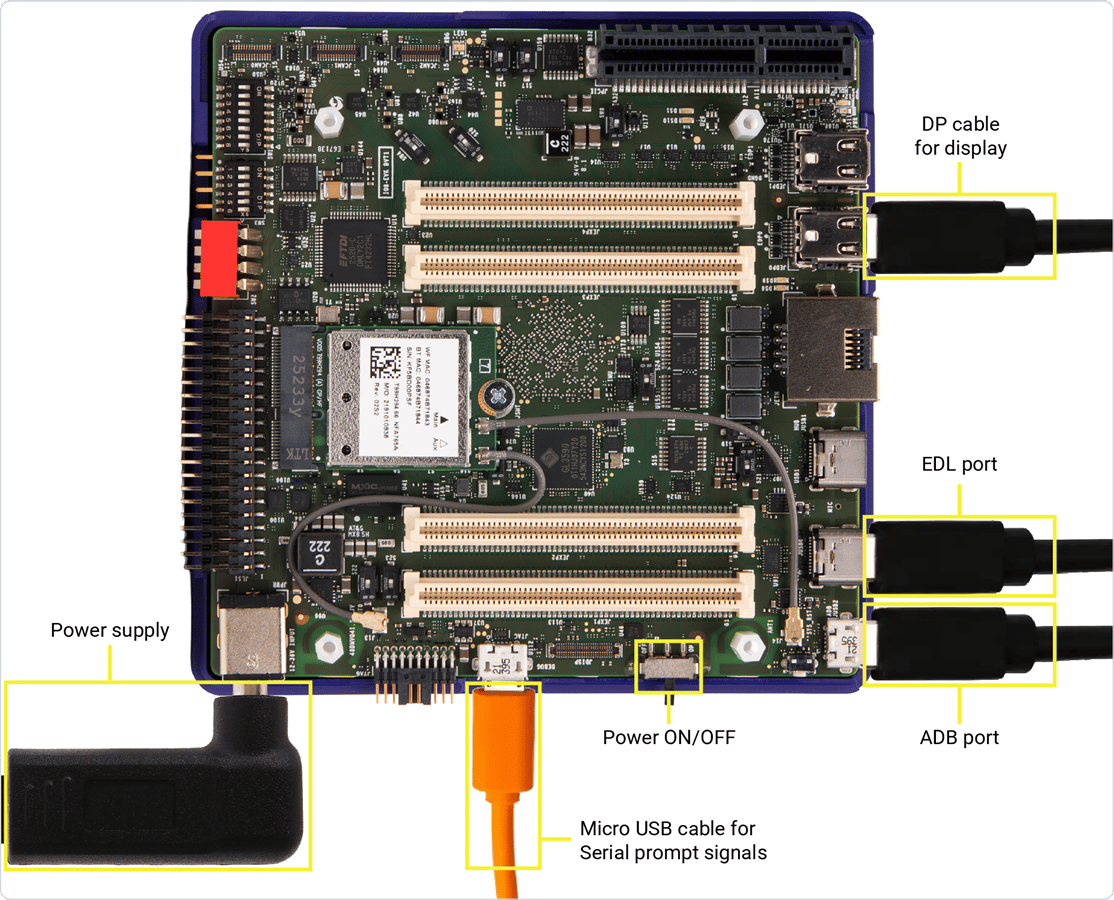
- The Dragonwing IQ-8275 board receives its main power through a 2.10 mm barrel jack connector (JPWR, JACK-C-PC-10A-RA(R)), which supports an input voltage range of 12 V to 36 V. The EVK also includes a Type-C to barrel plug adapter for convenience. Connect a +12 V power adapter to supply power to the board.
- Connect the USB Type-C end of the cable to USB0 and the other end (Type-A or Type-C) to the host device. This connection allows you to flash the software.
Set up the debug UART
The debug UART displays diagnostic messages and provides access to the device through the UART shell. To set up the debug UART, do the following:- Connect one end of a micro-USB cable to the micro-USB port on the Dragonwing IQ-8275 device.
- Connect the other end of the micro-USB cable to the host computer.
- Open the serial console for your host OS:
- Ubuntu host
- Windows host
- macOS host
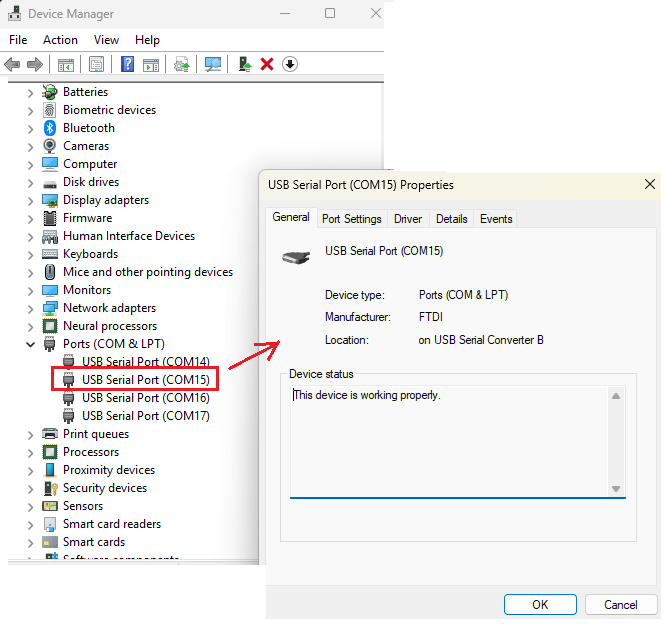
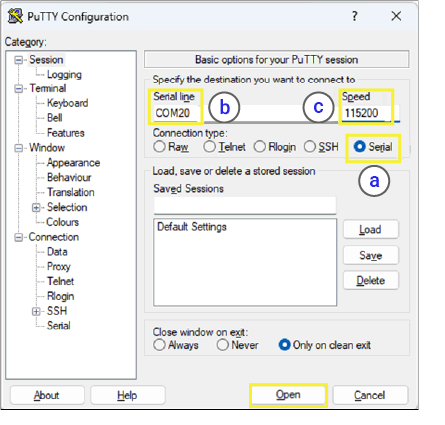
Install the Screen application on the Ubuntu host by running the following commands:Verify the USB port connection by running the following command:Sample Output:The IQ-8275 EVK’s onboard adapter exposes four serial devices; the main console is the second one (
/dev/ttyUSB1). Open it at 115200 baud:Before opening a UART console session, verify that no other process is using the serial port. Multiple applications accessing the same UART device can cause hangs or inconsistent console output.
To identify processes currently using the serial port, run:
To identify processes currently using the serial port, run:
sudo lsof /dev/ttyUSB1
sudo kill <PID>

-
Press Enter to bring up the login prompt, then sign in:
- Username:
ubuntu - Password:
ubuntu
- Username:
Verify the software version
Confirm the device is running Ubuntu:If the version doesn’t match, or you can’t reach a login prompt at all, the image is missing or outdated. Go back to Update software and flash the latest Ubuntu image.
Connect to the network
Establish an internet connection using one of the following methods.Wi-Fi
The device operates Wi-Fi in station mode. Connect withnmcli:
QualcommWiFi, password 1234567890:

Ethernet
Connect an Ethernet cable from the RJ45 port on the EVK to your network router. Read the IP address:
Connect over SSH
SSH gives you a network terminal into the device from your host computer.Ensure your host computer is on the same network as the device.
- Find the device IP address (from the network step above):
- Ethernet:
ip addr show end0 - Wi-Fi:
ip addr show wlp1s0
- Ethernet:
- Connect from the host:
Example:
- Enter the password when prompted.
Connect a display
Connect a monitor to DisplayPort0 (JEDP0) or JEDP1 on the EVK using an active Mini DisplayPort-to-DisplayPort cable (included in the box), or an active Mini DisplayPort-to-HDMI adapter (not included).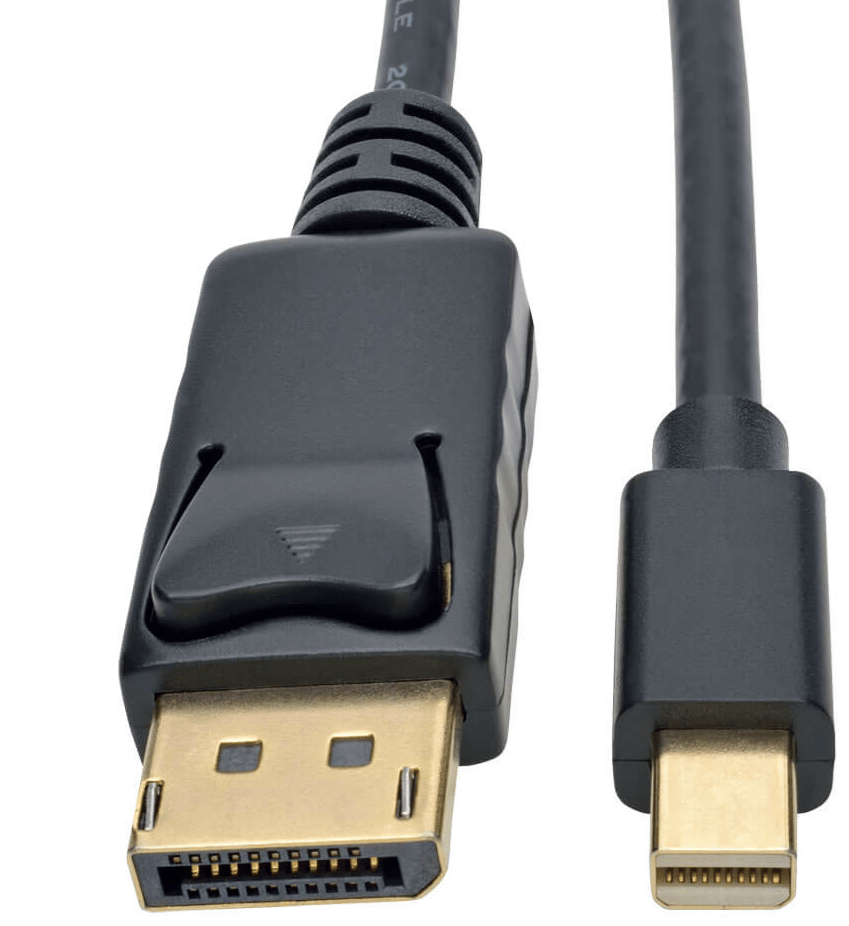
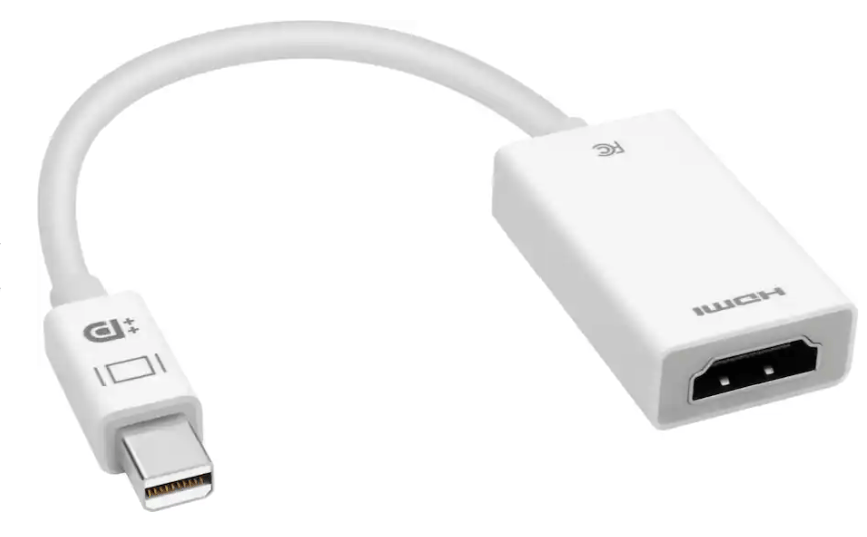

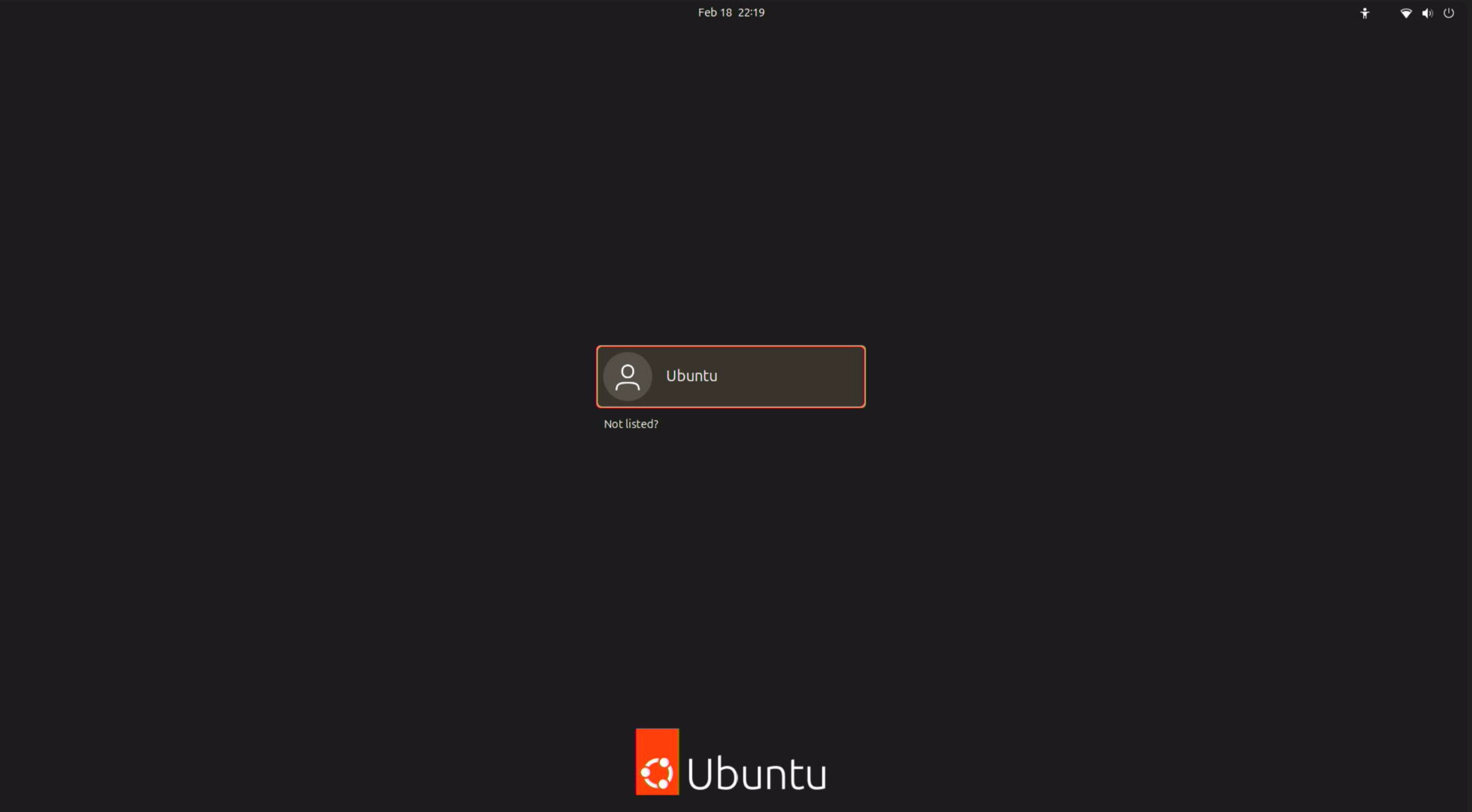
Connect the display before you power on the device. If you attach or change the display after the device has booted and the screen stays blank, power-cycle the device to bring the display up.
SBC (Single Board Computer) mode
To use the EVK as a standalone computer with a keyboard, mouse, and monitor: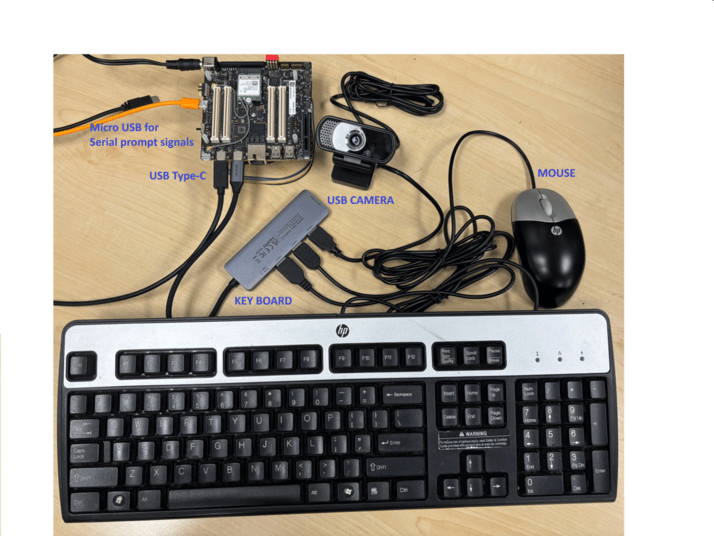
- Power: connect the 12 V adapter.
- Serial console: micro-USB to your host for UART logs (optional once set up).
- USB hub: connect a powered USB hub to a USB Type-C port for multiple peripherals.
- Keyboard & mouse: plug into the USB hub.
- USB camera: connect to the USB hub (must be UVC-compliant).
- MIPI camera: attach to a MIPI CSI connector on the board.
- Display: Mini DisplayPort to DisplayPort cable, or an active Mini DisplayPort-to-HDMI adapter.