

Prerequisites
- Set up the QAIRT SDK on your host computer. For detailed installation and configuration instructions, see Set up Qualcomm AI Runtime SDK.
- Select the model for profiling. You can either convert and quantize a custom model using QAIRT tools or generate a quantized model through AI Hub. For detailed guidance on compiling and optimizing models, see Compile and optimize an AI model. The following instructions use the Inception V3 model from AI Hub.
- Enable Wi-Fi and SSH on the device. The device requires an internet connection to download the artifacts needed to run sample applications. If SSH and Wi-Fi are already configured, skip this step. Follow Setup an SSH connection to enable Wi-Fi and SSH on the device.
-
Ensure that you have installed the following QNN tools on the target device as part of the build.
- qnn-net-run
- qnn-throughput-net-run
- qnn-context-binary-generator
- qnn-profile-viewer
Profiling levels on HTP
The following table provides the profiling levels, their description, and configuration: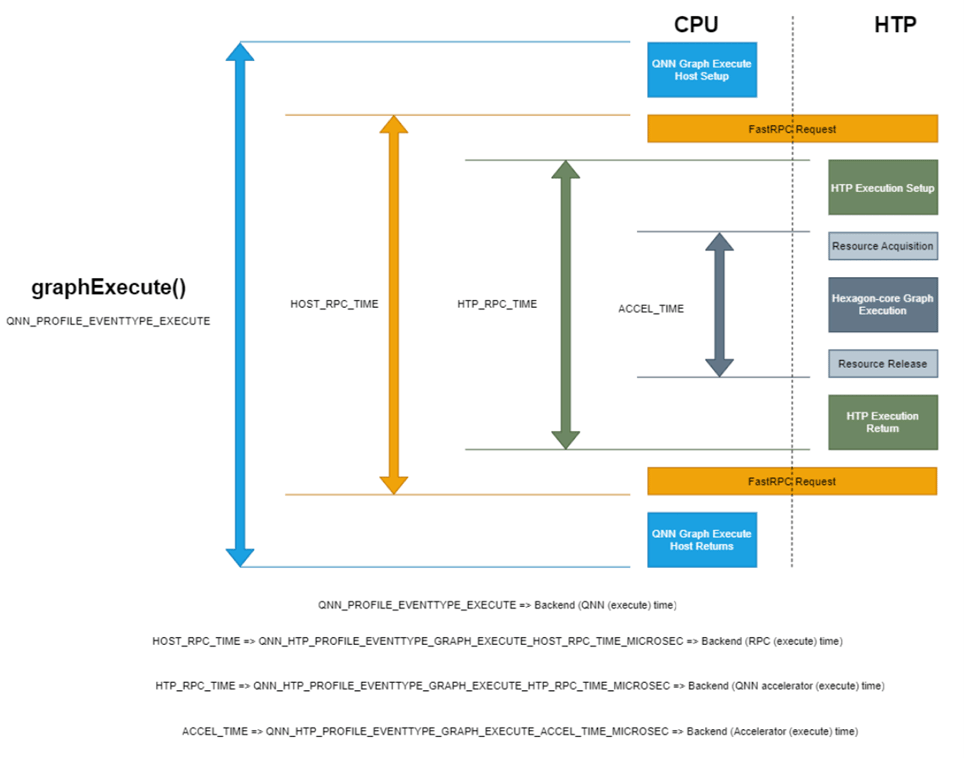
Perform Lint profile with qnn-net-run
Lint profiling provides detailed per-operation cycle counts on the main thread along with background execution information. The following steps perform lint profiling on the Inception-v3 AI Hub model. Follow these steps and replace the model with your custom model.
SSH into your target device
Download the quantized (w8a8) inception_v3 dlc model from AI Hub on the target device for profiling
Profile the model using generated input files
inception_v3_quantized.dlc model.Save the following script as generate_random_input.py in the /etc/models directory
/tmp/RandomInputsForInceptionV3Profiling/
directory and an input_list_profiling.txt file that contains the path to each sample generated.Run the script on the target device
Create the backend_extension_config_file.json and htp_config.json files
backend_extension_config_file.json and htp_config.json files in the /etc/models directory
of the target device to profile the model using the HTP runtime.-
backend_extension_config_file.json -
htp_config.json- Use
"dsp_arch": "v68"for Qualcomm Dragonwing™ RB3 Gen 2 - Use
"dsp_arch": "v75"for Dragonwing IQ-8275 - Use
"dsp_arch": "v73"for Dragonwing IQ-9075
- Use
Go to the /etc/models directory and run the qnn-net-run command on the target device
Enable lint profiling by specifying --profiling_level=backend
execution_metadata.yaml and qnn-profiling-data_0.log files should be created in the /etc/models/output_htp directory.To view logs from the qnn-profiling-data_0.log file, use qnn-profile-viewer.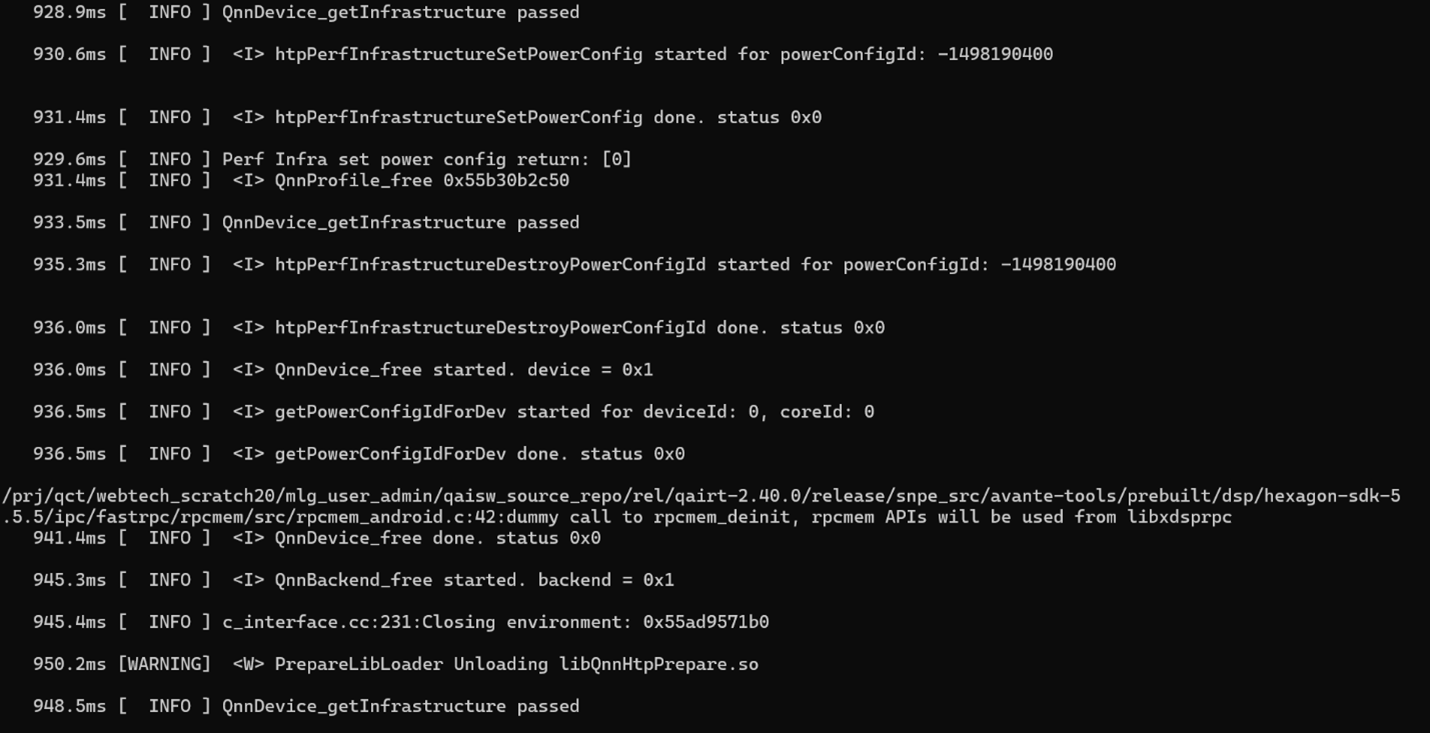
View lint profiling logs using qnn-profile-viewer
View the profile outputs generated at the backend profiling level by using the qnn-profile-viewer tool with the following plugins:- libQnnHtpProfilingReader.so
- libQnnChrometraceProfilingReader.so
libQnnHtpProfilingReader.so plugin. This plugin provides raw output of every single run.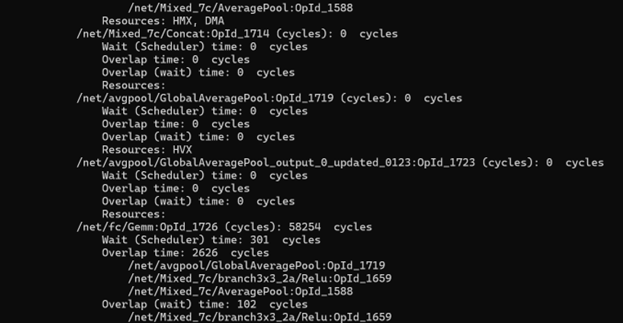
- Cycle count: the time spent executing on the main thread.
- Wait entry: the cycles spent waiting before execution starts.
- Overlap: the cycles spent on at least one background operation while the main thread executes the current operation.
- Overlap (wait): the cycles spent on at least one background operation during the main thread’s wait period.
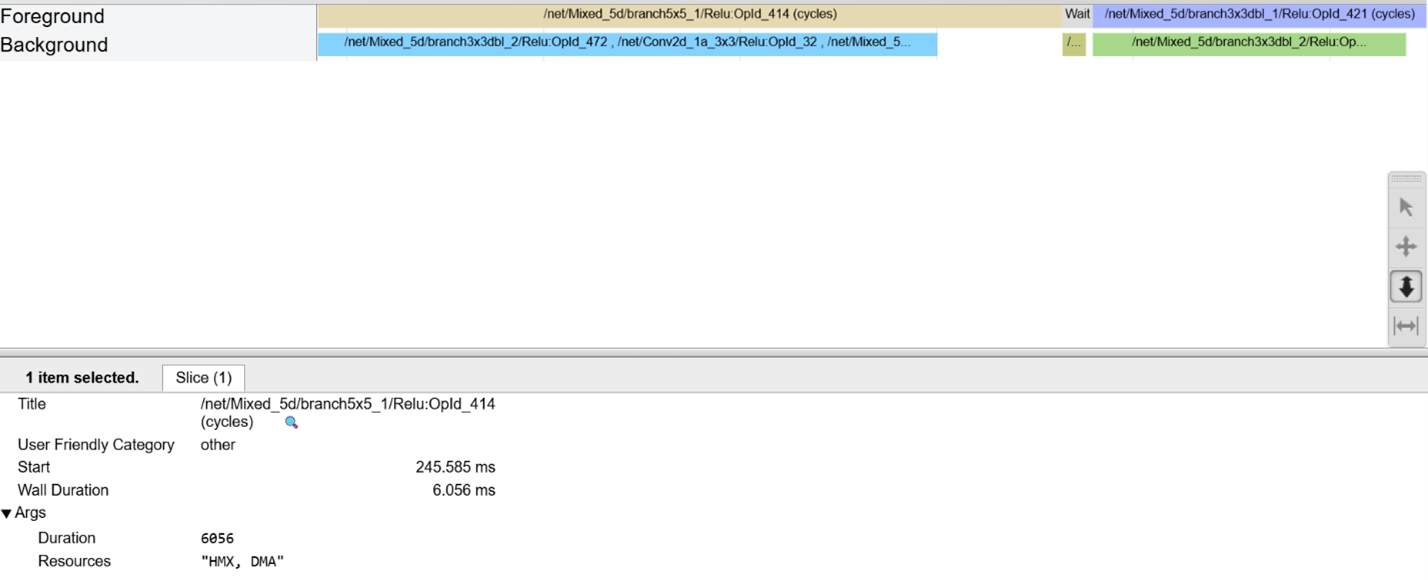
Perform advanced profiling with QNN HTP Optrace
Use QNN optrace profiling to understand detailed internal operations of QNN HTP hardware blocks. This capability helps you:- Identify problematic operations that may not be parallelized well.
- See how operations are scheduled throughout execution.
- Observe the interaction between various operators.
- Evaluate how efficiently HVX parallelism works for each operation.
Perform profiling with qnn-throughput-net-run
Use qnn-throughput-net-run for multi-threaded execution across one or more QNN backends. This profiling supports multi-threaded execution and lets you run models repeatedly for a specified duration or a set number of iterations. Use this profiling for scenarios where you need concurrent or repeated execution of multiple models for performance benchmarking.
SSH into your target device
On the target device, create a working directory
On the target device, download the quantized (w8a8) inception_v3 dlc model from AI Hub
On the target device, create the backend_extension_config.json and htp_config.json files
/etc/models directory.These files are required to generate the context binary in the next step.-
backend_extension_config.json
-
htp_config.json
- Use
"dsp_arch": "v68"for Qualcomm Dragonwing™ RB3 Gen 2. - Use
"dsp_arch": "v75"for Dragonwing IQ-8275. - Use
"dsp_arch": "v73"for Dragonwing IQ-9075.
On the target device, generate the context binary (.bin file) using the qnn-context-binary-generator tool
qnn-throughput-net-run command will ingest the generated context binary.To profile the model using qnn-throughput-net-run, create the qtnr_config.json and htp_backend.json files
/etc/models/ directory on the target device.-
htp_backend.json: -
qtnr_config.json:
- Use
"dsp_arch":"v68"for Qualcomm Dragonwing™ RB3 Gen 2 - Use
"dsp_arch":"v75"for Dragonwing IQ-8275 - Use
"dsp_arch":"v73"for Dragonwing IQ-9075
To perform profiling, on the target device, run the following commands
/etc/models directory.