

- GenAI Studio doesn’t include model files or container images.
- You must generate the models and build container images.
- Ensure your host computer meets the requirements.
- Use the host computer to generate models.
- Use the target device to build the docker containers.
High-level architecture
The following diagram shows the high-level architecture of GenAI Studio. Each functional block runs as an independent container, providing isolation, scalability, and extensibility. This allows new modalities to be added as additional containers without disrupting existing services.Each endpoint has a specific port. Note the port number in endpoint port numbers.
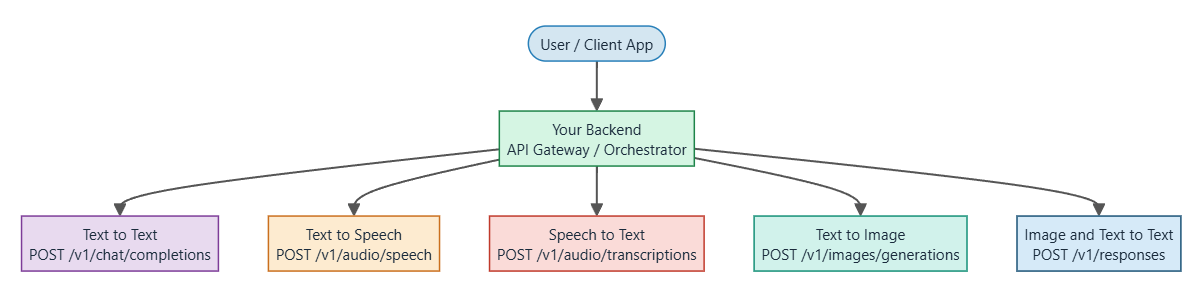
User interaction
The user accesses GenAI Studio through a web page hosted on the host computer or through API calls from third-party applications with OpenAI-compatible endpoints.Request routing to target
The webpage or API call communicates with the orchestrator service running on the target device (for example Qualcomm Dragonwing™ IQ9) and converts each user action on the UI into a corresponding REST API call for the backend services.Orchestration layer
The orchestrator container acts as the central hub. It receives requests, manages session history, handles multi-turn chat continuity (KV-cache), and aggregates responses from individual modality containers to present a unified experience to the user. Containerized architecture and scalability: Each functional block (orchestrator, text-to-text, text-to-speech, text-to-image, image-to-text, speech-to-text) runs as an independent container. This provides the following:- Isolation between services.
- Scalability, since each service scales independently based on use case.
- Extensibility, since you can add new modalities or models as additional containers.
Text-to-text
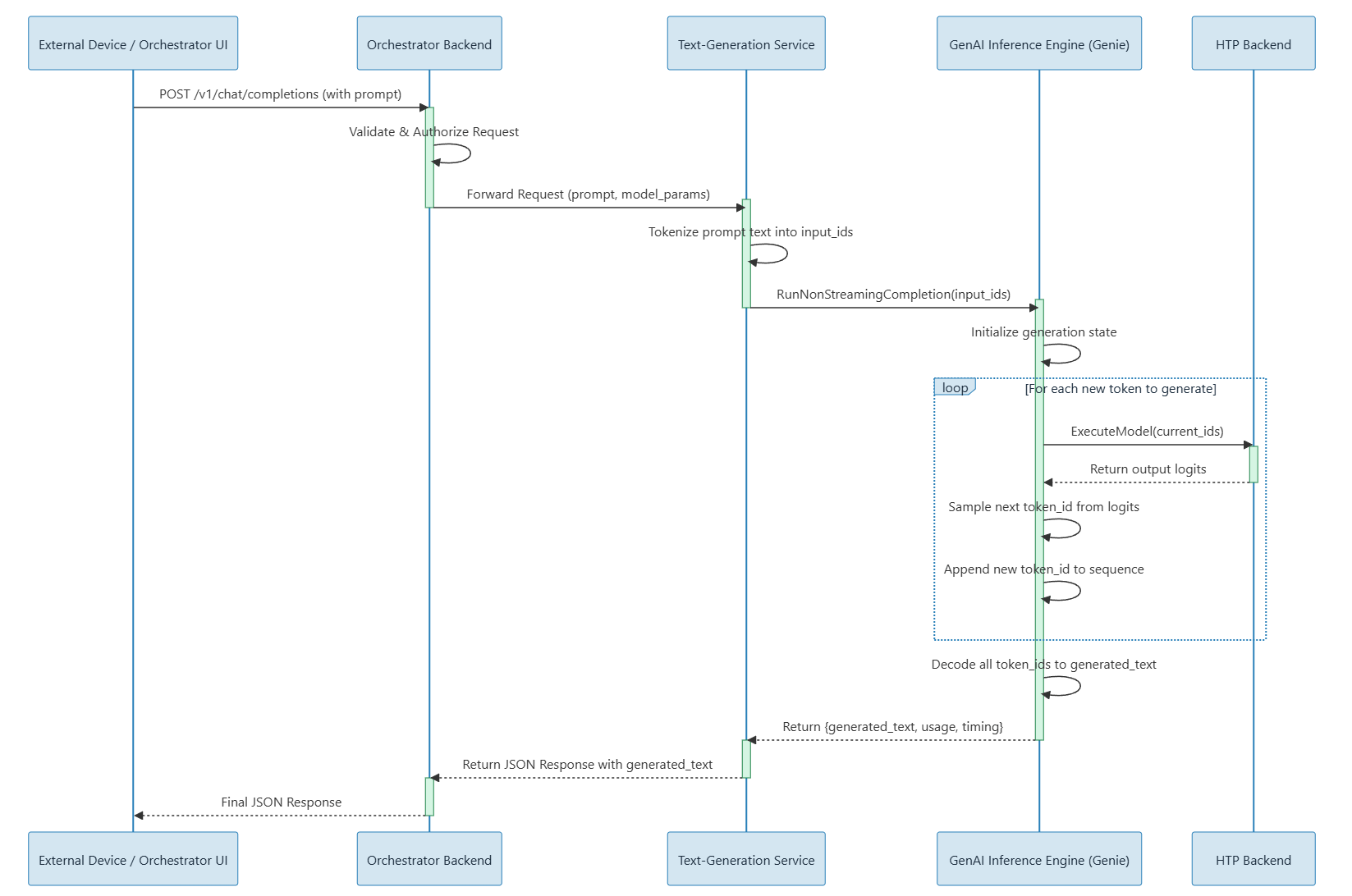
This application runs a text-to-text large language model (LLM) using the Genie API. It provides a persistent (always-on) LLM server that supports the following:- LLM response generation from user prompts (text-to-text).
- Preloaded model reuse to avoid reloading for each request.
- Control endpoints for model/session reset and model reload.
- System prompt updates directly from the UI.
- Conversation history that allows the UI to fetch previous messages.
Text-to-image
The following image shows an example call flow sequence in a text-to-image container.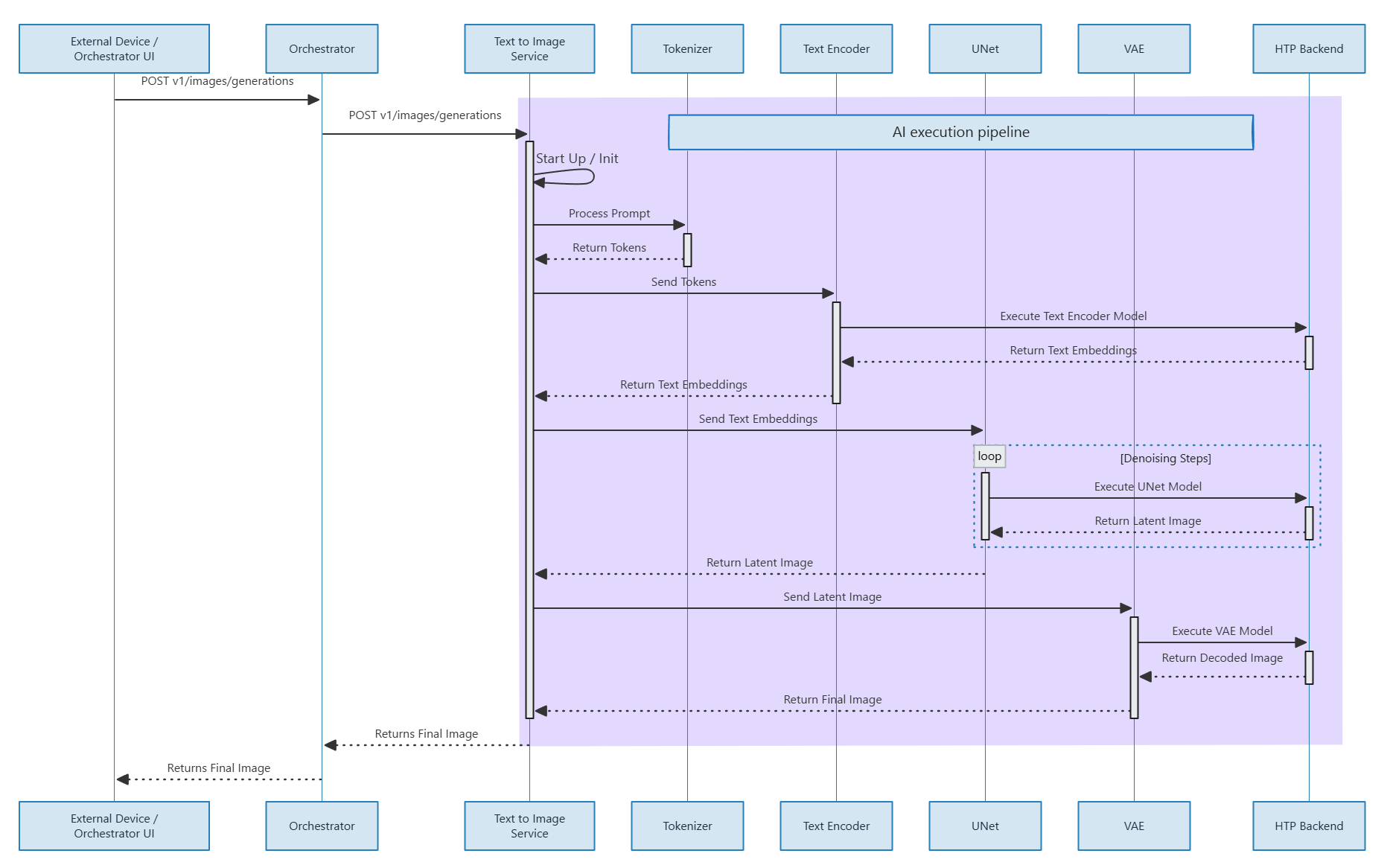
Image-to-text
The image-to-text container uses a vision-language model (VLM) to describe images with natural language, enabling visual understanding and moderation use cases. For more information, see the image-to-text README and the code flow files.Text-to-speech
The following image shows an example call flow sequence in a text-to-speech container.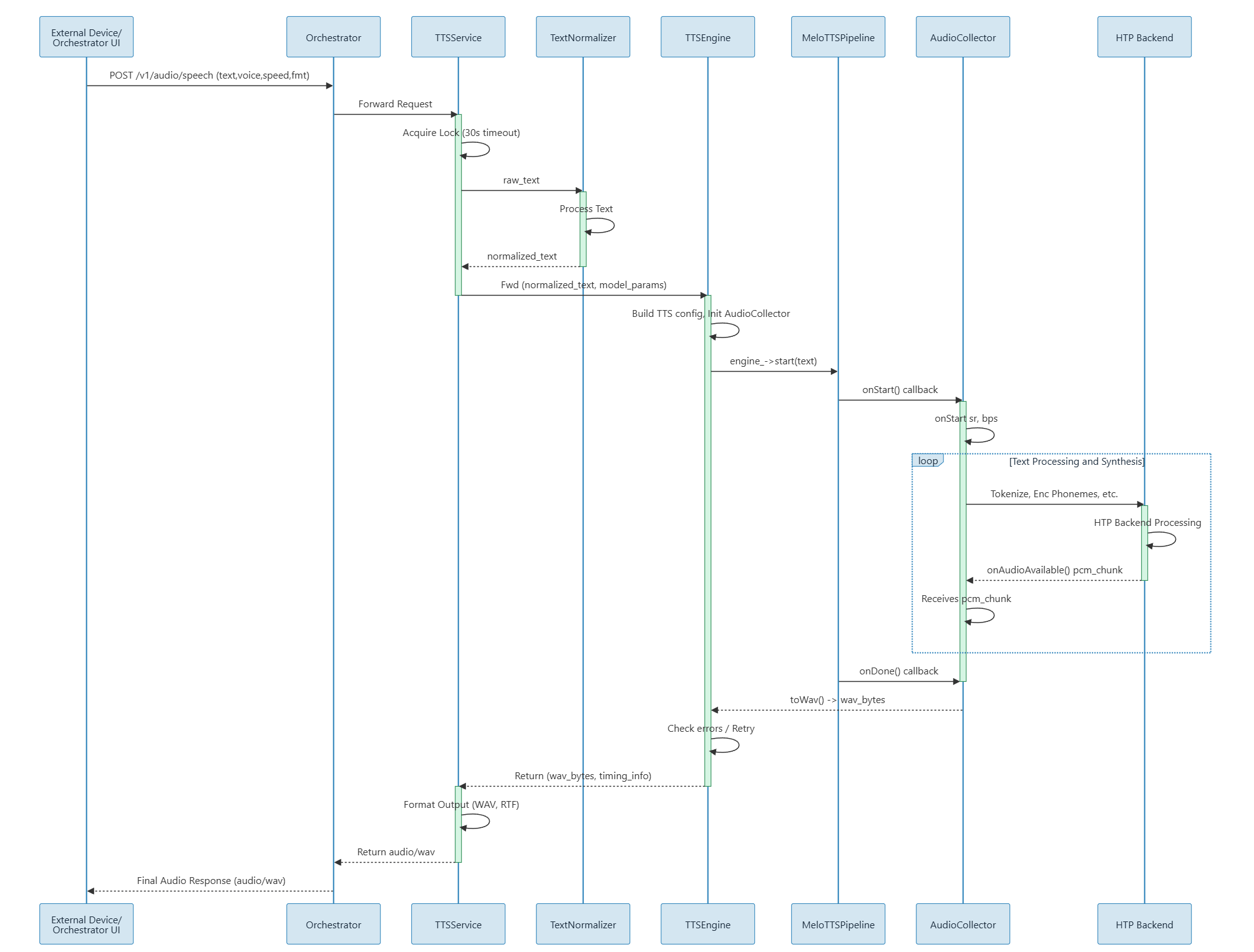
Speech-to-text
The following image shows an example call flow sequence in a speech-to-text container.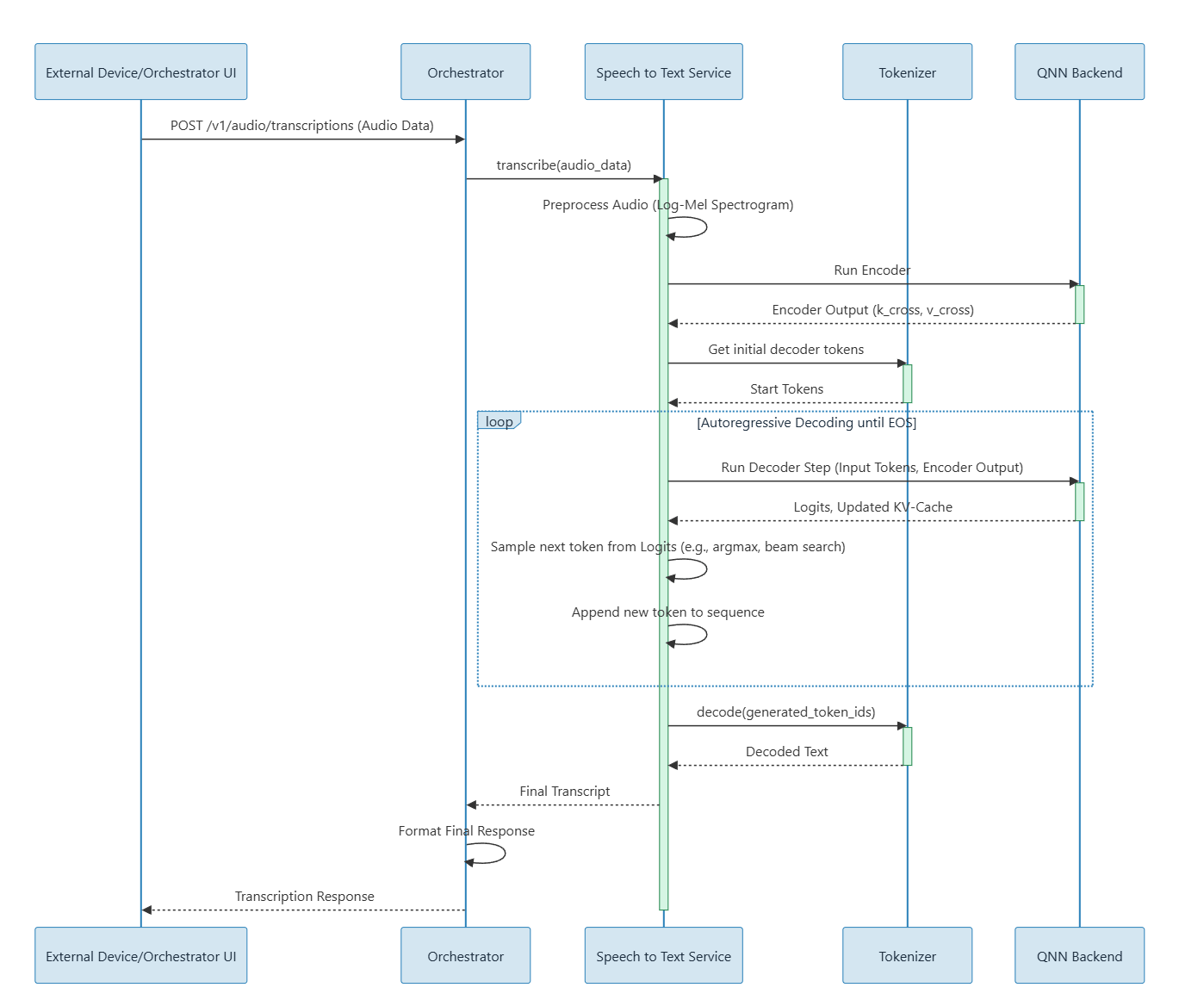
Setup GenAI Studio
GenAI Studio is supported on IQ9 with both Qualcomm Linux distributions and Ubuntu on Qualcomm IoT platforms.Language models aren’t shipped with GenAI Studio. You must generate a model using AI Hub.
- On the host computer, download the precompiled Qualcomm Linux build image for your EVK from CodeLinaro.
-
From the host computer, flash the image to the target device.
On QLI, Qualcomm-dependent DSP libraries and Docker are pre-installed.
-
Clone the repository to the target device and go to the local directory:
-
On the host computer, prepare the SDK (optional).
This is only required if you are bringing up the full stack or a private STT or TTS service.
-
From the sample app repository root directory on the target device, complete the preflight checks:
Ensure that the device is properly provisioned before running the preflight checks. For initial device provisioning, see device setup.
-
Prepare models for target.
See each service’s model generation and setup documentation for more information.
-
Build base images (one-time setup).
-
Build service images.
See the service README files (for example, core-services/README.md)
for guidance to ensure all required files are in place.
-
Start services with
docker-compose. See the README for the recommended environment variables to set before runningdocker-compose. -
Run service health checks and functional checks to verify all services are running:
-
Run the unified test suite:
For functional endpoint checks and testing, see functional endpoint test and the individual service README files.
docs folder.
To check service logs, run the following commands: